

Windows 11 hides seconds on the taskbar clock by default and, unlike older versions such as Windows 7 or Windows 10, no longer shows a large clock with live seconds in the calendar flyout when you click the time. Seconds can still be enabled on the taskbar itself, and there are a few ways to turn that on or off depending on how you manage your device.
Show seconds using Windows 11 Settings
On current Windows 11 builds, the option to show seconds is exposed directly in Settings. The exact location has moved between releases, so it helps to check both the taskbar and Date & time pages.
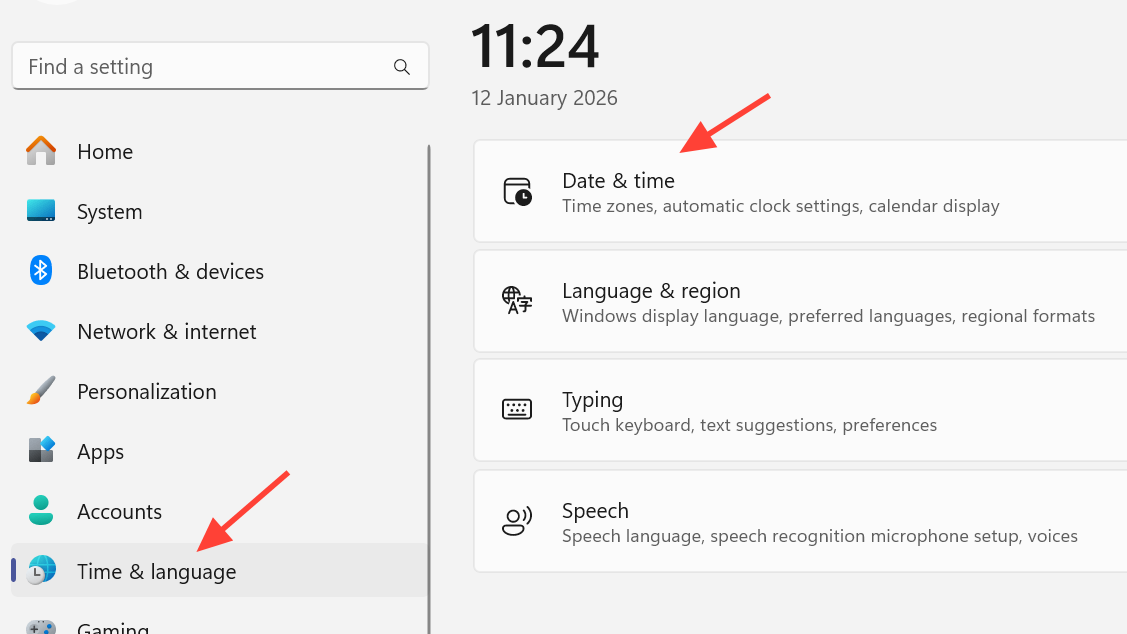
Step 1: Press Win + I to open Settings, then select Time & language and choose Date & time. On some earlier 22H2 builds, you instead go to Personalization, then Taskbar.
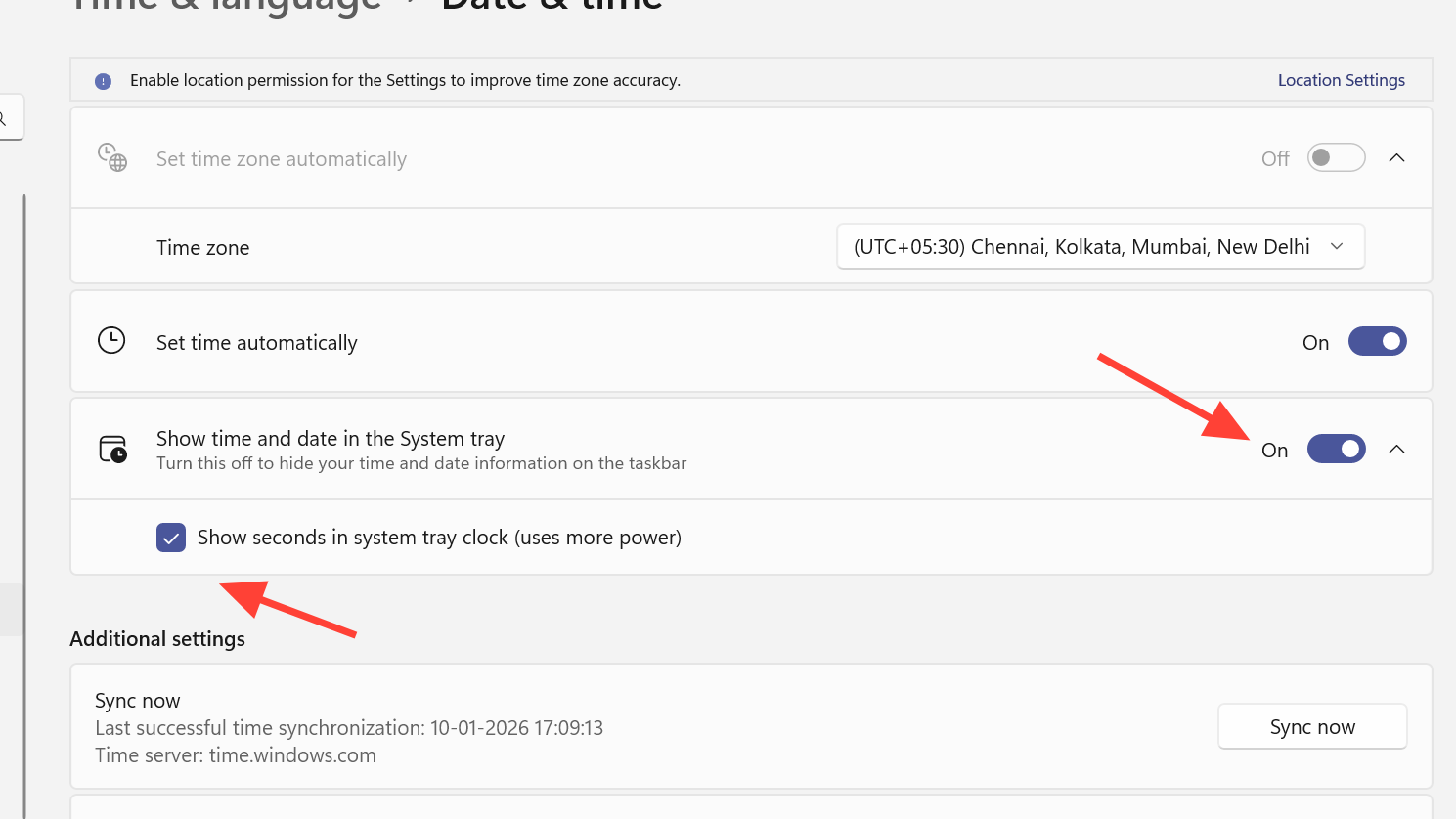
Step 2: In current 24H2-style builds, look for the section labeled Show time and date in the System tray. Turn it on if needed, then enable the checkbox labeled Show seconds in system tray clock (uses more power).
Step 3: If you are on an older 22H2 build where the option lives under the taskbar settings, expand Taskbar behaviors and turn on Show seconds in system tray clock.
Step 4: Close Settings. The change applies immediately and affects only the currently signed-in user.
Show or hide seconds using the Registry Editor
The taskbar clock reads a per-user Registry value named ShowSecondsInSystemClock. Changing this value is equivalent to flipping the checkbox in Settings, which makes it useful when you need a more direct or scripted approach.
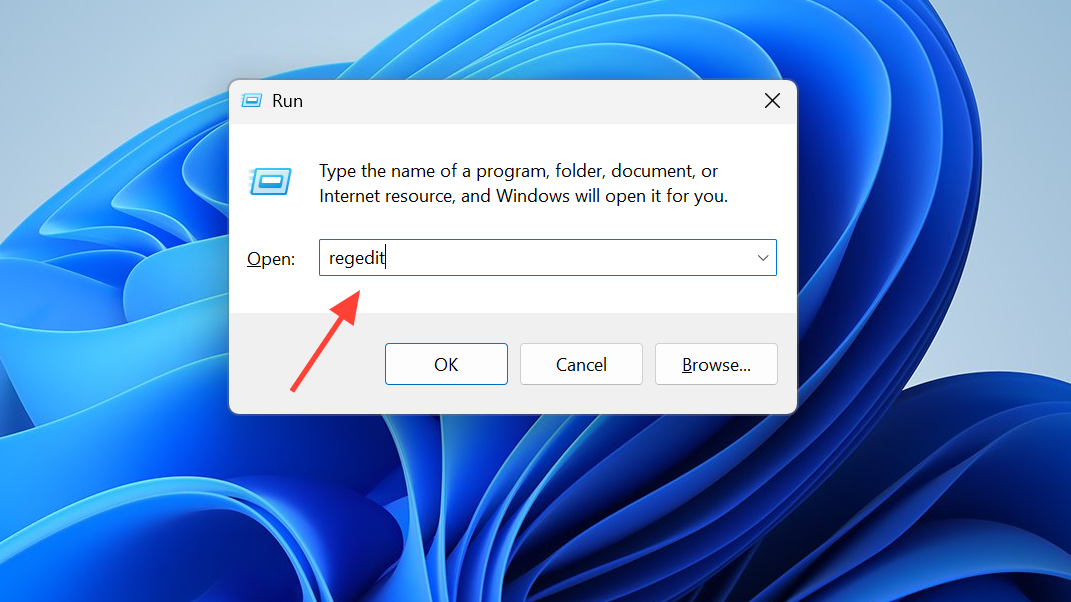
Step 1: Press Win + R, type regedit, and press Enter to open Registry Editor. Confirm the UAC prompt if it appears.
Step 2: In the left pane, navigate to HKEY_CURRENT_USER\Software\Microsoft\Windows\CurrentVersion\Explorer\Advanced. This hive stores user‑specific Explorer and taskbar preferences.
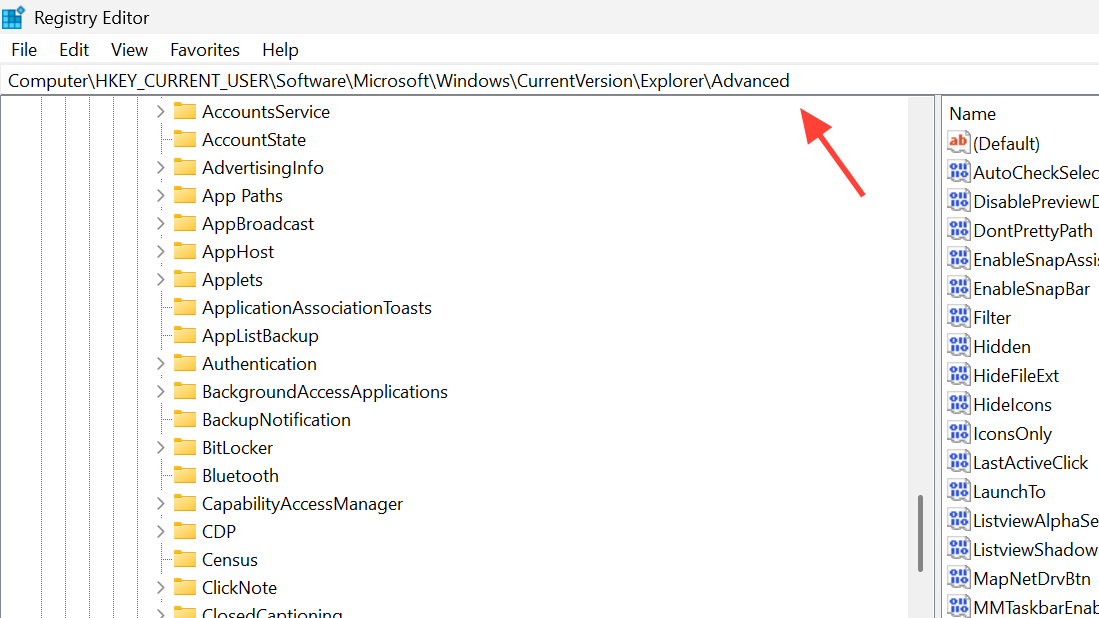
Step 3: In the right pane, locate the ShowSecondsInSystemClock DWORD value. If it does not exist, create it by right‑clicking the empty space, choosing New > DWORD (32-bit) Value, and naming it exactly ShowSecondsInSystemClock.
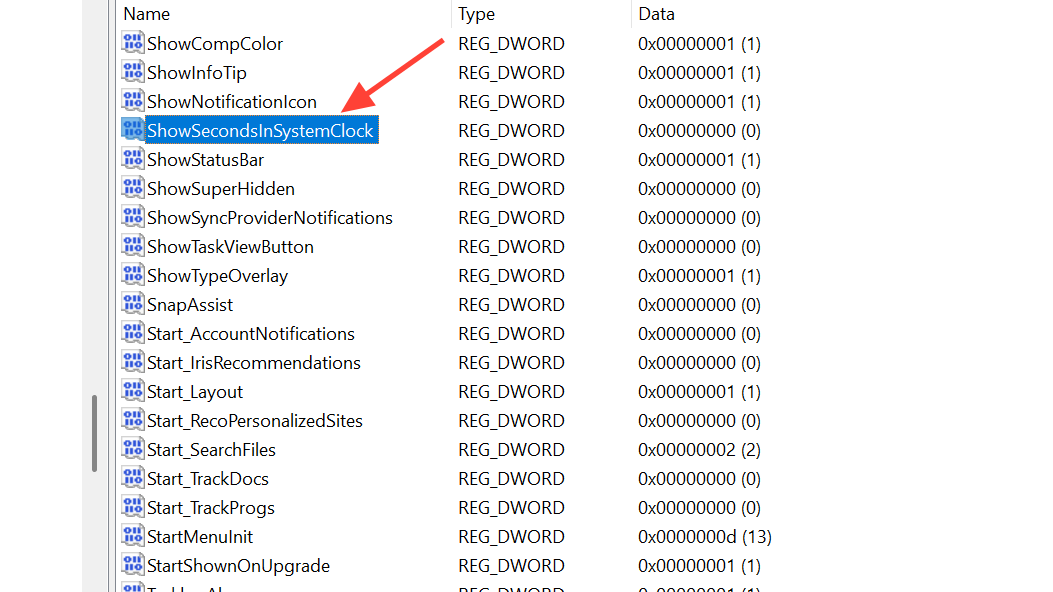
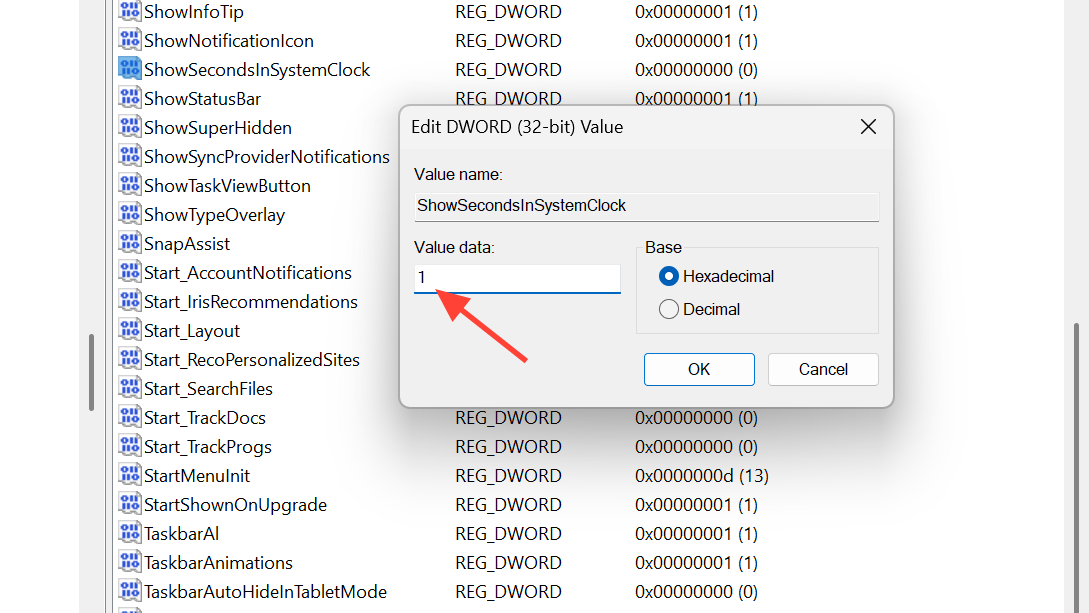
Step 4: Double‑click ShowSecondsInSystemClock and set the value data:
- 1 to show seconds on the taskbar clock.
- 0 to hide seconds and show only hours and minutes.
Step 5: Close Registry Editor. If the change does not appear right away, restart Windows Explorer. Press Ctrl + Shift + Esc, select Windows Explorer under the Processes tab, right‑click it, and choose Restart.
HKEY_CURRENT_USER affect only the current user profile. Always be careful when editing the Registry, as incorrect changes can cause profile or system issues.Show or hide seconds using PowerShell
For environments where you manage many users or devices, PowerShell is often more efficient than clicking through Settings or Registry Editor on each machine. PowerShell can write the same ShowSecondsInSystemClock value in a single command.
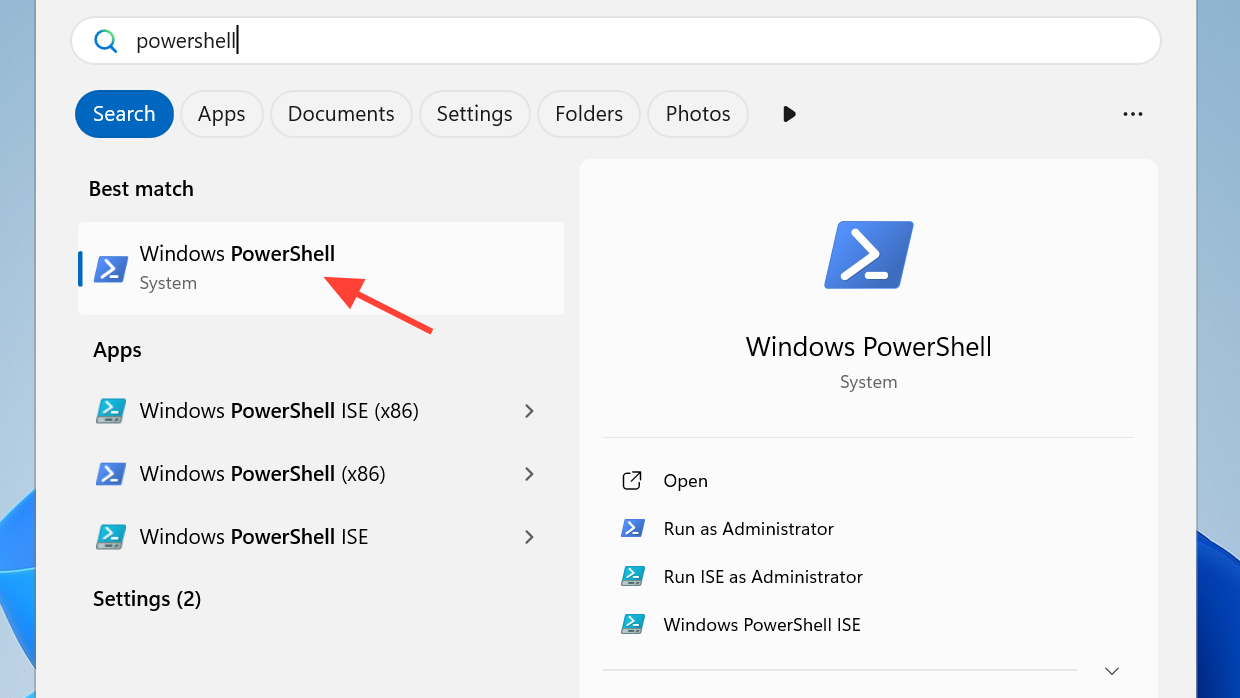
Step 1: Press Win + R, type powershell, and press Enter. A standard user PowerShell window is enough because the change is per‑user.
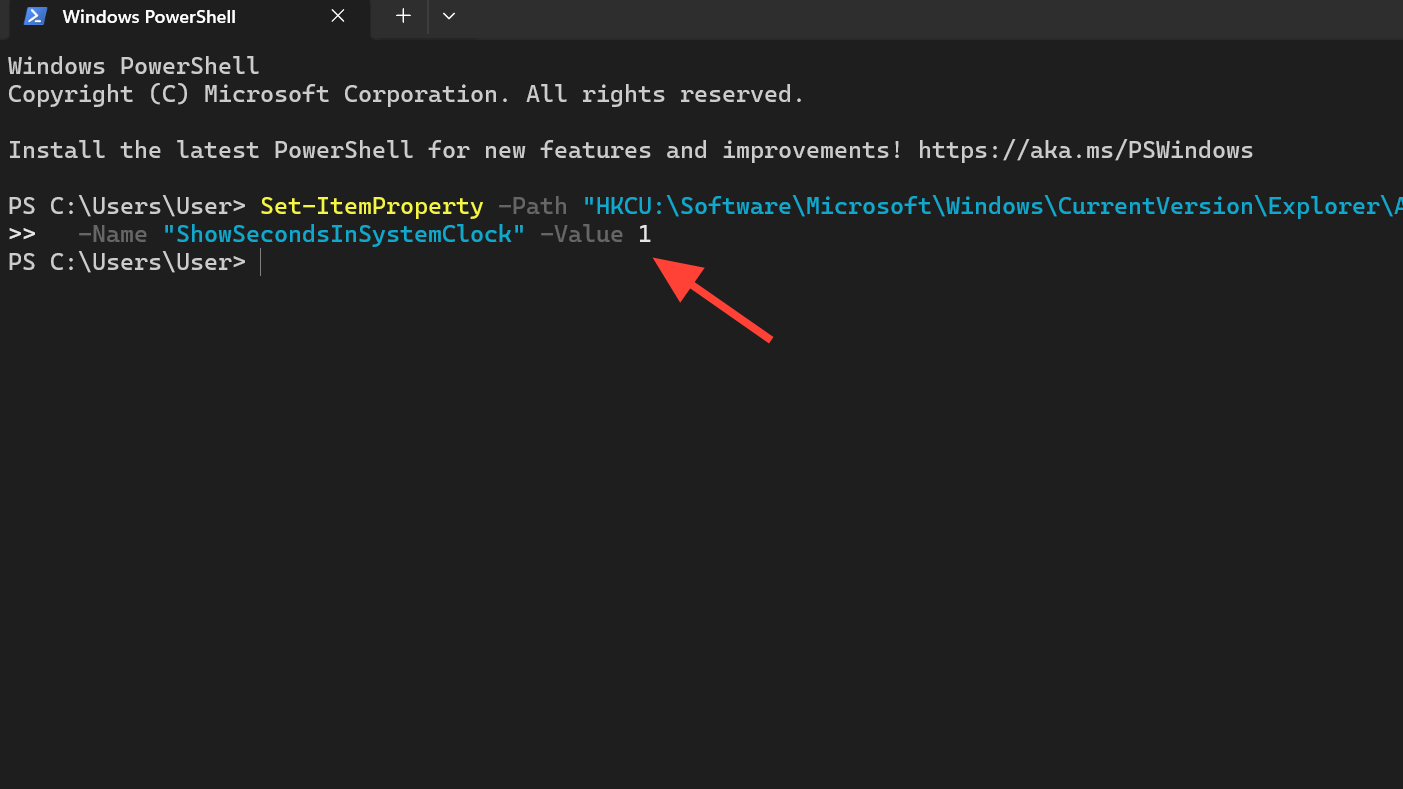
Step 2: To enable seconds on the taskbar clock, run:
Set-ItemProperty -Path "HKCU:\Software\Microsoft\Windows\CurrentVersion\Explorer\Advanced" `
  -Name "ShowSecondsInSystemClock" -Value 1
Step 3: To hide seconds again, run:
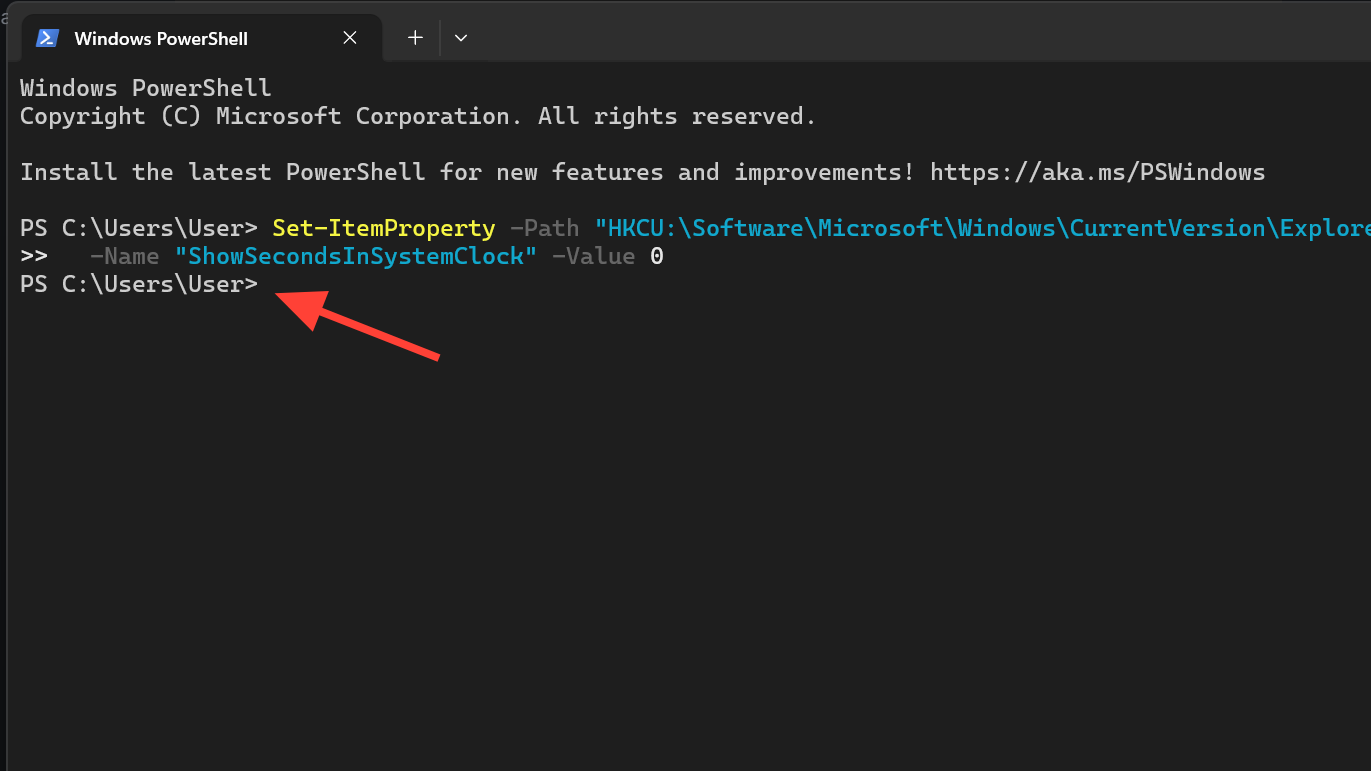
Set-ItemProperty -Path "HKCU:\Software\Microsoft\Windows\CurrentVersion\Explorer\Advanced" `
  -Name "ShowSecondsInSystemClock" -Value 0
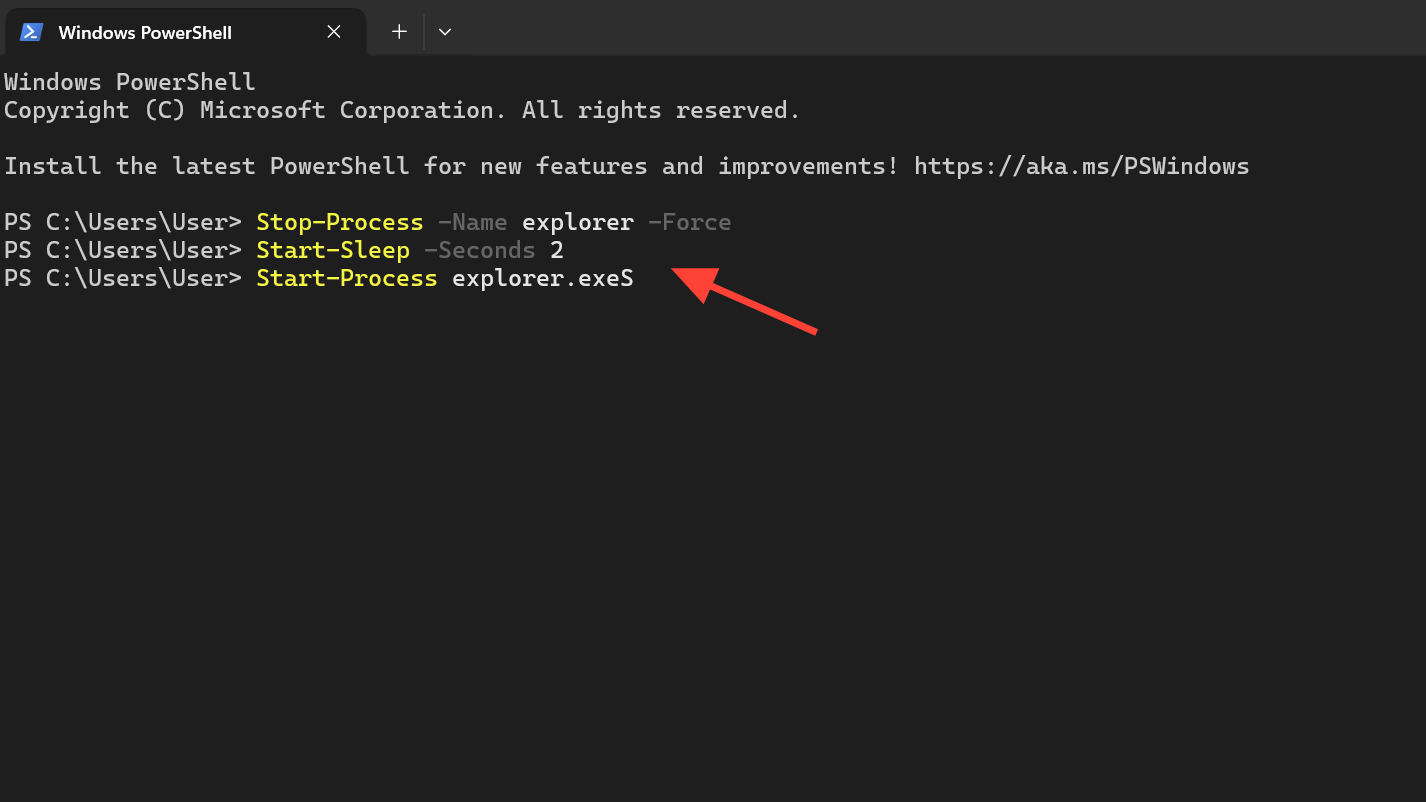
Step 4: If the system tray clock does not update immediately, restart Explorer from the same PowerShell window:
Stop-Process -Name explorer -Force
Start-Sleep -Seconds 2
Start-Process explorer.exe
These commands can be saved into a .ps1 script file and deployed as a user logon script through Group Policy or an MDM platform that supports remote PowerShell execution.
Using Group Policy or MDM to deploy the setting
There is currently no dedicated Group Policy setting that directly toggles seconds in the taskbar clock. Administrators can still standardize the behavior by deploying the PowerShell script that writes ShowSecondsInSystemClock per user.
Step 1: Open the Group Policy Management Console on a domain controller (gpmc.msc), then create or edit a GPO linked to the target Organizational Unit.
Step 2: Under User Configuration > Windows Settings > Scripts (Logon), add a PowerShell script that runs the preferred command, for example setting the value to 1 to enable seconds.
Step 3: Close the console. The script runs at next logon for users in that OU and updates their personal taskbar clock setting.
In MDM environments, the same PowerShell commands can typically be pushed as a script or run on demand against enrolled Windows 11 devices. The key detail is that the setting is always per user rather than machine‑wide.
What changed from Windows 10’s clock with seconds
Earlier desktop releases, especially Windows 7 through Windows 10, exposed seconds in two ways. The taskbar clock could be forced to show hh:mm:ss via tweaks, and clicking the taskbar clock opened a larger flyout that included a clock displaying live seconds. Windows 11’s combined calendar and notifications panel removes that live seconds view and focuses on the date picker and notifications instead.
This means two things for Windows 11 users:
- You can still have seconds in the taskbar itself using the methods above.
- There is currently no built‑in way to show a large, live seconds clock only when you click the time, the way the older flyout did. That behavior now requires third‑party utilities that recreate the classic flyout or overlay a separate clock window.
Battery and performance impact of showing seconds
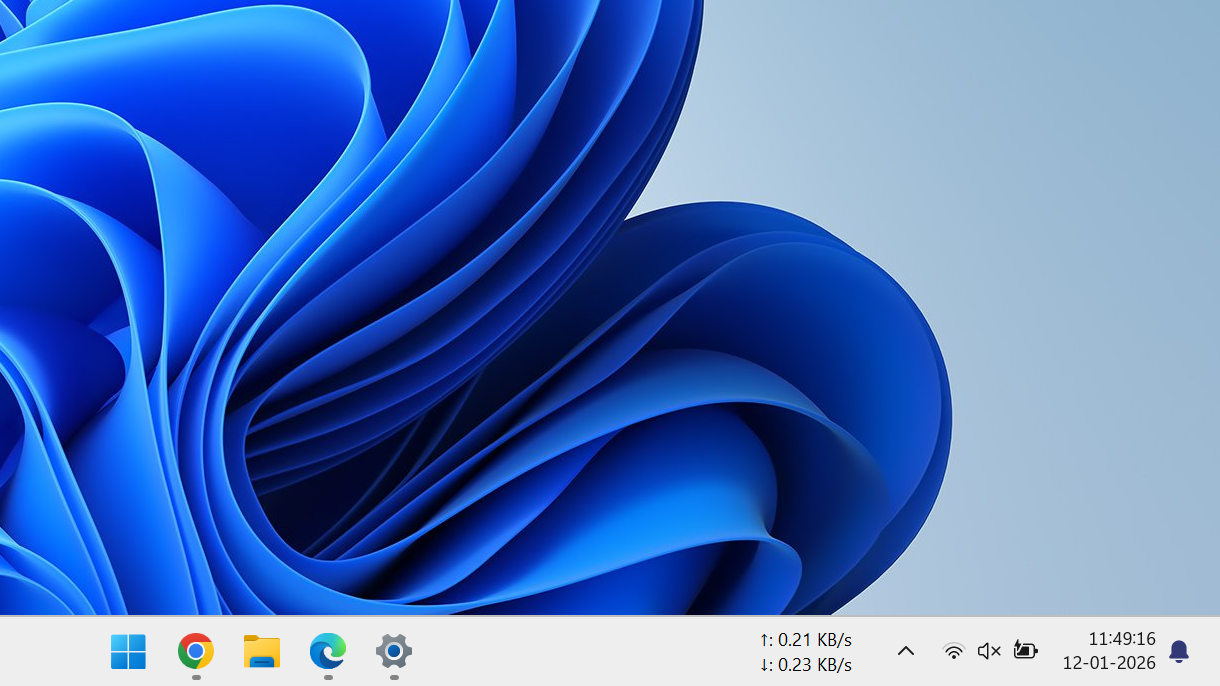
The seconds toggle is disabled by default because it forces the taskbar clock to update every second. That refresh loop prevents the CPU from entering some lower‑power idle states as often, which has measurable impact on multi‑user systems, VDI, and battery‑powered laptops.
On a typical modern desktop system, the effect is modest. It becomes more noticeable when many users share the same hardware, such as terminal servers or dense VDI hosts, where hundreds of clocks updating once per second draw additional CPU time across sessions.
Key points to keep in mind:
- On a personal desktop or well‑provisioned laptop, enabling seconds is usually fine if you value precise timing.
- On battery‑heavy workflows or thin VDI sessions, leaving seconds off conserves resources and improves battery life.
- The setting is per user. Each user on a multi‑user system can independently decide whether the extra precision is worth the overhead.
Limitations in multi-monitor and shared setups
Windows 11 still treats seconds as tied to a single system tray clock instance. With multiple monitors, seconds appear only on the clock of the primary display, even if additional clocks show hours and minutes on secondary taskbars.
In shared PC or roaming profile scenarios, the setting follows the user profile. When a roaming profile user signs in on another compatible Windows 11 machine, the preference for showing or hiding seconds is applied there as well, assuming the OS build and policy configuration allow it.
Windows 11 brings seconds back to the taskbar clock in a way that works well for users who want constant precision, but it no longer offers the old “click to see a big live seconds clock” pattern from Windows 7 and 10. For most people, flipping the toggle in Settings is enough. For administrators, the Registry and PowerShell approaches provide the control needed to standardize behavior across devices while still respecting the per‑user nature of the setting.