

Hostile mobs in Hytale spawn relentlessly, even in areas you've cleared and claimed as your own. Unlike Minecraft, placing torches does nothing to prevent spawns. Lighting has no effect on mob generation, which means securing a base requires different tactics entirely.
Quick answer: Use the command /spawning suppression add Spawn_Camp while standing in your base (requires operator status), or enter Creative Mode to delete invisible spawn markers with the Entity Grabber Tool.
Why mobs keep respawning in cleared structures
Hytale uses invisible spawn markers placed throughout the world to control where hostile creatures appear. These markers exist inside structures like Trork camps, Outlander forts, ruins, and crypts. When you clear enemies and rebuild on top of these locations, the markers remain active underground or hidden within the structure's footprint.
Destroying the visible structure does not remove these markers. The spawning system operates independently of what blocks exist above ground, which explains why skeletons reappear in towers you've renovated, and Trorks return to camps you've demolished.

Using spawn suppression commands
The most reliable method for preventing spawns in a specific area involves admin commands. This creates a suppression zone similar to the protected area around the starting temple.
Step 1: Grant yourself operator permissions by opening chat and typing /op self. This enables access to admin commands.
Step 2: Stand roughly in the center of the area you want to protect. The suppression zone has a radius of approximately 45 blocks from your position.
Step 3: Run the command /spawning suppression add Spawn_Camp. Hostile mobs should stop appearing within the protected zone.
Step 4: If you prefer not to remain in operator mode, type /op remove [your name] to revoke those permissions.
One important caveat: if you move your bed to a new location, you may need to run the suppression command again at the new spot. The zone appears to be tied to where you executed the command rather than following your spawn point.

Deleting spawn markers in Creative Mode
For more precise control, you can locate and remove individual spawn markers using Creative Mode tools. This method permanently eliminates specific spawn points rather than creating a blanket suppression zone.
Step 1: Enter Creative Mode by pressing O or using /gamemode c.
Step 2: Press TAB to open your inventory. On the right side, find the Creative Mode Quick Settings panel with three tabs (gear, wrench, pencil).
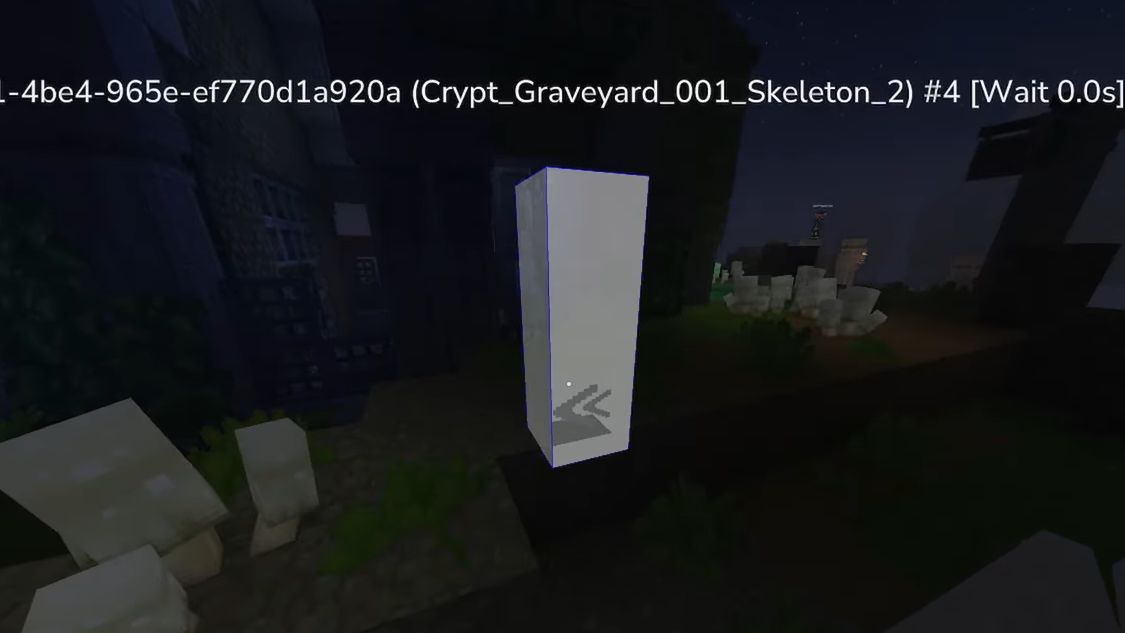
Step 3: Select the gear tab and scroll down to find Show Entity Markers. Enable this option by checking the box.
Step 4: In the inventory area above your hotbar, select the tab with the wrench and pencil icon. Locate the Entity Grabber Tool and drag it to your hotbar.
Step 5: Walk around your area looking for entity markers. These appear as small white outlined boxes with the enemy or entity name displayed above them. Think of them as invisible spawners that only become visible with this setting enabled.
Step 6: With the Entity Grabber Tool equipped, click on a marker to pick it up. Press the Delete key to remove it permanently. Enemies will no longer spawn from that specific point.
Step 7: When finished, uncheck the Show Entity Markers box, discard the tool, and press O to exit Creative Mode.
Note that some structures have multiple spawn markers, and there may be secondary spawn rules tied to certain block types or hidden markers that this method cannot address. Natural spawns outside of marked locations may still occur even with overlapping suppression zones.
Block elevation workaround
Some players have discovered that altering the terrain at exact spawn locations can disable those spawn points. If you identify the precise block where a mob appears, you can try one of two approaches:
Dig a hole at least five blocks deep directly beneath the spawn location. Spawners apparently fail to function and may delete themselves when mobs cannot materialize on valid ground.
Alternatively, cover the spawn location with solid blocks. Filling in the space where enemies would appear can prevent them from generating there.
Results vary with this method. Some players report complete success stopping specific mobs like the golem at the starting temple, while others find that certain spawn dimensions still allow enemies to appear. A hole that is only two blocks tall and three blocks wide may not be sufficient.
Server configuration for global spawn control
Server administrators can disable mob spawning entirely through configuration files. Navigate to home/container/universe/worlds/default/config.json and locate the "IsSpawningNPC" setting. Change its value to false to prevent all NPC spawning across the world.
The global command /spawning disable achieves a similar effect without editing files, halting natural mob spawning server-wide. Use /spawning enable to restore normal behavior.
These options affect the entire world rather than specific areas, making them suitable for creative builds or testing, but less practical for survival gameplay where you want enemies elsewhere.
Mods for spawn prevention
Community-created mods offer additional solutions. At least one mod allows placing a totem that purges spawners from the surrounding area, providing an in-game item solution rather than relying on commands or Creative Mode.
Hytale's spawning system differs fundamentally from games where light level determines mob generation. Until official tools provide cleaner methods for claiming and protecting territory, these workarounds represent the current options for keeping your base free of unwanted visitors. The spawn suppression command remains the most straightforward solution for most players, while Creative Mode marker deletion offers surgical precision for stubborn spawn points.