

The Roblox error “Roblox encountered an unexpected error.” (sometimes followed by “Press OK to create a support file” or “Press OK to make a memory dump.”) typically shows up when the Windows client crashes at launch. The fixes that work tend to fall into a few buckets: a corrupted local install, a security/virtualization feature Roblox doesn’t like on a given build, or third-party antivirus interference.
Quick answer: Uninstall Roblox, reboot, reinstall Roblox, then test again; if it still crashes, test with Windows Security “Memory integrity” turned off or SVM/virtualization disabled (and check for third-party antivirus conflicts).
Fix 1: Clean reinstall (the fastest win)
Step 1: Uninstall Roblox from Windows. Use Windows Settings so you remove the installed app cleanly rather than only deleting shortcuts.
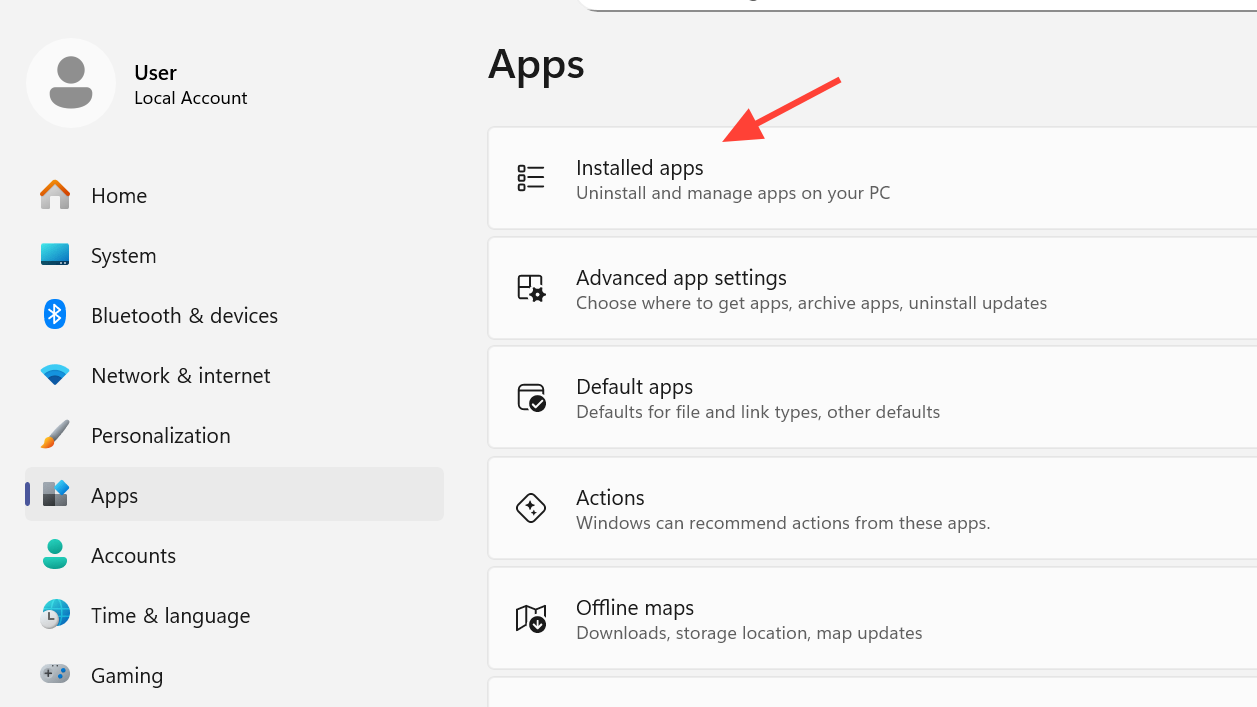
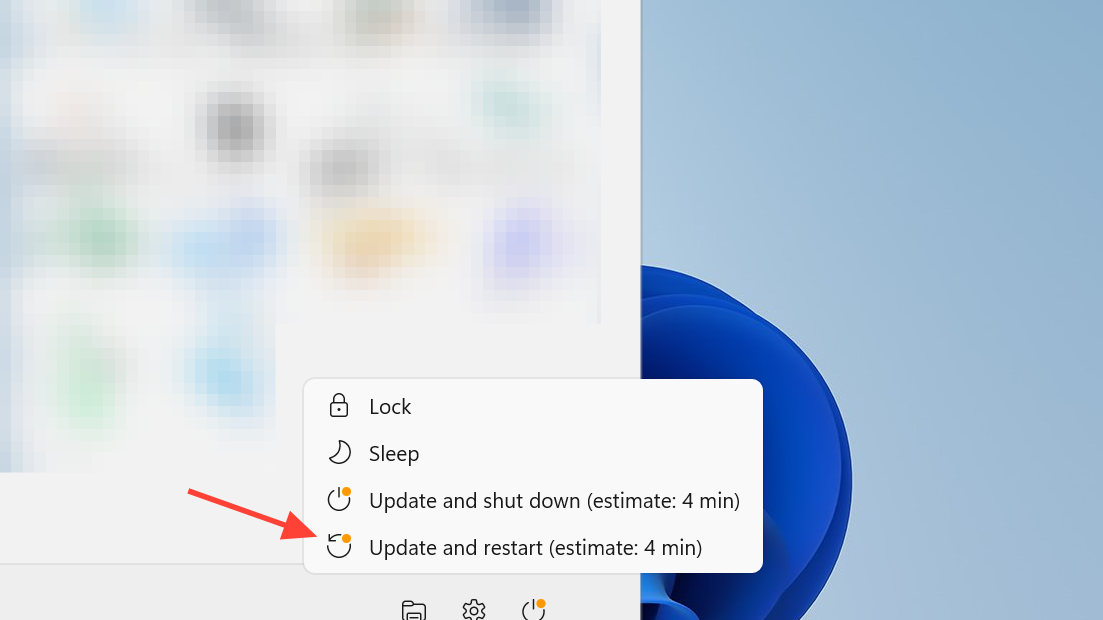
Step 2: Restart your PC. Don’t skip this; it clears running processes and can force Windows to unload anything that stayed resident after uninstall.
Step 3: Reinstall Roblox and launch it normally. If Roblox opens and you can join a game without the crash dialog, the issue was likely a broken local install.
Fix 2: Remove the local Roblox folder after reboot (for stubborn installs)
Step 1: Restart your PC first, then open Run (Windows + R) and enter %localdata%.
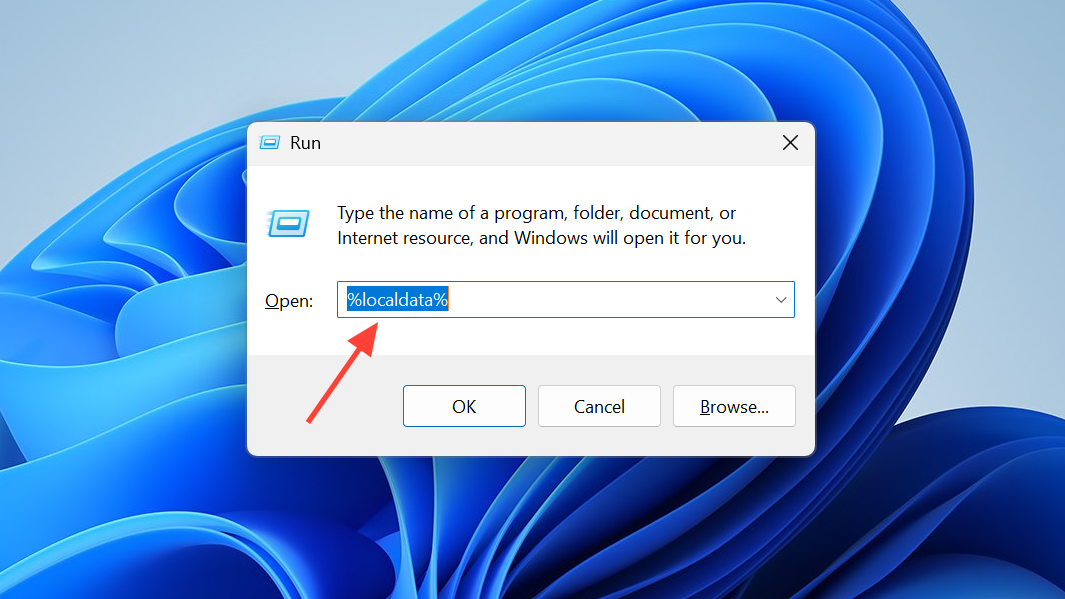
Step 2: Find the Roblox folder and delete it. This clears cached client bits that can survive an uninstall.
Step 3: Reinstall Roblox and try launching again. If the crash dialog no longer appears, the old cache was part of the failure.
Fix 3: Turn off Windows Security “Memory integrity” (Core isolation)
Some Windows systems can launch Roblox only when “Memory integrity” is disabled under Core isolation. This is a security feature, so treat it like a test: if it fixes Roblox, you’ve narrowed down the cause.
Step 1: Open Settings (Windows Key + I), then go to Windows Security.
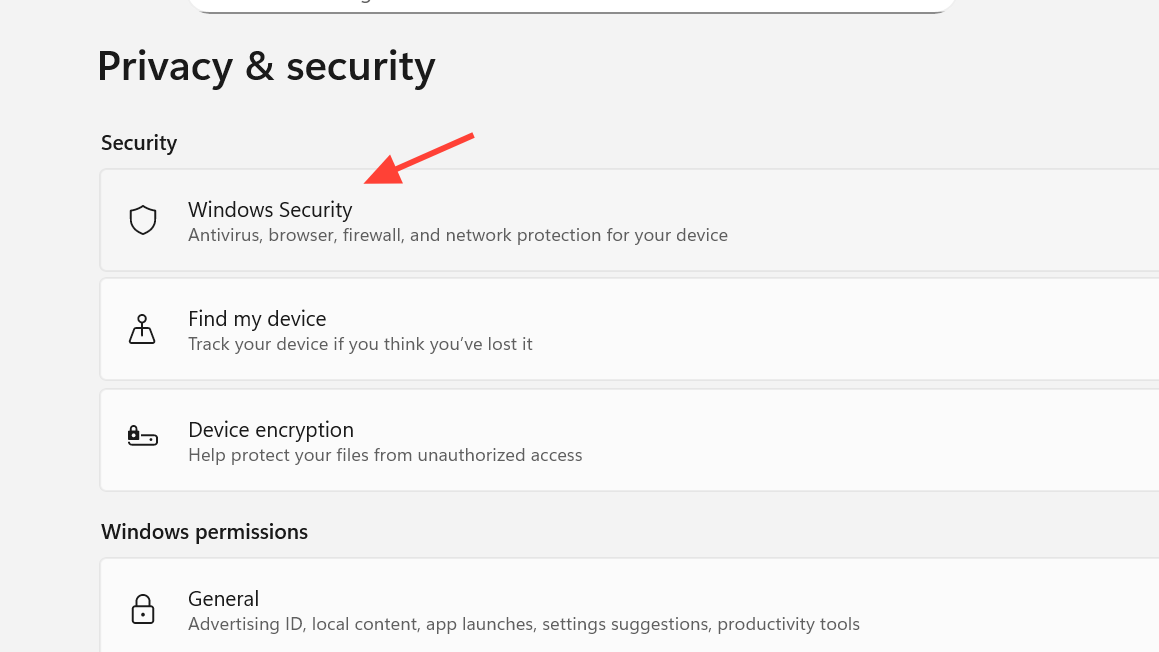
Step 2: Open Device security, then open Core isolation details.
Step 3: Turn off Memory integrity, restart your computer, and reinstall Roblox.
How you know it worked: Roblox launches without showing the memory dump / support file prompt.
Fix 4: Disable SVM / virtualization in BIOS/UEFI (AMD systems hit by this crash)
On some AMD Ryzen systems, Roblox can crash at launch until SVM (Secure Virtual Machine / AMD-V) is disabled in firmware. This change is made in BIOS/UEFI and can also affect features like BitLocker.
Step 1: If your drive uses BitLocker, back up your drive encryption key before changing firmware settings.
Step 2: Restart your computer and enter BIOS/UEFI during boot (commonly Delete or F2).
Step 3: Navigate to an Advanced or Configuration area, then CPU Configuration, find SVM Mode (on AMD systems), set it to Disabled, save changes (often F10), and reboot.
How you know it worked: Roblox launches normally instead of crashing into the “unexpected error” dialog.
Fix 5: Check third-party antivirus (Norton 360 is a known conflict)
Some installs fail because a third-party antivirus product blocks or interferes with Roblox at launch. Norton is one example that has been linked to this specific crash behavior.
Step 1: If you have a third-party antivirus installed (especially Norton 360), temporarily disable it or uninstall it.
Step 2: Restart your PC and try launching Roblox again.
How you know it worked: Roblox launches, and the crash prompt stops appearing while the antivirus is disabled/uninstalled.
Where the memory dump/support file usually ends up (when you need it)
If Roblox prompts you to create a memory dump, it may land in Windows’ temp directory.
Step 1: In File Explorer, enable “Show hidden items.”
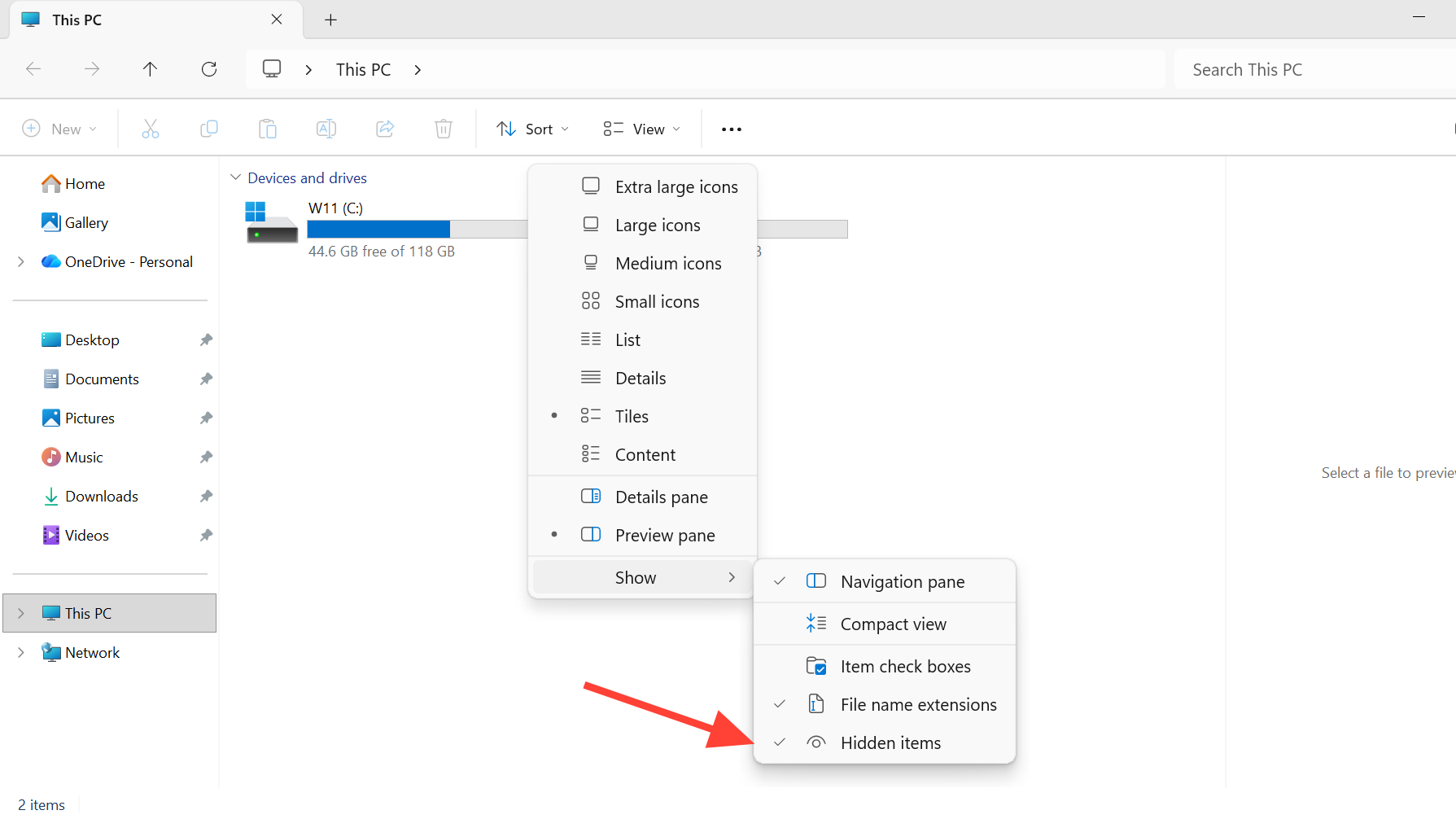
Step 2: Go to C:\Users\(your user)\AppData\Local\Temp and look for newly created dump/support files after reproducing the crash.
When none of these fixes apply
Some memory dump crashes aren’t fixable locally. A notable case is ARM-based Windows devices, where Roblox can stop launching after an anti-cheat-related update; in that scenario, reinstalls and Windows-side tweaks may not change the outcome.