

Windows 11 now lets AI agents live in the taskbar so they can run jobs for you in the background, show progress, and ask for input without taking over your screen. Everything is built around a new Ask Copilot search box and a dedicated agent workspace that keeps automated activity isolated from your main desktop.
Check requirements and understand what taskbar AI agents can do
AI agents on the taskbar are rolling out with the agentic OS features in Windows 11 and are currently in preview. They tie into Microsoft 365 Copilot and other AI agents that understand goals, plan steps, and operate apps and files on your behalf. Agents can research information, work with documents, or automate repetitive workflows while you continue using your PC normally.
Each agent runs in its own agent workspace. This workspace is a separate, policy-controlled environment that has its own Windows account identity. It lets agents open apps, access files, and change settings in a contained way so their actions can be audited and do not directly interfere with your primary desktop session.
Taskbar integration is optional. You can leave agentic features turned off, or enable them only when your organization and security policies allow it. Admin tools such as Microsoft Intune, Microsoft Entra, and Group Policy will be able to control agent connectors, workspaces, and minimum security policies for these features.
Use Ask Copilot on the taskbar as your entry point
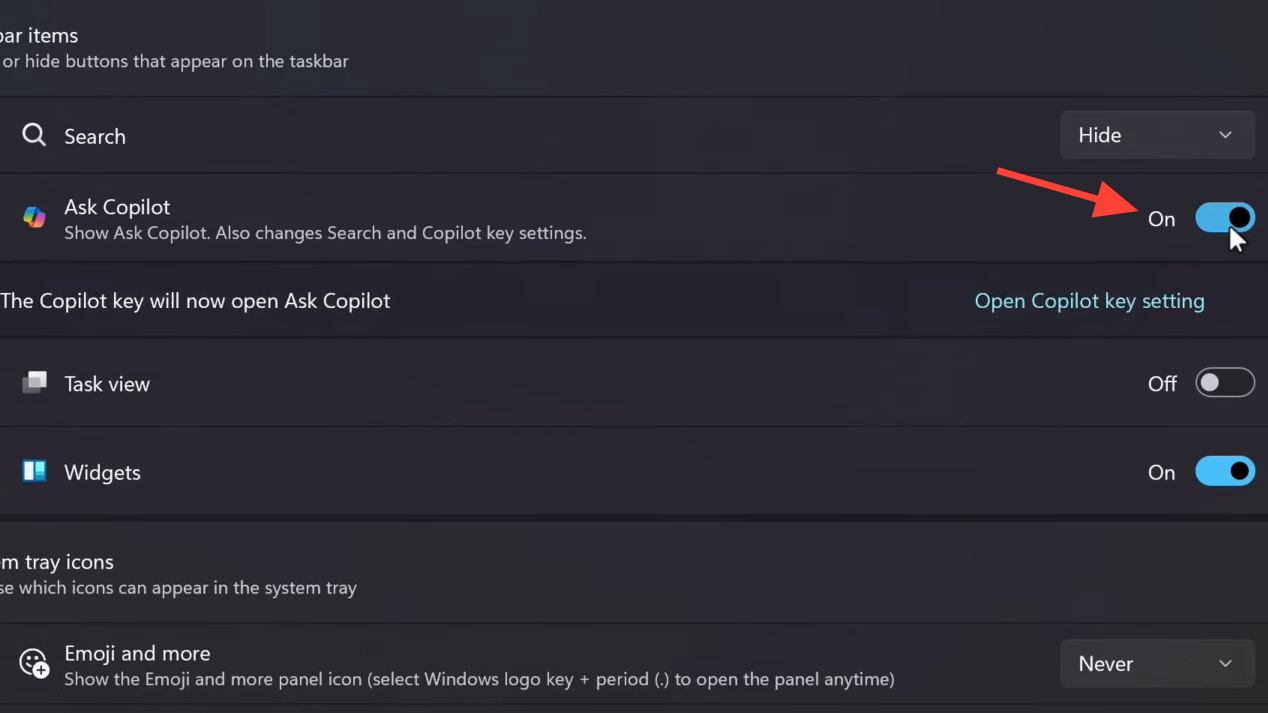
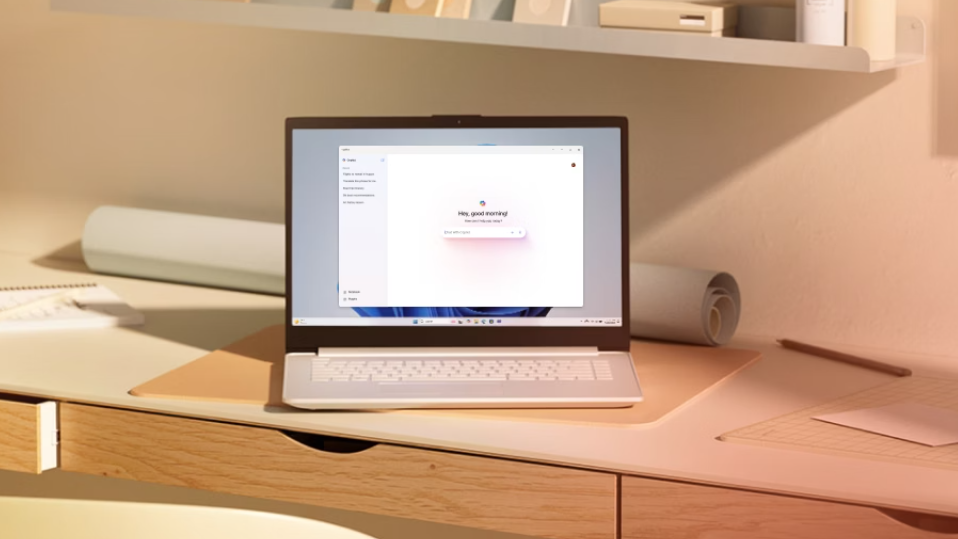
The traditional Windows search box is being replaced with a new Ask Copilot experience on the taskbar. This box combines local search for apps, files, and settings with direct access to Microsoft 365 Copilot and AI agents.
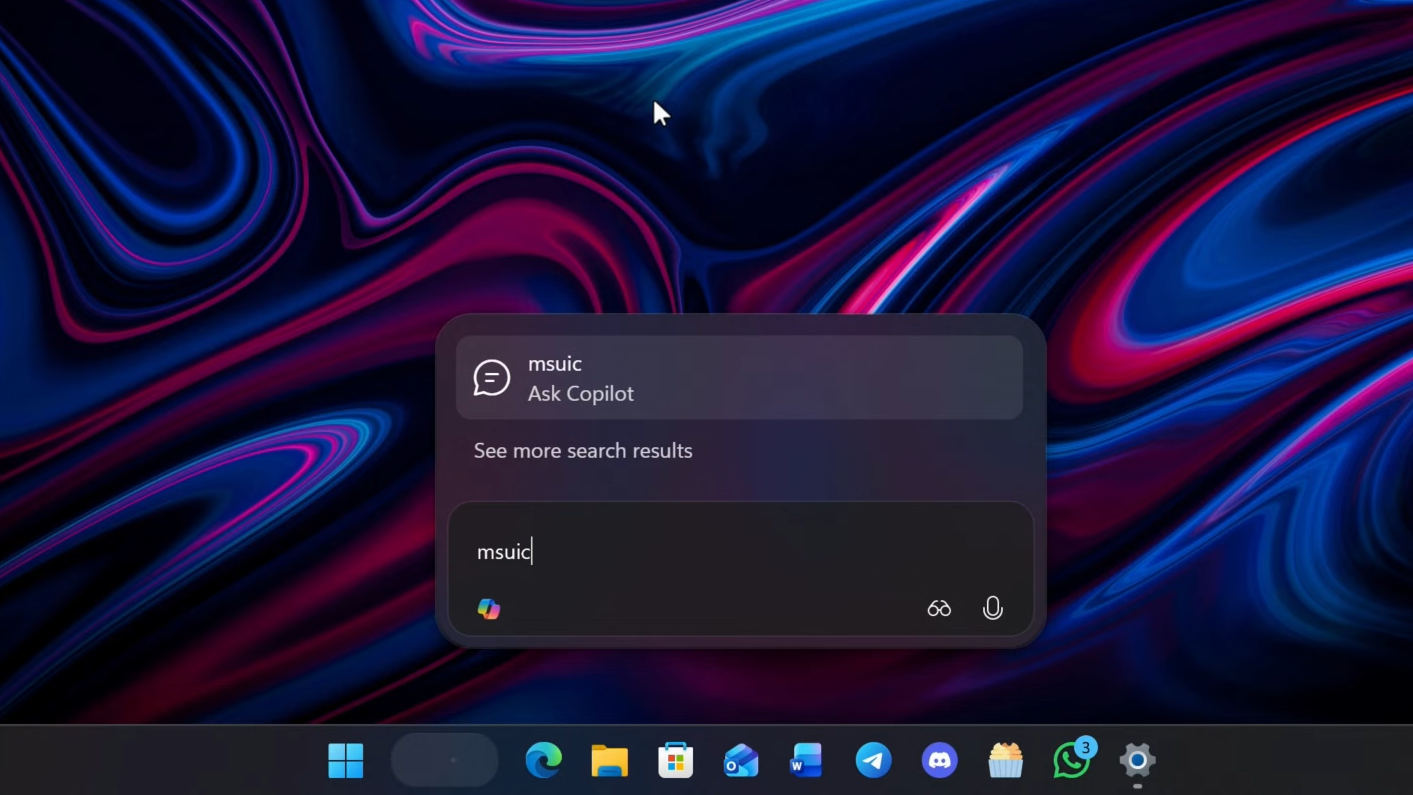
When enabled, Ask Copilot lets you type natural language prompts, search queries, or commands and receive responses in a floating Copilot window. You can use it for quick questions, content generation, or to start longer-running agent tasks.
The new design uses a single waveform-style button inside the pill instead of separate Vision and Voice buttons. Voice input can be activated through the Copilot key on compatible keyboards or the Win+C shortcut on devices without that key. Saying “Hey Copilot” can also trigger voice for Microsoft 365 Copilot on supported devices, letting you speak instructions instead of typing.
Start an AI agent from the Windows 11 taskbar
Method 1: Invoke an agent using @ in Ask Copilot
Step 1: Open Ask Copilot from the taskbar.
Click the Ask Copilot pill in the taskbar to bring up the input box. This box is your unified place to search, chat with Copilot, and start agents, so you should see both a search field and access to Copilot in the same surface.
Step 2: Type @ to list available agents.
In the Ask Copilot input field, type the @ symbol. Windows will show a list of AI agents that are installed and available on your PC, such as Microsoft 365 Researcher or other organization-approved or third-party agents that support the platform.
Step 3: Choose an agent from the list.
Select the agent you want to use from the menu that appears. This tells Windows which agent should handle the next instruction you are about to give, so the right tool is used for your request.
Step 4: Describe the task and expected outcome.
After choosing the agent, type a prompt that clearly states what you need and what “done” looks like. For example, you might ask it to summarize a folder of reports, compile research on a topic, or transform data into a structured format, including your deadline or preferred result.
Step 5: Send the request to start the agent.
Press Enter to submit the prompt. The selected agent begins working on your task, and its activity shifts from the Ask Copilot pane to its own taskbar icon so it can continue running in the background while you do other work.
Method 2: Invoke an agent from the Ask Copilot tools menu
Step 1: Open the Ask Copilot tools menu.
With the Ask Copilot input box visible, locate the tools or instruments button associated with the composer. This menu contains additional actions, such as starting specific agents that are integrated with Windows.
Step 2: Select the agent you want to run.
From the tools menu, choose an AI agent such as Microsoft 365 Researcher or another listed agent. This automatically prepares that agent to receive a task without requiring you to type the @ symbol.
Step 3: Enter the task description.
Use the composer area to describe what the agent should do. You can include references to files, folders, or app content the agent will need, because Windows will later ask for your consent when file access or actions are required.
Step 4: Start the agent so it moves to the taskbar.
Submit the prompt. The agent will begin processing and appear as an icon on the taskbar with a hover card that shows its current progress and context. The Ask Copilot panel can then be closed while the agent continues working.
Monitor AI agents from taskbar icons
Once an agent is running, it behaves like a specialized app on the taskbar. You can see that an agent is active because its icon appears alongside your standard applications. Windows uses badges and hover previews so you can quickly understand the agent’s status without interrupting your work.
Step 1: Look for the agent icon in the taskbar.
Check the right area of the taskbar where running apps appear. Each active AI agent has its own icon, which lets you distinguish between multiple agents if you have more than one running at the same time.
Step 2: Hover over the icon to see progress.
Move your mouse over the agent’s taskbar icon. A compact floating window (hover card) appears showing what the agent is doing, its chain of steps for long-running jobs, and how far along it is. This view gives you quick insight without switching windows.
Step 3: Interpret status badges on the icon.
Watch for small badges overlaid on the agent’s icon. A green checkmark means the assigned task has finished successfully. A yellow exclamation mark signals that the agent needs more input, consent to access files, or clarification before it can continue.
Step 4: Respond when the agent requests input.
When the yellow badge appears, or the agent sends a notification, open its floating window from the taskbar and answer any questions or grant access it requests. Once you respond, the agent updates its state and continues working until the task is complete.
Control what agents can access using the agent workspace
Agent workspace is a dedicated desktop environment where AI agents operate. Each agent workspace uses its own Windows account identity and runs in a contained, policy-controlled, and auditable context. This setup allows agents to open apps, browse files, or change settings like a person would, but within tight boundaries.
Agent connectors give agents controlled access to core parts of Windows such as File Explorer and Windows Settings. These connectors are built on the Model Context Protocol (MCP), an open standard that gives AI agents a consistent way to discover tools, access data, and interact with other agents through a managed on-device registry.
Because these features can introduce new risk, security guidance warns about potential attacks such as cross-prompt injection (sometimes called XPIA), where an AI could be tricked into actions like installing malware. The agent workspace and connector policies are designed so admins can require consent, enforce least-privilege access, and log all agent actions for review.
Use AI agents with File Explorer and Microsoft 365 Copilot
The agentic work in Windows 11 is not limited to the taskbar. Copilot is being built into File Explorer and Microsoft 365 apps so you can ask questions and perform content-aware actions in place, rather than constantly switching to a separate window.
Ask Copilot in File Explorer
Step 1: Open File Explorer Home.
Launch File Explorer and go to the Home view, where your frequent and recent files appear. This area is where integration with Microsoft 365 Copilot is being added first.
Step 2: Hover over a file to access Copilot.
Position the mouse over a supported file in File Explorer Home. When available, an option to Ask Microsoft 365 Copilot appears, letting you request help related to that specific file without leaving File Explorer.
Step 3: Request a summary or insights.
Use the Copilot option to ask for a summary, questions about the document, or suggestions for how to use its content (for example, drafting an email). Copilot processes the file and returns an answer in a floating panel, while the original window remains in place.
Send content from Click to Do and use Writing Assistance
Step 1: Capture on-screen content with Click to Do (Copilot+ PCs).
On Copilot+ PCs, use Click to Do to select tables or other structured content that appears anywhere on your screen—such as in a web page or a meeting. Click to Do can turn that table into a usable Microsoft Excel table so you can work with the data directly.
Step 2: Send text or images to Microsoft 365 Copilot.
Use Ask Microsoft 365 Copilot to send the captured Click to Do content for follow-up. You can ask questions about what you captured, request analysis, or have Copilot build on the data without needing to retype it.
Step 3: Use Writing Assistance in any text box.
On Windows 11, Writing Assistance with Microsoft 365 Copilot can work across apps in any text box. It offers rewrite and proofreading options, helping you refine wording or correct grammar. On Copilot+ PCs, Writing Assistance can run offline using the on-device NPU, so these capabilities remain available even without an internet connection.
Control and security for IT administrators
For organizations, Windows provides several controls to manage agentic capabilities. Admins will be able to turn agent connectors and workspaces on or off, define minimum connector security policies, and deploy connectors packaged as MSIX. Event logs record agent activity, giving security teams insight into what automated systems are doing on managed devices.
Windows 365 for Agents extends this idea into the cloud. Agents can operate inside a full Windows 365 Cloud PC, where they can browse websites, process data, and perform automation under the same policies and safeguards that apply to human users on that virtual machine.
On Copilot+ PCs, features such as Recall integrate with Microsoft Purview so organizations can apply data loss prevention policies while still allowing users to benefit from productivity improvements. This combination is intended to keep security, compliance, and manageability at the center as more AI features appear in Windows.
Compare core AI agent features on Windows 11
The table below summarizes the key pieces involved when you use AI agents from the taskbar.
| Feature | Where you see it | What it does | Who controls it |
|---|---|---|---|
| Ask Copilot on the taskbar. | Taskbar search box (Ask Copilot pill). | Combines app/file/settings search with Microsoft 365 Copilot chat and agent invocation via @ or tools. |
User can opt in; admins can manage availability on managed devices. |
| Agents on the taskbar. | Taskbar icons with hover cards and badges. | Shows long-running agents as app-like icons, with progress, context, and status badges (green check, yellow alert). | Users start and monitor agents; policies can restrict which agents are allowed. |
| Agent workspace. | Separate, policy-controlled environment (not visible as a normal desktop). | Runs agents under their own Windows account, isolates activity, and records actions for auditing. | IT configures policies, access, and logging through enterprise tools. |
| Agent connectors (MCP-based). | Used behind the scenes by agents. | Provide secure bridges to File Explorer, Windows Settings, and other tools using Model Context Protocol. | Admins enable/disable connectors and define allowed capabilities. |
| File Explorer + Copilot. | File Explorer Home hover actions. | Lets users ask Microsoft 365 Copilot for summaries and insights about individual files. | Rolled out through Windows and Microsoft 365 update channels. |
| Click to Do. | Copilot+ PCs, on-screen capture UI. | Converts on-screen tables into Excel tables and forwards content to Microsoft 365 Copilot. | Available on Copilot+ hardware; organizations can manage via device policies. |
| Writing Assistance. | Any text box on Windows 11. | Provides rewrite and proofreading, with offline support using on-device AI on Copilot+ PCs. | Enabled by Windows and Microsoft 365 settings; admins can apply organization policies. |
AI agents on the Windows 11 taskbar turn the taskbar into a control center for automated work, as long as you enable the features and stay within your organization’s security rules; start with Ask Copilot, watch the agent icons for status, and use the workspace and policies to keep automation under control.