

The Great Faceologist is a limited-time character customization contest in Where Winds Meet. It lives half in the event menu and half in the character editor, which makes it easy to miss key steps like where to add the required tag. The result is a lot of players uploading to the wrong gallery tab or publishing without the event tag and wondering why nothing counts.
The Great Faceologist event basics
The Great Faceologist runs as part of the Timeless Bonds Version 1.1 update. It focuses on appearance rather than combat: you create and share character faces and make-up looks through the in‑game gallery.
Key details:
- Event window: December 11–31, 2025 (UTC).
- Requirements: reach level 5 and complete the Qinghe main chapter “Another New Wing.”
- Entry point: the event center page or the Great Faceologist portal in the gallery.
- What counts: character appearance uploads that are explicitly tagged with “The Great Faceologist.”
Without the tag, a gallery post is just a regular appearance upload and will not be treated as an event submission.
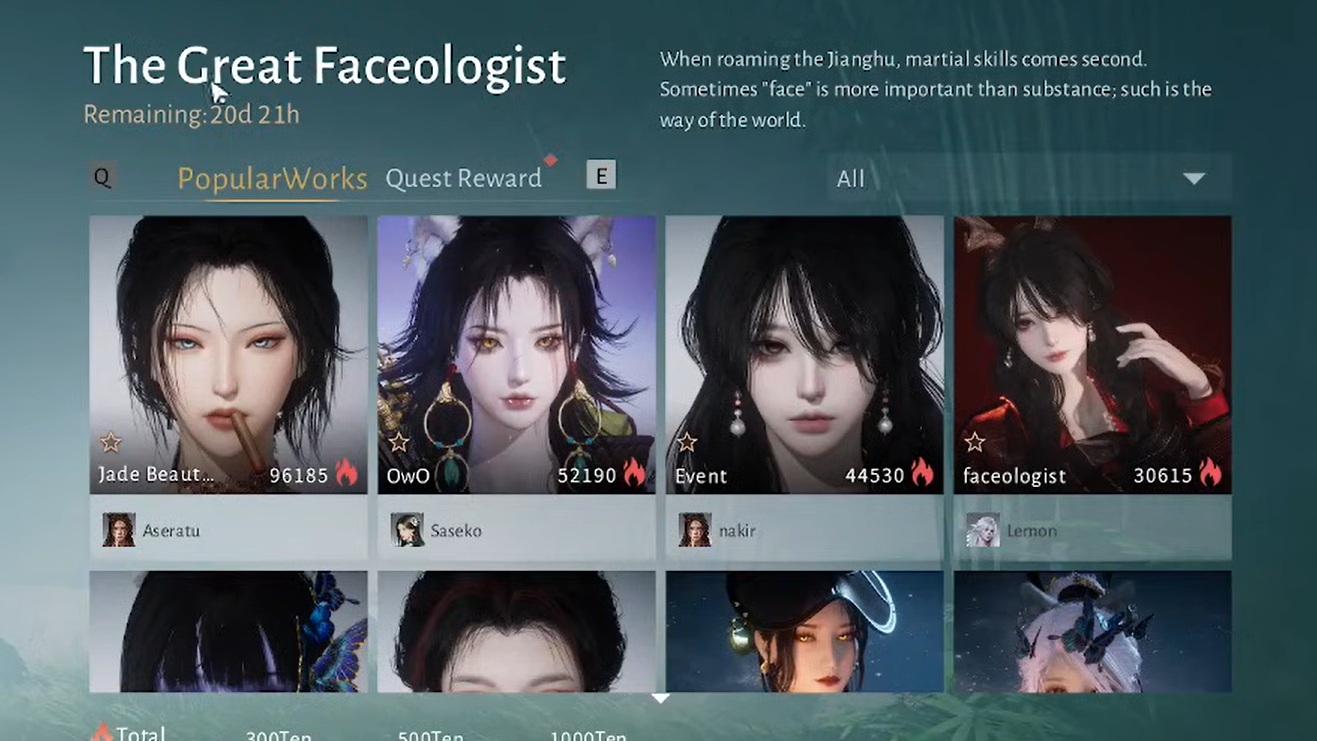
Where to upload for The Great Faceologist
The event does not use the outfit gallery. Submissions must come from the character appearance editor, specifically from the face or make-up edit screen.
The pattern is the same on PC and console, but labels and buttons can appear in slightly different positions. If an option looks missing, reopening the appearance menu or restarting the game often makes the tag box appear.
Upload a tagged face from the appearance editor (PC)
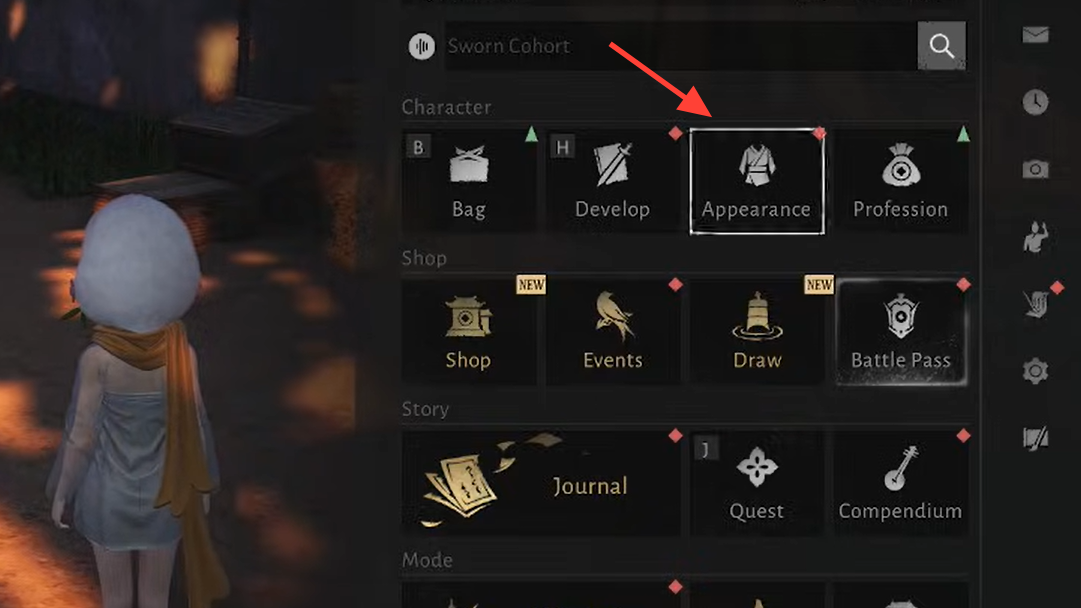
Step 1: Open the main menu with Esc and select Appearance. This takes you to the wardrobe screen.
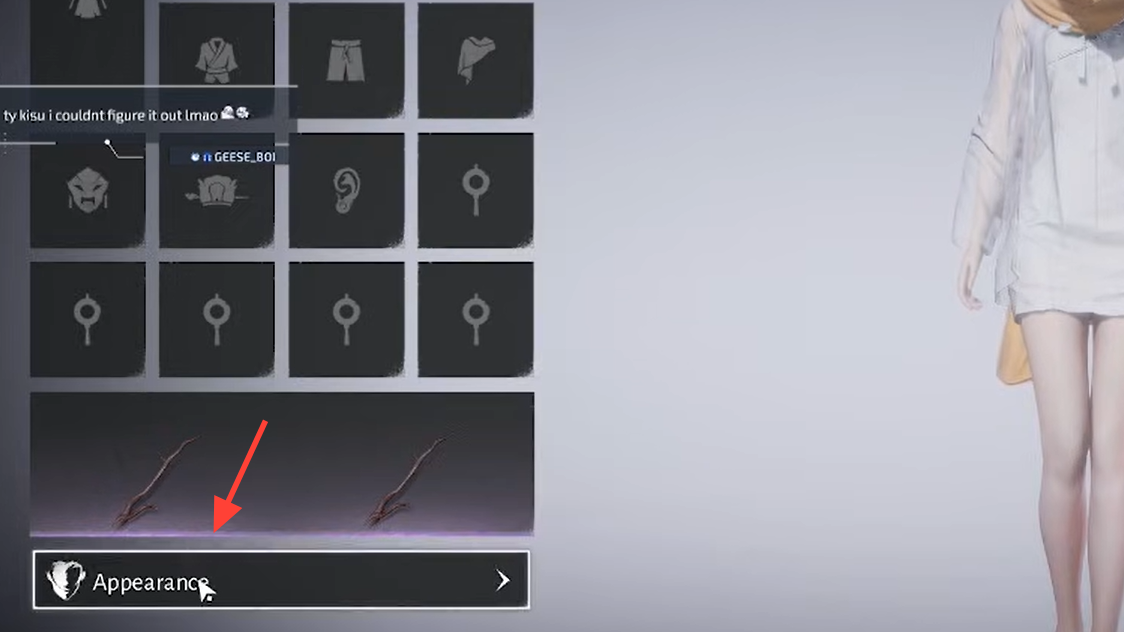
Step 2: In the wardrobe, click the Appearance button again at the bottom of the screen (bottom-left on many layouts). This switches from clothing to your character’s base appearance.
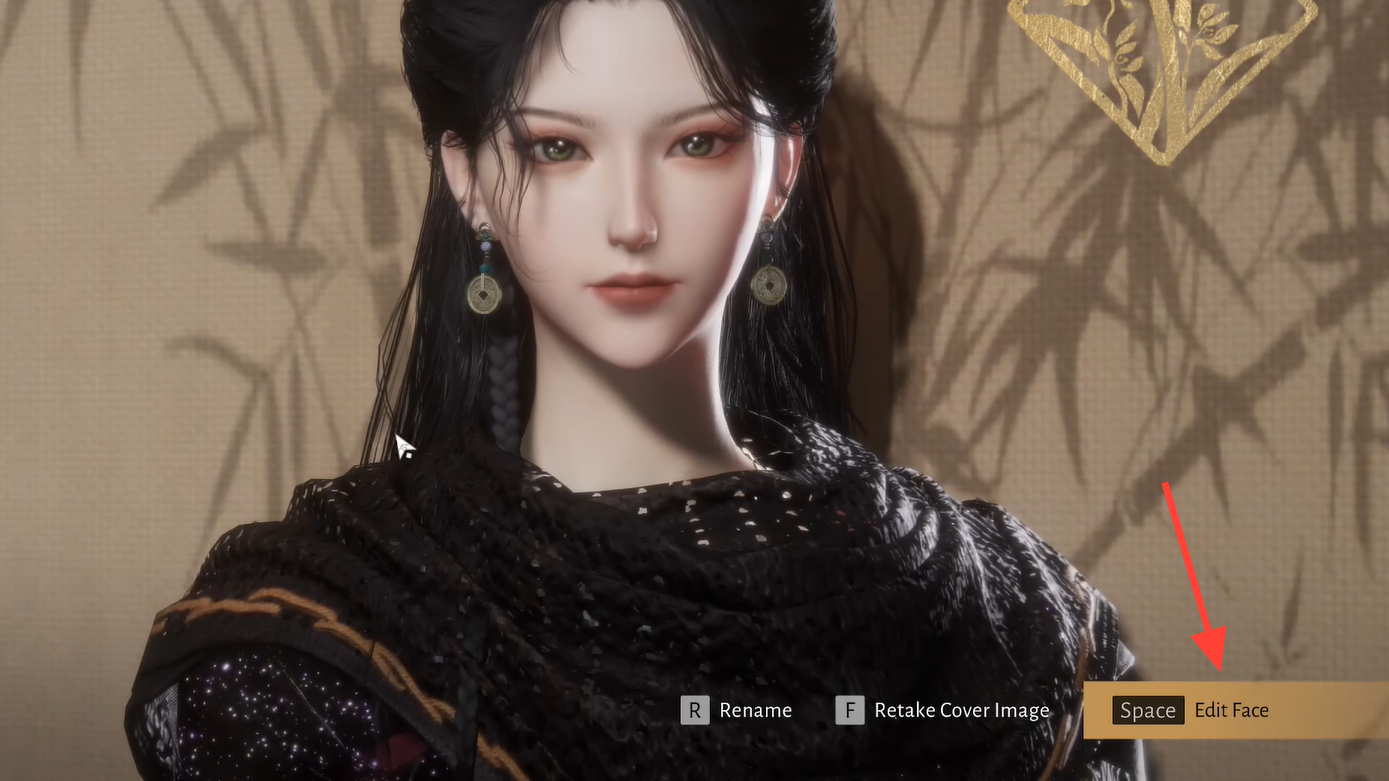
Step 3: Click Edit Face in the bottom-right corner. The camera will zoom in on your character’s face and load your saved presets or sliders.
Step 4: Choose the preset, customization, or make-up set you want to submit. You can adjust details here; saving a make-up set does not consume resources.
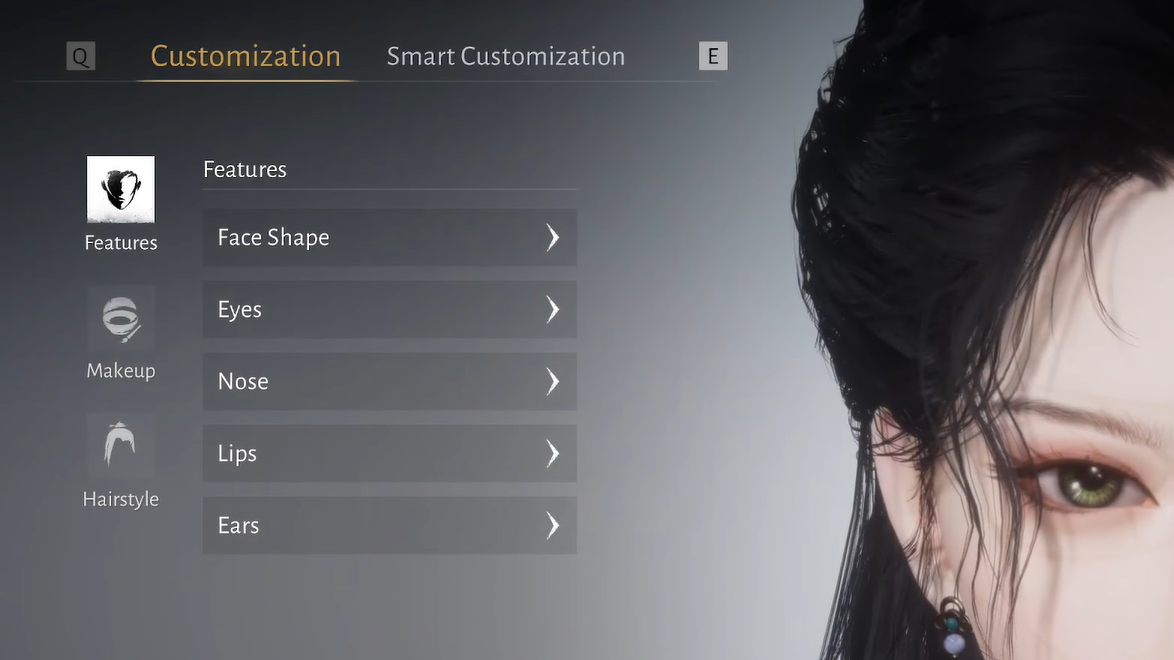
Step 5: Click Preview. Use the mouse to drag the camera and WASD to frame the shot you want. The preview frame is what the gallery will capture.
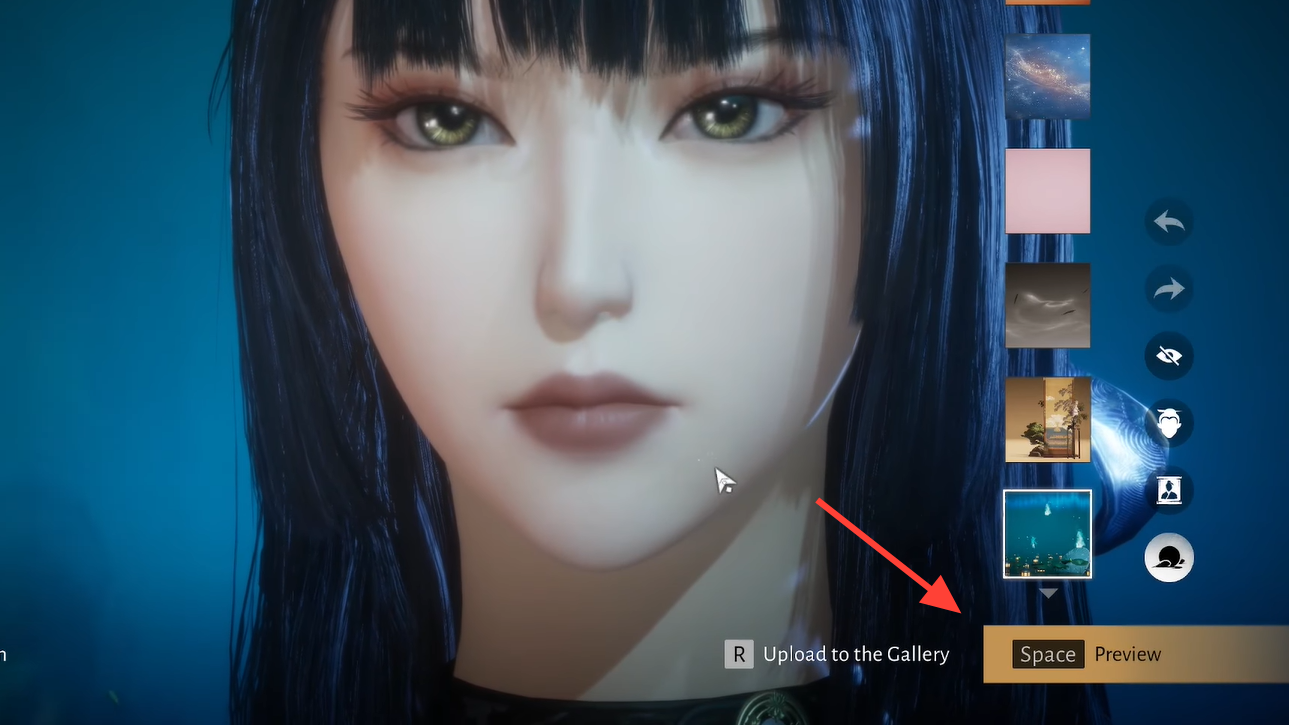
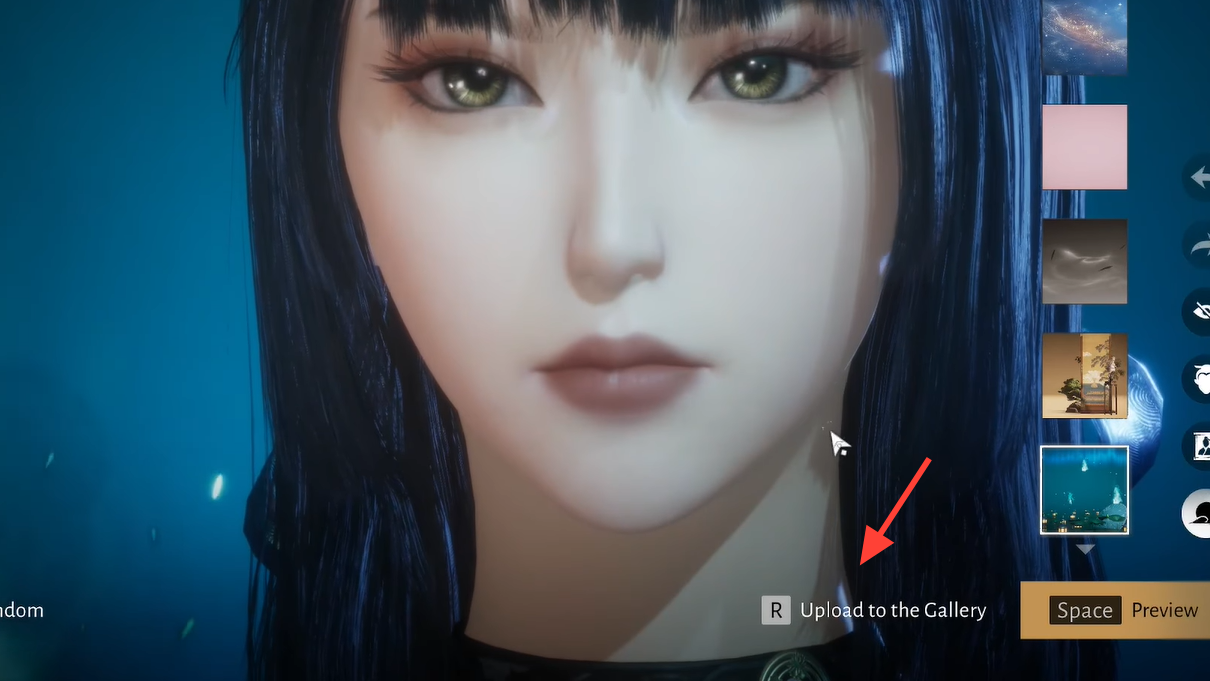
Step 6: Press R to Upload to Gallery. The game takes a snapshot of the current preview and opens the gallery upload dialog.
Step 7: Enter a title and optional description for your work. Keep in mind that other players will see both fields when browsing the gallery.
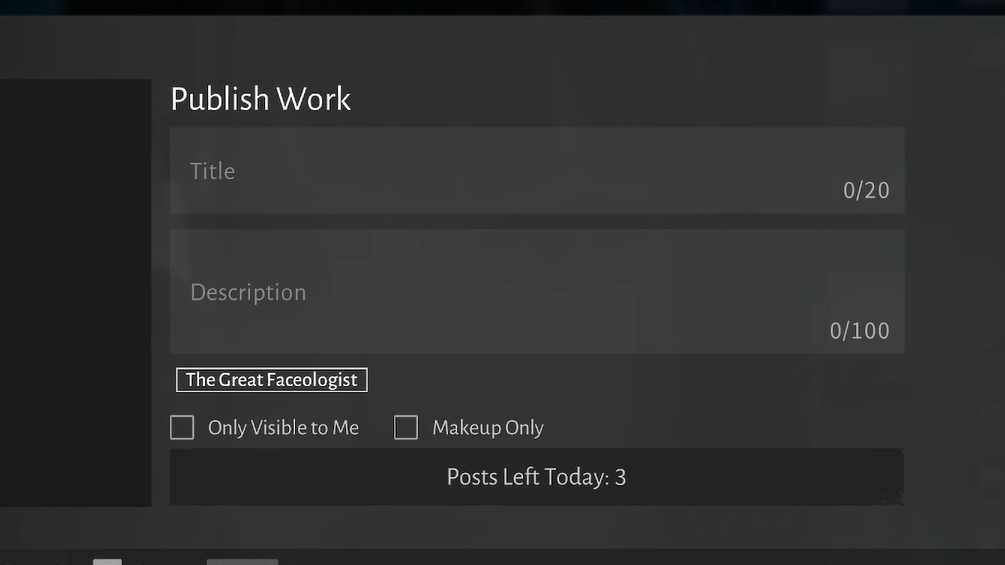
Step 8: Look directly under the description box for a tag labeled [The Great Faceologist]. Click it once so it turns solid or highlighted. This is the event tag. Do not rely on it being pre‑selected.
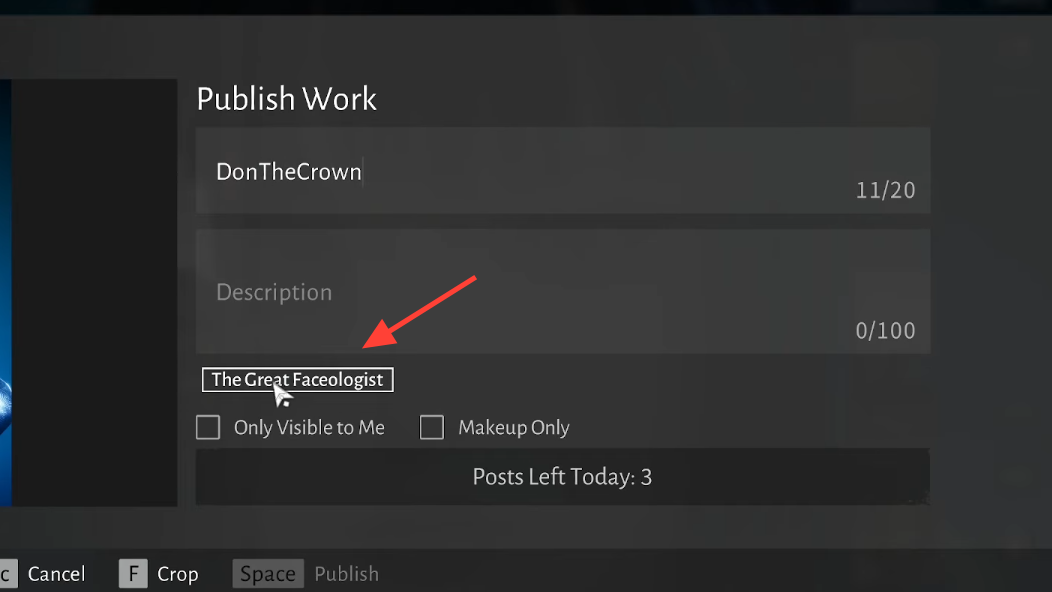
Step 9: (Optional) Decide whether to tick the “Only visible to me” box. Leaving it unchecked is usually required if you want other players to favorite or use your preset.
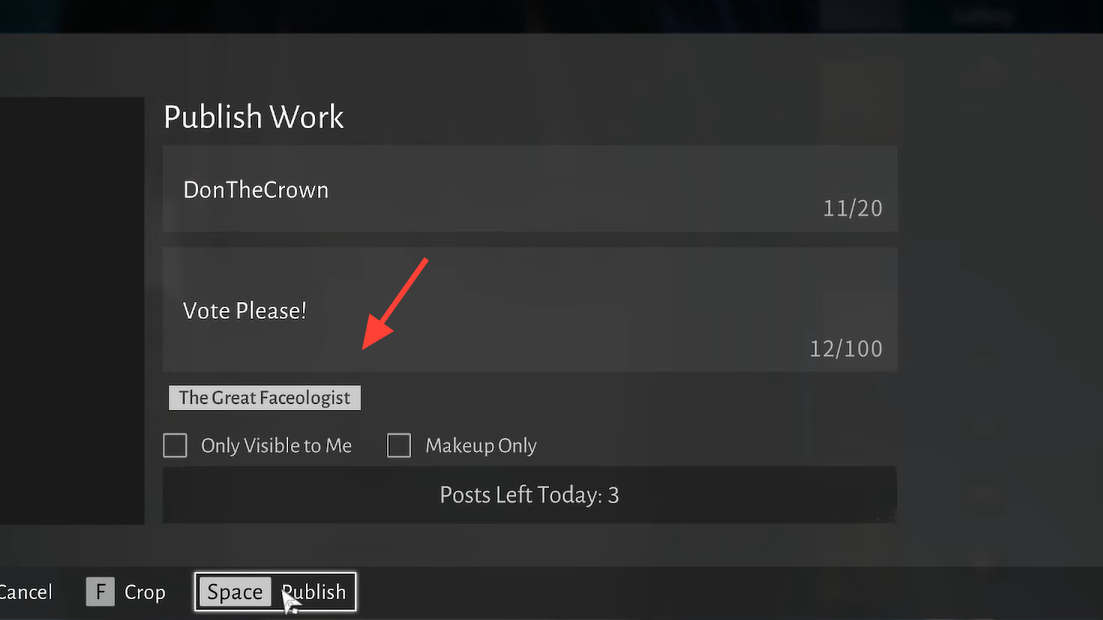
Step 10: Press the publish key (the default is the Space bar) to upload. The entry now appears in the gallery and is flagged for The Great Faceologist event.
There is a daily cap on how many times you can publish to the event; current in-game behavior allows up to five posts per day.
Upload from make-up instead of full face
Some players see the event tag only when uploading make-up rather than a full appearance preset. If the tag is not present under the description field after following the steps above, switching to the make-up tab inside the appearance editor can expose the checkbox.
Step 1: From the Edit Face screen, switch to the Makeup or equivalent tab and select one of your saved make-up looks.
Step 2: Use Preview again to frame a close-up that emphasizes the make-up design.
Step 3: Press R to upload, then check for the [The Great Faceologist] tag under the description. If it appears here but not for presets, use this path for your submissions.
Make-up saves currently do not cost in-game currency, so experimenting before publishing does not consume resources.
How to tag Great Faceologist entries on console
The flow on console matches PC conceptually, but the exact buttons change.
Step 1: Open the pause menu and choose Appearance to enter the wardrobe.
Step 2: Move to the Appearance option at the bottom of the wardrobe list. Confirm to switch from outfit view to your character’s base appearance.
Step 3: Select Edit Face. If the option is temporarily missing, back out one level and re-enter Appearance, or restart the game and try again; the editor option can take a moment to show up after an update.
Step 4: Choose the face or make-up preset you want. Use the preview function to frame your character’s face.
Step 5: Use the button indicated in the lower-right UI to Upload to Gallery. On many gamepads this shares an input label with the R key on PC, but follow the on‑screen prompt rather than guessing.
Step 6: Fill in the title and description fields. Then scroll down until you see the [The Great Faceologist] tag between the description and the privacy checkbox.
Step 7: Highlight the tag and confirm once so it changes state (often from outlined to solid). Only then publish the work.
If the tag does not appear for full appearances, try the same flow from the make-up tab in the face editor; that is where many console players report seeing it first.
Why the outfit gallery does not work for this event
The game separates Outfit gallery entries from Appearance entries. The Great Faceologist is explicitly tied to appearance and facial customization. That is why the event tag never shows up on the outfit gallery upload screen.
If you only see the tag when working with make-up or face presets and not when sharing clothes, that is by design. For this event, always submit via:
- Main menu Appearance → bottom “Appearance” button → Edit Face → Upload to Gallery.
Uploads from the outfit side remain valid gallery posts but are ignored by the contest logic.
Common issues and edge cases
“The Great Faceologist” tag is missing
If the upload dialog does not show the event tag under the description field, try the following in order:
Step 1: Switch within the editor from presets to the make-up tab, then initiate an upload from there. The tag often appears on make-up uploads even when it is absent for full presets.
Step 2: Close the appearance menu entirely and reopen it through the Esc or pause menu. Navigate back to Appearance → Edit Face and check again.
Step 3: Restart the game client. After a fresh login, return to the face editor and attempt another upload; the tag can fail to load correctly right after an update.
Step 4: Confirm you are not in the outfit gallery path. If you see only clothing options and no Edit Face button, you are in the wrong gallery.
“This work is already applied and cannot be uploaded”
Some players hit an error message stating that a work is already applied and cannot be uploaded. This usually means the current look has already been pushed to the gallery in its exact form.
Workarounds that align with current behavior:
- Adjust a small detail in the face or make-up (for example, a slider or color) and save as a new preset, then upload that version.
- Switch to a different preset, upload that, and then switch back if you want to keep using the original look in play.
This error does not affect eligibility for the event itself; it only blocks re-uploading an unchanged work.
Staying within the daily upload cap
Great Faceologist entries share a daily limit with other appearance uploads. Current behavior allows up to five posts per day for this event.
Because the limit is low, it is easy to waste uploads by forgetting to tick the tag before publishing.
To avoid that:
- Verify the [The Great Faceologist] tag is highlighted before every publish.
- Use preview to test framing and lighting before committing, so each upload is worth using one of your daily slots.
If you hit the cap, the gallery will simply refuse further uploads until the next daily reset.
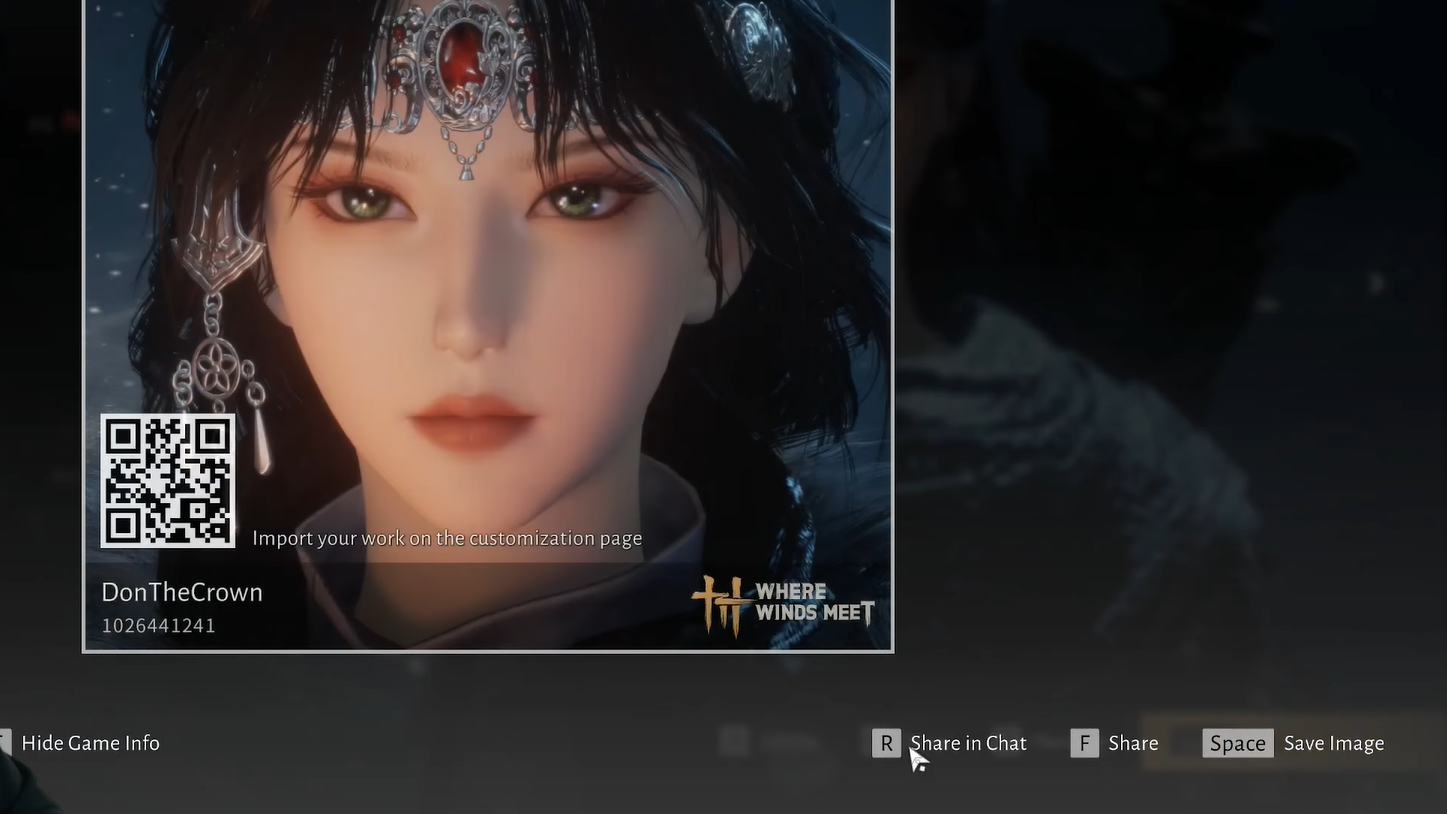
The Great Faceologist is built on tools that already exist in Where Winds Meet’s appearance system, but the event’s routing through the face editor and reliance on a manual tag makes it surprisingly opaque. Once you know that everything must go through Edit Face, and that the tag sits in a narrow strip between the description and privacy checkbox, submissions become routine — and you can spend the rest of the event iterating on the only stat that matters here: your character’s face.