

Creative Mode in Hytale is not just “infinite blocks and flying.” It is a full creation workspace that powers everything from quick test builds to large adventure maps and cinematics. Health, hunger, and progression systems get out of the way so you can focus on shaping worlds, experimenting with systems, and collaborating with friends.
How to start a Creative world in Hytale
Step 1: Open Hytale and go to the Worlds tab on the main menu. This is where all of your existing worlds and presets live.
Step 2: Select the Create World button in the bottom-right corner. This opens the world creation screen with different world types.
Step 3: Choose Creative as the world type. This option turns on Creative Mode rules, including unlimited access to blocks and tools.
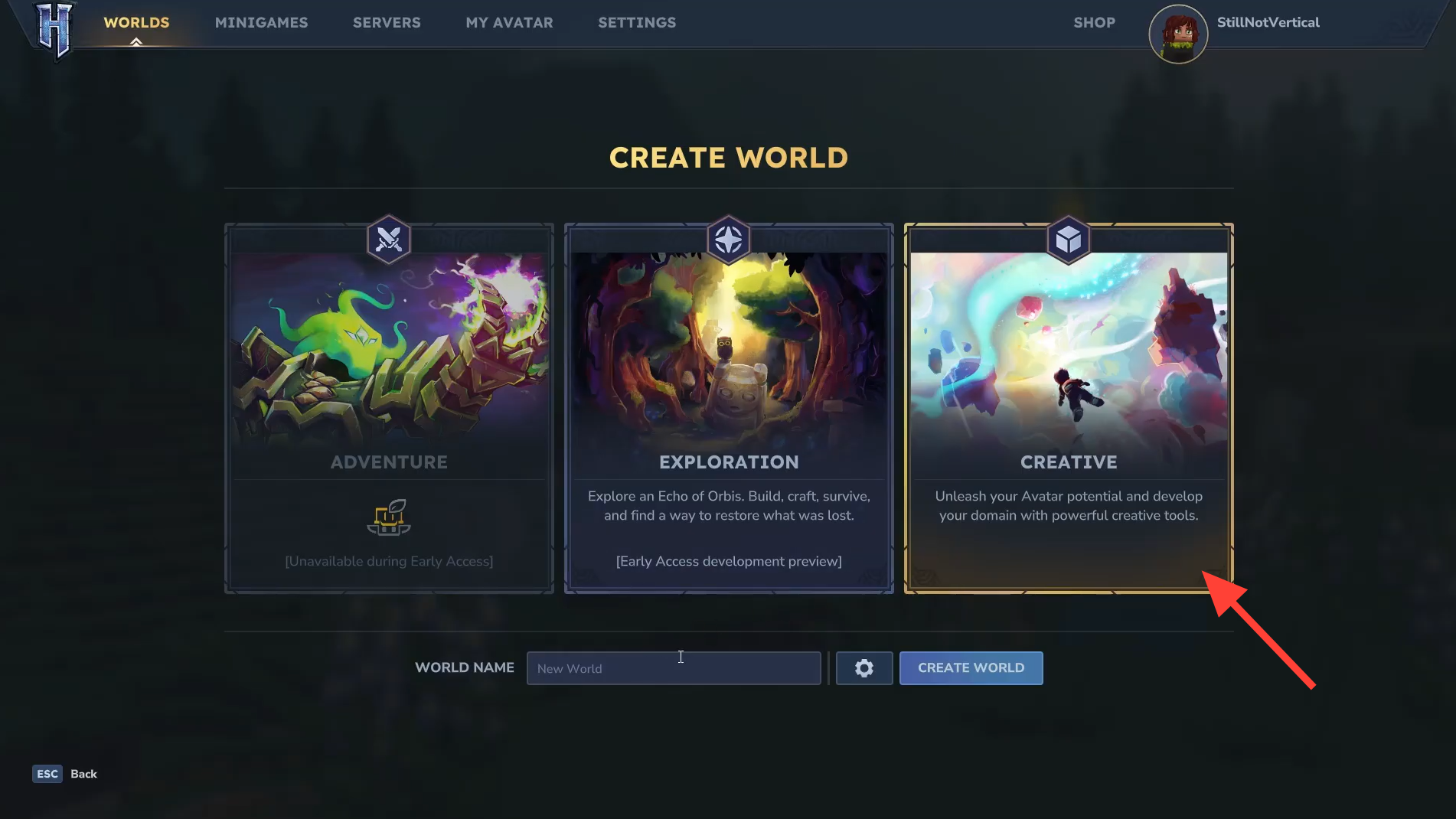
Step 4: Enter a world name and confirm with the Create World button. Hytale generates a new Creative world that you can enter immediately.
Step 5 (optional): Before creating the world, select the small gear icon next to the Create World button to open advanced settings. Here you can toggle features like NPC presence and time pausing. Apply the settings, then create the world.
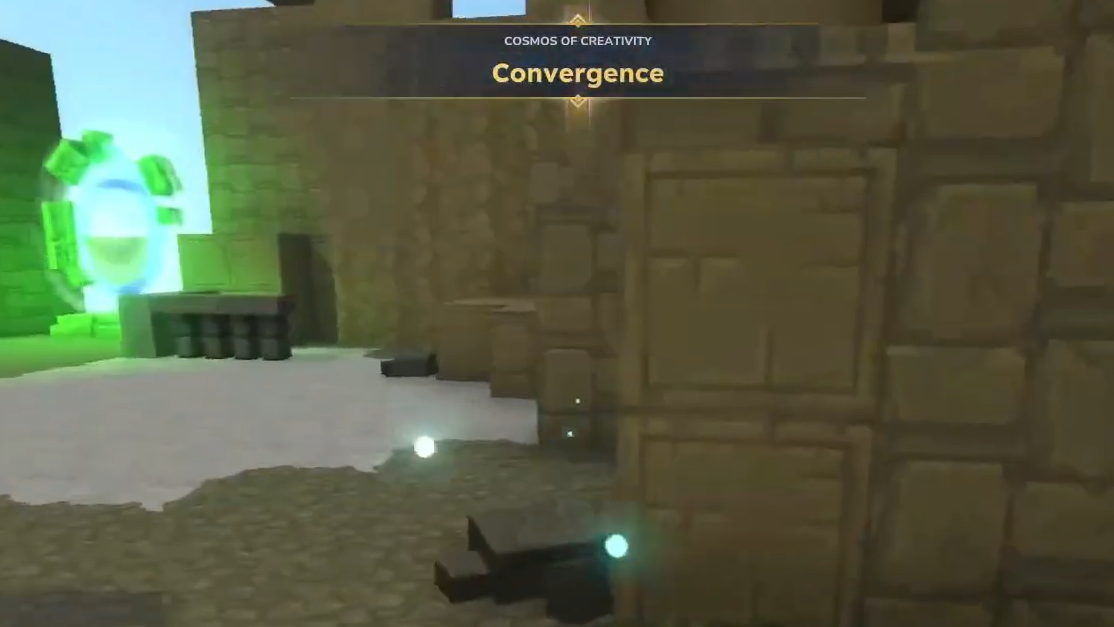
Once you are in, you can fly, browse every block and item, and start using the dedicated Creative tools to edit the terrain, place prefabs, or script cinematic shots.
What Creative Mode changes about gameplay
Creative Mode removes most survival constraints. You have free flight, instant access to building materials, and no pressure from combat or environmental damage. That makes it suitable both for newcomers who want a low-stress way to explore Orbis and for creators who need a fast iteration environment.
Key differences from Exploration Mode include:
- Unlimited resources: All blocks, items, and decorations are available from the start. There is no gathering or crafting barrier for building.
- No health or hunger pressure: You can explore, fall, or experiment with explosions without losing progress.
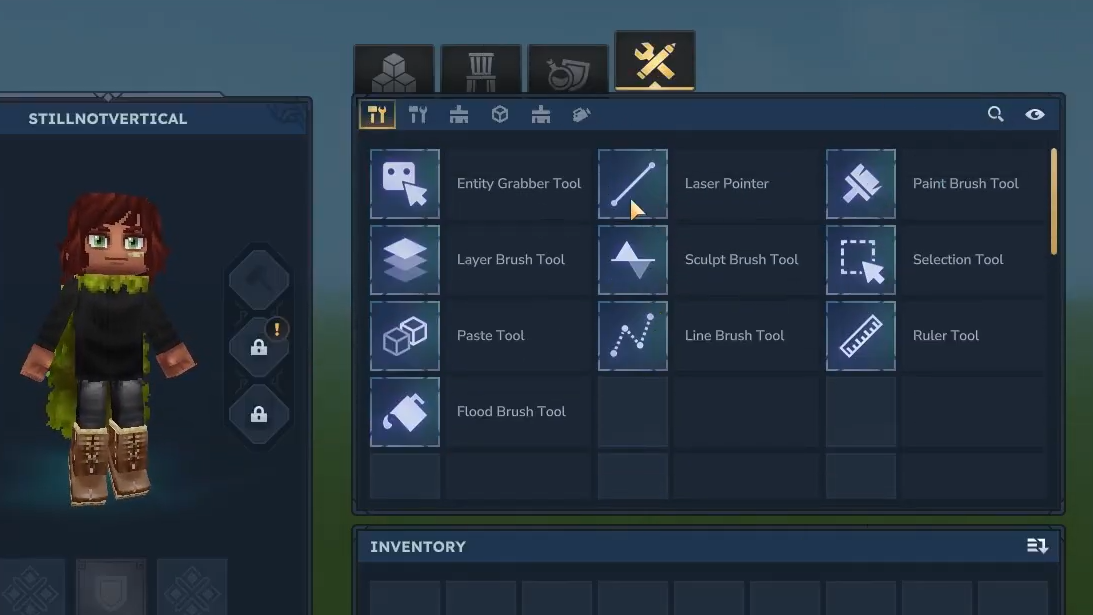
- Instant tool access: Dedicated Creative tools appear in your inventory and can be configured through a specialized panel.
- World as a testbed: The same world can be used to prototype builds, test mods, or set up multiplayer maps before applying stricter rules elsewhere.
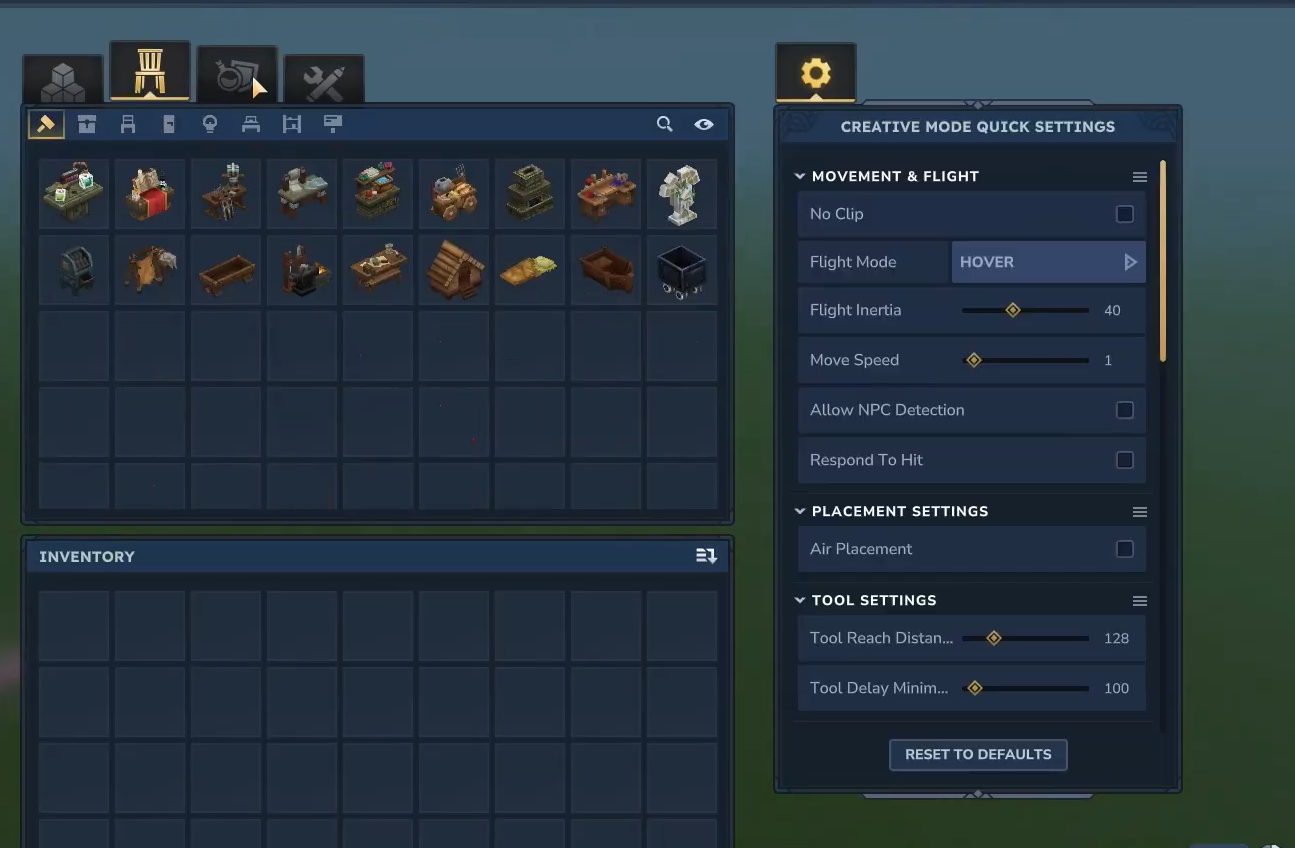
Creative Mode Quick Settings Panel
The Quick Settings Panel is the control center for how Creative Mode feels moment to moment. It appears in Creative worlds and adapts to the tool you are holding.
From this panel you can:
- Adjust flight speed for slow precision work or fast traversal.
- Tune inertia, making movement snappy or more floaty and momentum-based.
- Change flight mode between hovering and directional flight, depending on whether you are focused on fine placement or big overviews.
- Access extra options for the current tool, such as brush settings or selection behavior.
Because the panel reacts to what you are holding, it keeps advanced options close without cluttering the main HUD.
Scripted Brushes and terrain shaping
Scripted Brushes are one of the defining features of Hytale’s Creative Mode. They turn repetitive terrain work into a handful of smart clicks.
Instead of placing every block manually, you can:
- Drop a mountain or hill shape into the world with natural variation in height and contour.
- Lay down grassy paths that blend into surrounding terrain.
- Stamp in procedurally generated ruins or other structures as part of exploration areas.
These brushes are asset-defined, which means creators and modders can make more of them. They sit in your inventory like any item, and you can edit their behavior through the Hytale Node Editor. That makes terrain generation itself part of your toolkit, not a fixed system you have to work around.
Shape Brush and structural painting
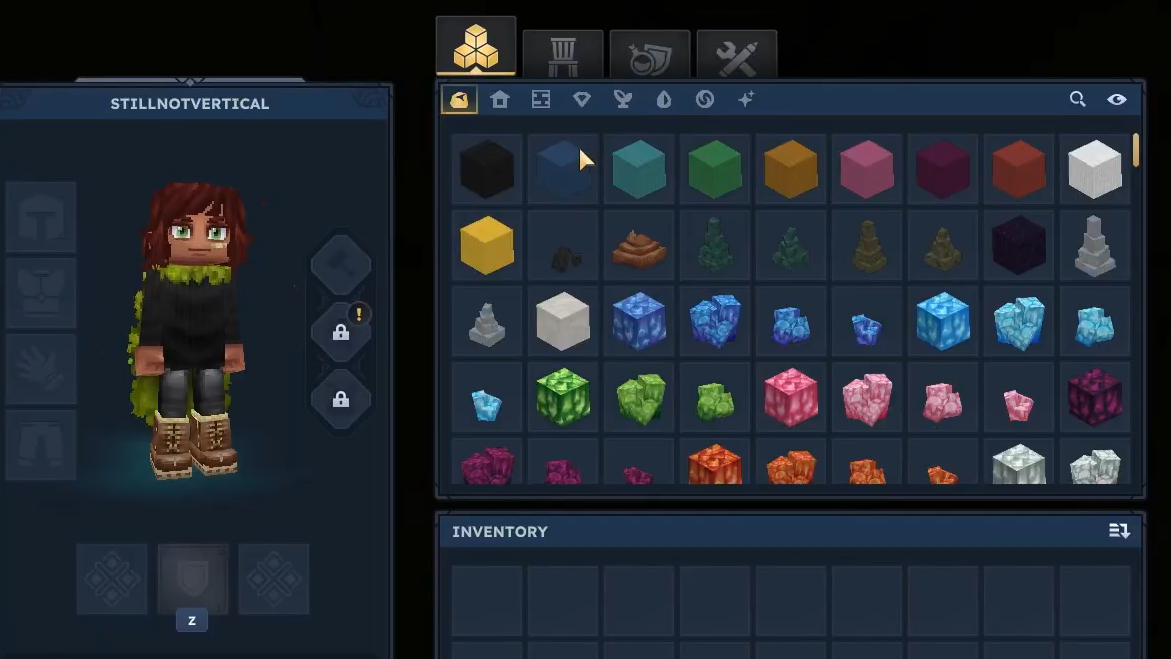
Where Scripted Brushes deal in smart patterns, the Shape Brush (also called the Paintbrush) focuses on clear geometry. It lets you draw shapes directly into the world at whatever scale your project requires.
You can:
- Paint pyramids, cones, spheres, and cubes with configurable dimensions.
- Control material, so each shape uses specific block types.
- Adjust density and wall thickness to create solid masses or hollow shells.
- Lock painting to a specific axis for consistent vertical or horizontal builds.
- Use masks so the brush only affects particular materials or leaves others untouched.
This tool is useful for both quick greyboxing and final forms. You can rough in a landmark as a primitive shape, then refine details by hand or with smaller brushes.
Selection Tool for large-scale editing
The Selection Tool is the counterpart to brushes. Instead of placing shapes, it lets you grab an area of the world and perform operations on that selection.
With it, you can:
- Select a 3D region and copy, cut, or paste it elsewhere.
- Save a selection as a prefab for reuse.
- Move entire structures without rebuilding.
- Regenerate chunks inside the selection if you want fresh terrain.
- Extrude shapes to add layers or extend walls and platforms.
- Define regions that can later be tied to gameplay rules or scripting.
Support for more complex selection shapes and a “magic wand” style material-based selection is planned, but the current cubic approach already covers a large portion of practical editing tasks.
Prefabs, the Prefab Browser, and the Prefab Editor
Prefabs are reusable structures: dungeons, ruins, houses, decorative clusters, or any arrangement of blocks and entities you want to repeat across projects. They are central to how Hytale content gets built efficiently.
Creative Mode gives you two main interfaces for working with them:
- Prefab Browser inside your world for quickly browsing and choosing ready-made prefabs.
- Prefab Editor, a dedicated empty environment where one or more prefabs can be loaded and edited without distractions.
In the Prefab Editor, you can refine shapes, swap materials, add or remove detail, and then save your changes for future worlds. That separation keeps your working library tidy and allows you to iterate on building blocks without touching gameplay worlds.
Paste Tool for precise placement
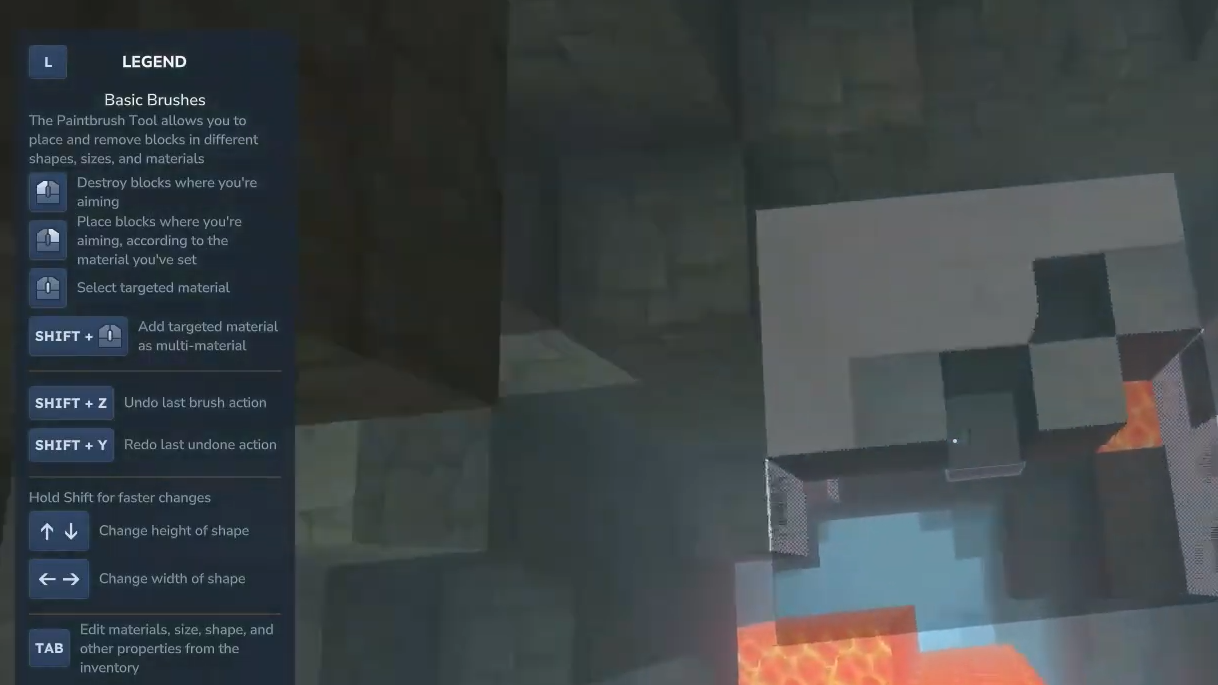
Once a prefab or selection is ready, the Paste Tool handles how it lands in your world. It lets you load a structure and move it around before committing.
Using the Paste Tool you can:
- Position a prefab exactly where you want it, aligning edges with terrain or other builds.
- Use the arrow keys to nudge the placement by single-block increments.
- Treat a prefab like a brush, stamping clusters of structures repeatedly.
This approach avoids the trial-and-error of placing massive builds, checking for misalignment, then undoing and trying again. You see the final position before it goes live.
Player Model Changer and NPC Browser
Creative Mode does not limit you to a single avatar. The Player Model Changer and NPC Browser provide a catalog of character models to inhabit or place into the world.
You can:
- Swap your own player model to any available character, including animals such as a corgi.
- Spawn NPCs and creatures for testing encounters, populating towns, or building story scenes.
- Set up visual references for scale and composition during building.
This system supports both practical testing (combat, pathing, interaction) and purely aesthetic decisions (how busy or lively a space feels when inhabited).
Machinima Tool for in-game cinematics
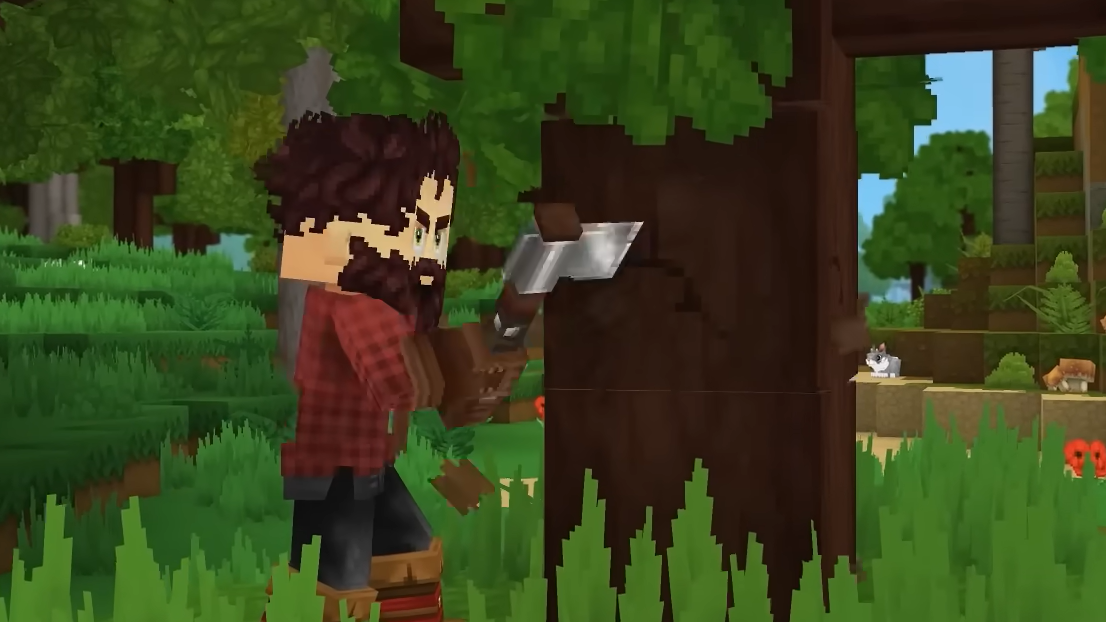
Hytale includes native machinima tools designed for camera work. Instead of using external capture utilities alone, you can set up cinematic sequences directly in the world.
The core flow looks like this:
- Create a Camera actor in your Creative world.
- Place keyframes that define the camera’s position and orientation at specific times.
- Adjust speed and curve behavior between keyframes to control pacing and motion.
These tools make it possible to capture build flythroughs, short films, tutorials, and cutscene-style sequences. A significant expansion of machinima functionality is planned after launch, but even the current version supports complex camera paths and precise timing.
Flying modes and movement tuning
Movement in Creative Mode is not a fixed “float around” behavior. Several parameters can be tuned to match the task you are working on.
You can modify:
- Flight speed to hop between local edits or cross massive maps quickly.
- Inertia so that you stop dead on input release or drift for smoother motion.
- Flight mode between hovering and more directional flight, depending on whether you value stability or flow.
This matters because precision detailing, terrain layout, and cinematic camera scouting each benefit from slightly different movement profiles. Tuning these on the fly keeps the tools feeling responsive instead of fighting your intent.
Ruler and Laser Pointer tools
Beyond brushes and selections, Creative Mode includes smaller utilities that address very specific collaboration problems: communicating ideas and measurements clearly.
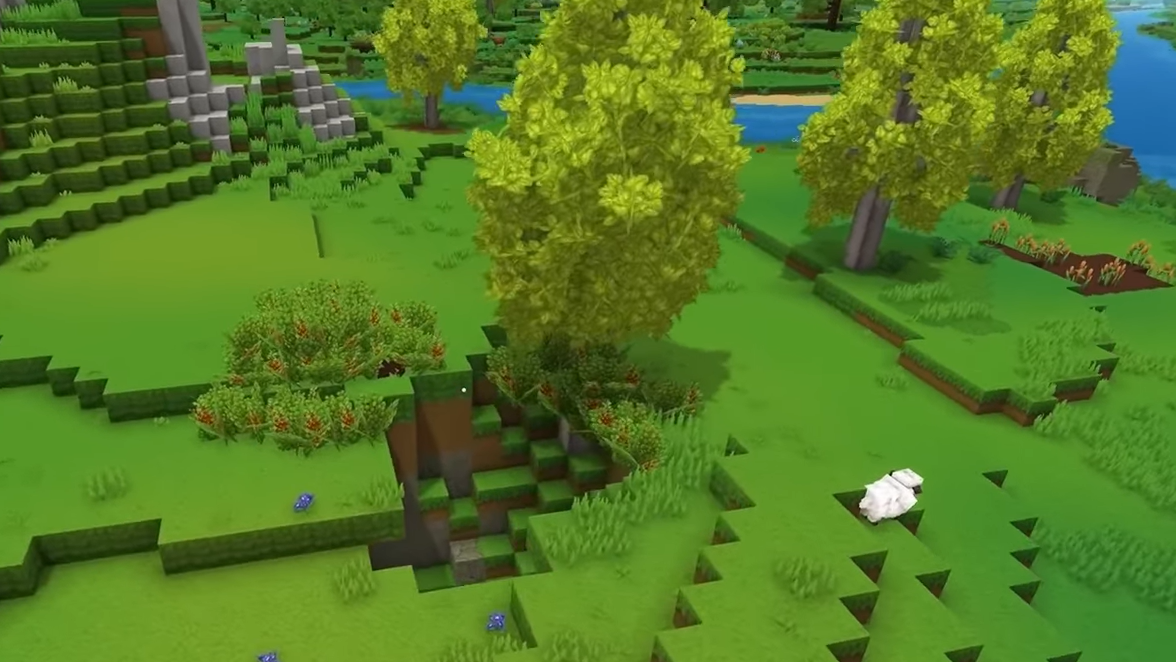
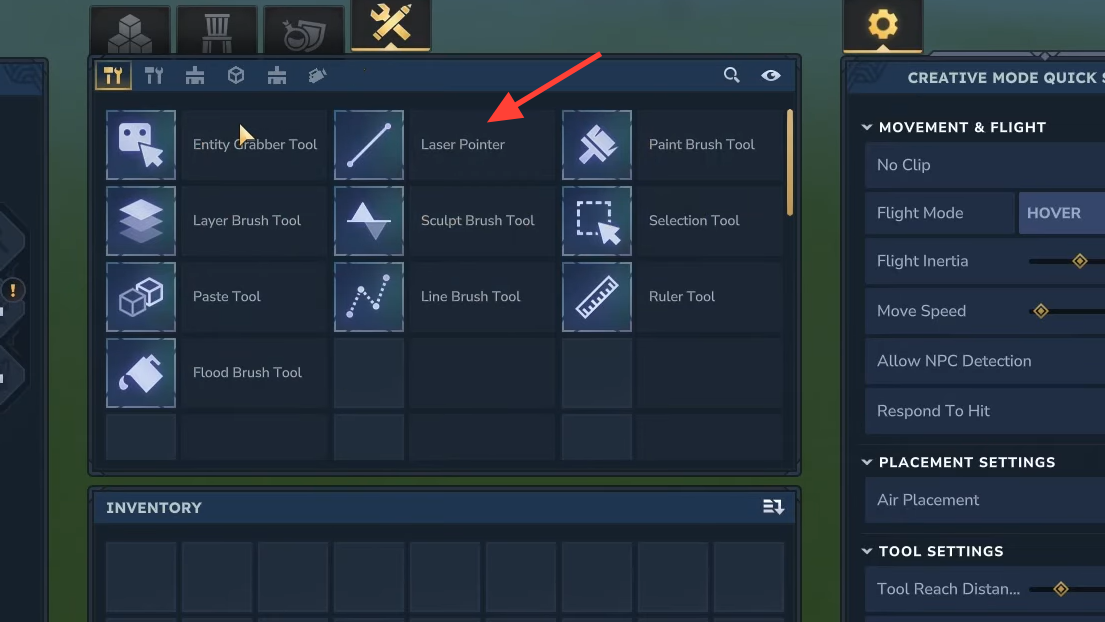
The Ruler tool lets you place visible lines to measure distances or outline plans. Builders can mark where walls should go, indicate symmetry axes, or block out footprints for future structures.
The Laser Pointer tool offers a way to direct other players’ attention in multiplayer Creative sessions. When words are not enough to describe “that particular corner of that tower,” a visible pointer solves the issue quickly.
Help Menu and commands
Creative Mode ships with a dedicated Help Menu aimed at surfacing commands and features more quickly than memorizing everything up front. Command coverage is being expanded over time.
The menu helps you:
- Look up creative commands without leaving the game.
- Discover less obvious tools or options that are not immediately visible in the hotbar.
- Stay aligned with ongoing changes, as the development pace is rapid and new abilities appear frequently.
For creators working on larger projects or servers, efficient access to command documentation significantly reduces context switching.
Creative Mode in Early Access and beyond
In Hytale’s Early Access release, Creative Mode is one of the main pillars alongside Exploration Mode. It already includes in-game tools for building and entity work and connects to standalone creation tools for models, assets, and world generation.
The current focus is on editor-style capabilities for content creators: world shaping, model editing, prefab pipelines, and machinima. A separate, more casual creative experience—aimed at players who want playful interactions rather than full editor workflows—is being designed for the future.
Creative Mode also integrates directly with modding and multiplayer. Mods can be built and iterated on inside Creative worlds, and the same creations can later power custom servers, minigames, and adventure maps once Adventure Mode and official minigames are introduced.
For now, if the goal is to learn Hytale’s building systems, block library, and creative tools without survival pressure, launching a Creative world is the most direct way to do it.