

The Hytale launch window has brought a wave of identical complaints: the launcher throws an “error applying update to ‘game’” message, often with “error downloading patch 0” and sometimes a “file not found” note on a specific .pwr file. For many players, the game worked minutes earlier, and now refuses to finish downloading a patch.
Despite how dramatic the wording looks, this usually comes down to two broad issues: overloaded patch servers during a rush of installs, or small hiccups in how the launcher is handling files on your PC. The fixes are mostly simple, but a few are worth treating as last resorts.
What the Hytale launcher error message is telling you
The most common variant looks like:
error applying update to "game": error downloading patch 0: error downloading file from "https://game-patches.hytale.com/patches/windows/amd64/release/0/3.pwr": file not foundThis long line can be broken down into a few key ideas:
- “error applying update to ‘game’” means the launcher failed while trying to update the core game files, not a side component.
- “error downloading patch 0” points to a failure while downloading the very first patch in the chain, not something deep in a patch list.
- The URL with
patches/windows/amd64/release/0/3.pwris the exact file the launcher tried to grab. “file not found” here usually indicates a server-side issue or a temporarily bad reference, not that your PC deleted something.
Other players are also seeing variants that mention “stream error… INTERNAL_ERROR; received from peer” or generally slow, stalling patch downloads. Those point to the same underlying pattern: heavy server load and unstable connections during a surge of requests.
When Hytale patch errors are a server-side problem
During busy windows—such as early access launch and daily patch rollouts—Hytale’s patch servers take a large number of simultaneous connections. That load can cause:
- Patch files returning “file not found” intermittently, even though they exist.
- Downloads that crawl forward, stall, or reset with generic “error downloading patch” messages.
- Launcher logs or pop-ups mentioning “INTERNAL_ERROR” from the remote peer.
Players report that simply closing and reopening the launcher, or repeatedly pressing the built-in “Relaunch” option, eventually lets the patch complete. Others notice extremely slow but continuous progress once the servers calm down.
In these cases, nothing on your PC is fundamentally broken. The most practical approach is to retry with short pauses in between attempts and, if possible, shift to less busy times of day.
Fix Hytale patch errors by relaunching the launcher
For many players, the first fix that works is the simplest: making the launcher reconnect cleanly.
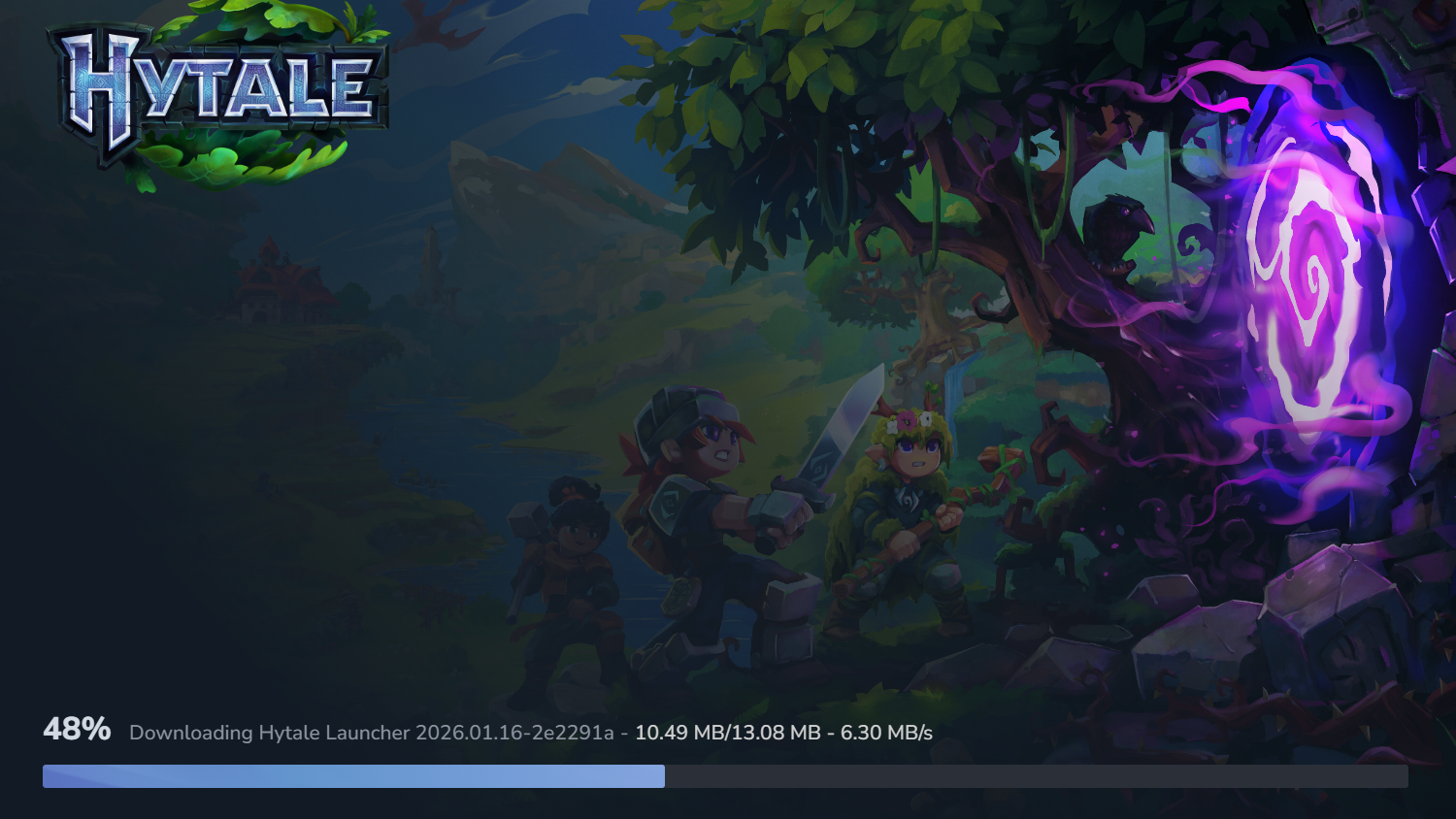
Step 1: If the launcher shows a “Relaunch” button in the error dialog, click that once and wait for the launcher to close and reopen. Let it fully load before doing anything else.
Step 2: If there is no “Relaunch” button or it seems unresponsive, close the Hytale launcher manually. Make sure it is not still running in the background in the system tray or Task Manager.
Step 3: Restart the launcher and let it attempt the update again. Avoid clicking repeatedly; give it enough time to connect and start downloading.
The Hytale launcher typically keeps partial progress on the current download. Relaunching does not always force a full restart of the patch; instead, it can clear a bad connection state and resume more cleanly.
Run the Hytale launcher as administrator on Windows
In some cases, the launcher error is caused or aggravated by permission problems on Windows when it tries to write or replace patch files.
Step 1: Close the Hytale launcher completely, including any background instance.
Step 2: Right-click the launcher shortcut or .exe file.
Step 3: Select Run as administrator and confirm in the User Account Control prompt if one appears.
Step 4: Once the launcher opens, trigger the update again and watch whether the error reappears at the same point.
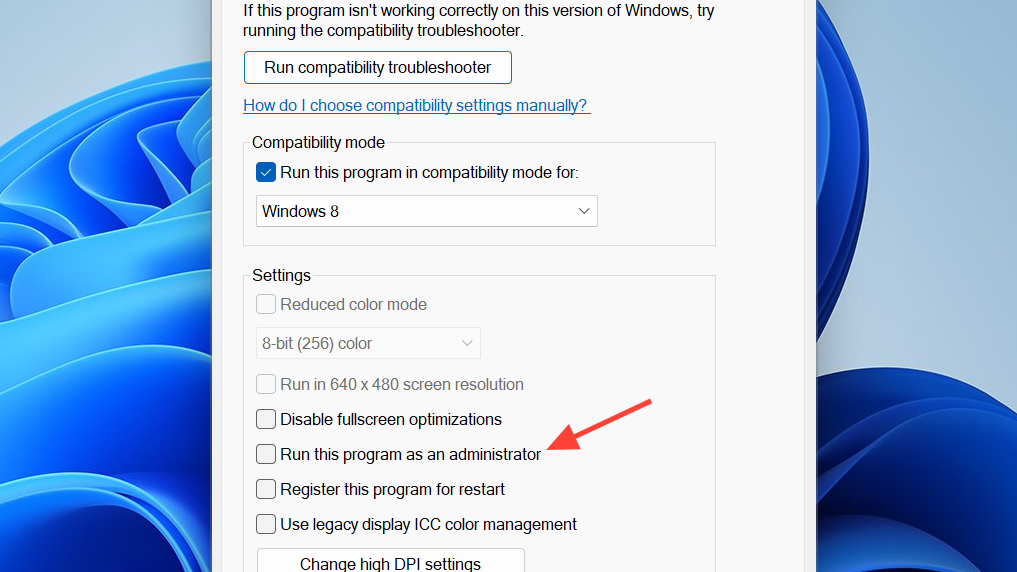
Running with elevated rights gives the launcher full access to update its own files and write patch data in the install directory. That can prevent permission-related failures masquerading as generic patch errors.
Clear Hytale patch files to remove corrupted downloads
Repeated download failures sometimes leave behind damaged or incomplete patch files. The launcher might then keep reusing these and failing before it even gets a fresh copy. Deleting the patch cache forces a clean redownload.
Step 1: Exit the Hytale launcher and confirm it is not running in the background. Check the hidden icons area in the Windows taskbar to be sure.
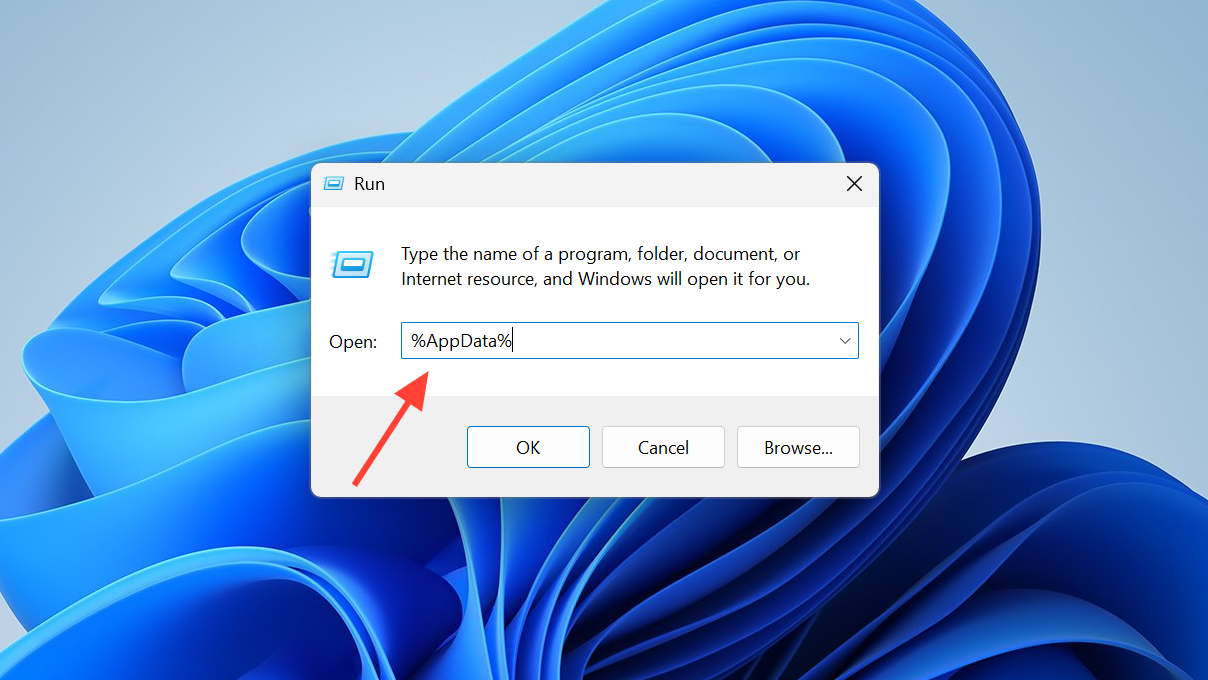
Step 2: Press Windows + R on your keyboard to open the Run dialog.
Step 3: Type %AppData% and press Enter. This opens the Roaming folder for your Windows user profile.
Step 4: Open the Hytale folder inside Roaming. If you installed the game somewhere else and the folder is not here, navigate to the location where Hytale stores its data instead.
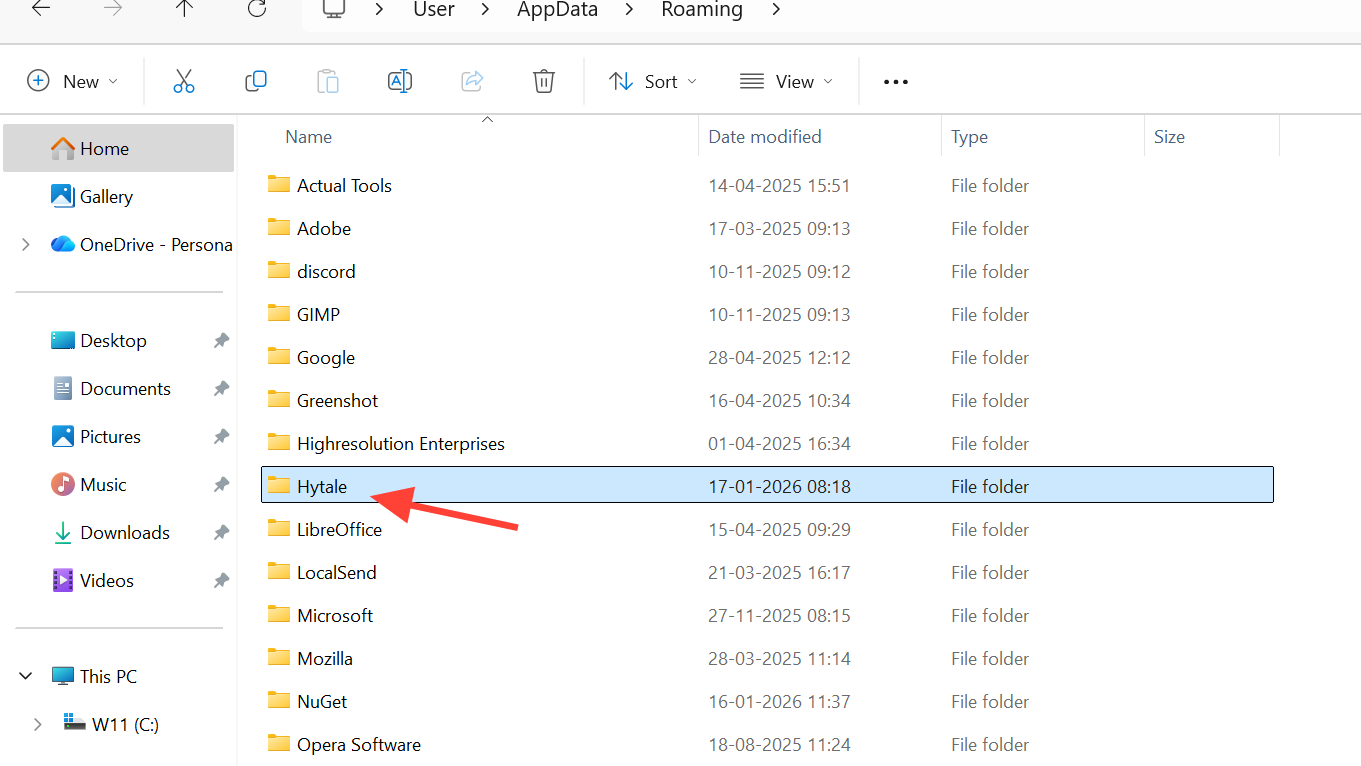
Step 5: Look for a folder named Patch within the Hytale folder. If it exists, delete that Patch folder.
Step 6: Restart your PC to clear any stray file locks or handles.
Step 7: Open the Hytale launcher again and retry the update. The launcher will recreate the patch folder and fetch a fresh copy of the update files.
Removing these cached patch files targets only the update data, not your saves. It is intended to clean out corrupted downloads so the next attempt has a clean slate.
Avoid uninstalling Hytale unless you know where your worlds are stored
Uninstalling and reinstalling the launcher can clear deep configuration problems, but it comes with risk if you are not careful. Depending on how the uninstaller is configured and what options you choose, a full removal can delete both game data and user data, including worlds and progress.
If you decide to uninstall:
Step 1: Use the uninstall option inside the Hytale launcher’s settings if it offers a clear choice between deleting only game files and deleting both game and user data. Choose the option that preserves user data.
Step 2: If you must remove Hytale through the Windows “Apps & features” interface, carefully read any prompts to ensure saves are not being wiped. When in doubt, back up the Hytale data folder from %AppData% or your custom install location before proceeding.
Step 3: Once uninstalled, download the latest Windows installer from the official Hytale account portal at https://accounts.hytale.com/download and reinstall from there.
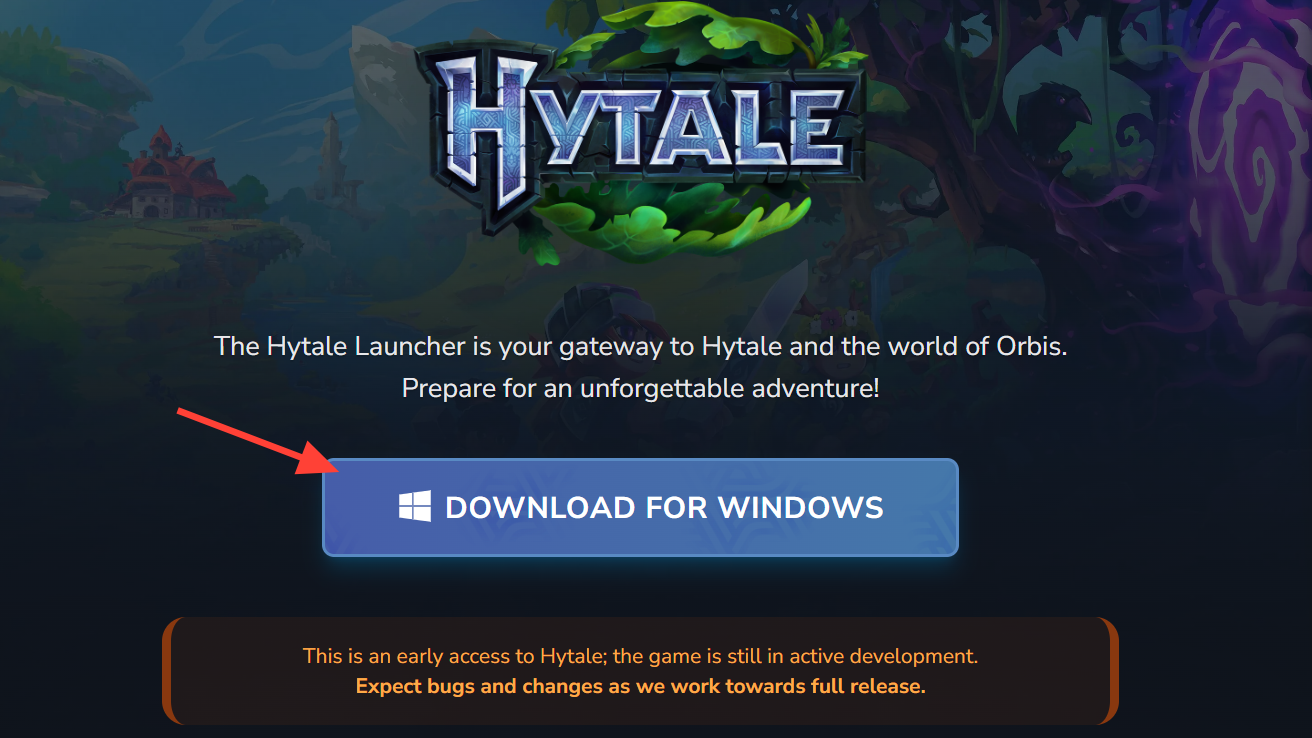
This route should be treated as a last resort after trying relaunching, running as administrator, and clearing patch files. Many players resolve the patch error without needing to remove the launcher at all.
Check disk space and basic network stability
Alongside the “file not found” and “error downloading patch 0” messages, other Hytale update errors reference a lack of storage space or generic network failures. Even when those keywords are not explicit, it is worth ruling out two common bottlenecks: free disk space and a flaky connection.
Step 1: Confirm that the drive where Hytale is installed has significantly more free space than the patch size. Early updates can require extra room to unpack and merge new files, so leaving only a tiny amount of free space can cause failures while “applying update”.
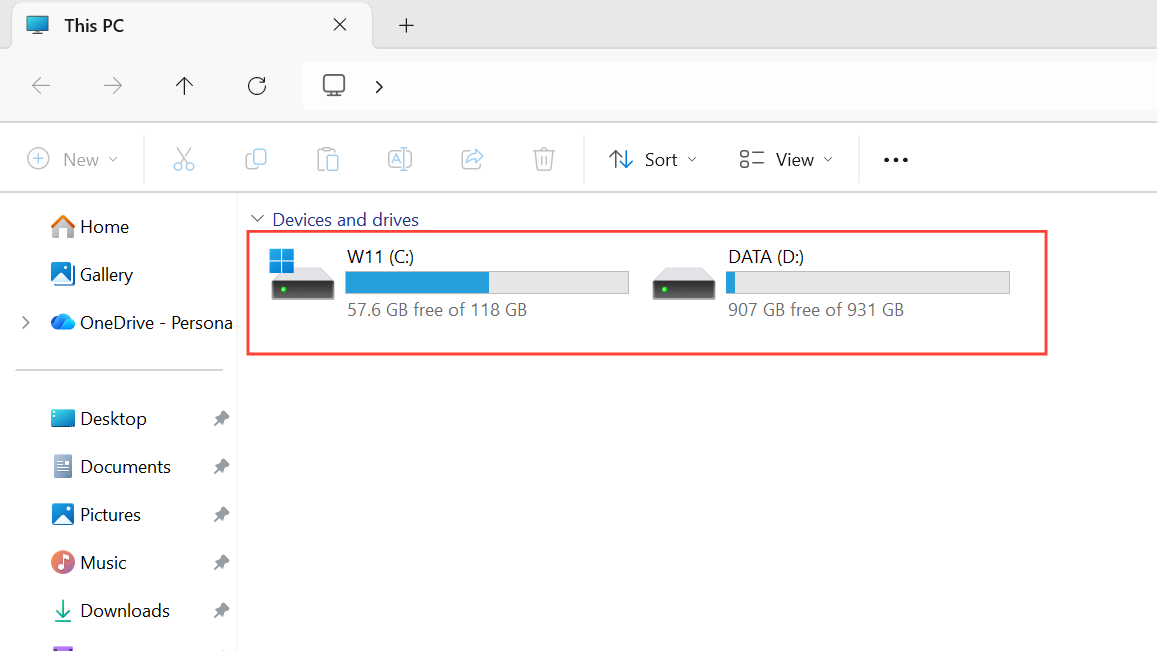
Step 2: If you are on Wi-Fi, test your connection with another large download or streaming service. Frequent drops or pauses can make patch downloads far more likely to fail.
Step 3: For a more stable setup, switch to a wired Ethernet connection if possible, or at least move closer to the router to improve signal stability.
Step 4: Avoid changing networks, enabling VPNs, or toggling airplane mode while Hytale is downloading a patch, as mid-download changes can break the patch stream.
A solid network connection and enough disk space do not fix server overload, but they remove two local causes that can compound launcher errors.
When the fix is simply waiting for Hytale’s servers to calm down
If you have:
- Relaunched the installer or launcher several times.
- Run it as administrator.
- Deleted the Patch folder and restarted your PC.
- Confirmed respectable free disk space and a reasonably stable internet connection.
…and you still see intermittent “file not found” on a patch URL or generic internal stream errors, the remaining factor is usually server load.
In that situation, the practical playbook is:
Step 1: Close the launcher and wait 10–15 minutes before trying again, rather than hammering the “Relaunch” button every few seconds.
Step 2: If you can, shift your next attempt to off-peak hours, such as early morning or late night in your region. That reduces competition for the same patch file.
Step 3: Once you see the download progressing steadily, avoid canceling it. Even if speeds are low, letting a slow but steady patch complete is usually better than forcing repeated restarts.
Players report that these errors often disappear on their own as the initial rush eases, and that once the patch is in place, subsequent launches are far more reliable.
Hytale’s launch errors around “error applying update” and “error downloading patch 0” look intimidating, but they almost always trace back to a mix of overloaded servers, cached bad patch data, or simple permission and connectivity quirks on Windows. A few targeted actions—relaunching cleanly, running the launcher with the right rights, flushing the patch cache, and avoiding unnecessary reinstalls—are usually enough to get past the blocker and into the game.