

Hytale's early access release brought a wave of community mods, and several tools now simplify installing and updating them. Three main options exist: a lightweight standalone Windows app, an in-game plugin that checks for updates in milliseconds, and a cross-platform launcher with built-in mod management. Each approach suits different workflows, from quick server setup to automated update tracking.
Quick answer: Hytale Mod Manager (Windows standalone), nyoUpdates (in-game plugin), and HyPrism (multiplatform launcher) all manage mods from CurseForge. Manual installation remains an option by copying .jar files into the mods folder and activating them in-game.
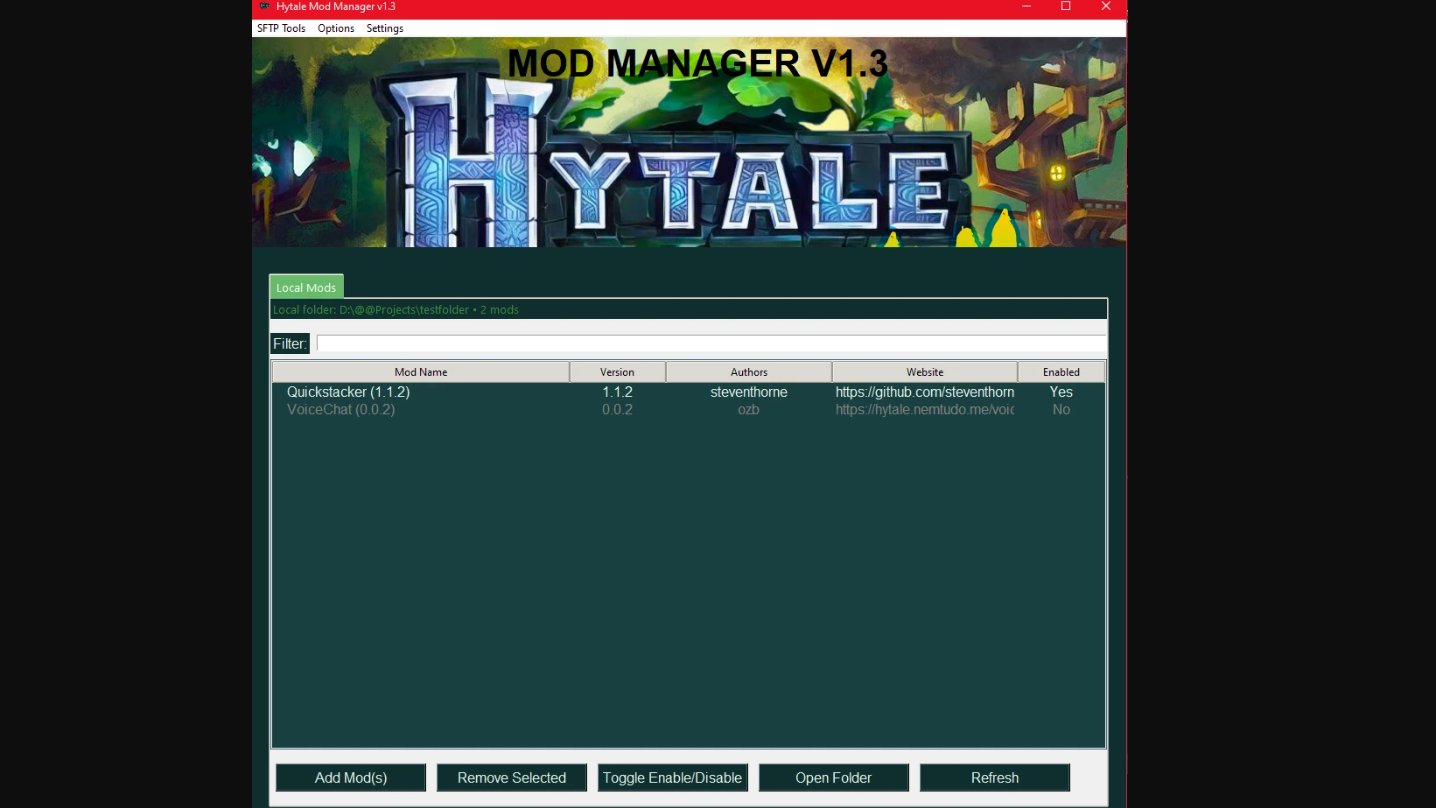
Hytale Mod Manager: standalone Windows tool
Hytale Mod Manager is a standalone .exe created by Skullzy for Windows users. It automatically locates or creates the Hytale mods folder at %APPDATA%\Hytale\user_data\mods and displays all installed mods in a clean interface. The tool validates each mod by checking for a proper manifest.json file and highlights invalid mods in red with error reasons.
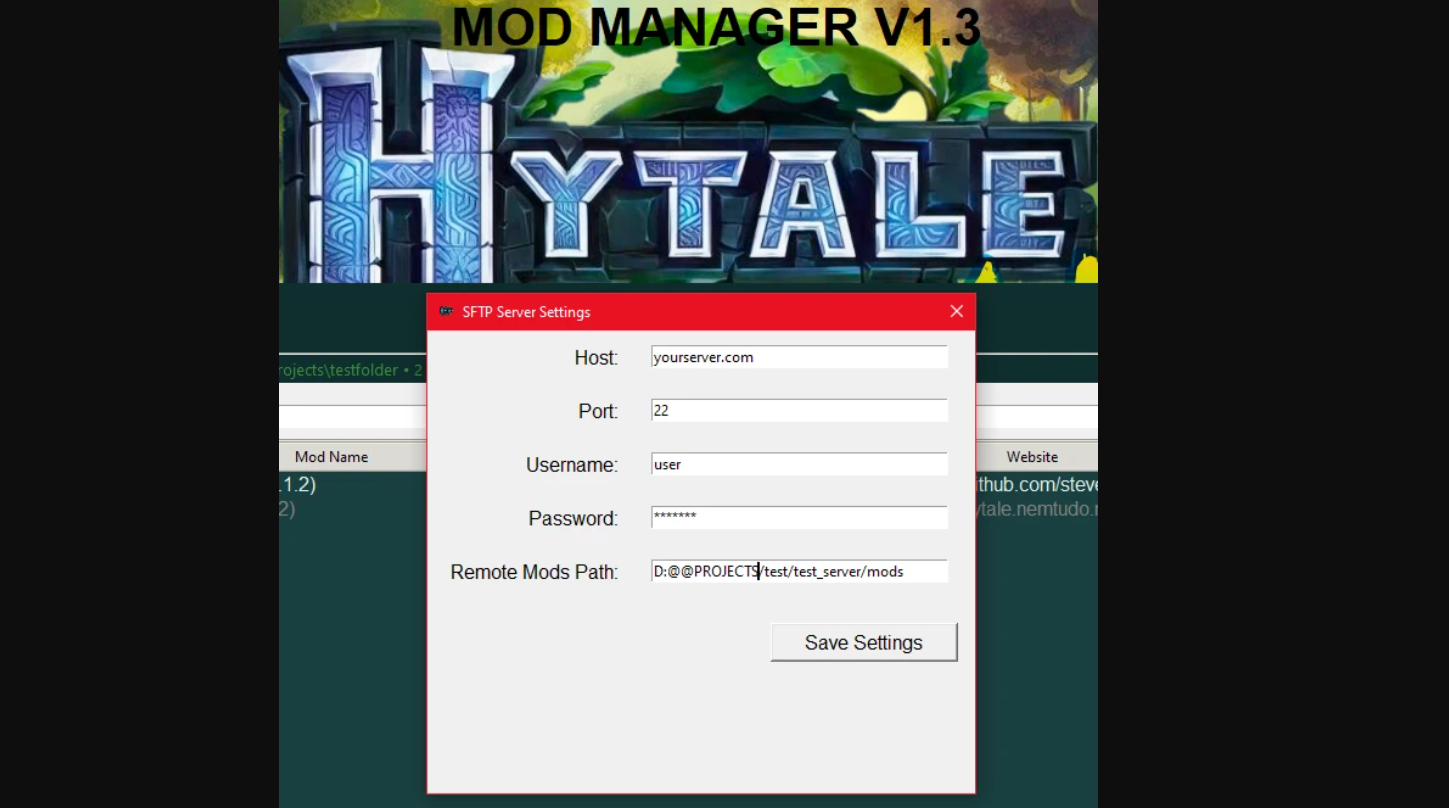
Version 1.3 added SFTP server support, letting you upload, download, and remove mods directly on a remote server. Safe removal moves files to a _backups folder instead of deleting them permanently. The app includes a dark/light theme toggle and saves settings in a config.json file next to the executable.
To add mods, click Add Mod(s), select one or more .jar files, and the tool checks validity before copying them. Existing files prompt an overwrite confirmation. Removing mods requires selecting them in the list, clicking Remove Selected, and confirming deletion. Double-clicking a mod or using the Open Website button launches the URL listed in its manifest. After adding or removing mods, restart the Hytale server or client for changes to take effect.
The tool does not launch Hytale or verify that mods load in-game. If the mods folder cannot be created, check write permissions for %APPDATA%. Invalid mods shown in red may still function if the manifest is incomplete, but the core mod files are intact.
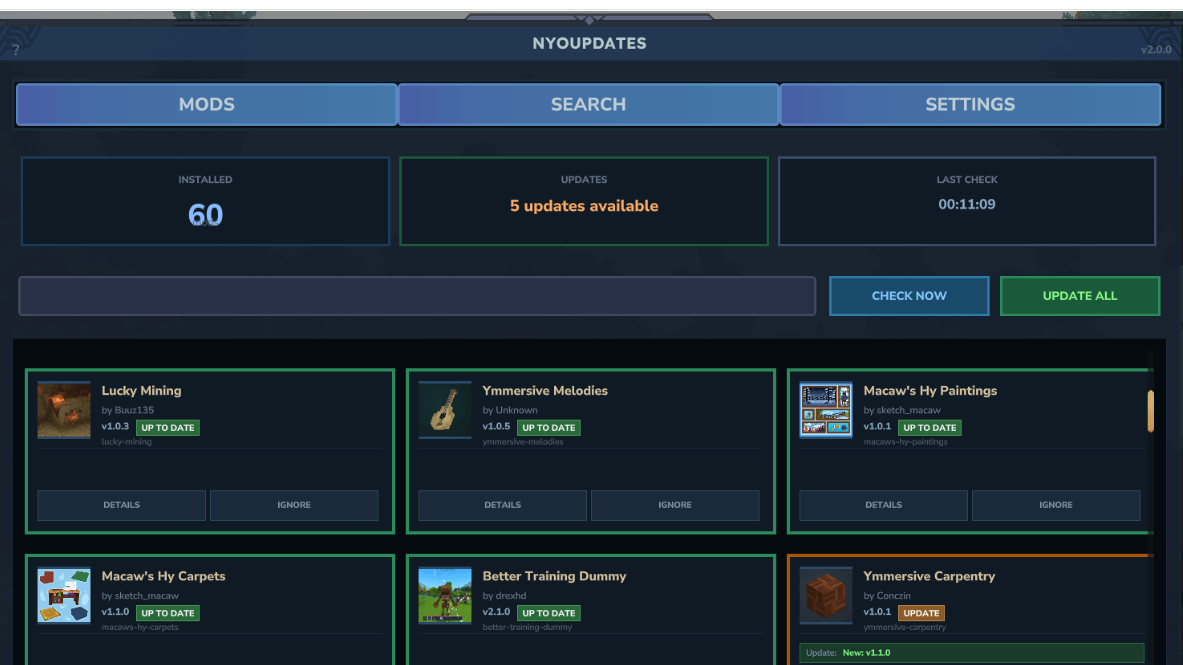
nyoUpdates: in-game mod manager with bulk API
nyoUpdates is a Hytale plugin by dotJunyo that manages mods from within the game. It uses the nyoCF API, a dedicated Hytale mod database that synchronizes with CurseForge faster than other APIs. Update checks typically complete in under 100 milliseconds for 200+ mods by sending a single bulk HTTP request instead of querying each mod individually. The plugin includes automatic fallback to CFWidget if the primary API is unavailable and requires no API key.
Version 2.0 introduced a full in-game UI accessible with /upd ui. The interface lets you browse installed mods with update status, search and install mods directly from CurseForge, select specific versions to install, enable or disable mods without leaving the game, ignore mods from update checks, and configure plugin settings visually. The UI displays mod icons, version history, release types, and file sizes. Version changes are staged as pending updates and applied on restart.
When the server starts, or you run /updates check, nyoUpdates scans the mods folder, sends a bulk request to the nyoCF API, and downloads available updates to a .updates folder. An interactive apply_updates.bat or apply_updates.sh script is created for manual application. Updates can also be applied automatically via EarlyPlugin on restart if you add --accept-early-plugins to your server startup command.
Many hosting services do not support the --accept-early-plugins argument. nyoUpdates works in manual mode by default, compatible with all hosting services. Run apply_updates.bat/sh during server maintenance to apply updates. The script presents a list of pending updates with checkboxes, allowing you to toggle individual mods, select or deselect all, apply selected updates, or quit without applying.
The plugin supports bundle zip files containing both a mod and an EarlyPlugin. It detects bundle structures, extracts jar files to the correct locations, and tracks them for updates. EarlyPlugins from bundles are only installed if your server already has an earlyplugins/ folder with existing jars. Configuration is stored in mods/dotJunyo_nyoUpdates/config.json and includes options for auto-update on startup, check intervals, backup retention, release type filtering, and manual CurseForge mapping for mods that cannot be automatically identified.
HyPrism: multiplatform launcher with mod management
HyPrism is a cross-platform Hytale launcher developed by yyyumeniku with built-in mod management. It supports Windows, Linux (including Flatpak and Snap), and macOS. The launcher handles mod installation, version selection, and updates alongside launching the game. Full user and developer documentation is available in the project's docs/ directory.
HyPrism integrates with CurseForge for mod discovery and installation. The interface lets you browse available mods, install them directly, and manage versions without switching to a separate tool. The launcher also tracks installed mods and checks for updates. For older Linux distributions, the Flatpak package is the recommended installation method.

Manual installation and activation
Manual installation works for mods from any source. Download the mod as a .zip or .jar file, open the Hytale mods directory (typically %appdata%\Hytale\user_data\mods on Windows), and copy the mod file into that folder without unpacking it. Restart Hytale and activate the mod in-game.
Mods do not load automatically after installation. Open the Worlds menu in the main menu, select a world, and go to the mods settings. Check the box next to each mod you want to activate. For multiplayer servers, place mod files in the server's mods/ directory, stop the server, restart it, and ensure all players joining the server have the same mods installed.
Built-in mod management in Hytale
Hytale includes native mod management features. The game validates mods by checking for a manifest.json file and displays them in the mods settings menu. Players can enable or disable mods per world without editing files manually. The official Hytale modding strategy document states that mod management is built into the game, reducing the need for third-party tools for basic tasks.
Third-party mod managers add convenience features like bulk updates, remote server management, and faster API queries. The choice between built-in management and external tools depends on whether you need automated updates, SFTP support, or cross-platform launcher integration.
All three tools pull mods from CurseForge, the primary distribution platform for Hytale mods. Hytale Mod Manager suits Windows users who prefer a standalone app with SFTP support. nyoUpdates fits players who want in-game mod browsing and millisecond update checks. HyPrism works for users who need a multiplatform launcher with integrated mod management. Manual installation remains straightforward for single-mod setups or when third-party tools are unavailable.