

Hytale’s friend join system is built on direct, peer‑to‑peer connections. When it works, you paste a share code, and you are in within seconds. When it fails, you hit timeouts, “host may be offline or behind a strict firewall” messages, and NAT labels like “Restricted” or “Standard” that don’t explain much.
NAT type is the game’s shorthand for how reachable your PC is from the public internet. A “Restricted” NAT means inbound traffic to you is being blocked somewhere between your PC, your router, and your ISP. For friend joins, that usually translates to one simple outcome: your friends can’t reach your world, even if your code looks fine.
How Hytale NAT type works with share codes
When you turn a singleplayer world “online” using the Online Play menu, Hytale quietly promotes your PC into a lightweight server and then tries to make it reachable.
Behind the scenes, it does three main things:
- Talks to your router using UPnP. UPnP (Universal Plug and Play) asks the router to open a temporary UDP port and forward game traffic back to your PC.
- Builds a list of connection candidates. That list can include local LAN addresses, your public IP, and mapped port from UPnP, any VPN addresses (such as Tailscale), and IPv6 addresses where available.
- Packages those into a share code. The code is an encrypted bundle of those addresses plus optional password data.
When your friend chooses Servers → Join via Code and pastes that string, their client walks the candidate list in order. It prefers fast and simple paths first (same‑network LAN addresses, VPN tunnels), then falls back to public IP routes that depend on your router and ISP setup. If none of those paths can be opened, you see a timeout and the classic “host offline or strict firewall” style error.
The NAT type label you see in the Online Play screen is Hytale’s summary of that connectivity check. If it shows “Restricted” (or your friend’s screen does), the game has detected that inbound connections are likely to fail for at least some peers.

What “Standard” vs “Restricted” NAT actually means for Hytale
Console platforms popularised NAT labels like Open, Moderate, and Strict. Hytale uses a different vocabulary, but the underlying idea is the same: how easy is it for other players to connect directly to you?
| NAT type label | What it usually indicates | Impact on Hytale friend joins |
|---|---|---|
| Standard (or similar) | Router is forwarding correctly or UPnP created a valid mapping. | You can usually both host and join worlds reliably. |
| Restricted | Inbound traffic is blocked by router, ISP CGNAT, or strict firewall. | You can join others more easily than they can join you. Hosting often fails. |
On Xbox and PC, this is analogous to “Open” versus “Strict” NAT on the console‑style tests described by port forwarding tools: with an open/standard‑style environment, you can host lobbies and accept inbound connections; with a strict/restricted setup, you depend on other people with better connectivity to host.
In practical terms for Hytale:
- If either you or your friend shows NAT type Restricted, there is a good chance one of you will not be able to host worlds that the other can join with a share code.
- If both of you show Restricted, you are often in the worst‑case combination: neither side can accept inbound UDP traffic reliably, so friend joins will fail consistently unless you change the network path.
Check your NAT status and share code health in Hytale
Before diving into router panels or VPNs, start with the diagnostics Hytale already exposes.
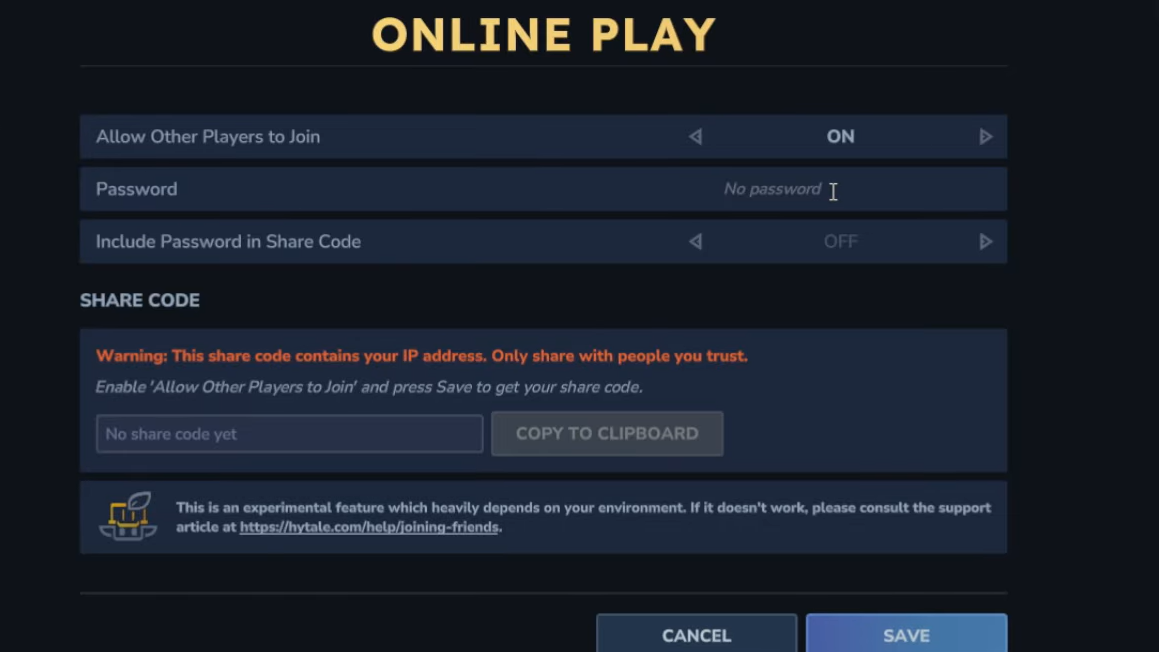
Step 1: Load into the singleplayer world you want to share, press ESC, then open Online Play.
Step 2: Switch Allow Other Players to Join to ON, optionally set a password, then click Save and wait a few seconds.
Step 3: Look at the bottom of the Online Play window. You should see:
- A share code field populated with a long string.
- A connection status line such as “Connected via UPnP”.
- A NAT type label (“Standard”, “Restricted”, or similar wording).
If you never see a code, or an error appears instead, Hytale could not negotiate any usable route out from your network at all. That usually correlates with the most severe NAT issues and is covered in the next sections.
Fix Hytale NAT type “Restricted”: router and firewall checks
When Hytale marks your NAT as Restricted, the first suspects are your local router configuration and your PC firewall. These are the parts you can change without calling your ISP.
Fix 1: Enable UPnP on the router
Hytale’s friend joins are designed around UPnP. If the router ignores UPnP requests, the game cannot automatically create a port mapping for inbound UDP traffic.
Step 1: Log into your router’s web interface in a browser. The address is usually printed on a sticker on the device or documented by your ISP.
Step 2: Find the UPnP setting. It often lives under sections named Advanced, NAT, or LAN.
Step 3: Ensure UPnP is enabled, apply or save changes, and reboot the router if it doesn’t do that automatically.
Step 4: Back in Hytale, re‑open Online Play, toggle Allow Other Players to Join off and on again, then click Save and check whether your NAT label changes and a share code appears.

Fix 2: forward Hytale’s UDP port manually
If your router does not offer UPnP or you prefer to leave it disabled, manual port forwarding can replicate the same effect.
For friend joins hosted from the Online Play menu, Hytale chooses a UDP port for that session and shows it in the UI. For dedicated servers, the default is UDP 5520, configurable with the --bind argument when starting HytaleServer.jar.
Step 1: On the host PC, open the Online Play settings or the dedicated server configuration and note the UDP port number in use.
Step 2: In your router’s web interface, locate the port forwarding section. It may be labelled Port Forwarding, Virtual Server, or NAT.
Step 3: Create a new rule that forwards that UDP port to your PC’s local IP address. Make sure the protocol is set to UDP or UDP/Any, not just TCP.
Step 4: Save the rule, apply changes, then in Hytale, click Save again in the Online Play menu to regenerate the share code using the forwarded port.
For a self‑hosted dedicated server, combine this with a local firewall exception. On Windows, a PowerShell command such as:
New-NetFirewallRule -DisplayName "Hytale Server" -Direction Inbound -Protocol UDP -LocalPort 5520 -Action Allow
opens the default UDP port on that machine. On Linux, similar rules can be created with iptables or ufw.

Fix 3: Allow Hytale through your PC firewall
Even with a perfect router configuration, a local firewall can silently drop inbound packets and push your NAT status into Restricted territory.
Step 1: On Windows, open the built‑in firewall settings from the Start menu. On other platforms, open your OS firewall or any third‑party security suite you use.
Step 2: Ensure the Hytale executable is allowed on both private and public networks. If there is a prompt the first time you run the game, always choose the option that allows it on your normal home network type.
Step 3: If you have additional security software, add Hytale as an exception or temporarily disable filtering to test whether it is blocking the game’s UDP traffic.
Step 4: Re‑open Online Play, hit Save, and watch for any improvement in the NAT label and share code behaviour.
When the problem is your ISP: CGNAT and double NAT
Sometimes “Restricted” has nothing to do with your settings and everything to do with how your ISP delivers internet access. Carrier‑Grade NAT (CGNAT) and double NAT both prevent inbound connections long before your router or PC see the packets.
Two quick checks help reveal that situation:
- Compare IPs. Look at the WAN IP address shown in your router’s admin page, then look up your public IP in a browser. If they differ, your ISP is likely putting you behind an extra NAT layer.
- Inspect the first few hops to the internet. On Windows, a simple traceroute to a public address can show multiple private IP ranges before reaching the wider network, another CGNAT or double NAT indicator.
On these connections, UPnP and manual port forwarding on your own router cannot punch a hole through the ISP’s shared gateway. That is why friend joins fail even when everything looks correct in your home network and why Hytale continues to label the NAT as Restricted.
Without changing providers or paying for a public IPv4 address, the main workarounds are:
- Use IPv6 if both players and their networks support it.
- Use a peer‑to‑peer VPN overlay such as Tailscale, which builds its own tunnel that bypasses the ISP NAT path for game traffic.
- Stop relying on direct hosting entirely and move to a dedicated server in a data center.

Use Tailscale to bypass Restricted NAT for Hytale friend joins
Tailscale creates a private, encrypted network between your devices using WireGuard. Each device gets a stable virtual IP address, and Tailscale’s coordination servers help punch through most NAT and firewall combinations. Hytale is aware of these VPN addresses and includes them in share codes when present.
Step 1: On both PCs, install Tailscale from tailscale.com/download and run the app.
Step 2: Each player signs in with a supported identity (for example, Google or Microsoft) so both devices join the same Tailscale network.
Step 3: Once Tailscale reports that both machines are connected, the host reopens the Hytale Online Play menu, ensures Allow Other Players to Join is ON, and clicks Save to generate a fresh share code that now includes Tailscale addresses.
Step 4: The joining player uses Servers → Join via Code with this new share code.
When both sides run Tailscale, Hytale’s connection priority typically tries LAN, then Tailscale, then IPv6, then the public IP/UPnP route. That means even if your NAT type remains “Restricted” in the UI, the actual gameplay traffic can flow through the Tailscale tunnel and bypass the limitations that caused the restriction.
For many players on CGNAT connections or university housing networks, this is the most reliable way to make friend codes usable without changing ISP or upgrading to a business‑grade line.
Switch who hosts, or move to a dedicated server
If you and a friend have mismatched NAT labels, sometimes the simplest solution is to swap roles. Let the person with the Standard NAT host worlds and have the Restricted side join, not the other way around. The host’s environment is what determines whether inbound connections work.
For larger groups or persistent worlds, relying on anyone’s home NAT starts to look fragile. A dedicated server removes that dependency entirely.
Option: rent a dedicated Hytale server
Launch‑verified hosting providers such as Nitrado, Apex Hosting, GPORTAL, Shockbyte, and Dathost run Hytale servers in data centers with stable public IPs and fully open networking. You rent a server from one of them, manage configuration through a web panel, and your friends connect via the address listed in Hytale’s Servers menu using the Direct Connect option.
The server stays online whether or not any of you are playing, and because it lives on professional infrastructure, you avoid home‑router quirks, CGNAT, and most strict firewall issues.
Option: self‑host using the Hytale Server Manual
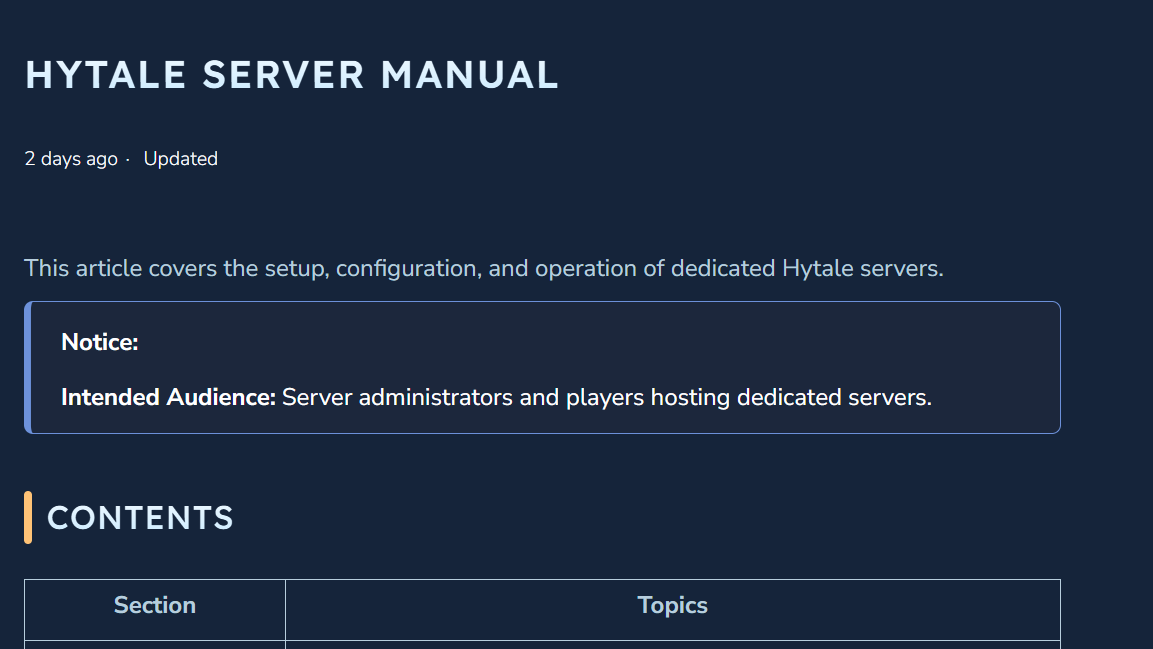
If you prefer to run your own hardware or already rent a VPS, Hytale’s standalone server offers full control. The setup flow is documented in the official Hytale Server Manual, including how to:
- Obtain the server files by copying from the launcher or using the Hytale Downloader CLI.
- Launch the server with a command such as
java -jar HytaleServer.jar --assets PathToAssets.zip. - Authenticate the server with your Hytale account so it can accept players.
- Bind to a specific address and port with
--bind 0.0.0.0:5520or a custom port.
On a VPS or dedicated machine with a true public IP, you then open UDP port 5520 on the system firewall and, if needed, in the cloud provider’s security groups. Players join via Servers → Direct Connect by entering your server’s address and port.
Running a proper server avoids friend‑join share codes entirely. Your home NAT type no longer matters because everyone connects outwards to a machine that is already designed to accept inbound traffic.
Hytale’s “Restricted” NAT label is not a moral judgment on your internet connection; it is a warning that inbound UDP traffic is being blocked somewhere. For quick sessions, the lowest‑effort fixes are often enabling UPnP, hosting from the friend with the more permissive NAT, or using Tailscale to sidestep CGNAT. When those are not enough—or when a world needs to stay online around the clock—a dedicated server, rented or self‑hosted, becomes the most durable answer.