

Hytale is finally in players’ hands, but it isn’t on Steam yet, has no native controller support, and is still in a very early state. The good news: the Steam Deck’s Linux-based SteamOS and Steam Input cover a lot of that gap. With a bit of setup, Hytale runs well and feels surprisingly comfortable on the Deck.
What Hytale looks like on Steam Deck right now
Hytale’s current build focuses on sandbox play. Survival, Creative, modding, and multiplayer are live, while features like Adventure Mode, minigames, and richer world generation are still in development. On Steam Deck, that translates into a sandbox-first experience that already performs well once it’s configured correctly.
The big caveats on Deck today:
- No native controller support yet. The game expects keyboard and mouse. You need a Steam Input layout to make the Deck’s controls work.
- No Steam release yet. You buy Hytale directly and run it through its own launcher.
- Settings are tuned for desktop by default. Out-of-the-box “Medium” graphics run poorly on Deck until you adjust them.
Once those issues are handled, Hytale is very playable on the Deck, including on the OLED model, with frame rates that comfortably hit 60 fps and often climb higher.

Install the Hytale launcher on Steam Deck (Linux Flatpak)
Hytale ships an official Linux launcher as a Flatpak, which is ideal for SteamOS. You install it in desktop mode, then layer Steam on top for controller support.
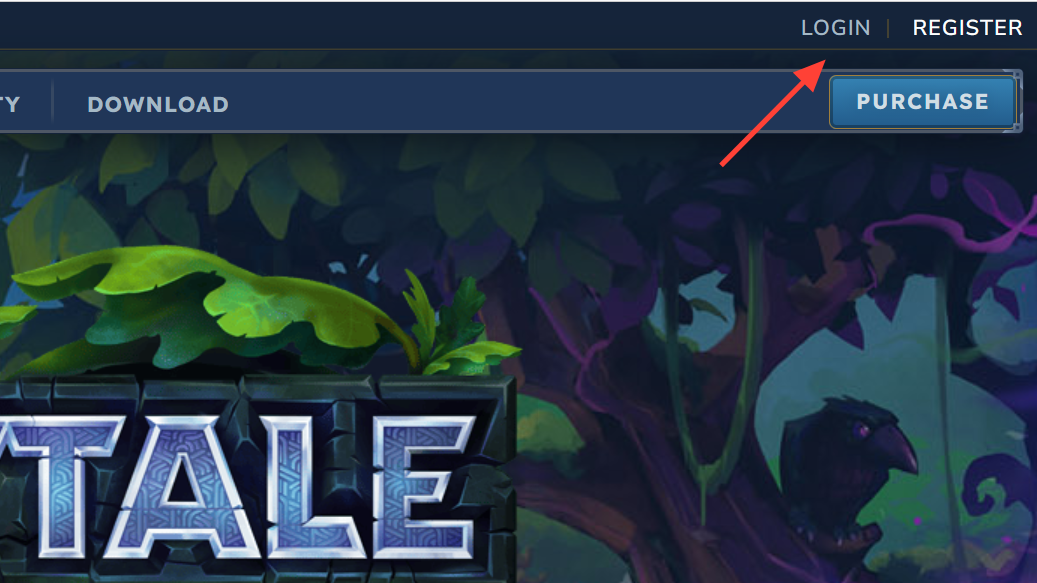
Step 1: On your Deck, hold the power button and switch to Desktop Mode. Open a browser and go to the official Hytale site at https://hytale.com. Sign in or create an account if you don’t already have one.
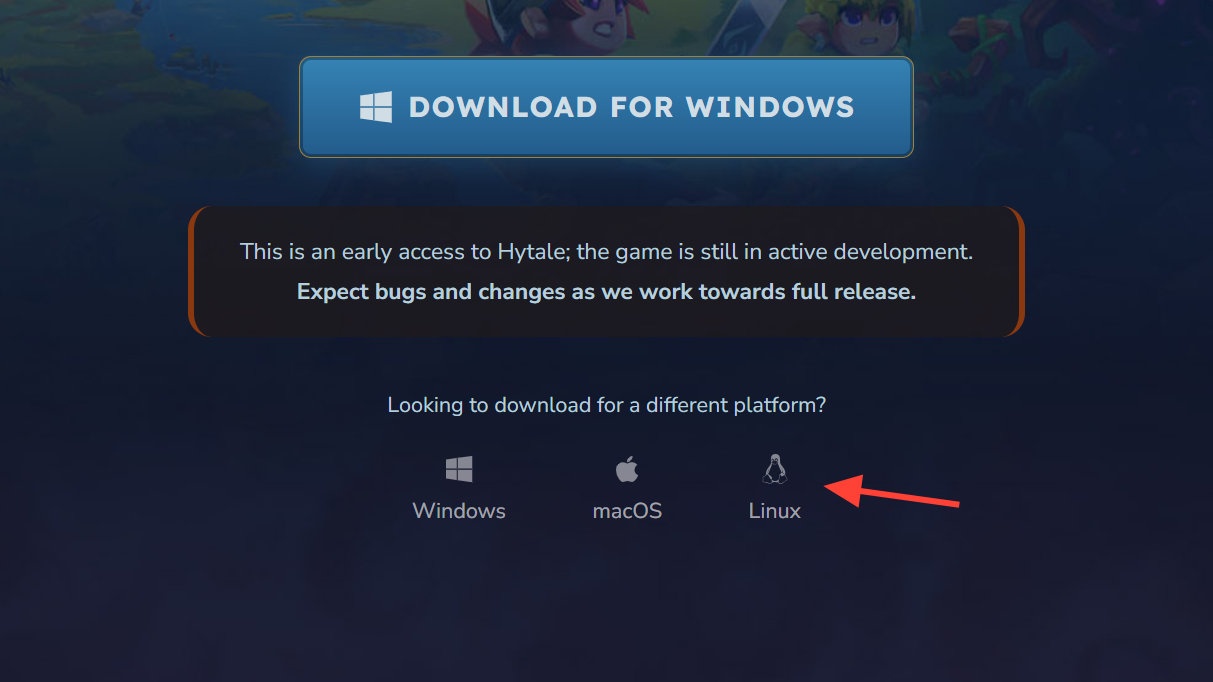
Step 2: Download the Linux version of the Hytale launcher. The download is a Flatpak file. Save it somewhere easy to find (for example, the Downloads folder).
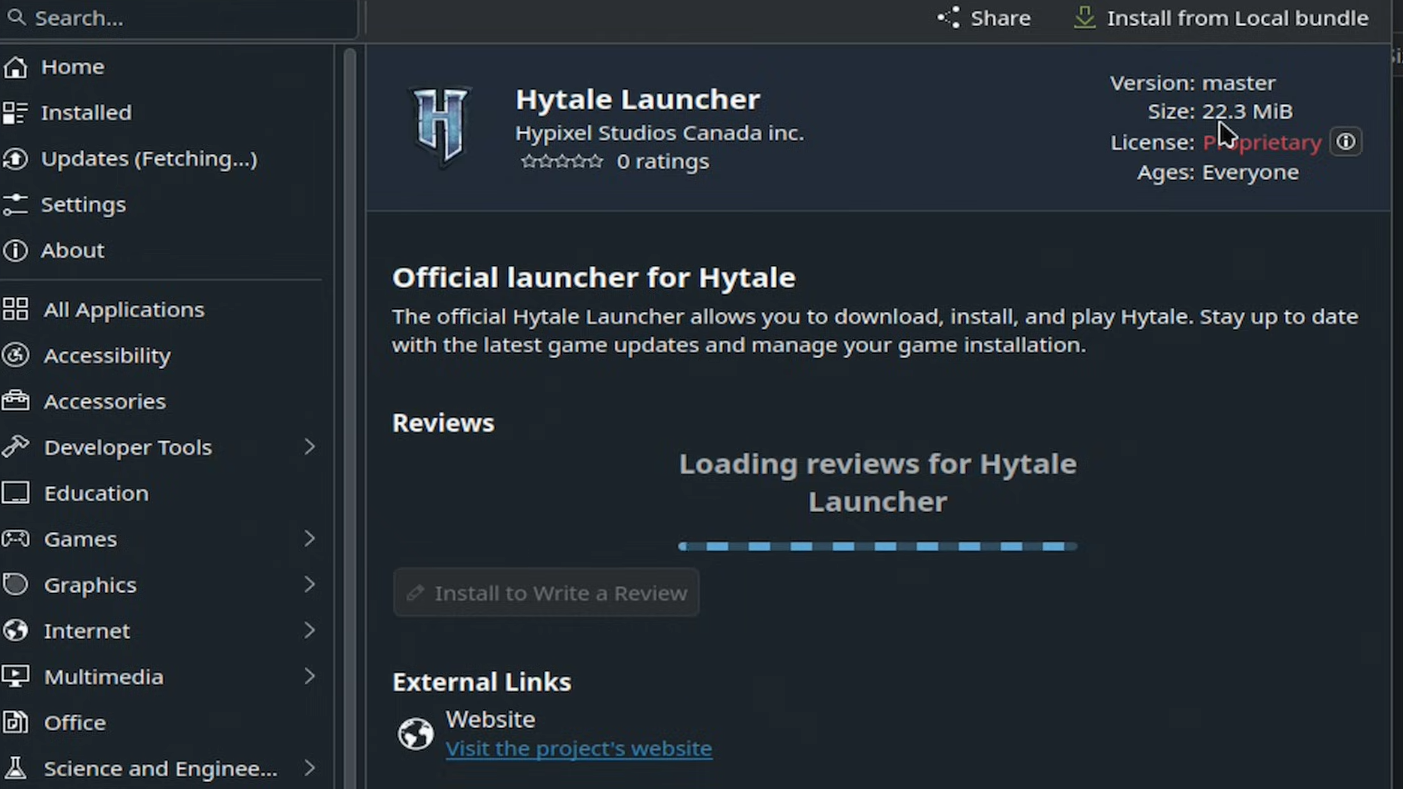
Step 3: Open the Discover software center in Desktop Mode. Double-click the downloaded Flatpak file from your file manager. Discover will appear and prompt you to install the launcher. Confirm and wait for the install to finish.
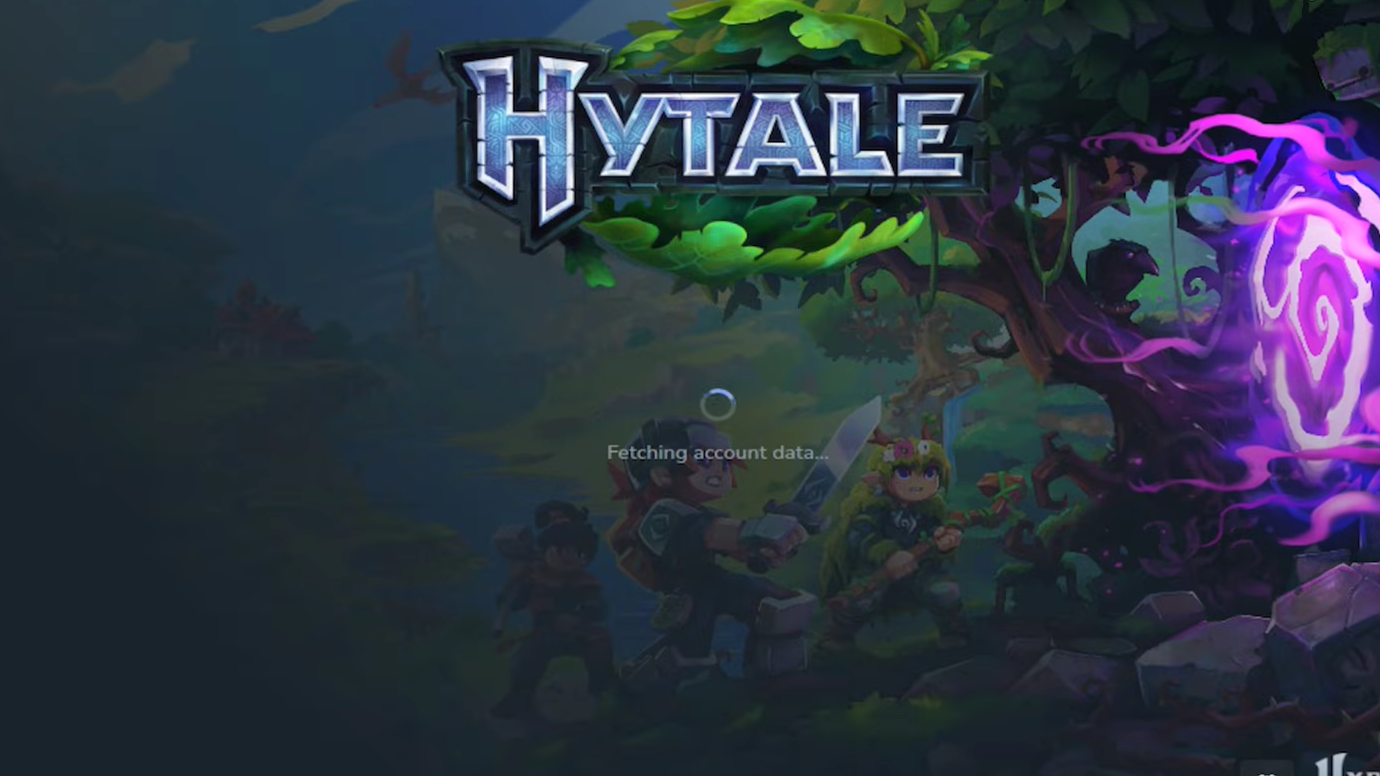
Step 4: Launch the Hytale launcher from the applications menu. When you select “Sign in,” it should open a browser window to authenticate against your Hytale account.
Step 5: Once you are signed in, start the download for the main Hytale game inside the launcher. Wait for it to complete.
Add Hytale to Steam so it appears in Gaming Mode
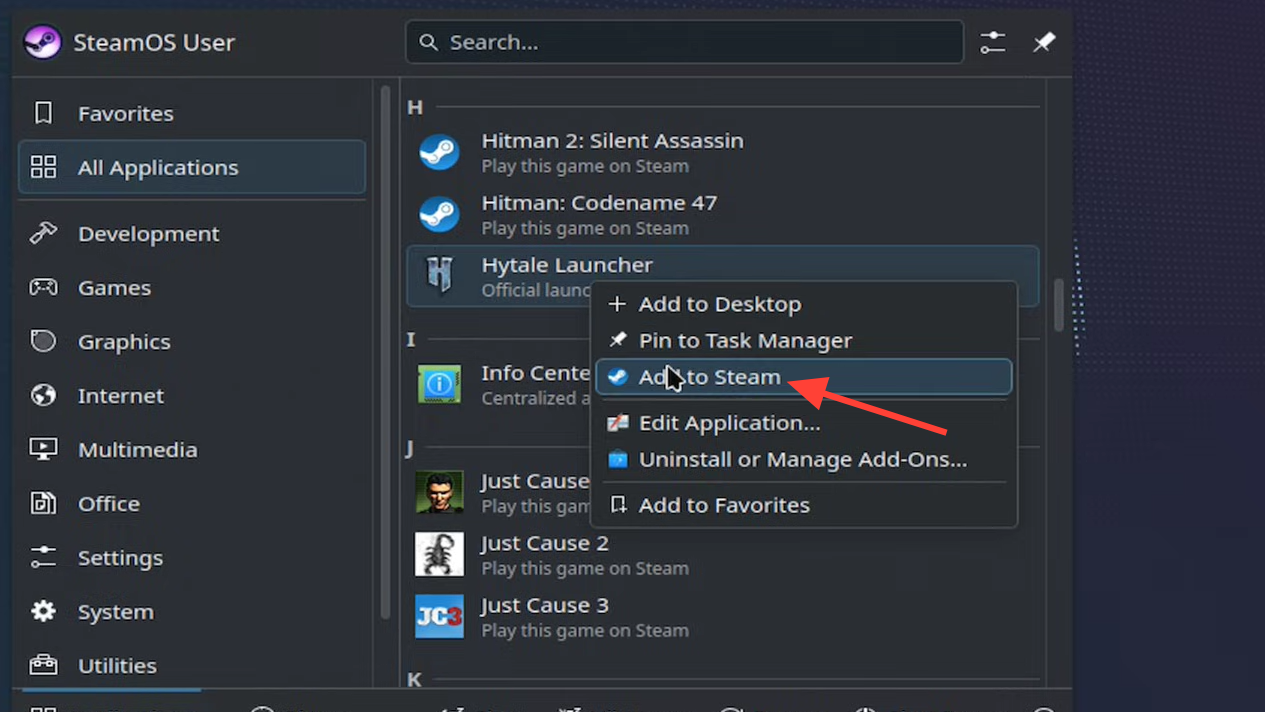
The launcher runs as a regular Linux app. To get Deck-style controller remapping, you add that launcher as a non-Steam game.
Step 1: While still in Desktop Mode, open the Steam client.
Step 2: In Steam’s top menu, open the “Games” menu and choose “Add a Non-Steam Game to My Library…”. In the list that appears, find the Hytale launcher entry (it will typically show under its app name), check it, and confirm.
Step 3: Optionally, rename the entry in your Steam library from “Hytale Launcher” to something clearer like “Hytale” so it looks cleaner in Gaming Mode.
Step 4: Exit Desktop Mode and return to Gaming Mode. In your Library, switch to the “Non-Steam” tab if needed; the Hytale launcher entry should now appear and can be launched like any other game.
Set up a usable Steam Deck controller layout for Hytale
Hytale currently only understands keyboard and mouse input. Steam Input bridges that gap by pretending the Deck’s controls are a keyboard and mouse.
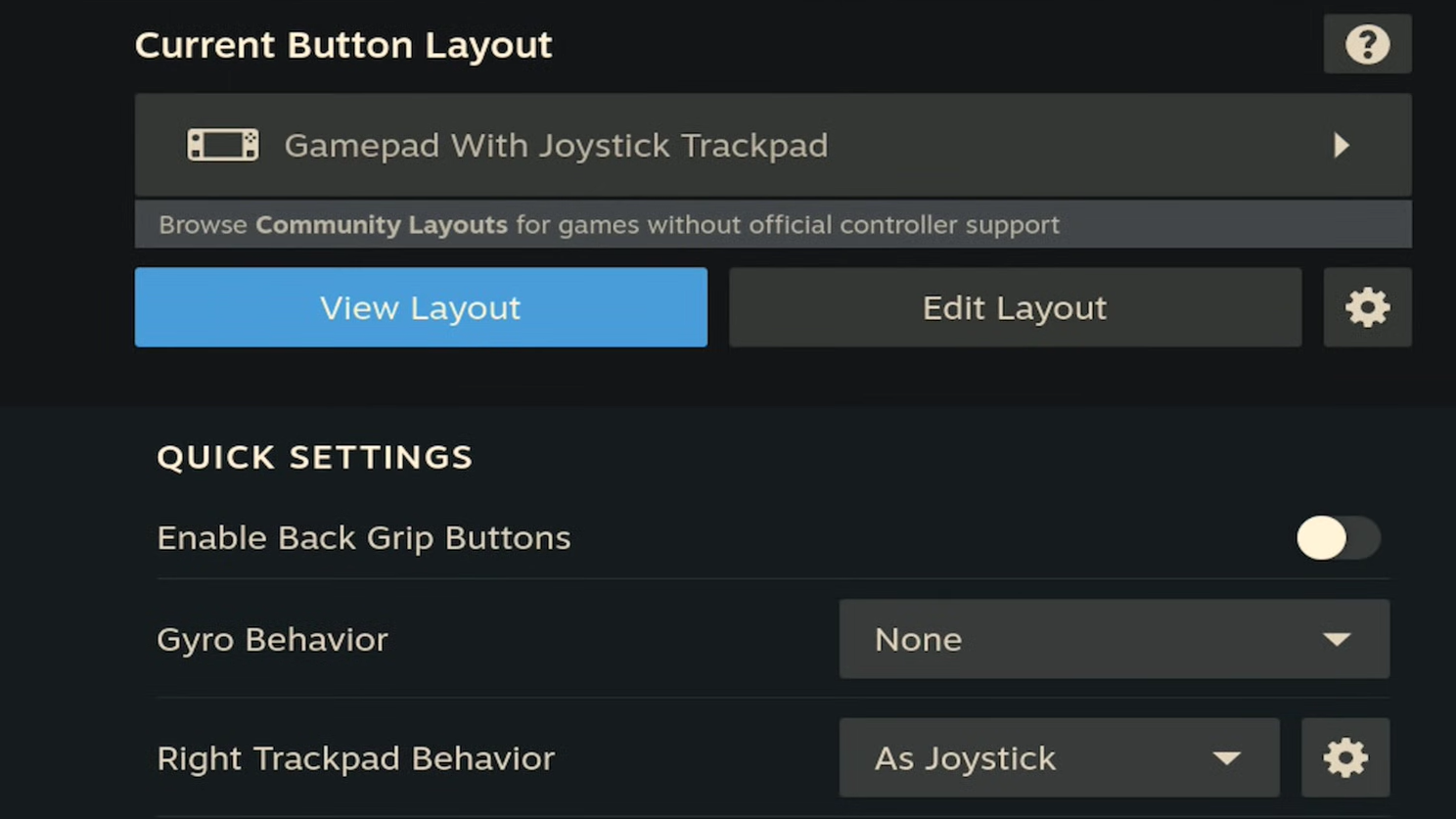
Step 1: In Gaming Mode, highlight your Hytale launcher entry in the Library, but do not start it yet. Press the controller options button (the cog icon) and open the “Controller” or “Controller Layout” menu.
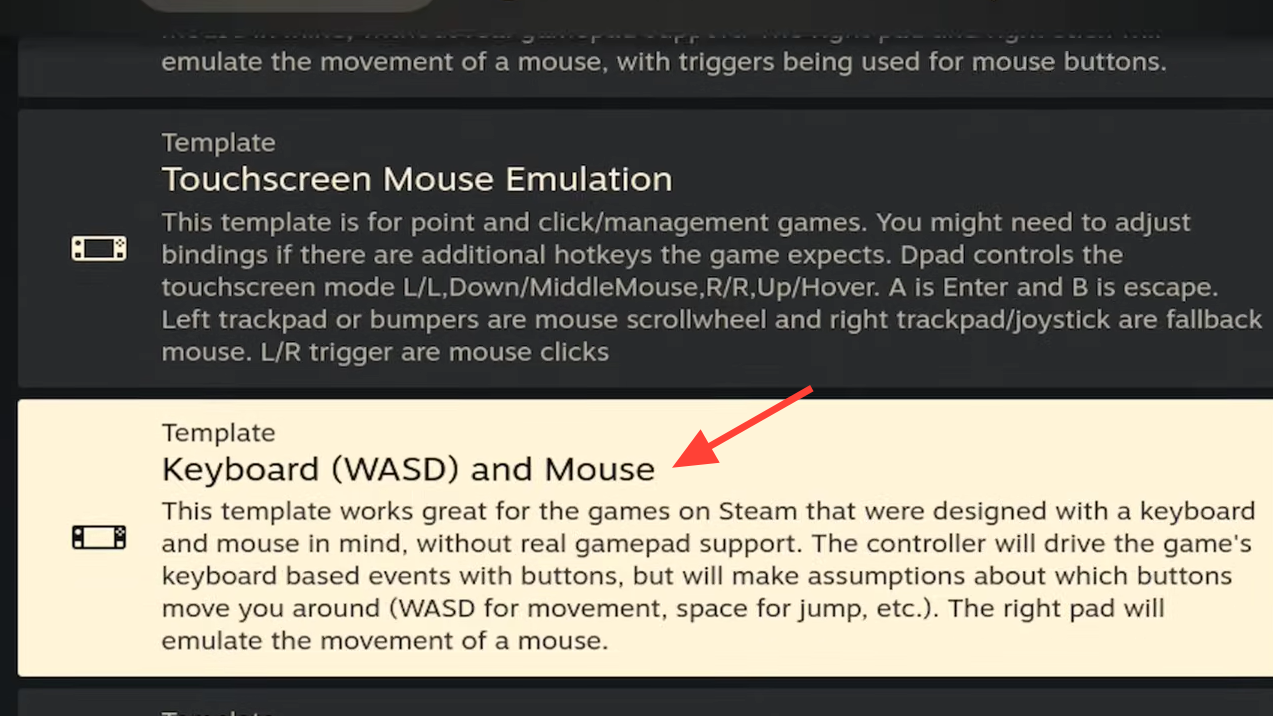
Step 2: Under templates, pick a keyboard-and-mouse oriented layout, such as “Keyboard (WASD) and Mouse.” This template maps the left stick to WASD movement and the right trackpad or stick to mouse look.
Step 3: Ensure key gameplay actions are mapped to buttons that feel natural:
- Face buttons for jump, interact, and inventory (often space, E, and a chosen inventory key).
- Bumpers for cycling hotbar slots (usually mapped to mouse wheel up/down or number keys).
- Triggers for attack and block (left and right mouse buttons).
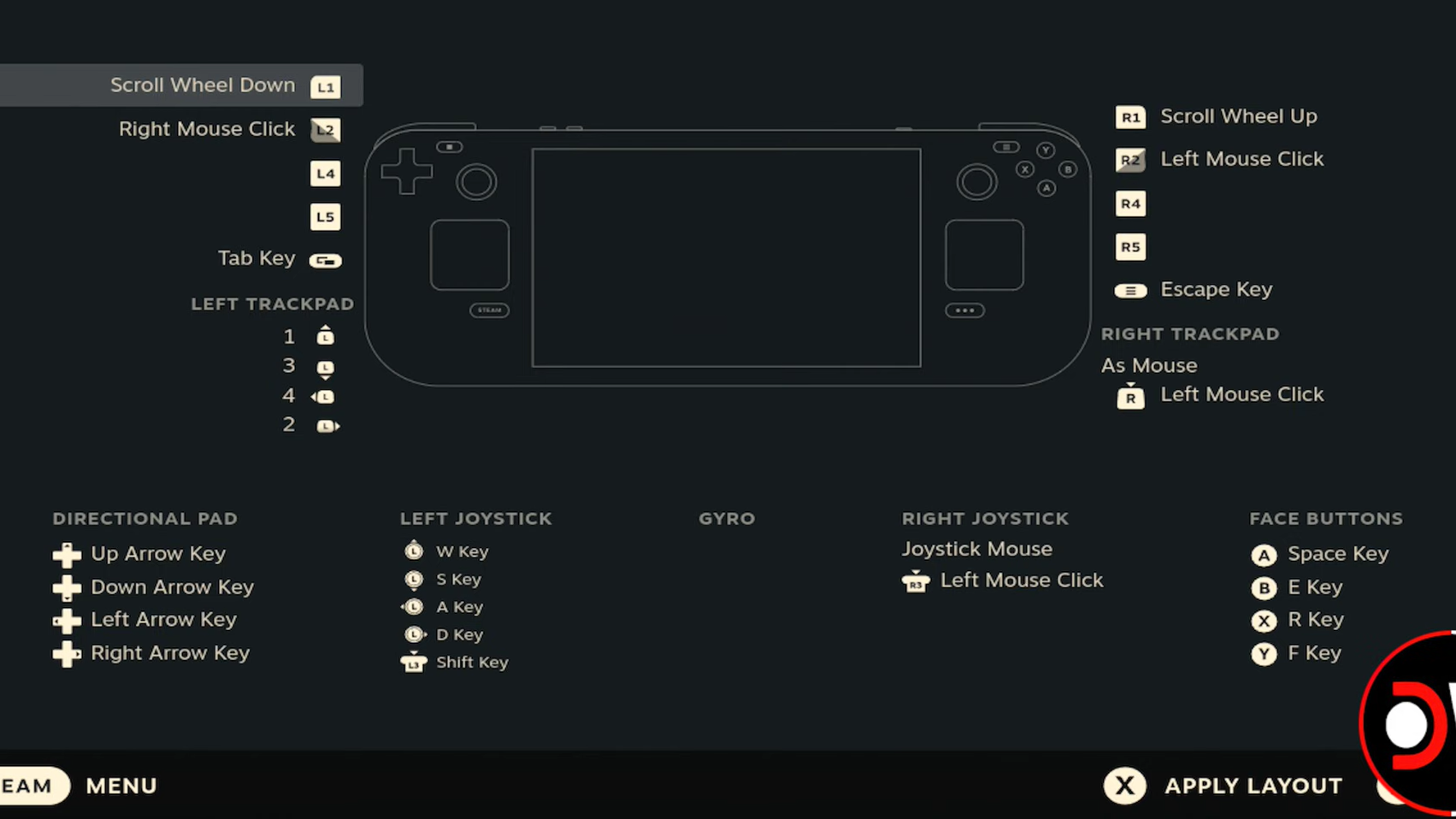
Step 4: Map Hytale’s extra keys that the template will not cover automatically. Common examples include:
- Q for abilities.
- V for switching between first and third person camera.
- Left Ctrl for crouch.
A practical approach is to use the back grip buttons for less frequent actions like camera toggle (V) or crouch (Left Ctrl), and reserve face buttons for actions you hit constantly.
Step 5: Save this layout as a custom template so you can tweak it over time. Once controller support is implemented natively by the developers, you can switch to a simpler “Gamepad” layout instead.
Optimize Hytale graphics settings on Steam Deck
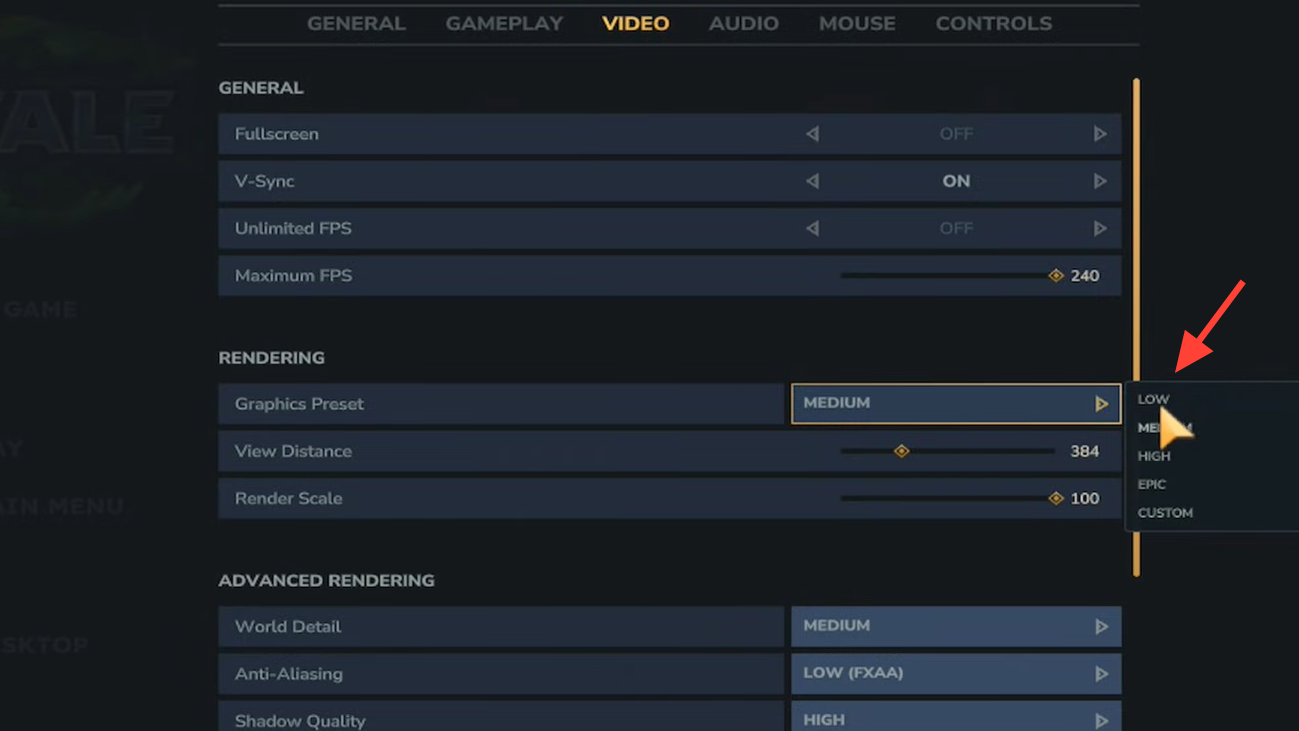
On Steam Deck, Hytale’s default visual preset is too heavy. The Medium preset can sink performance into the mid-teens, which is effectively unplayable. A few specific adjustments quickly lift the frame rate into a comfortable range.
Baseline: Lowest preset for stability
On the Deck OLED, running the game on its lowest preset delivers a stable 60 fps and can reach 90 fps in simpler scenes. Battery life with those settings sits roughly around six hours, which is strong for a sandbox title.
To reach that baseline:
Step 1: Launch Hytale through the launcher entry in Gaming Mode and open the in-game settings.
Step 2: Switch overall quality to the lowest preset. Confirm resolution is 1280×800 to match the Deck’s display.
Step 3: Apply and test in an empty or early-world area. You should see smooth camera movement and responsive combat at this point.
Improve visuals while keeping 60–90 fps
Once performance is solid, you can selectively raise a few options. Two groups of settings have the biggest effect on the Deck:
- View distance (or similar draw distance slider). The default distance on Medium hammers performance. Lowering this to roughly the low hundreds (around 200 units) dramatically boosts frame rates, often into the 90 fps range on Deck.
- Depth buffer precision, shadows, and particles. High precision and high shadow, and particle quality cost a lot. Keeping depth buffer precision on Low and shadows and particles on Medium provides much smoother frame times.
Step 1: Starting from the low preset, slowly raise overall quality to Medium while immediately lowering view distance to about 200.
Step 2: Manually override the most demanding toggles: keep depth buffer precision on Low, and reduce shadow and particle quality to Medium even if the preset wants them higher.
Step 3: Run around, chop trees, mine, and fight a few enemies. Watch for large drops when panning the camera or entering dense areas. If you see frequent dips below 60, back off the view distance a bit more.
On these tuned Medium-like settings, Hytale can sit between 60 and 90 fps on the Deck. Short stutters can still appear when the world is generating new terrain chunks, but they tend to clear quickly.
Battery life and thermals on Steam Deck
On the lowest preset at 60 fps on the OLED model, Hytale draws roughly 11–16 watts. That typically translates to about six hours of battery life, occasionally a bit more in lighter scenes.
Raising settings and targeting 90 fps reduces runtime. If long sessions away from power are more important than frame rate, it is worth capping the Deck’s refresh rate and FPS limit to 60 and keeping the view distance modest. Lower drain also means a cooler, quieter handheld.
Play modes and multiplayer on Steam Deck
Hytale currently offers:
- Survival mode.
- Creative mode.
- Multiplayer for both, with support for servers and friend connections.
- Modding features with a focus on server-side mods.
On Steam Deck, the native Linux build works in single-player and can connect to online servers. There is no kernel-level anti-cheat in the current game, so nothing blocks it from running on SteamOS via the Flatpak launcher. The main limitation is still input: controller support is not implemented yet, and menus remain cursor-driven.
Large servers with dense builds may stress the Deck’s APU more than a solo world. Expect more frequent dips when you load into areas full of structures and players, and be prepared to trim view distance further if performance becomes unstable.
What “not officially recommended” means for Steam Deck
The developers have tested Hytale on a Steam Deck connected to a dock with an external monitor, keyboard, and mouse. That configuration works. They describe the handheld as “not officially recommended” for now, specifically because there is no controller support yet, and they are not focusing on Proton testing while a native Linux build exists.
In practice, the Flatpak launcher and the game itself run on SteamOS. With Steam Input filling in controller support, Hytale is already playable in handheld form. The caveat is that you are leaning on community-created layouts and personal tinkering rather than a first-party, Deck-verified experience.
The team is working on proper controller support and plans for a Steam release later on, with buyers receiving a Steam key when that happens. For now, the Linux launcher path is the way to go on Deck.
Hytale is a good fit for Steam Deck’s hardware once it is set up correctly: the art style scales well to the 1280×800 display, the APU can comfortably hit 60 fps or more on reasonable settings, and battery life is strong. Until native controller support lands and a Steam version appears, playing on Deck means accepting a bit of roughness in the controls and doing some up-front configuration. If that trade-off is acceptable, Hytale is already a solid sandbox to take on the go.