

Kirby Air Riders is built to work both as an online racer and as a couch game that lives on a single screen. Local multiplayer on Nintendo Switch 2 covers all three main modes—Air Ride, Top Ride, and City Trial—with a mix of shared-screen and splitscreen setups that change depending on what you launch.
Local multiplayer basics on Nintendo Switch 2
| Mode | Screen type | Local players on one system | Notes |
|---|---|---|---|
| Air Ride | Splitscreen | Up to 4 | 2‑player layout can be vertical or horizontal. |
| City Trial | Splitscreen | Up to 4 | Uses the same layout rules as Air Ride. |
| Top Ride | Shared single screen | Multiple | Overhead camera keeps the entire course visible. |
On a single Switch 2, Kirby Air Riders supports one to four players locally. When two or more players join in Air Ride or City Trial, the game switches into splitscreen automatically. Top Ride is the exception: its top‑down camera always shows the whole track, so everyone shares one view instead of dividing the display.
Multiplayer sessions can also extend beyond the living room. The game supports multiple systems over local wireless, and it also allows two local split-screen players to enter an online match together, similar to how Mario Kart handles two people on the same console queuing for online play.
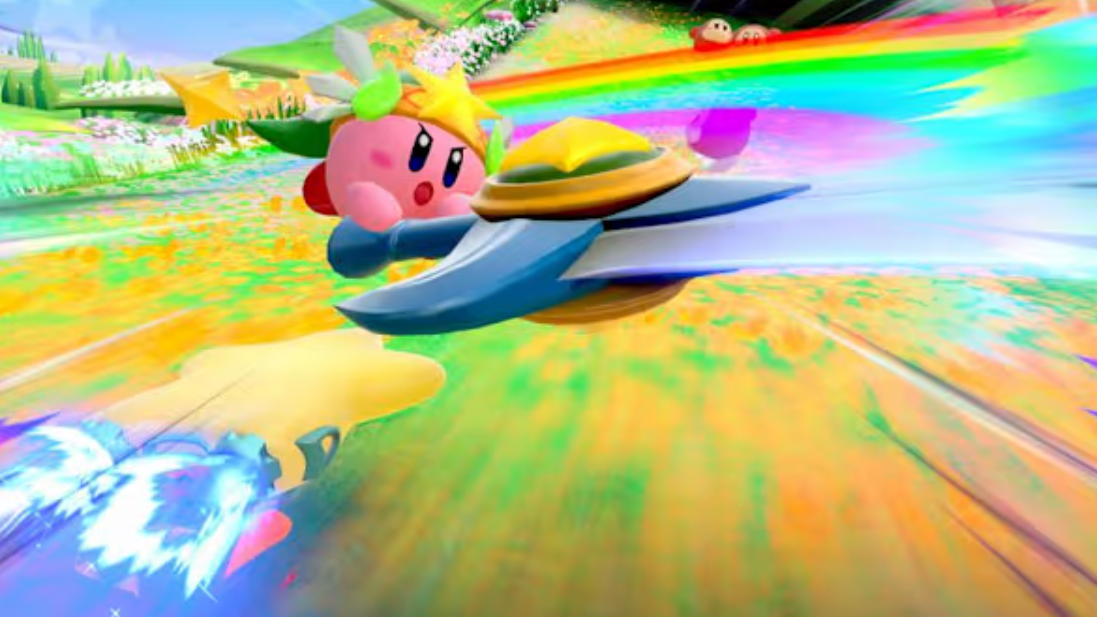
How splitscreen activates and how to change its layout
Kirby Air Riders does not require a manual toggle to enable splitscreen. As soon as more than one player is active on a single Switch 2 in a mode that uses individual cameras, the screen divides on its own.
| Action | Result |
|---|---|
| Only one player joined | Single full-screen view. |
| Two players joined (Air Ride / City Trial) | Screen divides into two views; layout can be vertical or horizontal. |
| Three or four players joined (Air Ride / City Trial) | Screen divides into three or four windows, one per player. |
| Multiple players in Top Ride | Everyone shares a single overhead view. |
The one display choice you do control is how the screen splits for two players in Air Ride and City Trial. That setting lives inside the Options menu.
Change 2‑player splitscreen orientation
To adjust the layout on a Switch 2:
- From the main menu, open
Options. - Go to the
Displaysettings. - Look for the
2-Player Splitscreenoption and switch betweenHorizontalandVertical.
This setting only applies when exactly two people are playing on one system in modes that use splitscreen. With three or four players, the game falls back to a four‑quadrant layout. In Top Ride, the option has no effect because the camera never splits.
How splitscreen behaves by mode
Top Ride: shared overhead camera
Top Ride uses a fixed, overhead camera that always shows the whole course. That design means the game does not need to carve the display into separate views to keep up with players heading in different directions.
When multiple players join Top Ride on one console, they all race on the same single screen. Position is tracked by the riders themselves rather than by dedicated camera views, and nobody is pushed into a small window. This keeps spatial awareness high and makes it easier for less experienced players to follow what is happening.
To start a Top Ride race with others, Nintendo’s support flow is straightforward: launch Kirby Air Riders from the HOME Menu, choose Top Ride from the main menu, optionally adjust rules, pick Race, select a course, then pair and activate a controller for each participant before starting the match. The general multiplayer instructions live on Nintendo’s support site at en-americas-support.nintendo.com.
Air Ride and City Trial: classic four‑player splitscreen
Air Ride and City Trial handle camera work the way most 3D racers do: each player gets their own view of the track or city. On a single system, that translates into splitscreen for local play.
| Players on one Switch 2 | Air Ride / City Trial layout | Notes |
|---|---|---|
| 1 | Full screen | Standard solo play. |
| 2 | Two panes (vertical or horizontal) | Orientation set in Display settings. |
| 3 | Three panes | UI elements simplify to stay readable. |
| 4 | Four panes (2×2 grid) | Each player gets their own window. |
The game’s interface adapts for these layouts. Speedometers and HUD elements become cleaner and more transparent in splitscreen so that critical information is still visible in a smaller window. That design work keeps Air Ride’s and City Trial’s chaos legible, even in four‑player City Trial, where the city is full of events, boxes, and other riders moving independently.
For players who were worried about City Trial losing couch support, the new version keeps the original GameCube game’s spirit: up to four people can roam the city on one console, build their machines, and then head into a Stadium Challenge together—this time with online and wireless options layered on top.
Local splitscreen plus online multiplayer
Kirby Air Riders does not stop at offline splitscreen. It also supports a hybrid format where two people play on the same Switch 2 and join an online match together. The setup mirrors the approach used in recent Mario Kart entries: both local riders share one system and screen, but the race itself happens online against other human players or lobbies.
This structure is particularly useful for City Trial, where the player count can scale up far beyond four. Two local riders can sit on a couch, share a display, and still participate in large online City Trial sessions without each needing their own console and copy of the game.
On the box and digital listing, the game lists “Single system 1–4 players” and “Multiple systems 2–8 players.” The first line covers splitscreen on one Switch 2; the second covers local wireless play, where multiple consoles link up for larger lobbies.
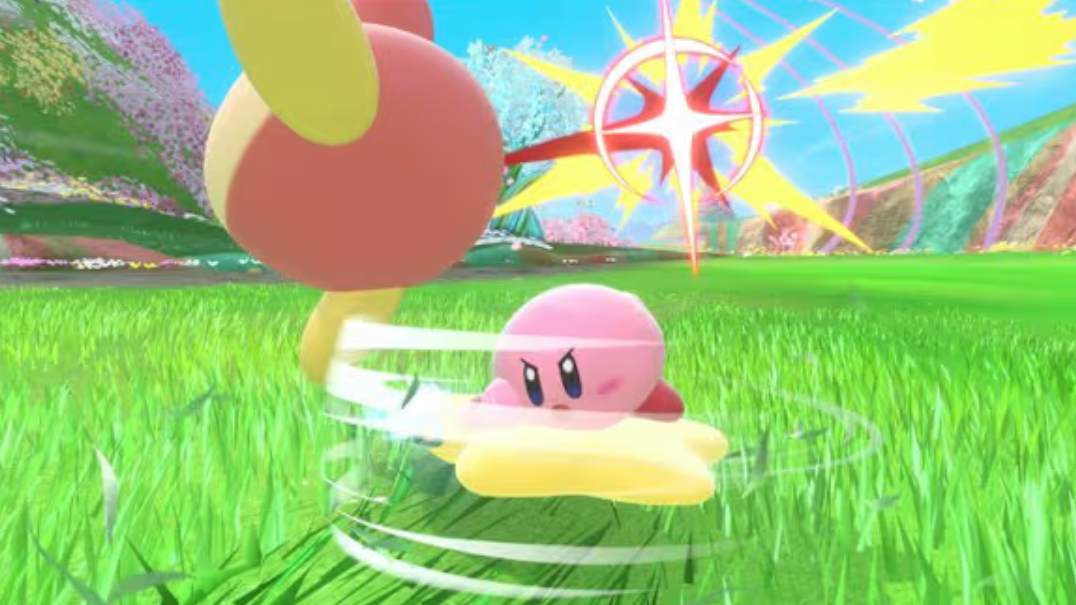
Supported controllers for local splitscreen
Kirby Air Riders is flexible about controllers, which matters when four people are trying to join on one system. The game works with three main controller types on Nintendo Switch 2.
| Controller type | How it works | Best use cases |
|---|---|---|
| Nintendo Switch Pro Controller | Pairs wirelessly to Switch 2; fully supported in all local modes. | Longer sessions, players who want a traditional gamepad. |
| Nintendo GameCube Controller (via adapter) | Plugs in through the Switch adapter; button layout suits classic Kirby spin‑offs. | Players who prefer the GameCube feel, nostalgia for the original Kirby Air Ride. |
| Joy‑Con | Can be used as a single paired set or separated and used individually. | Spontaneous four‑player setups when only one or two pairs of Joy‑Con are available. |
Each controller can be assigned to a different rider. Joy‑Con can either stay locked together as one full controller or be split so two people can play with one Joy‑Con each. That flexibility makes it easier to reach four local players without requiring four full‑size pads.
GameCube controllers must be connected through the Switch‑compatible adapter to function. Once attached, they behave like any other pad in Kirby Air Riders and can be used across Air Ride, City Trial, and Top Ride in both solo and multiplayer sessions.
With shared‑screen Top Ride, four‑way splitscreen for Air Ride and City Trial, and the option to send two couch players into online lobbies together, Kirby Air Riders preserves the local feel of the original while leaning into modern multiplayer formats. The main setup work is pairing enough controllers and, if you are playing two‑player, choosing whether vertical or horizontal splitscreen feels better on your display.