

In Marathon, audio is one of the fastest ways to catch movement before you see it. The goal is simple: keep footsteps, doors, reloads, and nearby action clear while reducing anything that competes with those cues.
Quick answer: Use Listen Mode: Custom, keep SFX Volume high, and lower Gameplay Music Volume so combat sounds are easier to pick out.
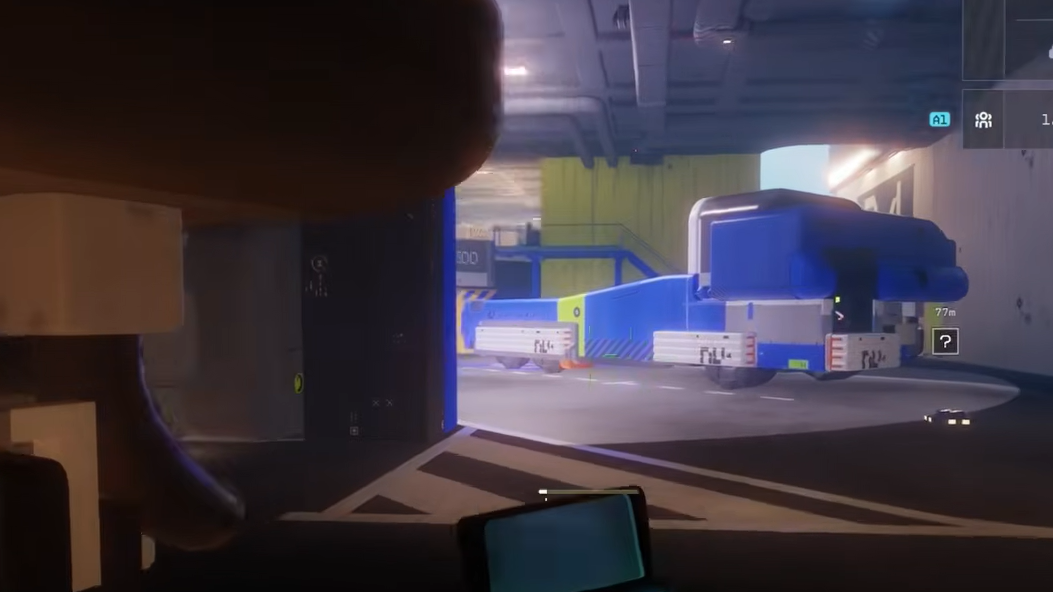
Marathon audio settings
| Option | Recommended setting |
|---|---|
| Listen Mode | Custom |
| Game Volume | 10 |
| SFX Volume | 10 |
| Dialogue / Cinematics Volume | 10 |
| Lobby Music Volume | 10 |
| Gameplay Music Volume | 6 |
| Voice Chat Volume | 8 |
Why these settings work
The important slider in practice is SFX Volume. That is where footsteps, reloads, doors, and a lot of the information that matters in a fight will cut through. Keeping it high gives positional audio the best chance to stay readable when the pace gets messy.
Gameplay Music Volume is the one setting worth pulling back. Music can mask quieter movement cues, especially in short-range fights where a second of warning matters. Lowering it to 6 keeps the soundtrack present without letting it overtake the sounds that decide whether you turn, hold, or push.
Voice Chat Volume at 8 leaves teammates audible without letting callouts drown out the game itself. If your squad is loud, that number is the first one to trim.
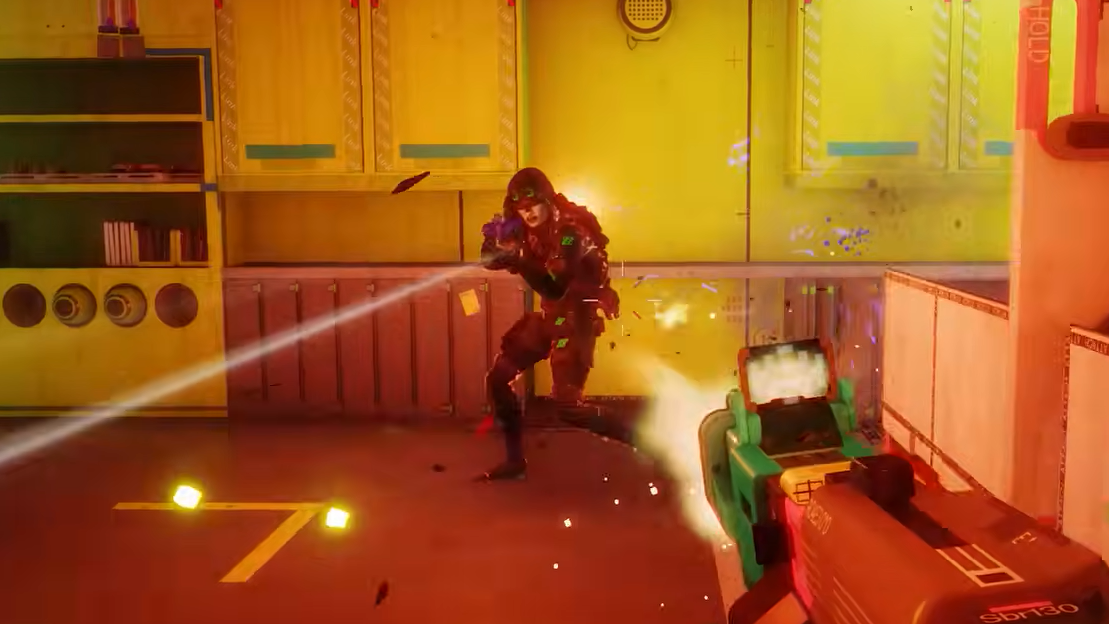
Listen Mode and headphones
Listen Mode: Custom is the cleanest starting point for a competitive mix. Pair it with headphones rather than TV speakers if you want the best left-right positioning and clearer separation between nearby and distant sounds.
That matters more in Marathon than in slower shooters. The game rewards quick reads, and directional audio is one of the few tools that gives you a warning before a fight fully starts.
What to expect from footstep audio
Footstep audio in Marathon is useful, but it is not a perfect wallhack. Some players find it strong and easy to read, while others struggle to place enemies precisely, especially when several sounds stack at once. That difference usually comes down to the mix, your play space, and how well you recognize which noises matter.
Running and door sounds are often the clearest movement tells. Crouch movement is much quieter, so a silent flank can still happen even with a strong audio setup. If you hear nothing, that does not always mean the area is safe.
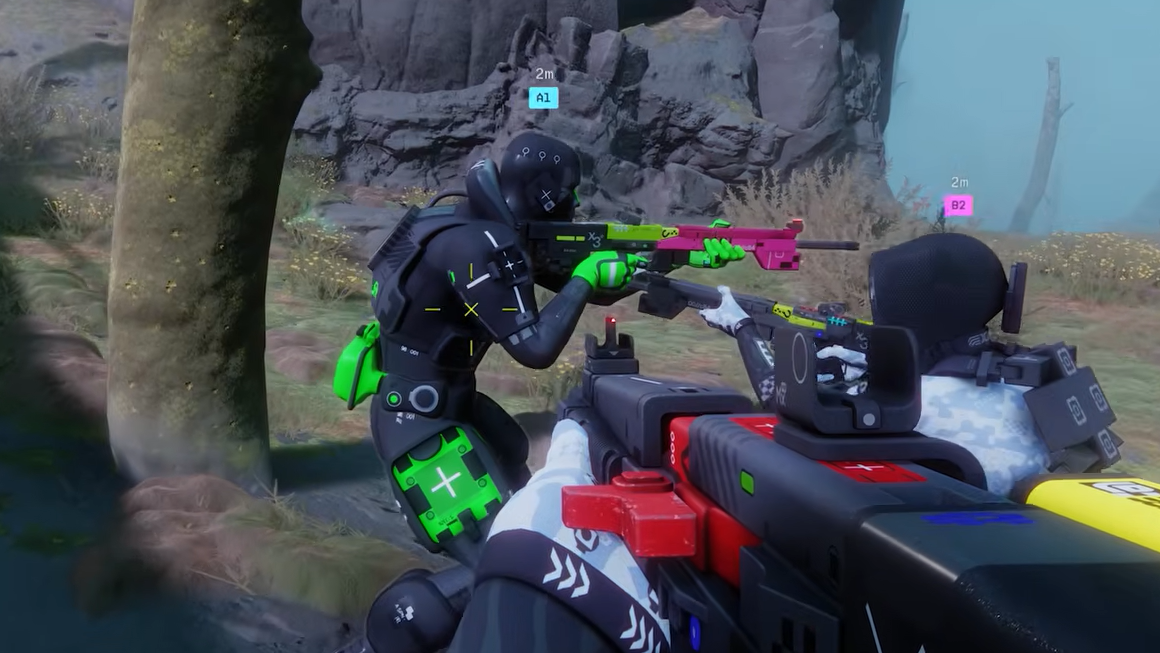
How to tell the settings are working
You will know the mix is in the right place when three things happen consistently. First, you can separate music from combat sounds instead of hearing one blended wall of noise. Second, doors, sprinting, and reloads become easier to notice without straining. Third, teammate voice chat stays understandable without covering the game.
If fights still sound crowded, the first adjustment is Gameplay Music Volume. If the mix feels flat and important cues are still getting buried, check whether your output device is the issue rather than the sliders themselves.
What not to do
Do not assume the best mix comes from pushing every setting as high as it goes. That can make the soundstage busier instead of clearer. The result is often more volume, not better information.
It also helps not to rely on footsteps alone. Marathon throws out a lot of environmental and combat noise, and some of it is misleading until you learn the difference. Audio should narrow your attention, not replace visual checks.
If you want the safest setup, keep the recommended values as your baseline, use headphones, and treat Gameplay Music Volume as the one slider you lower first whenever the game starts sounding too crowded.