

Marathon can fail to open on Steam even though Steam shows it as running. The most consistent fix is simple: fully close Steam, launch it again, and then start the game one more time.
Marathon not opening on Steam fix
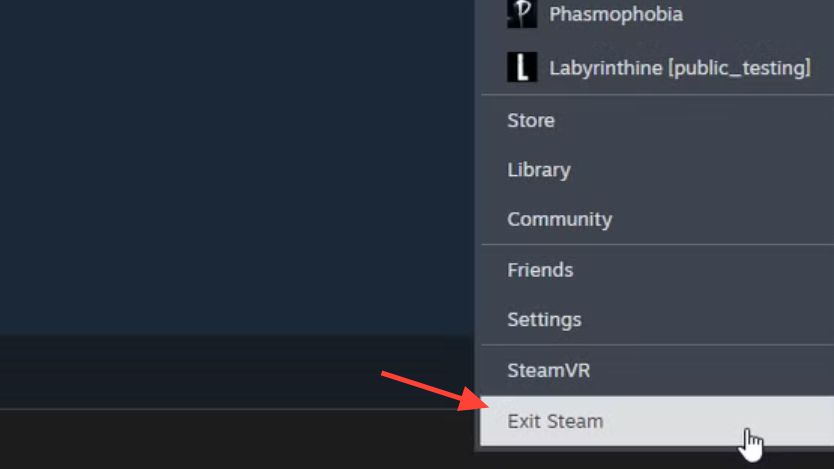
The primary workaround is a full Steam restart, not just closing the game window. Steam can keep background processes active, which leaves Marathon stuck in a bad launch state.
Step 1: Close Steam from the main window if it is open. Then check the system tray in the bottom-right corner of Windows to make sure Steam is still not running in the background.
Step 2: Right-click the Steam icon in the tray and choose Exit. Wait a few seconds so the client fully shuts down.
Step 3: Launch Steam again and start Marathon from your library. If the game opens normally instead of sitting in Task Manager as a background process, the fix worked.
If it still fails, rebooting the PC is worth trying once, then repeating the same Steam restart process.
How to tell whether the Steam restart worked
A successful launch is easy to verify. The game should move past the launcher and open a visible game window. If Steam says the game is running but you only see Marathon listed as a background process in Task Manager, the issue is still present.
When Marathon runs as a background process
This is the main failure pattern on PC. BattleEye may appear, show a launch message, then disappear with no game window. Steam still reports the game as active, but Windows only shows the process in the background.
When that happens after a full Steam restart, the next useful check is to launch the game directly from its install folder instead of through Steam. That can expose a Windows error that does not always appear during a normal Steam launch.
Check Marathon.EXE and Event Viewer
Step 1: Open the local install folder for Marathon inside steamapps/common/Marathon. Find the main game executable, then try launching it directly.
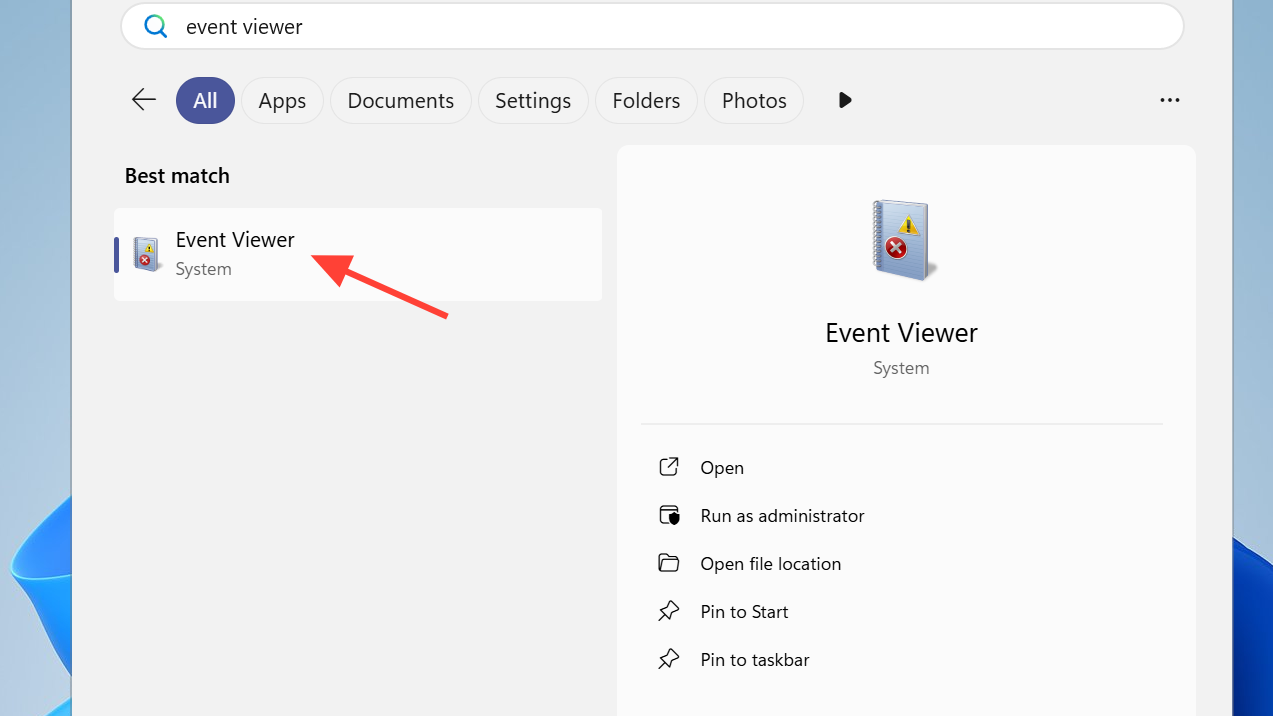
Step 2: If the game still does not open, check Windows Event Viewer for an application error. One reported pattern is an Event Viewer error tied to launch failure, including error 1005.
Step 3: If an error appears there, you have confirmation that the launch is failing before the game window is created. That gives you a clearer signal than Steam’s “running” status.
AVX and CPU-related launch failures
Some launch failures appear to be tied to CPU instruction support or BIOS settings. One reported fix was enabling AVX in BIOS. That did not solve the problem for every system, so it is best treated as a narrow troubleshooting step rather than a universal fix.
If enabling AVX works, the game should open normally after reboot. If it does not, revert the change if your system behaves unexpectedly and return to software-level checks.
What usually does not fix this specific issue
| Action | Result seen in reported cases |
|---|---|
| Verify integrity of game files | Often did not resolve the no-window launch problem |
| Reinstall the game | Did not consistently fix the issue |
| Restart the PC alone | Sometimes helped, but less reliably than restarting Steam itself |
| Updating Windows or drivers | Useful as general maintenance, but not a confirmed main fix for this bug |
When to stop troubleshooting and wait
If a full Steam restart does not work, the game still stays in the background, and direct launching exposes the same failure every time, the problem may be on the game side rather than your install. In that case, repeated reinstalls usually do not change the outcome.
The cleanest path is to retry after another full Steam restart later, especially if the issue appeared around launch. If it opens after the restart, you are done. If it does not, the visible signs to watch are unchanged: BattleEye closes, no game window appears, and Steam still claims the game is running.