

Pokémon HOME acts as a central hub that lets you shuttle Pokémon between many different games, and Pokémon GO is one of the supported sources. The transfer is one-way — once a Pokémon leaves GO for HOME, it cannot come back — but it opens the door to using your GO catches in mainline titles like Pokémon Scarlet, Pokémon Violet, Pokémon Legends: Z-A, Pokémon Sword, Pokémon Shield, and others.
Quick answer: In Pokémon GO, go to Settings → Pokémon HOME, sign in with your Nintendo Account, select Send Pokémon, pick the Pokémon you want, and tap Transport. Then open the Pokémon HOME mobile app and accept the incoming transfer.
What You Need Before Starting
A few prerequisites must be in place before the transfer option even appears in Pokémon GO. Missing any one of them is the most common reason people get stuck.
| Requirement | Details |
|---|---|
| Nintendo Account | Free to create at the Nintendo website. You do not need a Nintendo Switch or a Nintendo Switch Online membership. |
| Pokémon HOME mobile app | Installed on the same phone as Pokémon GO, with the in-app tutorial completed. Must be linked to the same Nintendo Account you will use in GO. |
| Pokémon HOME Premium Plan | Not required. The free tier supports GO-to-HOME transfers. |
| Both apps up to date | Make sure Pokémon GO and Pokémon HOME are running their latest versions from the App Store or Google Play. |
Link Your Nintendo Account in Pokémon GO
The first time you use this feature, you need to connect Pokémon GO to the Nintendo Account that is already tied to your Pokémon HOME app. This only has to be done once.
Step 1: Open Pokémon GO and tap the Poké Ball icon at the bottom of the screen, then tap Settings in the upper-right corner.
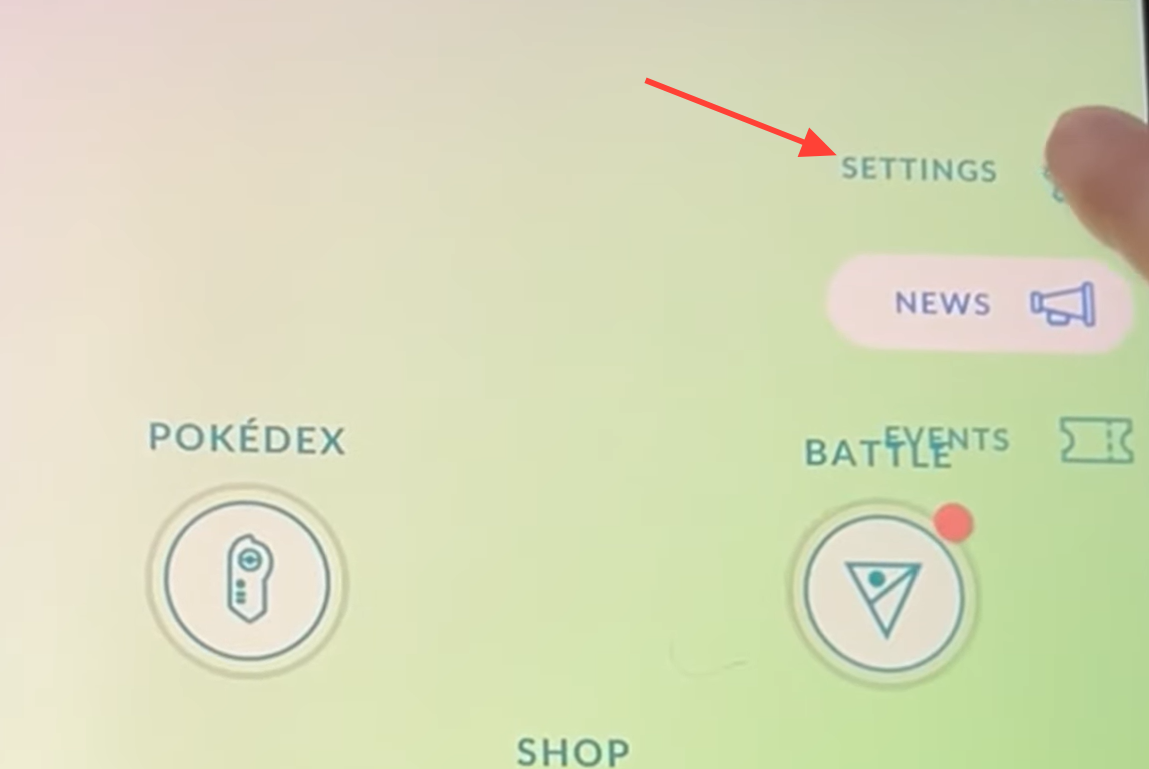
Step 2: Scroll down and select Pokémon HOME. If you don't see this option, force-close the app and reopen it, or log out and back in.
Step 3: Tap Sign In and enter your Nintendo Account credentials. Once linked, the connection persists until you manually sign out.
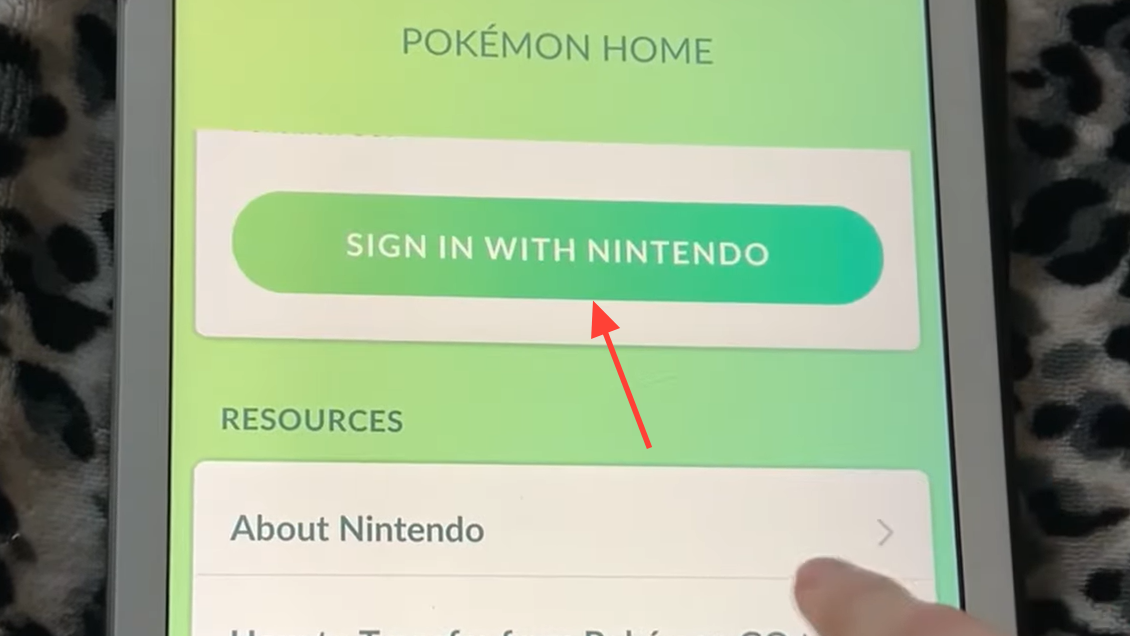
Step 4: Verify that the Player Name and Support ID displayed on screen match the Pokémon HOME account you intend to use. Your Support ID appears in the upper-left corner when you launch Pokémon HOME, and your username is in Your Room. If they don't match, sign out and use the correct Nintendo Account.
Sending Pokémon With the GO Transporter
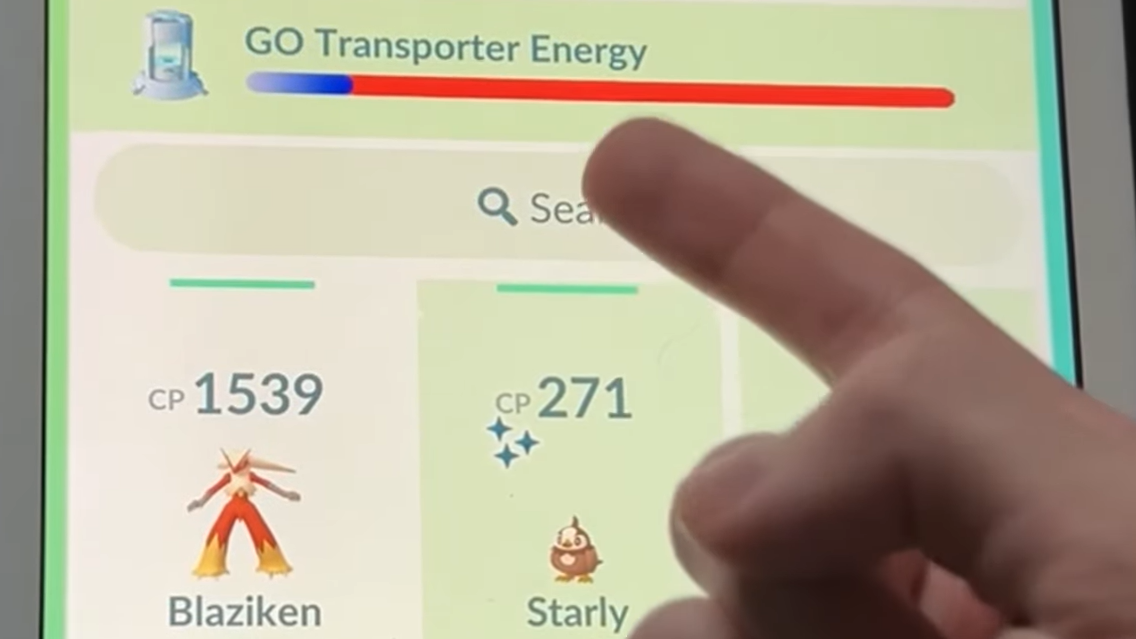
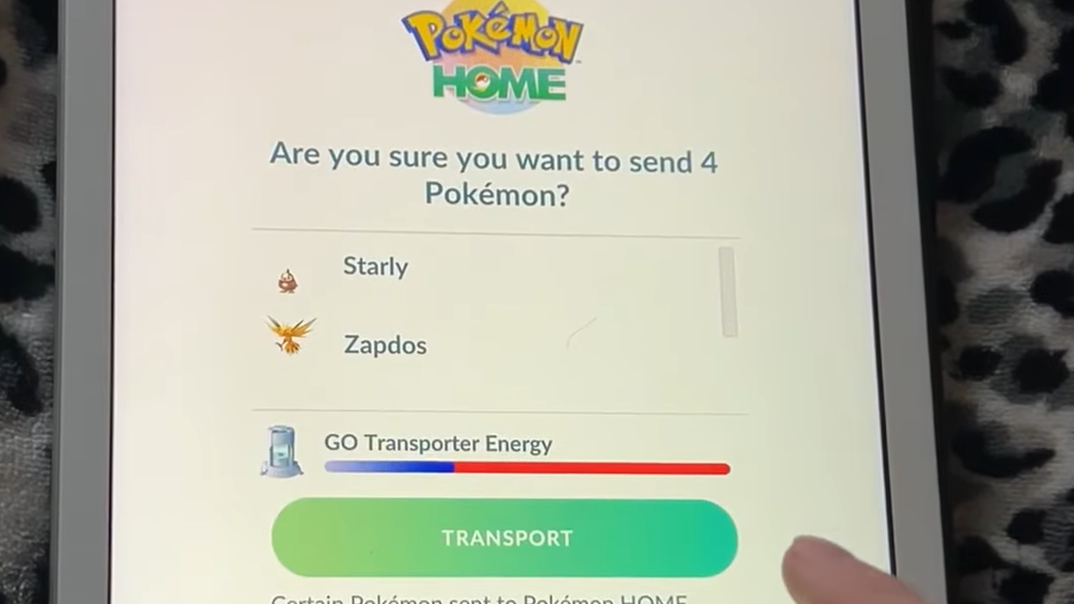
Pokémon GO uses a mechanic called the GO Transporter to gate how many Pokémon you can send at once. Each transfer consumes GO Transporter Energy, and the cost varies by species. Common Pokémon cost relatively little energy, while Legendary, Mythical, and Shiny Pokémon consume significantly more — sometimes draining the entire bar in a single transfer.
The energy meter recharges passively over roughly one week. You can also spend PokéCoins to refill it instantly. The very first time you use the GO Transporter, the energy bar starts completely full.
Step 1: In Pokémon GO, navigate to Settings → Pokémon HOME and sign in if prompted.
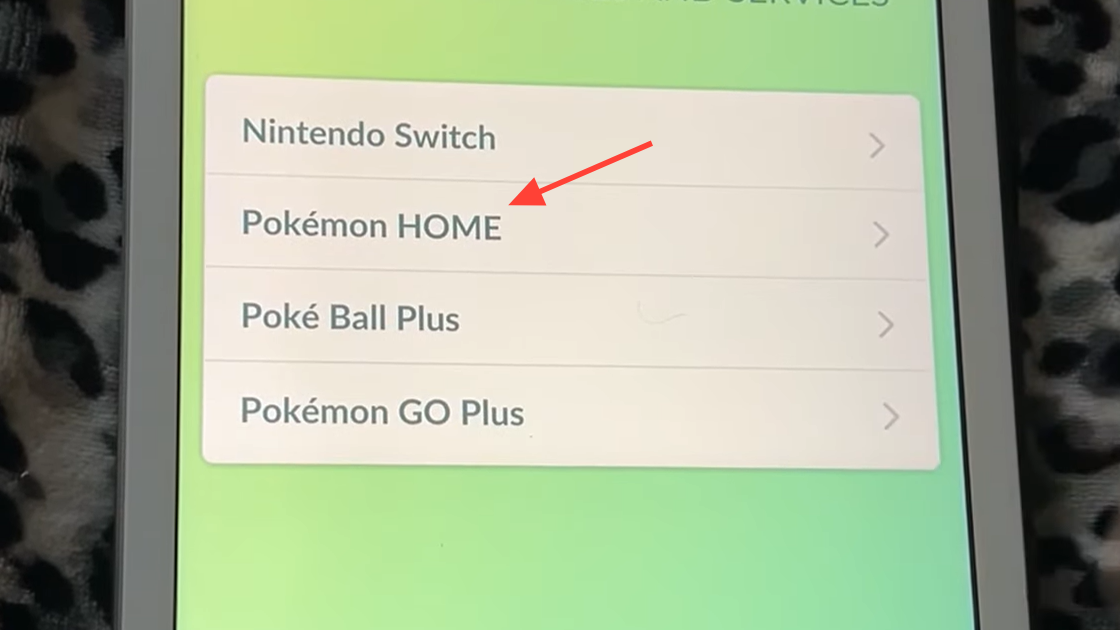
Step 2: Tap Send Pokémon. You'll see your current GO Transporter Energy level and an estimated recharge timer. Tap Continue.
Step 3: Select the Pokémon you want to transfer. Favorited Pokémon will not appear in the selection list, so un-favorite anything you intend to send. Tap Next when your selection is ready.
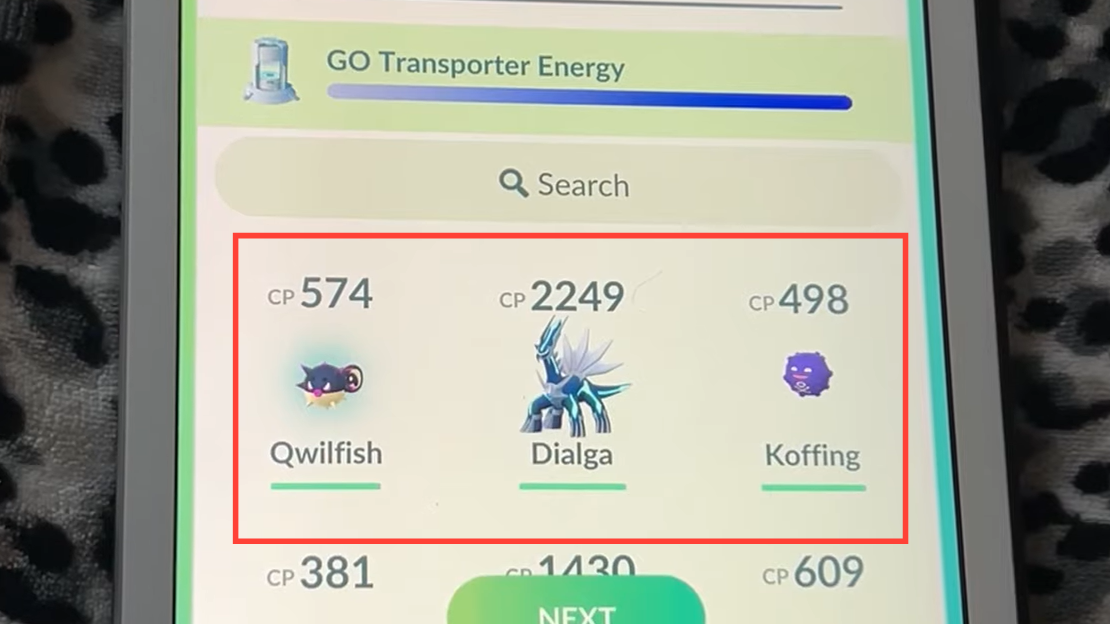
Step 4: Review the summary screen showing which Pokémon will be sent and how much energy the transfer will cost. If everything looks correct, tap Transport.
Receiving Pokémon in Pokémon HOME (Mobile)
Transferred Pokémon do not land in your Boxes automatically. You have to manually accept them inside the Pokémon HOME app on your phone.
Step 1: Open Pokémon HOME on your mobile device. A prompt should appear asking "Would you like to receive them?" — tap Recieve.
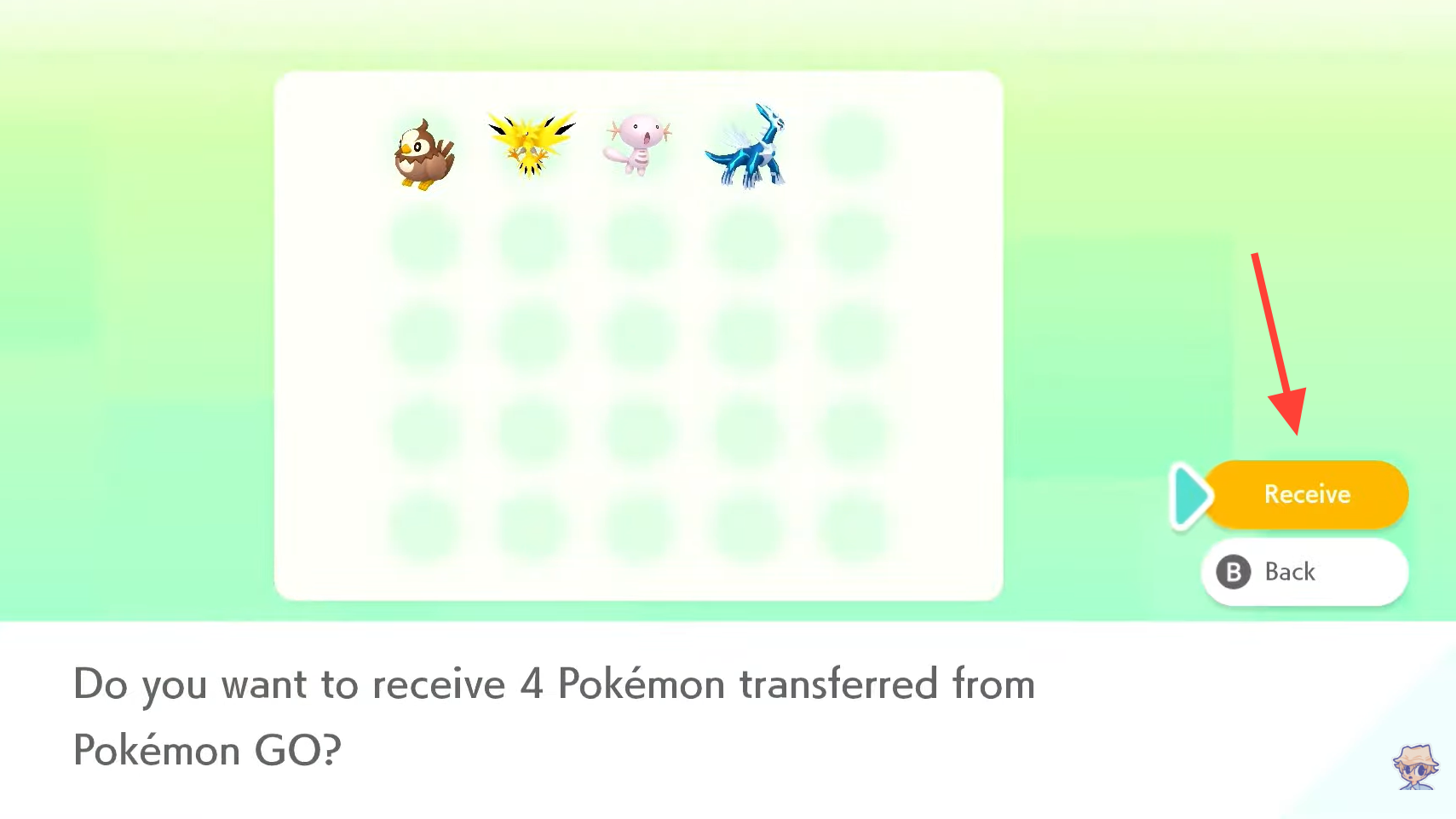
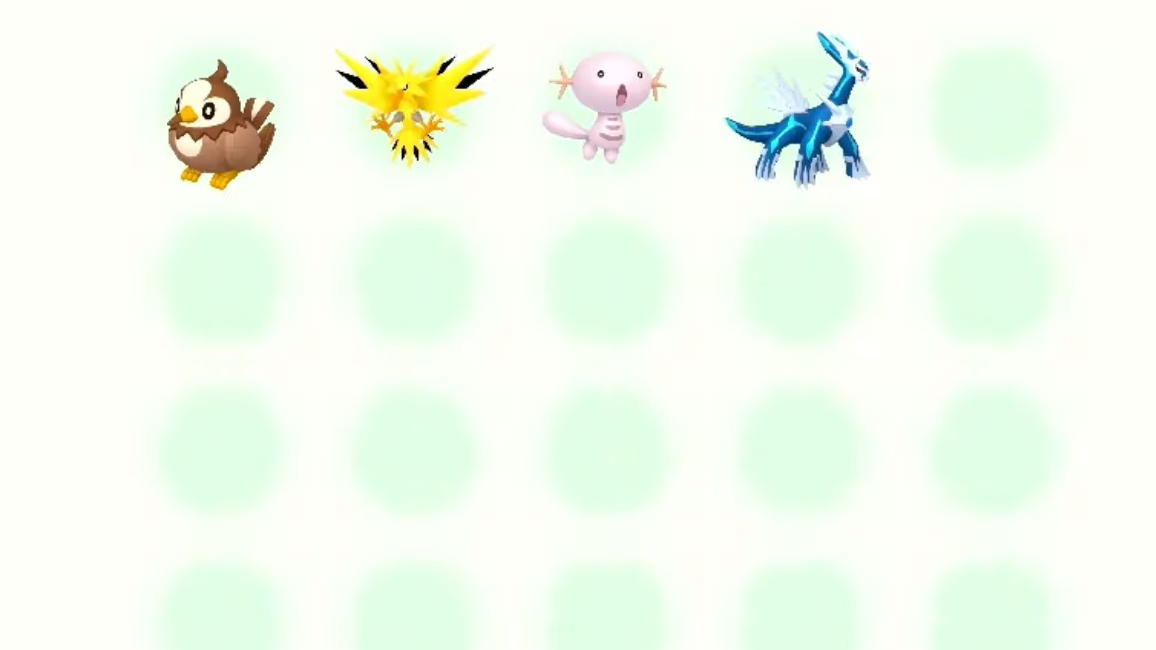
Step 2: Tap View transferred Pokémon to see the list of incoming Pokémon, then tap Receive Pokémon.
Step 3: Wait for the confirmation message that reads "Pokémon received." Your Pokémon are now in your Boxes.
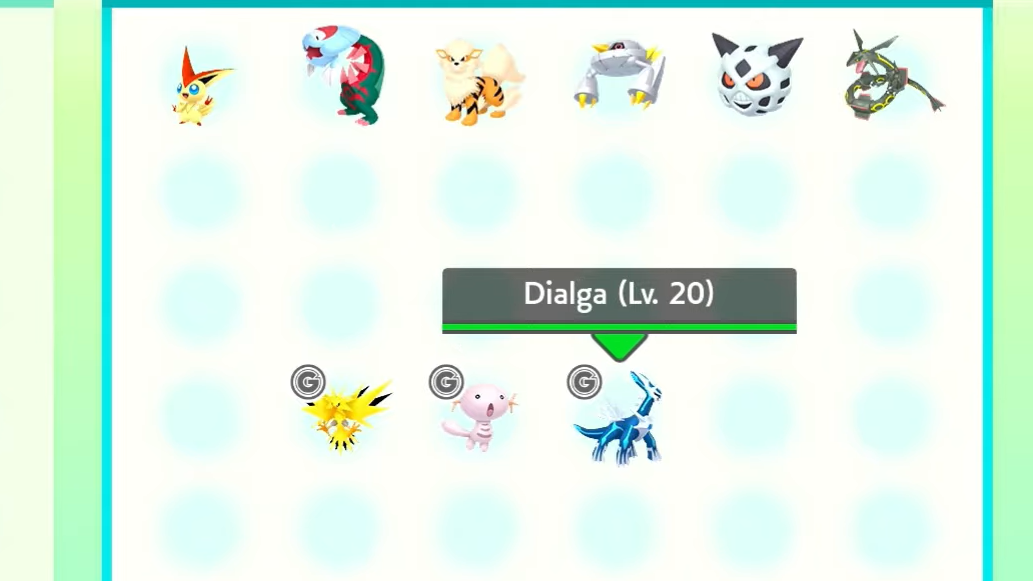
If you accidentally tap No at the initial prompt, just restart the app — the prompt will reappear. You can also manually trigger the receive flow by going to Options → Pokémon GO Link → Receive. If your Boxes are full, free up space first and then use that same menu path to try again.
Receiving Pokémon in Pokémon HOME (Nintendo Switch)
If you also use the Switch version of Pokémon HOME, you can accept GO transfers there instead. Both the Switch version and the mobile version must be linked to the same Nintendo Account for this to work.
Step 1: Launch Pokémon HOME on your Switch and select Pokémon GO from the main menu.
Step 2: If a pending transfer exists, select Receive to move the Pokémon into your Boxes.
The same rule applies here: you must accept any pending transfer before you can send more from GO.
Finding Your Pokémon After Transfer
Newly received Pokémon fill the first empty slots in the earliest available Box, which can make them hard to spot if you have a lot of Pokémon stored. A few search tricks help.
| Method | How to Use It |
|---|---|
| Sort by newest | Change the display order to Newest 30 to surface the most recently deposited Pokémon. |
| Filter by origin game | Go to Pokémon → Search → Detailed Settings → Most recent game and select the Pokémon GO icon. |
| Check the Notebook | The Notebook in Pokémon HOME logs recent activity, including received transfers. |
If none of these methods reveal your Pokémon, confirm you're signed into the correct Pokémon HOME account. It's possible the transfer landed in a different account if multiple Nintendo Accounts are involved.
GO Transporter Energy Costs
The energy cost per Pokémon is not uniform. Standard, non-shiny Pokémon are cheap to send, while rarer categories drain the bar much faster.
| Pokémon Category | Energy Cost |
|---|---|
| Common, non-shiny | Low |
| Shiny (non-Legendary) | Moderate to high |
| Legendary / Mythical | High |
| Shiny Legendary / Mythical | Very high (can consume nearly the full bar) |
Because of these costs, bulk-transferring rare Pokémon requires patience or PokéCoins. Plan your transfers around the weekly recharge cycle if you want to avoid spending in-game currency.
Restrictions on Transferred Pokémon in Other Games
Landing in Pokémon HOME is only half the journey. Moving a Pokémon from HOME into a specific game has its own rules.
For Pokémon Sword and Pokémon Shield, certain Pokémon caught in GO and sent to HOME can only enter those games if you have already registered the species in your Pokédex or previously obtained one in that save file. This restriction is especially frustrating for Mythical Pokémon like Mew, which many players have never encountered in Sword or Shield. The workaround is to arrange a touch-trade with another player who already has the species registered.
Pokémon can only be moved into games where they actually exist in the code. You can check compatibility through the Help menu in the mobile version of Pokémon HOME under Other.
One notable exclusive perk: Roaming Form Gimmighoul cannot normally be encountered in Pokémon Scarlet and Pokémon Violet, but you can bring one into those games by transferring it from GO through HOME.
Stat Conversion and IVs
Pokémon GO uses a simplified three-stat IV system (Attack, Defense, HP), while the mainline games use six stats. When a Pokémon moves from GO to HOME, its Attack, Defense, and HP IVs carry over proportionally. The Speed IV, which does not exist in GO, is generated during the transfer. A perfect-IV ("hundo") Pokémon in GO will generally retain max IVs in every stat except Speed, which is rolled separately.
Lucky Pokémon can be transferred, but their Lucky status does not carry over — only the typically higher IVs remain relevant.
The Mystery Box (Meltan Box) Bonus
Every time you send at least one Pokémon from GO to HOME, you receive a Mystery Box in Pokémon GO. Opening it works like an Incense that spawns only Meltan for a limited time. After using the box, there is a three-day cooldown before you can recharge it by sending another Pokémon to HOME. There is no limit to how many times you can repeat this cycle, making it the primary way to farm Meltan and eventually evolve one into Melmetal.
You do not need a Nintendo Switch to get the Mystery Box — the mobile-only HOME app paired with GO is sufficient. Multiple GO accounts can even link to the same Nintendo Account to each receive their own Mystery Box.
Troubleshooting Common Issues
Pokémon HOME option missing from GO settings
Make sure both apps are fully updated. If the option still doesn't appear, force-close Pokémon GO and relaunch it. On iOS, you may need to log out of your GO account and log back in. Confirm that the Pokémon HOME app is installed on the same device and that you have completed its tutorial.
'Unable to connect to Pokémon HOME' error
This typically means the Nintendo Account link between HOME and your device has become stale. Uninstall Pokémon HOME from your phone, reinstall it, and sign back into your Nintendo Account. Then retry the connection from Pokémon GO.
Pokémon sent from GO but not visible on Switch
Verify that the Nintendo Switch version and the mobile version of Pokémon HOME are linked to the exact same Nintendo Account. If they are on different accounts, the transferred Pokémon will only appear in the account that received them on mobile.
Boxes are full and transfer fails
Free up space in your Pokémon HOME Boxes. On the mobile app, you can long-press a Pokémon to enter multi-select mode, then release unwanted Pokémon in bulk. After clearing space, go to Options → Pokémon GO Link → Receive to complete the pending transfer.
Transferring Pokémon from GO to HOME is straightforward once the initial account linking is done, but the one-way nature of the process and the energy gating system mean you should be deliberate about what you send. Prioritize Pokémon you genuinely want to use in a mainline game or trade through HOME's GTS, and keep anything you still need for GO research tasks or battles safely in your GO storage.