

Refunding a digital PS5 game always starts with the PlayStation Store refund rules, not the console itself. Refunds are handled through your PlayStation account’s transaction history and, in some cases, PlayStation Support.
PS5 refund basics (what Sony will and won’t refund)
Refunds on PlayStation Store depend on what you bought and how you used it. Most products sit in one of four groups: games/DLC, in-game consumables, subscriptions, and pre-orders. Wallet top-ups, online ID changes, and third-party voucher codes cannot be refunded.
Use this table to see the main conditions that must be met.
| Purchase type | When you can usually get a refund | Key limitations |
|---|---|---|
| Games & DLC (including full games and season passes). | Refund request is made within 14 days of purchase. | Content must not have been downloaded or streamed, unless it is faulty. |
| In-game consumables bought on PlayStation Store (virtual currency, skins, boosts, etc.). | Refund request is made within 14 days of purchase. | Item must have been bought on PlayStation Store (not inside the game) and the game must not have been launched after purchase. |
| Subscriptions (e.g. PlayStation Plus). | Refund request is made within 14 days of first signing up. | Only the first payment is refundable; recurring fees are not. Refund may be reduced if you already used the subscription benefits. |
| Pre-orders paid more than 14 days before release. | Any time up to the main release date. | The main part of the content must not have been downloaded or preloaded. If you cancel, any early bonus content stops working. |
| Pre-orders paid 14 days or less before release. | Any time before release, or within 14 days of purchase if the game has already released. | The main part of the content must not have been downloaded or preloaded. Early bonus content also stops working if you cancel. |
| Wallet top-ups. | Not refundable. | Once you add funds to your wallet, you cannot cancel that top-up. |
| Online ID change fees. | Not refundable. | You can revert to a previous online ID for free, but the fee for a new ID is not refunded unless faulty. |
| Voucher codes (store gift cards, game codes bought at a retailer). | Store purchase may be refundable via the original retailer. | PlayStation does not refund third-party voucher purchases; contact the shop that sold you the code. Codes bought from PlayStation Direct follow its own return policy. |
If your situation does not match the conditions in the table, you still have rights under local consumer law, especially for faulty content. Those legal rights always sit on top of Sony’s policy.
Check your PS5 game’s refund eligibility (by purchase type)
Before you try to send in a request, it helps to confirm which group your purchase sits in so you know what to expect.
Games, DLC and season passes
Digital PS5 and PS4 games, DLC packs, and season passes all follow the same rules.
- You have 14 days from the purchase date to request a refund.
- You must not have downloaded or streamed the content, unless it is faulty.
Streaming here refers to services that let you play without a full download. If the game or DLC is defective, refund options are still possible even after download.
In-game consumables (currencies, skins, boosts)
Consumables are items that are used up inside a game, such as virtual currency, XP boosts, or cosmetic items.
- The purchase must have been made on PlayStation Store, not through an in-game menu linked directly to your wallet.
- You have 14 days from purchase to request a refund.
- The game must not have been launched after purchase. Launching the game delivers the item into your game account and removes refund eligibility unless the content is faulty.
Items bought during gameplay are usually delivered immediately and are almost never refundable under the policy.
Subscriptions (PlayStation Plus and other recurring services)
Subscriptions are treated differently because they provide an ongoing service.
- You have 14 days from the day you first sign up to request a refund.
- The refund can only apply to your first payment for that subscription, not to ongoing monthly or yearly renewals.
If you started using your subscription, the refund can be reduced to reflect what you already used. For PlayStation Plus, using online multiplayer, cloud saves, or monthly games all count as use.
Stopping future payments is separate from refunds. You can cancel auto-renew at any time through Account Management, so the subscription simply runs until the current paid period ends instead of billing again.
Pre-orders for PS5 games
Pre-orders have two slightly different sets of rules depending on how early you bought them.
If you paid more than 14 days before release:
- You can cancel any time up to the main release date.
- The main game must not have been downloaded or preloaded.
If you paid 14 days or less before release:
- You can cancel any time before the release date, or within 14 days of buying it if it has already launched.
- The main game must not have been downloaded or preloaded.
Many pre-orders come with early bonus items. If you cancel and have not downloaded the main game, those extras stop working immediately after the refund.
How to request a PS5 game refund through Transaction History
The main way to request a refund is through your PlayStation account’s transaction history, which you can reach from a browser, the mobile app, or a link opened on your console.
Method 1: Request a refund from a web browser
Step 1: Open a browser on your computer or phone and go to https://playstation.com/refund. This page leads straight into the refund flow for your PlayStation account.
Step 2: Sign in with the same PSN account you used to buy the game. Use your normal email address and password, and complete any two-step verification if you have it turned on.
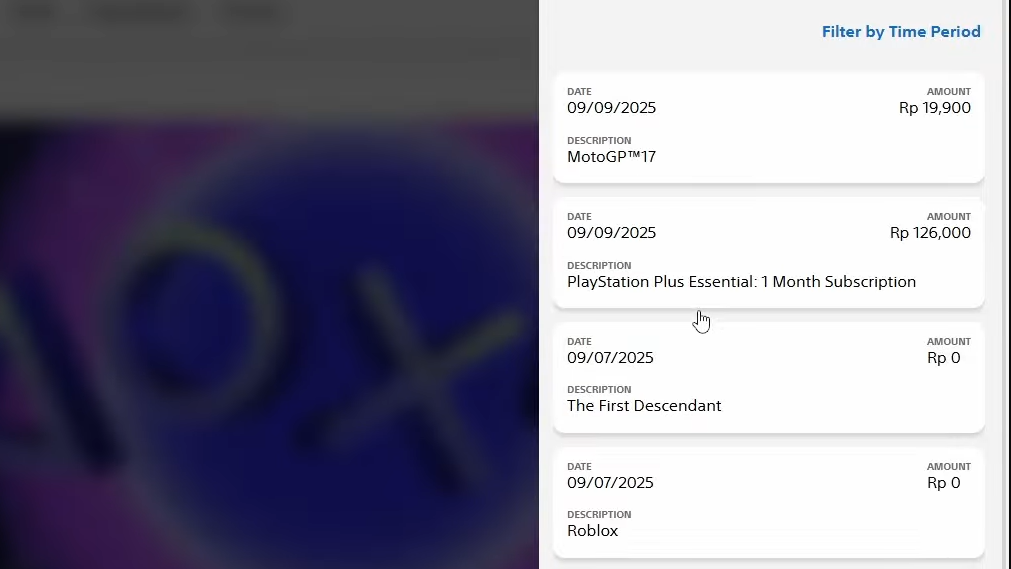
Step 3: When your transaction history opens, set the date range so it covers the day you bought the game you want refunded. Narrow dates make it easier to find a specific transaction.
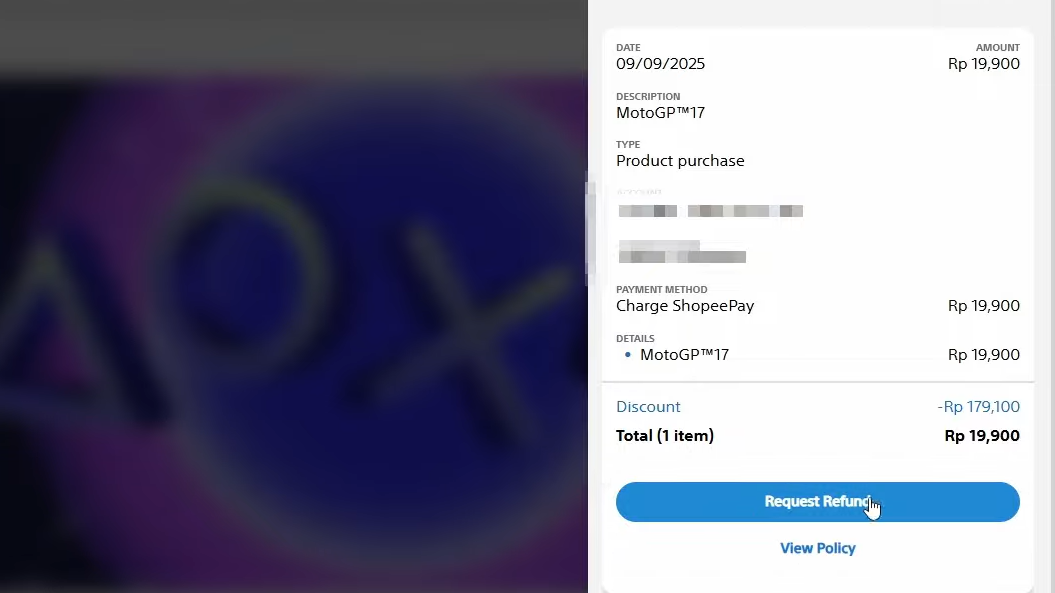
Step 4: Scroll through the list and select the transaction for the PS5 game, DLC, subscription, or pre-order you want to refund. Check the title, date, and amount so you do not pick the wrong item.
Step 5: On the transaction details page, look for the Request Refund option. If it appears, click it to move into the refund request flow. If it does not appear, the purchase is not eligible under the standard policy.
Step 6: Follow the on-screen questions about why you are requesting a refund. Choose the option that best describes your situation (for example, accidental purchase or faulty content) and confirm your request.
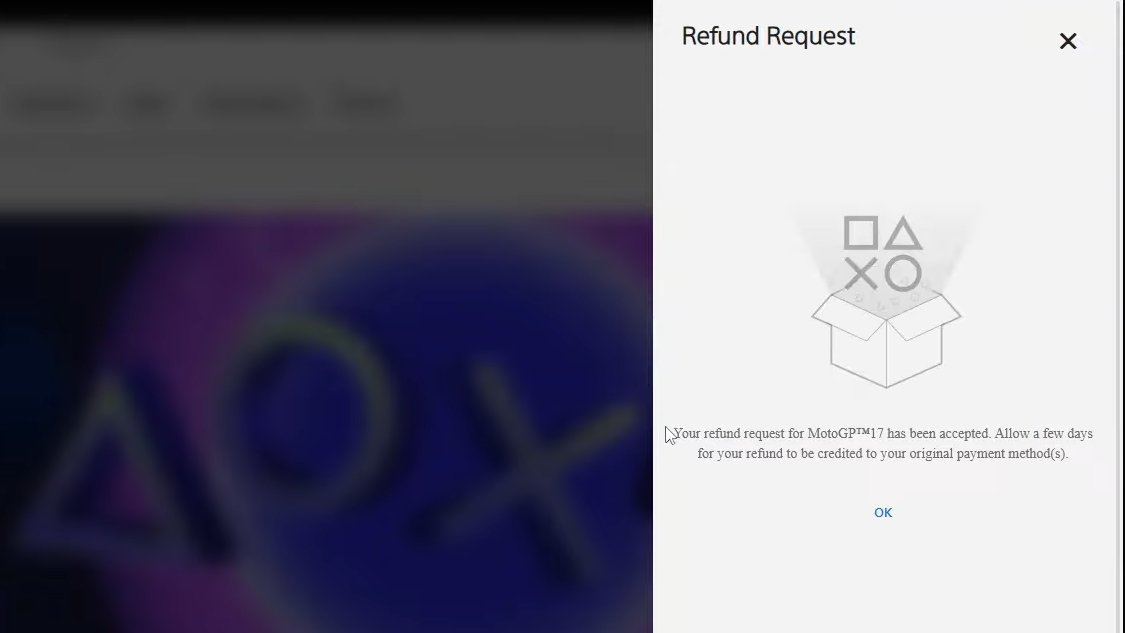
Step 7: When you reach the end of the process, a confirmation message will indicate that your request has been submitted. Save any reference number shown in case you need to follow up later with support.
Method 2: Start a refund request from the PS5 console
The PS5 interface does not process refunds directly, but you can still reach transaction history and then move to a browser-based flow.
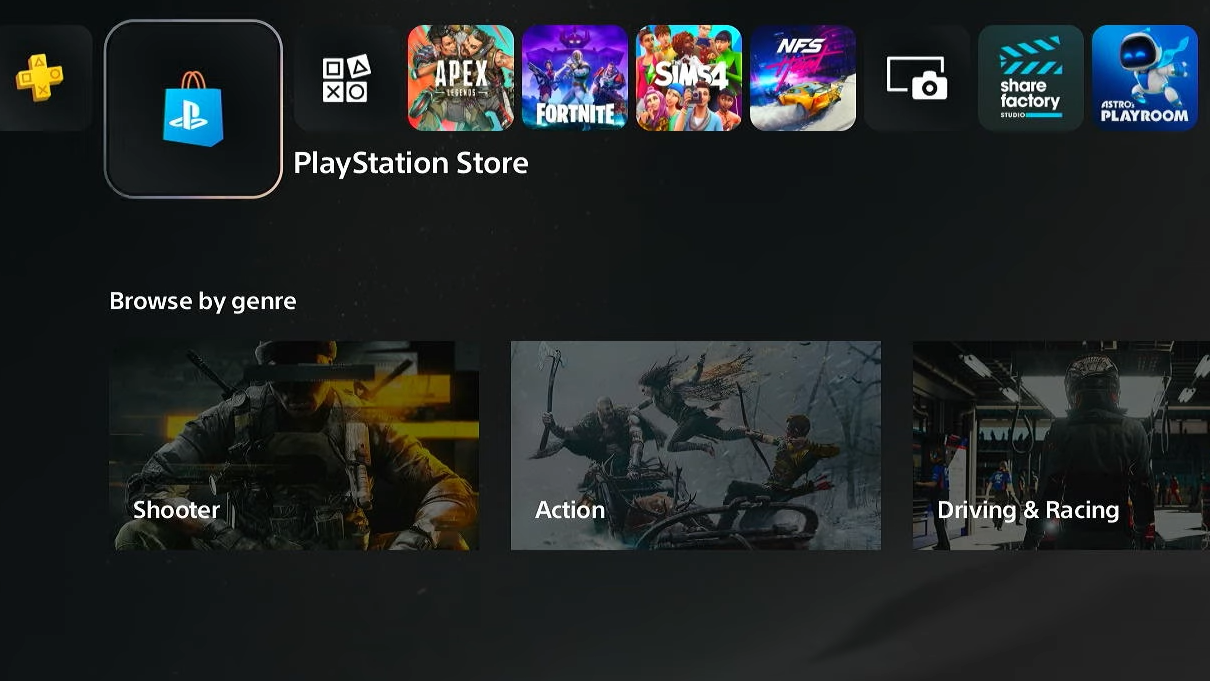
Step 1: On your PS5, go to the PlayStation Store icon on the home screen and open it. Make sure you are signed in with the account that owns the purchase.
Step 2: Press the Options button on your controller or navigate to the store’s menu where you see more options (often represented by three dots or a menu icon).
Step 3: Choose Transaction History from the menu. The console may open a browser or direct you to a page that looks similar to the web transaction history screen.
Step 4: Set a date range that includes the day of the purchase, then select the game or item you want to refund. Review the entry to confirm it is the correct transaction.
Step 5: If a Request Refund option appears on this screen, select it. The console will usually switch you into a browser-based flow where you complete the same steps as in the web method.
Step 6: Answer the questions shown about your purchase and the reason for the request. Submit the form, then keep an eye on your email for confirmation.
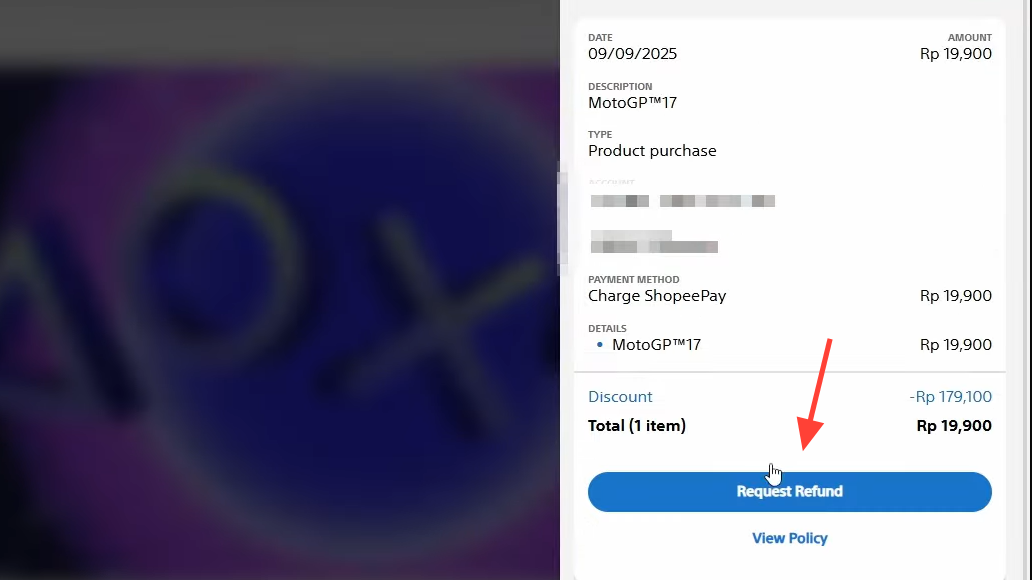
If you do not see a refund button in transaction history on the console, you can still use a computer or phone browser and go through the web method instead.
Method 3: Request a refund through the PlayStation App
The PlayStation App on iOS and Android can also reach your transaction history.
Step 1: Install and open the PlayStation App from your device’s app store, then sign in with the PSN account that made the purchase.
Step 2: Tap the shopping bag icon at the bottom of the screen to open the PS Store section inside the app.
Step 3: Tap the menu icon (usually three horizontal lines) in the top-right corner to open the store menu.
Step 4: Select Transaction History. If prompted, confirm that you want to continue to your account’s transaction page.
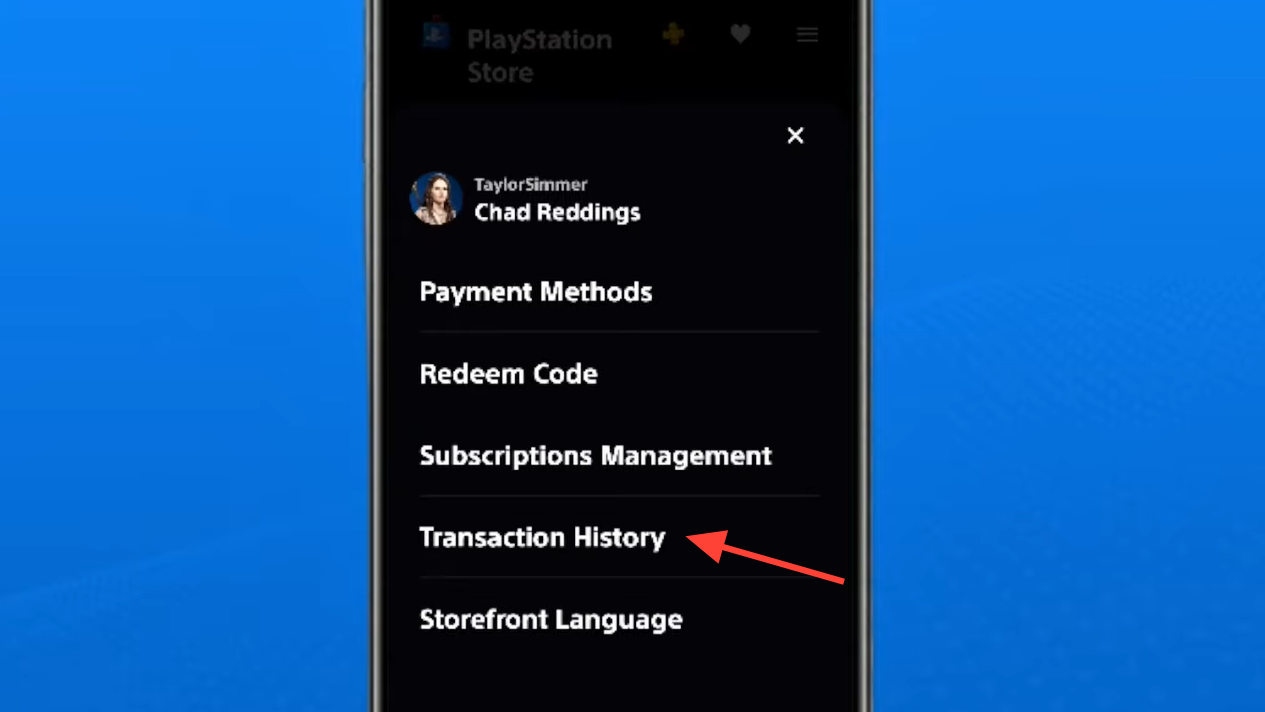
Step 5: Adjust the date range so it covers the purchase date, then tap the game or item you want to refund. Review the transaction details.
Step 6: If you see a Request Refund button, tap it. The app will take you through the same refund form used on the web, where you select a reason and submit the request.
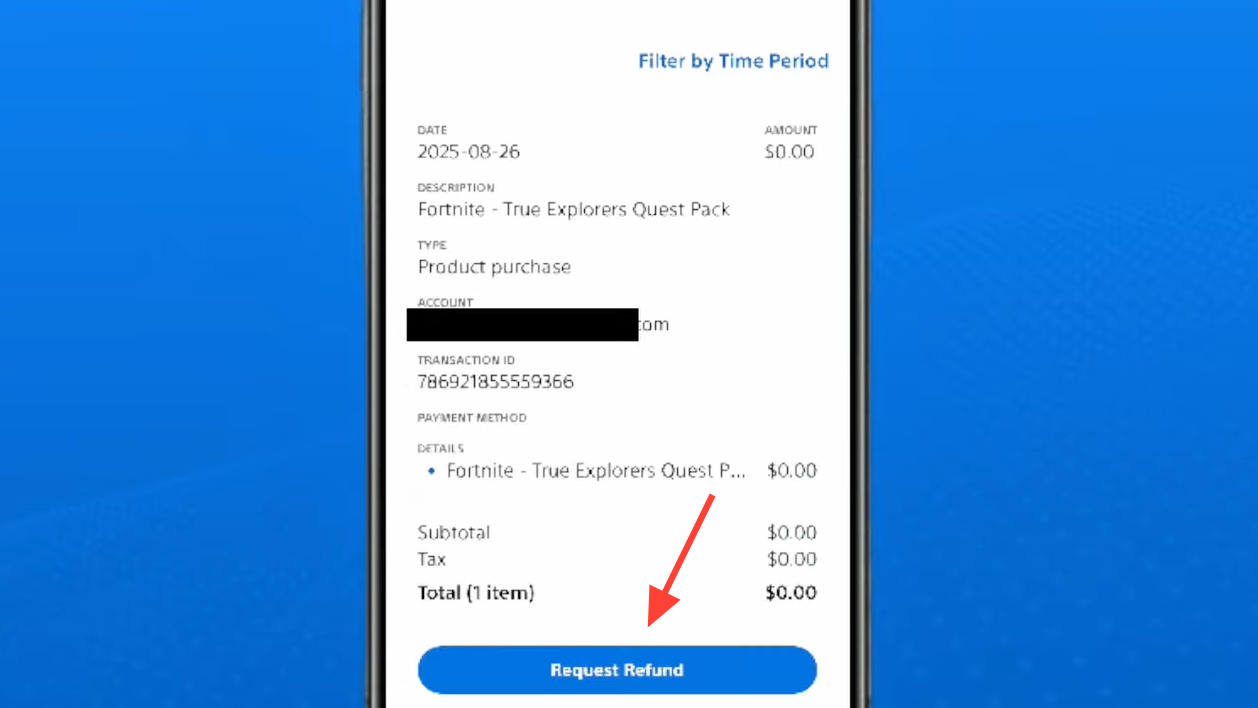
Step 7: After submitting, check for a confirmation message on screen and later in your email. Your PlayStation wallet or original payment method will show the refund once it is processed.
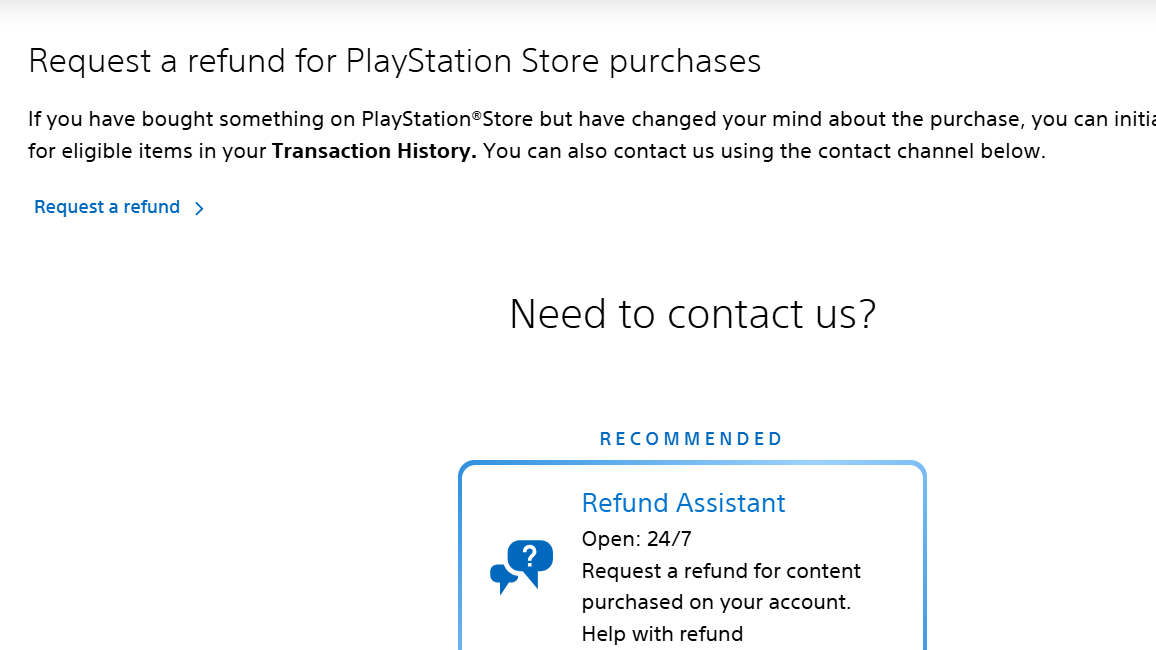
How to contact PlayStation Support about a refund
If the transaction history flow does not work or you cannot see a refund option, the next step is to contact PlayStation Support directly.
Step 1: Visit the PlayStation Support contact page at https://www.playstation.com/en-us/support/contact-us/?category=store&subCategory=refunds. Choose the region that matches your account country.
Step 2: Select the category for PS Store & Refunds and then PlayStation Store refunds or a similar option offered for your region.
Step 3: Start a live chat or other available contact method (such as phone) during the listed support hours. Some regions show an online assistant before connecting you to an agent.
Step 4: When you reach an agent, clearly provide your PSN online ID, the game or item name, purchase date, and the reason you want a refund. Mention if the content is faulty or if it was an accidental purchase.
Step 5: Follow any troubleshooting steps they suggest if the issue is technical (for example, a game not downloading or failing to start). The agent may need to record that standard checks were tried before processing a refund.
Step 6: Once the agent confirms the outcome, note any case number they provide and keep the confirmation email. This helps if you need to chase the refund or if there is any issue with your account.
Support availability, methods, and flexibility can vary by country, but all regions use the same core refund policy.
Where refunds are paid and how long they take
Approved refunds are usually sent back to the same payment method you originally used.
- If possible, the money returns to your card, PayPal, or other original method.
- If that is not possible (for example, with some vouchers or expired cards), the amount goes into your PlayStation wallet instead.
Refunds can take several weeks to fully complete. Card issuers often add their own processing time, so checking both your bank account and your PlayStation wallet is important if you think a payment is missing.
Why some PS5 purchases cannot be refunded
Several types of PlayStation Store transactions are non-refundable under the standard rules:
- Wallet top-ups. Once you add money to your PSN wallet, that balance is locked to your account.
- Online ID change fees. You can switch back to a previous ID at no cost, but the payment for a new one is not returned unless the service is faulty.
- Third-party voucher codes. If you bought a gift card or game code from a retailer, any refund must be handled by that retailer’s own policy. Codes bought from PlayStation Direct follow the PlayStation Direct return rules.
For digital games that have already been downloaded, the policy is strict unless the content does not work properly. In those cases, support may still offer help or a refund once troubleshooting has been attempted.
Refunds on PS5 are easiest when you act quickly, know which category your purchase falls into, and use your transaction history as the starting point before escalating to support if needed.