

On Roblox, “redoing age verification” does not always mean what players hope it does. Some age checks are repeatable. Others, once completed, are effectively permanent.
The platform now relies on two separate systems to decide your age group and unlock features such as Experience chat, Restricted Content, Party Voice, and chat without filters with Trusted Connections: facial age estimation and ID verification. Understanding how each works is the only way to know whether you can try again, or whether your current status is locked in.
How Roblox age checks work now
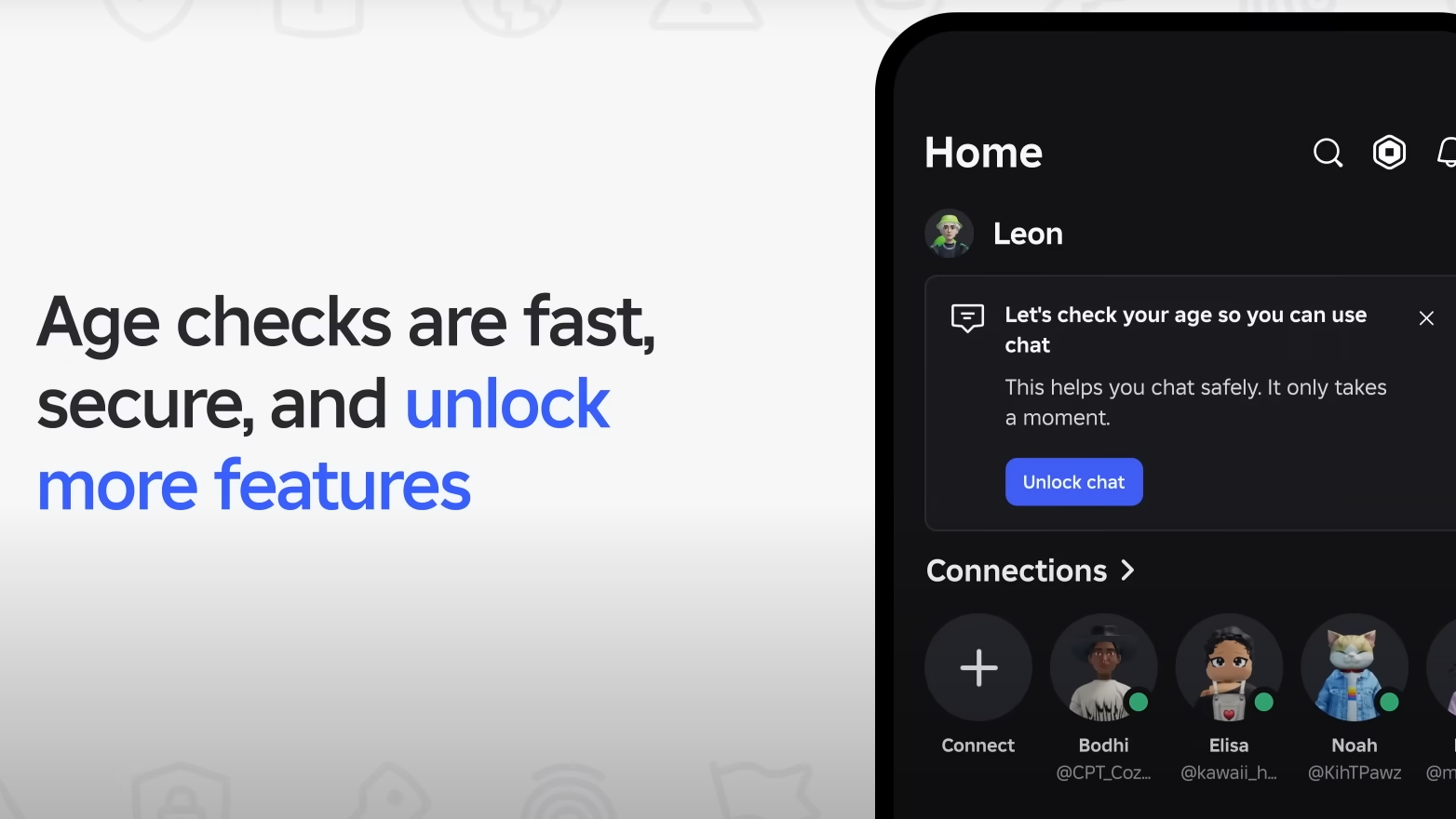
Roblox runs an age check when you try to use certain features or when safety rules require it. That check can be satisfied in one of two ways:
- Facial age estimation, where you point a camera at your face and an automated system estimates your age range.
- ID verification, where you submit a government‑issued photo ID and a selfie so your birthday can be confirmed directly.
These checks are used to place you in an age group such as 5–8, 9–12, 13–15, 16–17, 18–20, or 21+. That age group then controls what content you see and which communication tools you can use.
For age 13 and above, ID verification can be used to confirm your birthday. For younger users, only facial age estimation and parent‑managed settings are available.
Can you redo facial age estimation on Roblox?
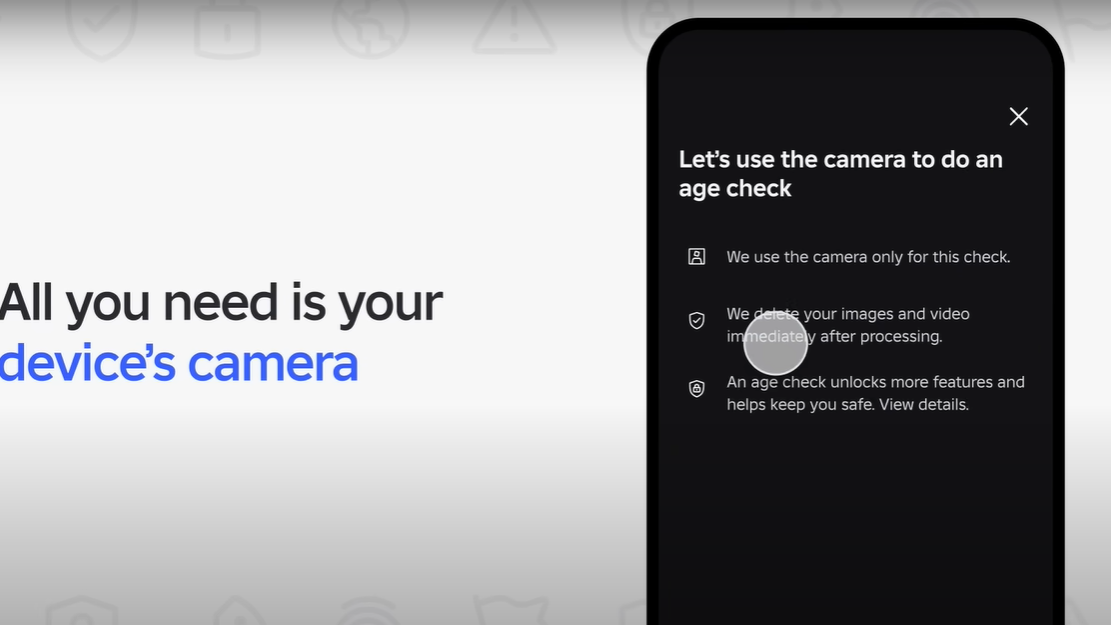
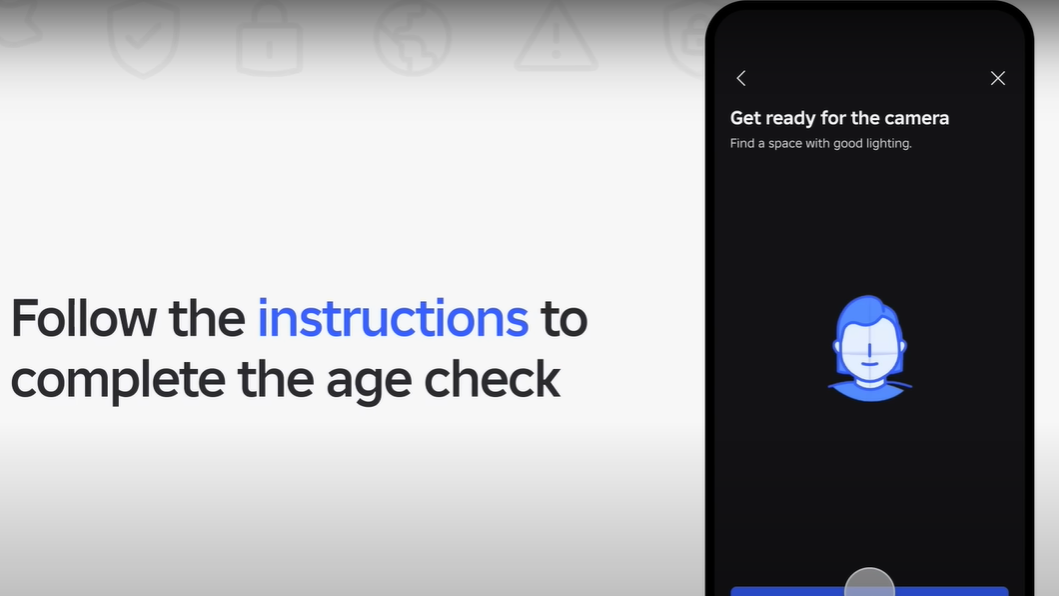
Facial age estimation is the part of the system that you can generally repeat. It works by analyzing short images or video of your face, then assigning an age bracket.
If the system fails to estimate your age, Roblox may prompt you to try again or to switch to ID verification instead. If it estimates your age as under 13 and you disagree, you can move away from the face scan entirely by verifying your birthday with ID once you are eligible.
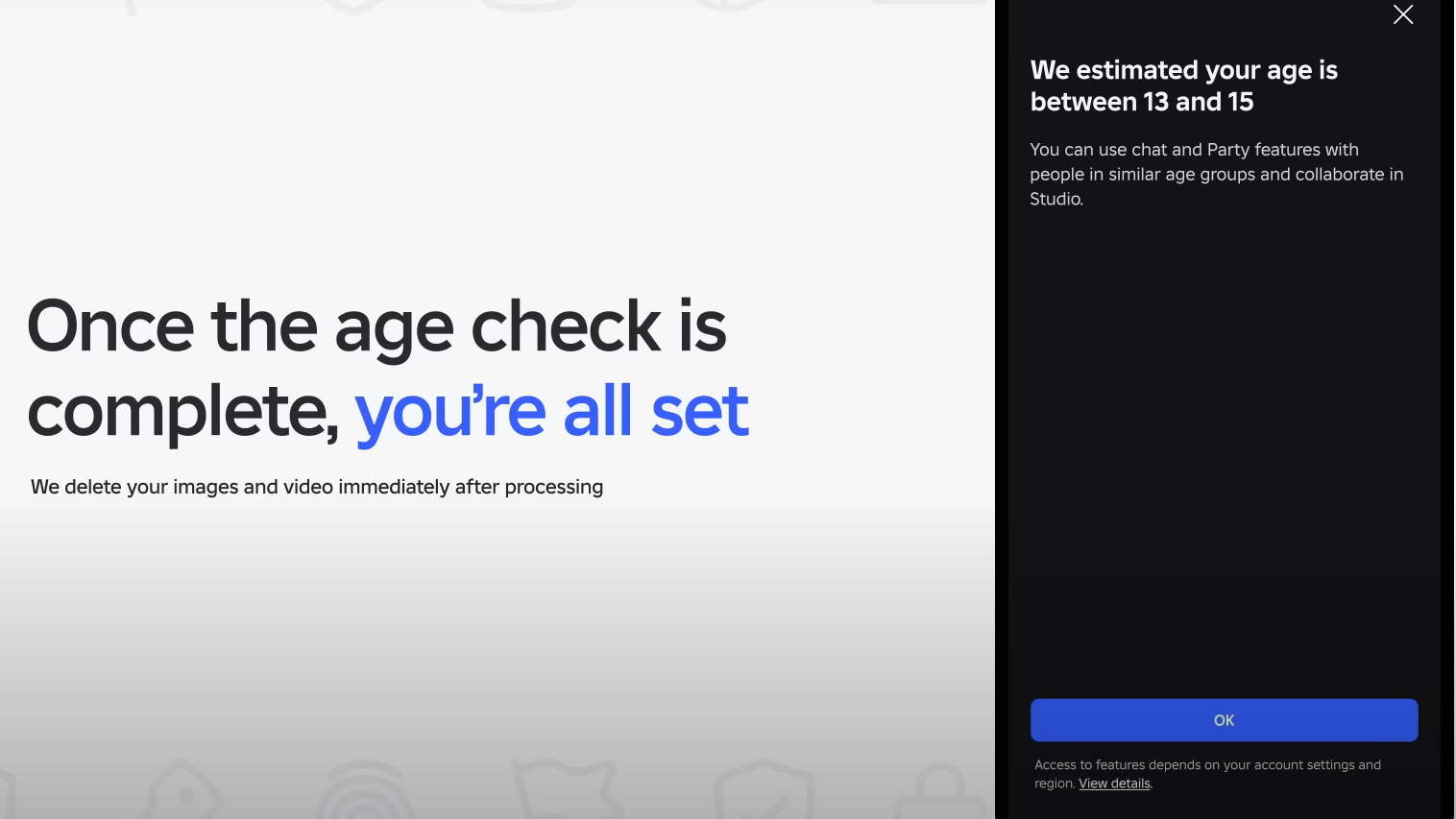
Roblox deletes the images and video used for facial estimation after processing, so it only retains the age result, not the raw camera data. That means every new attempt is a fresh scan rather than a re‑analysis of old images.
Key points about redoing facial age estimation:
- You can be required to repeat facial age estimation if an earlier attempt failed or could not estimate your age.
- If the scan puts you in 5–8 or 9–12, Roblox may remove certain personal data, such as your email and phone number, from your account as part of child‑safety rules.
- If you are under 18 and want to change your birthday after facial estimation, a linked parent account can update the birthday once.
In regions where law requires it, a parent or guardian may have to approve facial age estimation before you can use it.
Can you redo ID verification on Roblox?
ID verification is much stricter. It is only available to users who are at least 13 and have a government‑issued photo ID such as a driver’s license, passport, or residency card. The goal is to lock in your real birthday once and then use that as the definitive reference for age‑restricted features.
Once your ID has been successfully verified, that status cannot be removed or reset. Roblox’s support documentation makes two things clear:
- Your ID‑verified status is permanent for that account.
- Customer support cannot manually verify IDs, undo an existing verification, or change account settings that rely on that verification result.
That means you cannot “redo” a completed ID verification to change your age. If the system has already accepted an ID and recorded your birthday, there is no self‑service option to submit a new document and overwrite it.
How to complete (or retry) ID verification correctly
If your goal is not to change a finished verification but to complete one that failed or never started, you can still walk through the flow from your account settings.
Step 1: Log in to your Roblox account on the web or in the mobile app.
Step 2: Open your account settings. On a browser, use the gear icon in the upper‑right corner. In the mobile app, use the three‑dots “More” menu.
Step 3: Go to the Account Info tab. This page shows your birthday and age group.
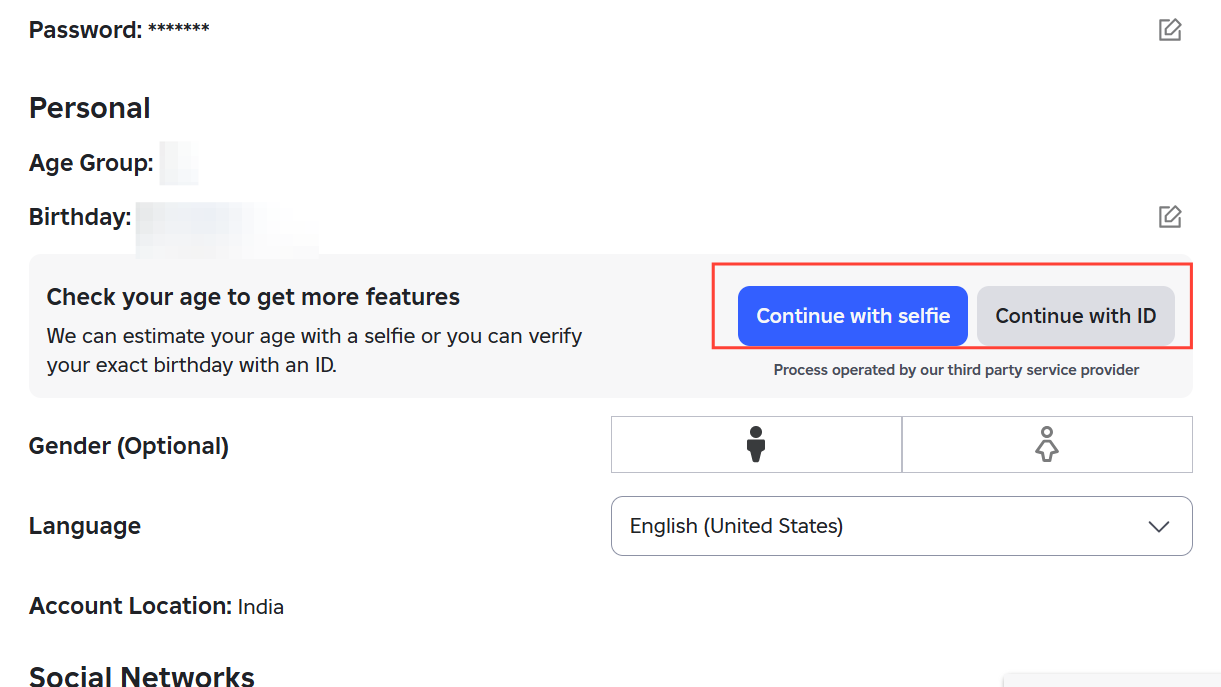
Step 4: If you are at least 13, select the button labeled Continue with ID under your birthday and age group. This starts the ID verification flow from Roblox’s account page at https://www.roblox.com/my/account#!/info.
Step 5: Allow camera access when prompted, then follow the on‑screen instructions to scan your ID. If your document has a barcode on the back, the flow may ask you to scan that side as well.
Step 6: Capture a selfie when requested. This confirms that you are the same person pictured on the ID.
Step 7: Return to your Roblox session and watch the status message on the Account Info page. Once verification completes, you’ll see either a pass or fail result. This review can take a few minutes.
If an attempt fails because the document is unreadable or the selfie does not match, you can try again. What you cannot do is re‑submit for a different age once the system has already accepted a valid ID and recorded your birthdate.
Redoing age checks after an incorrect facial estimate
Facial age estimation can misjudge your age, especially if the lighting is poor or your face is partly obscured. If you ended up classified as under 13 and you are older than that, Roblox gives you a path to correct your record using ID verification.
Step 1: Sign in and open Settings > Account Info.
Step 2: Look for the option under your birthday that allows you to continue with ID. On eligible accounts this may appear as a “Continue with ID” or similar button.
Step 3: Complete the ID verification flow as described earlier, using your own government‑issued ID.
Once ID verification passes, your age group is based on your actual birthday instead of the estimated facial age range. That effectively replaces the earlier facial estimate, but it does not create a system where you can keep toggling your age back and forth.
For users under 18, there is one more lever: a linked parent account can change the child’s birthday once. That update may be required after facial age estimation if the on‑file date needs to be corrected, and Roblox can require parental consent when the child account is under 13.
Changing your birthday vs. redoing age verification
Players often mix together several different concepts: the birthday stored on the account, the age group used for content controls, and the verified status from an ID or facial scan. Roblox treats these differently.
| What you’re changing | How it’s set | Can you redo it? |
|---|---|---|
| Stored birthday | Chosen at signup, editable in Account Info with checks | Editable, but can require ID verification or parental consent, and may be locked for young users. |
| Facial age estimation result | Video or photo scan classifies you into an age range | Yes, you can retry if estimation fails or move to ID verification if it seems wrong. |
| ID‑verified birthday | Government ID and selfie confirm your exact date of birth | No, once ID verification succeeds, that status cannot be removed or reset on the same account. |
You can edit your birthday directly from Account Info, but Roblox applies extra checks to prevent people from using that field to bypass age gates. On some accounts, particularly under 13, the system will require a parent’s approval or an ID‑based age check before allowing the change to go through.
Step 1: Sign in and open Settings > Account Info.
Step 2: Select the pencil icon next to your birthday.
Step 3: Enter the correct date and follow the prompts. The system may tell you to have a parent approve the change or to verify with an ID, depending on the ages involved.
In some regio,s there can be extra requirements around updating age for minors; when that happens, those conditions are enforced as part of the on‑screen flow.
What to do if your age status seems wrong and you can’t fix it
There are situations where your visible age group or access to features does not match your real age, and none of the self‑service options seem to help. This can happen if the facial age estimation misclassified you, if an earlier verification failed in a strange way, or if parental controls are overriding your age group.
In those cases, the only practical step is to contact Roblox directly.
Step 1: Go to the official Roblox support form at https://www.roblox.com/support.
Step 2: Enter your account details such as username, contact email, and the device where you use Roblox.
Step 3: Choose a help category related to account information, age‑based settings, or parental privileges, then pick the subcategory that best matches your issue.
Step 4: In the description box, clearly explain what is wrong with your age status, whether you have already attempted facial age estimation or ID verification, and what your actual birthday is.
Step 5: Submit the form and wait for a response. Support may ask for additional details or involve a parent or guardian if the account belongs to a minor.
Support cannot override an existing correct ID verification or manually change what your submitted ID said about your birthday. What they can do is look at edge cases and technical failures where the automated systems did not apply the right status.
Privacy, safety, and why “redoing” is limited
Roblox’s age systems are built around child‑safety regulations and privacy laws. That is why they distinguish between a soft, repeatable facial age estimate and a hard, one‑time ID verification that cannot be undone on a whim.
For facial age estimation, images and video are discarded immediately after the estimate is produced, and the result is only an age range. For ID verification, the platform relies on government identification and biometric matching handled by a third‑party provider, and only the final “verified/not verified” result and birthday are retained.
That structure is designed to balance two things: making sure minors are shielded from inappropriate content and features, while still giving teens and adults a way to unlock age‑restricted tools like Party Voice, less filtered chat with Trusted Connections, and higher content maturity labels.
When you think about “redoing age verification” on Roblox, the real rule is simple. Facial estimation is flexible and can be tried again or replaced with ID. ID verification is definitive for that account, and once it has recorded your birthday, the platform treats that as the final word.