

Where Winds Meet offers two distinct control modes that fundamentally change how you interact with the game's camera and movement systems. The choice between ARPG and MMORPG mode affects everything from basic navigation to combat responsiveness, and understanding the difference can dramatically improve your gameplay experience.
Quick answer: ARPG mode ties camera movement directly to your mouse, while MMORPG mode requires holding the right mouse button to rotate the camera. Most players find ARPG mode smoother for action combat.

ARPG Mode vs MMORPG Mode — Core Differences
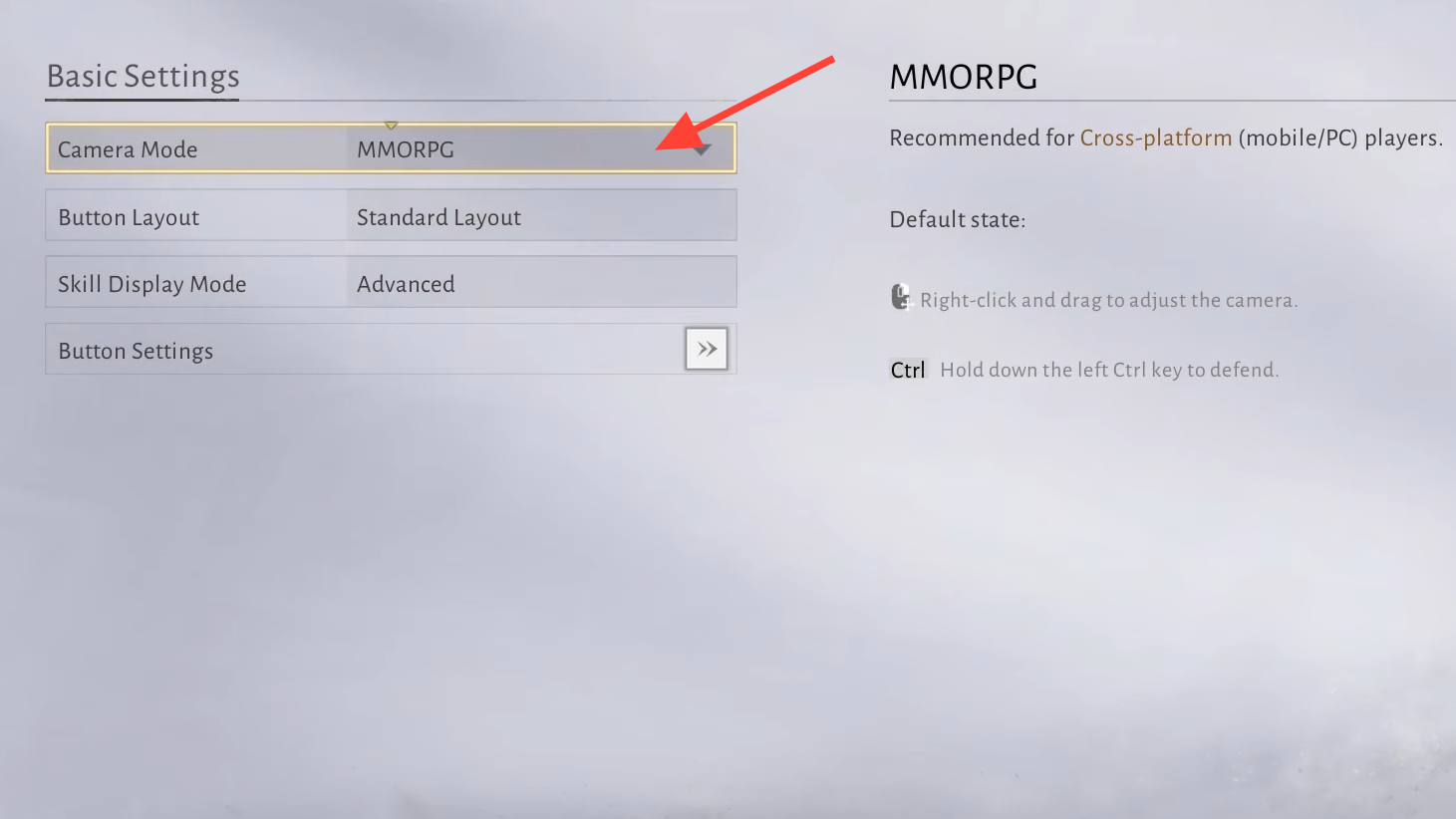
The Camera Mode setting in Where Winds Meet determines how your character responds to mouse input during gameplay. In ARPG mode, the camera follows your mouse movements automatically, meaning your character will face the direction you're looking without any additional input. This creates a more fluid, action-oriented experience similar to games like Nioh or Wo Long.
MMORPG mode separates camera control from character movement. You need to hold the right mouse button to rotate the camera, which some players prefer for precise positioning during exploration or when interacting with NPCs. However, many players report feeling like their character's back faces enemies during combat when using this mode, since the camera doesn't automatically track with your view direction.
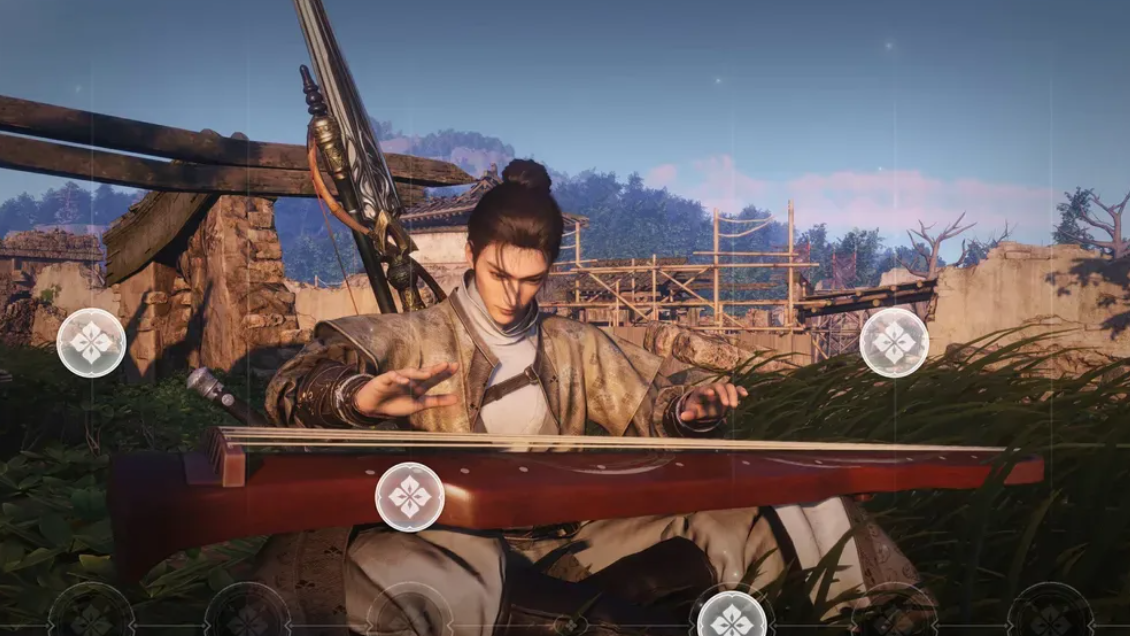
How to Switch Control Modes
Step 1: Open the Settings menu by pressing Escape on PC or the Options button on controller.
Step 2: Navigate to the Controls section and locate the Camera Mode option near the top of the keyboard and mouse settings.
Step 3: Select either ARPG or MMORPG based on your preference. The change takes effect immediately without requiring a restart.
Recommended Settings for Combat
For players focused on action combat and boss fights, ARPG mode combined with the Side Button layout tends to provide the smoothest experience. This configuration allows quick access to parry and dodge while maintaining responsive camera control. Players who rebind Parry to the forward mouse button and Dodge to the back mouse button report faster reaction times during difficult encounters.
The Skill Display Mode setting also affects combat clarity. Setting this to Simple rather than Detailed reduces screen clutter from flashy effects, which can help you track enemy attack patterns more easily. Some players also notice reduced input lag with the simplified visual mode enabled.
Controller Considerations
Controller users on PC or PS5 don't interact with the ARPG/MMORPG camera toggle in the same way, since analog sticks handle camera movement differently. However, controller players should check their Steam controller mapping settings if movement feels unresponsive. Some generic controllers require switching between ARPG and MMO style in the game settings to restore proper walking functionality.
The game supports Xbox, PlayStation, and Switch controllers natively through Steam's built-in controller support. PS5 DualSense controllers work on PC, though some players report issues with the function wheel not responding properly when using the touchpad for menu access.
Solo Mode vs Online Mode Control Differences
Where Winds Meet allows you to switch between Solo Mode and Online Mode freely after completing the initial tutorial. Both modes share the same control scheme options, but the gameplay context differs significantly. Solo Mode features the Breakthrough leveling mechanic with level caps every 10 levels, while Online Mode places you in a shared open world with other players.
You can swap between these modes at any time without losing progress. Any advancement made in Online Mode carries over to Solo Mode and vice versa. Chat functionality remains available to controller players in Online Mode, addressing a common concern for console players unfamiliar with MMO-style games on controller.
Troubleshooting Common Control Issues
Some PC players experience issues where dodge direction doesn't match their input, with characters dodging backward when pressing forward. This often relates to the camera mode setting conflicting with player expectations. Switching to ARPG mode typically resolves directional inconsistencies since the character's facing direction stays synchronized with the camera.
If controls feel unresponsive overall, check that V-Sync and Motion Blur are disabled in the Display settings. These options can introduce input lag that makes combat feel sluggish. Setting the FPS limit to 120 or higher (if your hardware supports it) also improves responsiveness.
For players using keyboard and mouse who struggle with the Alt+1, 2, 3, 4 keybinds for Mystic Arts, future updates are expected to add more rebinding options. The Chinese version of the game received expanded keybinding flexibility in later patches, and similar quality-of-life improvements are planned for the global release.
The control mode you choose ultimately comes down to personal preference and the type of content you're focusing on. ARPG mode suits players who want immediate, responsive combat similar to action RPGs, while MMORPG mode may feel more familiar to players coming from traditional online games where camera control is deliberately separated from movement. Experiment with both during the early hours to find what clicks before committing to harder content.