

Where Winds Meet puts a lot of emphasis on character creation, so it’s jarring when the face you crafted in the creator doesn’t show up in-game. Many players are seeing makeup vanish, skin tone change, or even whole faces revert to a chunky preset once the intro cutscene starts or after a crash.
The problems cluster around cosmetics and rendering, not the core facial sliders. That’s why faces often look right in still previews, then “flicker” into something else in actual play.
What the face and makeup bug looks like
The most common symptoms are consistent across PC and consoles:
- Makeup disappears once gameplay starts: lipstick, contouring, eye shadow, markings, and some tattoos vanish, leaving a flat-looking base face.
- Face shape looks wrong: players report wider cheeks, different nose bridge or length, and “preset-looking” proportions despite spending hours on sliders.
- Skin tone changes or won’t update: a tanned or warmer tone in the creator appears pale or ashy in-game, and swapping tones in the appearance menu does nothing.
- Makeup options don’t render in the editor: cycling through lipsticks, brows, or sets shows no visible change, or certain options render as missing (e.g., no eyebrows at all).
- Hair and outfit revert: the full glam look in creator (bow, ornate outfit) loads into the game as a plain starter set, with the hair going back to the earlier preset.
- Face randomly “snaps” mid-session: after a cutscene or crash, the current face switches back to a default or older variant until the appearance menu is opened again.
Players also describe a specific “neck seam” issue where the face textures stop matching the body, as if the face material failed to load fully. That aligns with how makeup, tattoos, and some shading are layered on top of the base model.
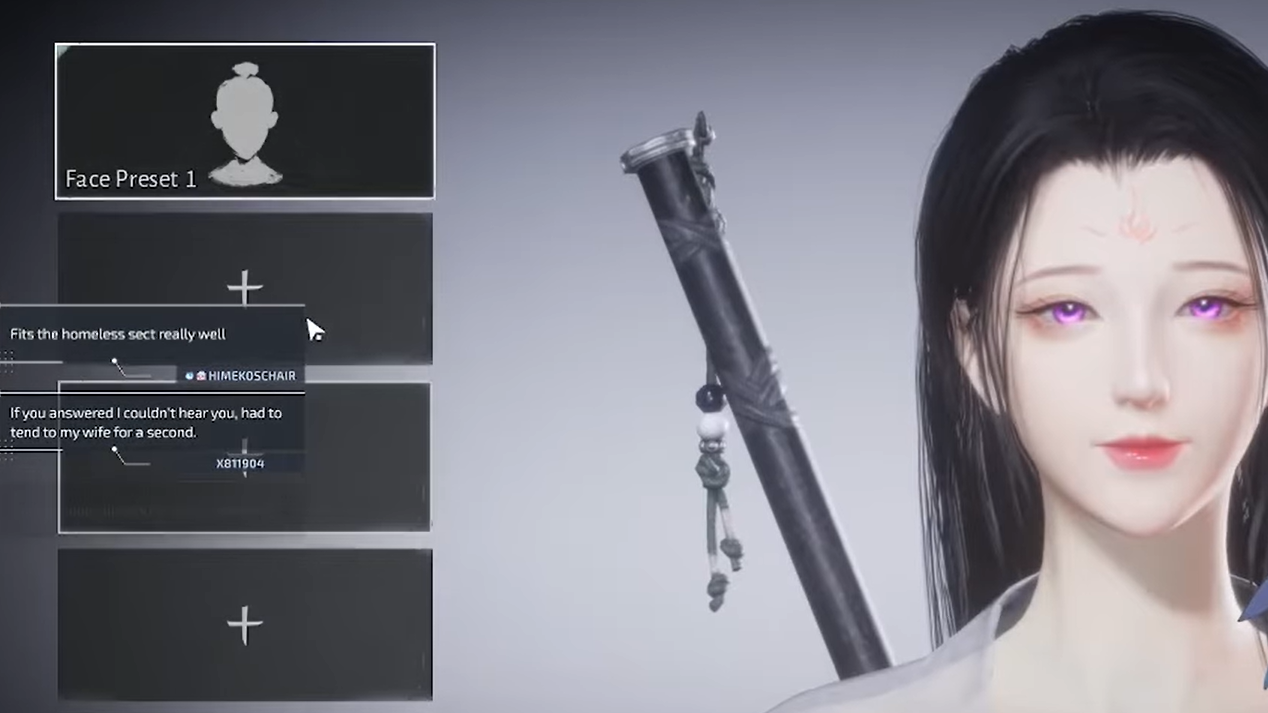
Why your character looks different outside the creator
There are three overlapping reasons this feels so extreme.
1. The creator shows you a fully styled fantasy version. The starting creator can display premium or late-game outfits, hairstyles, and beauty sets that you don’t actually own at level 1. When you load into the world, the game swaps those out for starter gear and basic hair. The face is technically the same, but removing contour, lashes, lipstick, and high-end clothing makes it read very differently.
2. Lighting and filters change between menus and gameplay. The creator uses flattering, controlled lighting that softens features. In live scenes, lighting is harsher and more directional. Even without bugs, the same sliders will not look identical between those two environments.
3. There is a genuine cosmetics and preset loading bug. None of this explains cases where:
- Markings and makeup that should be available at level 1 simply don’t apply.
- Face presets and gallery looks refuse to override the current “broken” face.
- Skin tone and certain sliders stop responding entirely.
- The correct face appears briefly, then flickers back to another preset.
These behaviours point to the customization system misapplying layers or stacking them instead of replacing them. On some platforms, it also seems tied to crashes or specific graphics options.
Known fixes and workarounds on PS5
On PlayStation 5, there is a repeatable method that restores missing makeup and stops faces defaulting back to a goofy preset, at least for the current session.
Method 1: Force cosmetics to re-initialize
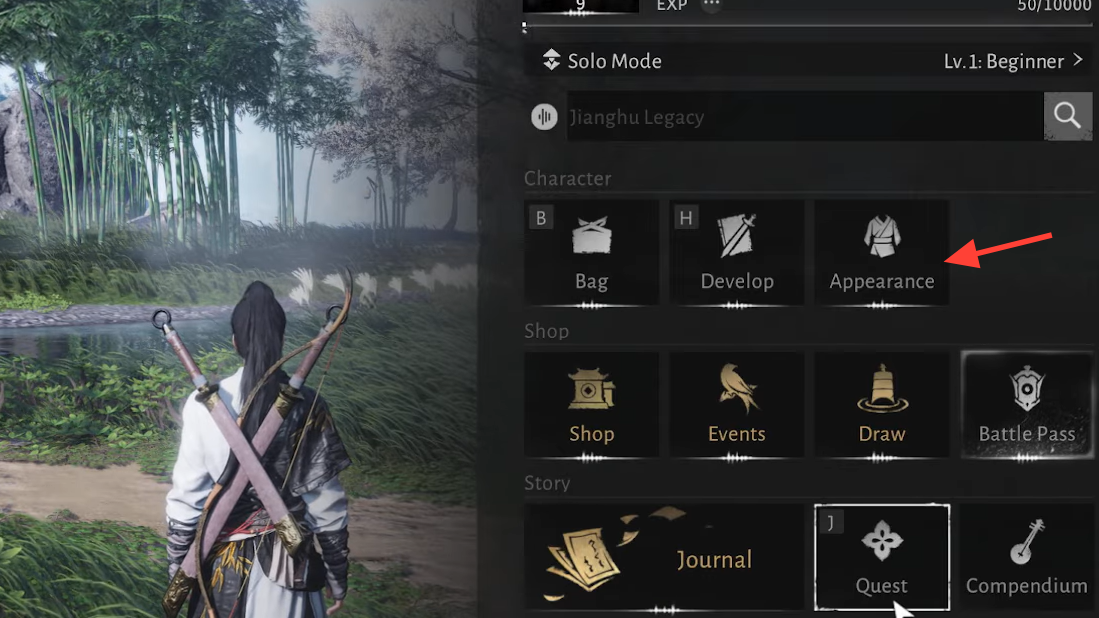
Step 1: Open the in-game Appearance interface from a wardrobe or relevant NPC, then go to the face/makeup section.
Step 2: Make sure every eye-related field (pupils, iris, lashes, etc.) is set to an actual option, not “NONE”. Select any non-empty entry if needed.
Step 3: Temporarily turn off HDR in your PS5 system video settings. Go to the PS5 home screen, open the system video settings, and disable HDR.
Step 4: Fully close Where Winds Meet, then relaunch it so it reloads with the new video settings.
Step 5: Once back in-game, open Appearance again and pre-load a face from the Gallery. Select one, enter the makeup tab, tweak a value (for example, add a little eyeshadow), then back out without overhauling the entire face.
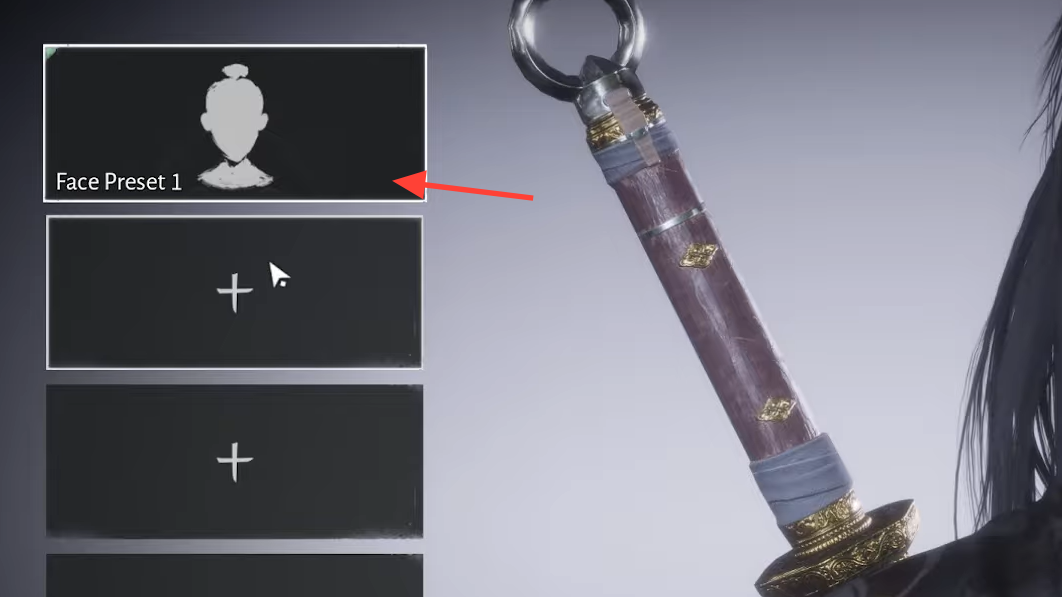
This process forces the game to reapply eye and makeup layers and often makes the original customized face “snap back” both in the menu and in actual gameplay. If you only adjust makeup and not the base face structure, the game treats it as a cosmetic change rather than a paid face change.
Fixes and workarounds on PC
On PC there is a simpler workaround focused on presets rather than console video settings.
Method 1: Use another face preset as a trigger
Step 1: Open the in-game Appearance menu once you have control of your character.
Step 2: In the face section, pick a different face preset than the one currently applied. Let it load fully so you see the visible change.
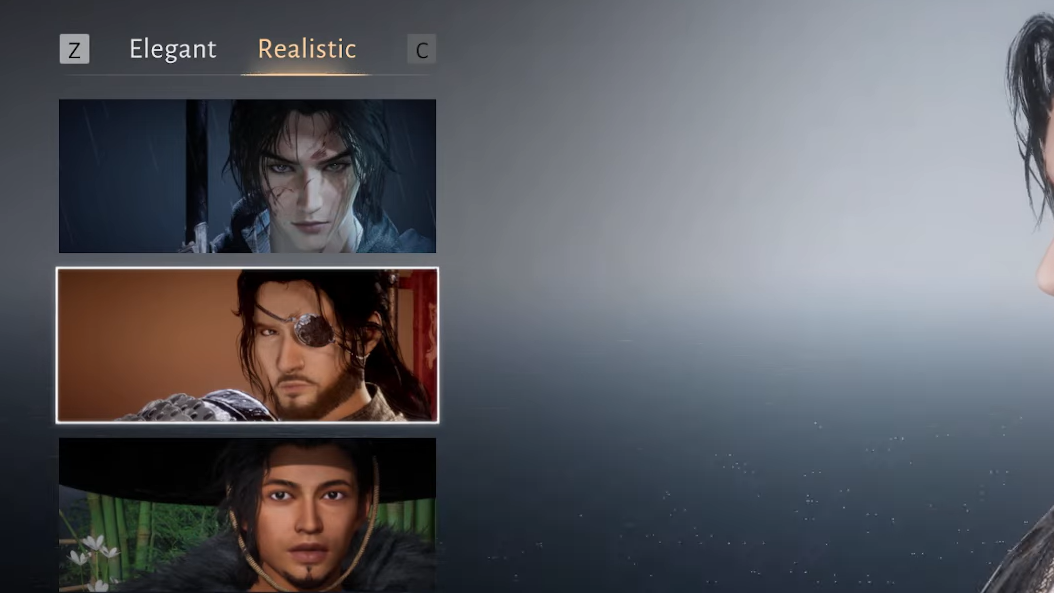
Step 3: Do not save this new preset. Back out instead.
Step 4: Return to the appearance menu and reselect your intended face or makeup preset. In many cases, the correct makeup and structure now reapply.
This takes advantage of how the customization system refreshes parts of the face only when a preset boundary is crossed. Toggling once to a different preset and back can repair missing makeup layers that refused to show up when edited directly.
Method 2: Disable Frame Generation to stop visual flickering
Separate from face bugs, some RTX 40-series users on PC see constant screen flicker after a mini-patch when Frame Generation is enabled.
Step 1: Open the graphics settings inside Where Winds Meet.
Step 2: Locate the Frame Generation option (DLSS Frame Generation on compatible Nvidia GPUs) and turn it off.
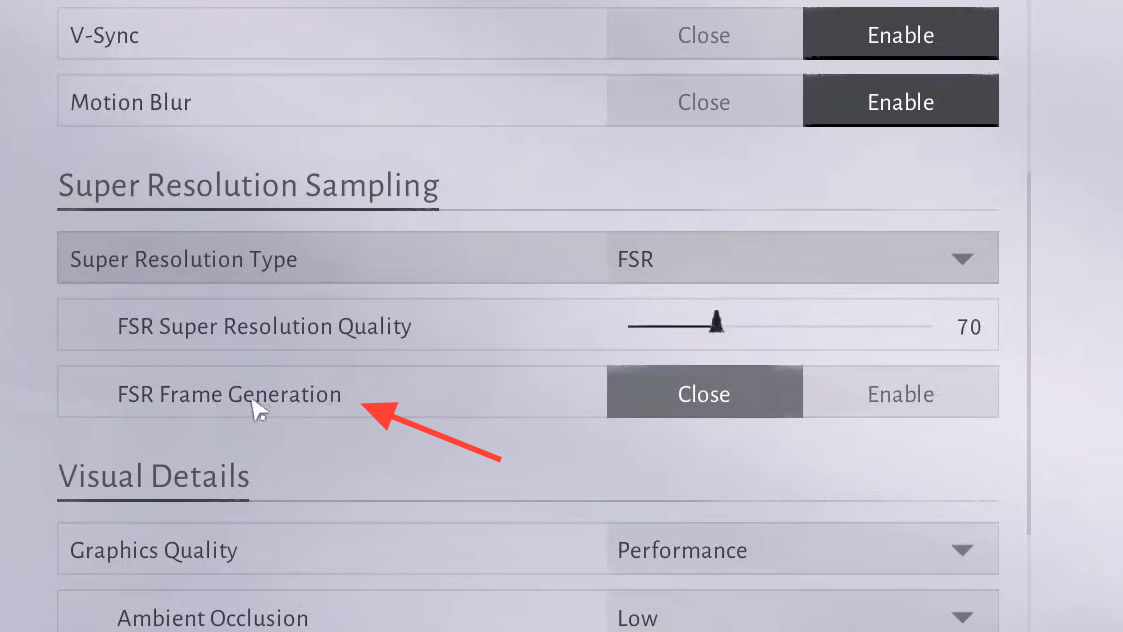
With Frame Generation disabled, players with RTX 4070 Ti hardware report clean, stable output while still running DLAA or other anti-aliasing. If the non-DX12 executable fails to launch on your system, you may still need to stick with DirectX 12, but keep Frame Generation off to avoid flicker.
Using a customization ticket to “reset” a broken face
Some players resolve the issue by spending a visual change token (customization ticket) to force the system to accept a new, clean face.
Step 1: Access the full character customization using the free face-change token provided early in the game or a purchased token.
Step 2: Choose a new base face preset. Do not reuse the broken one.
Step 3: Apply one of the predefined makeup sets first, before customizing individual elements. This often “wakes up” lipstick, eyebrows, and other options that weren’t rendering.
Step 4: Work backward from that set by dialing down or removing the parts you don’t want while keeping the system in a state where changes visibly apply.
Step 5: Save the result as a new preset so you can quickly reapply it if the bug recurs.
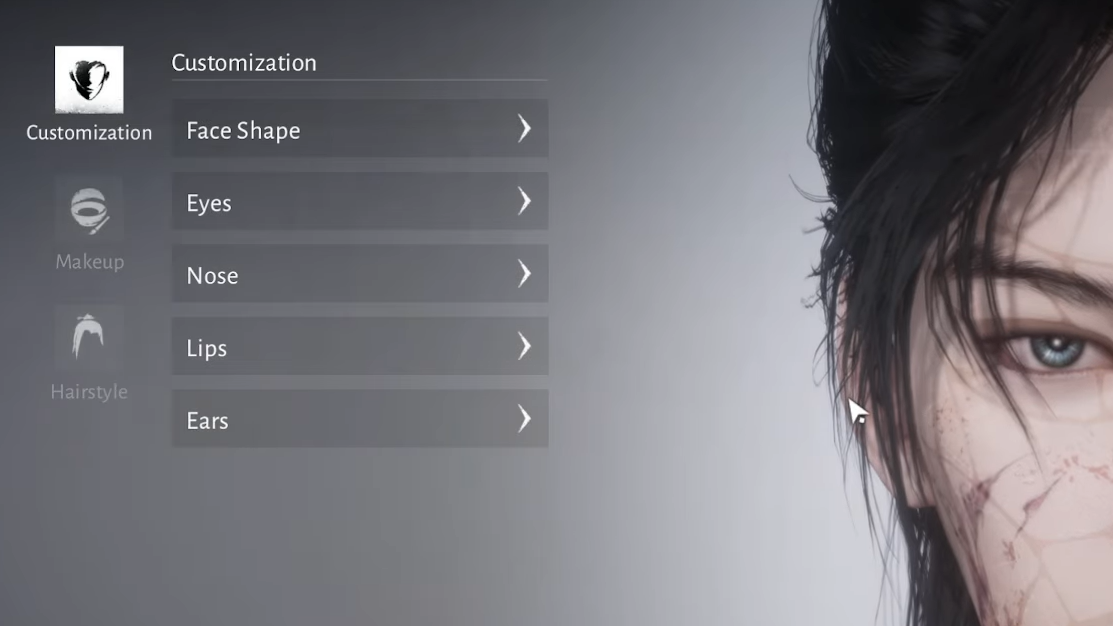
This approach has a cost: you consume a token and must redo some work. The upside is a stable face that matches what you see in the editor and persists across cutscenes. It’s also a way to “unstick” sliders that stopped having an effect, especially for players who can’t get makeup to change at all during creation.
Face, makeup, and wardrobe costs after launch
It helps to separate three different systems so you know what you’re actually losing when the bug hits.
- Base face structure (bone sliders, nose, jaw, etc.) is your core preset. Changing this later usually consumes a paid item, unless a specific NPC or quest grants a one-time free change.
- Makeup presets (eyes, lips, blush, markings) can be edited and saved without spending premium currency, as long as you don’t alter the base face. That’s why many fixes deliberately touch only makeup.
- Outfits and hairstyles shown in the creator often preview items you don’t own yet. They are unlocked later through gacha draws, in-game shops, or events, not granted for free just because you saw them on your character during creation.
When the bug strips makeup and glam, it can feel like your character has been replaced, but the underlying face usually remains. Once the layering issue is fixed, you regain most of what you designed, minus any preview-only fashion you hadn’t unlocked.
Why background and screen flicker happens on mobile and PC
The same patch cycle that introduced more customization events also coincided with some rendering side effects on various platforms.
On mobile, some players see backgrounds that “glitch” or smear, with textures splintering in a way that looks like GPU artifacts. This often appears on devices under thermal stress or with older chipsets pushed to high graphics presets.
On PC, Frame Generation on RTX 40-series can cause screen-wide flickering after certain updates, even when performance is high and stable. Disabling Frame Generation in the graphics menu immediately stops the flicker while keeping the rest of the DX12 pipeline intact.
If your backgrounds are glitching on mobile, lowering the graphics preset and watching device temperature usually helps. On desktop, focus on Frame Generation first before experimenting with more invasive changes.
Event context: why faces are under scrutiny now
Version 1.1, Timeless Bonds, leans heavily into style and identity. It adds:
- The Fresh Wind, New Year seasonal event with face-themed rewards like the Ox-Head and Horse-Face appearances and the Timeless Bonds title.
- The Great Faceologist, a character-customization event where players submit and share face codes through the Gallery.
- New shop outfits like Flicker of Faces, Green Veil, Hollow Strokes, and Melody of Dawn, plus the Magpie’s Farewell battle pass look.
At the same time, version 1.1 introduces an outfit split feature where sets like Magpie’s Farewell and Hollow Strokes can be separated into top and bottom pieces. That pushes players to spend more time fine-tuning visual identity, which is exactly when a face bug becomes most obvious and most frustrating.
Patch 1.1 also ships a batch of visual fixes — for example, hair roots now dye correctly, background music now plays reliably in main chapter cinematics, and dialogue sync is tightened. Those changes show that polish is ongoing, even if the face and makeup bug still appears for some players after “fix” notes go out.
If your character still looks wrong after trying the preset toggles, HDR tweak, and Frame Generation adjustments, the safest route is to avoid spending more money or premium currency on visual changes until a patch explicitly calls out a comprehensive fix for face and makeup application. For now, treat the workarounds as temporary ways to reclaim the face you originally designed so you can keep playing without staring at a stranger in every cutscene.