Quick answer: Windows 11 update KB5077241 is an optional non-security preview that introduces a taskbar network speed test, integrates System Monitor (Sysmon) directly into the OS, and adds support for Emoji 16.0.
Microsoft has released the February 2026 optional preview update for Windows 11 versions 24H2 and 25H2. Identified as KB5077241, this update advances the operating system to builds 26100.7922 and 26200.7922, respectively. Unlike mandatory “Patch Tuesday” releases, this update focuses on feature additions and non-security fixes, including native tools for network diagnostics and system monitoring, alongside visual improvements to the taskbar and File Explorer.
New system features and tools
This release integrates several utilities directly into Windows that previously required external downloads or navigation through web browsers.
Taskbar network speed test
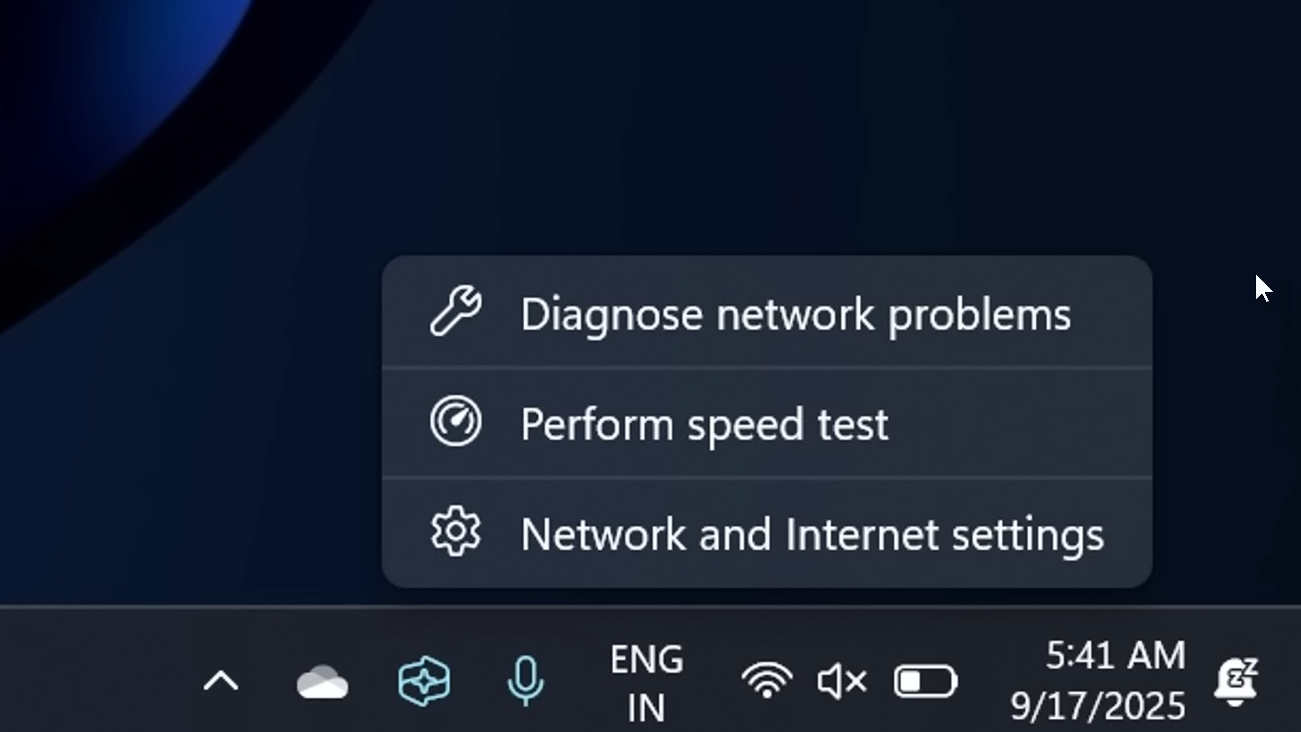
A network speed test tool is now accessible directly from the system tray. Right-clicking the network icon in the taskbar reveals a “Perform speed test” option. This action launches the default browser to measure upload and download speeds for Ethernet, Wi-Fi, and cellular connections, aimed at troubleshooting connectivity issues quickly.
Native System Monitor (Sysmon)
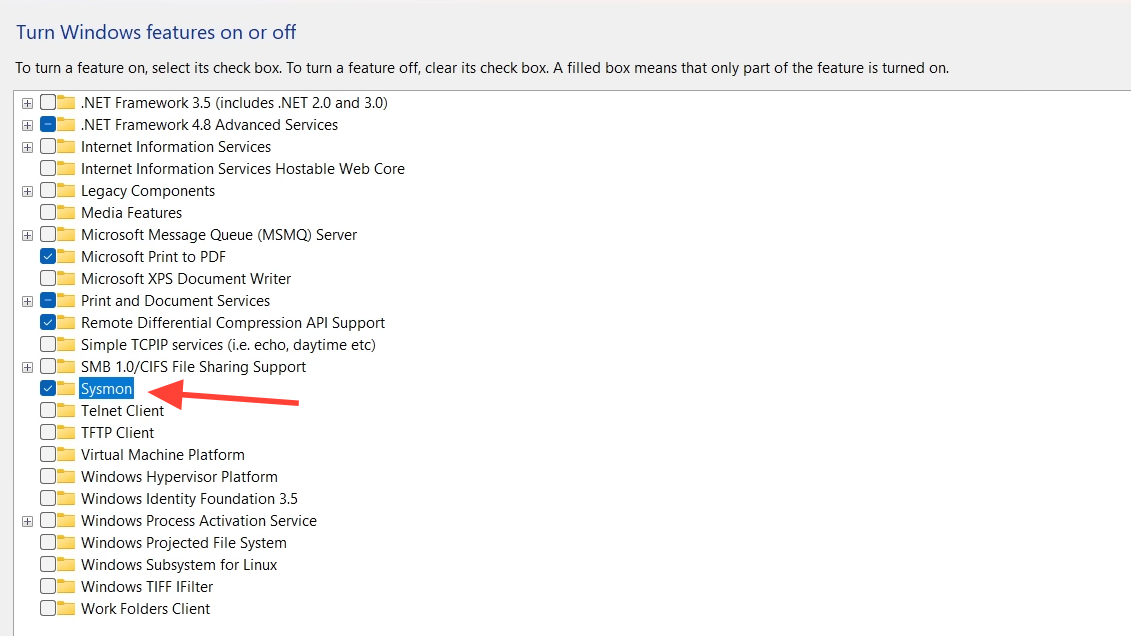
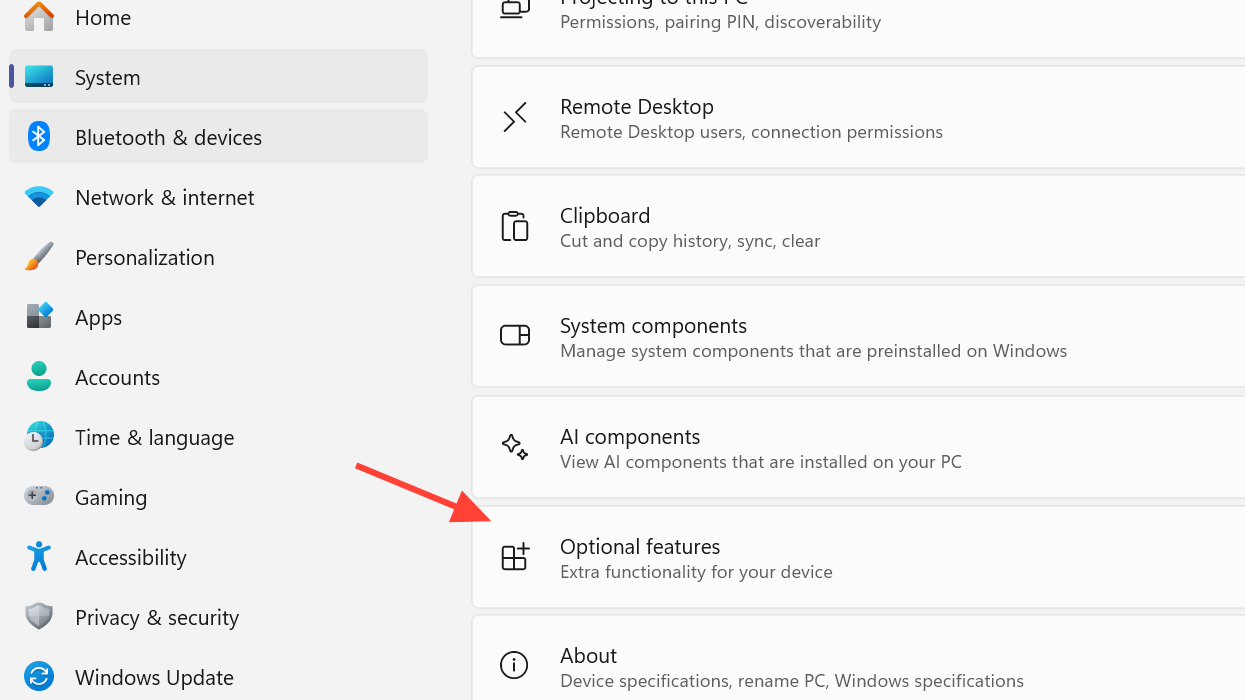
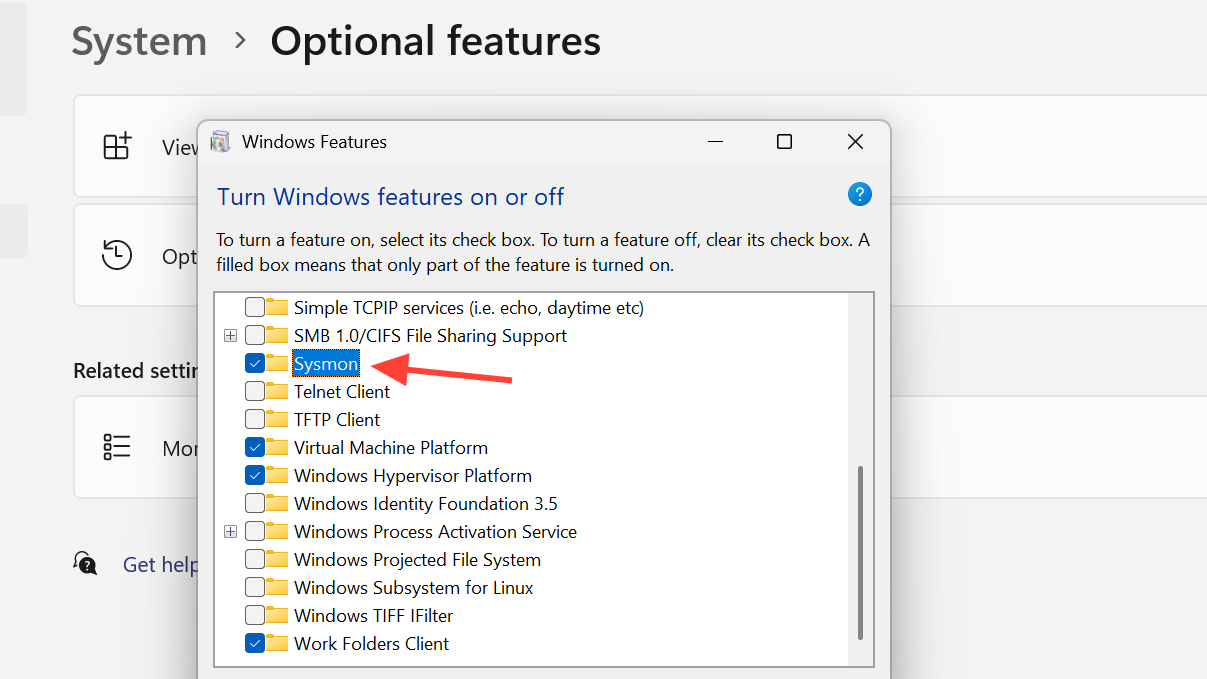
Windows now includes native functionality for Sysmon, a tool used to log system activity to the Windows Event Log for threat detection and analysis. While previously available only as a separate Sysinternals download, the core functionality is now built into the OS. It is disabled by default and must be activated via the “Optional features” menu or command line tools before it begins capturing events.
Camera controls
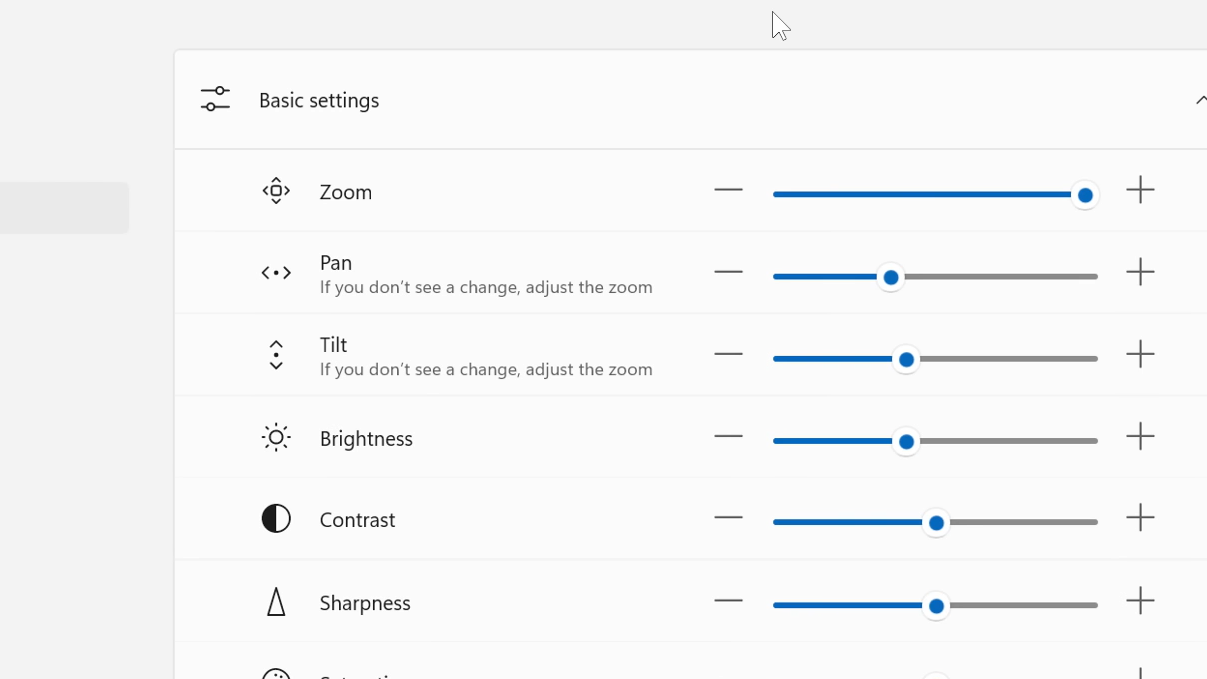
The Settings app now includes granular controls for supported cameras. Users can adjust pan and tilt settings directly under Settings > Bluetooth & devices > Cameras within the “Basic settings” section for the connected hardware.
Emoji 16.0 support
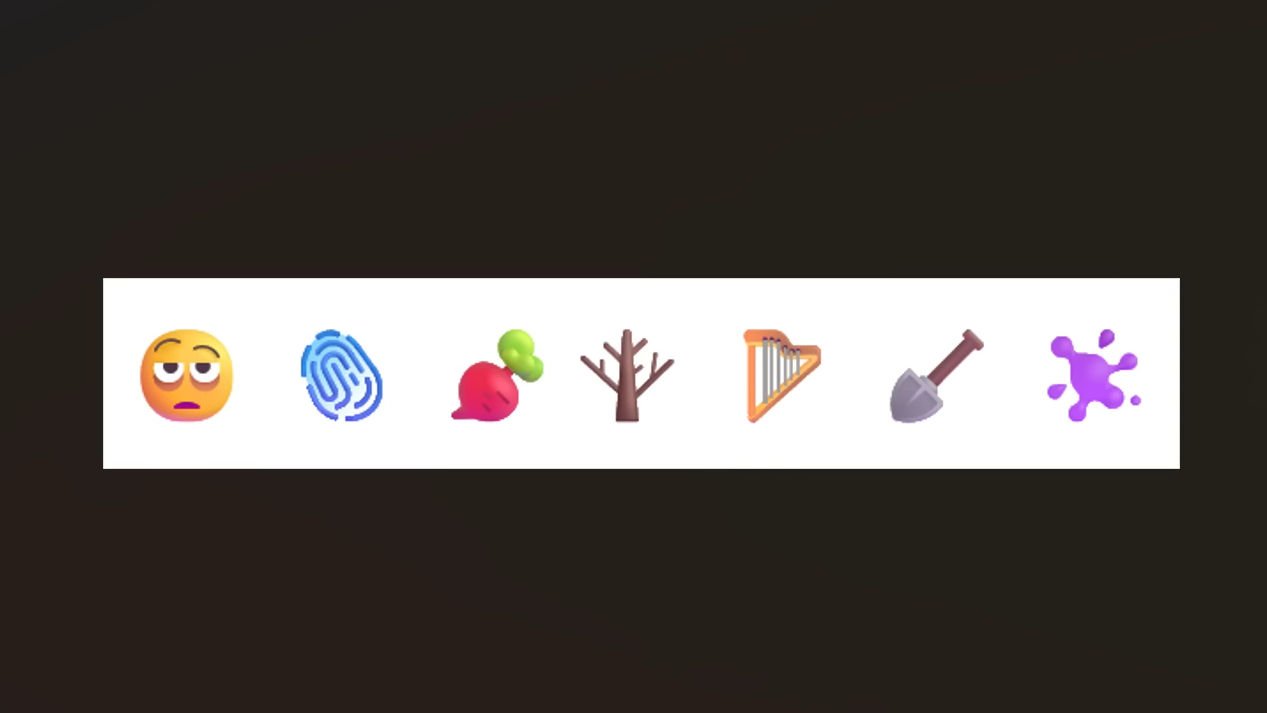
The update enables support for Emoji 16.0, introducing a curated set of new symbols across major categories. These new characters are available in the emoji panel.
Interface and File Explorer improvements
Microsoft has applied multiple quality-of-life changes to the Windows shell and file management systems.
- Desktop backgrounds: Users can now set WebP images (.webp) as desktop backgrounds directly via the Settings app or by right-clicking the file in Explorer.
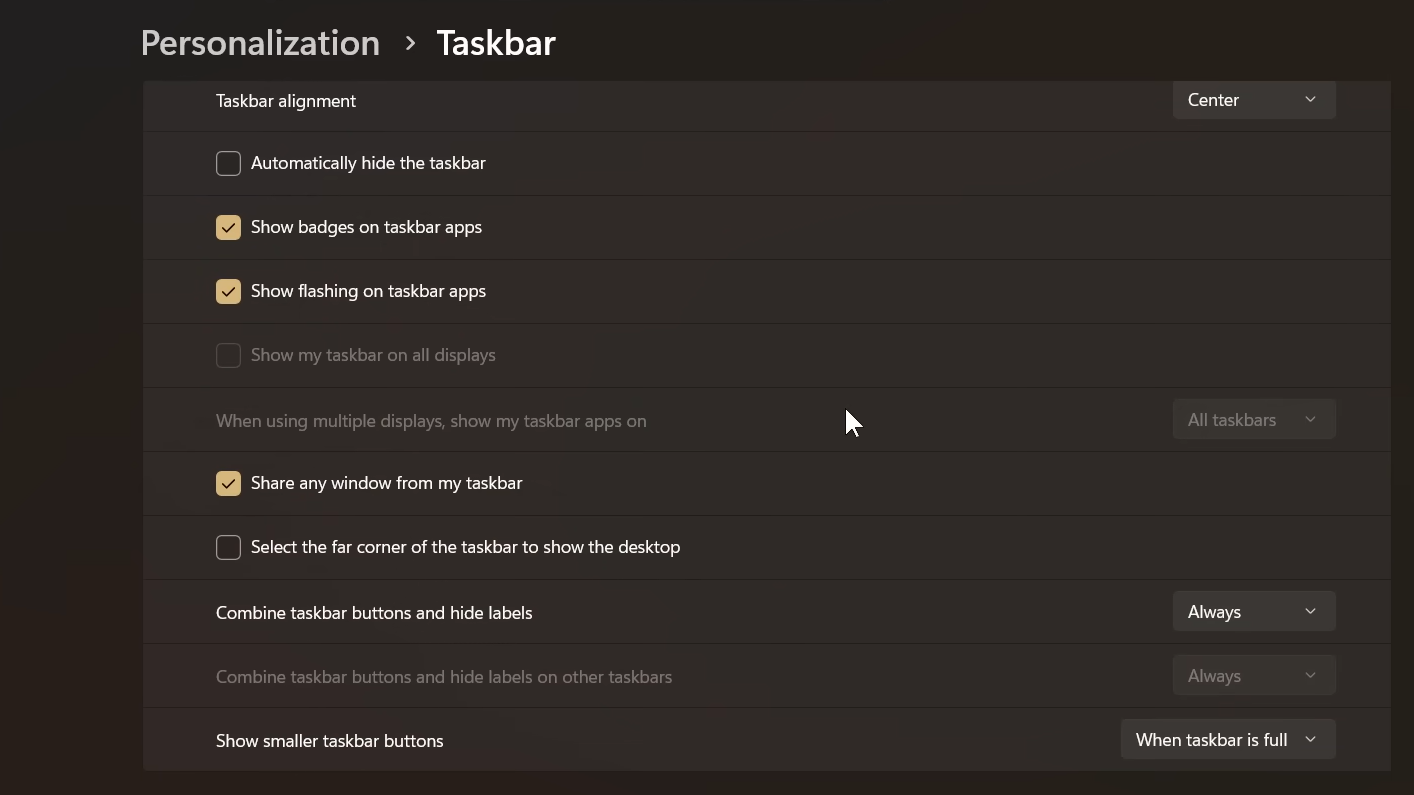
- Taskbar overflow: In “uncombined” taskbar mode, window handling is improved. If space runs out, only the specific windows that do not fit are moved to the overflow menu, rather than shifting all windows from an app into the overflow area.
- File Explorer navigation: Holding the Shift key while clicking the File Explorer icon on the taskbar now reliably opens a new instance. The “Extract all” option now appears in the command bar when browsing non-ZIP archive formats.
- Widgets: The Widget settings interface now opens as a full-page experience rather than a smaller dialog box.
Administrative and recovery updates
For IT administrators and enterprise environments, the update adjusts how recovery and remote tools operate.
Windows Backup for Organizations
The “first sign-in restore” feature is now available for Microsoft Entra hybrid joined devices and Cloud PCs. This restores user settings and Microsoft Store apps automatically when a user signs in for the first time, aiming to standardize device setups during refreshes.
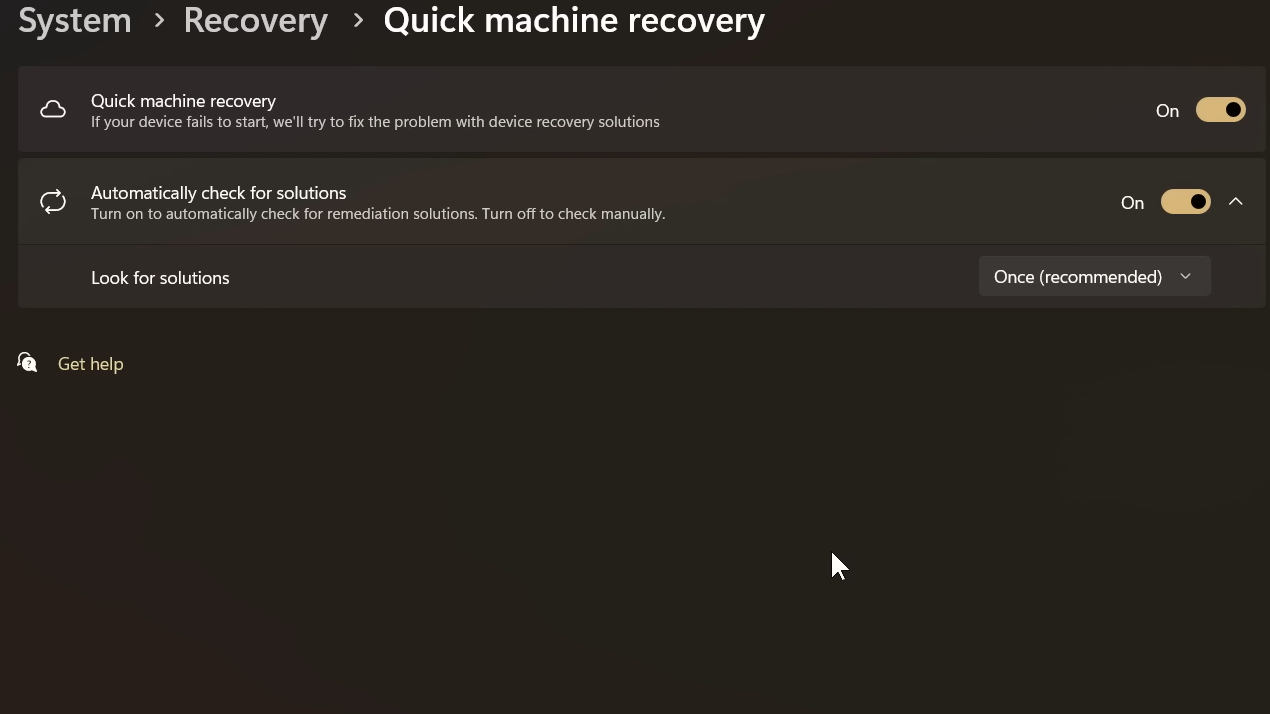
Quick Machine Recovery (QMR)
QMR is now automatically enabled on Windows Professional devices that are not domain-joined or managed by enterprise endpoint systems. This aligns the recovery capabilities of unmanaged Pro devices with those of Windows Home.
RSAT on Arm64
Remote Server Administration Tools (RSAT) are now supported on Windows 11 Arm64 devices. Admins can install tools for Active Directory, DHCP, DNS, and Group Policy Management directly on Arm-based hardware.
Fixes and known issues
This update addresses specific reliability issues affecting system stability and security components.
BitLocker reliability
A fix addresses an issue where devices would stop responding after the user entered a BitLocker recovery key.
Secure Boot preparation
The update includes data to target devices for upcoming Secure Boot certificate renewals. This is part of the preparation for the expiration of existing Secure Boot certificates in 2026. Devices will receive new certificates only after verifying successful update signals to ensure boot integrity.
Display wake performance
Reliability improvements have been made to the process of waking a PC from sleep, particularly reducing resume times for systems under heavy load.
How to install KB5077241
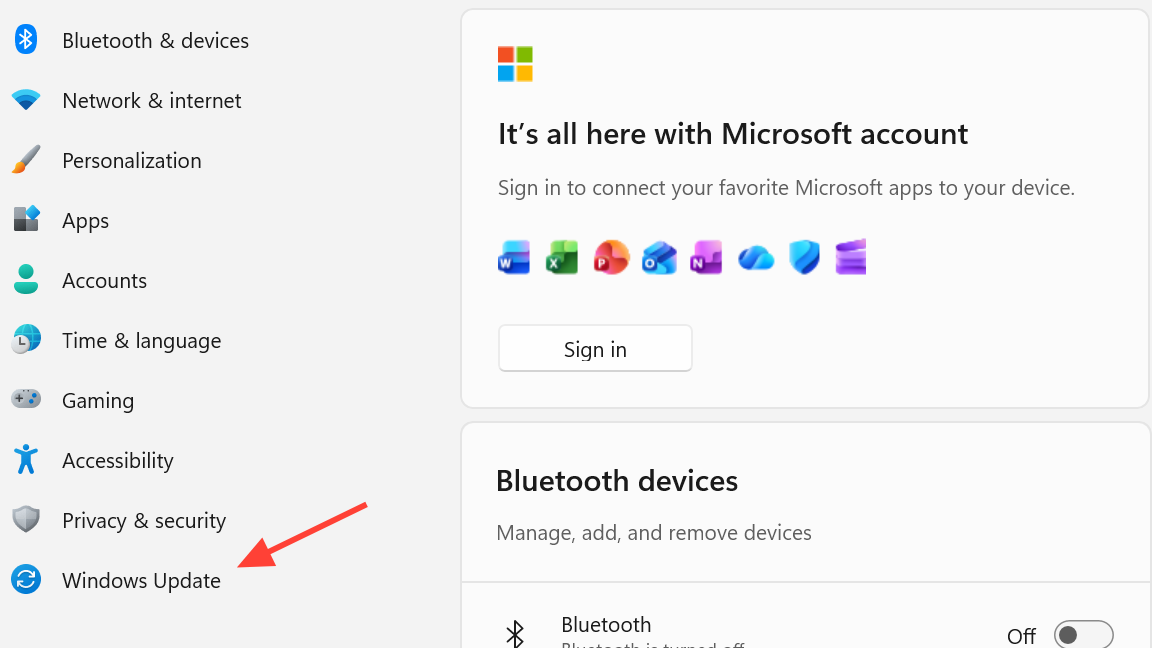
Because this is a preview update, it will not install automatically unless you have enabled the “Get the latest updates as soon as they’re available” toggle in Windows Update.
Install via Windows Update
Manual Download
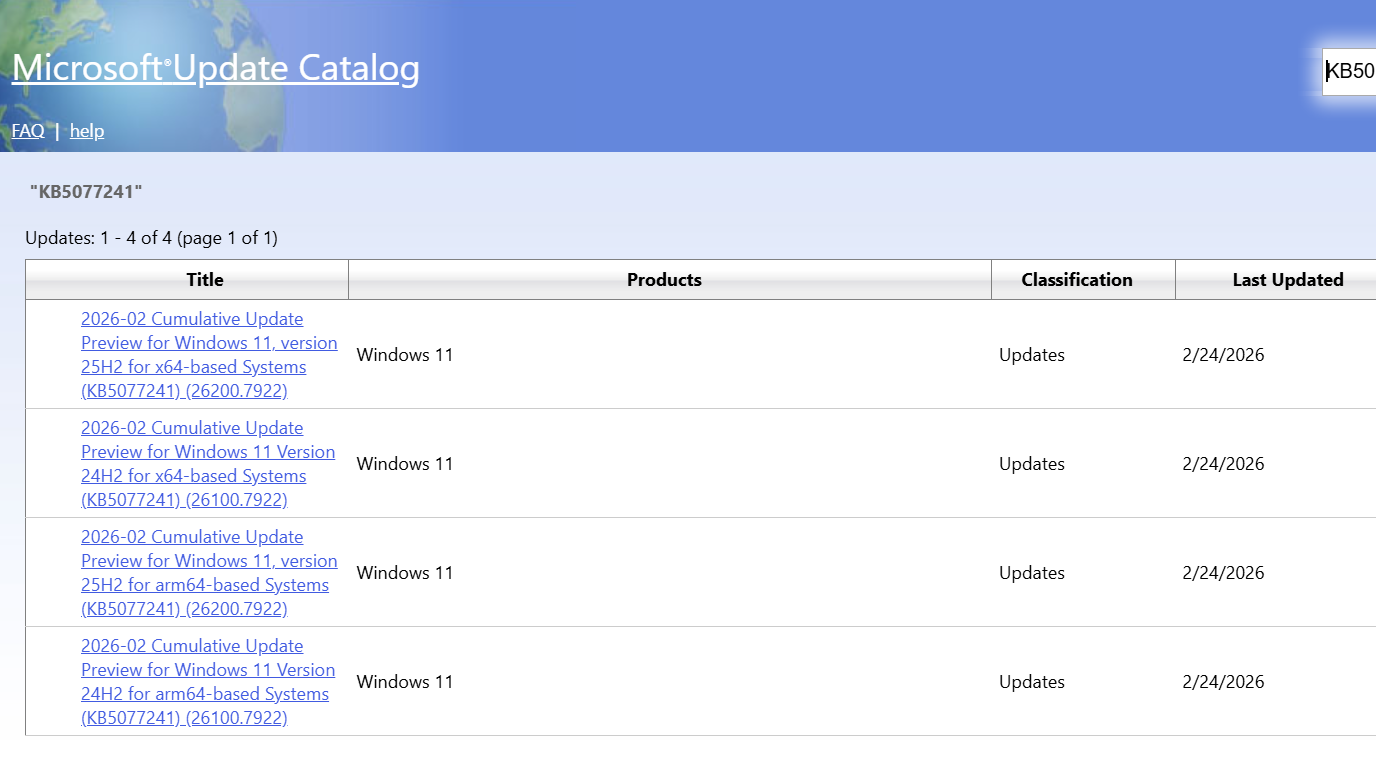
Administrators can download the offline installer packages directly from the Microsoft Update Catalog.
How to enable native Sysmon
Since the new integrated Sysmon feature is turned off by default, users must enable it manually to start logging events.
Method 1: Settings
Method 2: Command Line
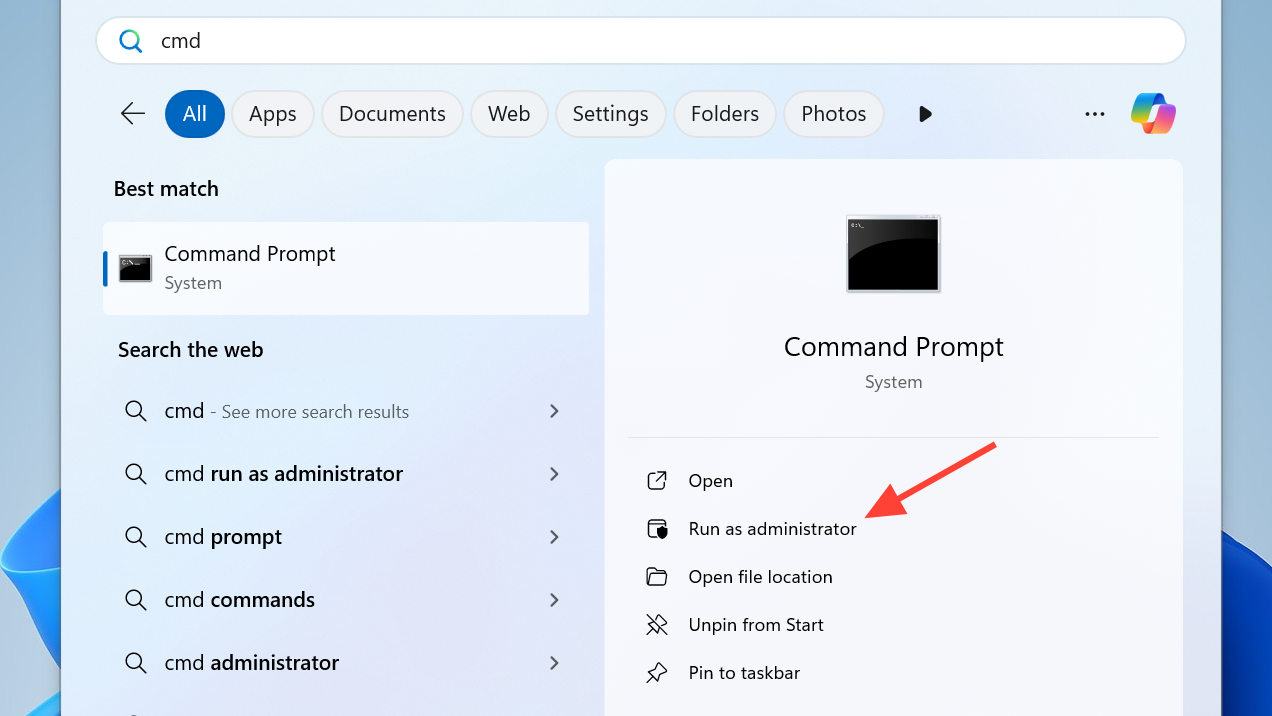
Dism /Online /Enable-Feature /FeatureName:Sysmon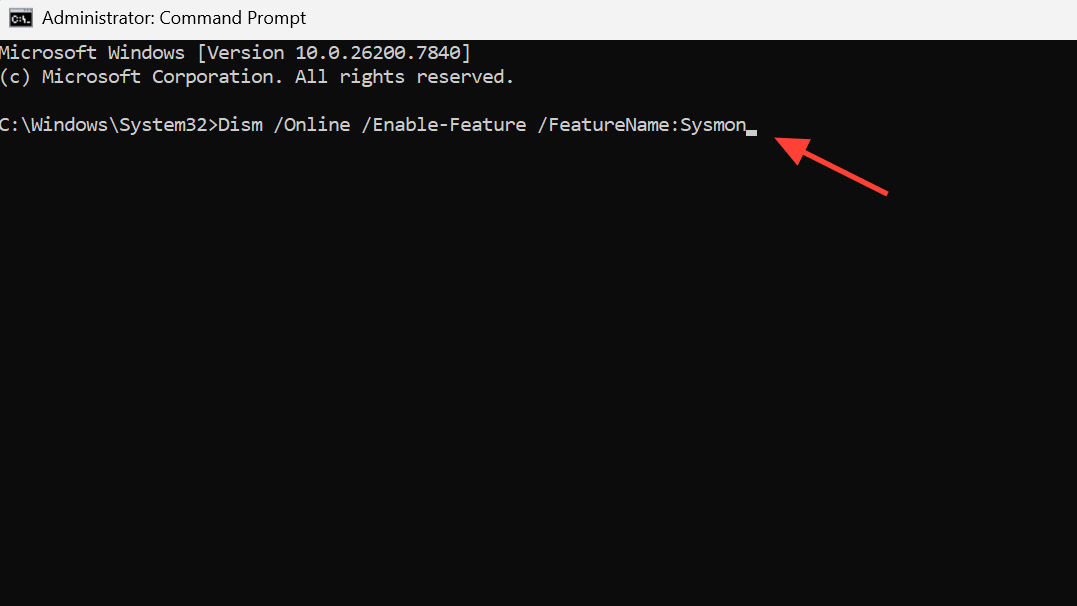
sysmon -iIf a standalone version of Sysmon from Sysinternals is already installed, it should be uninstalled before activating the native Windows version.