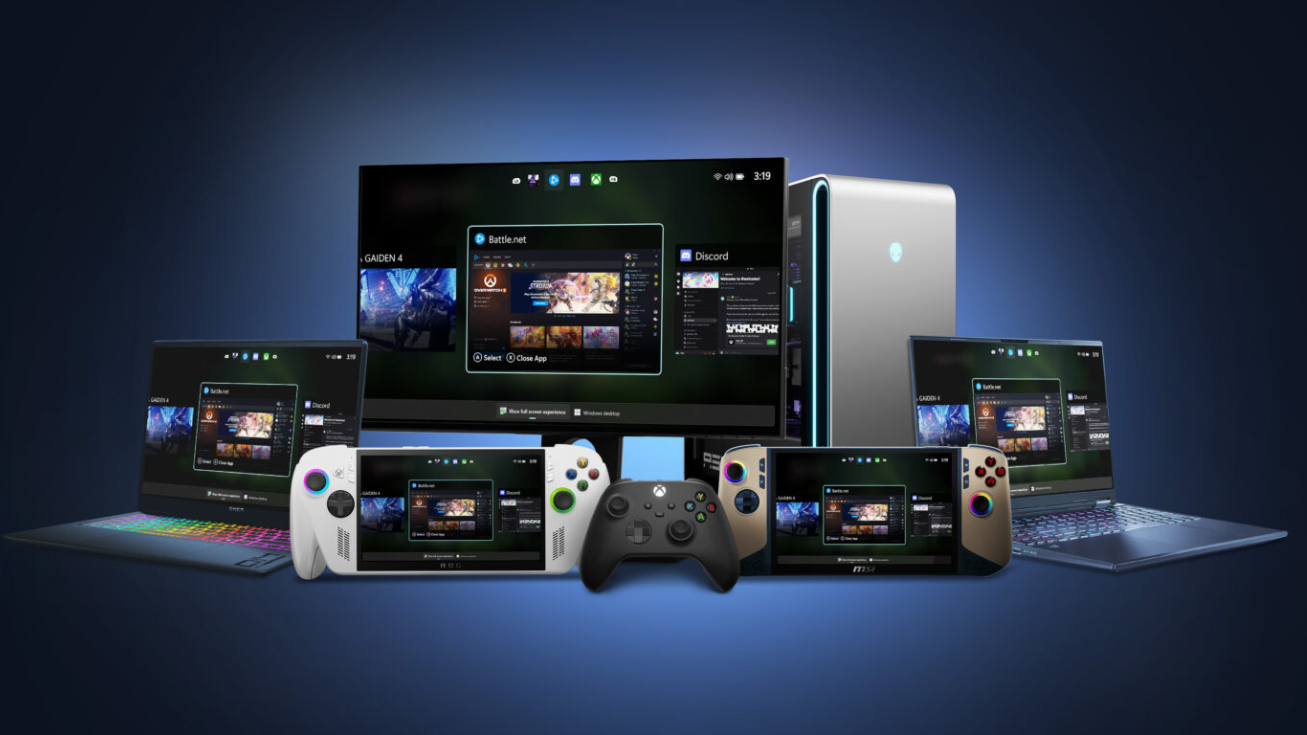
The Xbox full screen experience in Windows 11 turns your PC or handheld into something that behaves much more like a console. Instead of booting into the desktop, you land directly in a controller‑friendly home screen where the Xbox app, your installed games, and a system‑level task switcher sit on top of the traditional Windows shell.
On handhelds like the ROG Ally, Lenovo Legion Go, MSI Claw, and other Windows 11 portables, this mode is already broadly available on Windows 11 version 25H2. A preview of the same experience is now rolling out to desktops, laptops, and tablets through Windows Insider builds, provided the Xbox app is installed and the device is in scope.
What the Xbox full screen experience actually does
Full screen experience (FSE) is a Windows mode that:
- Starts a “gaming home app” (today that’s the Xbox app on most systems) as your primary shell after sign‑in.
- Runs games full screen, with a simplified, controller‑driven interface for navigation.
- Offers a new Task View that you can reach with the Xbox button, Win+Tab, or a swipe from the bottom on touch devices.
- Can optionally skip loading many desktop startup apps until you leave FSE and go to the Windows desktop, reducing RAM use and background CPU activity.
On handhelds, the goal is to reduce friction: power on, land in Xbox, choose a game, play. On desktops and laptops, the PC preview aims to give you that same console‑first feel when you want it, while still letting you drop back into a normal Windows desktop without rebooting.
Requirements for Xbox full screen experience
| Requirement | Handhelds (ROG Ally, Legion Go, etc.) | Desktops / Laptops / Tablets |
|---|---|---|
| Windows version | Windows 11 version 24H2 or 25H2 (shipping 25H2 builds recommended) | Windows 11 Insider Preview Build 26220.7271 or later (Dev or Beta channels) |
| Xbox app | Installed from Microsoft Store | Installed from Microsoft Store |
| Rollout status | Generally available on supported handhelds | Preview, phased rollout via Xbox Insiders + Windows Insiders |
| Programs | Xbox app, Game Bar, OEM utilities (Armoury Crate, Legion Space, etc.) | Xbox app, Game Bar, optional OEM or input utilities |
Windows documents the core behavior of FSE, including navigation and startup app control, on the official support page for Windows Gaming: Full screen experience.
Enabling Xbox full screen experience on a handheld (stable builds)
On many handhelds running Windows 11 version 25H2 with recent cumulative updates, the Xbox full screen option is already present without any Insider enrollment.
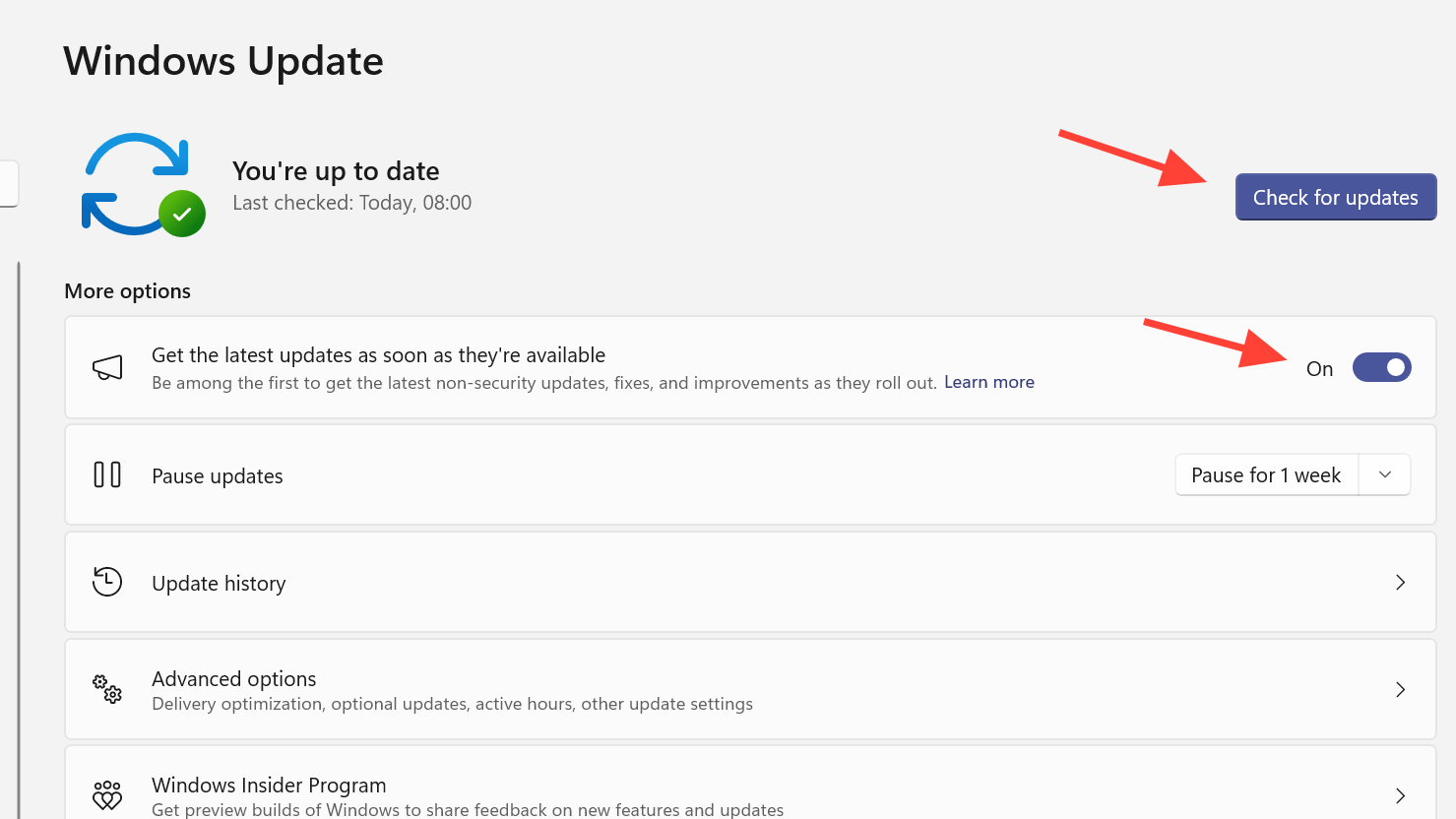
Check and update Windows
- Open
Settings > Windows Update. - Turn on
Get the latest updates as soon as they are available. - Select
Check for updatesand install Windows 11 25H2 if offered. - Restart when prompted.
- Run Windows Update again to pick up the latest cumulative update that brings the build into the 26200 range.
- Optionally turn the “latest updates” toggle back off if you want slower servicing afterward.
Turn on full screen experience in Settings
- Open
Settings. - Go to
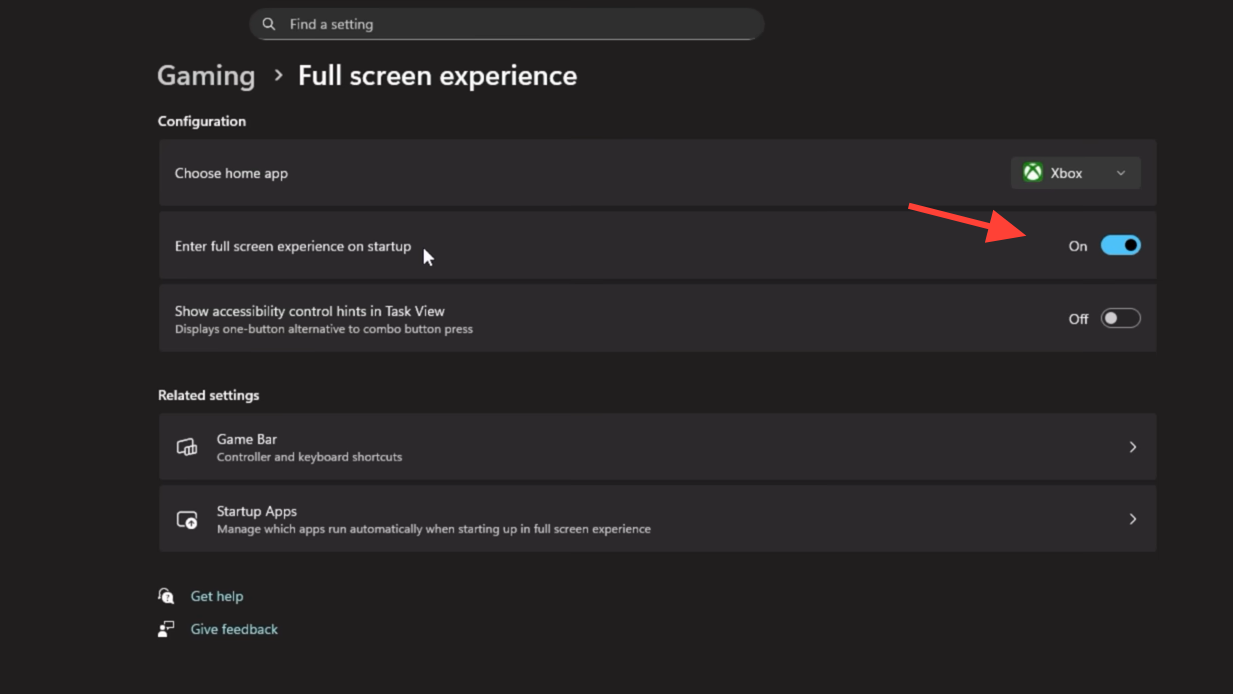
Gaming > Full screen experience. - In Set your home app, choose Xbox.
- Turn on Enter full screen experience on startup if you want the device to boot straight into Xbox.
Once this is set, the next sign‑in can take you directly to the Xbox home screen instead of the Windows desktop, and FSE will appear as an entry point in both Game Bar and Task View.
Enabling Xbox full screen experience on Windows 11 desktop and laptop (Insider preview)
The PC‑wide preview is tied to Windows Insider builds and the Xbox Insider program.
Join the Xbox and Windows Insider programs
- Install the Xbox Insider Hub from the Microsoft Store.
- Open Xbox Insider Hub, go to Previews, select PC Gaming Preview, and choose Join (requires a Microsoft account).
- On Windows, open
Settings > Windows Update > Windows Insider Program. - Link the same Microsoft account and enroll the PC in the Dev or Beta channel.
- Check for updates and install the Insider build that contains full screen experience support (such as Build 26220.7271).
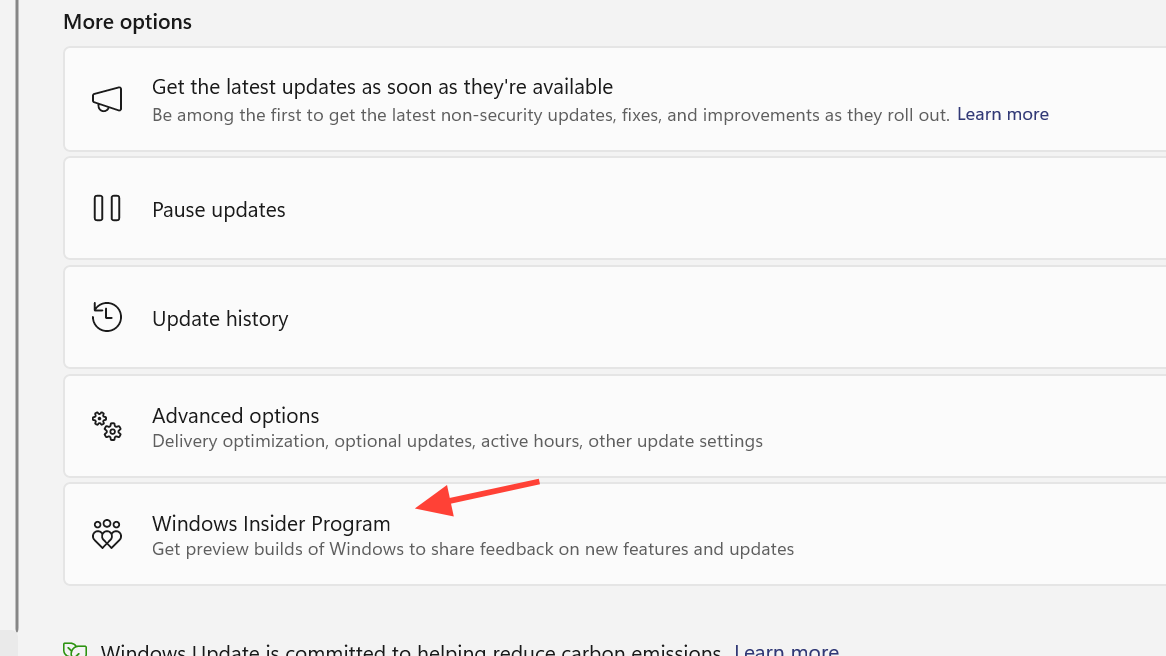
Once the build is installed and the Xbox PC Gaming Preview is active on the account, the FSE entry typically appears under Settings > Gaming > Full screen experience. On some systems, the rollout is staged, so the toggle may appear later even when the OS version is in range.
Using the Gaming > Full screen experience settings
The main control surface for FSE lives in Windows Settings.
| Setting | Location | What it controls |
|---|---|---|
| Set your home app | Settings > Gaming > Full screen experience |
Chooses which gaming shell is used in FSE. Currently this is usually Xbox or None. |
| Enter full screen experience on startup | Settings > Gaming > Full screen experience |
If enabled, signs you straight into FSE after login and applies startup app optimizations. |
| Startup apps behavior | Settings > Apps > Startup |
Sets each app to start at login (also available in FSE) or only after switching to desktop. |
Setting “None” as the home app turns off FSE. The Game Bar and Task View entry points disappear, and Windows behaves like a standard desktop system again.
How to enter and leave Xbox full screen experience
Ways to enter full screen experience
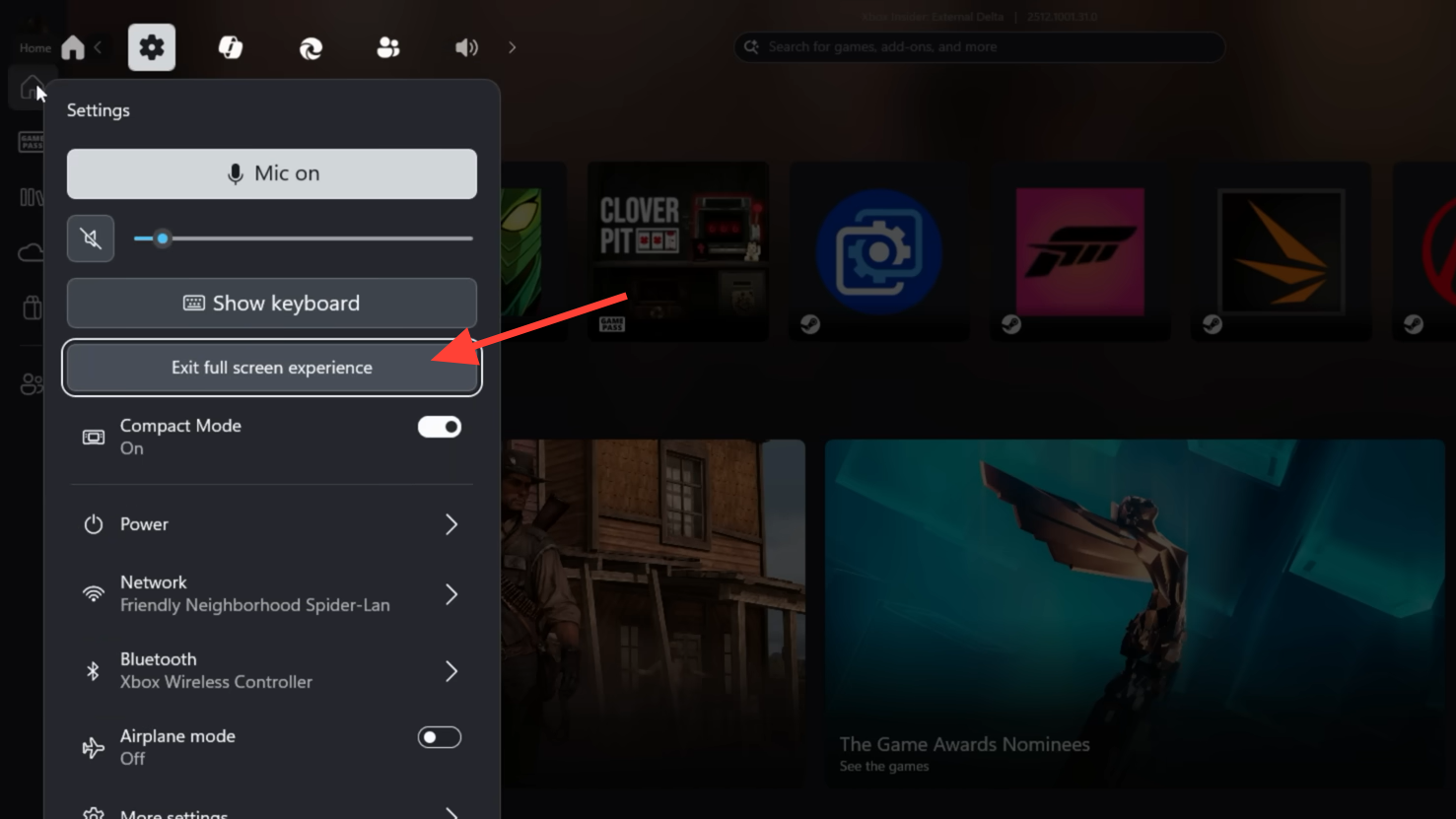
- From Game Bar:
- Press the Windows logo key + G, or on many handhelds, press the mapped “Xbox” or overlay button.
- Open the Game Bar settings (cog icon) and choose the full screen experience entry, if present.
- From Task View:
- Press the Windows logo key + Tab, or select the Task View icon on the taskbar.
- Choose the Xbox full screen experience tile.
- Keyboard shortcut:
- Press Windows logo key + F11 to toggle full screen experience directly.
- Touch gesture (handhelds, tablets):
- Swipe up from the bottom of the screen to open Task View, then select FSE.
Ways to return to the Windows desktop
- Open Task View (Xbox button hold, Win+Tab, or swipe up) and select Windows desktop.
- Use Game Bar settings and choose the desktop entry.
- Press the Windows logo key to drop to the desktop on PCs in the Insider preview implementation.
When “Enter full screen experience on startup” is enabled and you return to FSE after using the desktop, Windows can prompt you to restart to get the full performance benefits again. Restarting reapplies the stripped‑down startup profile; skipping the restart keeps background apps running.
Navigating apps and games inside full screen experience
Task View works differently under FSE than on the classic desktop, but the entry points are similar.
- Open the FSE Task View:
- Press and hold the Xbox button on a controller, or
- Press the Windows logo key + Tab, or
- Swipe up from the bottom edge on a touch device.
- Move between open apps:
- Use the left stick or D‑pad to move the focus.
- Shoulder buttons can also step through open items on some builds.
- Act on an app:
- Press A to bring a highlighted app or game to the foreground.
- Press X to close the highlighted app.
The Xbox home app remains available as a dedicated entry inside Task View, and also from the Home button within Game Bar. If the home app supports it, Game Bar can also jump straight into its library view through a separate Library button.
Managing startup apps and performance in full screen experience
One of the main functional differences between FSE and a regular desktop boot is how startup apps are treated when “Enter full screen experience on startup” is on.
- At sign‑in, Windows loads FSE and the gaming home app, plus core Windows services.
- Most other startup programs are held back until the first time you enter the desktop.
- After that first switch to the desktop, startup entries behave normally for that session.
You can tune this behavior for individual apps under Settings > Apps > Startup:
- Set an app to Start at log in if you need it active even while staying entirely in FSE (for example, controller drivers, OEM power utilities, or overlays you rely on).
- Set an app to Off if you do not want it loading at all, even when going to desktop.
On well‑tuned systems that already have aggressive startup trimming, the difference in idle RAM may be modest. On handhelds or PCs with many background tools, users commonly see between a few hundred megabytes and roughly 1–2GB less memory use at a cold boot straight into FSE compared with a full desktop session. Frame rate gains depend heavily on the individual game and overall system configuration; the feature is primarily about predictability and reduced background noise rather than a universal FPS uplift.
How Xbox full screen experience interacts with launchers and libraries
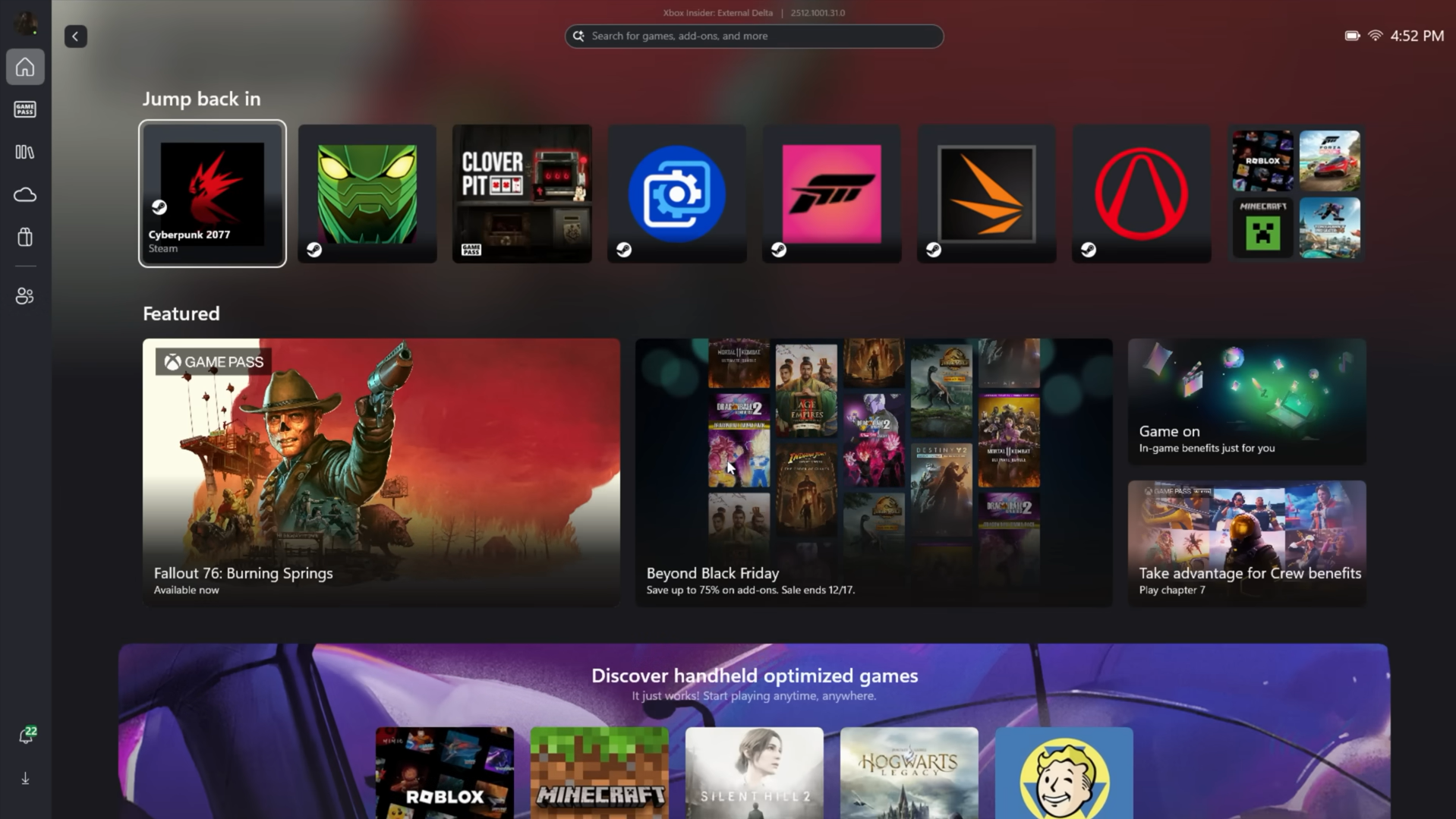
The Xbox home app in FSE surfaces:
- Xbox and PC Game Pass titles tied to the Microsoft account.
- Xbox Play Anywhere games that can run on both console and PC.
- Installed PC games detected from supported storefronts such as Steam, GOG, Epic Games Store, EA app, Battle.net, and similar clients.
The app scans these libraries and writes metadata about discovered games into a local third‑party libraries directory within its app data. That logic is built around major launchers; there is currently no in‑product UI to manually add an arbitrary EXE into the Xbox library.
Users often work around this in two ways:
- Putting non‑store games into Steam or GOG as local/non‑Steam entries so that they show up in recent play history, which FSE may surface indirectly.
- Using Game Bar widgets (for example, third‑party launchers available from the widget store) that can host shortcuts for emulators and standalone games, accessible on top of FSE.
On some handhelds, there are also tools that replace the Xbox full screen app with another launcher, such as Playnite or Steam Big Picture, while still using the underlying FSE shell and task switcher. Those tools change which app actually appears as the “home app”, but the Windows features around startup behavior and Task View remain the same.
Controls, button mapping, and gestures on handhelds
Handhelds ship without the classic Xbox “Guide” button, so vendors and utilities remap their own hardware to the necessary shortcuts.
- ROG Ally and Ally X:
- The “View” button (to the right of the left stick) generally opens Game Bar with a press and, on many builds, opens the handheld Task View / FSE switcher when held.
- Users often map a rear paddle (such as M1) to the Xbox button function; a short press opens Game Bar, and a long press opens the Task View in FSE.
- In tools like G‑Helper or Armoury Crate, mapping Win+Tab to a rear button offers a reliable way to reach Task View on both desktop and FSE.
- Lenovo Legion Go:
- Legion L + right stick button combinations can be set to emit Win+G for Game Bar and Win+Tab for Task View, effectively standing in for the Xbox button press and hold dual behavior.
- Swiping up from the bottom of the touch display still brings up Task View.
- Steam Deck (Windows installs):
- The Steam button can be mapped to act as the Xbox button in Windows; pressing and holding it within FSE opens the task switcher on some builds.
Gestures remain available regardless of controller mapping:
- Swipe up from the bottom edge to open Task View in FSE.
- Swipe in from the left edge to open the overlay where the Xbox home and library controls live.
Where OEM drivers or utilities are tightly bound to the default Windows desktop, conflicts can appear. If an OEM overlay and FSE both try to intercept the same button, the behavior can be inconsistent until the mapping is adjusted or one of the overlays is removed from startup.
Known limitations and quirks users commonly hit
Although FSE is now generally available on handhelds and rolling out as a preview for more PCs, it is still early‑stage software and some patterns repeat across devices.
| Area | Observed behavior | Practical impact |
|---|---|---|
| Suspend / resume | Games running under FSE do not offer seamless suspend/resume comparable to console quick‑resume. Waking from sleep often forces a full relaunch of the game. | Short handheld sessions may involve more loading screens than under some console‑like Linux distributions. |
| Controller mapping conflicts | OEM software such as Armoury Crate or Legion Space can clash with FSE’s expectations for the Xbox button and Task View shortcuts. | Buttons that should open Game Bar or Task View may behave inconsistently until remapped, or until one of the overlays is disabled. |
| Desktop PC rollout | On non‑handheld PCs, FSE has historically been gated behind device‑type checks and resolutions; with Build 26220.7271 the feature is formally expanding, but still deploys in phases via Insiders and Xbox Insiders. | Some desktops and laptops on the right build will not immediately show the Gaming > Full screen experience entry; availability can lag the OS update. |
| Multi‑monitor behavior | Early handheld implementations often blank the second monitor when docked. | People using handhelds as docked PCs may prefer desktop mode for multi‑display setups until the PC‑oriented FSE path is widely available. |
| Manual game entries | There is no native way to add non‑store games directly to the Xbox library UI inside FSE. | Standalone games, emulators, and tools need indirect paths (Steam/GOG wrappers, Game Bar widgets, or replacement home apps) to feel fully integrated. |
On the performance side, users who already do careful Windows “debloating” and aggressively trim startup items generally report smaller gains from FSE than those running default Windows configurations. The main benefit is a consistent, controller‑centric shell that leaves fewer background surprises during gaming sessions, more than outright raw performance improvements across every title.
For now, the Xbox full screen experience sits between a pure console shell and a traditional Windows desktop. On handhelds it already provides an approachable, RAM‑leaner landing zone for playing games; on desktops and laptops the Insider preview is beginning to offer the same idea. As the rollout to more devices continues and additional home apps beyond Xbox are supported, the shell should become a more flexible starting point for people who want Windows to feel like a game system first and a PC second—without giving up the ability to drop back to a full desktop when needed.