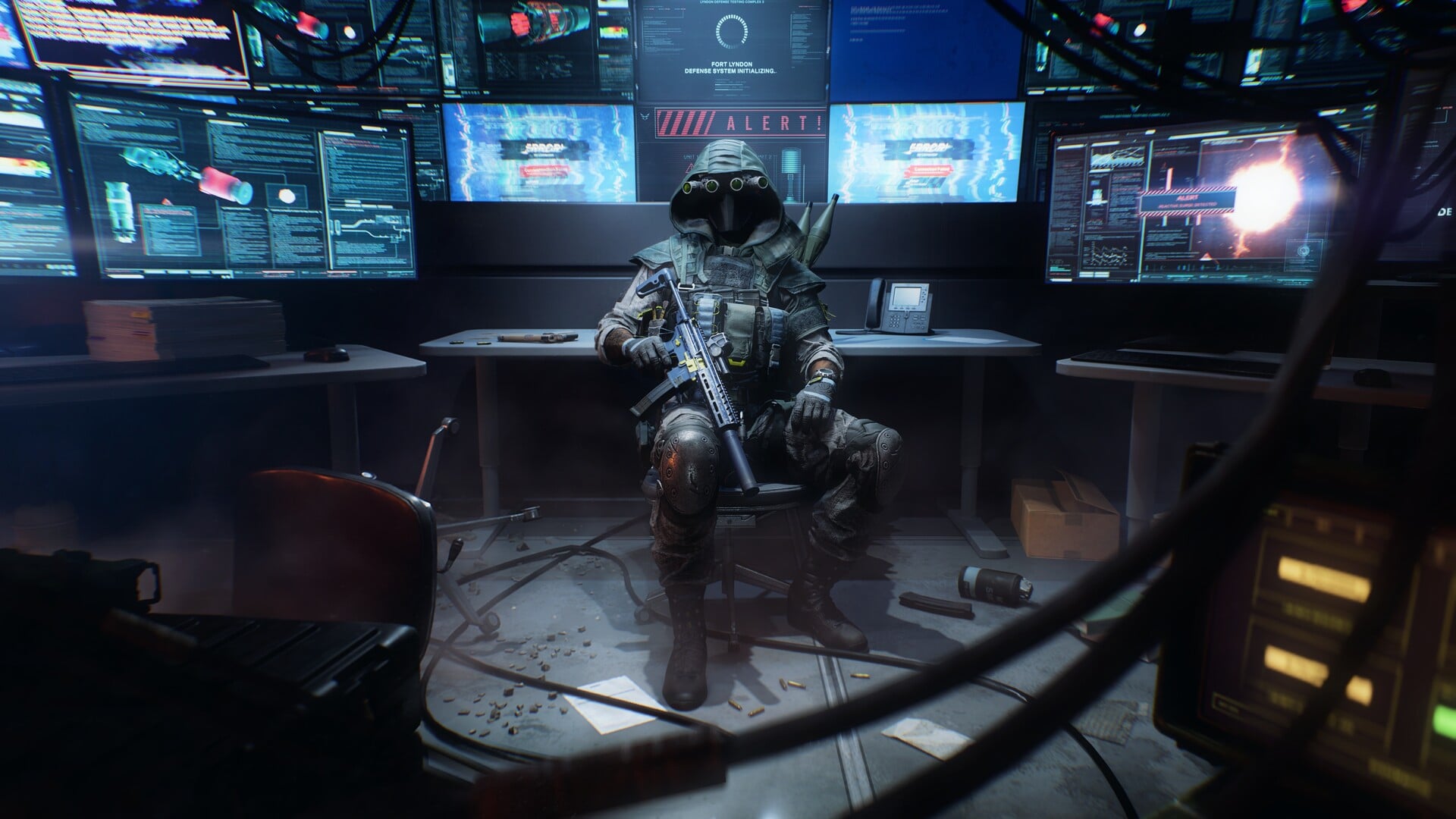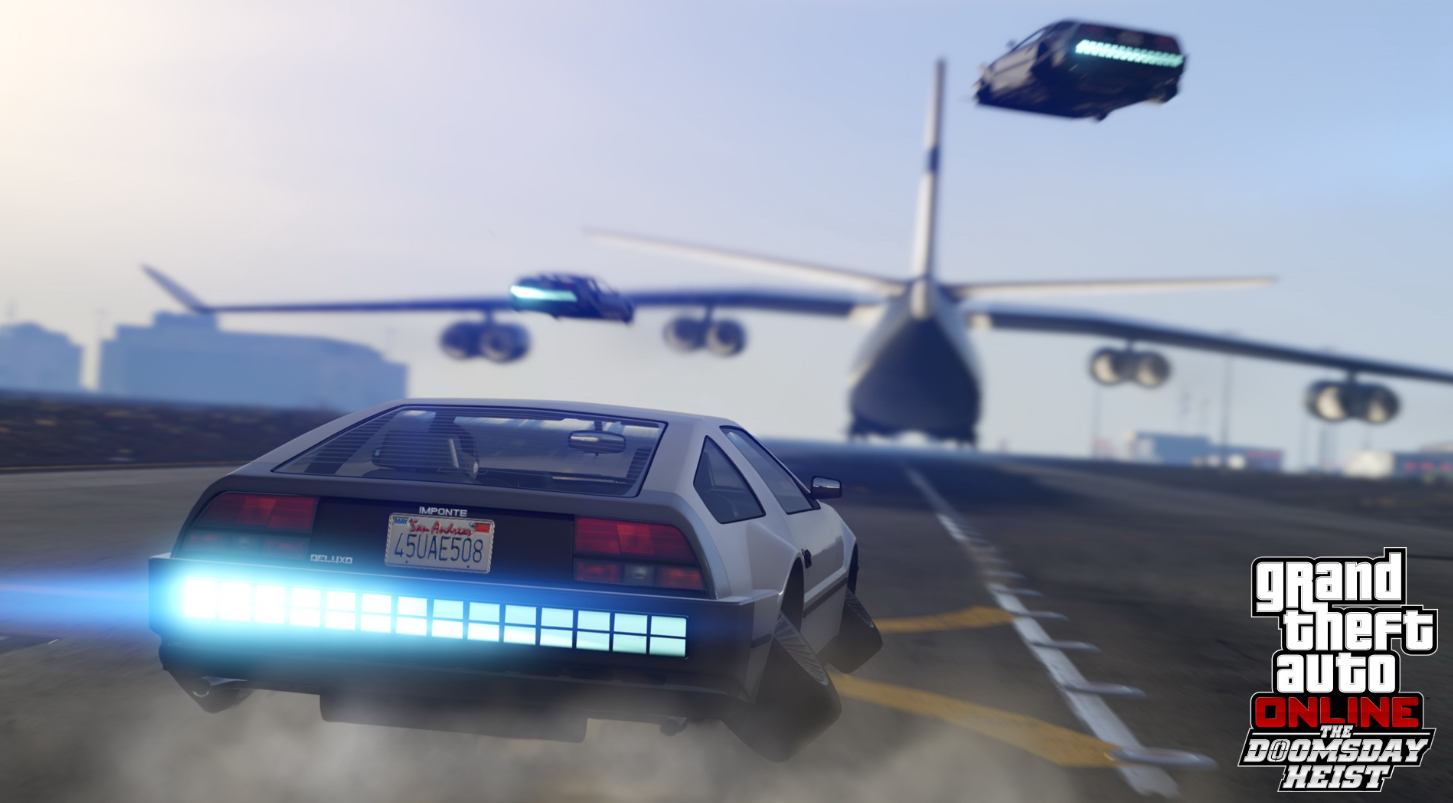
The Forza Horizon 6 Loading Screen mod replaces Grand Theft Auto V’s default startup and loading images with artwork themed around Playground Games’ racing game. The current build is version 1.2, a 13.7 MB download that also swaps in the FH6 logo on the loading screen. Installing it means editing GTA V’s game archives with OpenIV, so the process is manual rather than a one-click installer.
Quick answer: Open OpenIV, turn on Edit Mode, and copy the mod’s files into the scaleform_frontend.rpf and scaleform_platform_pc.rpf archives under mods/update/update.rpf/x64/data/cdimages, then drop frontend.ytd into mods/update/update.rpf/x64/textures.
What you need before installing
This is a PC-only mod for the GTA V game files. You will need OpenIV with Edit Mode enabled, since the mod’s contents go directly into the game’s RPF archives. The download itself contains the loading screen images plus a frontend.ytd texture file that carries the logo change.
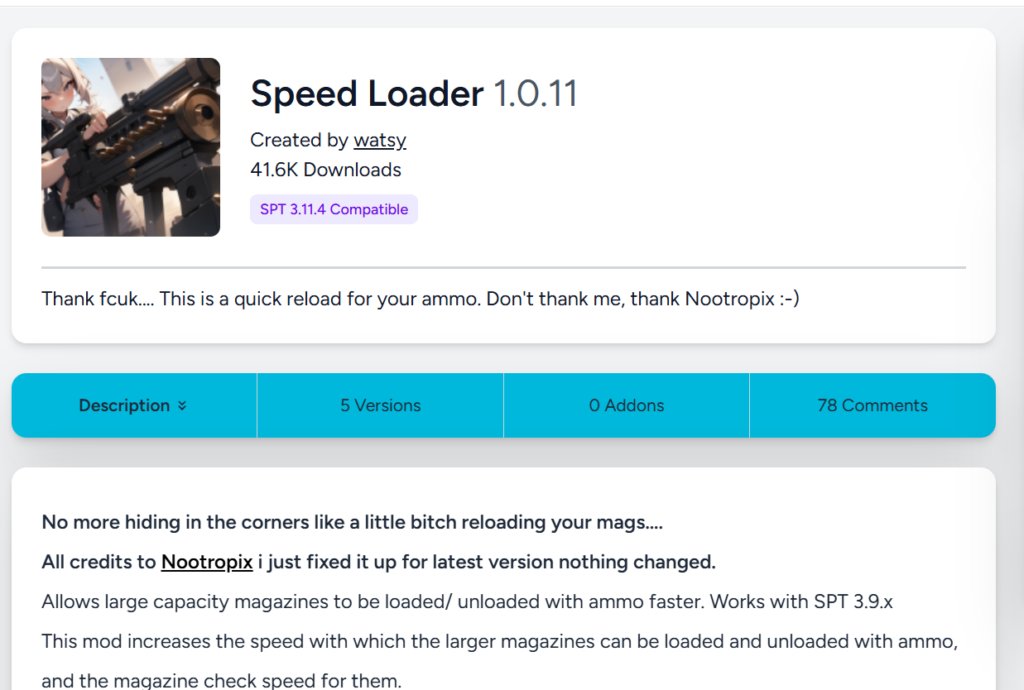
If you also plan to use the Speed Loader mod by OmegaKingMods, install Speed Loader first and then add the Forza Horizon 6 loading screen mod on top of it. Doing it in the other order can overwrite the loading screen changes.
Install the Forza Horizon 6 loading screens with OpenIV
mods/update/update.rpf/x64/data/cdimages, which holds the loading screen archives you will be modifying.scaleform_frontend.rpf and drag the matching file from the mod’s scaleform_frontend folder into it. This replaces the first set of loading screen assets.scaleform_platform_pc.rpf and drag the files from the mod’s scaleform_platform_pc folder into it. This covers the PC-specific loading screen images.mods/update/update.rpf/x64/textures and drop in the frontend.ytd file. This is what brings in the FH6 logo on the loading screen. The installation is complete once all four placements are done.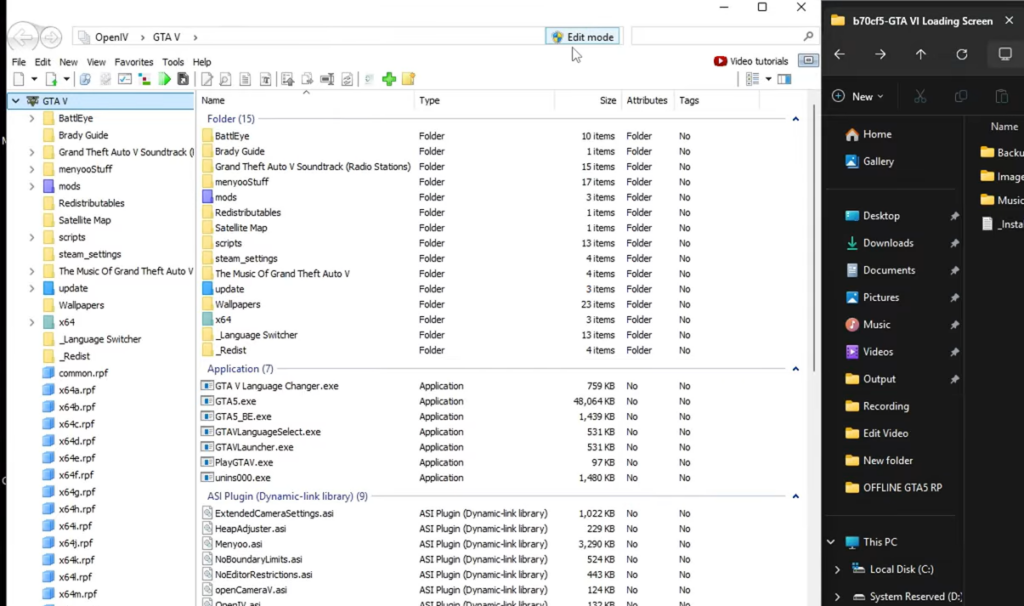
How to confirm the mod is working
Start GTA V after copying every file. When the game boots, the loading screen should show Forza Horizon 6 imagery instead of the default rotation, and the FH6 logo should appear in place of the GTA V logo. If you still see the original screens, the files were likely added to the wrong archive or Edit Mode was off when you made the changes.
Note: When the Speed Loader mod is installed afterward instead of before, it can take priority and hide the Forza loading screens. Reinstall the loading screen mod last to restore the FH6 visuals.
Version differences
| Version | Size | What changed |
|---|---|---|
| 1.1 | 13.7 MB | Base file with the Forza Horizon 6 loading screen images. |
| 1.2 (current) | 13.7 MB | Replaced the GTA V logo with the FH6 logo on the loading screen. |
Both versions use the same artwork set, supplied by the creator’s collaborator. Version 1.2 is the one to grab if you want the matching logo rather than the default GTA V branding during loads.
Because the mod only touches the loading screen archives and the frontend texture, it is straightforward to reverse. Keep backups of the original scaleform_frontend.rpf, scaleform_platform_pc.rpf, and frontend.ytd files before editing so you can roll back to the stock GTA V loading screens at any time.