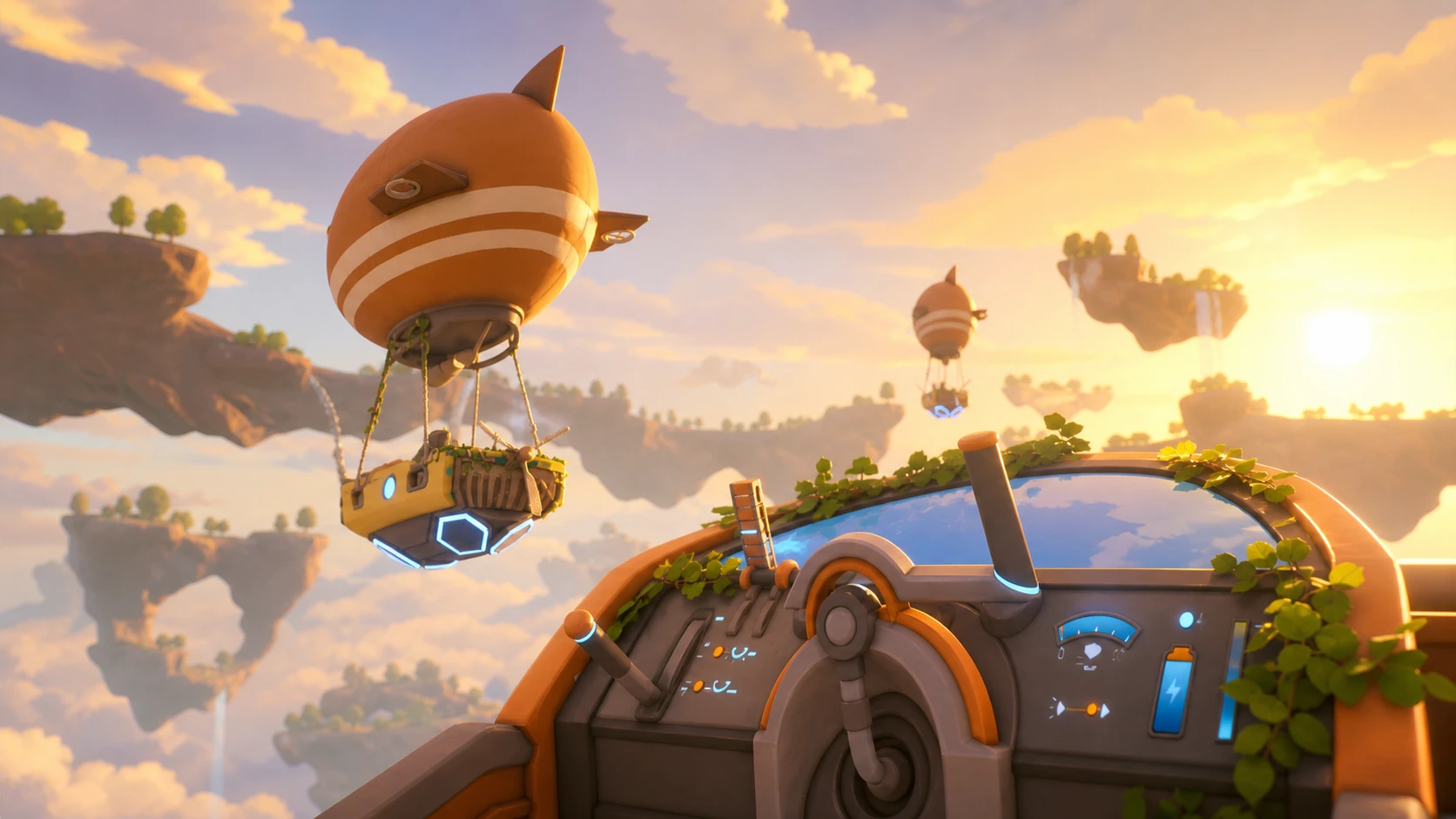
Solarpunk reached its 1.0 release on June 8, 2026, and the first thing many players notice is how little there is to tweak. The first-person survival and farming game runs on Unreal Engine 5, yet it keeps its graphics menu short. That is good news for performance, because a handful of choices decide whether you get steady frames or the occasional stutter when the weather turns.
Quick answer: Set Quality to Medium, Display to Borderless, FOV to 80, and leave Vsync off unless you see lag. If frames dip or the picture tears, turn Vsync on for steadier output.
Solarpunk system requirements to check first
Solarpunk is not demanding. The game asks for modest hardware, so most modern desktops and laptops clear the bar without trouble. Confirm your machine meets the baseline before you start adjusting settings, since a slow drive or low memory causes more stutter than any in-game slider.
| Component | Minimum |
|---|---|
| Processor | Intel Core i5-12400T |
| Memory | 4 GB RAM |
| Graphics | DirectX 11 compatible, Shader Model 5.0 support |
| Operating system | Windows 10 or Windows 11 |
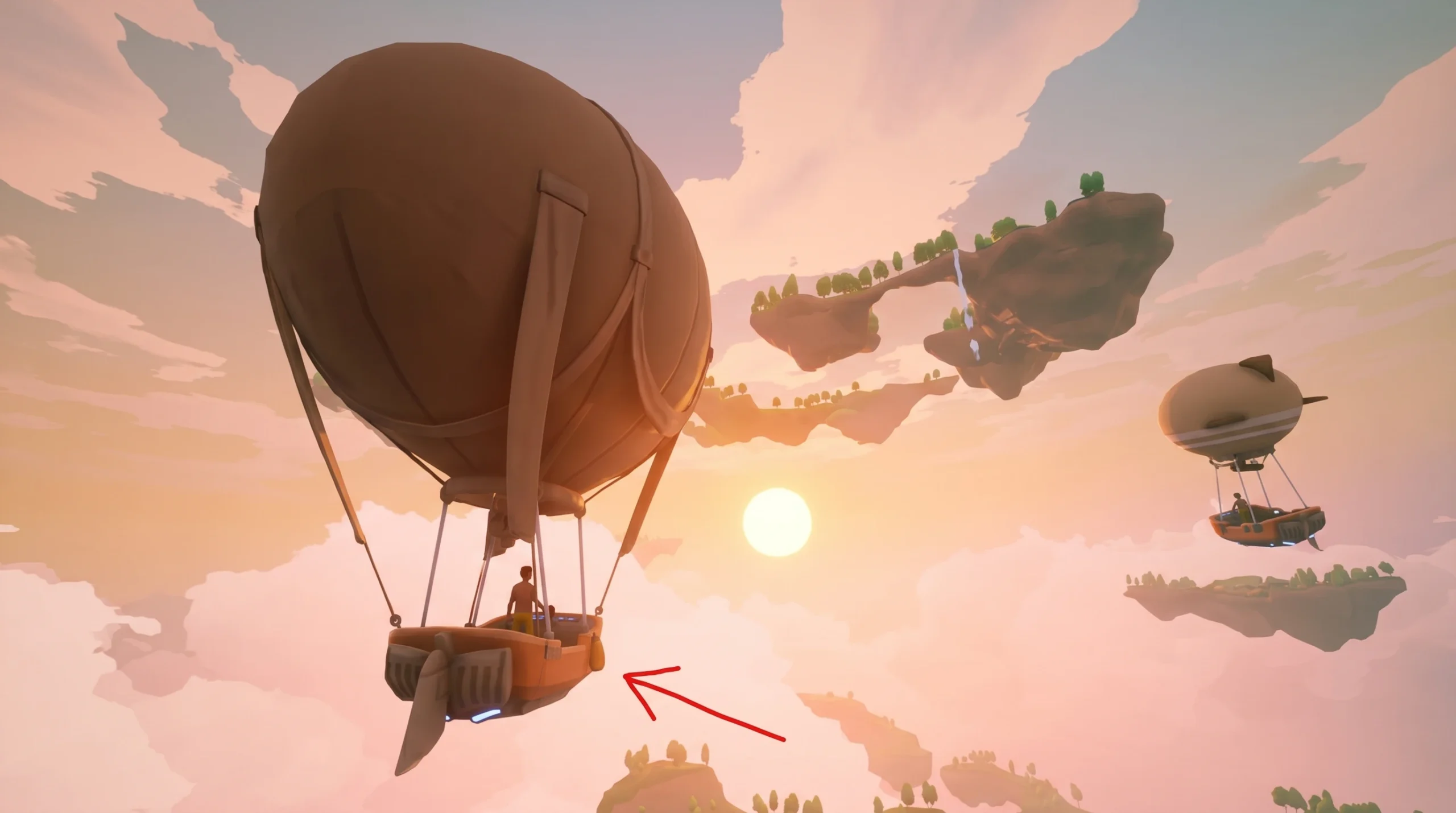
The game is available through its Steam store page. Installing it on an SSD rather than a hard drive shortens load times and helps texture streaming keep up as you fly between floating islands.
Best Solarpunk graphics settings
Solarpunk currently exposes presets rather than individual sliders for shadows, textures, or effects. That limits fine-tuning, but it also makes the right call simple. The values below were dialed in on a system with an AMD Ryzen 7 5700X, an AMD Radeon RX 9060 XT, and 32 GB of DDR4 memory, and they scale down sensibly for weaker rigs.
| Setting | Recommended value | Why |
|---|---|---|
| Quality | Medium | The sweet spot for older PCs. Lower presets gain a little performance, but Medium stays smooth and looks fine. |
| Display | Borderless | Fullscreen can stutter when rain starts. Borderless avoids that and plays well with multi-monitor setups. |
| Vsync | Off (On if you lag) | Off keeps input responsive. Turn it on if you see tearing or uneven frames, accepting a frame-rate cap for smoother output. |
| FOV | 80 | The lowest available value, which lightens the rendering load. A wider view is optional here since this is not a shooter. |
Note: Quality only offers presets right now, so you cannot isolate a single heavy effect. If Medium still struggles, drop to a lower preset before touching anything else.
How to confirm the settings are working
The 1.0 build already runs better than the earlier demo, so most modern systems will hold a smooth frame rate on these values with room to spare. Keep Quality at Medium, lean on Borderless to dodge weather stutter, and reach for Vsync only when you actually see a problem.