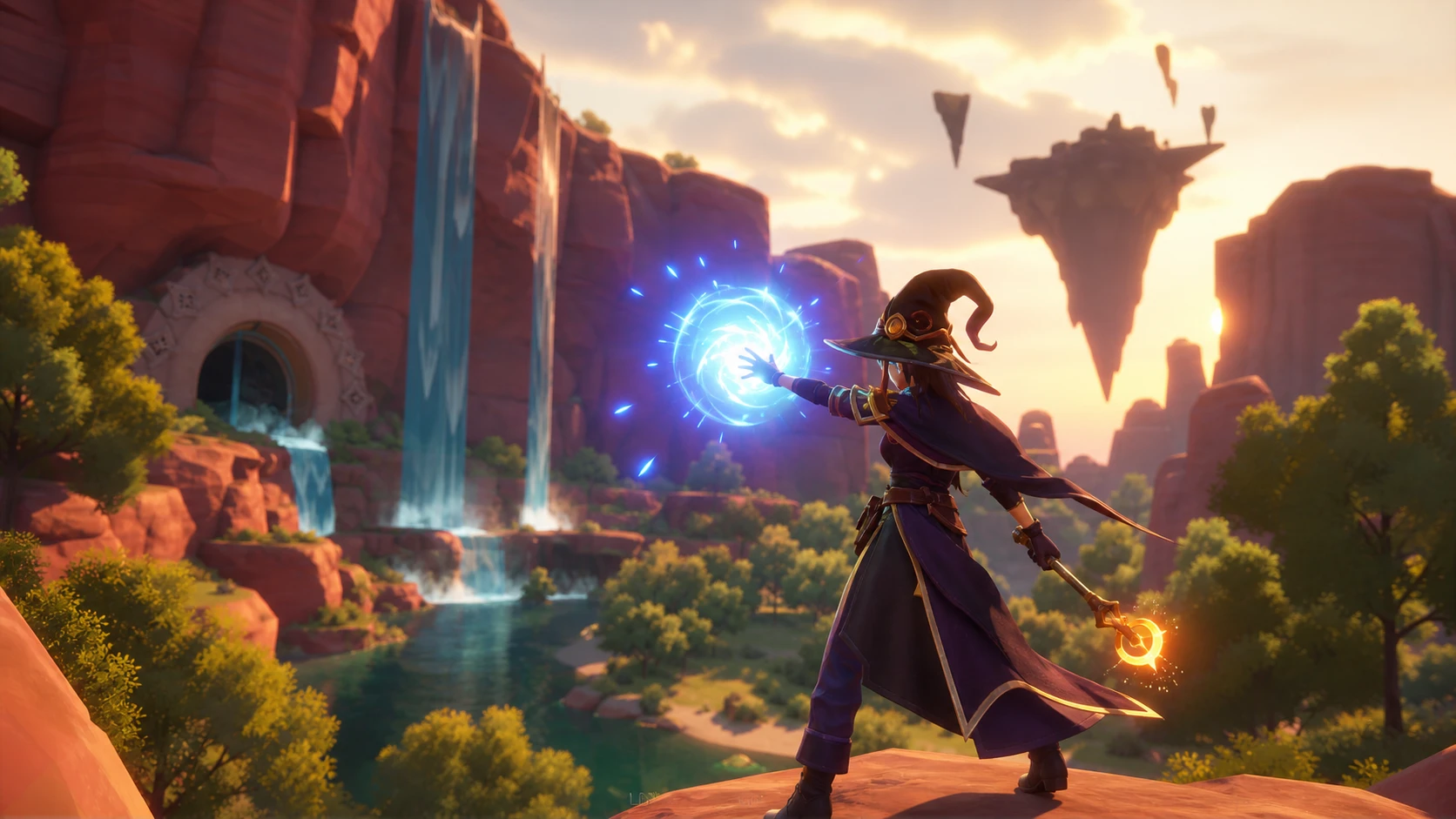
Witchspire just landed in Early Access on Steam, and like a lot of open-world survival games at launch, it can stutter when the screen fills with magic, creatures, and co-op players. The good news is that Envar Games built in upscaling and ships clear hardware targets, so you can claw back a smooth frame rate without making the world look flat.
Quick answer: Turn on upscaling (DLSS on Nvidia, FSR on AMD) and set it to Performance for a 1080p/60fps target, install the game on an SSD, and lower the heaviest settings first, shadows, effects, foliage, reflections, and post-processing.
Witchspire PC system requirements
Before touching the in-game menus, check your machine against the official targets. Witchspire needs a 64-bit Windows 11 install, DirectX 12, a broadband connection, and 12 GB of free storage. An SSD is strongly recommended, and the developers note that the Performance upscaling preset is what gets you to roughly 1080p/60fps.
| Component | Minimum | Recommended |
|---|---|---|
| OS | Windows 11 | Windows 11 |
| Processor | Core i5-10400 / Ryzen 5 5600G | Core i7-10700K / Ryzen 7 3700X |
| Memory | 16 GB RAM | 16 GB RAM |
| Graphics | GTX 1070 / RX 6600S | RTX 3080 Ti / RX 9070 XT |
| DirectX | Version 12 | Version 12 |
| Storage | 12 GB available | 12 GB available |
Note: Even at the minimum spec, the 1080p/60fps estimate assumes upscaling is set to Performance. If you are sitting near those minimums, treat upscaling as mandatory rather than optional.
Set upscaling first for the biggest FPS gain
Upscaling renders the game at a lower internal resolution and reconstructs the image up to your monitor’s resolution, which is the single most effective lever for frame rate here.
Settings to lower first for a stable frame rate
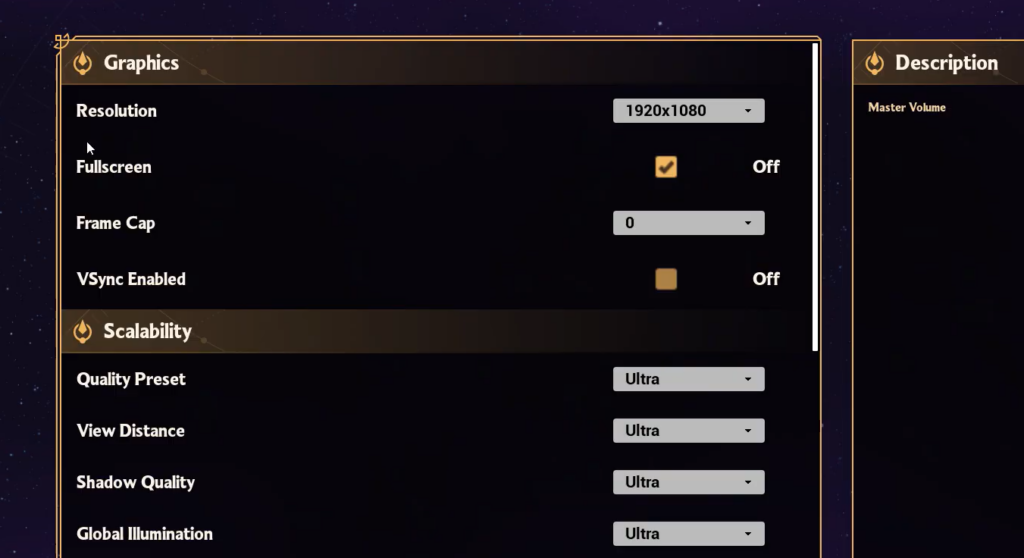
After upscaling, the categories that cost the most performance in a magic-heavy open world are shadows, particle effects, foliage, and reflections. Drop these before you touch texture quality, since textures have a smaller frame-rate impact and a large visual one.
- Shadow quality and shadow distance are usually the most expensive, and lowering them rarely hurts visibility.
- Effects and reflection quality load your GPU hard during spellcasting and big fights, so a medium-to-low setting smooths out the busiest moments.
- Foliage density and draw distance can be cut back, since a dense forest is a common cause of dips while exploring.
- Turn off camera-style post-processing such as motion blur if you want the sharpest, most responsive image.
Because Witchspire is an Early Access release, menu labels and available options may change between patches, so adjust based on what your build exposes rather than chasing a fixed preset.
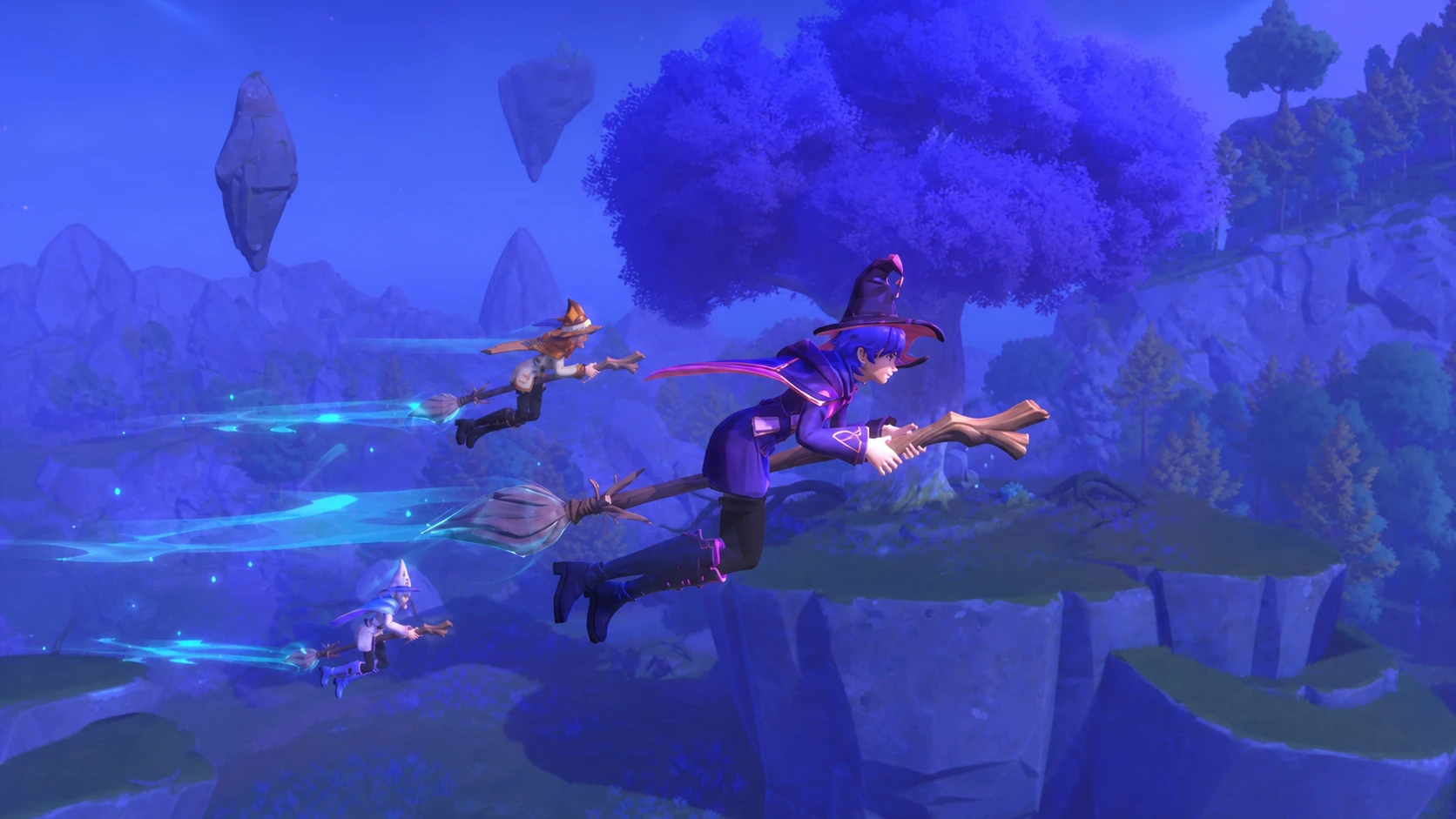
Why frame rate drops in co-op and busy scenes
Two situations are known to pull frames down. The first is graphics-intensive scenes, where stacked spell effects and crowded encounters push the GPU. The second is hosting an online co-op session for multiple players, which adds load on top of rendering. If you host regularly, keep effects and shadows lower than you would in single-player, and lean on the Performance upscaling preset.
You will know the changes worked when your in-game frame counter holds steady through fights and exploration without the sharp dips you saw at default settings. An SSD install also reduces hitching when new areas and assets stream in, so move the game off any mechanical hard drive if you are still seeing stutters after tuning the graphics options.