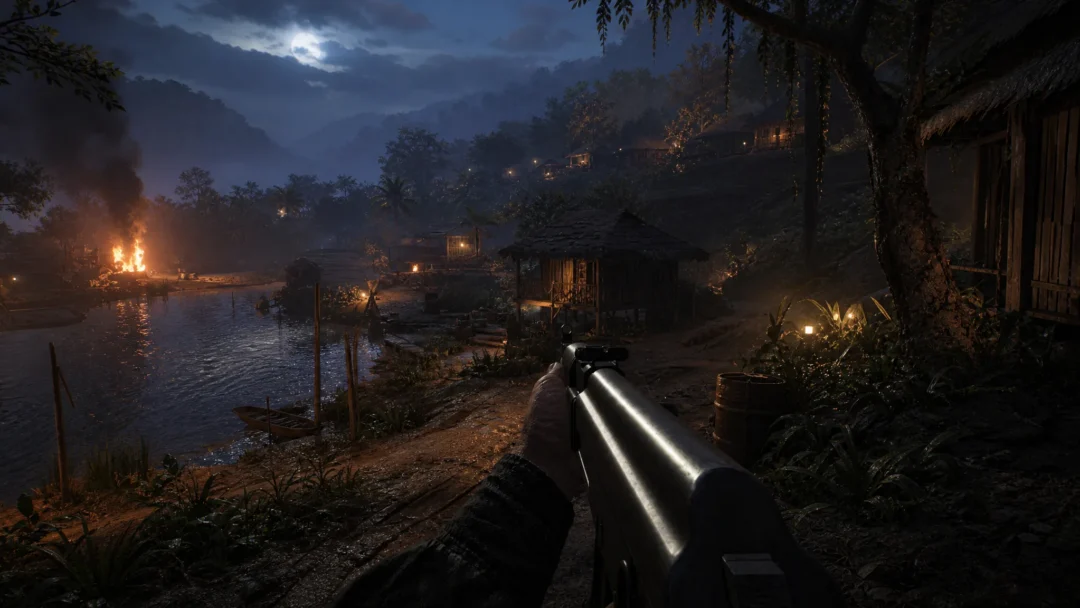
Firefights in SAND: Raiders of Sophie punish stutter. The game leans on fast aim across open desert, so any frame drop while a Trampler rolls into view can cost you the loot you came for. A few targeted changes to the display and graphics menus keep the picture moving smoothly even on systems that sit near the minimum spec.
Quick answer: Set Display Mode to Fullscreen, turn V-Sync and Anti-Aliasing off, cap frames at 90 FPS (60 on weaker hardware), enable Super Resolution on Performance, and run the graphics preset as Custom with most quality values on Low to Medium.
Best SAND: Raiders of Sophie display settings
Start in the display menu. These options decide how the game talks to your monitor and have the biggest effect on input lag. Fullscreen gives the lowest latency, and leaving the frame rate uncapped or set high stops the engine from holding back frames you need during PvP.
| Setting | Value |
|---|---|
| Display Mode | Fullscreen |
| Resolution | Your monitor’s native resolution |
| Field of View | 90 |
| V-Sync | Off |
| Frame Rate | 90 FPS (high-end), 60 FPS (low-end) |
| Limit FPS in Background | Off |
| Limit FPS in Menu | Off |
| Anti-Aliasing | Off |
| Super Resolution | On (Performance if lag persists) |
Note: V-Sync stays off on purpose. This is a competitive game, and capping frames to the refresh rate adds delay you do not want when aiming. Turn it on only if screen tearing bothers you more than the extra latency.
Best SAND: Raiders of Sophie graphics settings
Switch the Graphics Quality Preset to Custom so you can control each value by hand. The goal is to keep textures and geometry readable while stripping out the heavy lighting and shadow effects that eat the most performance. The values below hold a steady frame rate without making enemies or terrain hard to read.

| Setting | Value |
|---|---|
| Graphics Quality Preset | Custom |
| Texture Resolution | Medium |
| Geometry Quality | Medium |
| Materials Quality | Low |
| Terrain Tessellation | Off |
| Shadow Quality | Low to Medium (no higher) |
| Shadow Refresh Frequency | Low |
| Contact Shadows | Low |
| Sky Quality | Low |
| Volumetric Fog | Low |
| Screen Space Ambient Occlusion | Medium |
| Screen Space Global Illumination | Low |
| Post-Processing Quality | Medium |
| Post-Processing Injection Point | Before Upscaler |
| Motion Blur | Off |
| Bloom | Off |
| Film Grain | Off |
| Chromatic Aberration | Off |
| Vignette | On |
| Color Filters | Personal preference |
Keep Shadow Quality at Medium at the most. Shadows are one of the most expensive effects here, and pushing them higher gives a sharp frame rate hit for little gain in a desert map. Motion Blur, Bloom, Film Grain, and Chromatic Aberration are turned off because they clutter the screen and make distant targets harder to spot.
Tune the settings for your hardware
The values above are a baseline aimed at systems close to the minimum requirements. From there you adjust in one direction depending on how the game runs.
You know the changes worked when the frame counter holds near your cap during a firefight and the picture stops hitching as Tramplers and effects fill the screen.
SAND: Raiders of Sophie system requirements
The game is not light. Its moving fortresses, physics, and large multiplayer battles demand real hardware, and the memory requirement stands out. A minimum of 24 GB of RAM is unusual, so check your memory before you decide which settings tier to aim for.
| Component | Minimum | Recommended |
|---|---|---|
| OS | Windows 10 64-bit | Windows 10/11 64-bit |
| CPU | Core i7-9700 / Ryzen 5 3600 | Core i7-11700K / Ryzen 7 5800X |
| RAM | 24 GB | 32 GB |
| GPU | GTX 1660 Ti / RX 5700 / Arc A750 | RTX 3070 / RX 6800 |
| DirectX | Version 11 | Version 12 |
| Storage | 10 GB | 15 GB SSD |
If your machine sits at 16 GB of memory, expect heavier stutter regardless of graphics values, because the large number of player-built structures and physics calculations leans hard on RAM. Meeting the recommended spec does not fully rule out lag either, so the Custom settings above remain worth applying even on stronger systems.