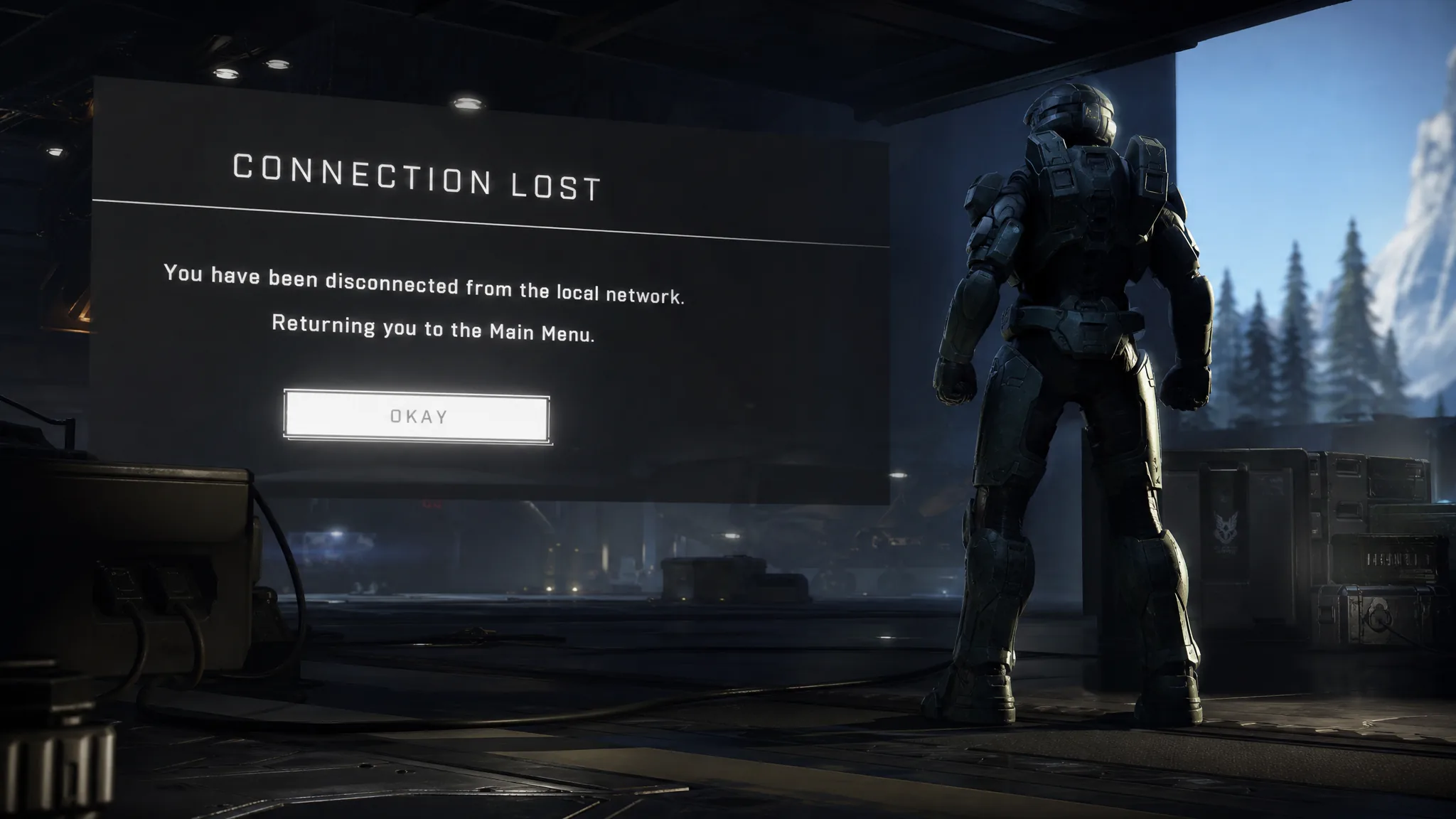
The full message reads, “Connection lost: You have been disconnected from the local network. Returning you to the Main Menu.” It boots you out of matchmaking or an active match in Halo Infinite and drops you back at the menu. The trigger is almost always a break in the path between your PC or console and the game servers, not a problem inside the match itself.
Quick answer: Use a wired connection, set your network profile to Private, and disable power saving on your network adapter in Device Manager. On PC, these three changes stop the most common repeat disconnects; if it happens once with no pattern, just retry matchmaking.
Rule out a server outage first
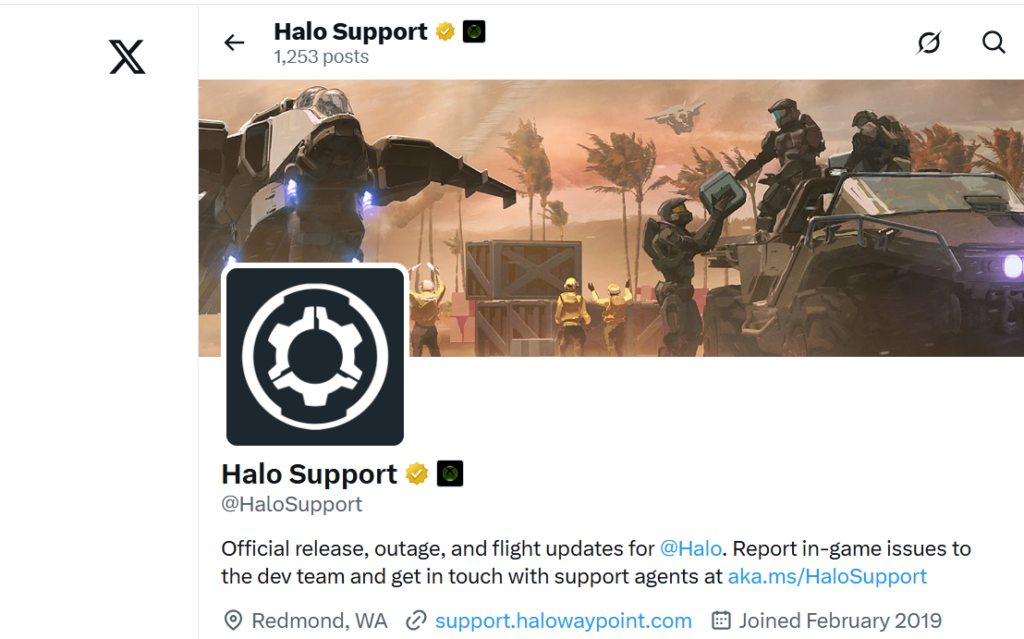
Before changing any settings, confirm the servers are online. When Halo Infinite’s servers are down or under maintenance, no local fix will help, and you will keep hitting the same disconnect. The official @HaloSupport account posts live status and scheduled downtime notices, and third-party status trackers can confirm whether other players are reporting the same failure at the same time.
If a wider outage is in progress, wait it out. If only you are affected, move on to the connection checks below.
Fast checks that clear a one-off disconnect
This error can appear a single time for no clear reason. Work through these in order before touching deeper network settings.
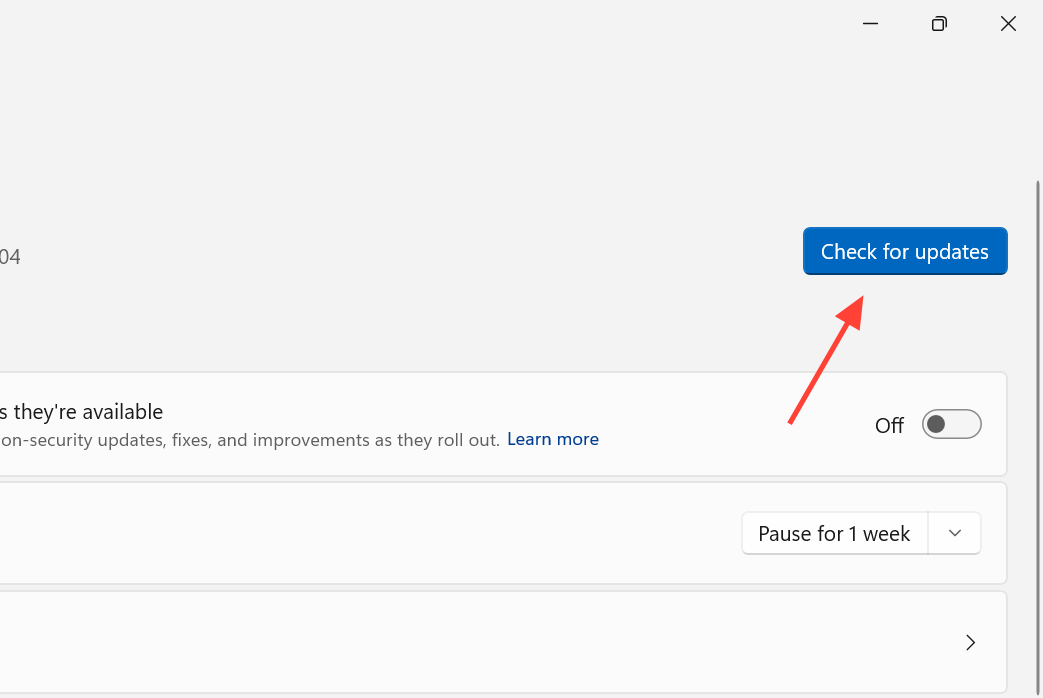
Stop repeat disconnects on PC
If the message keeps returning every match, the cause is usually Windows or your router quietly cutting the connection. These are the changes that hold it steady.
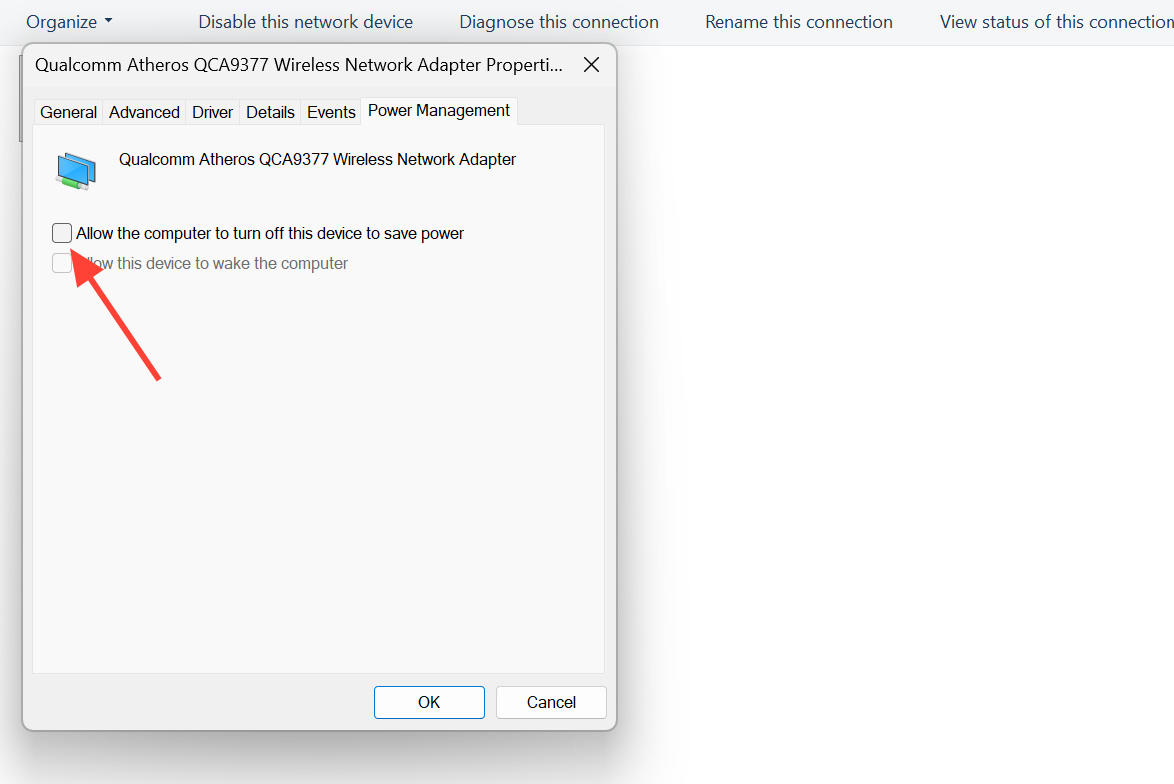
Keep Windows from sleeping the network adapter
Windows can put your Ethernet or Wi-Fi adapter to sleep to save power, which drops you mid-match. Turning that off is one of the most reliable fixes.
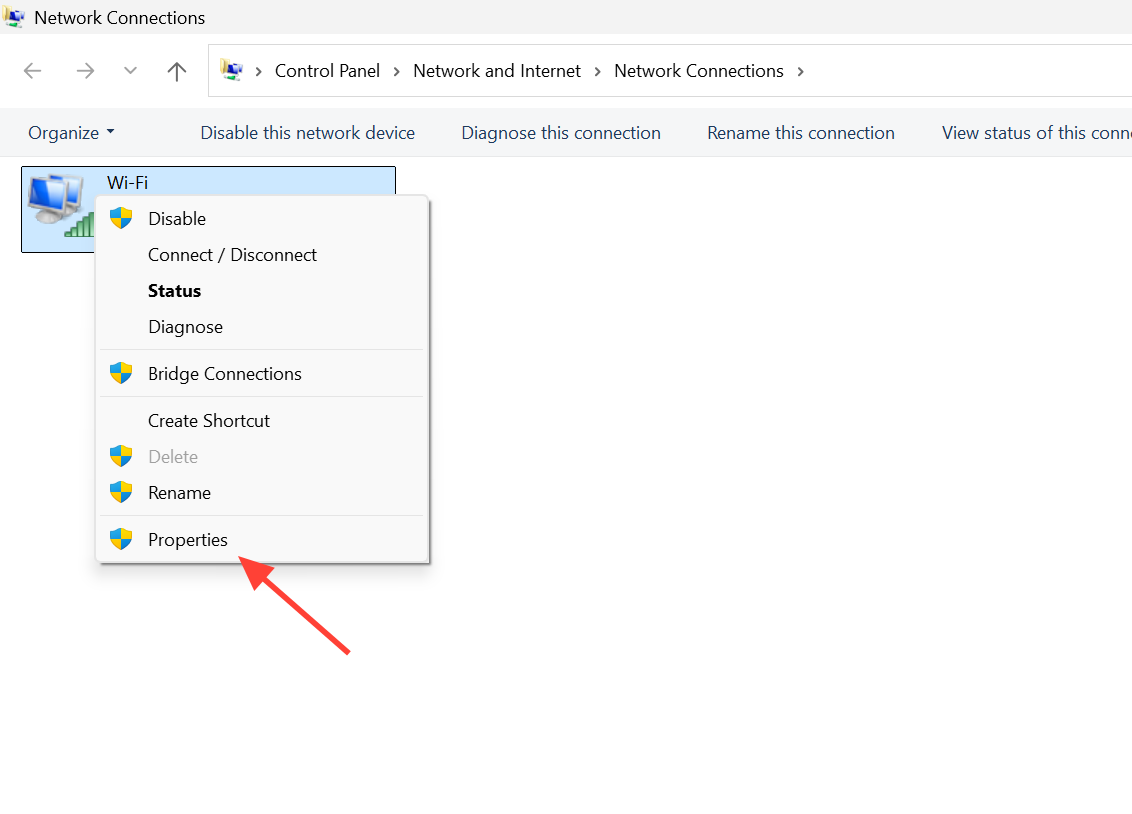
Set the network profile to Private
A connection marked Public applies stricter firewall rules that can block traffic the game needs. Changing the active network from Public to Private in your Windows network adapter settings resolves the disconnect for many players whose profile was set to Public by default.
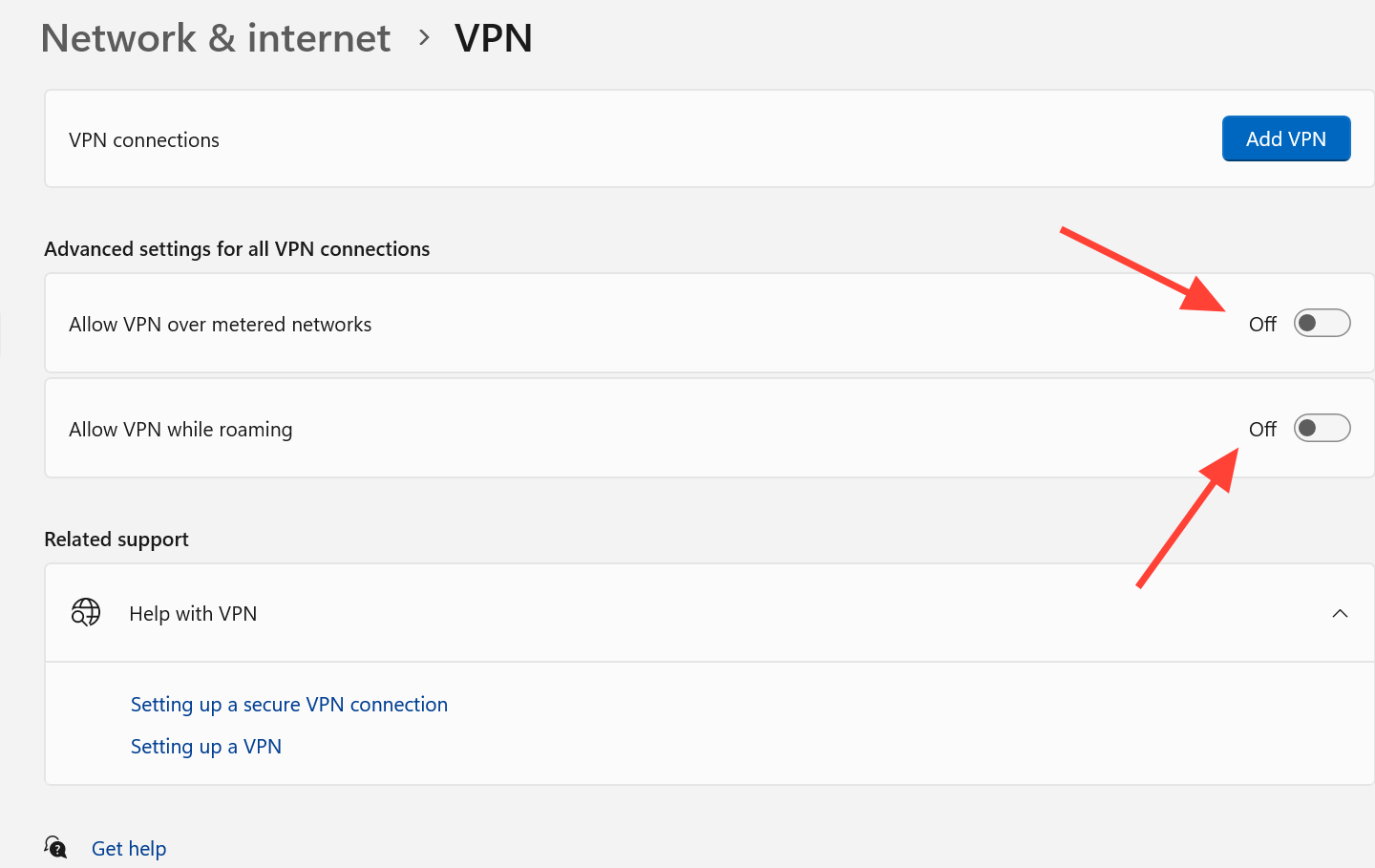
Free up bandwidth and disable a VPN if it is running
Downloads, streams, and cloud sync apps competing for bandwidth can starve the game’s connection. Open Task Manager, sort the Processes tab by the Network column, and end the heaviest non-essential tasks. A VPN can also route you through an unstable path, so turn it off to test. If your ISP throttles during peak hours, a VPN sometimes helps instead, so it is worth testing both ways.
Fix NAT type and router blocking
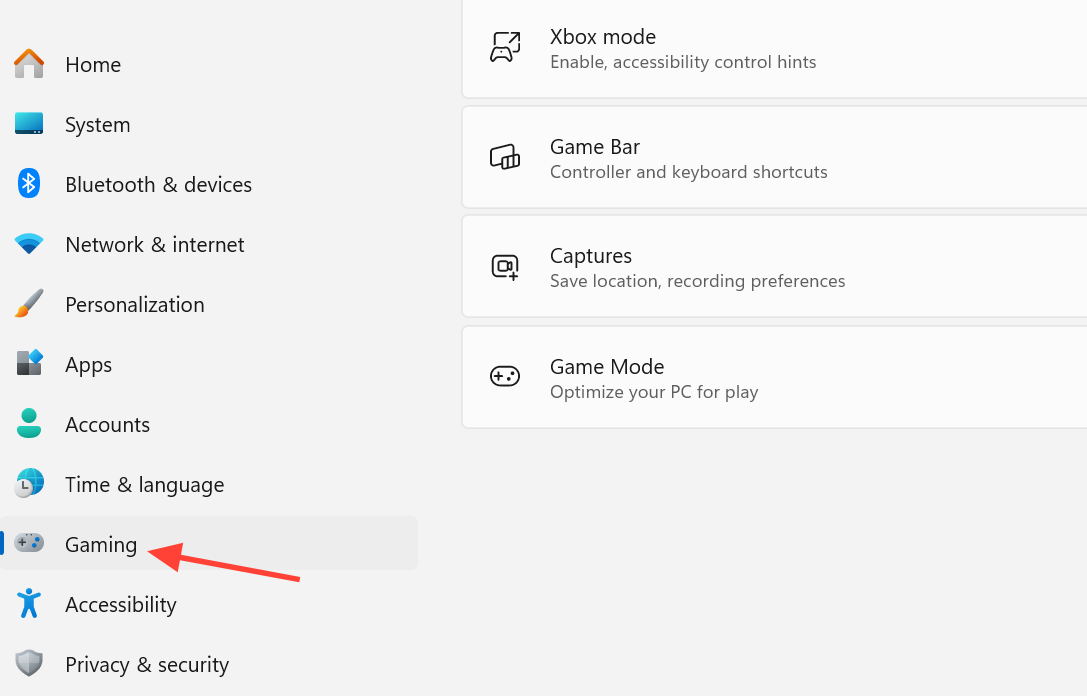
When the disconnect hits certain modes like Big Team Battle every time, the router is likely blocking ports the game relies on. A restrictive or “Teredo is unable to qualify” NAT status is the usual sign.
netsh int teredo set state disable
netsh int teredo set state type=default
netsh int teredo set state enterpriseclient
netsh int teredo set state servername=teredo.remlab.net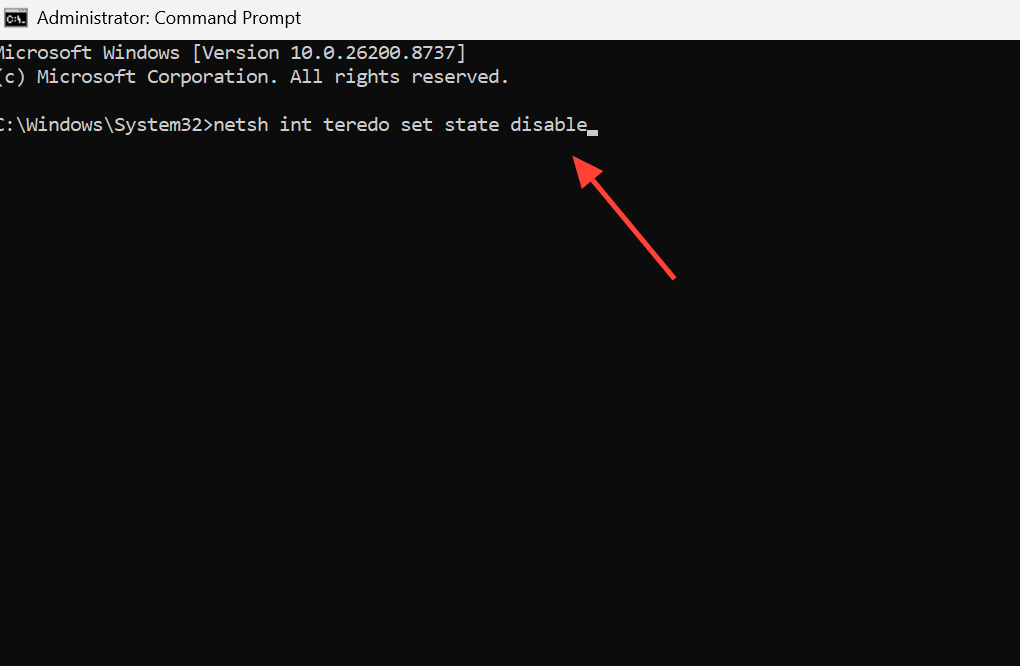
Placing the PC in your router’s DMZ has also cleared the error for players on restrictive routers, confirming the router was blocking required traffic. If DMZ works but you would rather not leave the PC fully exposed, forward the game’s ports instead. On Steam, forward the ports for both the game and the Steam client.
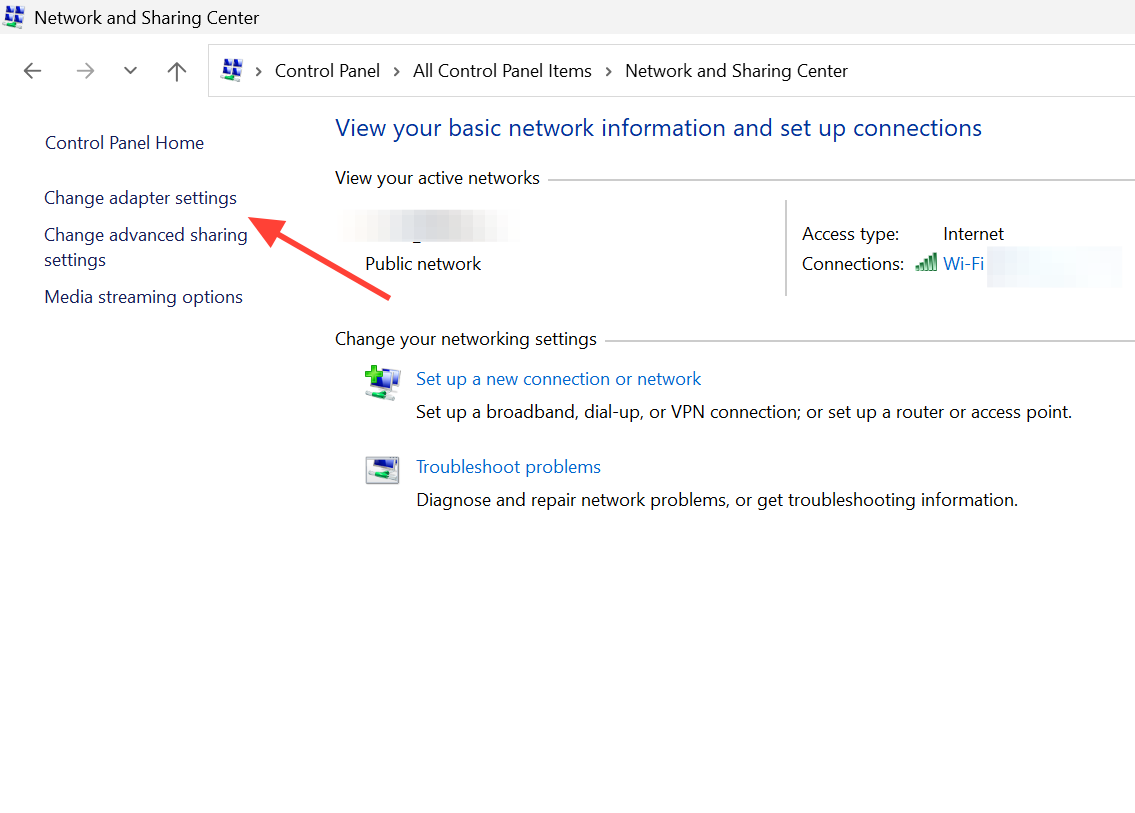
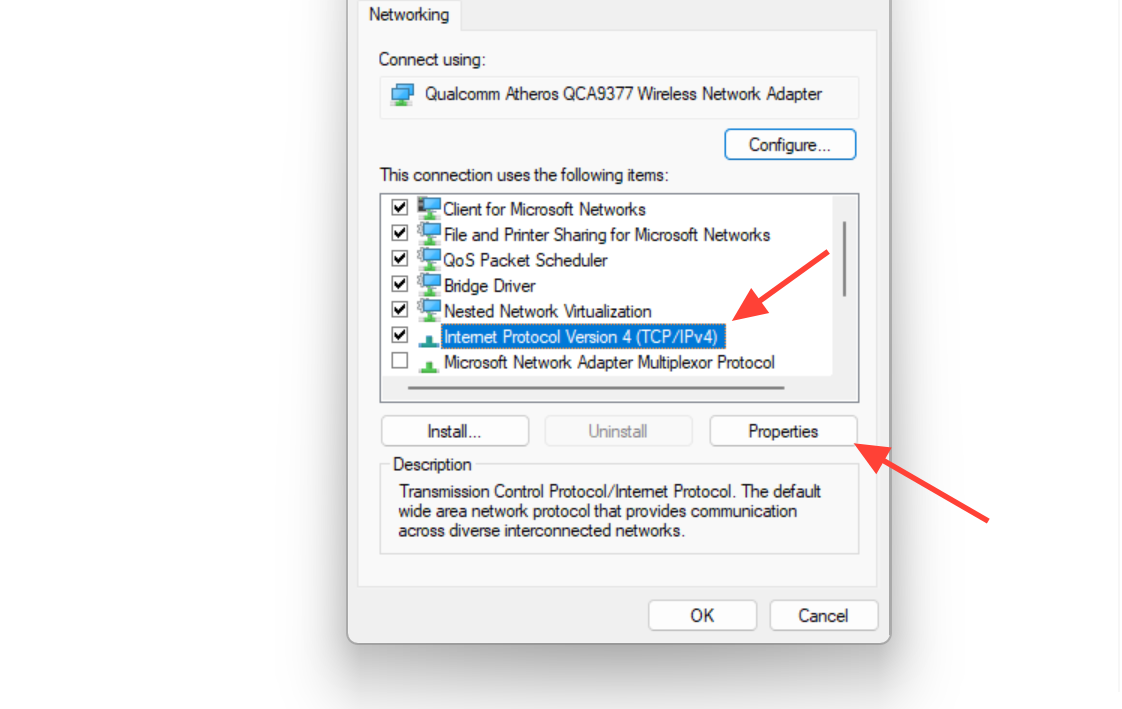
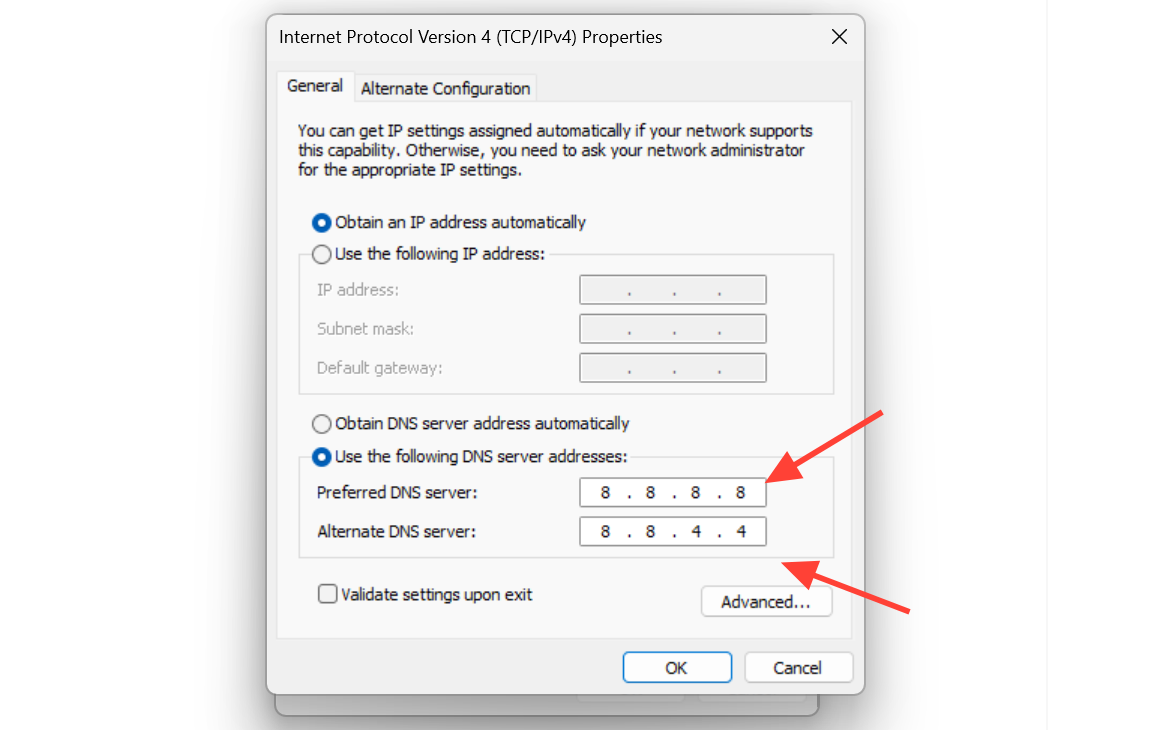
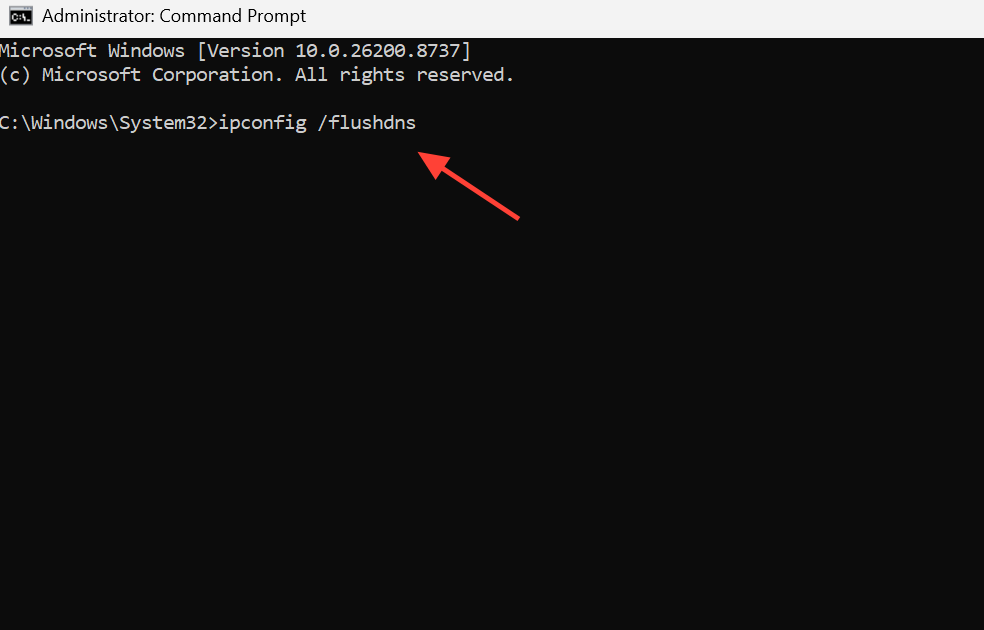
Change your DNS server
Faulty DNS resolution can stop the game reaching its servers even when the rest of your connection is fine. Switching to a public DNS and flushing the cache rules this out.
Last resort: reinstall
If every network fix fails and the servers are confirmed online, reinstall the game to repair corrupted files. Uninstall Halo Infinite from Apps and Features on PC, then download a fresh copy and install it again. Note that reinstalling only helps when the local files are the problem, so run it after the connection checks, not before.
How to confirm it is fixed
You know a change worked when you can complete a full match without being returned to the Main Menu. Test with the mode that failed most often, since some players only saw the drop in specific playlists. If the disconnect returns only during certain modes, the cause is your NAT type or router ports rather than a general connection fault, so revisit that section.
When the problem persists across every fix and the servers are healthy, open a ticket through the Halo Waypoint support site so it can be investigated directly.