

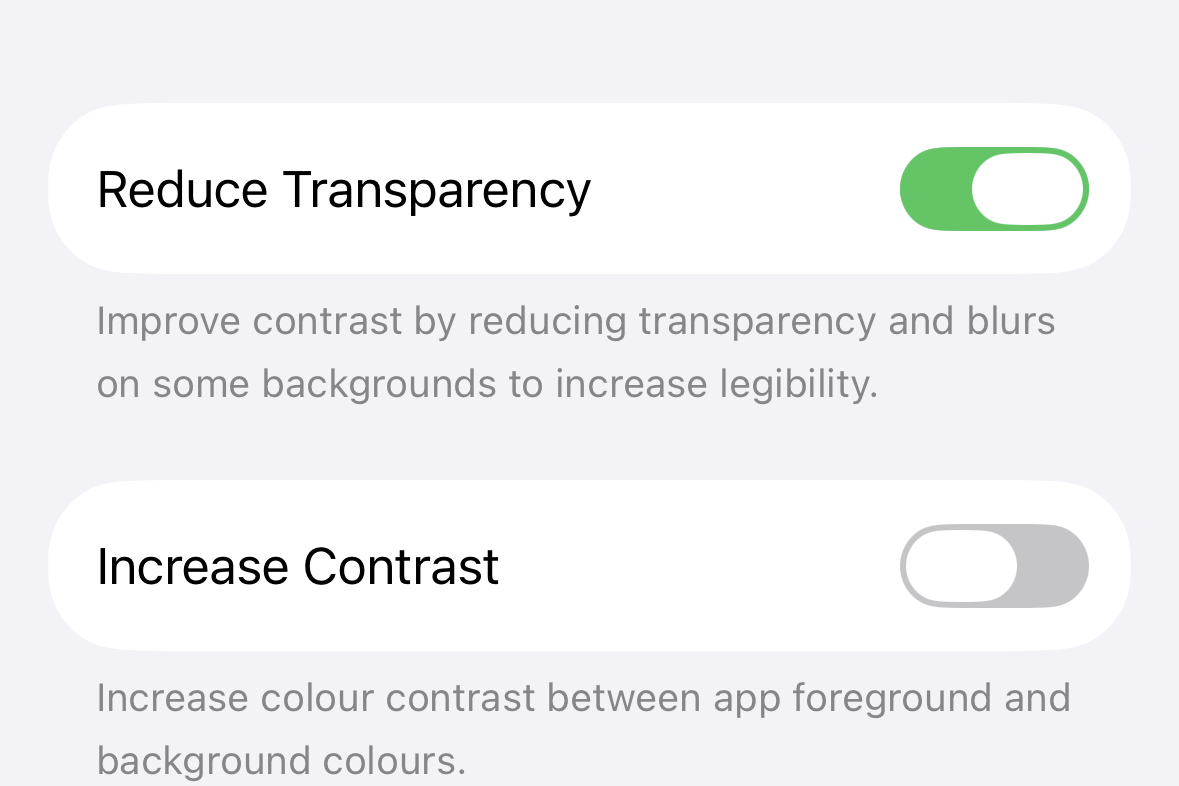
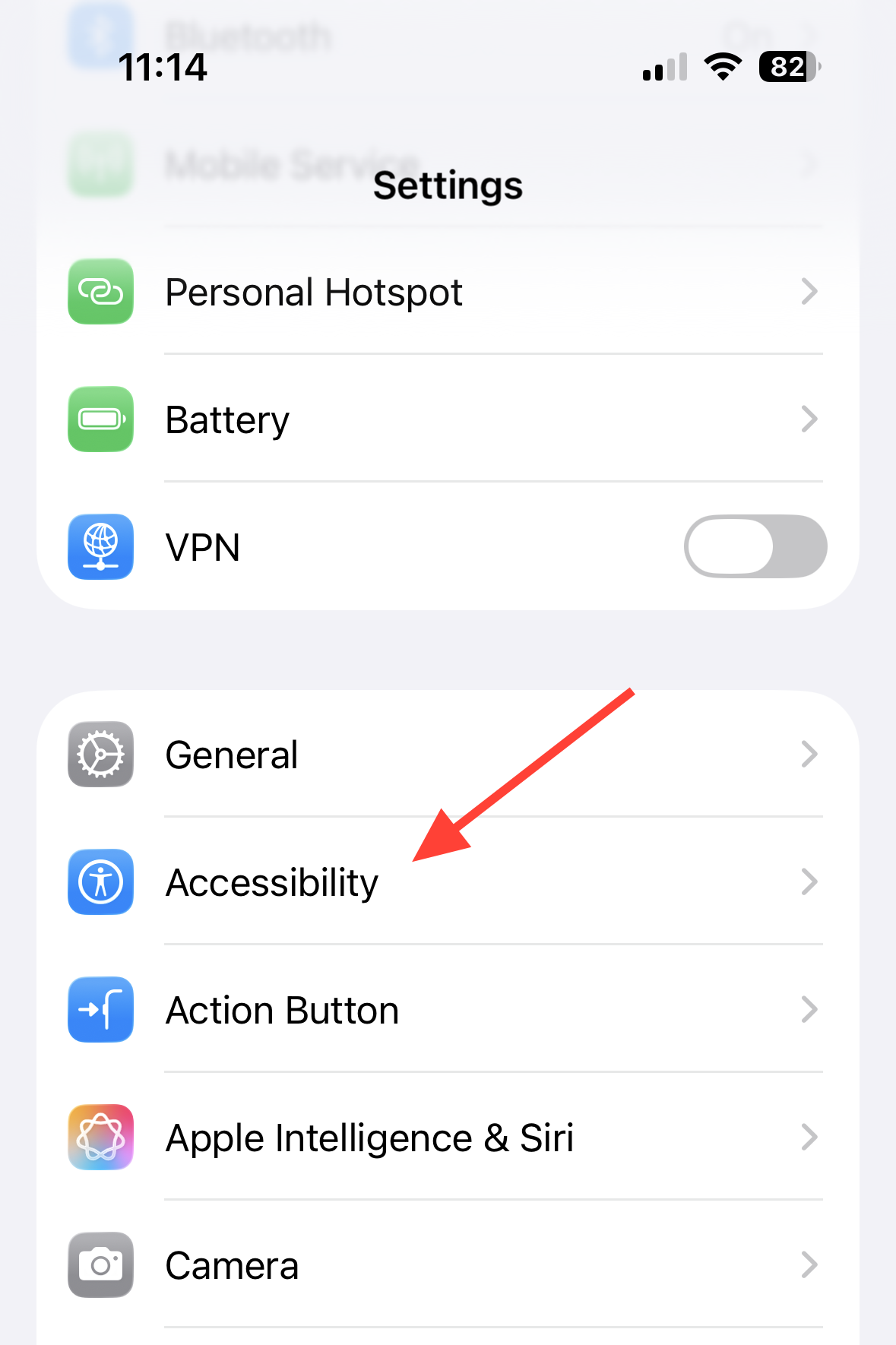
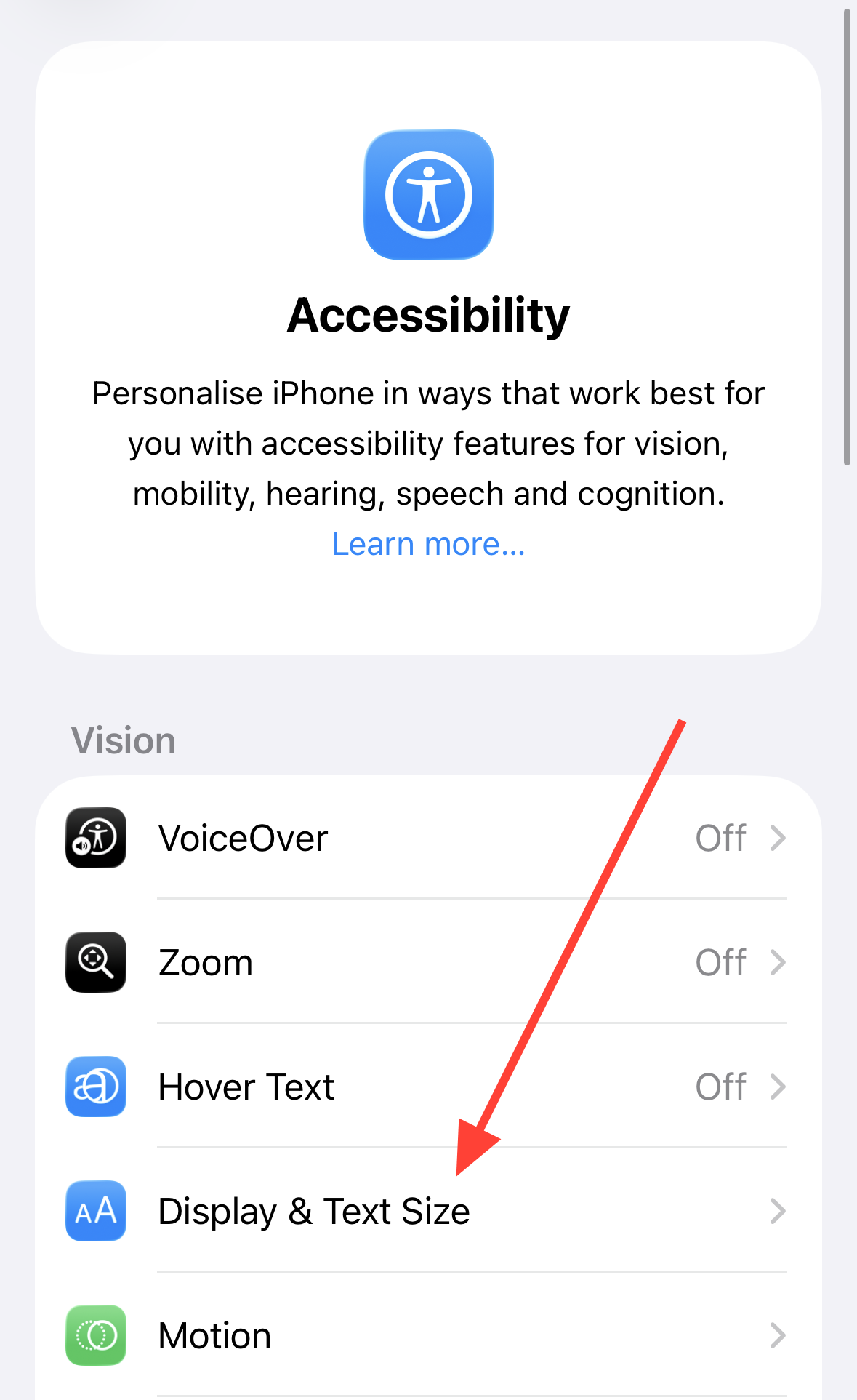
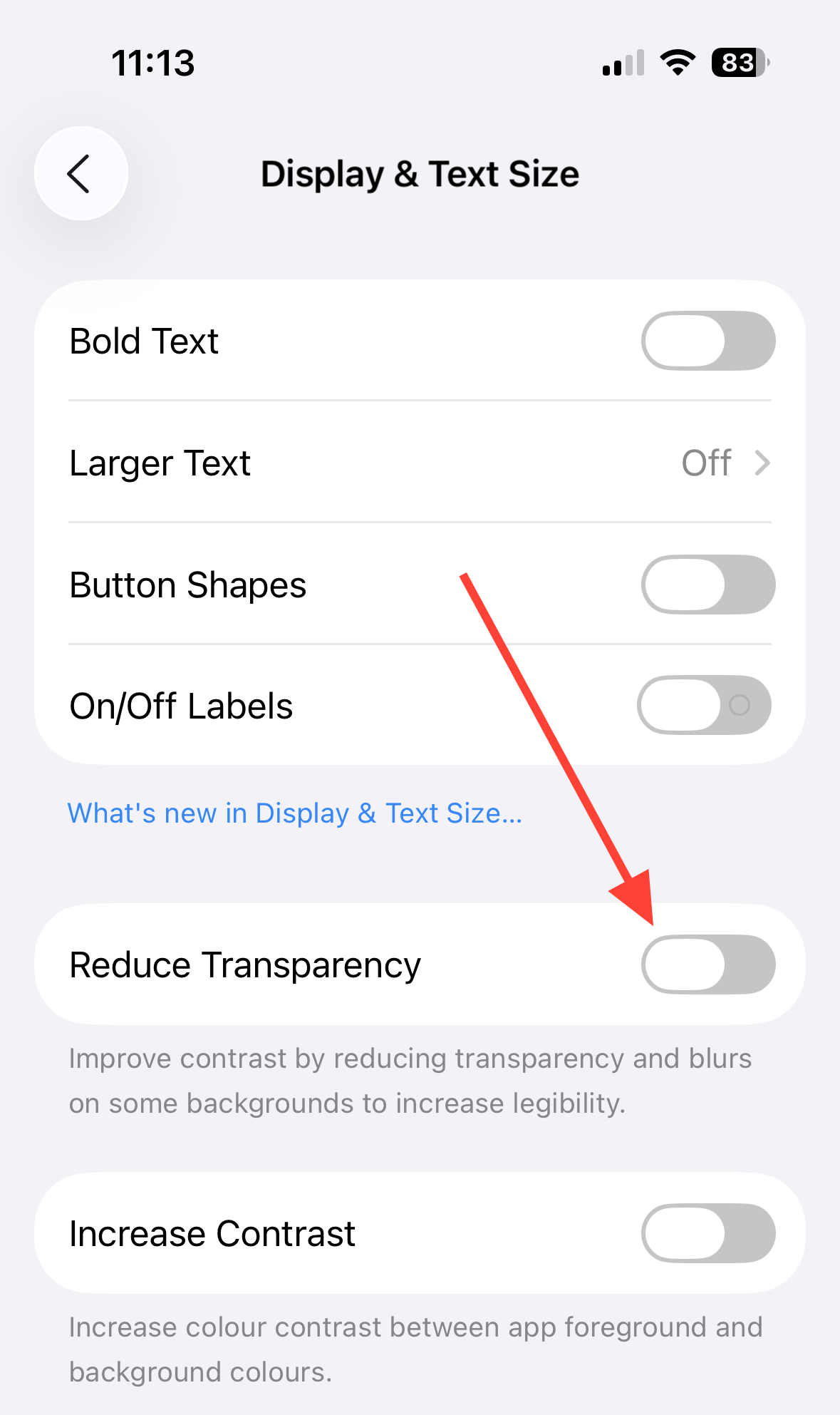
Open Settings, go to Accessibility, then Display & Text Size, and switch on Reduce Transparency to make iOS 26’s Liquid Glass easier to read. This system option mutes see‑through areas like Control Center, app folders, and icon backplates so text and symbols stand out more.
Use Reduce Transparency (recommended)
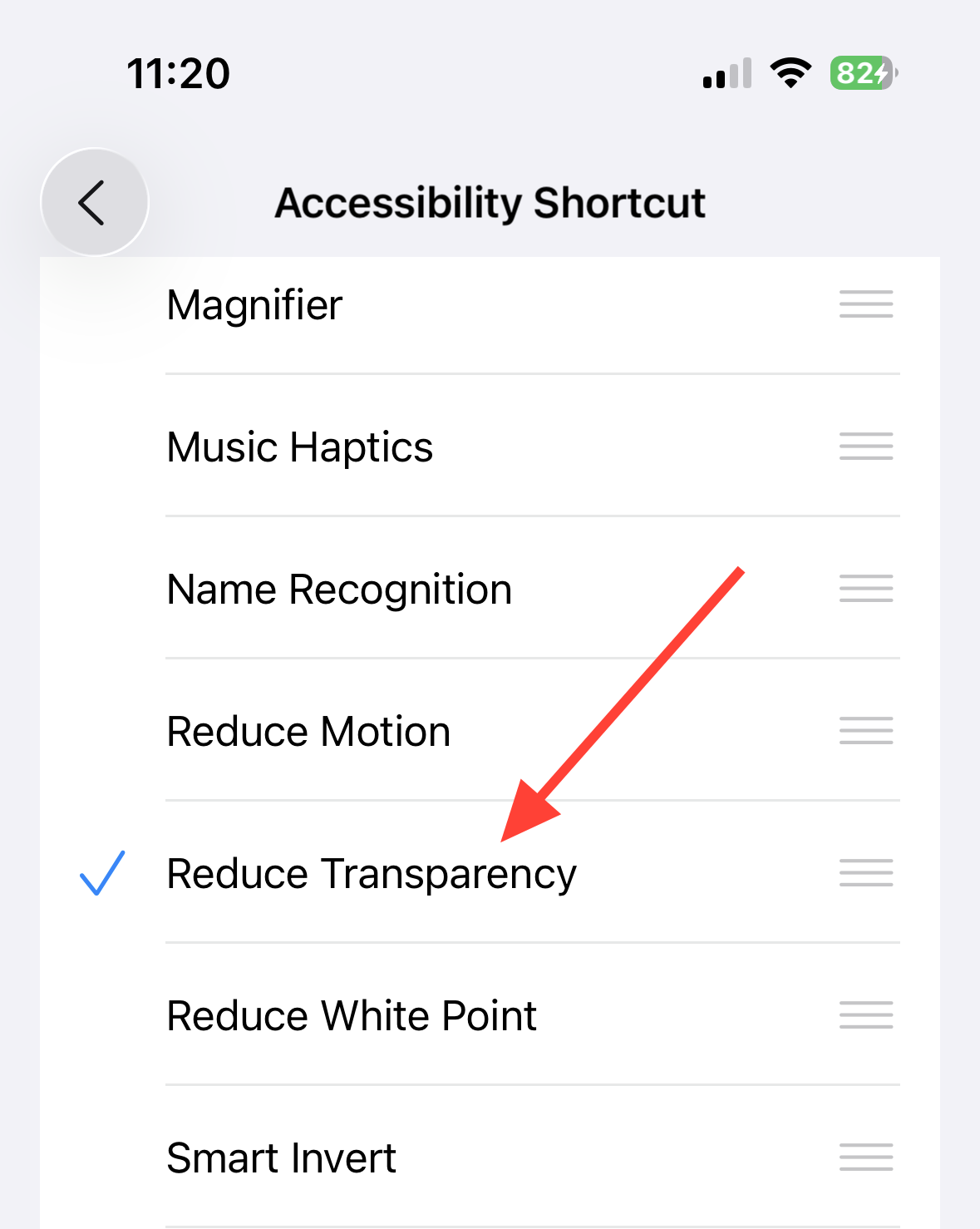
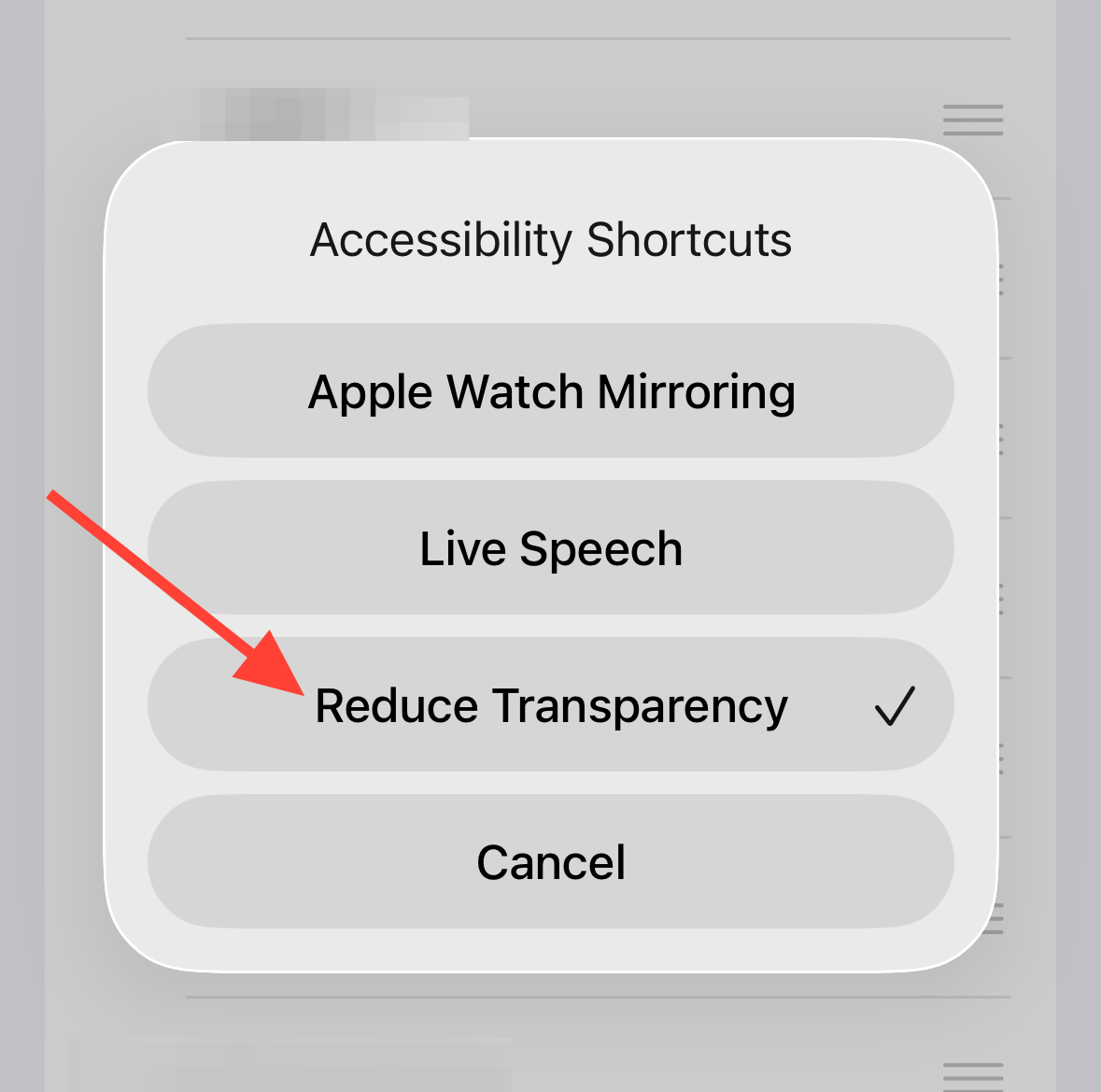
Add a quick toggle for Reduce Transparency
Boost legibility further with Increase Contrast
What to expect when you reduce transparency
System behavior. With Reduce Transparency on, iOS darkens or frosts translucent panels so text, icons, and sliders are more readable. It does not revert interface shapes or layouts, and it does not remove all translucency everywhere.
Control Center and folders. Expect stronger background blur or darker backplates so quick toggles and labels stand out. This is most noticeable over bright or high‑contrast wallpapers.
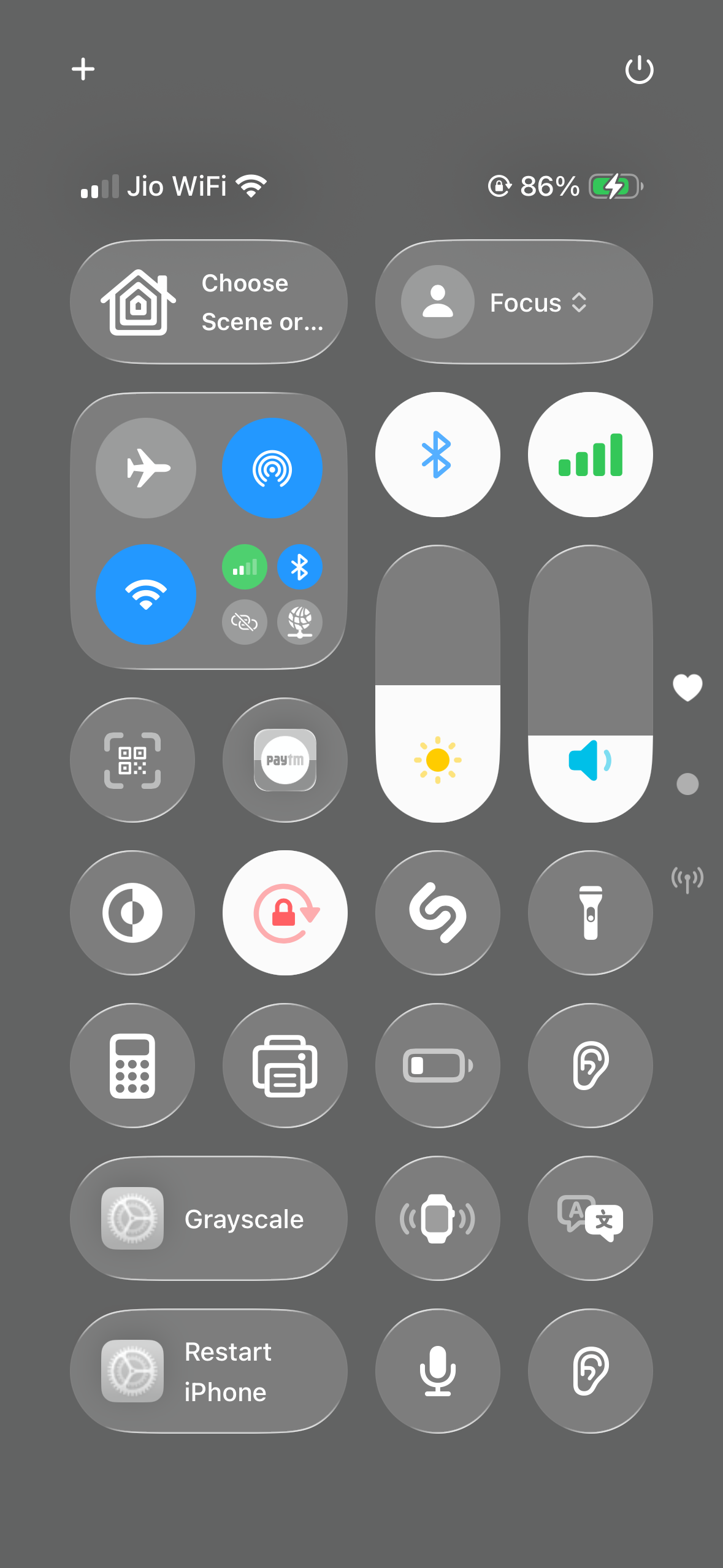
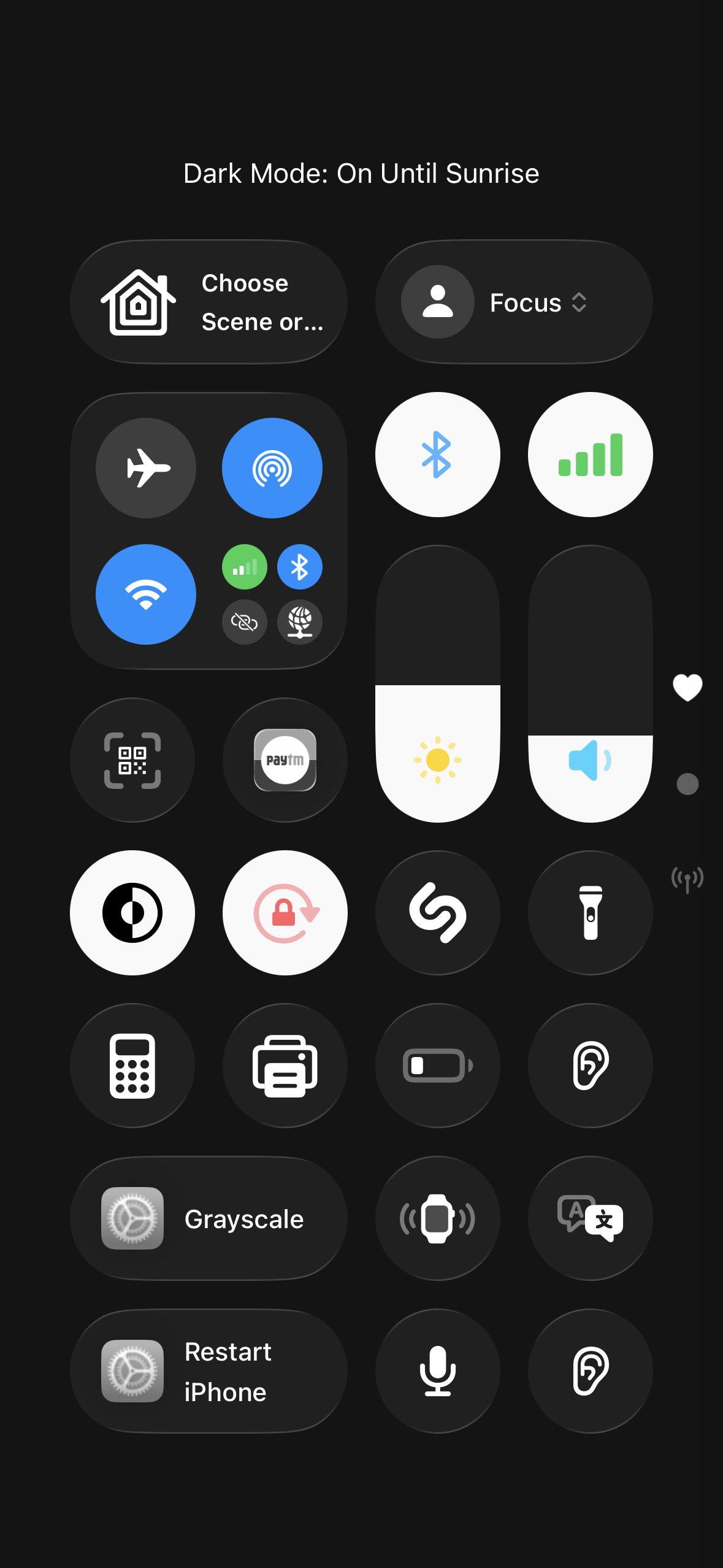
Left:
Beta changes. Throughout the iOS 26 betas Apple adjusted Liquid Glass levels—some builds increased frosting and blur, others leaned toward clearer glass. Reduce Transparency remains available if readability dips after an update.
Tips. For the most consistent results, keep Reduce Transparency on and pair it with Increase Contrast. If something looks unexpectedly dark or too clear after an update, toggle Reduce Transparency off and back on, or switch to a simpler wallpaper to minimize background interference.
Quick reference: when to use each setting
- Turn on Reduce Transparency to get darker, more opaque backgrounds behind translucent UI elements.
- Add the Accessibility Shortcut so you can toggle the effect quickly with a triple‑click or from Control Center.
- Enable Increase Contrast if you still want stronger outlines and separation on floating UI such as search fields.
These options give you fast control over Liquid Glass so text and controls stay readable without abandoning the new design. Keep the shortcut handy and adjust per app or lighting conditions as needed.





