Disney+ playback failures usually show up as one of three numbered messages: error code 43, error code 73, or error code 83. Each one points to a different root cause, ranging from a dropped connection to a region mismatch to an account billing hiccup. Knowing which code you’re looking at tells you exactly where to start troubleshooting instead of guessing.
What Disney+ error codes 43, 73, and 83 mean
All three codes surface when the Disney+ app or website can’t finish loading a video, but the underlying problem differs. The table below breaks down what triggers each one before you start applying fixes.
| Error code | Message shown | Typical cause |
|---|---|---|
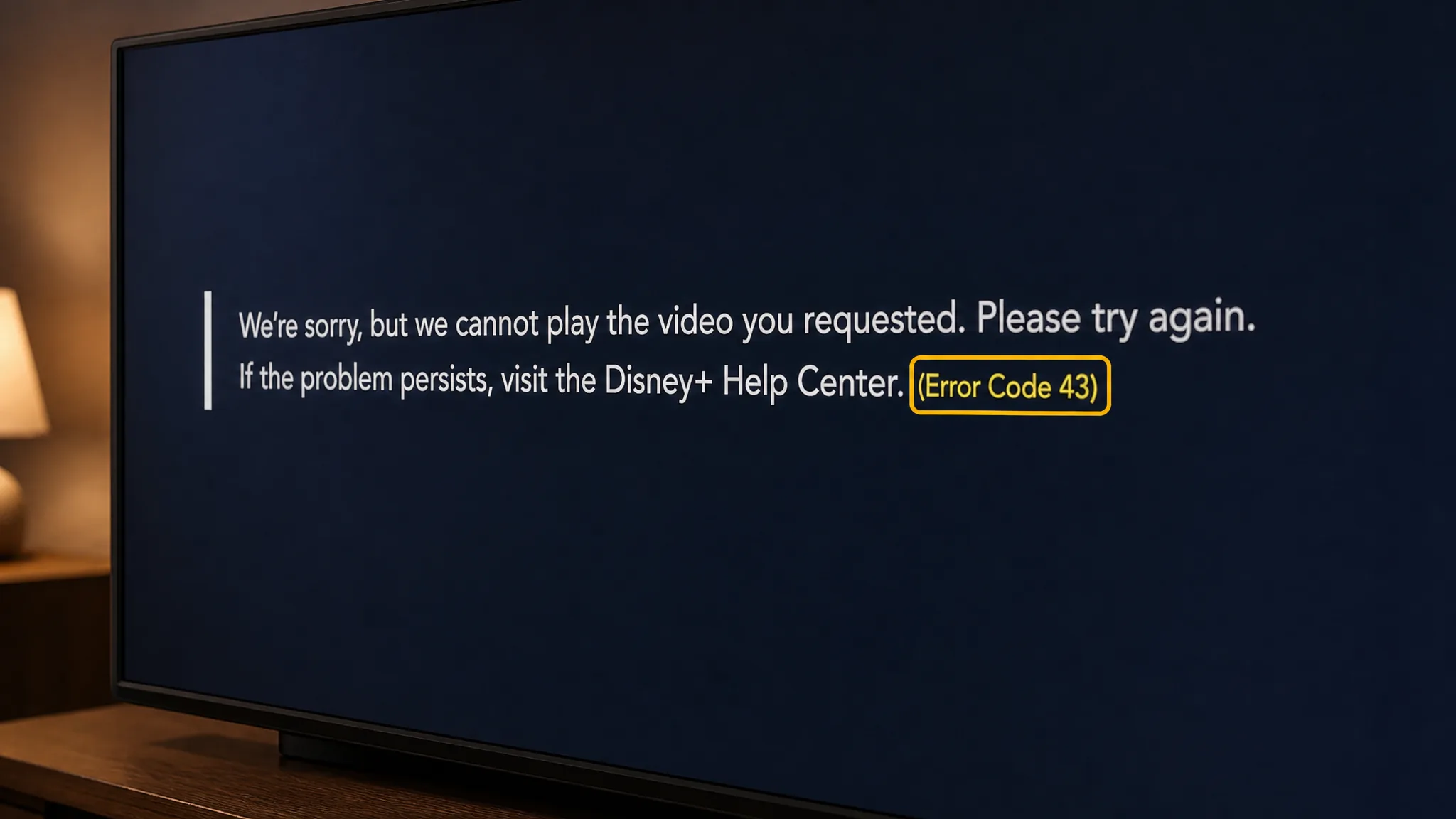
| 43 | “We’re sorry, but we cannot play the video you requested” | Weak connection, overloaded app, or billing issue |
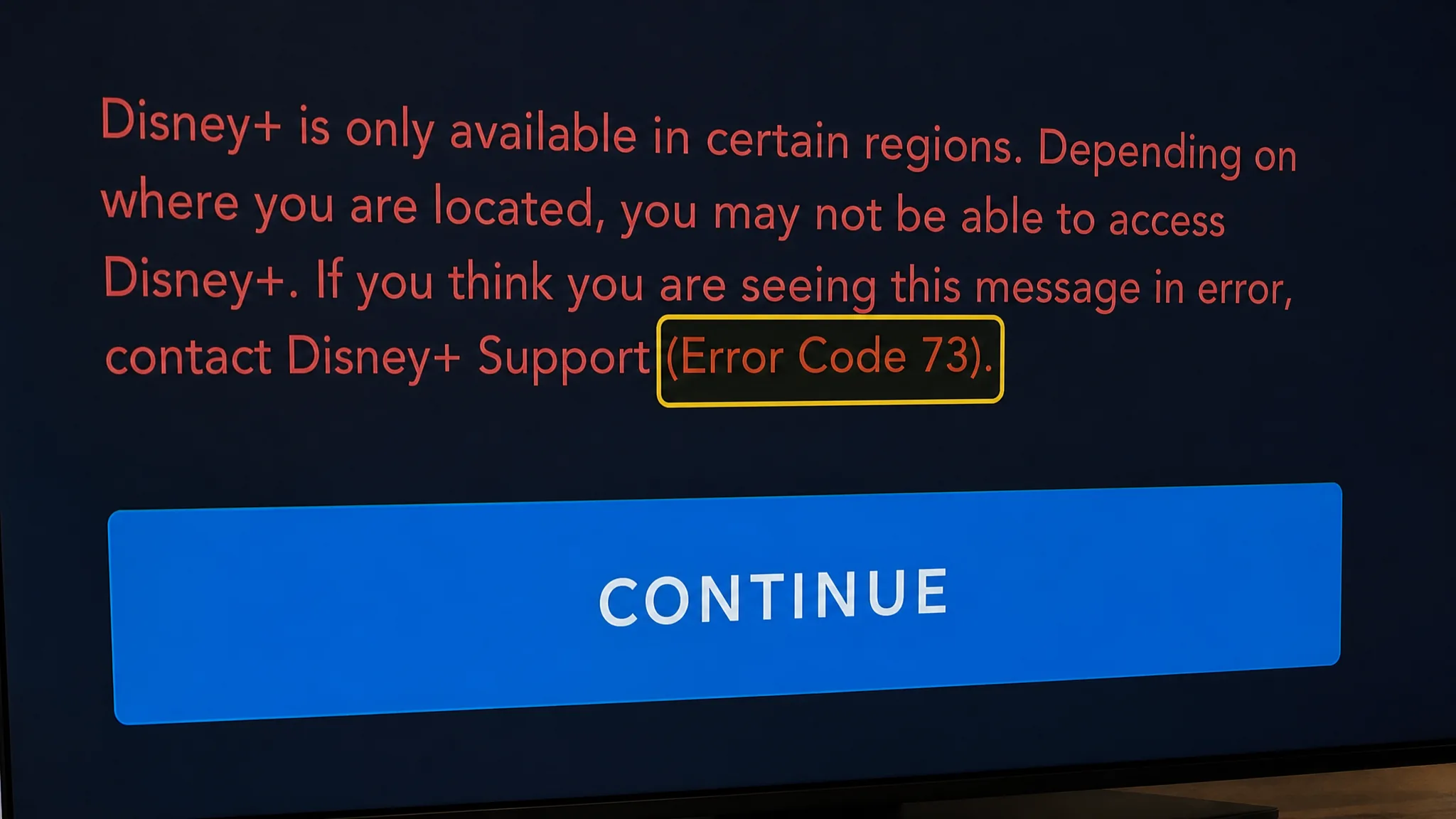
| 73 | “Disney+ is only available in certain regions” | Location detected outside a supported country, often triggered by a VPN or proxy |
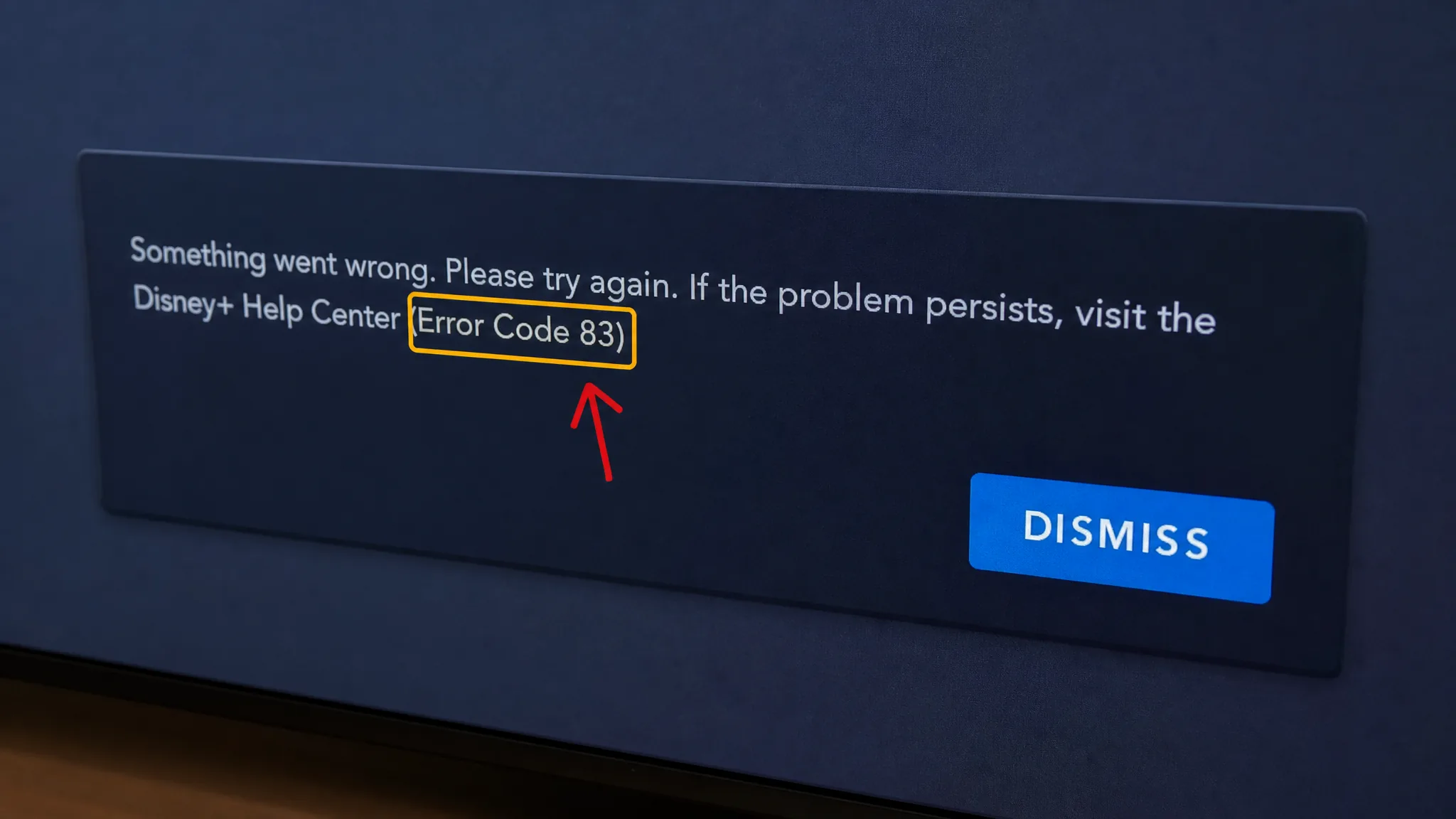
| 83 | “Something went wrong. Please try again” | Browser configuration, network switching, or a temporary server issue |
Before working through the fixes for any of the three codes, try the basics first: fully close the Disney+ app (don’t just leave it in the background), power the streaming device off for a couple of minutes, and reinstall the app if it’s been a while since the last update. These quick steps clear out a surprising share of playback errors on their own.
Fixing error code 43 (video won’t play)
Error code 43 is a playback failure, and it’s most often tied to a weak or unstable internet connection rather than the video file itself.
You’ll know it’s resolved once the title you selected starts playing normally without dropping back to the error screen. If the same title still fails after these steps, search for it in the Disney+ catalog. If it doesn’t turn up in search results anymore, it has likely been removed from the platform and isn’t a device or network problem at all.
Fixing error code 73 (region restriction)
Error code 73 means Disney+ has detected that your device is located somewhere the service either isn’t available or can’t verify with confidence. This happens even to subscribers living in supported countries when their connection is routed through a VPN, proxy, or misconfigured DNS.

If you live in a country where Disney+ isn’t officially supported yet, the error is accurate rather than a bug, and no troubleshooting step will bypass it without routing your connection through a different region. Only a small number of VPN and proxy services reliably avoid detection, and Disney+ regularly blocks new ones as they’re identified.
The error clears once the app finishes loading the home screen without redisplaying the location message, and you’re able to start a title without interruption.
Fixing error code 83 (general playback failure)
Error code 83 is broader than the other two and can stem from your browser configuration, your network, or a temporary issue on Disney+’s end.
Note: If the browser swap fixes the issue immediately, don’t bother with the network or router steps below it — the problem was isolated to that browser’s settings.
Contacting Disney+ support
If the error persists after working through the steps for your specific code, reach out to Disney+ support directly. Confirm first that your device is on the list of supported streaming devices, since older hardware like first-generation Chromecasts can produce persistent errors that no troubleshooting step will fix.
| Region | Phone number |
|---|---|
| United States | 888-905-7888 |
| Canada | 888-282-0520 |
| United Kingdom | 020 3936 2903 |
| Australia | 1800-965-160 |
Disney+ also runs a live chat support option that’s available 24 hours a day, seven days a week, through its official help center. There is no email support option, so phone or chat are the only direct channels if the error code doesn’t clear on its own.
Most cases of error codes 43, 73, and 83 clear up with a combination of a network reset, an app reinstall, and a quick billing check, so it’s worth working through those before assuming a deeper account or device problem is at play.