Apple’s release of the macOS Tahoe 26 public beta gives Mac users a chance to try new features like the Liquid Glass interface and expanded AI tools before the official launch. Installing pre-release software can introduce system instability, so it’s important to prepare your Mac and data carefully to avoid data loss or workflow disruptions.
Preparing Your Mac for macOS 26 Public Beta
Installing any beta operating system carries a risk of bugs, app incompatibilities, and potential data loss. Before proceeding, it’s critical to create a full backup of your Mac using Time Machine or another reliable backup solution. This backup is your recovery path if you need to revert to your previous macOS version, since downgrading from the beta typically requires erasing your disk and restoring from backup.
Apple and experienced users strongly recommend installing beta software on a secondary Mac, a separate partition, or an external drive, rather than your primary work machine. This approach limits the risk to your main system and data. If you have only one Mac, consider creating a new volume or using an external SSD for the beta installation. Make sure you have at least 15GB of free space, although more is preferable for smooth operation.
Main Method: Installing macOS 26 Public Beta via Apple Beta Software Program
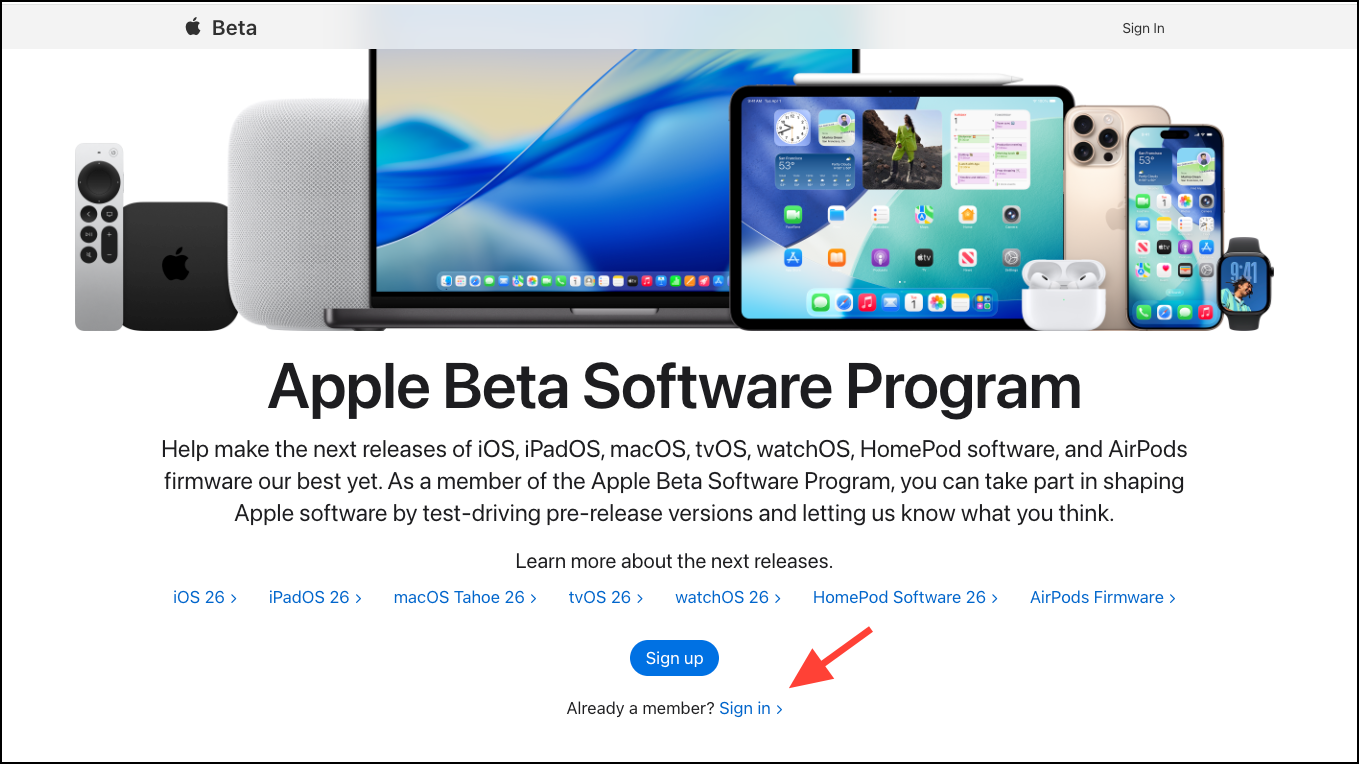
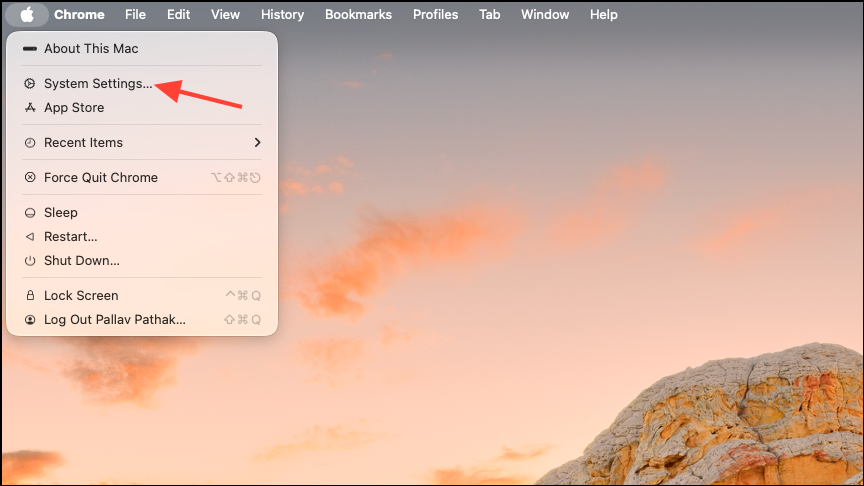
i icon next to Beta Updates.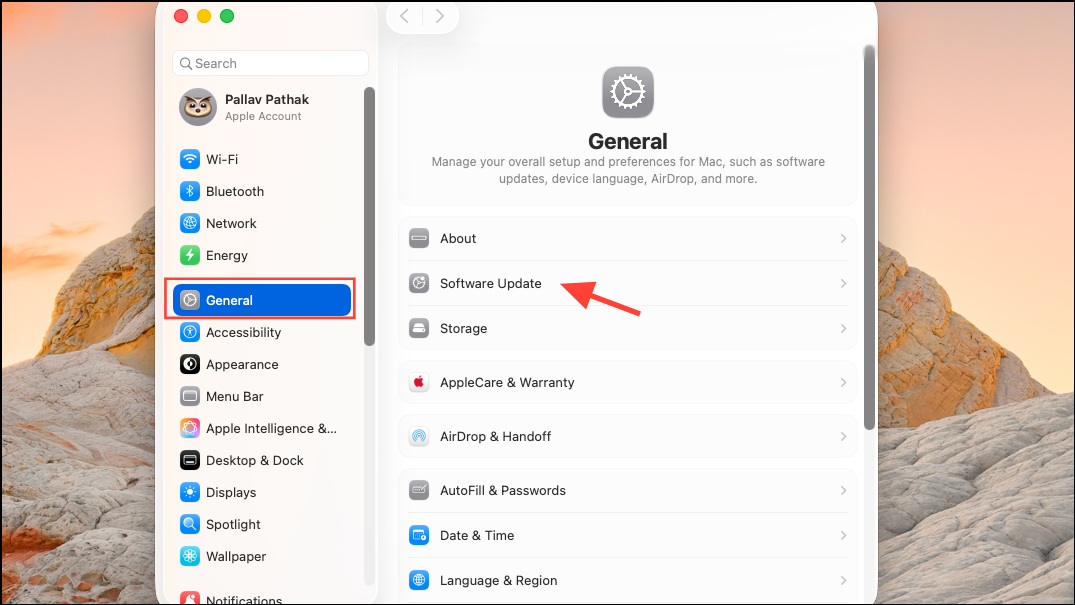
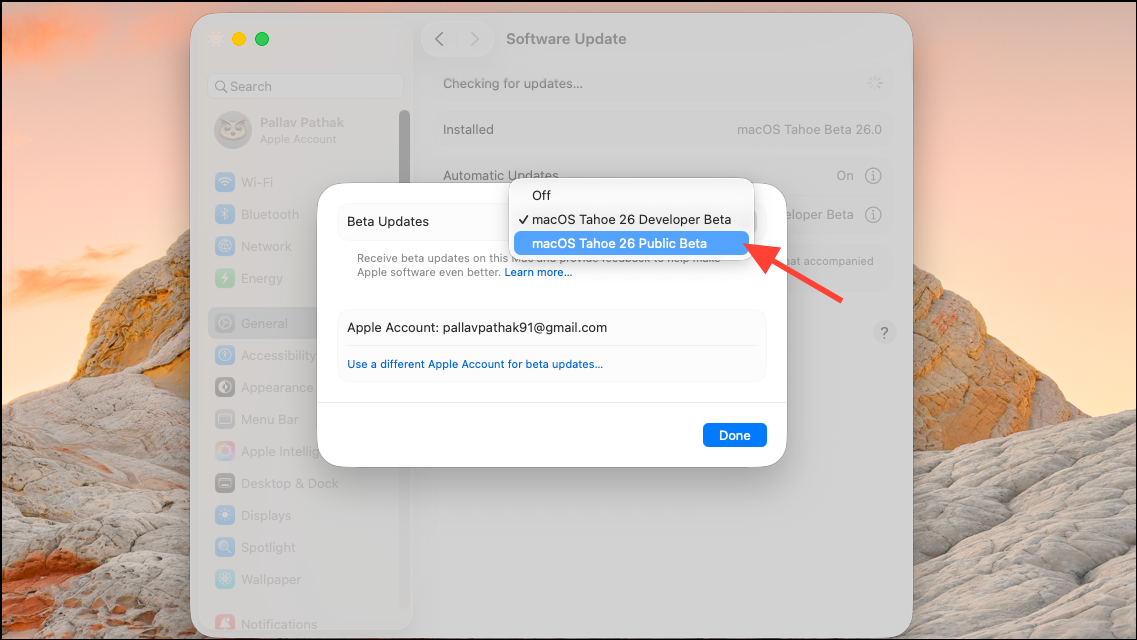
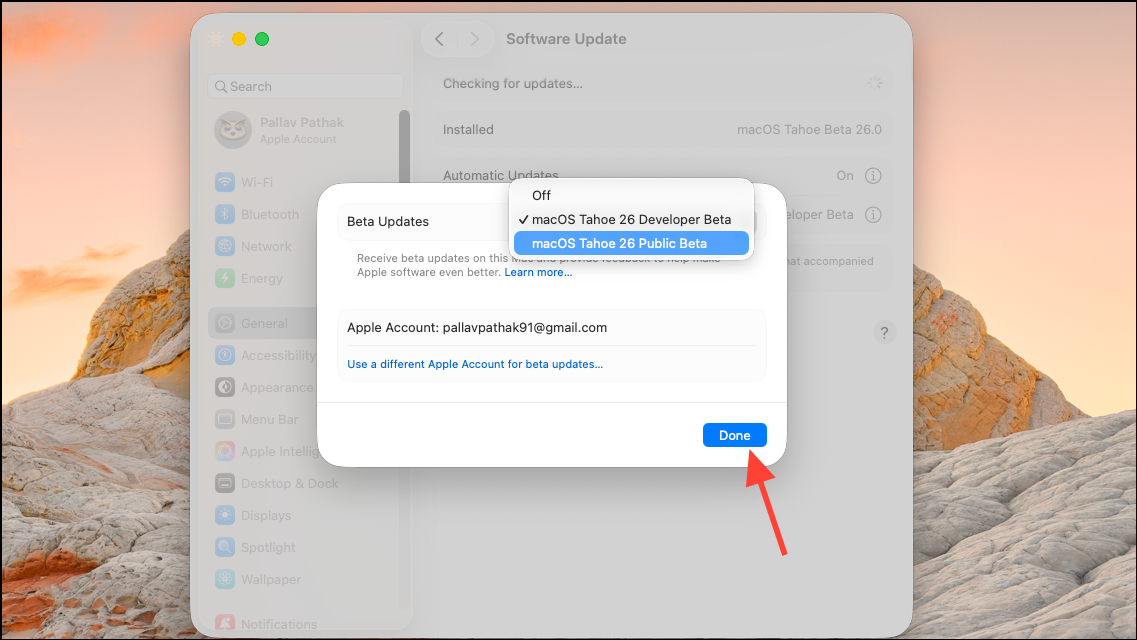
During installation, keep your Mac connected to power and avoid interrupting the process. The time required depends on your internet speed and Mac hardware.
Alternative Methods: Using a Partition, External Drive, or Virtual Machine
For users who want to isolate the beta even further, installing macOS 26 on a separate APFS volume or external SSD is a practical option. This allows you to dual-boot between your stable macOS and the beta, reducing the risk to your main environment. Create a new APFS volume using Disk Utility, then select it as the install destination during the beta installation process.
Running macOS 26 in a virtual machine is another approach, especially for developers or users who want to test features without altering their main system. Tools like VirtualBuddy or UTM support recent versions of macOS and can run the public beta using an official IPSW file. This method offers the most isolation but may have limitations in graphics performance or hardware integration.
Apple’s beta program makes it straightforward to try macOS Tahoe 26, but careful preparation and a robust backup are essential. Testing on a secondary device or volume is the safest way to explore new features while protecting your important data and workflows.