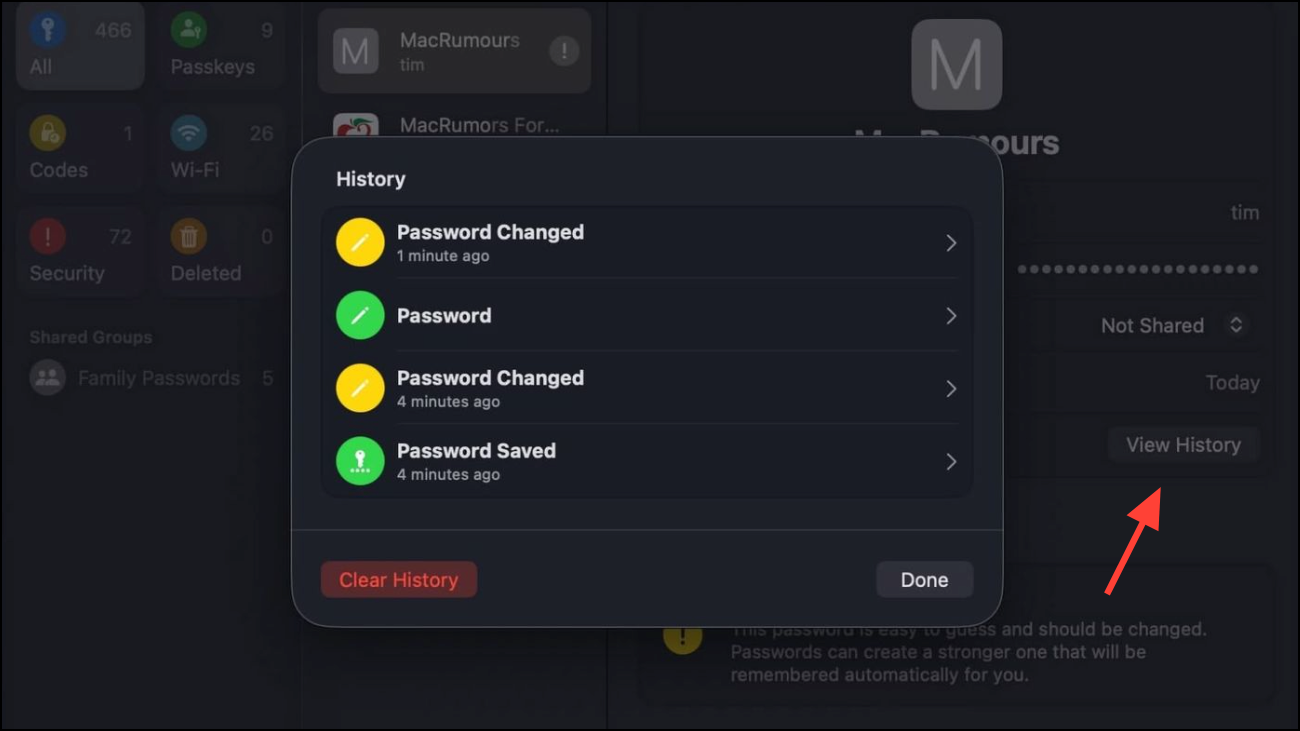
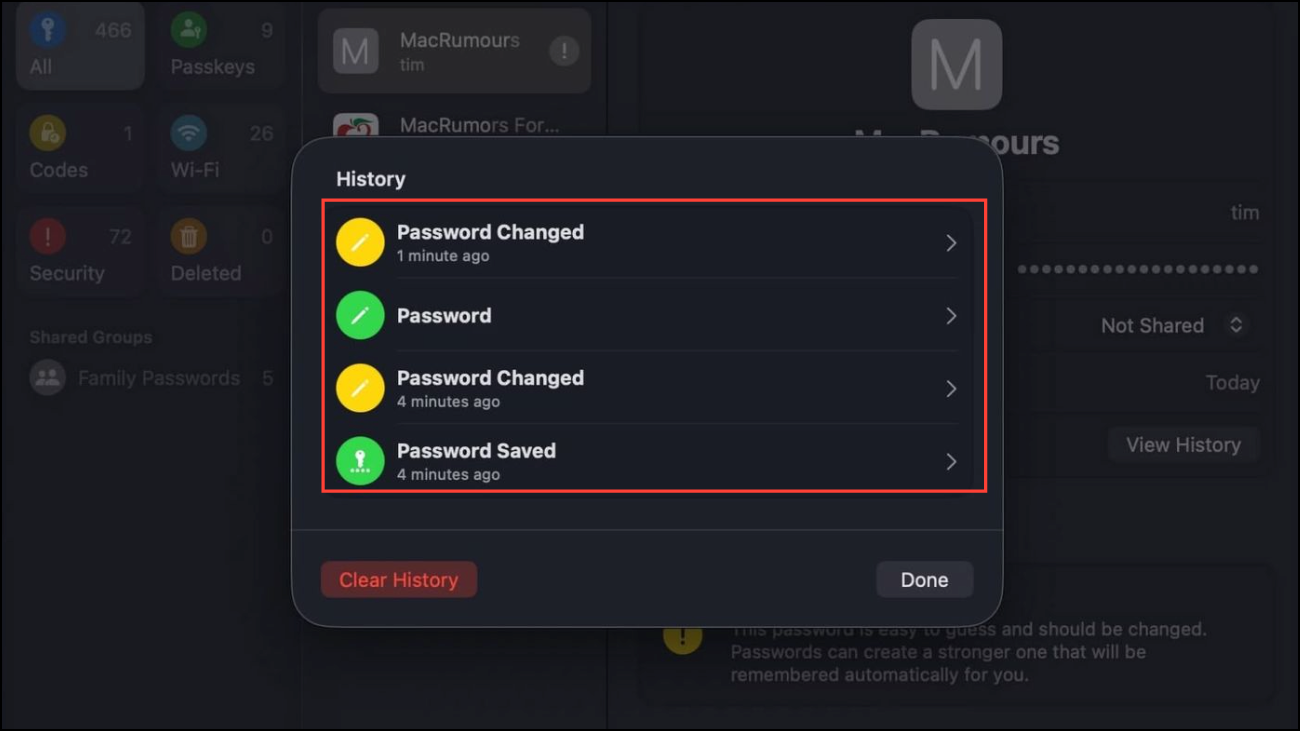
Apple’s Passwords app in macOS 26 Beta introduces a version history feature that addresses a common problem: recovering older passwords after accidental changes or overwrites. This update streamlines password management, allowing users to view and restore previous passwords for each account directly within the Passwords app. The new functionality reduces lockouts and repetitive password resets, especially for users who frequently update credentials or share logins across multiple devices.
Accessing Password Version History in macOS 26 Beta
Command + Space and typing “Passwords.” The Passwords app now appears as a standalone application, making it easier to locate and launch compared to previous versions buried in System Settings.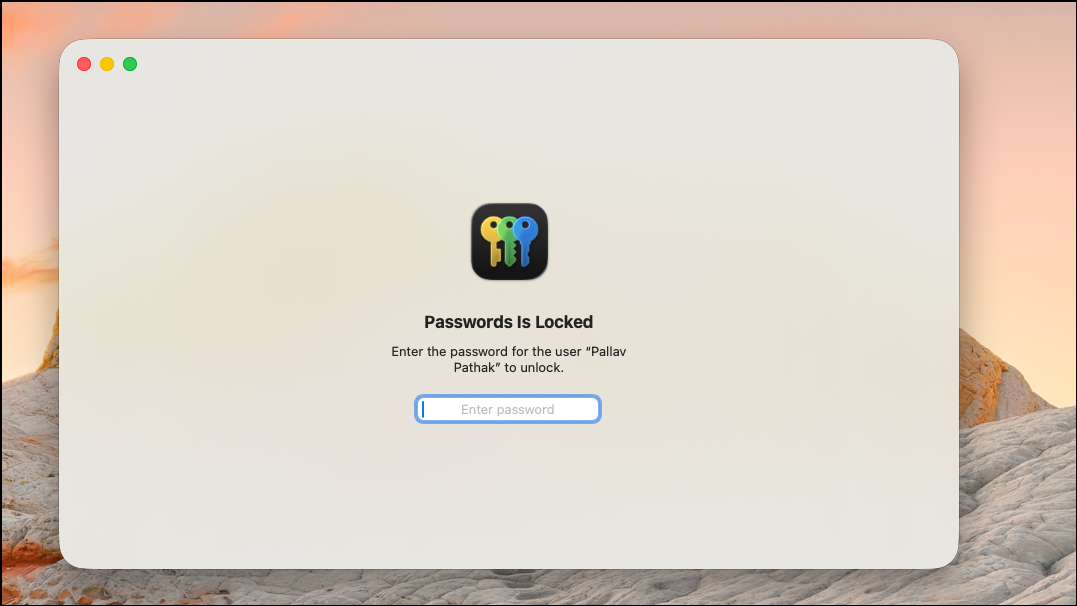
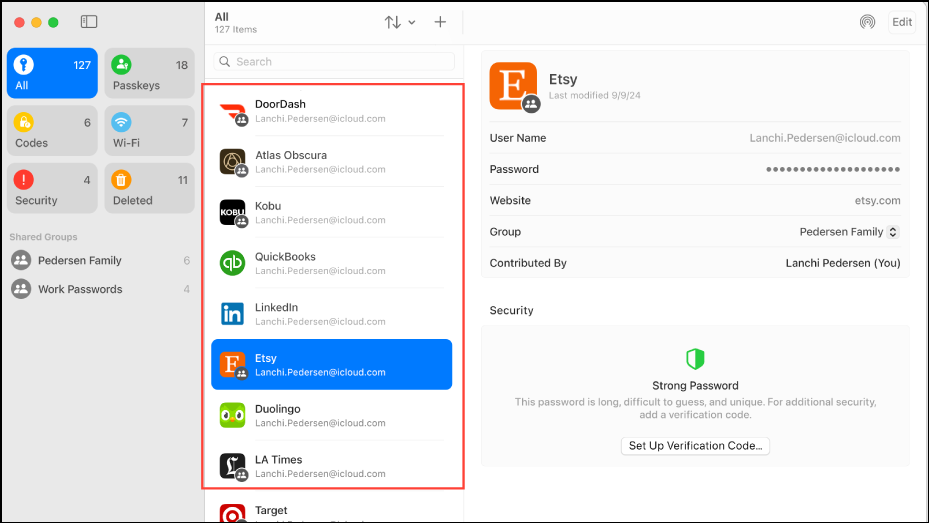
Viewing Saved Passwords and Passkeys in System Settings (macOS Sonoma and Earlier)
For Macs running macOS Sonoma or earlier, password management is handled through System Settings or Safari rather than the standalone Passwords app. Version history is not available in these versions, but you can still view, edit, or delete current passwords.
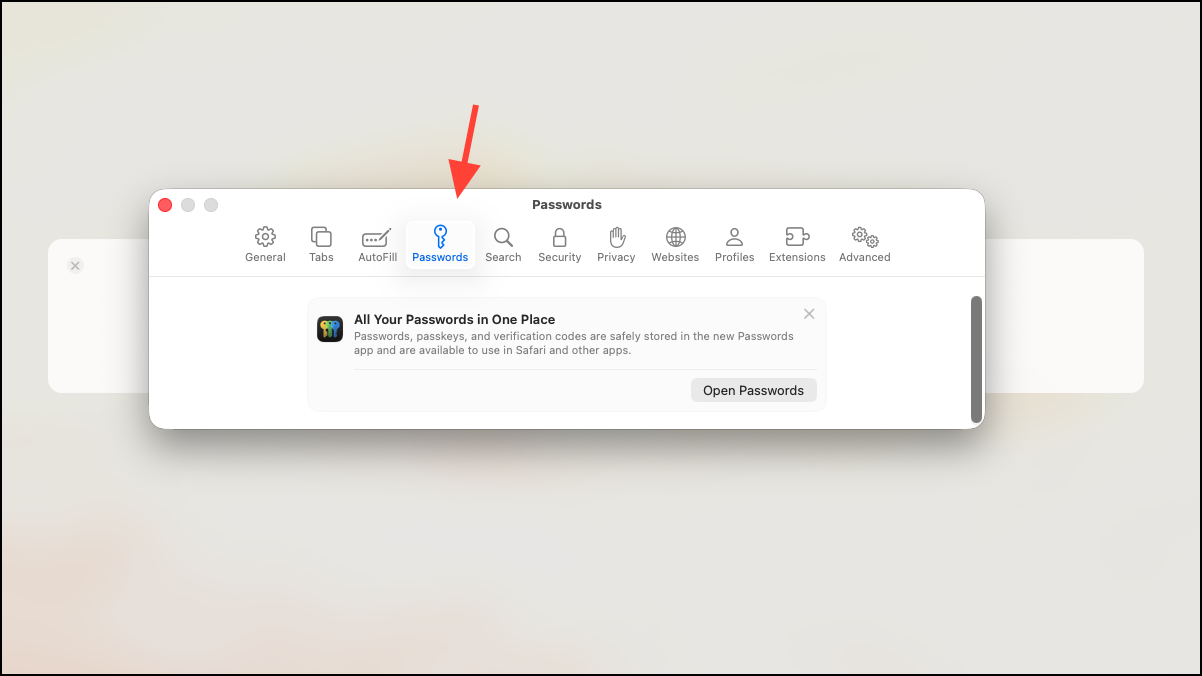
Accessing Saved Passwords in Safari
Safari provides another method for viewing saved passwords, particularly useful for website logins. This approach does not offer version history but allows you to copy or update existing credentials.
Recovering Recently Changed or Deleted Passwords
macOS offers limited recovery options for recently changed or deleted passwords. In iOS 17 and some versions of macOS, recently deleted passwords may be available for up to 72 hours. Check the Recently Deleted section in the Passwords app or System Settings to restore credentials if needed.
Additional Tips and Troubleshooting
- Ensure iCloud Keychain is enabled to keep passwords and passkeys synced across all Apple devices.
- If you move a password to a shared group, be aware it may only appear on devices with compatible software versions.
- For quick access, enable the Passwords app icon in the menu bar via the Passwords app settings. This provides instant access to saved credentials without opening the full app window.
- Use Siri by saying “Show my passwords” for voice-activated access to saved credentials.
Apple’s addition of password version history in macOS 26 Beta streamlines account recovery and reduces the frustration of lost or overwritten passwords, making credential management more reliable for all users.
With these new tools in macOS 26 Beta, you can quickly recover previous passwords and maintain better control over your account security. Regularly reviewing your saved credentials and keeping iCloud Keychain enabled will further simplify password management across your devices.