Quick Keys in macOS 26 mark a significant shift in how users trigger actions and launch apps, moving beyond traditional shortcuts to offer fast, context-aware commands directly from Spotlight. This update brings macOS closer to the speed and convenience seen in productivity tools like Alfred and Raycast, but with native integration and new automation options.
Using Quick Keys in Spotlight for Fast Actions
Spotlight’s new capabilities in macOS 26 include support for Quick Keys—short, memorable character strings that trigger frequent actions. Unlike conventional keyboard shortcuts, Quick Keys let you type a code like sm to send a message or ar to add a reminder, all from within Spotlight.
Command-Space. This brings up the Spotlight search bar, which now supports actions and Quick Keys in addition to files and apps.Command-3 to switch to the Actions pane in Spotlight. Alternatively, you can press the Tab key or wait a moment for Spotlight to display available action categories.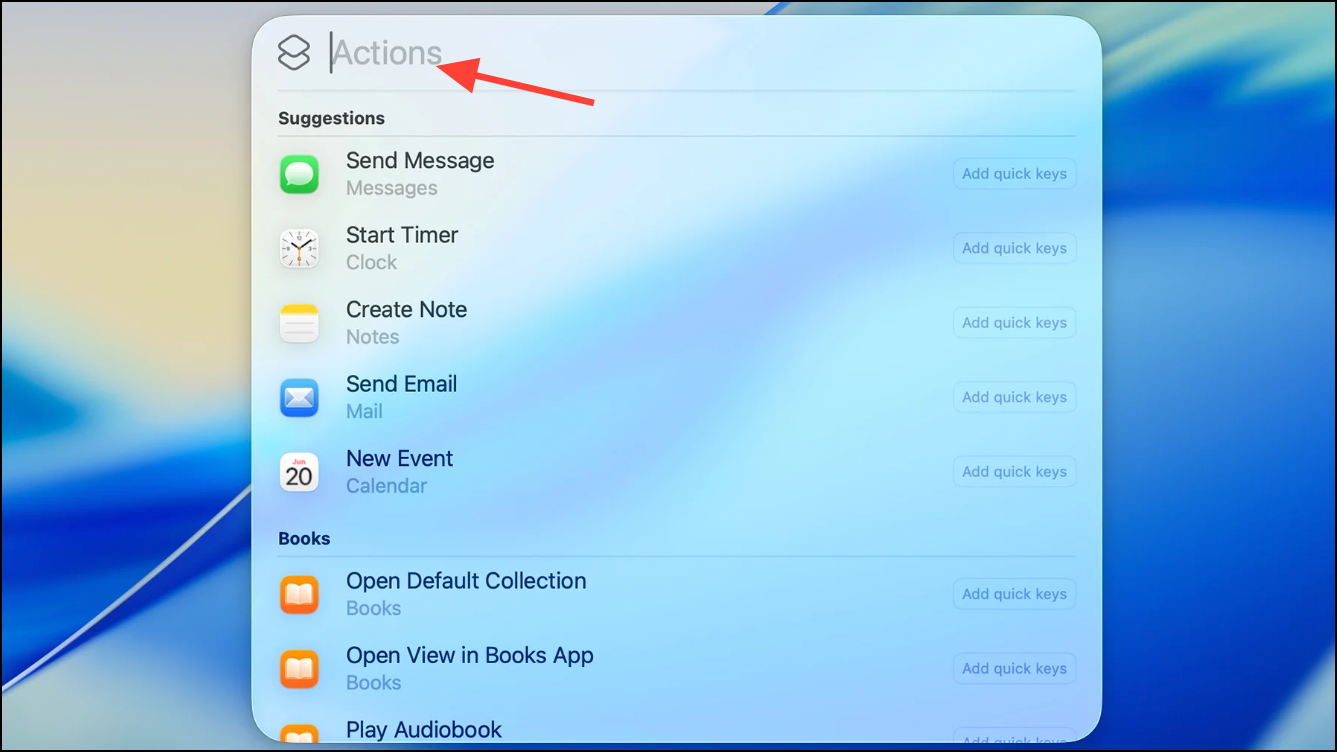
sm for “Send Message,” and press Return. Spotlight will prompt you for any required details (like the message content or recipient) in a form, allowing you to complete the action without leaving Spotlight or opening the full app.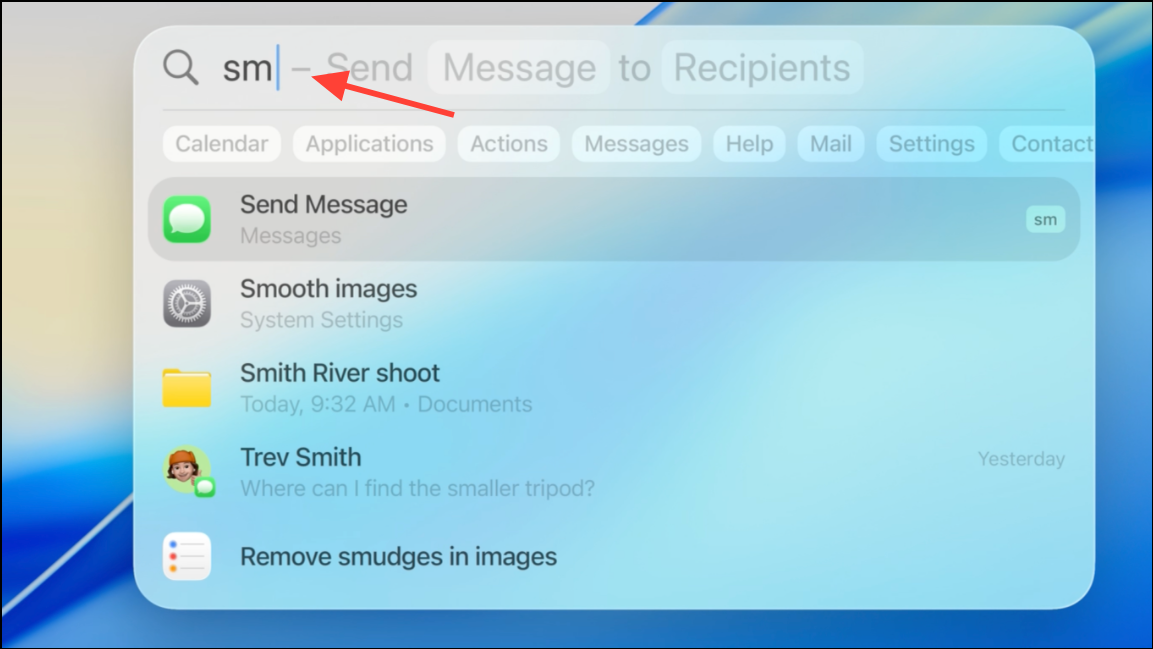
Quick Keys are generated based on your usage patterns, but you can also create your own for custom actions.
Creating Custom Quick Keys for Spotlight Actions
Defining your own Quick Keys allows for faster access to the actions you use most. The process ties your custom string to a specific action, whether it’s sending an email, starting a timer, or running a shortcut.
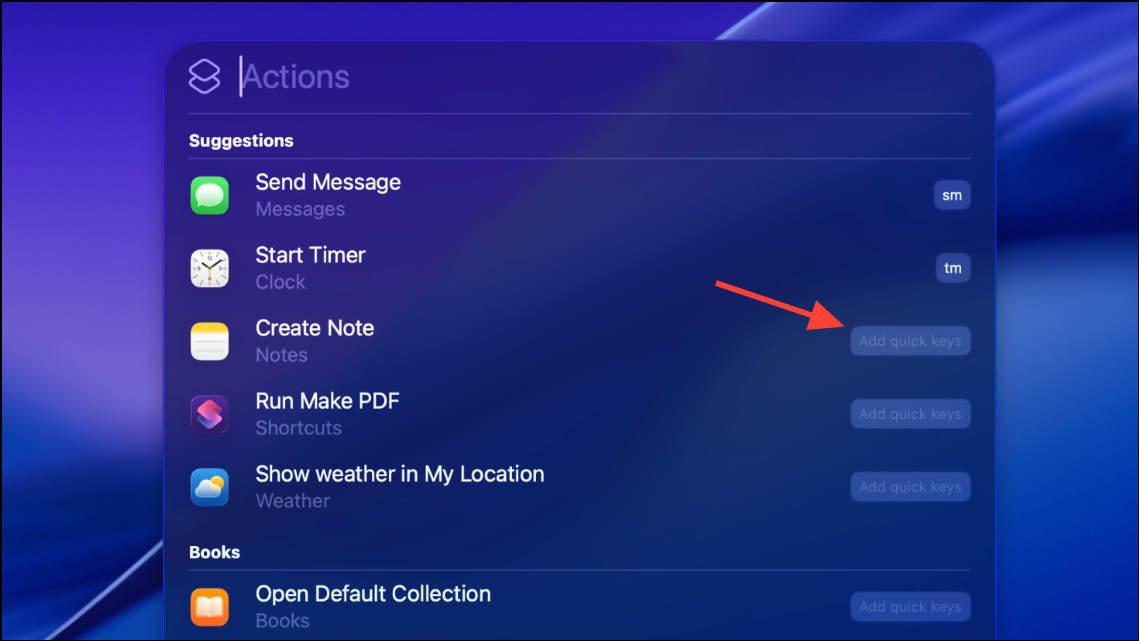
ce for “Create Event.”Return to save your Quick Key. Now, whenever you want to trigger that action, open Spotlight, go to Actions, and type your Quick Key.Quick Keys only work in the Actions pane of Spotlight. If you type your Quick Key in the general search bar, Spotlight will try to match it to an app or file instead. For best results, use two-character codes that are easy to remember and unlikely to conflict with app names.
Assigning System-Wide Keyboard Shortcuts to Launch Apps
For those who prefer traditional keyboard shortcuts to launch applications, macOS offers several native and third-party methods. The most reliable built-in approach uses Automator and System Settings to create Quick Actions tied to custom key combinations.
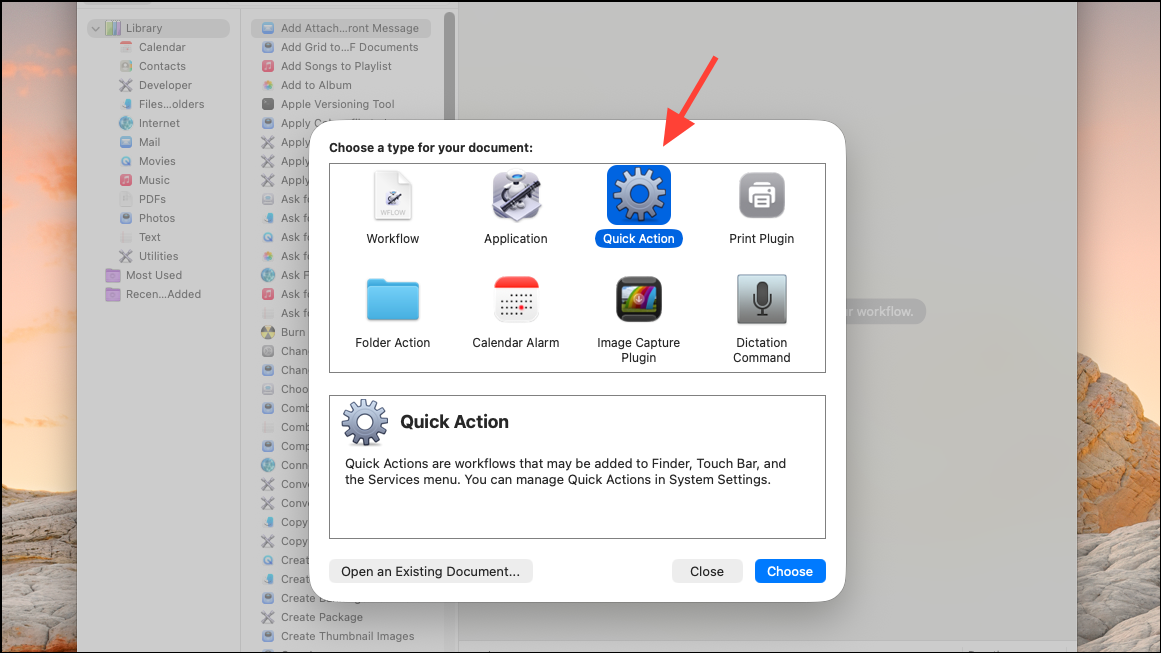
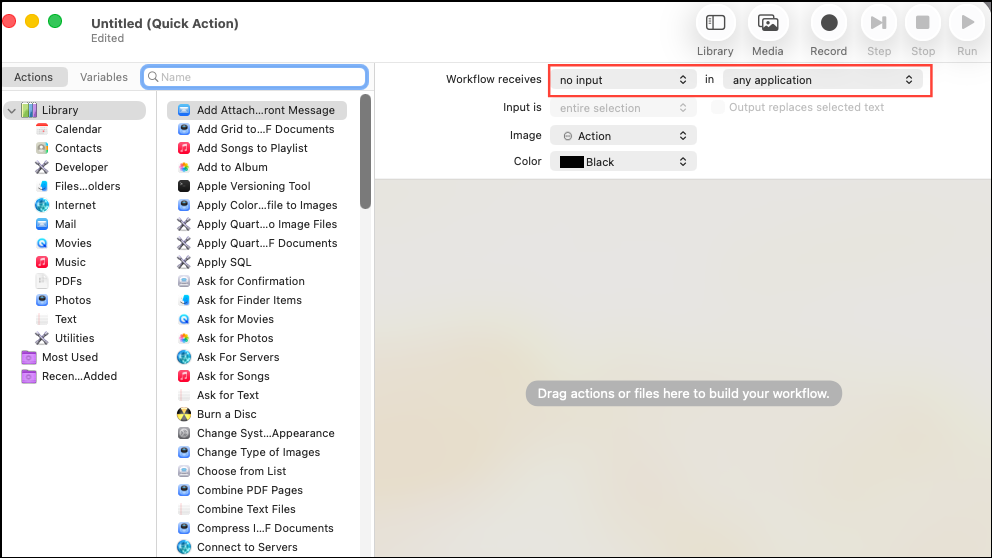
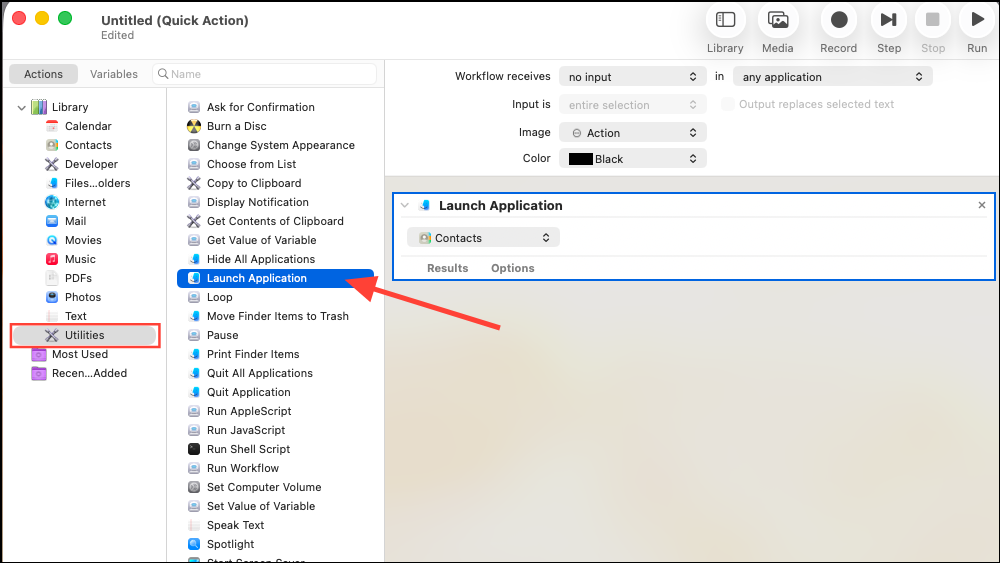
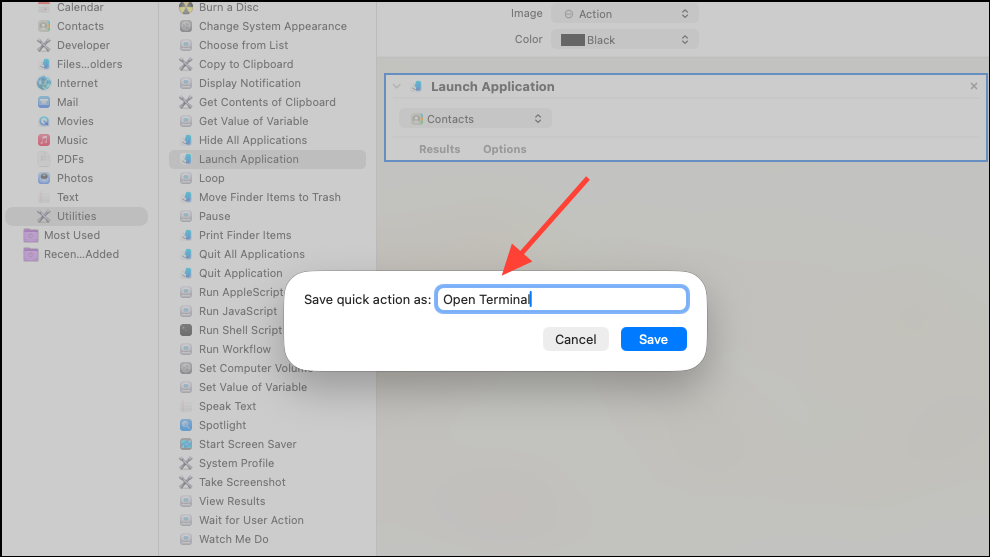
Control-Option-Command-T).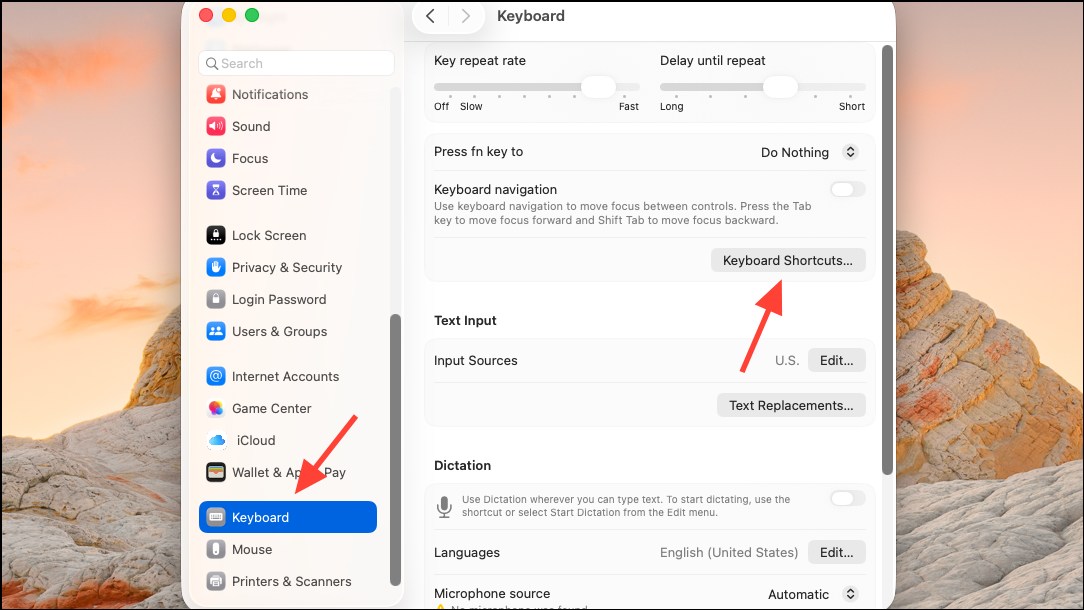
This method does not require third-party software and works on recent macOS versions, including Sonoma and Sequoia. If you want to remove or change your shortcut, revisit the Keyboard Shortcuts settings.
Alternative Methods for Custom Shortcuts
While Automator and Spotlight Quick Keys cover most needs, there are third-party tools that offer even more flexibility:
- Keyboard Maestro: A powerful automation tool that can trigger any action, script, or sequence using custom shortcuts. It allows for advanced workflows, app launching, and integration with hardware like Stream Deck.
- Apptivate: A free menu bar app that lets you assign global hotkeys to launch, hide, or quick-peek apps and scripts. Useful for those who want a lightweight solution without building Automator workflows.
- Spark: Another free utility for managing hotkeys to launch apps, run scripts, and more. It offers an easy interface for assigning and exporting/importing shortcuts.
These tools may require additional permissions or setup but provide options for users who want granular control or more complex automation beyond what macOS natively supports.
Quick Keys and custom shortcuts in macOS 26 streamline repetitive actions and app launching, cutting down on clicks and switching. Whether you stick with native features or explore third-party tools, you can optimize your workflow for speed and efficiency.