Sharing your MacBook’s internet connection lets you connect other devices—like smartphones, tablets, or other computers—to the internet when Wi-Fi networks are unavailable or restricted. This setup can be especially useful in hotels, conference centers, or when only an Ethernet connection is available. The process relies on macOS’s built-in Internet Sharing feature, which allows your MacBook to act as a wireless router.
Using Internet Sharing in macOS
System Settings (or System Preferences on macOS Monterey and earlier) by clicking the Apple menu and selecting the appropriate option.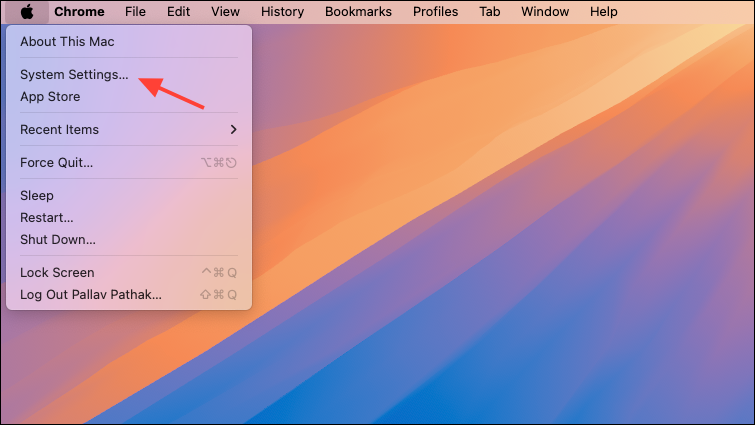
General > Sharing (or just Sharing in older versions). Locate the Internet Sharing option in the list of services.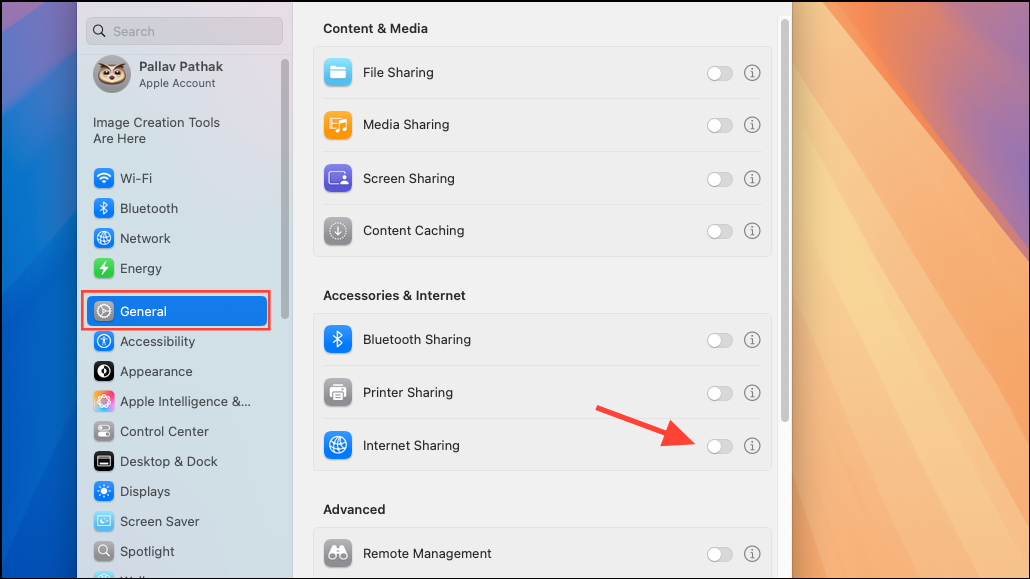
Share your connection from dropdown menu. For example, choose Ethernet if your MacBook is connected via a wired cable.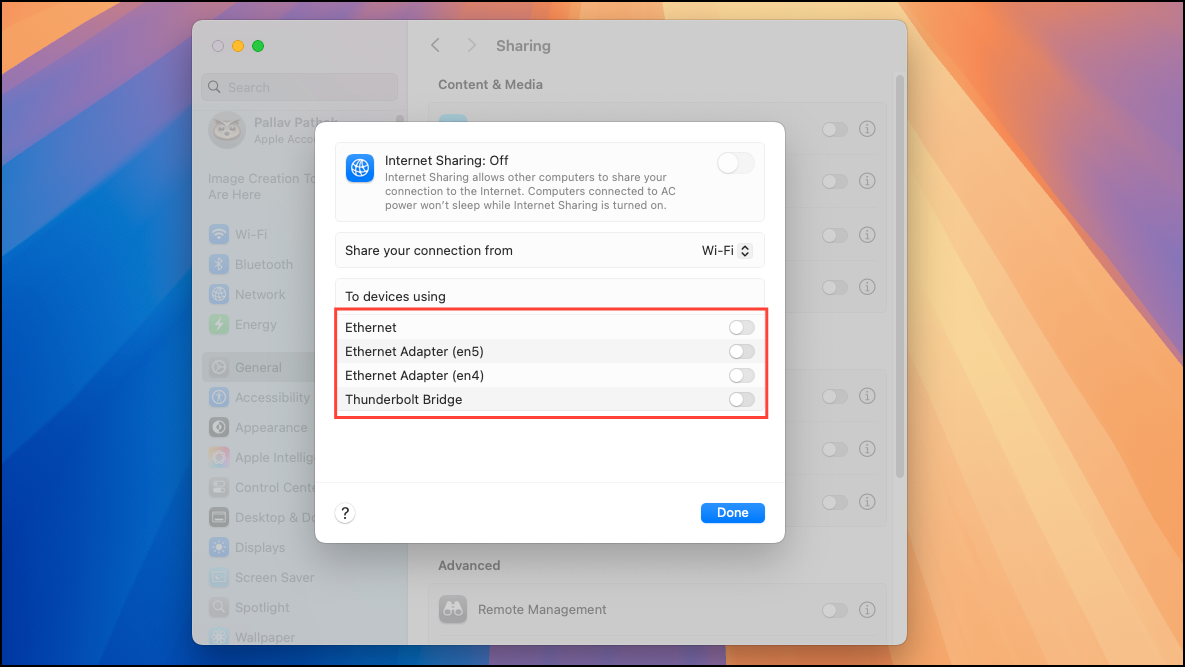
To computers using section, check Wi-Fi. This tells your MacBook to broadcast the internet connection over Wi-Fi.Wi-Fi Options to configure your hotspot’s network name (SSID), security type, and password. Set Security to WPA2 Personal for a secure connection, and choose a strong password to prevent unauthorized access.Internet Sharing by checking its box. A dialog will prompt you to confirm; click Start. The status indicator will turn green, signaling that your MacBook is now broadcasting a Wi-Fi hotspot.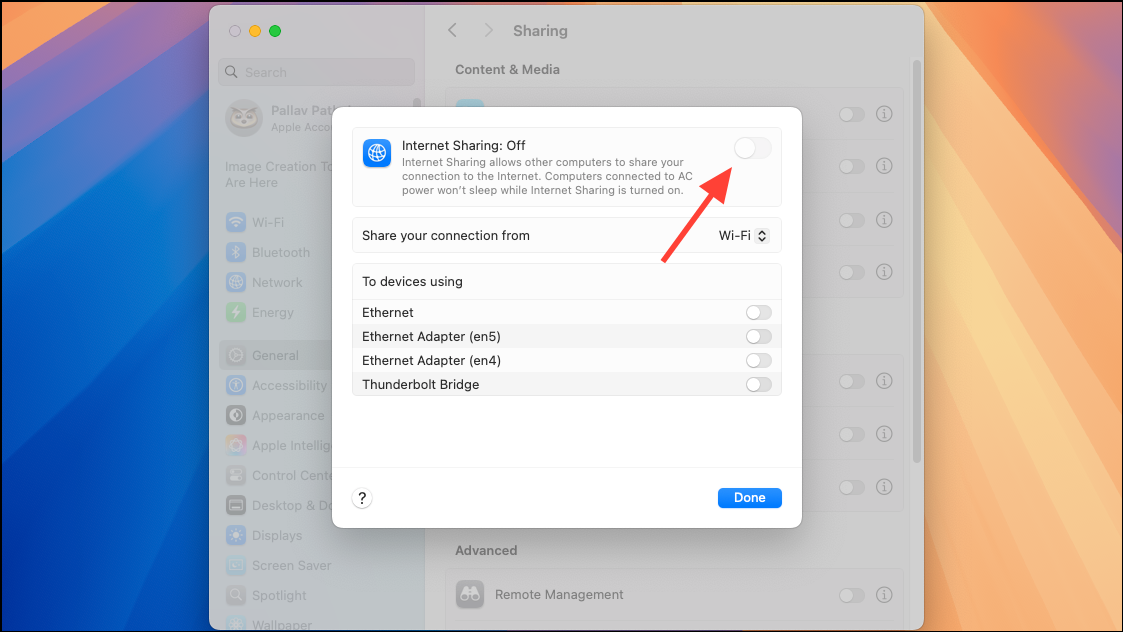
Using Third-Party Applications
Some users may prefer third-party apps to create a Wi-Fi hotspot, especially if macOS’s built-in Internet Sharing doesn’t fit their needs or if they want a more user-friendly interface. Applications like Connectify or Hostel (where available for macOS) can simplify the process, allow for more customization, or bypass certain system restrictions.
Troubleshooting and Tips
- If Internet Sharing is grayed out or unavailable, check that your MacBook has at least two network interfaces (such as Ethernet and Wi-Fi) active.
- Restart your MacBook if changes do not take effect immediately.
- Use a strong password to secure your hotspot and prevent unauthorized users from joining.
- Remember that sharing your internet connection may reduce speeds for all connected devices, especially if your original connection is slow or metered.
- Disable Internet Sharing when not in use to conserve battery life and maintain network security.
Turning your MacBook into a Wi-Fi hotspot gives you flexible internet sharing options in a range of situations. Just remember to secure your connection and monitor usage to keep your network safe and reliable.