Consistent aim in Hypershot comes down to matching your mouse sensitivity, field of view, and crosshair to a setup you can repeat every match. The values below tighten your tracking, keep your reticle readable on every map, and push your frame rate high enough that flick shots register cleanly.
Quick answer: Set Roblox Camera Sensitivity to 0.079 at 1000 DPI, then in Hypershot set FOV to 100 and Sensitivity to 10. Build a static blue or green crosshair with Dynamic turned off, and apply the Fast Flag set below in Bloxstrap for a locked 260 FPS with player outlines.
Roblox client sensitivity and DPI
Your aim baseline starts in the default Roblox settings menu, not the game itself. Open the Roblox menu, find Camera Sensitivity, and type the value manually instead of dragging the slider so it lands exactly where you want it.
| Setting | Value |
|---|---|
| Camera Sensitivity (Roblox) | 0.079 |
| Mouse DPI | 1000 |
The 0.079 figure pairs with 1000 DPI to produce a slow, controlled turn speed that favors precise micro-adjustments during sniper duels. If your DPI differs, expect the in-game feel to change, since Roblox sensitivity and hardware DPI multiply together.
In-game Hypershot settings
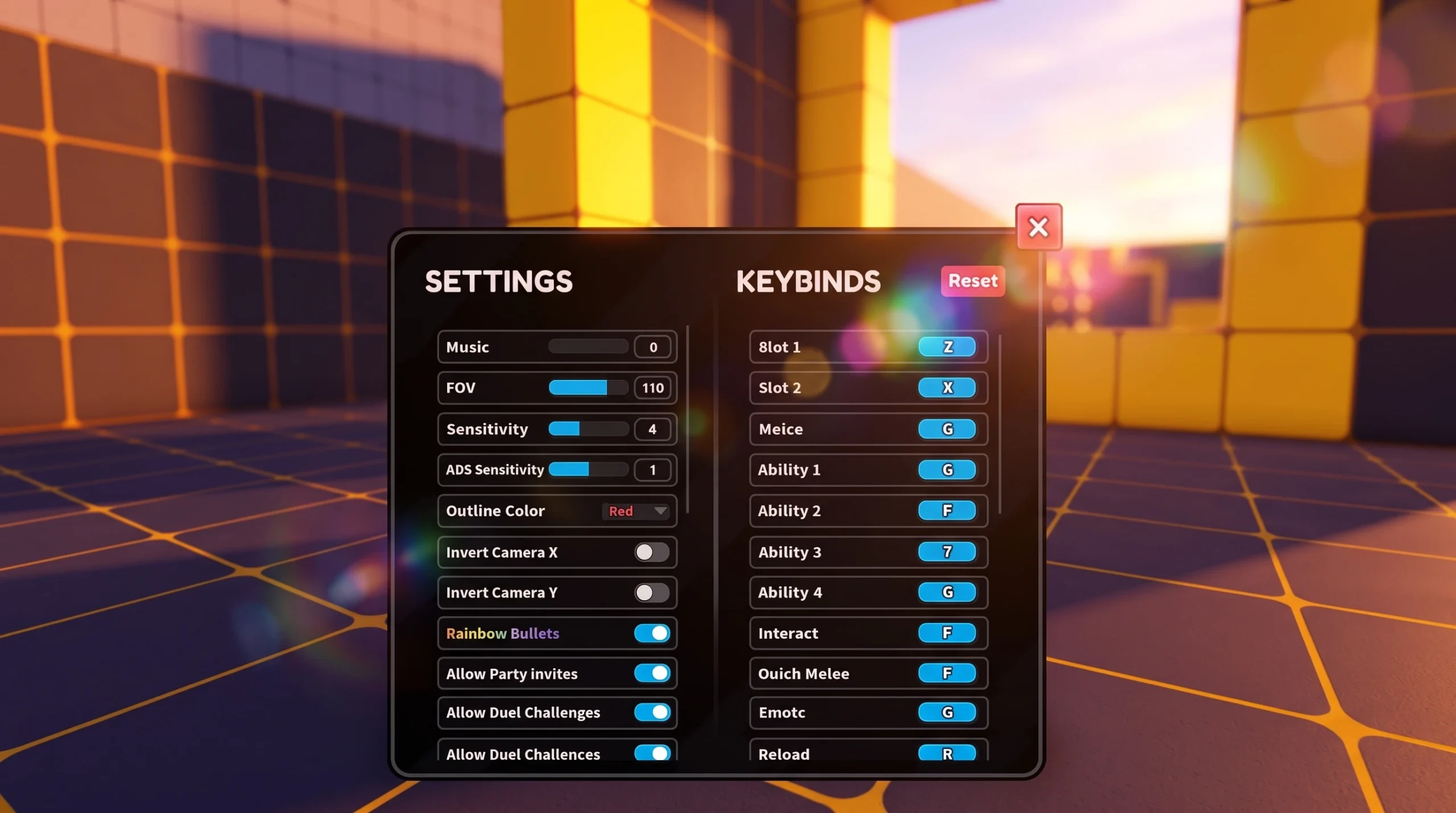
Open the Hypershot settings menu to set your field of view and the game’s own sensitivity multiplier. A wider FOV shows more of the arena, which helps you spot flanks in Team Deathmatch and Capture the Flag.
| Setting | Value |
|---|---|
| Music | 0 |
| FOV | 100 |
| Sensitivity | 10 |
| Rainbow Bullets | Off |
| Allow Party Invites | On |
| Allow Duel Challenges | On |
| Global Legendary Opening | On |
Music at 0 clears the audio channel so footsteps and reloads stand out. Rainbow Bullets is a paid cosmetic and stays off here. Keeping duel challenges and party invites on lets you queue directly against friends for practice.
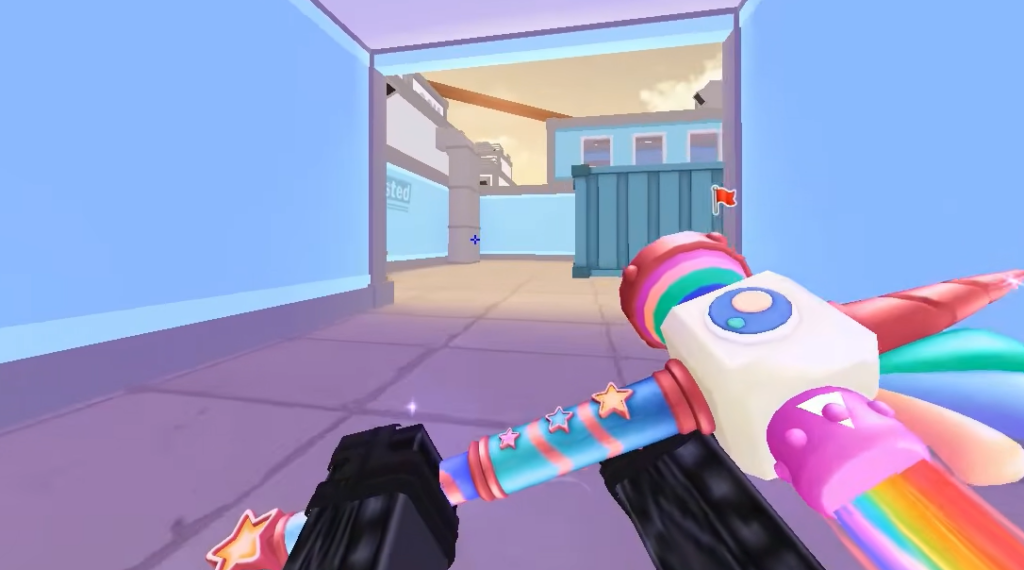
Crosshair settings for a locked reticle
Scroll to the bottom of the settings menu and select Edit Crosshair to open the custom crosshair editor. You can save up to 15 crosshairs and swap between them per map or mode. The goal is a reticle that never expands while you fire, so your point of aim stays honest.
| Attribute | Value |
|---|---|
| Color R | 0 |
| Color G | 0 (blue) or 255 (green) |
| Color B | 255 (blue) or 0 (green) |
| Show Lines | On |
| Length | 4 to 8 |
| Width | 2 |
| Spacing | 1 to 2 |
| Opacity | 1 |
| Outline Size | 0 |
| Outline Opacity | 0 to 0.7 |
| Center Dot | Off or On (preference) |
| Dot Size | 0 to 2 |
| Fade on Reload | On |
| Dynamic | Off |
| Show Hitmarkers | On or Off (preference) |
The one setting that matters most is Dynamic. Turning it off stops the crosshair from spreading while shooting, so the center of your reticle always marks where your shots land. Maxing one color channel, whether blue at 255 or green at 255, keeps the crosshair visible against dark and bright environments alike.
Center Dot, Show Hitmarkers, and crosshair color are down to personal taste. A solid blue reticle with no center dot reads well on lighter maps, while a green center dot suits players who want a precise aim point.
Keybinds for faster inputs
Open Settings and use the Keybinds column on the right. Click any bind, then press the key you want to assign. The layout below keeps abilities and movement within easy reach of standard WASD hand placement.
| Action | Key |
|---|---|
| Slot 1 | One |
| Slot 2 | Two |
| Melee | Three |
| Ability 1 | Q |
| Ability 2 | E |
| Ability 3 | T |
| Interact | G |
| Quick Melee | V |
| Emote | B |
| Reload | R |
| Scope | Mouse Button 2 |
| Zoom | Left Alt |
| Sprint | Left Shift |
| Slide | C |
| Alt Melee | Mouse Button 4 |
| Inspect | F |
| Ping | Mouse Button 3 |
Ability 3 is moved from the default X to T so you never have to stretch your left hand off the movement keys. Everything else keeps the third slot, reload, and interact clustered around the home row.
Fast Flags for 260 FPS and player outlines
Fast Flags are applied through Bloxstrap, a launcher that adds a Fast Flag Editor to the Roblox client. Two things this configuration achieves stand out for Hypershot: a steady 260 FPS cap and player outlines that make enemies easier to read at a distance.
DFIntTaskSchedulerTargetFps at 260 for the frame cap and the graphics flags that force D3D11 and disable heavy post-processing.{
"FLogNetwork": "7",
"FFlagHandleAltEnterFullscreenManually": "False",
"DFIntTaskSchedulerTargetFps": "260",
"DFFlagDebugGraphicsPreferD3D11": "True",
"FFlagFullscreenTitleBarTriggerDelayMillis": "3600000",
"FFlagDebugForceFuturesBrightPhase3": "True",
"DFIntTextureQualityOverride": "1",
"FFlagDebugForceMSAASamples": "1",
"FIntTerrainArraySizeSize": "0",
"FFlagDisableDPIScale": "True",
"FIntRenderShadowIntensity": "0",
"FFlagDisablePostFx": "True",
"DFFlagDebugGraphicsPreferD3D11FL10": "True",
"DFIntCanHideGuiGroupid": "32380007",
"FFlagLuaAppUseUibloxColorPalettes": "True",
"DFIntMaxFrameBufferSize": "5",
"FFlagUIBloxUseNewThemeColorPalettes": "True",
"FFlagDebugTextureManagerSkipMips": "2",
"DFIntPerformanceControlTextureQualityBestUtility": "-1",
"DFIntDebugFRMQualityLevelOverride": "1"
}You will know the flags took effect when the game holds close to 260 FPS and enemy outlines appear clearly through the flattened lighting. If frames still dip, confirm you launched from Bloxstrap rather than the standard Roblox player, since flags only apply through the launcher that stored them.
These values give you a repeatable foundation: a slow, precise sensitivity, a wide FOV, a static crosshair that never lies about your aim point, and a high, stable frame rate. Tune the color, center dot, and hitmarker toggles to taste, but leave Dynamic off and keep your sensitivity locked so every match feels the same under your hand.