The “Disallowed Tool Detected” message in ARC Raiders appears when Easy Anti-Cheat spots a program running on your PC that sits on the game’s restricted list. The warning blocks the game from starting, but it is not a ban. The error window usually shows the exact file path of the process that needs to be closed, which is the fastest way to identify the culprit.
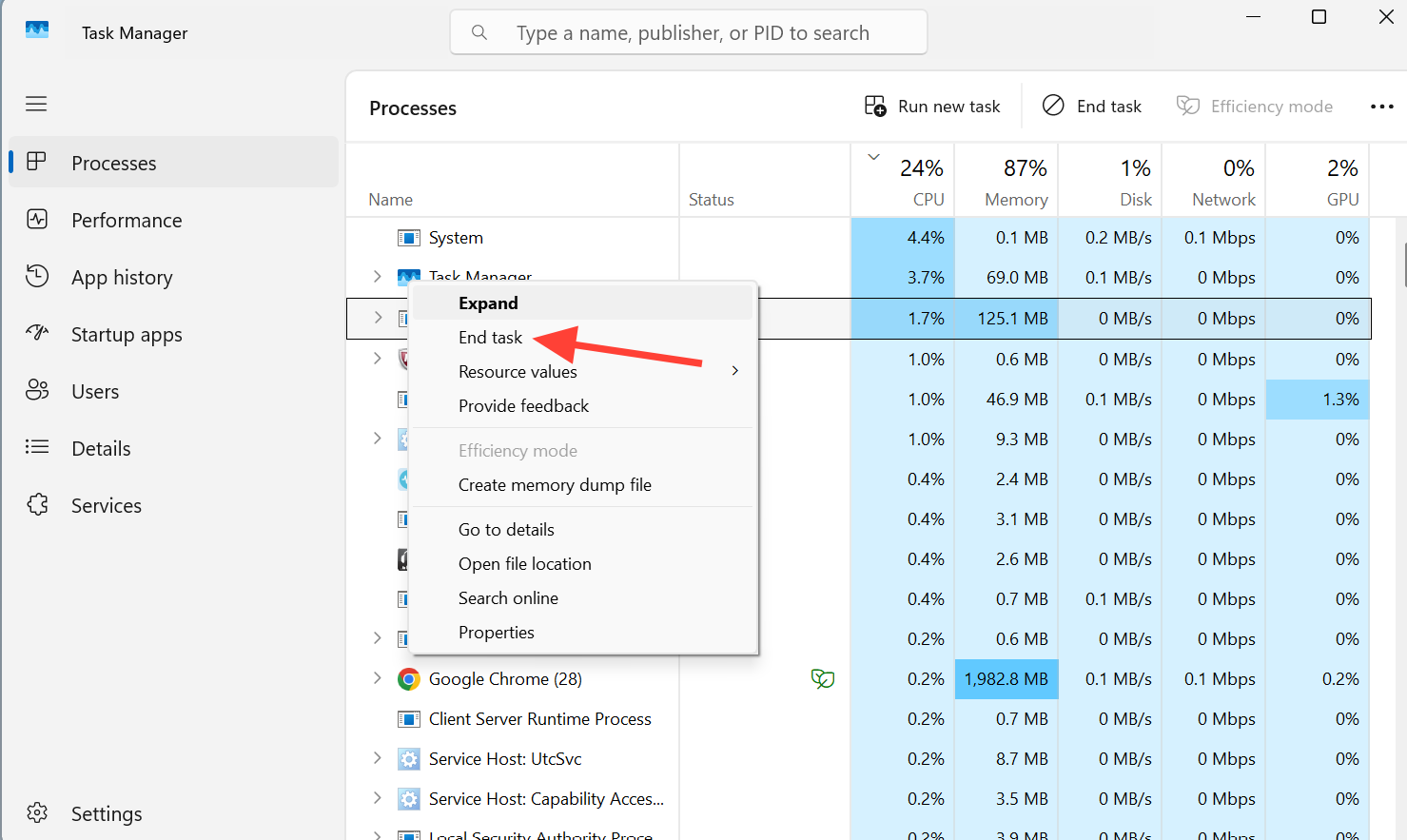
Quick answer: Open Task Manager with Ctrl + Shift + Esc, end the process shown in the error path (or any mouse-customizer, macro, or overlay tool such as YoloMouse or AutoHotkey), then relaunch ARC Raiders.
What triggers the disallowed tool error
Easy Anti-Cheat runs alongside ARC Raiders and stops the game when it detects software, drivers, or system settings it does not allow. The trigger is sometimes genuine cheating software, but it is often a legitimate app that the anti-cheat flags as a risk. A program is only flagged while it is actively running, not simply because it is installed.
Tools that change how your mouse looks or behaves are a frequent cause. YoloMouse and similar cursor-customizing software commonly produce this exact error. AutoHotkey scripts, auto clickers, and macro tools are also flagged because they automate input.
Several everyday applications can produce false positives as well:
- Monitoring software such as HWInfo, CPU-Z, and some GPU monitors
- RGB lighting apps including Corsair iCUE, ASUS Armoury Crate, and NZXT CAM
- Hardware overlays like FPS counters and temperature readouts (for example RivaTuner with MSI Afterburner)
- Virtual audio devices such as VB-Audio Cable and Voicemeeter
- OBS in certain configurations that use specific hooks or filters
Continuing to load the game while a flagged program is active can lead to disciplinary action on your account, so close the process before trying again.
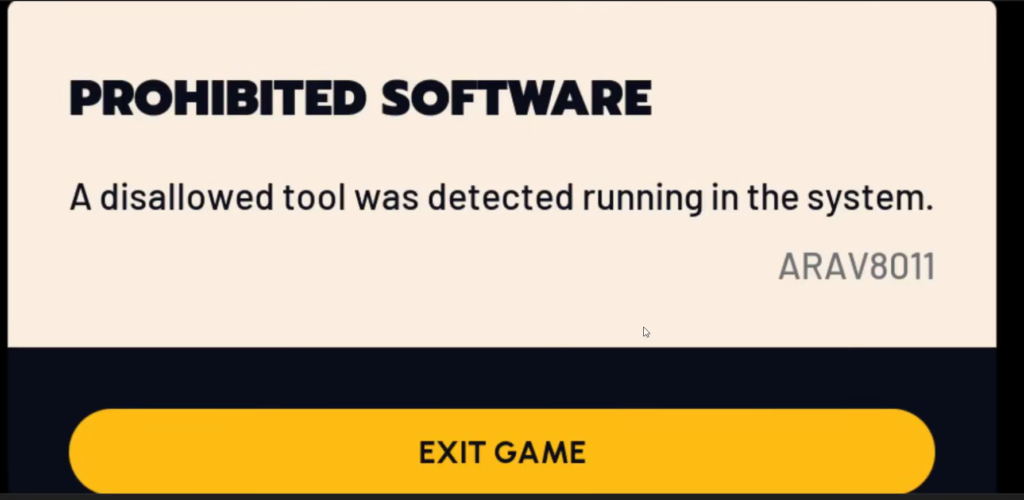
ARAV error codes tied to this message
The “Disallowed tool detected” and “System Integrity Violation” warnings map to specific ARAV codes. The number tells you which type of software or setting set off the detection. Each category spans a full range of codes that differ only by the leading digits.
| Detection | Example code(s) |
|---|---|
| Virtual Machine in use (prohibited) | ARAV11014 |
| NVIDIA Profile Inspector active | ARAV11018 |
| Auto clicker active | ARAV11021 |
| Scripting detected | ARAV11026 |
| AutoHotkey active | ARAV11020 |
| Cheat Engine active | ARAV11019 |
| Required security setting disabled | ARAV11024, ARAV11027 |
| Restricted machine | ARAV11017 |
| System configured incorrectly | ARAV11015 |
| Forbidden tool running | ARAV11011, ARAV11009 |
| Installation integrity failed | ARAV11007, ARAV11006, ARAV11005 |
Cheat Engine and Virtual Machines are treated as serious. Repeated attempts to launch with Cheat Engine running can result in a permanent suspension, and running the game inside a Virtual Machine is explicitly blocked.
How to fix the disallowed tool error
Fix System Integrity Violation codes
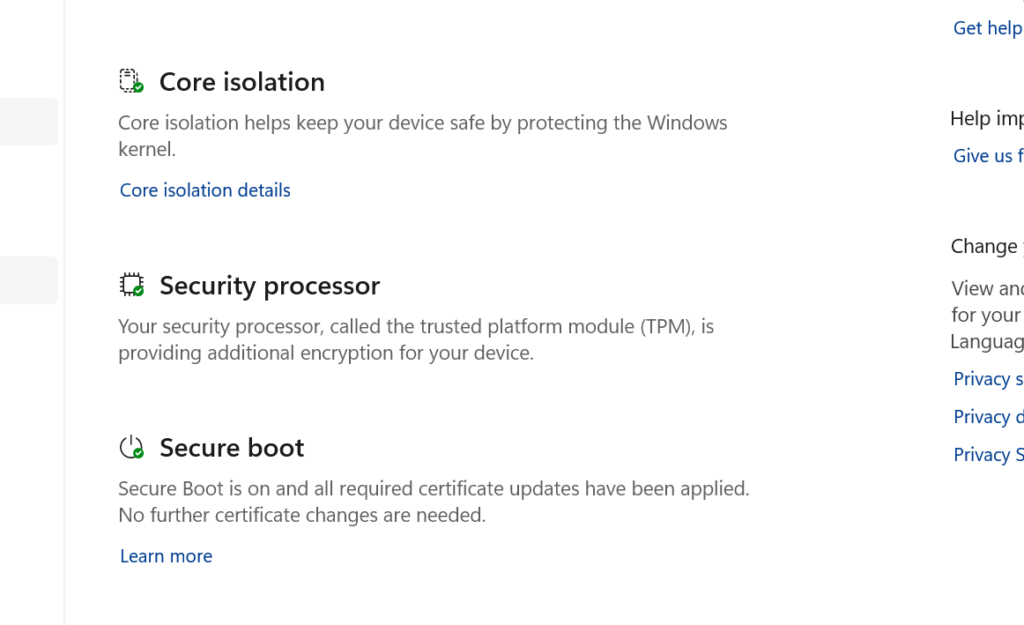
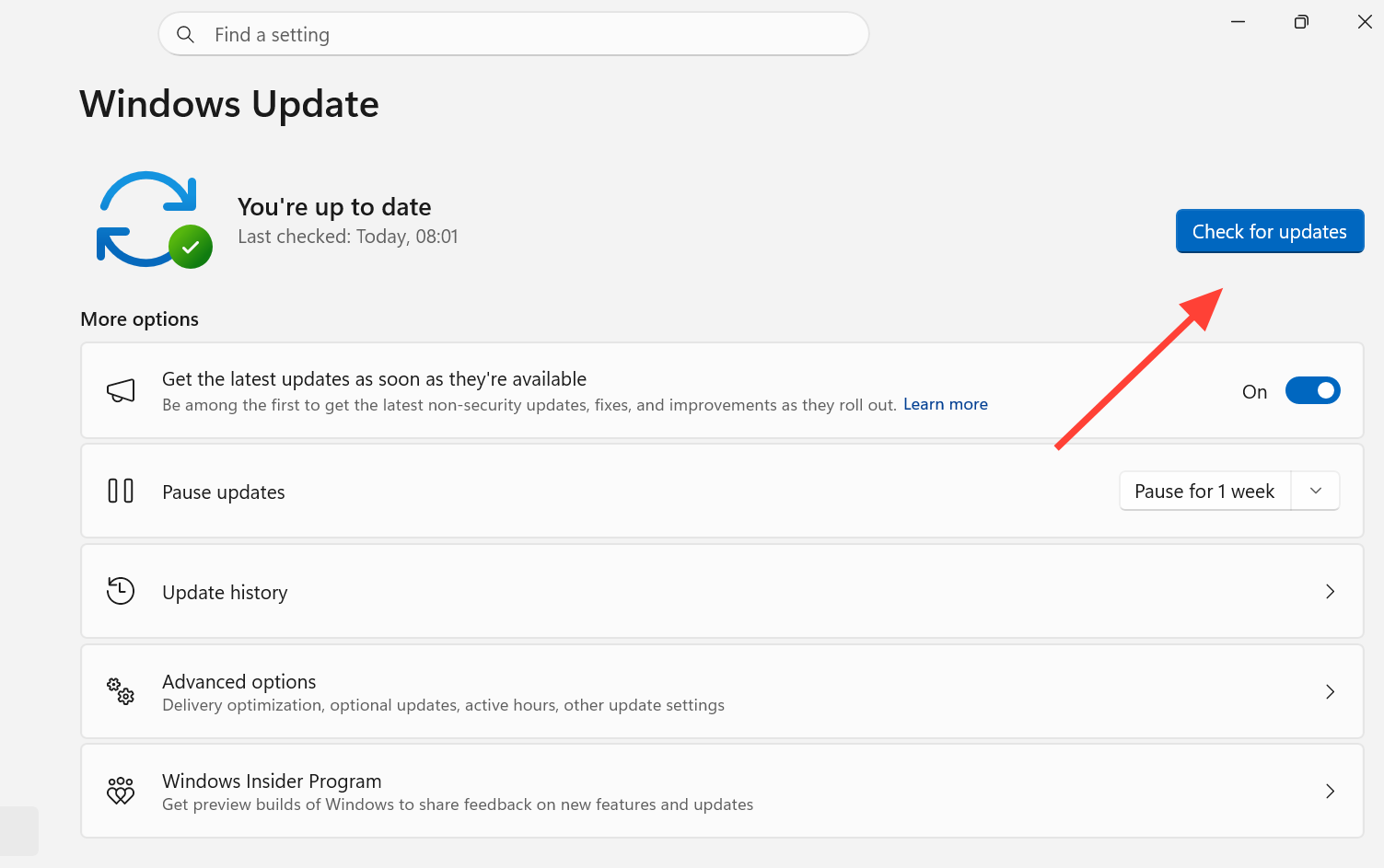
If your code points to a disabled security setting rather than a running tool, the cause is your Windows configuration. Restoring the required settings clears these codes.
How to confirm the fix worked
You know the problem is resolved when ARC Raiders launches and reaches the menu without showing the error window or kicking you back out. If the warning returns, a flagged process is still running or has restarted in the background. Check the file path in the new message, end that process again, and disable it from launching at startup.
This error does not mean your account is banned. It simply blocks entry until the flagged process is closed and your system meets the security requirements.
If the issue continues after closing every flagged tool and confirming your security settings, the Easy Anti-Cheat support page offers further troubleshooting, and Embark’s support team can review your case directly.