

Black Ops 7’s packet burst problem hits players with rubberbanding, micro-freezes, and “Packet Burst” warnings even on low ping and wired connections. High-end PCs and consoles aren’t immune; a 10ms latency readout can still feel like you’re fighting the netcode instead of the enemy team.
The issue rarely comes from raw download speed. It’s a mix of how the game streams data, how hard your GPU and VRAM are pushed, and how your network path talks to Activision’s servers. The fixes that work fall into a few buckets: in-game graphics/network tweaks, system changes (especially on PC), and basic but important network hygiene.
What “packet burst” means in Black Ops 7
In Black Ops 7, a packet burst is a short window where many network packets are delayed or dropped together instead of arriving smoothly. The game surfaces this with a yellow or red icon and text, and you feel it as:
| Symptom | What it looks like in-game |
|---|---|
| Rubberbanding | Your operator snaps back to a previous position after moving. |
| Micro-freezes | Camera stutters for a fraction of a second while audio continues. |
| Desync | You die behind cover or lose obvious gunfights. |
| Warning icon | “Packet Burst” indicator appears even with low ping and 0% packet loss stats. |
Players on PC, Xbox Series X|S, and PlayStation all report the same pattern: other games run perfectly, but Black Ops 7 throws packet burst flags constantly, including in solo Zombies, where you wouldn’t expect severe internet issues. That points to a mix of client load, streaming features, and server routing rather than a simple “your Wi‑Fi is bad” problem.
Core Black Ops 7 settings that reduce packet burst (PC and console)
Several in-game options have a direct impact on packet bursts, either by lowering network traffic or by reducing GPU/VRAM spikes that cause timing problems.
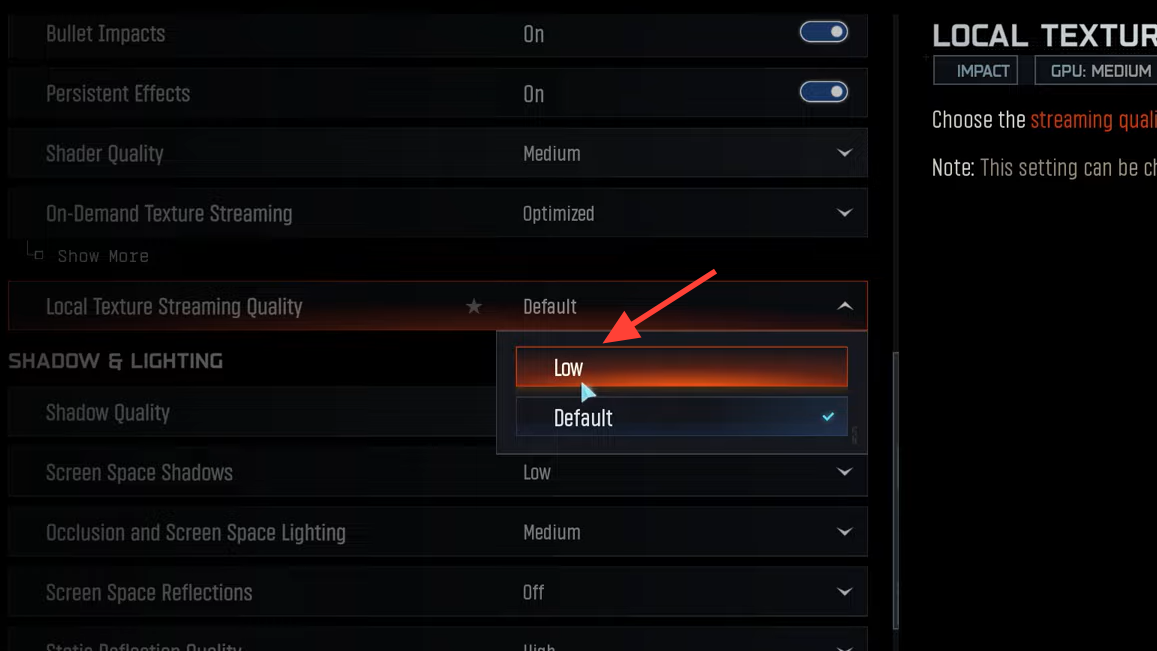
Set On-Demand Texture Streaming to Minimal
On-Demand Texture Streaming downloads extra textures while you play. In Black Ops 7 that can line up badly with combat and trigger stutters plus packet burst warnings.
| Menu path | Setting | Recommended value |
|---|---|---|
| Settings → Graphics → Quality | On-Demand Texture Streaming | Minimal |
| Show More (under same option) | Allocated Texture Cache Size | Highest value your drive space supports (e.g., 64 GB) |
Reducing streaming cuts background HTTP traffic and IO. Increasing the local cache means the game can reuse more textures from disk instead of constantly pulling them.
Lower VRAM target and enable Variable Rate Shading (PC)
Black Ops 7 lets you set a VRAM Scale Target. Pushing this too high can leave no headroom for the OS and overlays, leading to GPU stalls that show up as packet bursts and stutter even when your ping looks fine.
| Menu path | Setting | Recommended range |
|---|---|---|
| Settings → Graphics → Quality | VRAM Scale Target | 60–70% (do not exceed 70%) |
| Settings → Graphics → Quality | Variable Rate Shading (VRS) | On |
Players with RTX 40‑series, RX 7000‑series, and even top-end 50‑series GPUs report packet bursts when VRAM usage sits near 90–100%. Dropping the target into the 60–70% band and using VRS keeps frame-time spikes down, which in turn stabilizes how the client communicates with the server.
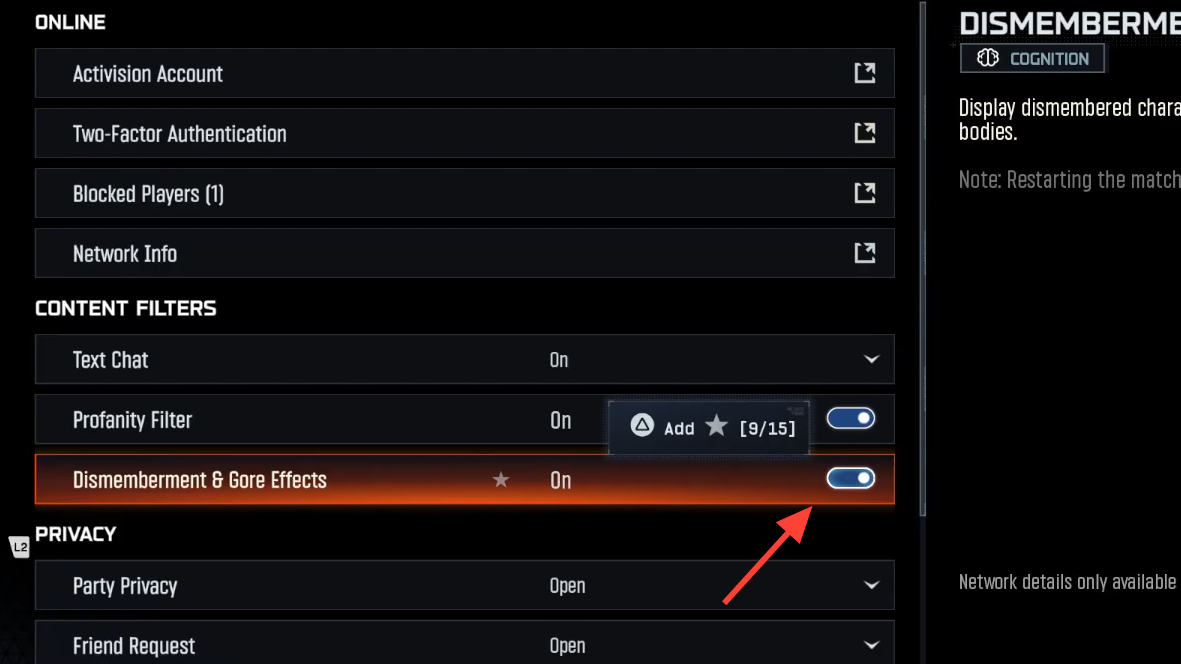
Turn off dismemberment and gore effects
It sounds unrelated, but the extra effects when bodies are shot or dismembered add a surprising amount of work during firefights and can line up with bursty behaviour.
| Menu path | Setting | Recommended value |
|---|---|---|
| Settings → Account & Network → Content Filters | Dismemberment & Gore Effects | Off |
Disabling this reduces the amount of visual state that needs to be simulated and synced while still keeping gameplay identical.
Restart shader pre-loading
Corrupted or outdated shaders can cause hitching that feels like network lag. Black Ops 7 includes a one-click way to rebuild them.
| Menu path | Action |
|---|---|
| Settings → Graphics → Display tab | Select Restart Shaders Pre-Loading, then fully restart the game |
After triggering the restart, let the game sit in the menus until shader compilation finishes before jumping into a match.
Frame rate, shadows, and overlays (PC)
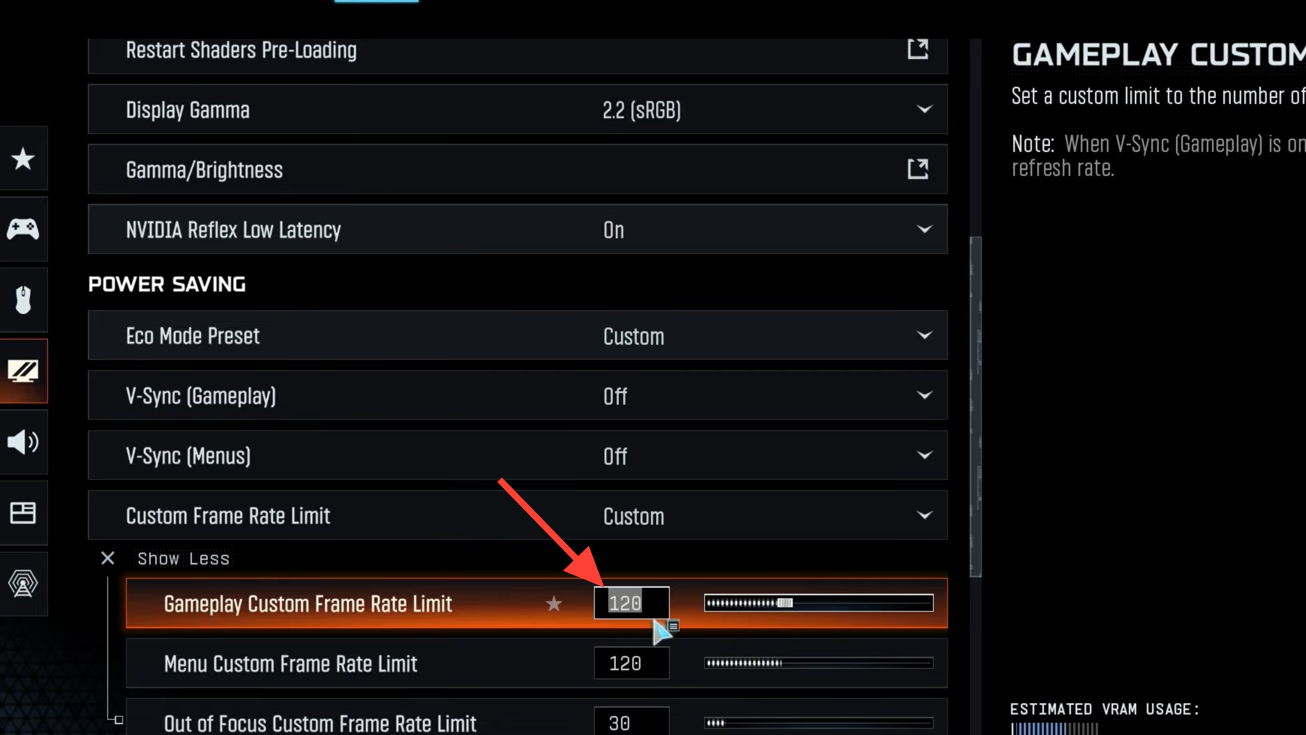
On PC, it’s common to chase the highest possible FPS. In Black Ops 7, running uncapped or pushing the GPU to 99–100% can backfire and correlate with packet bursts.
| Area | Specific change | Why it helps |
|---|---|---|
| Frame rate | Set a frame cap (e.g., 120 FPS for 144 Hz, 100 FPS for 120 Hz, or 90 FPS if still unstable) | Reduces GPU utilization by 20–30%, leaving headroom for networking and OS tasks. |
| Textures / VRAM | Keep VRAM target at 60–70%; avoid Ultra textures on 8 GB GPUs | Prevents VRAM overflow that can cause sudden stalls and bursts. |
| Shadows | Shadow Quality → Low | Cuts a significant, always-on GPU cost with minimal visual impact. |
| Ambient occlusion | Ambient Occlusion → Off | Removes a heavy effect that often adds frame-time spikes. |
| Upscaling | Enable DLSS or FSR on Quality or Balanced | Lightens the GPU load without a large hit to visual clarity. |
| Overlays | Disable GeForce Experience, Steam, Discord overlays if GPU is near 100% | Eliminates extra GPU work that can interfere with smooth packet processing. |
PC-only network changes that have helped players
Set a stable DNS and flush DNS cache (Windows)
On Windows, adjusting DNS and clearing the cache can clean up stale routing or name resolution quirks that cause erratic behaviour.
| Step | Action |
|---|---|
| 1 | Open the Start menu, search for “View network connections”, and open it. |
| 2 | Double-click your active adapter → Properties → select Internet Protocol Version 4 (TCP/IPv4) → Properties. |
| 3 | Leave “Obtain an IP address automatically” selected. Set “Use the following DNS server addresses”. |
| 4 | Use a reliable public DNS, such as Cloudflare (Preferred: 1.1.1.1, Alternate: 1.0.0.1), then click OK. |
| 5 | Open Start, type cmd, right-click Command Prompt, choose “Run as administrator”. |
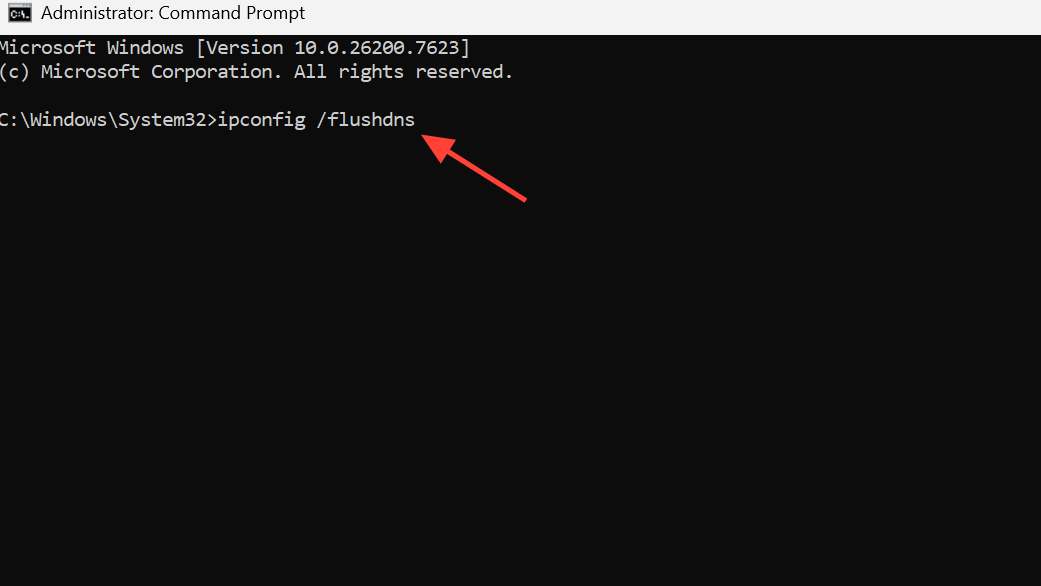
| 6 | Run ipconfig /flushdns and press Enter. |
| 7 | Run netsh winsock reset and press Enter, then restart the PC. |
These steps reset how Windows handles network sockets and DNS resolution, which can smooth out strange connectivity blips with certain services.
Change network adapter packet priority (Windows)
Some Realtek and gaming-oriented NICs expose a setting that prioritizes latency-sensitive traffic.
| Menu path | Setting | Suggested value |
|---|---|---|
| Right-click Start → Device Manager → Network adapters → your Ethernet controller → Properties → Advanced tab | Priority & VLAN (or similarly named “packet priority” option) | Enabled |
Enabling priority can help the adapter handle gaming packets more consistently under local network load.
Disable Norton Game Optimizer if you use Norton
A number of PC players tracked their packet burst issues back to Norton’s Game Optimizer feature, which interferes with Black Ops 7’s network traffic.
If Norton is installed:
- Open Norton and look for Game Optimizer in its performance or gaming section.
- Disable Game Optimizer entirely.
- Restart the PC and test Black Ops 7 again.
Install or move Black Ops 7 to a faster SSD (PC)
Packet burst warnings sometimes appear together with hard freezes when the game is installed on a slow HDD or congested SATA SSD.
- If you have multiple drives, move Black Ops 7 to your fastest NVMe or SSD.
- On Steam or Battle.net, use the built-in “Move install” or “Change install location” option instead of fully redownloading when possible.
Once the game is on a faster drive, shader streaming and texture loads stop blocking the render thread as often, which indirectly reduces network-triggered stutters.
Network-side basics that still matter (PC, PlayStation, Xbox)
Prefer Ethernet over Wi‑Fi
Plenty of people see packet bursts on fiber with 7–20ms ping and 0% packet loss stats, so cabling up is not a cure‑all. It does, however, remove Wi‑Fi interference and local jitter from the equation.
- Use a Cat5e or better Ethernet cable directly from console/PC to router.
- If a direct run isn’t realistic, consider powerline or MoCA adapters as a compromise.
Restart hardware and keep other devices quiet
Black Ops 7’s servers and routing can absolutely be part of the problem, but local congestion still makes things worse.
| Device | Action |
|---|---|
| Router / modem | Power off for 30 seconds, then power back on before playing again. |
| PC / console | Fully shut down and restart (not just sleep/resume) before testing new settings. |
| Other devices | Pause large downloads/streams on phones, TVs, and PCs during matches. |
Several players went from “unplayable” to “still noticeable but much better” packet burst levels after nothing more than a modem reboot.
Turn off crossplay on consoles if lobbies feel unstable
On console, crossplay can place you into a wider mix of datacenters and network paths. If your region is consistently routing poorly, narrowing the pool sometimes helps.
| Platform | Path to disable crossplay |
|---|---|
| Xbox Series X|S | System settings → Account → Privacy & online safety → Xbox privacy → View details & customize → Communication & multiplayer → disable “You can join cross-network play”. |
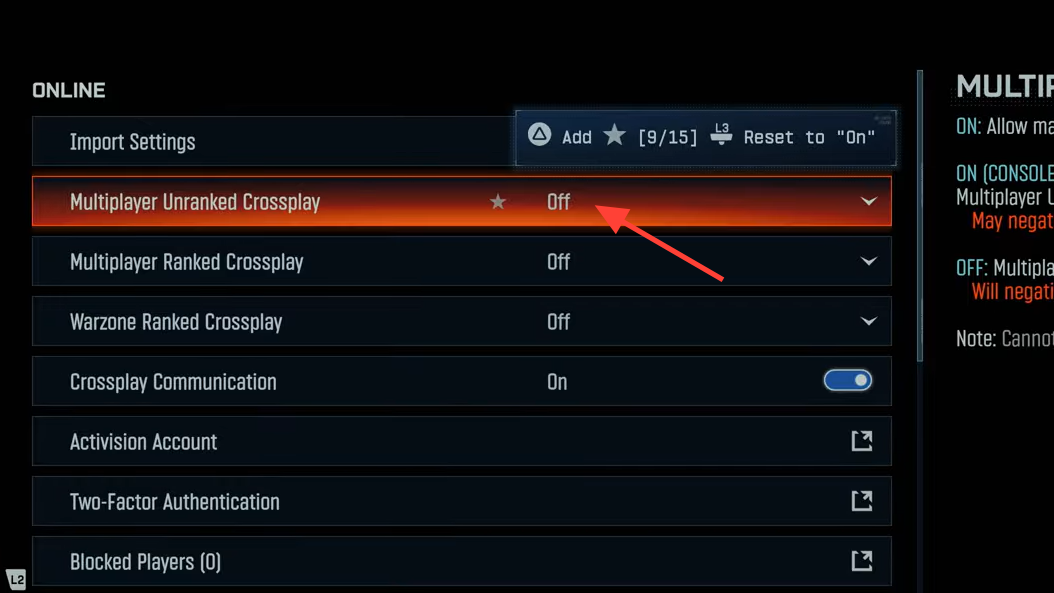
| PS4 / PS5 | In-game settings → Account & Network → Online → turn Crossplay off. |
Turning off crossplay can lead to longer queue times in some regions, but it’s worth testing for a few matches if packet bursts are relentless.
Using third‑party game routing tools
Some PC and console players rely on external game boosters that route traffic over private backbones and prioritize game packets. These tools can:
- Find cleaner routes to Activision’s servers than the default ISP path.
- Reduce jitter and packet loss on congested networks.
They add another subscription and an extra point of failure, so they are best treated as a last resort after in-game and local network tweaks.
When none of this fully fixes Black Ops 7 packet burst
There are cases where every local change—VRAM tuning, overlays off, wired connections, fast SSDs, DNS resets—still leaves packet bursts in almost every match. Some players see clear packet loss on routes beyond their ISP, especially when traffic hits intermediary networks before reaching Activision’s servers.
In that scenario, there are only a few levers left:
- Play at quieter times of day when regional traffic is lower.
- Swap between platforms or launchers (Steam, Battle.net, Xbox app on PC) to see if a different CDN or route behaves better.
- File support tickets with your ISP and Activision; detailed traceroutes during a packet burst can sometimes prompt routing adjustments.
Black Ops 7’s packet burst behaviour isn’t tied to a single setting or a single platform. The most reliable path to a playable experience is a combination approach: lower or cap GPU load, shrink VRAM target, cut down on streaming features like On-Demand Textures, avoid aggressive “optimizer” utilities, and keep your network path as simple and wired as possible. For many players that doesn’t erase the issue entirely—but it turns constant bursts into occasional blips you can fight through instead of rage‑quitting out of every lobby.