

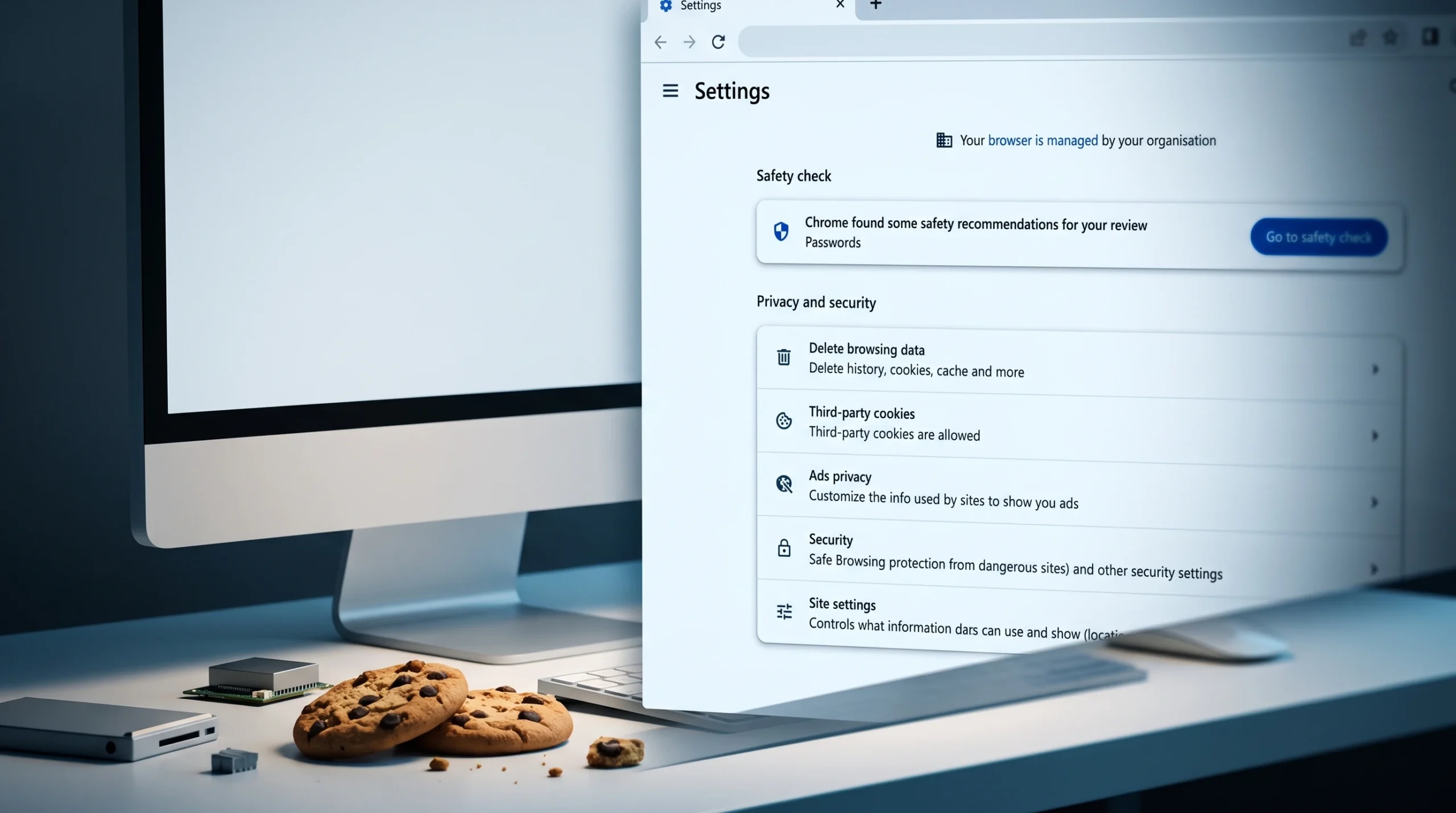
Chrome did not remove the option that clears cookies when you quit. It renamed and relocated it. What used to sit under Cookies as “Clear cookies and site data when you close Chrome” now lives under a control called on-device site data, so the old menu path no longer shows it.
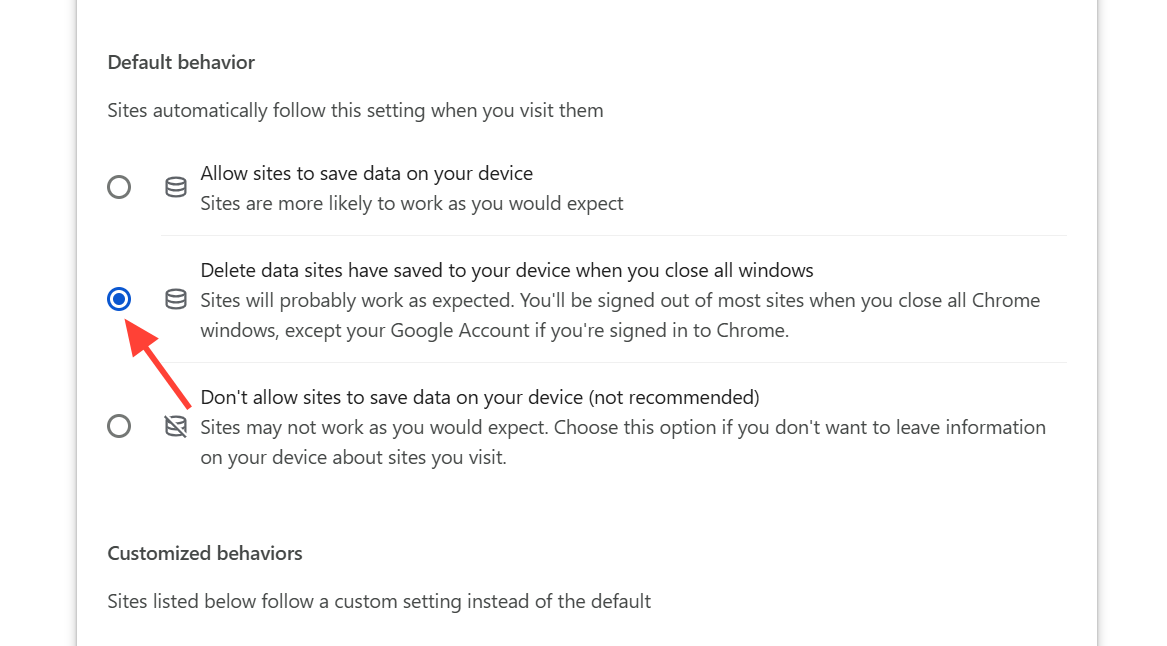
Quick answer: Open chrome://settings/content/siteData, then under Default behavior select Delete data sites have saved to your device when you close all windows. Chrome will now wipe first-party cookies and site data every time you close every Chrome window.
Where the setting is now in Chrome
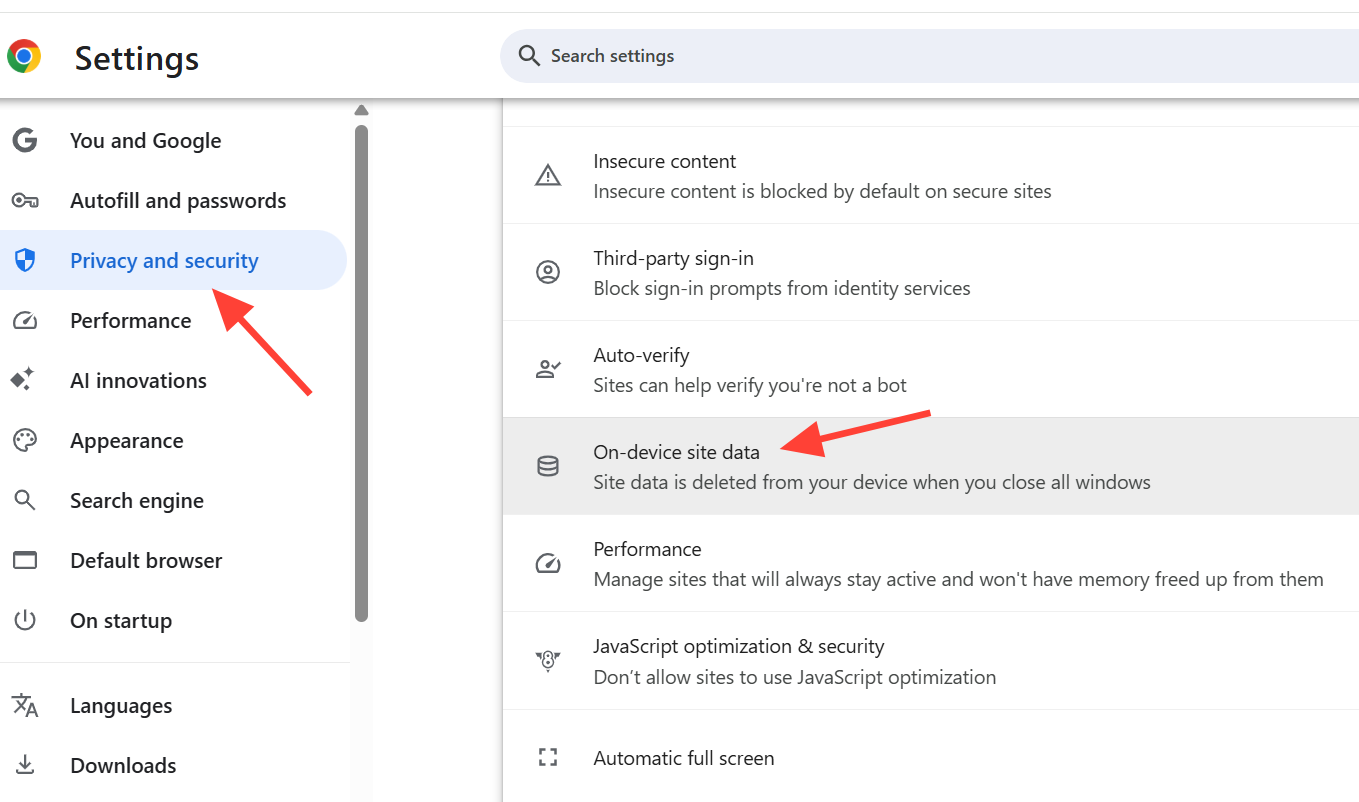
Control over first-party cookies became part of on-device site data. The full menu route runs through Site settings rather than the Cookies page you may remember.
| Step | Location |
|---|---|
| Menu path | Settings → Privacy and security → Site settings → Additional content settings → On-device site data |
| Direct address | chrome://settings/content/siteData |
| Option to pick | Delete data sites have saved to your device when you close all windows |
If you manage a Workspace account and cannot see cookie controls at all, the reason is the same. The setting was folded into on-device site data. You can read more on the behavior in Google’s own on-device site data support page.
Turn on clear-on-exit for cookies and site data
chrome://settings/content/siteData into the address bar to jump straight to the page.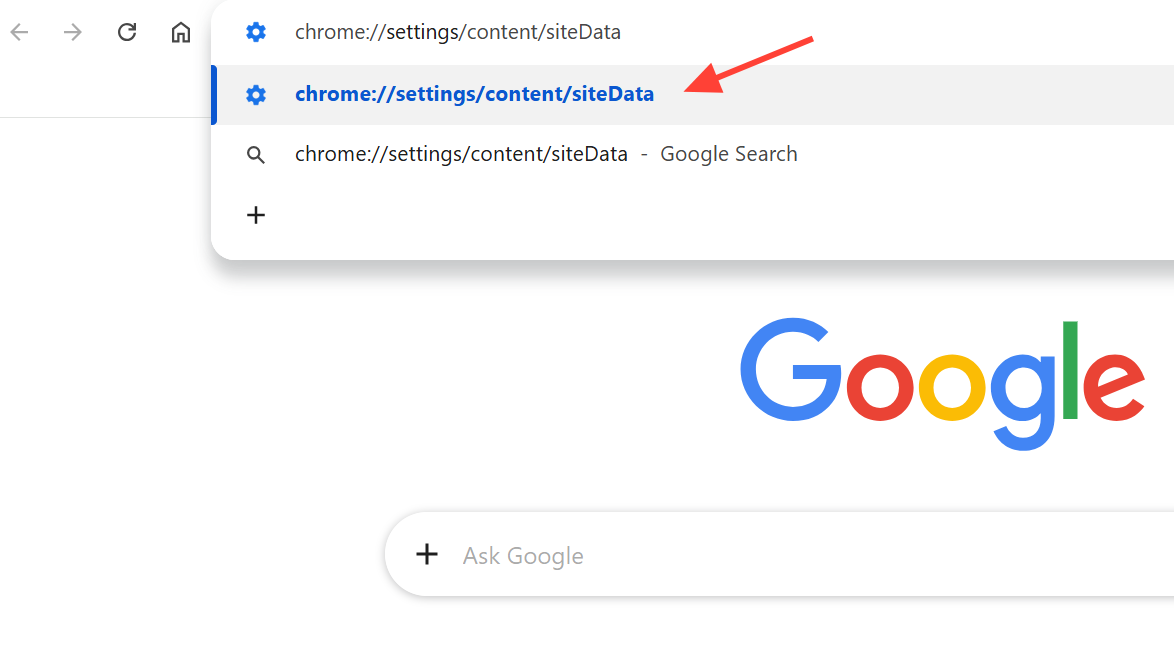
Keep some sites signed in with exceptions
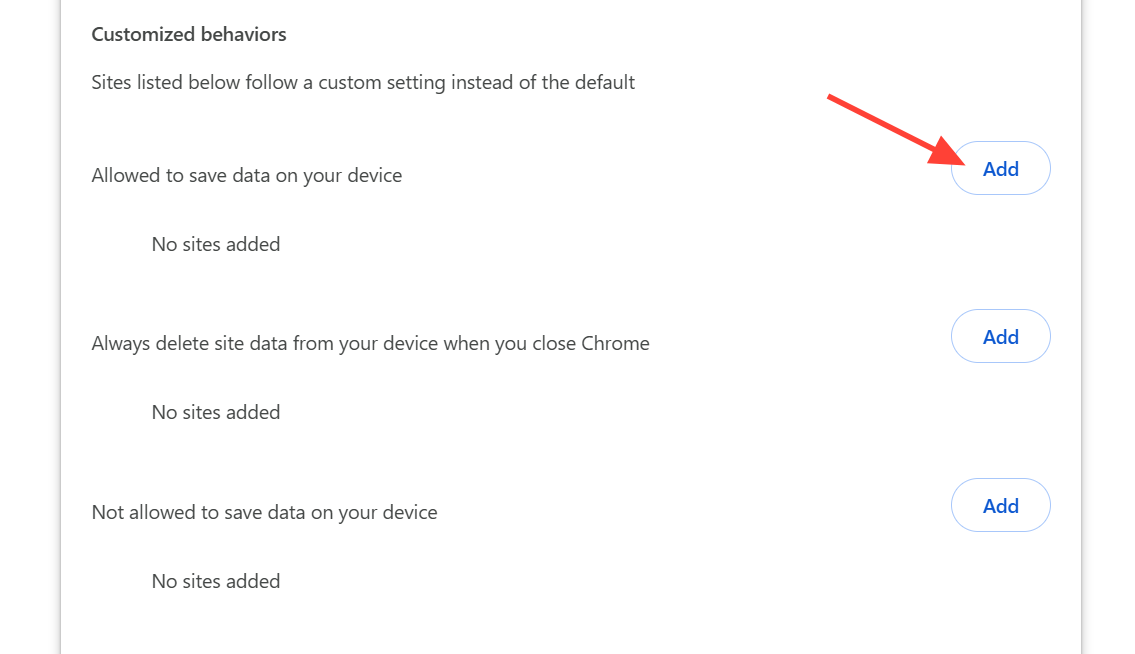
Deleting everything on exit will log you out of the sites you want to stay signed in to. The same page handles that. In the Customized behaviors section, you can add sites that should keep their data even when the default rule wipes the rest.
Add the sites you visit constantly, such as email or banking, to the allow list so their cookies survive a full close. Everything not on that list still gets cleared.
How to confirm it worked
Visit a site, close every Chrome window, then reopen Chrome and load chrome://settings/content/siteData again or check the site’s cookies. If the setting is working, the site should no longer show stored data, and you will be signed out. Sites you added under Customized behaviors should remain signed in.
Why cookies sometimes survive after closing Chrome
Some cookies can stubbornly reappear even with the setting enabled. A few specific causes explain most of these cases.
- A subdomain mismatch. A rule for
reddit.commay miss a cookie set onwww.reddit.com. Use the[*.]prefix format, for example[*.]reddit.com, to cover subdomains. - An extension tied to a site that re-downloads its data the moment Chrome starts, restoring the cookie before you can see it removed.
- A Chrome window left open. The wipe runs only after all windows are closed.
If a single cookie keeps returning, a fast manual fallback works without waiting for exit. Open chrome://settings/siteData, search for the site, and click the trash icon to remove its stored data. You do not need to restart the browser after clearing it this way.
For a one-time cleanup instead of an automatic one, use Delete browsing data from Privacy and security, check Cookies and other site data, set the time range to All time, and clear. That removes everything at once but logs you out of every site.