

Auto Low-Latency Mode (ALLM) lets your Xbox One tell a compatible TV or monitor to jump straight into its fastest, lowest-lag picture mode the moment you start playing. Instead of digging through the TV remote to find “Game Mode” every time, the console handles the switch for you. Microsoft added the feature to Xbox One through the April 2018 update, alongside variable refresh rate and 1440p monitor support.
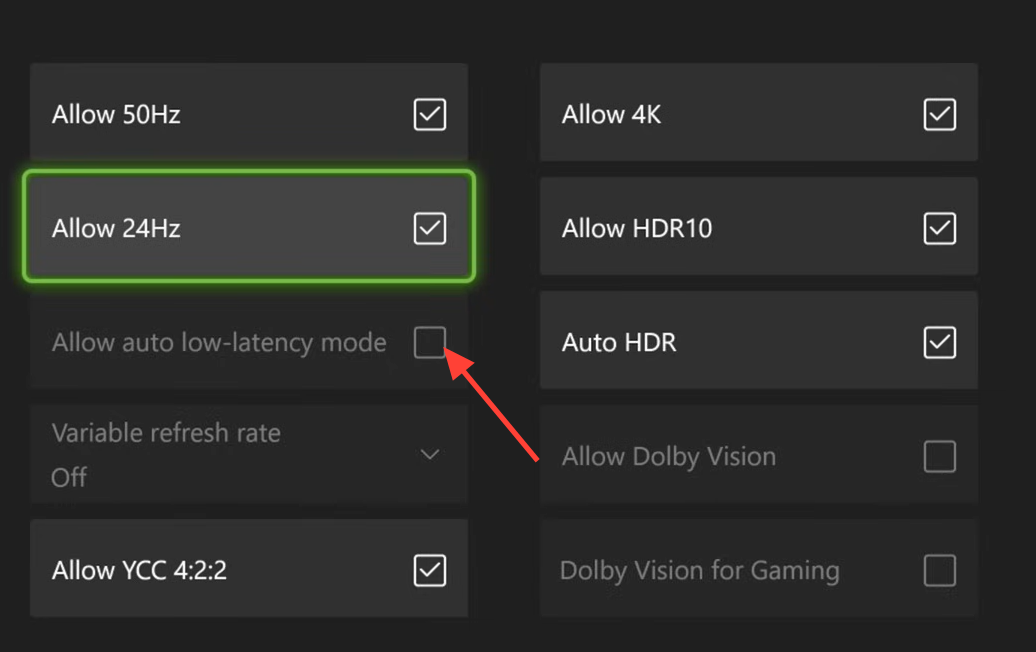
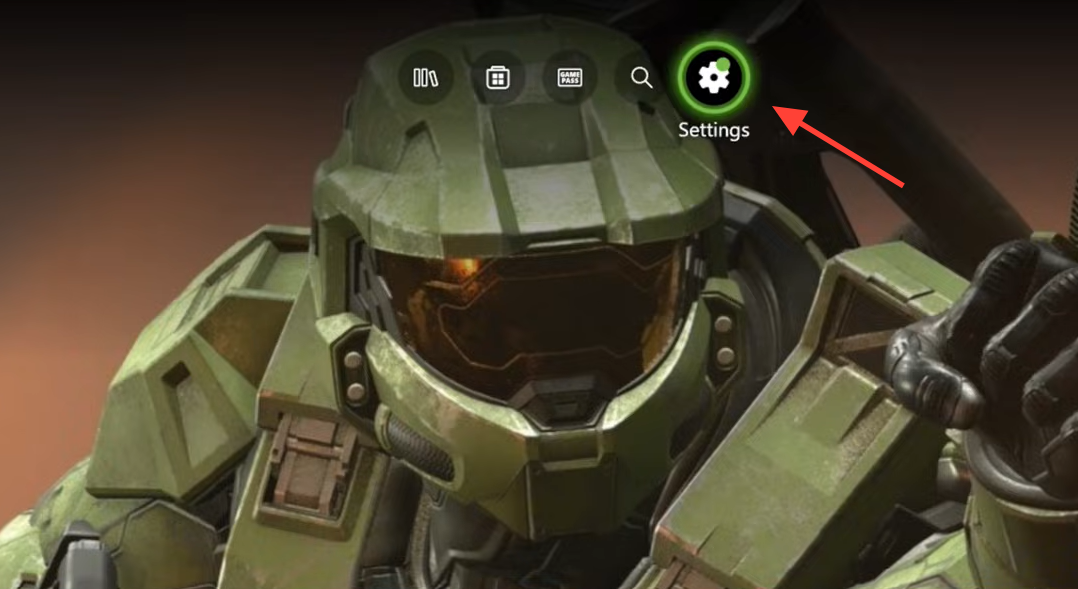
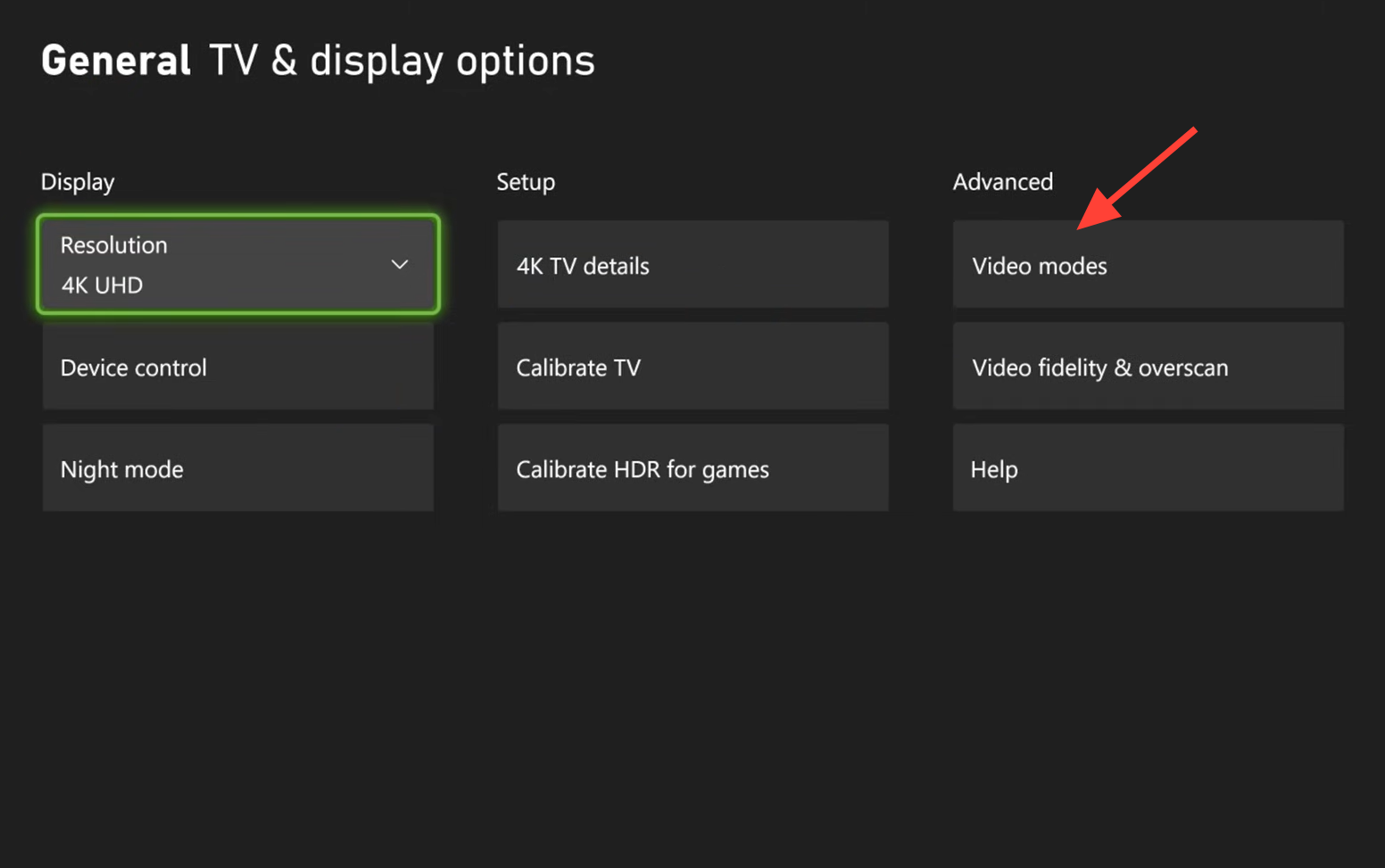
Quick answer: Open Settings > Display & sound > Video output > Video modes, then tick Allow auto low-latency mode. The box is only selectable when your display supports ALLM over HDMI.
What ALLM does and what you need first
Latency is the delay between pressing a button and seeing the result on screen. Many TVs add processing that improves the picture for movies but slows response, which hurts fast games. ALLM cuts that delay by telling the display to disable extra processing and stay in its low-latency mode while you game, then release it when you stop.
The feature is part of the HDMI 2.1 specification, which the HDMI Forum finalized in November 2017. Both ends of the connection must support it, so a compatible display is the hard requirement. Xbox One is not fully HDMI 2.1 compliant, but ALLM arrived through firmware, and some TV makers have added it to existing sets the same way.
| Requirement | Detail |
|---|---|
| Console | Xbox One, Xbox One S, or Xbox One X (also Xbox Series S and Series X) |
| Display | TV or monitor that supports ALLM over HDMI |
| Cable | A high-speed HDMI cable rated for your resolution and frame rate |
| Software | Console updated to firmware that includes the video modes menu |
If your TV or monitor does not support the feature, the ALLM option stays greyed out and cannot be selected. That is the clearest sign your display is the limiting factor rather than the console.
Enable ALLM on Xbox One
Enable ALLM on Xbox Series S and Series X
The current-generation consoles carry the same setting under a slightly different menu name.
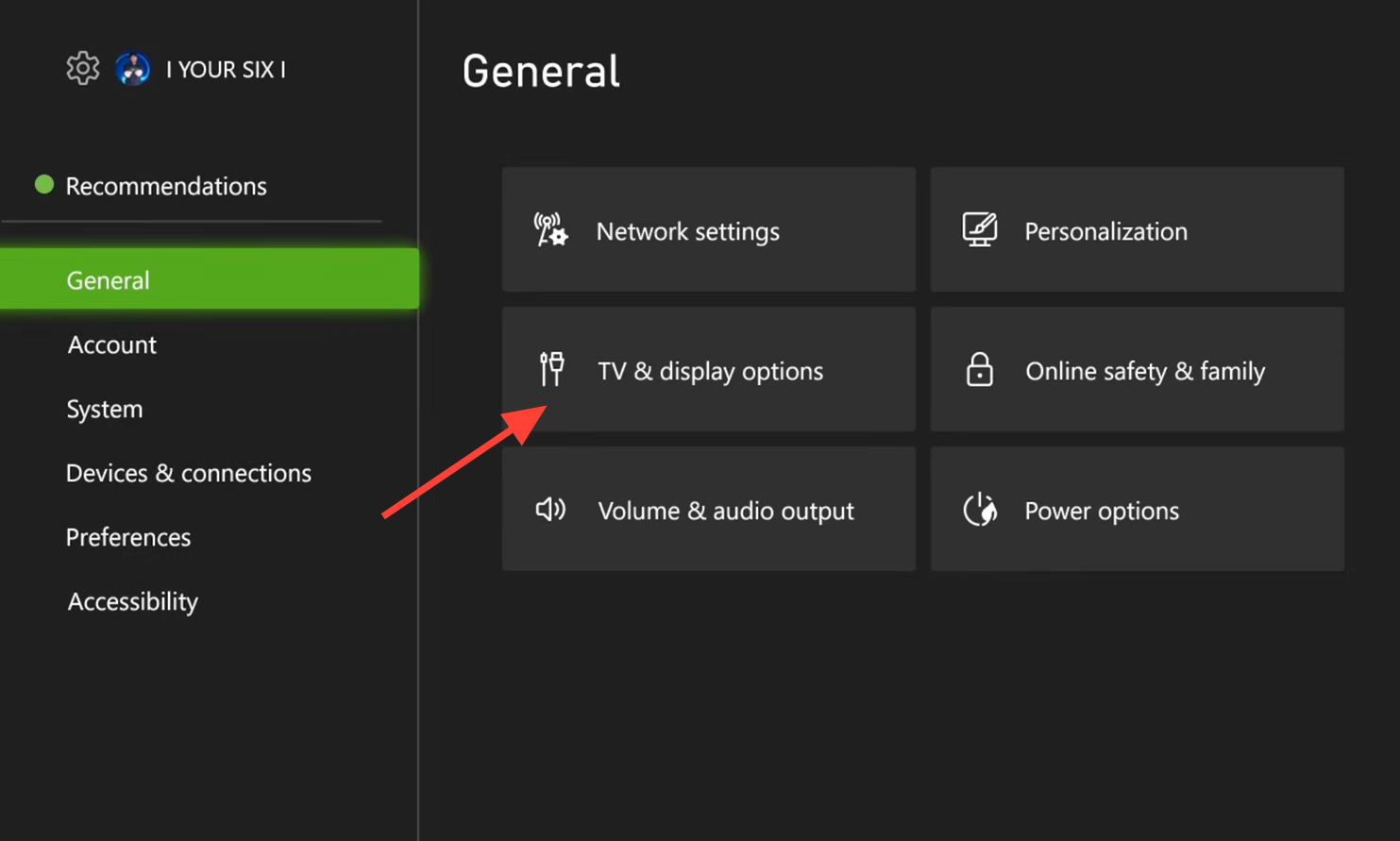
How to confirm ALLM is working
Once the checkbox is ticked, the console signals your display to switch modes automatically based on what is on screen. When you launch a game, the TV or monitor should drop into its low-latency picture mode without any manual input. Many displays show a brief on-screen prompt, such as a “Game Mode” banner, when they receive the ALLM signal. From that point on, the switch happens each time you move between gaming and other content.
Why the option is greyed out or not switching
If the setting will not turn on, work through the reasons below in order.
- The connected TV or monitor does not support ALLM, which leaves the checkbox faded and unselectable.
- The signal is passing through a receiver, switch, or cable that does not carry the ALLM handshake. Connect the console directly to the display to test.
- Your display supports the feature but has its own related setting switched off, such as an HDMI input mode or a game-mode auto-detect option in the TV menu.
Some players have reported problems when ALLM and variable refresh rate (VRR) are enabled at the same time. If you see unexpected picture behavior with both active, turn one off to isolate the cause before changing anything else.
With a compatible display and the checkbox ticked, your Xbox handles the low-latency switch for you every session, so fast-paced games render with less delay and no more hunting through the TV menu.