Stuttering in Neverness to Everness usually shows up as sudden frame drops while running through dense parts of the city, opening menus, or triggering combat effects. The game runs on Unreal Engine 5, which leans heavily on the CPU, GPU, and storage at the same time, so a single weak link, like an HDD or a saturated VRAM pool, can produce visible hitching even on otherwise capable rigs.
Confirm your PC meets the spec floor
Stutter that never goes away regardless of settings is almost always a hardware or storage problem, not a settings problem. Check your machine against the official requirements before tweaking anything else. An HDD in particular will cause traversal stutter as the game streams textures in and out.
| Component | Minimum | Recommended |
|---|---|---|
| OS | Windows 10 64-bit | Windows 10 / 11 64-bit |
| CPU | Intel Core i7-10700 | Intel Core i7-12700 or equivalent |
| GPU | GeForce GTX 1660 / Radeon RX 5600 | GeForce RTX 3060 / Radeon RX 6700 |
| RAM | 16 GB | 32 GB |
| Storage | SSD strongly preferred | NVMe SSD |
If you are below the recommended GPU or running 16 GB of RAM with a browser and Discord open, expect hitches in busy areas. Move the game to an SSD if it currently lives on a hard drive — texture streaming stutter disappears almost entirely on solid-state storage.
The graphics settings that matter most
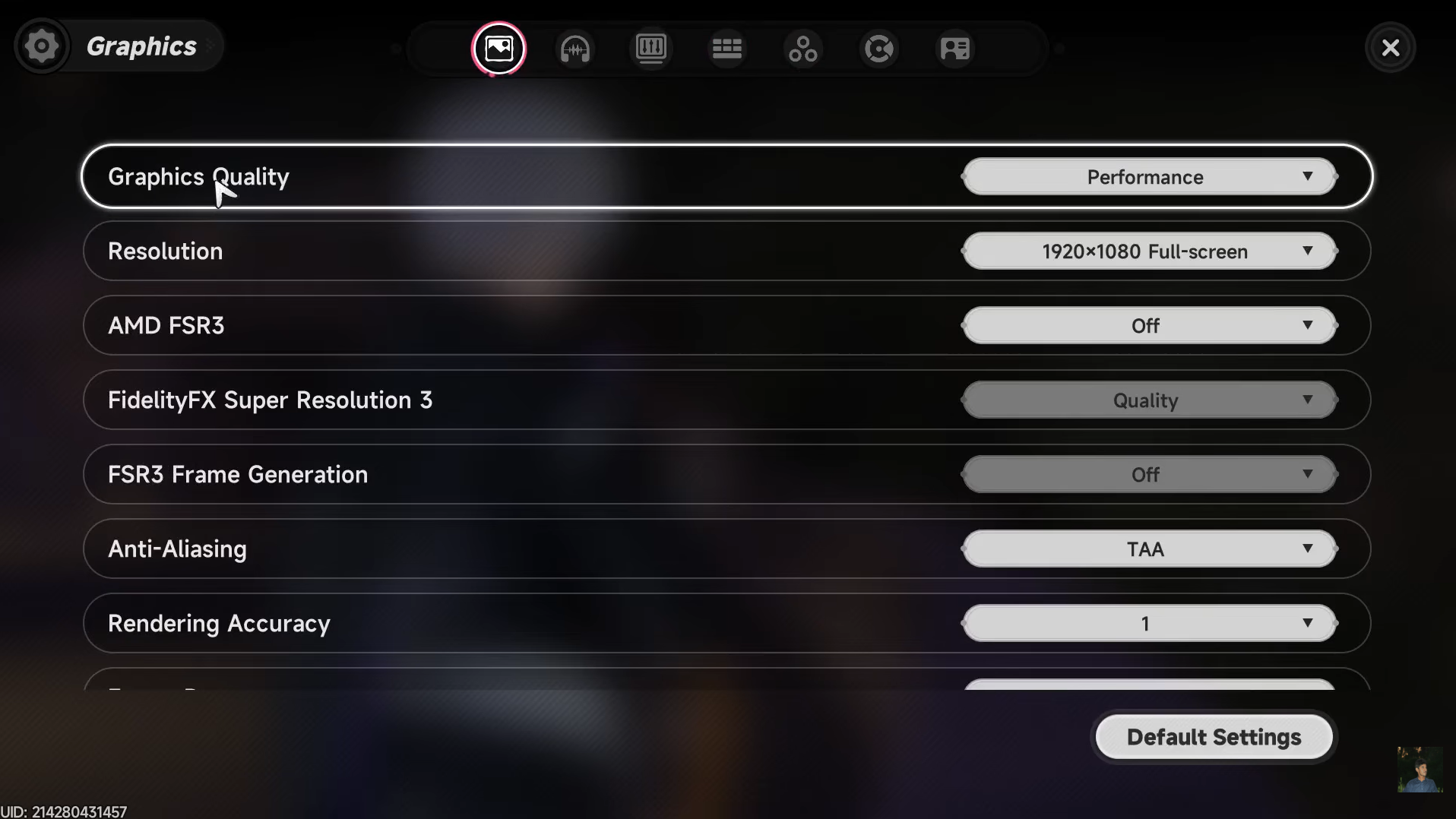
Two settings dominate performance: Graphics Quality and Frame Rate. Everything else is a secondary lever. Start by lowering the global preset, then re-raise individual options that matter to you visually. Anti-aliasing, post-processing, and render resolution mostly affect lighting, reflections, and edge smoothness rather than core frame pacing.
| Setting | Low-end PC | Mid-range PC | High-end PC |
|---|---|---|---|
| Graphics Quality | Low / Performance | Balanced | Ultra / Cinematic |
| Resolution | 1280×720 | 1920×1080 | Native monitor |
| DLSS / FSR | On | On | On |
| Upscaler mode | Performance | Quality | Quality or DLAA |
| Frame Generation | On | On | Off at high native fps |
| Frame Rate cap | 30 | 60 | 120 |
| Texture Quality | Very Low | Medium | Ultra |
| Material Quality | Very Low | Medium | High |
| Vegetation / Foliage | Very Low | Medium | High |
| View Distance | Very Low | High | Ultra |
| Post-Processing | Very Low | Medium | Ultra |
| Anti-Aliasing | Off | Preference | Preference |
| V-Sync | Off | Off | On if tearing |
| Motion Blur | Off | Off | Preference |
If your GPU supports DLSS, set it to Quality on mid-range hardware and Performance on lower-end cards. AMD users should enable FSR3 at the equivalent tier. Frame Generation helps perceived smoothness on mid-range systems but can add input latency, so leave it off if you already hit a stable native frame rate.
The hidden setting: Traffic density
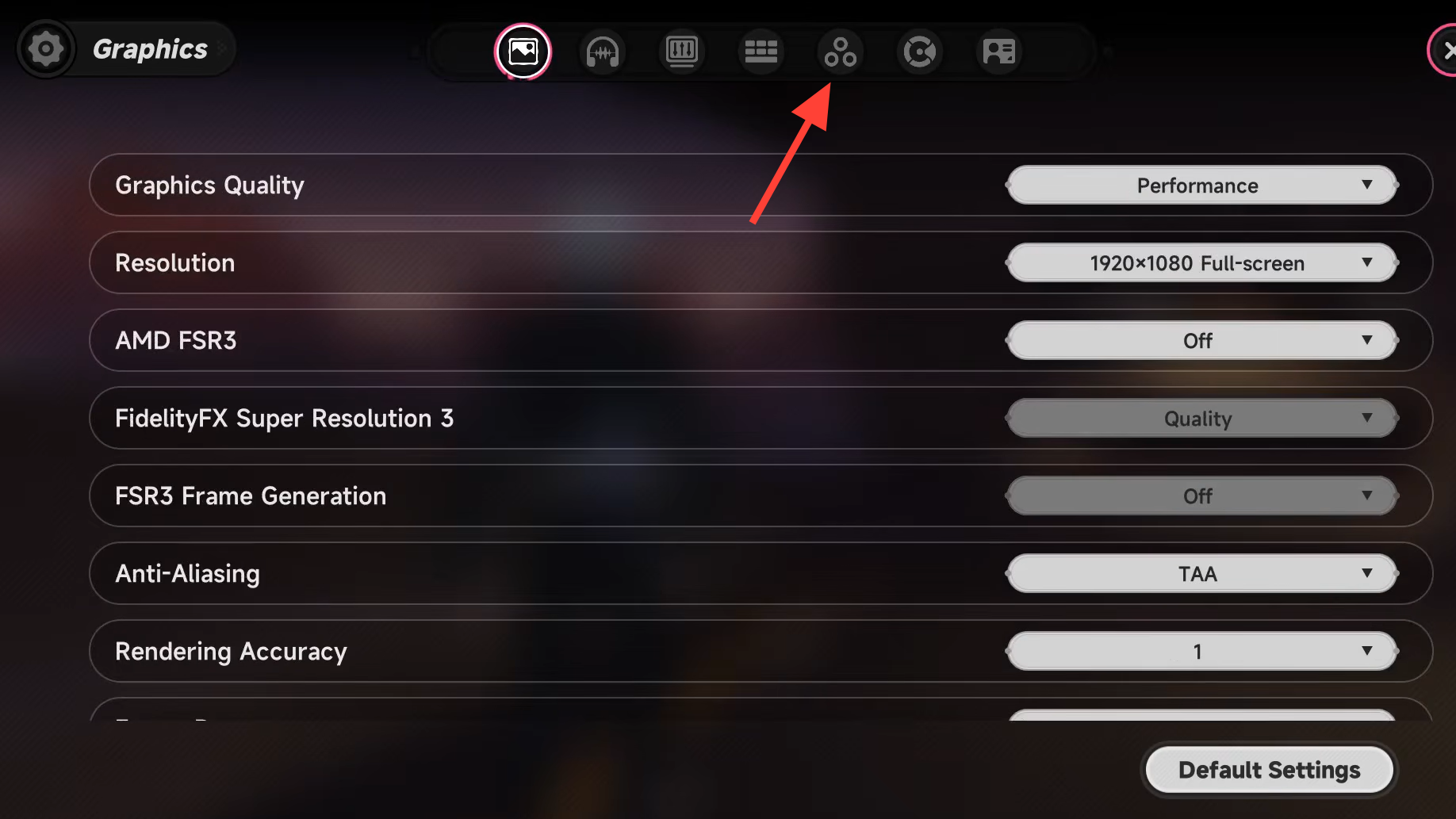
NTE’s open city pushes a lot of NPCs and vehicles through the world at once, and the Traffic option controls how many of them are simulated around you. Lowering it produces a noticeable jump in frame stability in dense districts.
Match frame rate to your display
Capping the in-game frame rate to your monitor’s refresh rate avoids wasted GPU cycles and reduces thermal load, which itself can trigger throttling-induced stutter. A 60 Hz panel does not benefit from running at 120 fps; the extra frames you cannot see still cost power and heat. On laptops or handheld-class PCs, a 30 fps cap noticeably extends battery life and keeps fans from spinning up mid-fight.
Background load and storage
Unreal Engine 5 streams assets continuously. Anything competing for disk bandwidth or RAM will produce visible stutter, even on a strong CPU and GPU. Close browsers, cloud sync clients, OBS, and any auto-updating launcher before starting NTE. If you’re on 16 GB of RAM, this step alone can eliminate several stutter spikes per minute.
Two more storage-side checks worth doing:
- Make sure the game is installed on an SSD, not a mechanical drive.
- Update GPU drivers — both NVIDIA and AMD have shipped UE5-targeted optimizations that materially affect texture streaming behavior.

Distinguishing stutter from network lag
NTE is always-online, so a bad connection can look like performance stutter at first glance. The two have different fingerprints. Performance stutter is a frame-pacing issue: the camera and animation hitch together, and your input feels responsive between hitches. Network lag is a synchronization issue: characters rubber-band, skills fire late, enemies skip across the ground, but the frame rate counter stays steady.
| Symptom | Likely cause |
|---|---|
| Frame rate dips, animation freezes briefly | GPU/CPU/storage |
| Smooth animation but delayed actions | Network latency |
| Character snaps back to a previous spot | Packet loss / unstable connection |
| Textures pop in late while moving | Slow storage or low VRAM |
| Stutter only after long sessions | Thermal throttling or memory leak |
For network-side issues, a wired Ethernet connection, closing background downloads, and switching to the closest server region resolves most cases. Bandwidth itself is rarely the problem — ping and packet stability are.
If stutter persists after all of the above
A handful of less obvious fixes catch the remaining cases:
- Restart the PC to flush memory leaks from prior sessions.
- Log into your account on another device briefly, then back on PC — this resolves rare server-side sync errors that present as freezes at load.
- Switch to Borderless Window mode if you alt-tab frequently; it avoids the brief stalls fullscreen exclusive mode produces when focus changes.
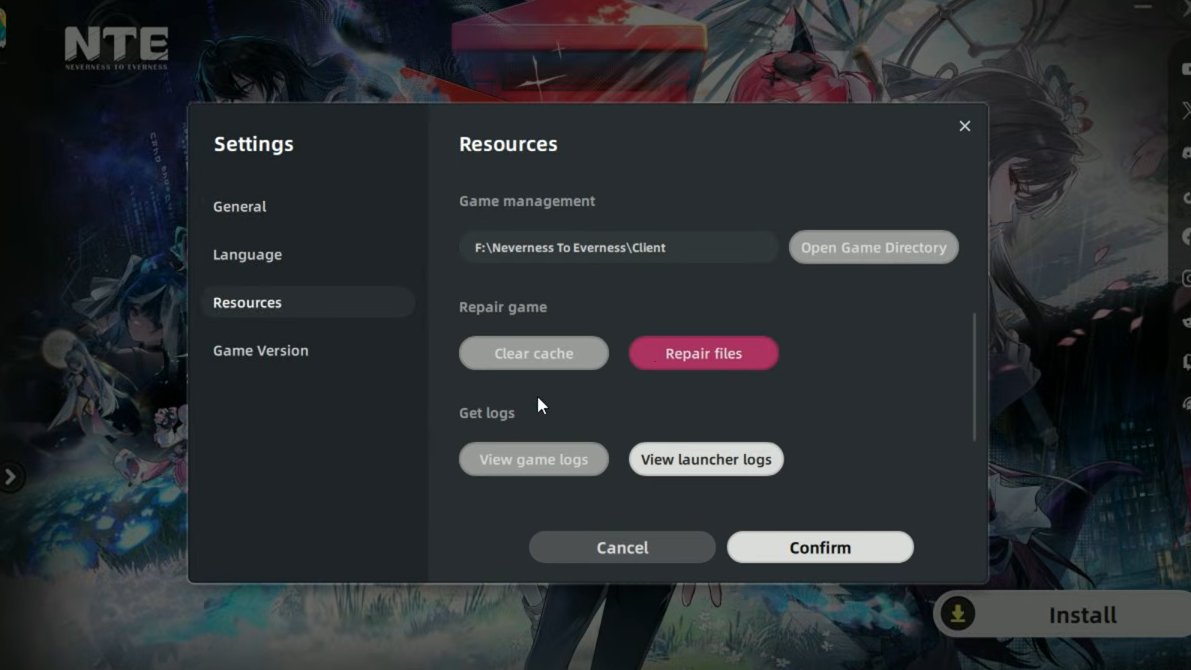
- Verify game files through the launcher if stutter is concentrated in specific zones — a corrupted asset can cause repeatable hitches at the same coordinates.
Most stutter in Neverness to Everness traces back to three things: an underpowered or thermally limited GPU, slow storage, and overly aggressive default graphics settings on UE5. Fix those in order and the game settles into a stable frame rate even in the busiest districts.