

Encrypted Outlook messages are supposed to feel invisible: they land in your inbox and open like any other email, with the cryptography happening in the background. That illusion breaks fast when Outlook throws a stark banner instead of your message body: You don't have sufficient permissions to open the mail.
That line is not a generic Outlook failure. It usually means three things are in play: Microsoft Purview Message Encryption, access rules attached to the message, and the specific account or app you’re using to open it. Once you know which of those is out of place, the fix is usually straightforward.
What the “insufficient permissions” message is really saying
Encrypted and “protected” messages in Outlook are controlled in two layers:
- Encryption (Microsoft Purview Message Encryption or S/MIME) hides the content from anyone who doesn’t have the right key.
- Usage restrictions (rights management/sensitivity labels) decide who is allowed to open, forward, print, or reply.
When Outlook says you don’t have sufficient permissions to open the mail, it’s usually not complaining about your device or browser. It’s almost always saying one of these:
- You’re signed in with an account that the encryption service doesn’t trust for this message.
- The sender applied a label or policy that only allows internal users in their organization or explicitly blocks external recipients.
- The client you’re using isn’t allowed or able to complete the decryption flow for this scenario.
That explains why the same encrypted message sometimes opens on your phone but not in Outlook web mail, or opens fine for coworkers but not for you. The policy travels with the message.
How Outlook normally opens encrypted and protected email
Modern Outlook clients integrate with Microsoft Purview Message Encryption so that most users never see a special flow at all. When everything is configured correctly:
| Client | Encrypted message behavior | Protected (Do Not Forward, etc.) behavior |
|---|---|---|
| Outlook for Microsoft 365 / Outlook 2019+ | Encrypt-only messages open like normal mail, with a small permissions notice. | Opens directly; a banner shows restrictions such as Do Not Forward or Do Not Print. |
| Outlook on the web / Outlook.com | Encrypt-only opens directly in most cases; some external flows show a “Read the message” link. | Opens in place with a banner describing restrictions. |
| Outlook for iOS / Android | Encrypt-only opens directly in the app. | Opens with restrictions enforced in the mobile client. |
| Other services (Gmail, Yahoo, ISP mail) | Receives an email with a “Read the message” link that opens a secure browser view. | Same: reads in a secure browser window with restrictions enforced there. |
That is the baseline. When you see the permissions error, you’re outside that happy path for one of the reasons below.
Common cases when the permissions error appears
1. The sender’s label blocks you as a recipient
Many organizations encrypt messages by applying a sensitivity label such as “Confidential – All Employees” or “Internal Only”. Those labels can do more than encrypt. They can also say “only users in this Microsoft Entra tenant can open this content” or “no external users allowed”.
If you’re outside that organization and your address is on the message, Outlook still delivers it. But when your client checks with the encryption service, the service can respond: you are not on the allowed list. Outlook then shows you exactly what’s going on in the driest possible way: you don’t have sufficient permissions to open the mail.
There is nothing you can toggle in your own Outlook account to bypass that kind of restriction. The sender (or their admin) has to change the label or permissions and resend the message.
What to do as the recipient
- Tell the sender that their encrypted message shows a permissions error when you open it.
- Ask them to confirm whether the label they used allows external recipients, and whether your address is included explicitly if needed.
What to check as the sender or admin
- Open the message in Sent Items and check what sensitivity label is applied.
- In Microsoft Purview’s Information Protection settings, review that label’s encryption rules and allowed users.
- If the label is scoped to internal users only, use a label that supports external recipients or define explicit external permissions.
2. You’re using the wrong type of Outlook account for that mailbox
The Outlook brand covers a few very different account types:
- Work or school accounts in Microsoft 365 (Exchange Online, typically at
@company.com). - Consumer Microsoft accounts (
@outlook.com,@hotmail.com,@live.com,@msn.com).
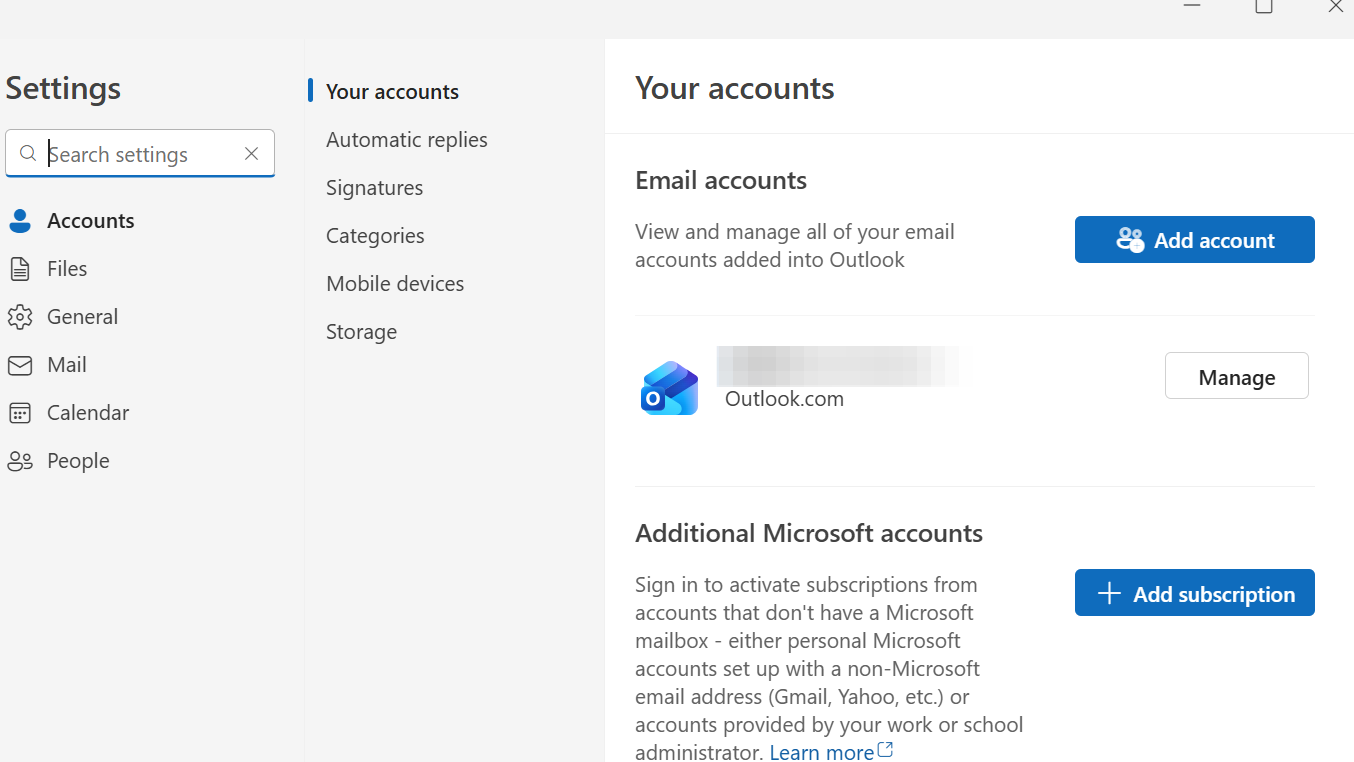
Encrypted messages targeted at a work address expect to see a signed-in work identity from that tenant. If you open an encrypted message in Outlook web mail while signed in with a personal Microsoft account instead of the work account where the message was sent, Outlook can’t complete decryption even though the UI looks similar.
Quick checks in Outlook on the web or Outlook.com
- Look at the top-right corner and click your profile picture or initials.
- Confirm that the email address shown there is the mailbox that actually received the encrypted message.
- If not, sign out and sign in with the correct account, then open the encrypted message again.
This mismatch is especially common when people use multiple Outlook identities (for example, a free Outlook.com inbox plus a work mailbox through Microsoft 365) in the same browser profile.
3. The message is encrypted for an organization, not your standalone address
Some encrypted messages are specifically bound to a work or university organization account. A typical case is a user who works for a small company using their own domain, but tries to open encrypted mail through Outlook.com or another unrelated identity.
On the surface, this can look bizarre: the email arrives at you@company.com and opens fine on a mobile device, but shows the permissions error in Outlook web mail. Under the hood, the mobile client is using the correct organizational identity to negotiate access with the encryption service, while the web session is tied to a different, unlicensed, or personal identity.
Steps to take
- Make sure that the mailbox is added as a proper work or school account in Microsoft 365, not only forwarded into a personal Outlook.com inbox.
- Access the mailbox via the work endpoint at
https://outlook.office.com/mail/using your organization credentials, then open the encrypted message there.
When a message is truly tied to an organization account, opening it from any other context—even another Outlook-branded product—will trigger the permissions failure.
4. Outlook desktop or policies are blocking the encryption service
For encrypted messages backed by Microsoft Purview Message Encryption, the Outlook desktop client talks to the Azure Information Protection (AIP) service in the background. If that connection is blocked or misrouted, decryption fails even though your account has permission.
That breakdown is more common when:
- Conditional Access policies in the sender’s tenant block external users from reaching the AIP endpoint.
- Multi-factor authentication rules add an extra requirement that the external recipient’s Outlook client can’t satisfy.
- A firewall or TLS inspection device intercepts traffic to AIP and replaces Microsoft’s certificate.
For external recipients, the net effect can be one of two things:
- The message body is blank in Outlook desktop.
- The message only shows a “Read the message” link that opens the secure browser portal instead.
When the Outlook desktop client can’t complete the secure handshake with AIP, it cannot obtain the decryption keys, which can manifest in Outlook as a permission or restricted-content error.
Things admins should verify
- In Exchange Online PowerShell, ensure
IRMEnabledis enabled on the OWA mailbox policy for affected users so they can decrypt via Outlook on the web:
Get-OwaMailboxPolicy | FL *IRMEnabled*

Set-OwaMailboxPolicy -Identity OwaMailboxPolicy-Default -IRMEnabled $true
- Confirm that Purview Message Encryption is correctly configured in the tenant and that users have appropriate licenses.
- Check Conditional Access rules to ensure AIP is not blocked as a cloud app for the scenarios where external recipients must decrypt messages.
- From an affected client, verify that connecting to the AIP admin URL presents a Microsoft-issued certificate, not one from a proxy or inspection device.
As a workaround, when Outlook desktop is blocked, external recipients can usually open encrypted messages in Outlook on the web, Outlook for iOS, or Outlook for Android, which handle decryption in the service and are less sensitive to local AIP connectivity.
5. A misapplied “Do Not Forward” policy masquerading as “Encrypt-Only”
Within organizations that use sensitivity labels, users can choose different encryption modes for their outgoing messages. Two common ones are:
- Encrypt-Only: encrypts the message but generally allows recipients to reply and forward within the rules set by the org.
- Do Not Forward: encrypts and blocks recipients from forwarding, copying, or in some cases even replying.
In some Outlook desktop builds, users who picked “Encrypt-Only” from the File > Encrypt menu actually ended up applying a label configured closer to “Do Not Forward”. Messages sent using that path arrived as extremely locked-down protected content. In many environments, recipients—even inside the same tenant—then saw “You don't have sufficient permissions to open the mail” in Outlook, Outlook on the web, and new Outlook.
When users instead applied encryption from the Options ribbon’s Encrypt button, the correct Encrypt-Only behavior was applied, and messages opened normally.
What to do in that scenario
- Instruct users to use the Options > Encrypt button instead of the File > Encrypt path until the label configuration or client behavior is corrected.
- In Microsoft Purview, review the sensitivity label associated with Encrypt-Only to confirm it is not configured with Do Not Forward-style restrictions.
- Ensure the latest Outlook desktop updates are installed and, if needed, test with a clean Outlook profile to clear any cached label mappings.
Because Do Not Forward can explicitly prevent some recipients from opening or replying, it easily triggers the same permissions error when misapplied.
6. Outlook.com-specific limitations with encrypted mail
Not every encrypted message behaves the same when it lands in a consumer Outlook.com mailbox. Some encrypted flows are designed around organizational identities and Windows desktop Outlook, and are not fully supported on web or mobile for consumer accounts.
Users with Outlook.com or Hotmail addresses have observed cases where encrypted mail from a Microsoft 365 sender shows nothing but “You don't have sufficient permissions to open the mail” when opened in Outlook.com or Outlook for Android, with no “Read the message” link or passcode flow available.
In those scenarios, the encryption pipeline has effectively decided that the only supported client is Outlook desktop tied to an organizational subscription. Since the Outlook.com identity is treated differently, the decryption handshake never completes, and there is no web-based fallback link to click.
There is no client-side setting in Outlook.com that unlocks those messages. The sender would need to choose an encryption method that supports external consumer addresses with the one-time passcode or sign-in link workflow, or send to a different email provider that exposes that flow.
What you can realistically do, depending on who you are
As a recipient seeing the permissions error
- Confirm you’re in the right account. In the Outlook client you’re using, check that you’re signed in with the same mailbox that appears on the To: line.
- Try a different Outlook client. If you’re on a Windows desktop, try Outlook on the web. If you’re on Outlook.com, try Outlook for iOS or Android. Some combinations support decryption where others do not.
- Contact the sender. Tell them you receive their encrypted mail, but get the exact banner text “You don't have sufficient permissions to open the mail” when you open it. They or their IT team need to confirm the label and encryption policy they applied.
- Provide an alternate address if needed. For sensitive mail from healthcare providers or banks, it may be more practical to use a different email service if the current one cannot complete the encrypted workflow.
As a sender or Microsoft 365 admin
- Audit the label attached to the message. If external recipients are involved, use labels that explicitly allow them or configure per-recipient permissions, rather than strictly internal-only templates.
- Verify Purview Message Encryption is fully licensed and configured. Ensure affected users and shared mailboxes have licenses that include encryption, and that IRM is enabled for Outlook on the web.
- Check Conditional Access and MFA policies. If external recipients must open encrypted mail in Outlook desktop, make sure your AIP endpoints aren’t blocked for them and that MFA rules do not block the handshake.
- Standardize how users apply encryption. Prefer a single, documented method in Outlook (for example, the Encrypt button on the Options ribbon) that always maps to the expected label and permissions.
Encrypted Outlook mail is only as usable as the policies behind it. When those policies expect a specific identity, client, or tenant boundary, Outlook surfaces that mismatch with the blunt message that you don’t have permission—even when you’re the person the sender had in mind. Fixing it usually means aligning three things: the right account signed in, a client that can talk to the encryption service, and a label that actually allows you to read what was sent.