Matchmaking error #2 in Fortnite stops you from joining a match and usually reads, “We had trouble connecting to content beacon service.” It is a connection problem between your setup and Epic’s servers, not a problem with your account or skill. It shows up across Battle Royale, Creative, and other playlists, and it tends to spike around updates and outages.
Quick answer: Confirm Fortnite’s servers are up at status.epicgames.com, then restart the game, power-cycle your router, switch to Google DNS (8.8.8.8 / 8.8.4.4), sync your device clock, and clear the platform cache. You are fixed when you queue into a match without the error returning.
What triggers Fortnite matchmaking error #2
Error #2 is tied to the content beacon service, the part of matchmaking that hands you off to a game server. When your client cannot reach that service, you get kicked back to the lobby and sometimes lose access to quests or the item shop too. Two causes account for nearly all cases.
- Server maintenance or an active outage on Epic’s side, which means waiting is the fix.
- A network problem on your end, such as a stale router session, ISP DNS issues, a clock that drifted out of sync, or a corrupted cache.
Check Fortnite server status before anything else
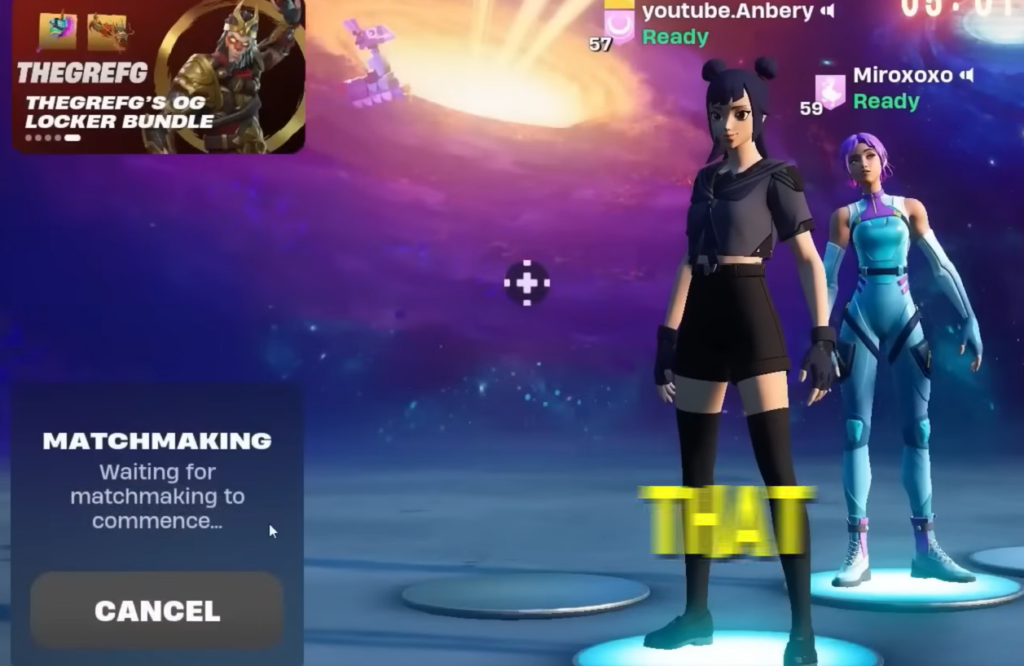
Start at the Epic status page, status.epicgames.com, and look for matchmaking or maintenance flags. If a system is down, no local fix will help, so keep an eye on the status changes and try again once everything is green. The Fortnite Status account on X also posts when matchmaking is disabled and when it comes back.
If the error message says you do not have permission to play certain content, that is a different code linked to tournament eligibility, not error #2.
Restart Fortnite and your router
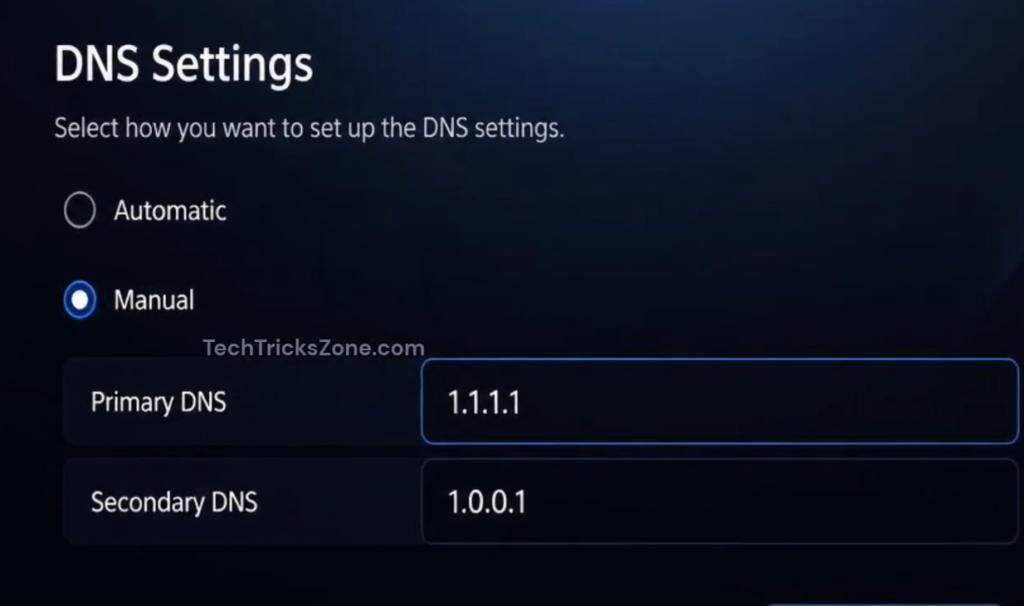
Switch to Google public DNS
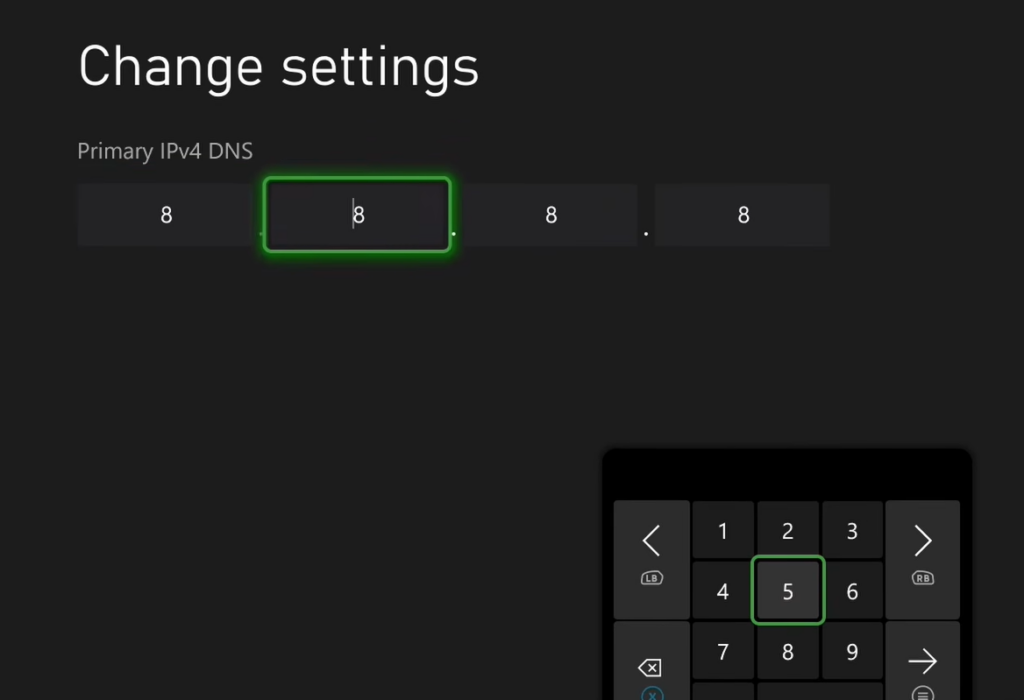
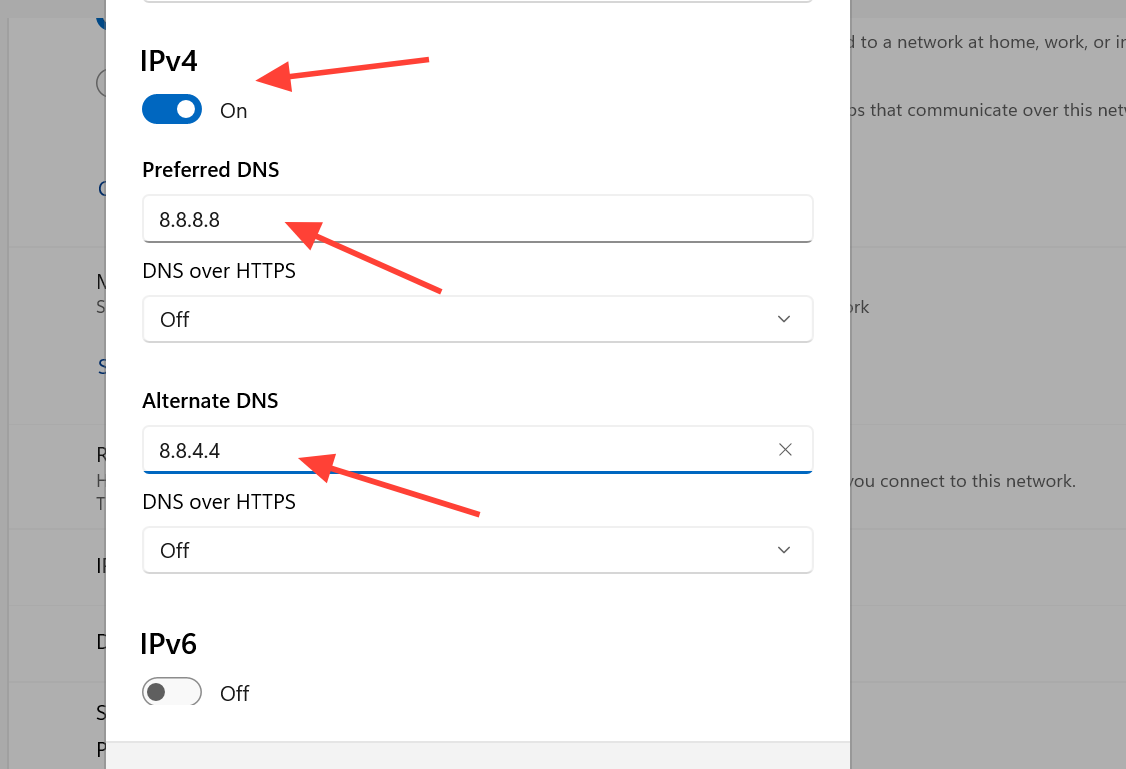
If your ISP’s DNS is unreliable, swapping to Google DNS gives Fortnite a more stable way to resolve Epic’s services. The addresses are the same on every platform.
| DNS field | IPv4 value | IPv6 value |
|---|---|---|
| Primary / Preferred | 8.8.8.8 | 2001:4860:4860:0:0:0:0:8888 |
| Secondary / Alternate | 8.8.4.4 | 2001:4860:4860:0:0:0:0:8844 |
PlayStation
Xbox
PC
Sync your device clock
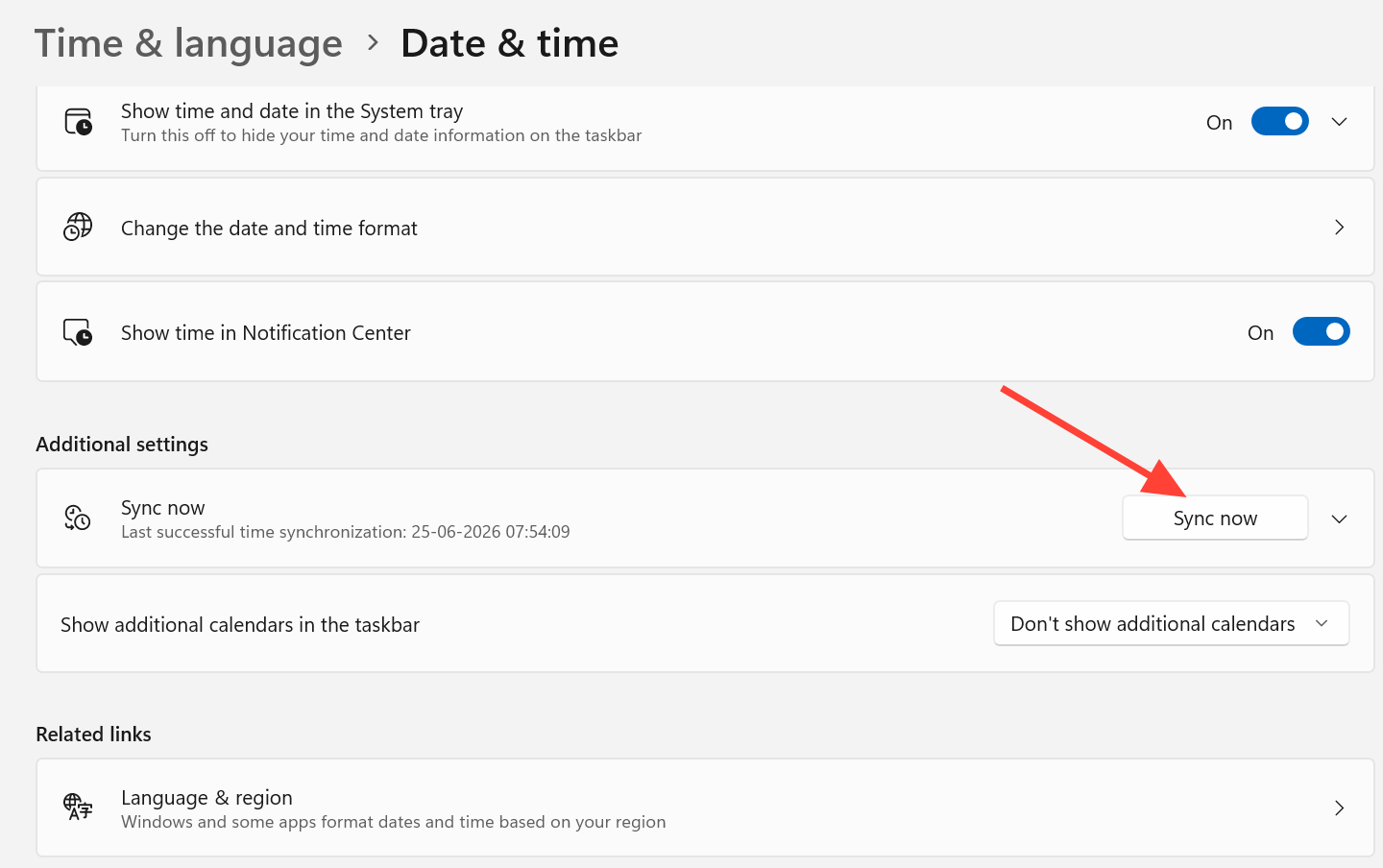
Epic’s servers reject connections when your device time has drifted, which can surface as a matchmaking error. Open your console or PC settings and set the time and time zone to update automatically. After the clock corrects itself, restart Fortnite and queue again.
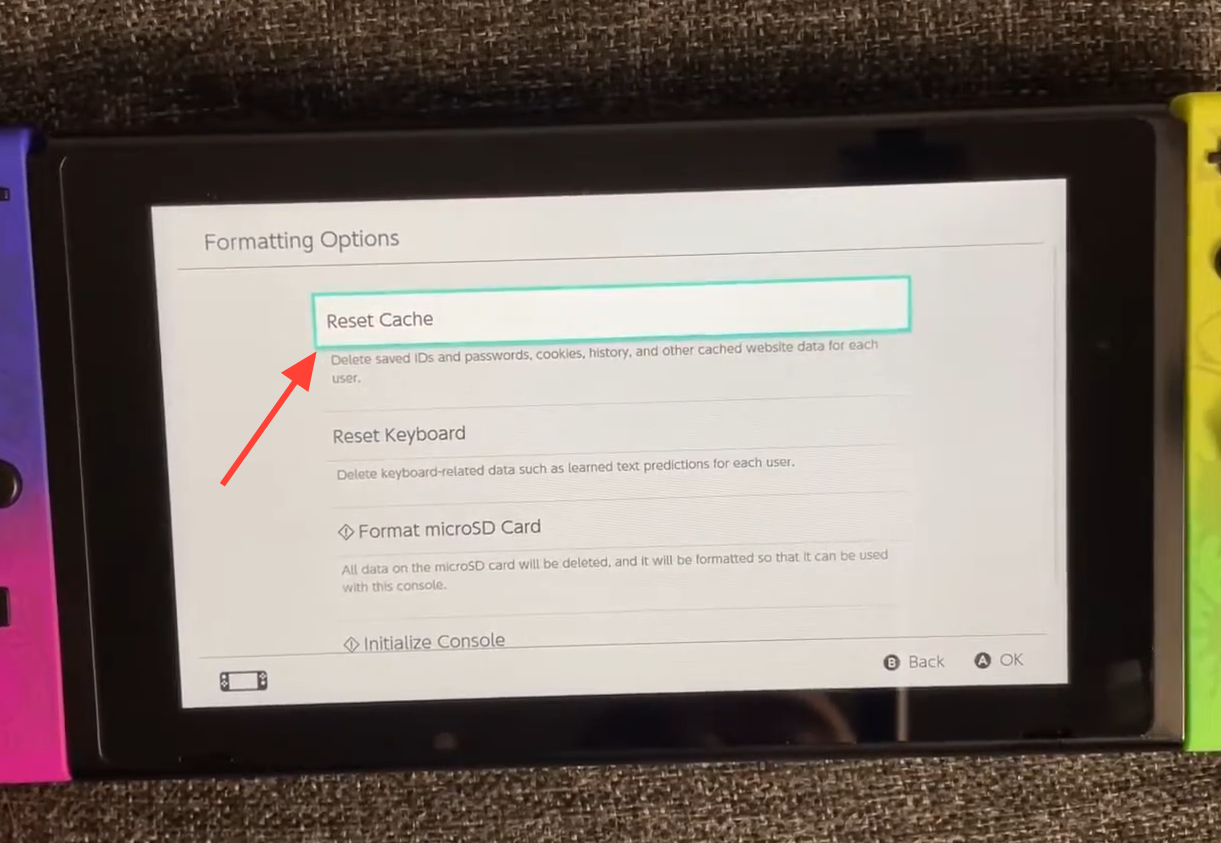
Clear the cache on your platform
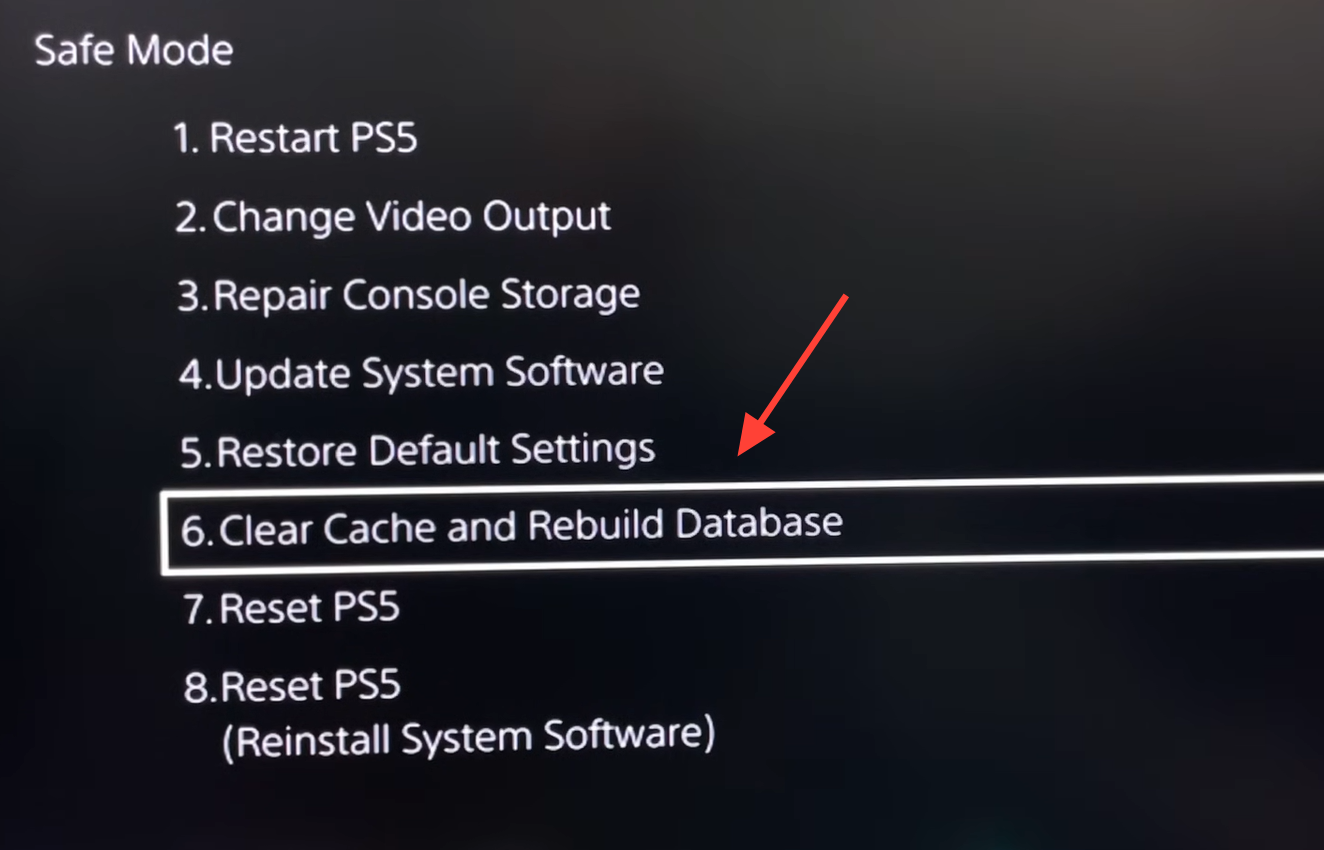
A full or corrupted cache can block the connection to Epic’s servers. Clearing it does not delete your account or saved data, so this is safe to do.
PlayStation
Xbox
Nintendo Switch
PC
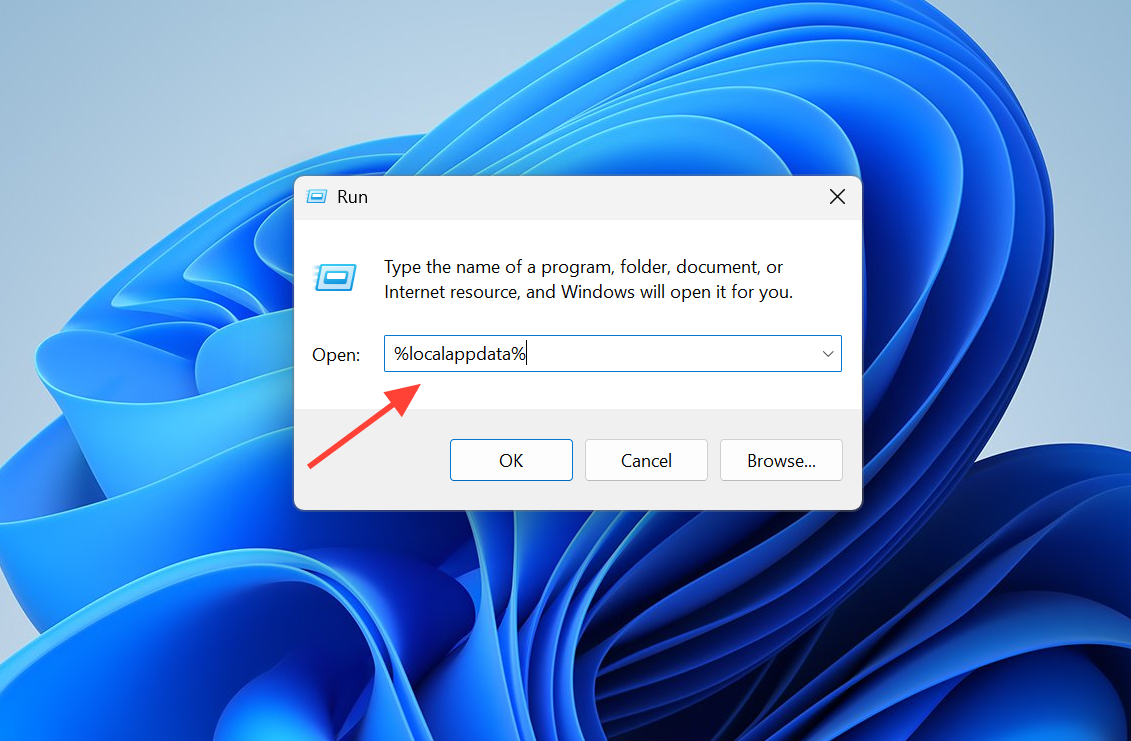
webcache, webcache_4147, and webcache_4430.How to confirm the fix and when to report it
You know the problem is solved when you queue into a playlist and load into a match without being bounced to the lobby, with quests and the shop accessible again. If the error message still appears after a server check, a router reset, a DNS change, a clock sync, and a cache clear, the issue is no longer a routine one.
At that point, file a report so Epic can investigate using the in-game Fortnite bug report tool. Until then, switching to a different game mode or changing your party size and re-entering the playlist can also clear a stubborn party matchmaking hiccup.