

Where Winds Meet players have been running into an “abnormal account information” style error that blocks logins, sometimes right after a crash or when launching through cloud services like GeForce NOW. On bad days it can look like a ban, or like your save has vanished, even when you only played for an hour and never touched cheats.
What “abnormal account information” usually means in Where Winds Meet
The game sits on top of several authentication layers. At minimum there is:
- a Where Winds Meet / NetEase account backend,
- Epic Games, Steam or the standalone launcher, and
- Epic Online Services (EOS) for cross-service login.
When any of those fails to agree on who you are, the client often surfaces a generic message about abnormal or invalid account information. In practice, players see it in three main situations:
- Platform login outages, such as Epic Online Services or Epic account login problems. In these cases, many players on PC are locked out at once, including those not on GeForce NOW.
- Account enforcement when the anti-cheat system has flagged an account for cheating, speed hacks, or third‑party tools. The official team has already suspended about 5,000 accounts for these violations between November 15 and December 5, and those users can expect restricted access or bans.
- Client or cache issues where your local launcher or network is holding on to broken authentication data after a crash or failed launch.
The same on-screen wording can mask very different causes, which is why you should check for wider outages and ban notices before diving into local troubleshooting.
Check whether it’s a ban or a wider server/login issue
Before changing settings or reinstalling, confirm whether the game is rejecting only your account or whether the login system itself is unstable.
Look at official ban communications. The development team publishes ban waves under “Account Suspension for Violations” on the official site at wherewindsmeetgame.com, listing masked account IDs, reasons such as “Cheat”, “Speedhack”, or “Third-Party Tools”, and the enforcement window. If your account is on that list or you know you used automation or cheats, the abnormal account message is likely an enforcement outcome rather than a bug.
Watch for mass outages. When Epic Online Services or Epic account login goes down, players on Epic, GeForce NOW, and even VR streaming setups all report the same abnormal account or login failure message at the same time. In that situation:
- The Epic Games website or launcher may briefly mark login as “operational”, then flip back to degraded or maintenance.
- Some people can get in for a few minutes, then are kicked back out into the same error.
If many players are locked out simultaneously and can’t log in on different PCs or networks, you are likely looking at a platform-side incident. There is nothing meaningful to fix locally beyond waiting for those services to stabilize.
If: only your account is affected, the servers and platform logins are stable, and you are confident you never used cheats or third‑party tools, proceed with client and network fixes.
Fix launcher and cache issues on Epic Games (PC and GeForce NOW)
One common cause of failed account retrieval and abnormal account errors is corrupted launcher cache or a broken Epic authentication token. Clearing that and forcing a fresh login often helps.
Method 1: Clear Epic Games Launcher cache and relaunch as admin
Step 1: Close Where Winds Meet and fully exit the Epic Games Launcher. Make sure it is not running in the system tray.
Step 2: Open File Explorer and go to the Epic Launcher cache folder. The path typically includes the “EpicGamesLauncher” and “Saved” directories under your local app data. Delete the webcache folder, or the entire Saved folder if you want to force a complete refresh.
Step 3: Right-click the Epic Games Launcher shortcut and choose to run it as administrator. This gives the launcher the rights it needs to rebuild cache and write updated authentication files.
Step 4: After Epic opens, launch Where Winds Meet from inside the launcher instead of double‑clicking the game’s WWM.exe directly. This ensures the game starts with a fresh login token.
Method 2: Reinstall Where Winds Meet cleanly through Epic
When the game itself is in a bad state, reinstalling can clear broken login flows or leftover beta data.
Step 1: Uninstall Where Winds Meet from the Epic Games Launcher library.
Step 2: After uninstall completes, remove any leftover local data for the game in your user’s app‑data path under a Where Winds Meet entry. This cleans out residual files that the uninstaller may leave behind.
Step 3: Install the game again through your Epic library and launch it from Epic once the download finishes.
Fix “launch failed” and privilege problems when the game will not start
Some players never reach the login screen at all. On Epic, an “LS‑0003” style error and a “launch failed, could not launch Where Winds Meet” message can appear even though the installation verifies as 100 percent complete.
In these cases, the problem is often that the game and/or Epic Launcher do not have sufficient privileges to run their anti‑cheat and networking components.
Method 3: Run the game executable itself as administrator
Step 1: Locate the Where Winds Meet install folder. If it was installed through Epic, open the install drive, then open the game’s main folder.
Step 2: Inside the game folder, open Engine, then Binaries, then Win64. Find WWM.exe.
Step 3: Right‑click WWM.exe, open Properties, go to the Compatibility tab, and enable “Run this program as an administrator.” Confirm with OK.
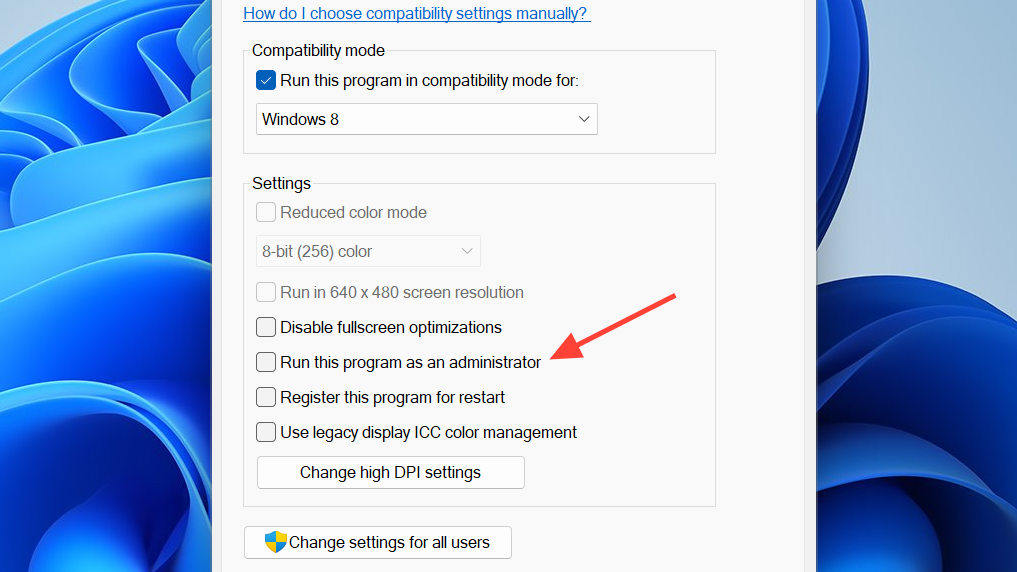
Step 4: Right‑click WWM.exe again and choose to send a shortcut to the desktop. Launch through this shortcut and approve the UAC prompt. The game should now be allowed to initialize its services properly.
Method 4: Run the Epic Games Launcher itself as administrator
Step 1: Close Epic completely.
Step 2: Find the main Epic Games Launcher executable in its install directory (not the desktop shortcut). Right‑click it, open Properties, and enable “Run this program as an administrator” in the Compatibility tab.
Step 3: Launch Epic, log in, and start Where Winds Meet from the launcher. With both Epic and the game running with the required privileges, LS‑0003 “verify installation” errors that are not really file‑corruption related often disappear.
Adjust Windows security and firewall to stop login being blocked
Even when servers are up and your account is clean, security software can silently block the game’s network calls and produce account login failures, including “account login failed, check the network and restart the game” style messages.
Method 5: Allow WWM.exe in Windows security controlled folder access
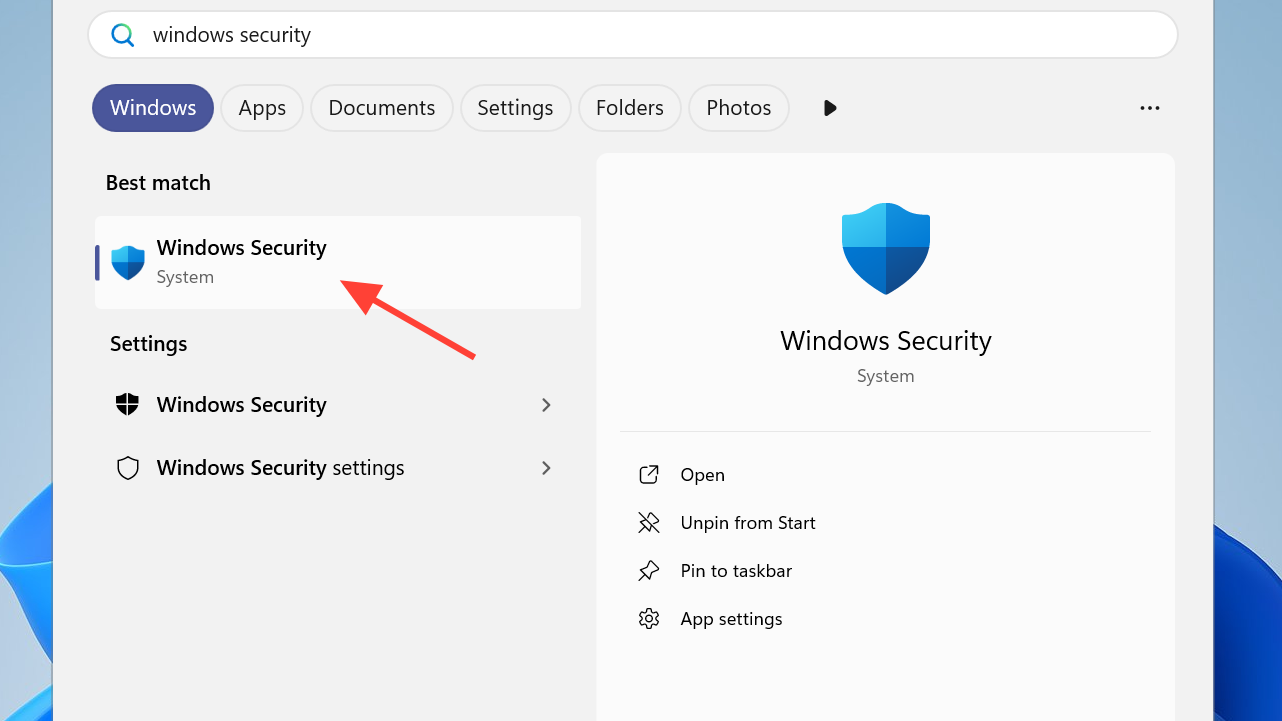
Step 1: Open the Windows Security app from the Start menu.
Step 2: Go to “Virus & threat protection,” scroll down, and open “Manage ransomware protection.”
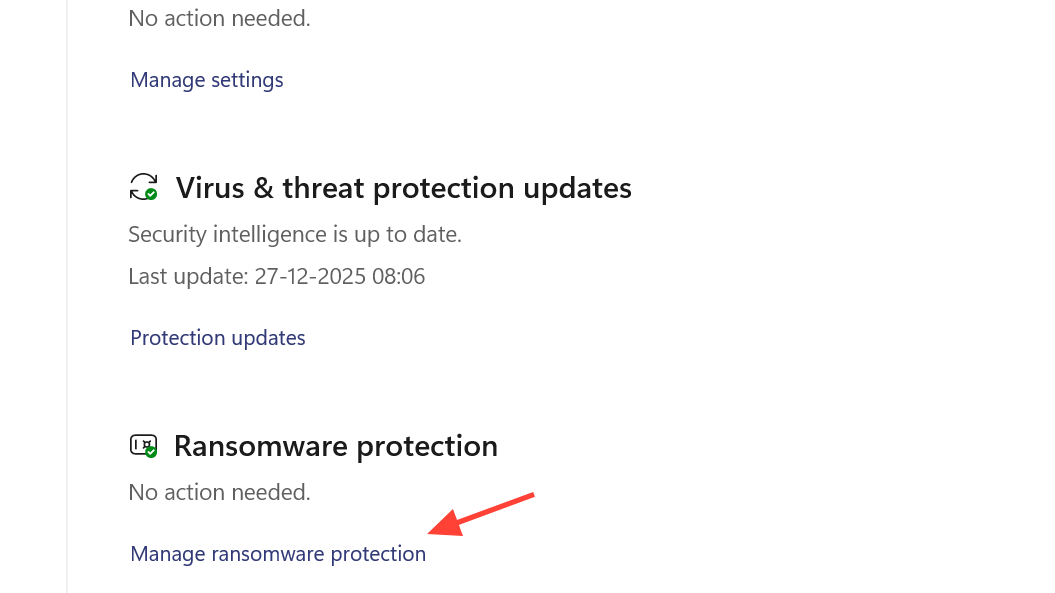
Step 3: Open “Allow an app through controlled folder access,” confirm the UAC prompt, then choose to add an allowed app.
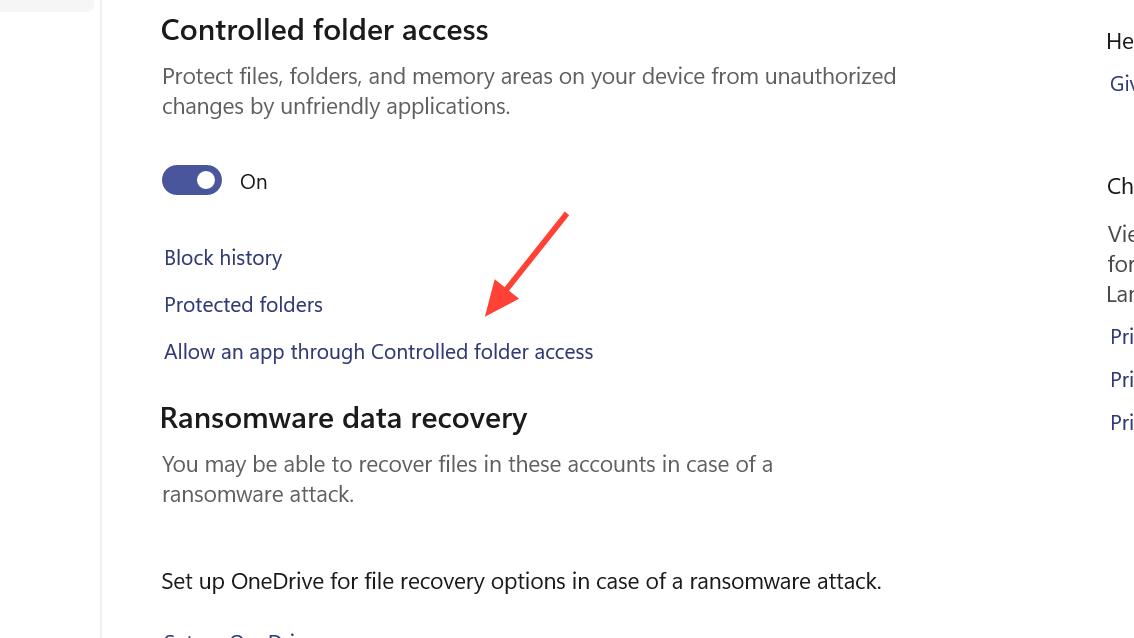
Step 4: Browse to the Where Winds Meet install folder, then to Engine > Binaries > Win64, select WWM.exe, and add it. This stops controlled folder access from blocking the game’s writes.
Method 6: Allow WWM.exe through Windows Defender Firewall
Step 1: In Windows Security, open “Firewall & network protection,” then choose “Allow an app through firewall.”
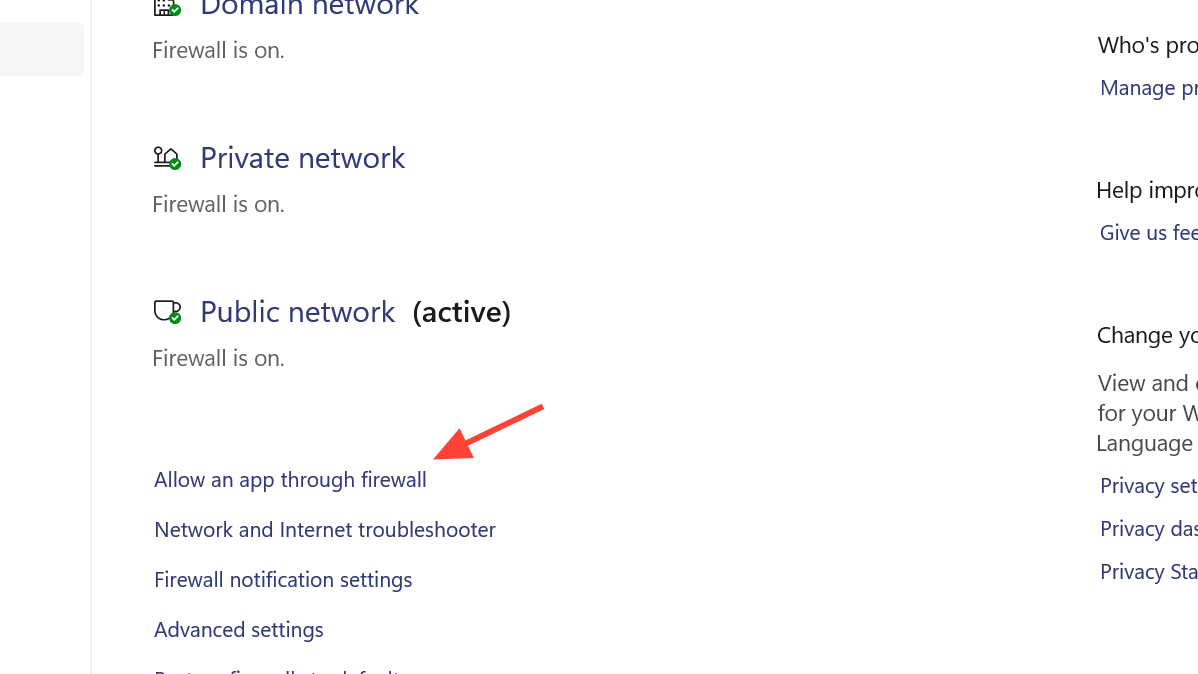
Step 2: Click “Change settings,” then “Allow another app.”
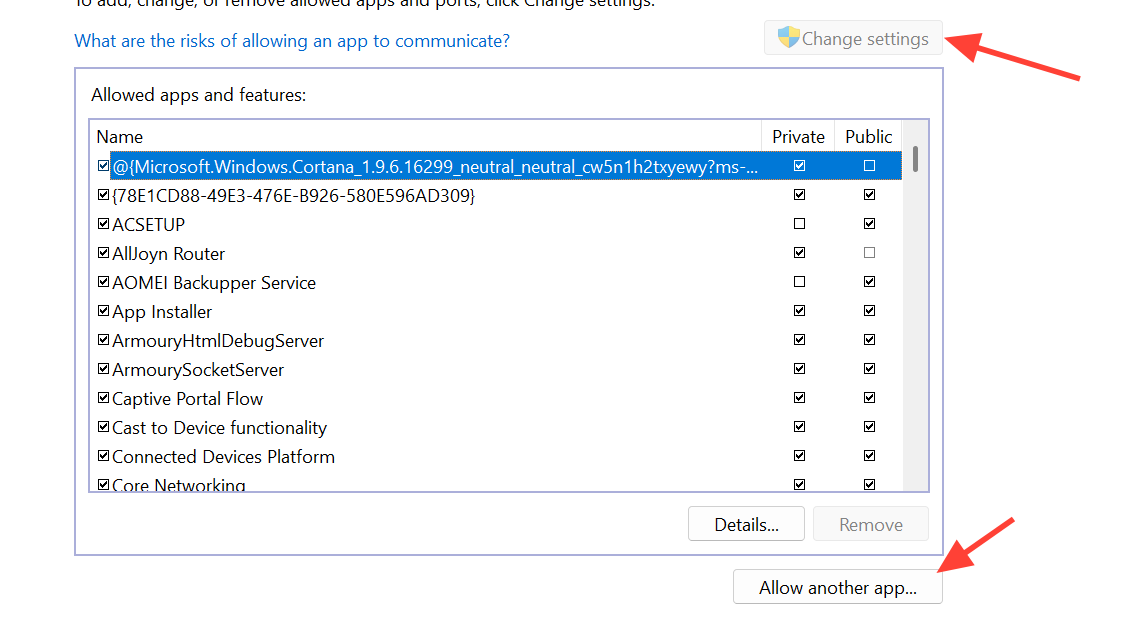
Step 3: Again browse to the Where Winds Meet WWM.exe in Engine > Binaries > Win64, add it, and ensure the appropriate network types are enabled so the game can talk to its servers.
If you use a third‑party antivirus or firewall, add the same executable to that product’s allow‑list or temporarily disable it while testing. Launch the game afterward to see whether the account error clears.
Stabilize your network to prevent login failures
The game’s login flow is sensitive to unstable connections, DNS problems, and some VPN routes. When the servers are under load, even small connection hiccups can cause the client to give up and show a generic account or network error instead of retrying smoothly.
Method 7: Basic network reset
Step 1: Disconnect from your current connection (Wi‑Fi or Ethernet), wait a few seconds, then reconnect.
Step 2: If you are on Wi‑Fi, try switching to a wired Ethernet cable. If you are wired, briefly test via a different network, such as a mobile hotspot, to rule out local router issues.
Step 3: Restart your PC and your modem/router. A full restart forces new routes and can clear stuck sessions that interfere with the game’s handshake.
Method 8: Change DNS and temporarily disable IPv6
Step 1: Open Control Panel, go to “Network and Internet,” then “Network and Sharing Center,” and open the properties of your active connection.
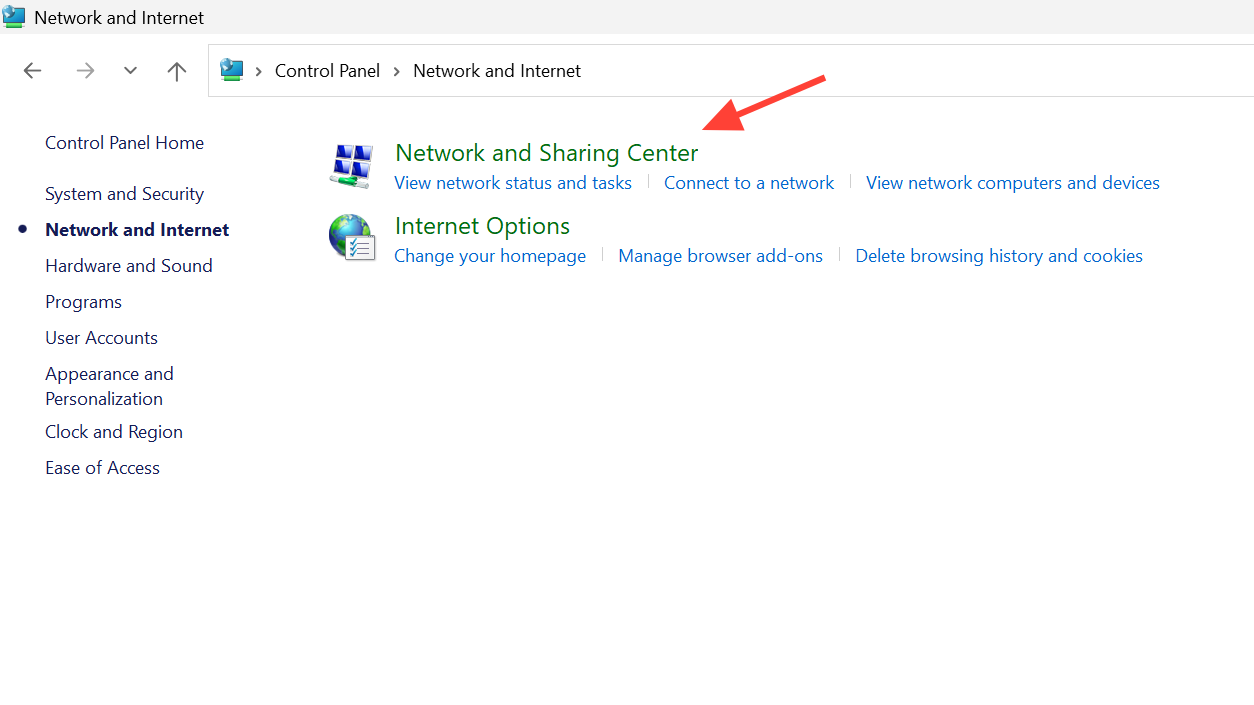
Step 2: Select “Internet Protocol Version 4 (TCP/IPv4)” and open Properties. Set “Use the following DNS server addresses” and enter:
Preferred DNS server: 8.8.8.8
Alternate DNS server: 8.8.4.4
Validate settings and confirm.
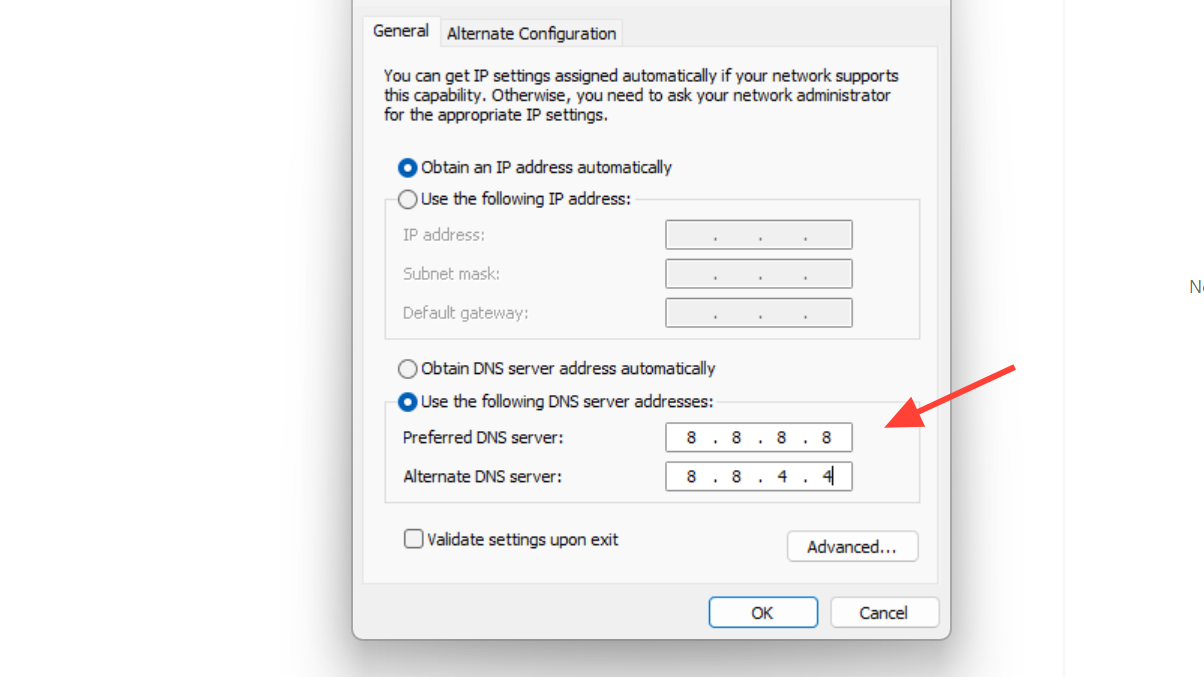
Step 3: In the same connection properties window, uncheck “Internet Protocol Version 6 (TCP/IPv6)” temporarily. Apply the change, restart the PC, and test the game again.
Some players only need this adjustment during problematic login periods; they re‑enable IPv6 later without issues once the login system is behaving normally.
Verify files on Steam and consider switching launchers if needed
On Steam, similar login failures and account messages can still be rooted in local file issues or launcher quirks.
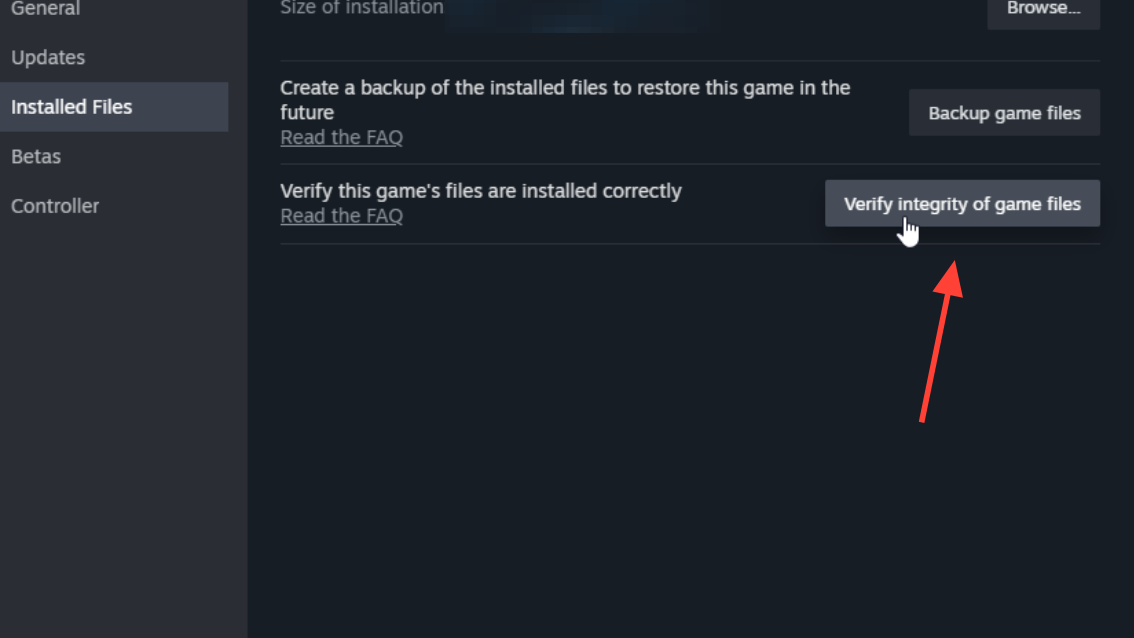
Method 9: Verify integrity of game files on Steam
Step 1: Open Steam and go to your Library.
Step 2: Right‑click Where Winds Meet, open Properties, and go to the Installed Files tab.
Step 3: Run “Verify integrity of game files.” Once the check completes and any missing or corrupted files are redownloaded, launch the game again to test the login.
Method 10: Run Steam or the standalone launcher as admin, or change platform
Step 1: Close Steam, then relaunch it as administrator from the Start menu and test the game. The same applies if you installed Where Winds Meet through its official launcher from the game’s website instead of a store client.
Step 2: If login problems persist and are not tied to a general outage, install the game through a different supported launcher: for example, switch from Steam to Epic, or from the standalone client to a store, and see whether the new platform handles authentication more reliably for your setup.
Switching launchers does not move existing characters and progress by itself, so be sure your in‑game account is properly linked where possible before changing platform.
How bans and anti‑cheat enforcement intersect with “abnormal” errors
The development team has made it clear that it is aggressively monitoring “abnormal in‑game behaviors” through both manual reports and technical detection. The published ban report notes that between November 15 and December 5, about 5,000 accounts were suspended for cheating, speed hacks, and the use of third‑party tools that affect gameplay.
The enforcement outcomes range from leaderboard removal and mode restrictions to temporary or permanent bans. Once an account falls into that bucket, players can see login failures that look similar to ordinary bugs but never resolve with local fixes.
If you suspect an error is actually an enforcement on your account and you believe it is a mistake, the studio directs questions and appeals to its support email at wherewindsmeet@global.netease.com. Provide your account ID, platform, and the exact message you see on screen.
What to do if you’re on GeForce NOW or VR streaming
When you play Where Winds Meet through GeForce NOW or a VR stream like Meta Quest mirroring a PC session, you add yet another layer between the game and you. Abnormal account messages on these setups often still trace back to Epic Online Services or the game servers themselves, but you are limited in what you can control inside the remote session.
If the abnormal account error pops up and you cannot interact with the desktop or close the launcher window, the most realistic steps are:
- End the streaming session from your client app and start a fresh GeForce NOW instance once platform status looks stable.
- Use the GeForce NOW feedback tools to flag the issue so the service can coordinate with the game’s publisher when problems are specific to the streamed build.
The same rule applies as on local PCs. When Epic or EOS are in maintenance or degraded, the only real fix is to wait until login returns to normal and then reconnect.
When the “abnormal account information” message appears, the most important move is to separate platform outages and bans from local glitches. Check official ban notices, watch whether other players can log in, then work through cache, launcher permissions, firewall, and network changes. In quiet periods, these steps are usually enough to get you back into Jianghu without losing progress; on outage days, patience is the only real solution.