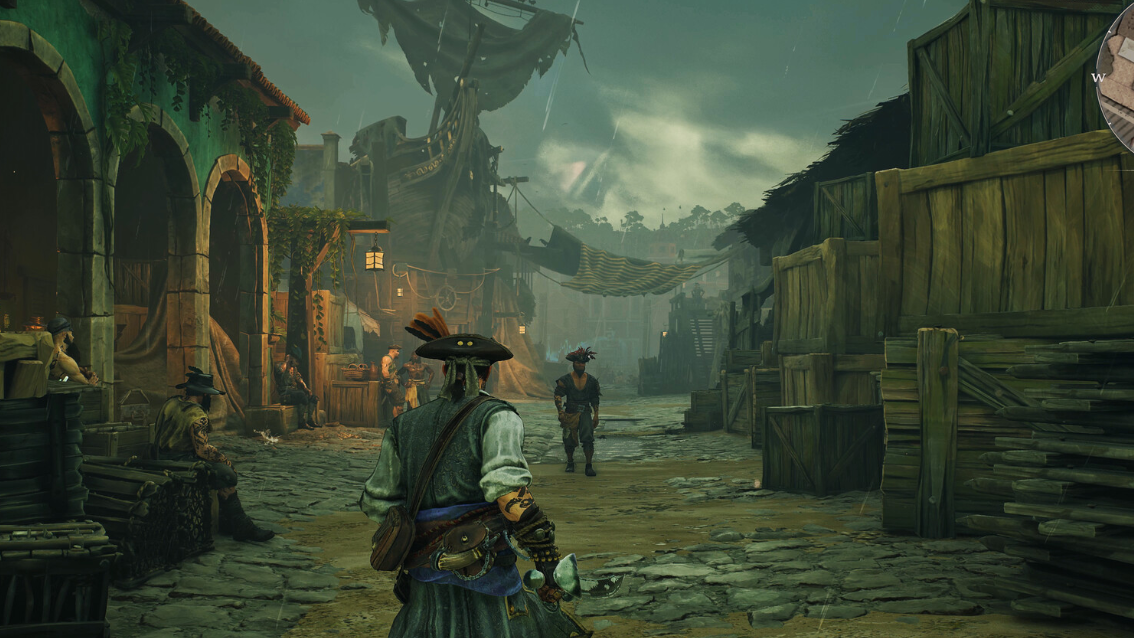
Windrose launched into Early Access in April 2026, and the most widespread complaint from new players is deceptively simple: the server can’t be found. You click connect, enter your invite code, and nothing happens — or you get kicked straight back to the title screen. The good news is that almost every case traces back to one of a handful of known causes, most of which take only minutes to fix.
Quick answer: Complete the single-player tutorial before attempting multiplayer. If you’ve already done that, verify your invite code is entered exactly (it’s case-sensitive), confirm the server has fully booted, and check that your game client version matches the server version.
Windrose tutorial requirement — the #1 cause
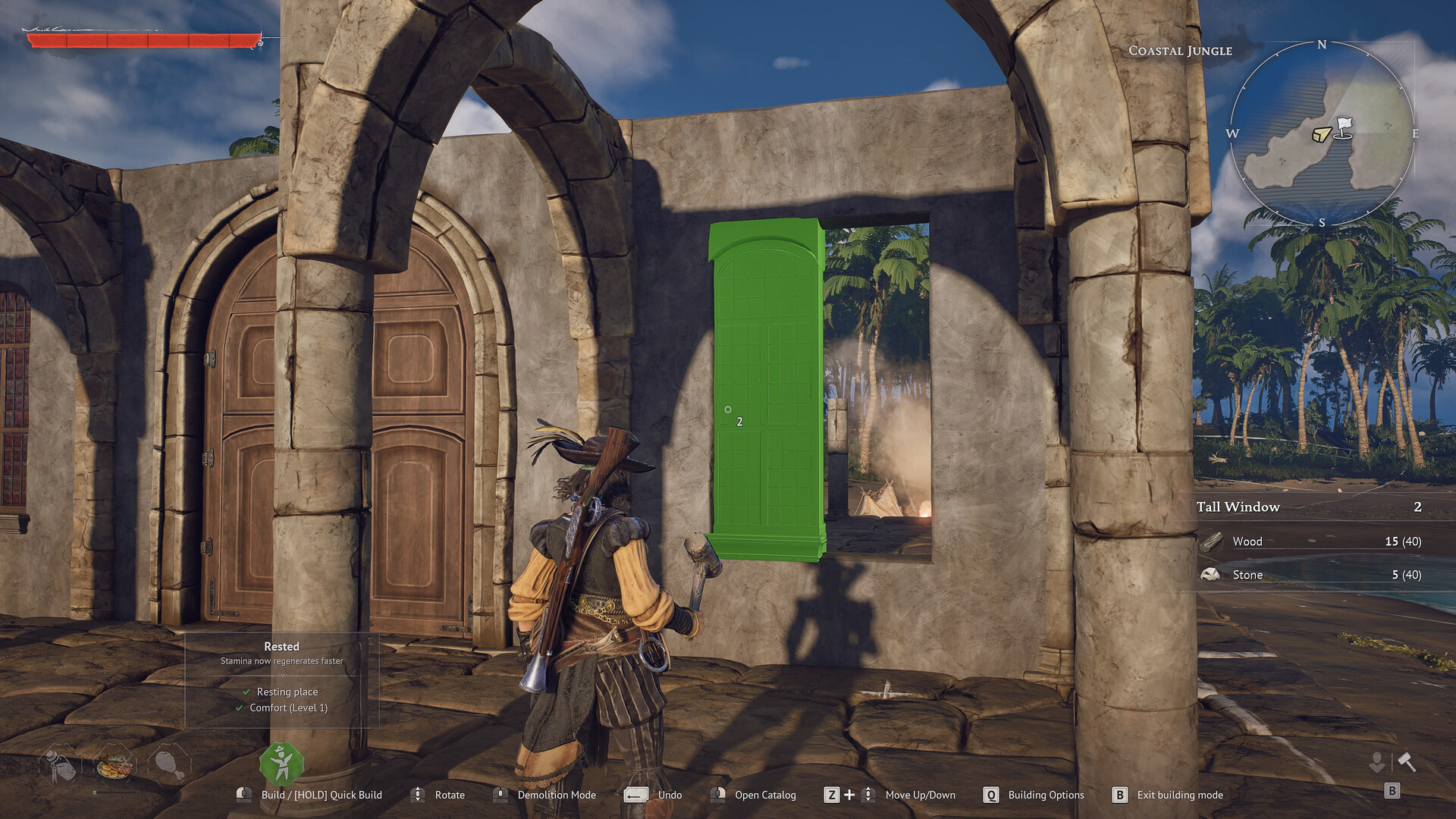
Windrose silently blocks multiplayer connections for any player who hasn’t finished the single-player tutorial. There’s no error message, no tooltip, and no prompt explaining what went wrong. The game simply fails to connect or dumps you back to the main menu, which makes it look exactly like a broken server.
This single issue accounts for the majority of “server not found” reports. Every player on the server needs to have completed the tutorial individually — it’s not enough for just the host to have done it.
Invite code entry mistakes
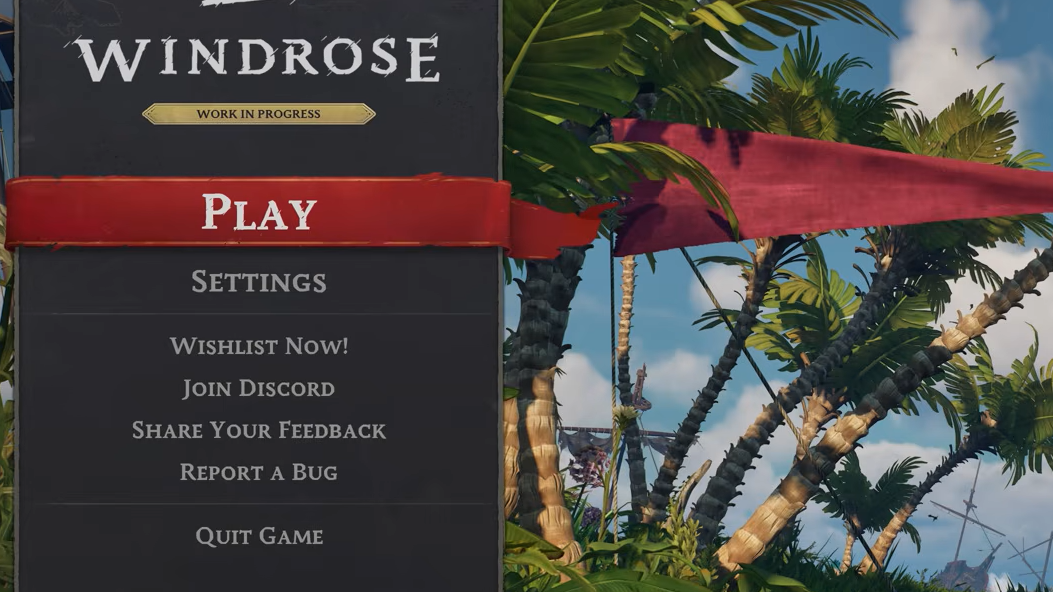
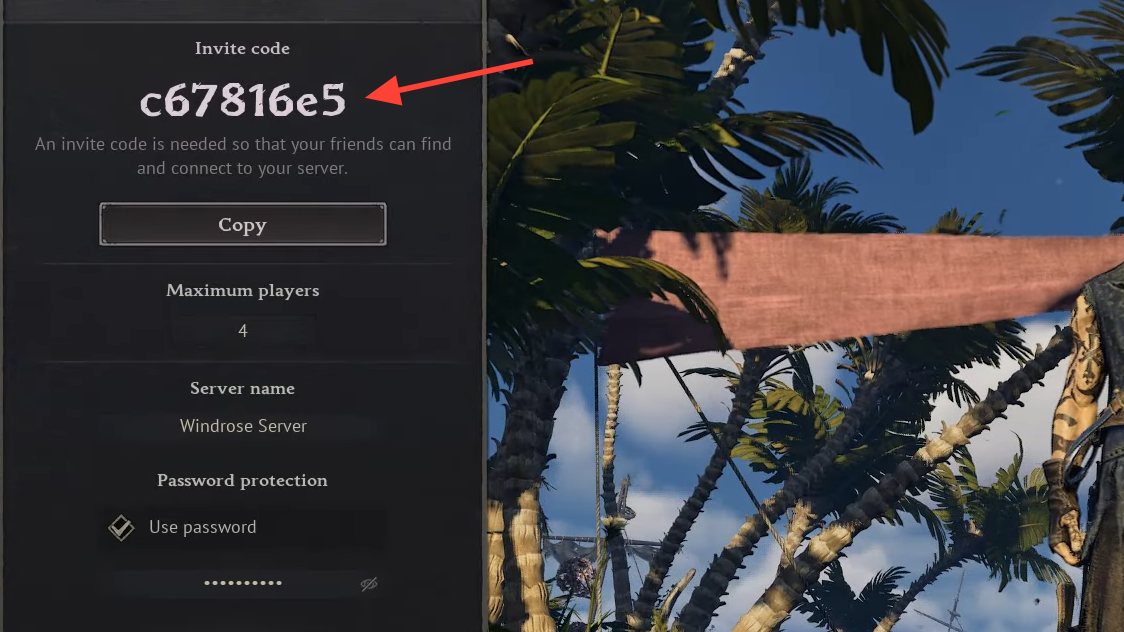
Windrose doesn’t use the traditional IP-and-port connection method. Instead, each server generates a unique invite code on its first successful boot (something like d5398a2a). Players join by navigating to Play → Connect to Server and typing in that code.
Two things trip people up constantly. First, invite codes are case-sensitive, so aBc and abc are treated as completely different codes. Second, visually similar characters like l and 1 or O and 0 cause mistyped codes that fail without explanation. Copy-paste the code directly from your hosting provider’s control panel whenever possible instead of reading it off a screenshot.
Server hasn’t finished starting
A Windrose server needs to fully load the world before it accepts any connections. If you’ve just started or restarted the server and immediately try to join, the connection will fail. Watch the web console or log viewer in your hosting control panel — once the world finishes loading, you’re clear to connect. This startup process can take a minute or two, especially on a fresh world.
Client and server version mismatch
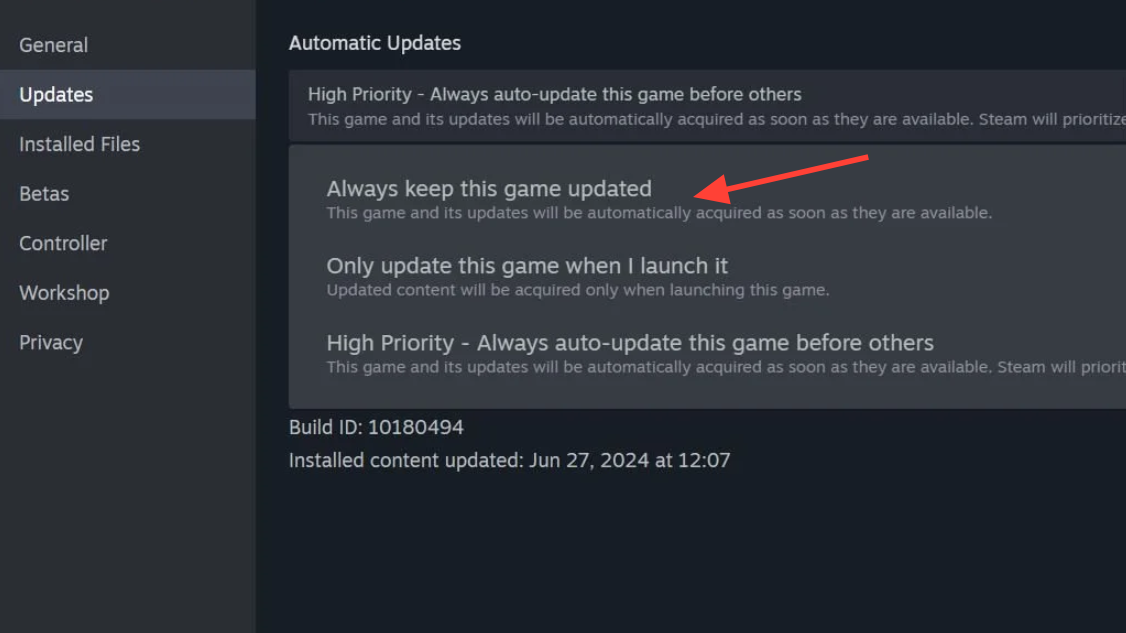
The game client version must match the server version exactly. Steam auto-updates the game client, which can push a player’s version ahead of the server. When versions don’t match, connections fail silently.
DNS blocking and network issues
Windrose uses a relay system for multiplayer, and certain DNS providers interfere with the domains the game needs to reach. NextDNS, in particular, blocks windrose.support by default, which kills the connection without any visible error. If you can connect from one network but not another, or if connections time out for no apparent reason, DNS is the likely culprit.
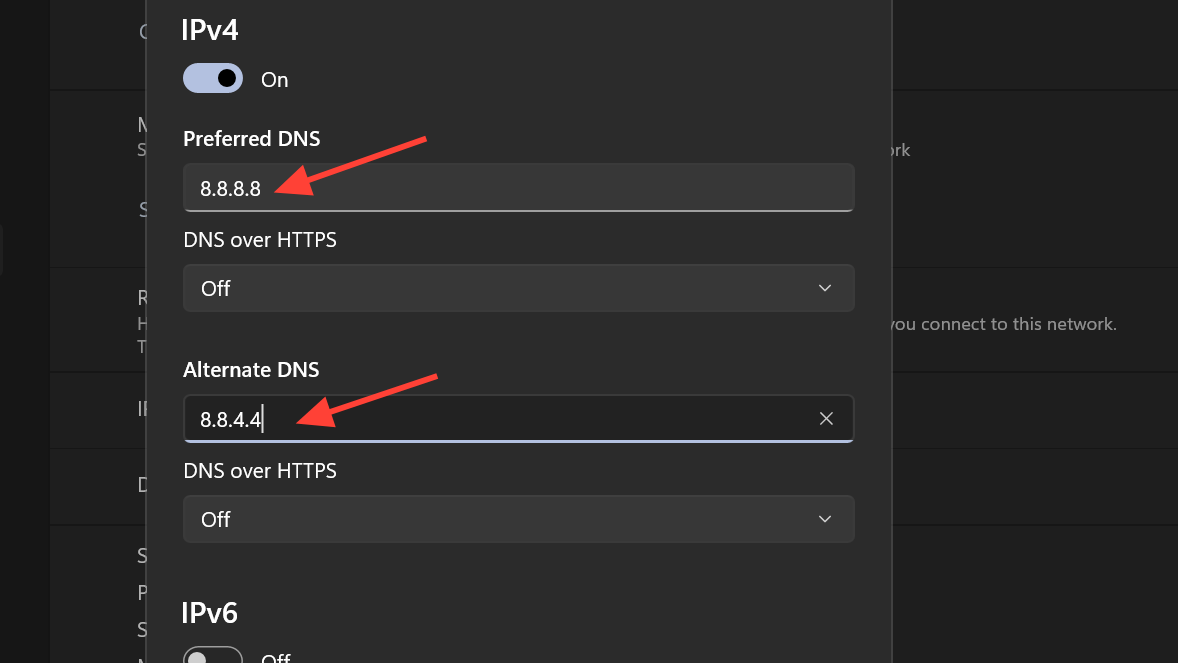
Switch your DNS servers to Google’s public DNS — 8.8.8.8 and 8.8.4.4 — in your network adapter settings. This resolves a surprising number of timeout problems.
| Network issue | Fix |
|---|---|
| DNS provider blocks Windrose relay domains | Switch to Google DNS (8.8.8.8 / 8.8.4.4) |
| VPN or proxy active | Disconnect temporarily and retry |
| Windows firewall blocking Windrose | Allow the Windrose executable through Windows Defender Firewall |
| Docker server on bridge network (local connections fail) | Switch Docker network type from bridge to host |
VPNs and proxies can also interfere with the relay connection. If someone on your server is running one, have them disable it temporarily to isolate the problem. On the local machine side, Windows Defender sometimes blocks the Windrose executable if a player clicked “Block” on the firewall prompt during first launch.
Self-hosted and Docker server quirks
Players running Windrose dedicated servers through Docker on their own hardware have reported a specific issue where local machines on the same network can’t connect, while friends connecting from outside have no trouble at all. The fix is to change the Docker container’s network mode from bridge to host. This eliminates the NAT layer that prevents the local relay connection from resolving properly.
Hosting provider outages
Not every connection failure is on your end. Some hosting providers have experienced intermittent issues since Windrose’s Early Access launch. If you’ve verified game files on both the client and server, completed the tutorial, and confirmed the invite code is correct, the problem may sit with your provider. Check your provider’s status page or community channels for any ongoing incidents before spending more time troubleshooting locally.
Configuration file errors that prevent world loading
If your server starts but the world never loads — meaning no one can connect because there’s nothing to connect to — the issue is usually in the config files. Windrose uses two main configuration files: ServerDescription.json and WorldDescription.json.
| Config problem | What happens | How to fix |
|---|---|---|
| Editing while server is running | Changes get overwritten on shutdown | Always stop the server before editing, save, then restart |
WorldIslandId mismatch | World won’t load at all | Ensure WorldIslandId in ServerDescription.json matches IslandId in WorldDescription.json |
| Invalid JSON syntax | Server crashes or fails to parse config | Paste file contents into a JSON validator to find stray commas or missing brackets |
| Corrupted save data after crash | World fails to load on restart | Restore from a cloud backup through your control panel |
The most critical rule with Windrose config files: never edit them while the server is running. Windrose rewrites both files on shutdown, so any changes you make to a running server will be silently erased. Stop the server first, make your edits, save, and then start it again.
General troubleshooting checklist
When nothing obvious stands out, run through these steps in order. Each one eliminates a common failure point.
Most Windrose “server not found” errors come down to the tutorial gate, a mistyped invite code, or a version mismatch. Once you’ve ruled those out, DNS issues and config file mistakes cover nearly everything else. The game is still in Early Access, so rough edges around connection handling are expected to improve as development continues.