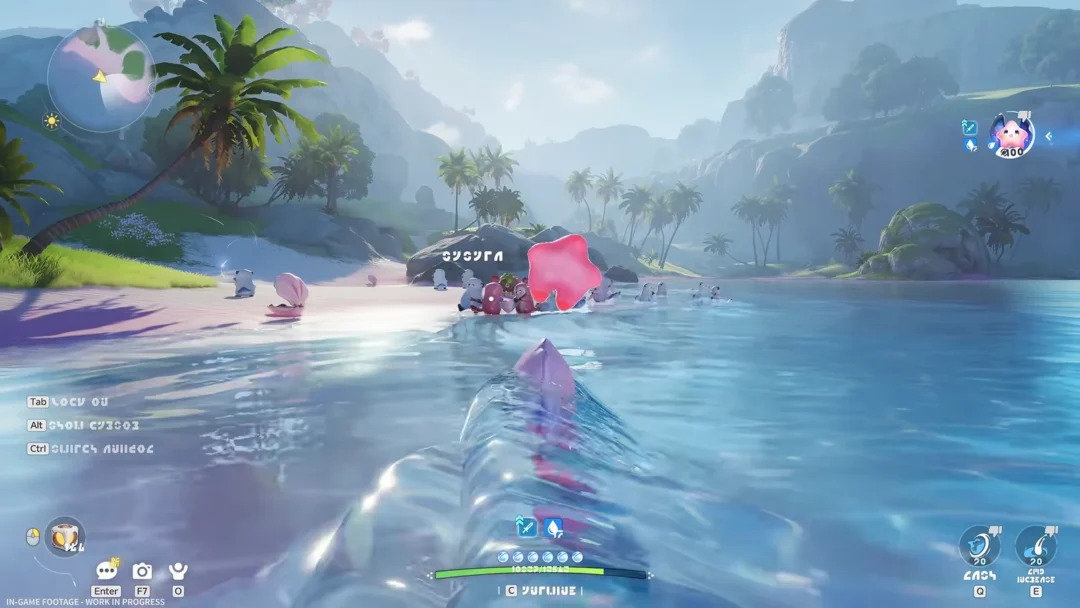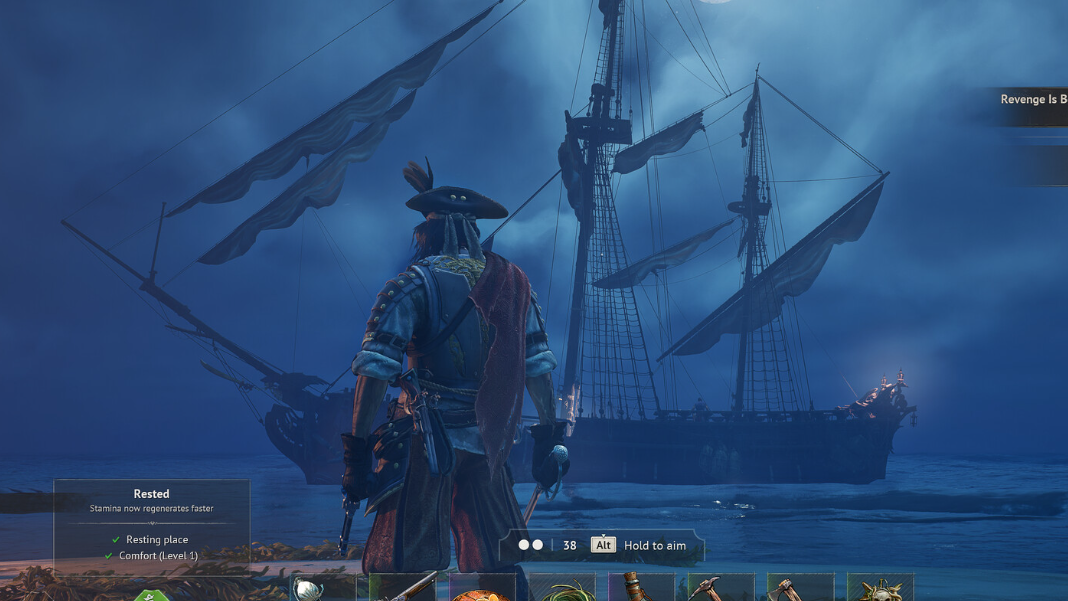
Windrose, the pirate survival game from Kraken Express, launched into early access without any admin commands or a developer console. If you’re searching for a way to spawn items, teleport players, kick troublemakers, or toggle god mode from an in-game command line, that functionality simply does not exist right now. The game is still in early access, so admin tooling may arrive in a future update, but nothing has been confirmed.
Quick answer: There are no admin or console commands in Windrose. All server customization is handled through configuration files — primarily ServerDescription.json and world-level JSON files — edited outside the game.
What you can actually control on a Windrose dedicated server
Even without a live command interface, you have a fair amount of control over your dedicated server. Everything happens through JSON and INI files that live in the server’s directory structure. If you’re renting from a hosting provider, most of these settings are exposed through a web-based control panel. If you’re self-hosting via SteamCMD, you’ll edit the files directly with a text editor.
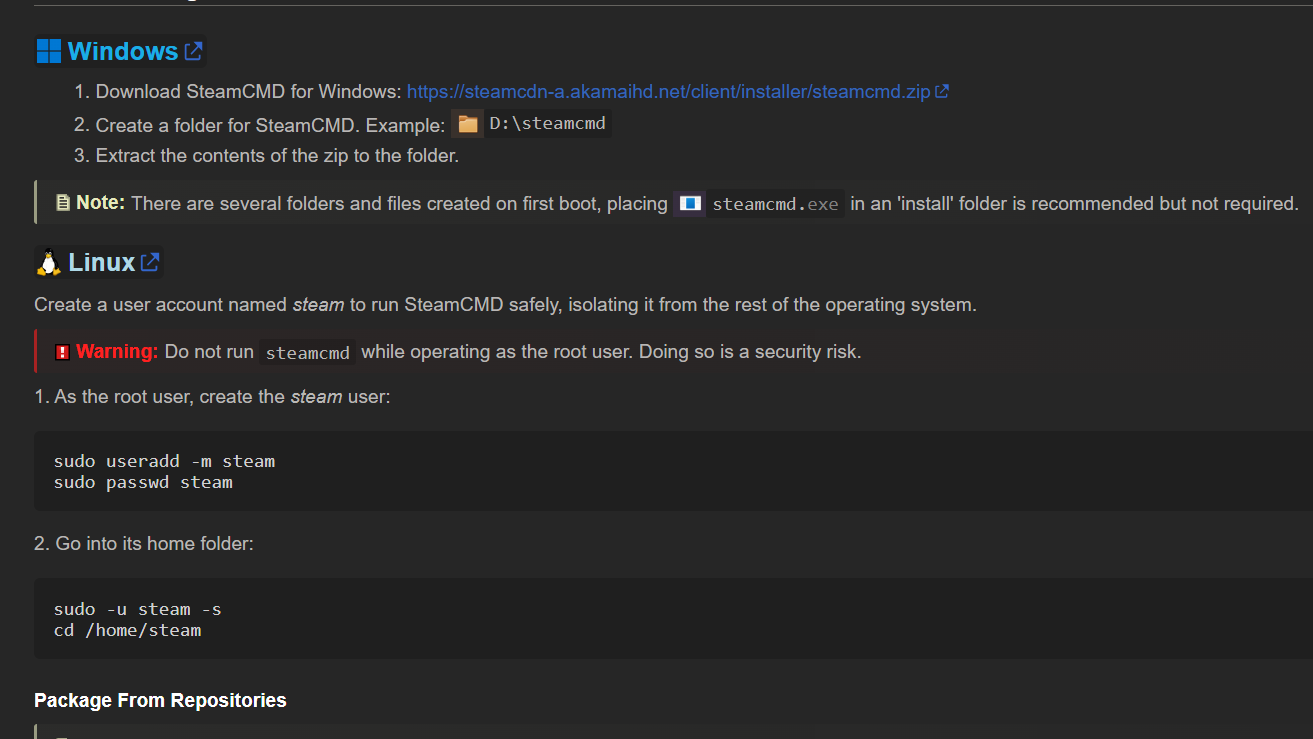
The dedicated server application is available through SteamCMD under App ID 4129620. It supports anonymous login, meaning you do not need to purchase a second copy of the game to run a server. One important hardware note: the server binary requires a CPU with the AVX instruction set, which rules out some older Intel Xeon processors.
Server identity and access settings in ServerDescription.json
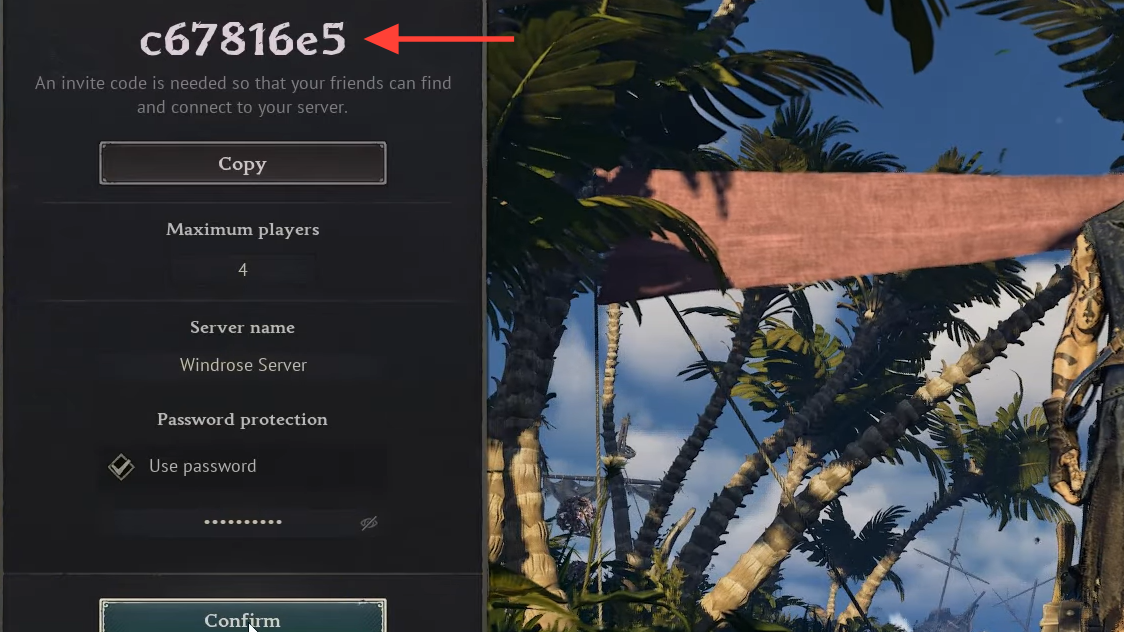
The ServerDescription.json file is the main place to define who can connect and how they find your server. Two settings matter most here: the password lock and the invite code.
Password protection
To restrict access, set the following values in ServerDescription.json:
"IsPasswordProtected": true,
"Password": "your_password_here"
ServerDescription.json — password fields
Players will need to enter this password before they can join. Leave IsPasswordProtected set to false if you want an open server.
Invite code
Windrose uses an invite code system rather than a traditional server browser or direct IP connection. You can change the invite code in the same ServerDescription.json file. The code must be at least six characters long, is case-sensitive, and only accepts alphanumeric characters (0–9, a–z, A–Z). Share this code privately with your crew so they can connect through the in-game menu.
Difficulty and world modifiers
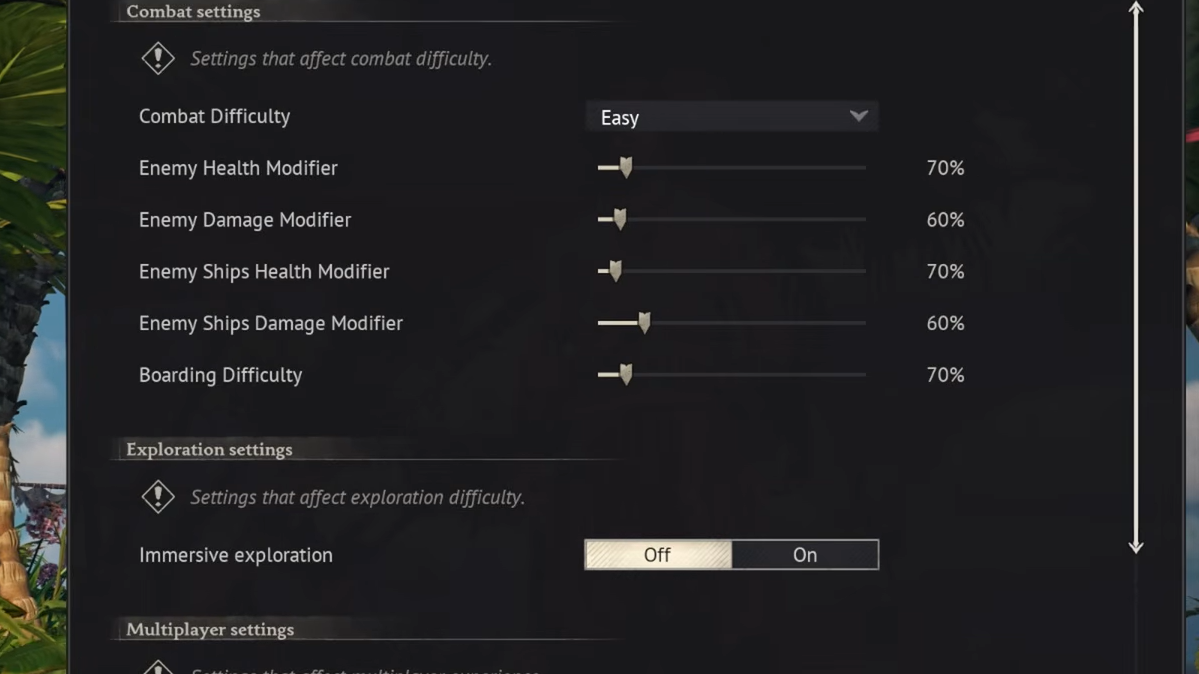
Windrose supports a range of world-level difficulty settings that you adjust before launching (or by stopping the server, editing files, and restarting). These live in the world’s configuration files inside the save directory.
| Setting category | What it controls |
|---|---|
| Difficulty presets | Quick toggle between Easy, Medium, and Hard |
| Mob health / damage multipliers | Scale enemy toughness and how hard they hit |
| Ship health / damage multipliers | Adjust how durable ships are and how much damage they take |
| Boarding difficulty | Controls the challenge of enemy boarding encounters |
| Co-op scaling modifiers | Tunes how the world scales with more players |
| Combat difficulty | Affects boss encounters and enemy aggression levels |
If you want a relaxed PvE experience for a small crew, dropping mob damage and raising ship health gives you breathing room to learn the sailing mechanics. For a more punishing voyage, crank the multipliers up and tighten the co-op scaling.
Engine-level configuration files
Beyond the game-specific JSON files, Windrose exposes two Unreal Engine configuration files for deeper tweaks:
| File | Purpose |
|---|---|
ServerConfig.ini | Advanced server-side engine settings |
Engine.ini | Core Unreal Engine parameters (networking, tick rate, etc.) |
Most players won’t need to touch these, but they’re useful for performance tuning on self-hosted hardware or for toggling specific launch parameters like Vehicle Physics.
Backing up your world save data
World saves are stored at the following path inside your server directory:
R5\Saved\SaveProfiles\Default\RocksDB\\Worlds\\
Save data path
Copy this entire directory regularly. If a patch breaks something or a corrupted save ruins your progress, a recent backup lets you roll back without starting over. Hosting providers typically offer automated backup scheduling through their control panels — intervals of 2, 4, 6, 12, or 24 hours are common options.
Self-hosting with SteamCMD
If you’d rather run the server on your own machine instead of renting one, the process is straightforward.
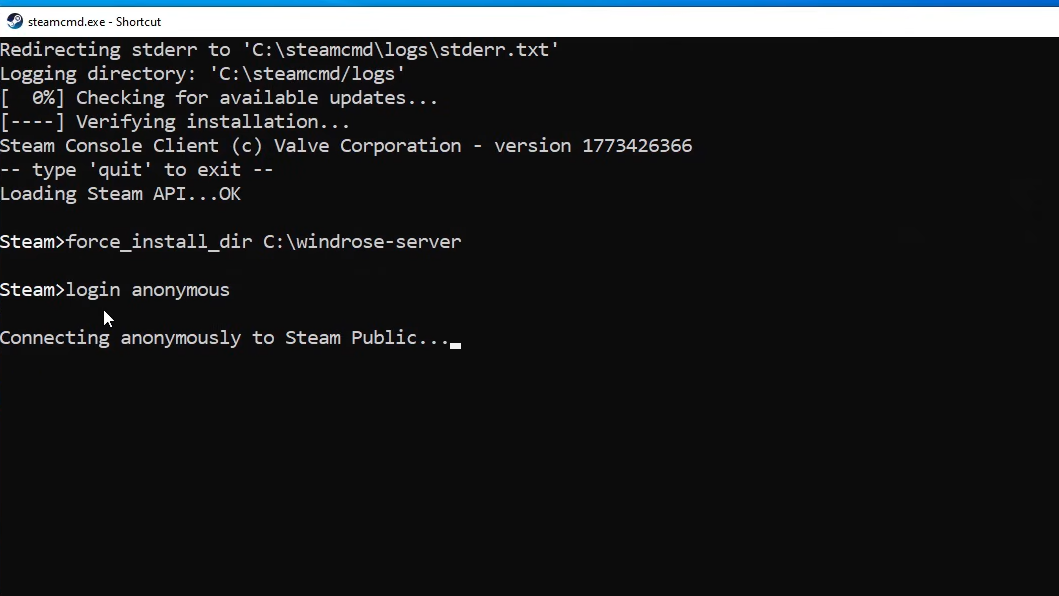
force_install_dir C:\windrose-server
login anonymous
app_update 4129620 validate
SteamCMD install commands
StartServerForeground.bat from the install directory. The server will generate its default config files on first run, including ServerDescription.json and the world save structure.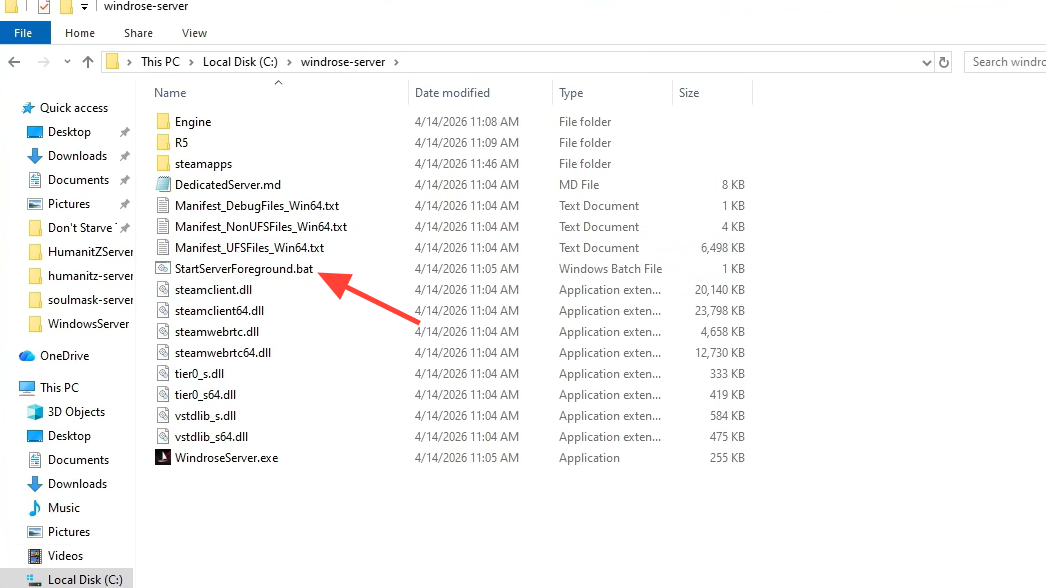
StartServerForeground.bat from the install directory | Image credit: Kraken Express, Pocketpair Publishing (via YouTube/@Rockuzza Gaming)To update the server after a patch, re-run the app_update 4129620 validate command in SteamCMD.
Hosting without a dedicated server
A dedicated server isn’t strictly required to play Windrose with friends. The game supports hosting public and private sessions directly from the client — one player acts as host, others connect, and the world persists on the host’s machine. The downside is obvious: when the host closes the game, nobody else can play. A dedicated server solves that by keeping the world running around the clock, which matters a lot when your crew has different schedules.
Windrose is still early in its development, and the lack of admin commands is one of the more noticeable gaps for anyone used to managing survival game servers. Features like kick, ban, item spawning, and player teleportation are common requests in the community. For now, configuration files are the only lever you have — but they cover enough ground to shape the experience meaningfully while the game matures.