

Mozilla has been steadily stuffing Firefox with AI-powered features — chatbots in the sidebar, link previews with "key points," smart tab grouping, automatic alt text in PDFs, and more. Many of these shipped enabled by default, which did not go over well with a user base that largely chose Firefox to avoid exactly this kind of bloat. Mozilla responded by building a centralized AI Controls panel into Firefox 148, which rolled out on Feb. 24, 2026. But if you want to go deeper than the settings page allows, the about:config route and a user.js file will shut down every AI-related preference in the browser.
Quick answer: Open Firefox Settings → AI Controls and toggle Block AI enhancements to on. For a more thorough approach, set every AI-related preference to false (or "blocked") in about:config, or drop them all into a user.js file so they persist across restarts and updates.
What AI features Firefox currently ships
Firefox's AI footprint has grown rapidly. The features you may want to disable include:
- AI chatbot sidebar — integrates third-party chatbots like ChatGPT, Gemini, Copilot, Claude, and Le Chat Mistral directly into the browser sidebar.
- "Ask a chatbot" context menu entries — appear when you right-click a page or select text.
- Link previews with AI-generated key points — triggered by Shift-clicking or long-pressing a link.
- Smart tab groups — uses AI to suggest tab groupings and names.
- AI translations — local machine-learning-powered page translation.
- Alt text generation in PDFs — automatically creates image descriptions inside the built-in PDF viewer.
- Page Assist and Smart Assist — background content analysis features, with Smart Assist expected to expand in future releases.
- Semantic history search — lets you search your browsing history using natural-language queries in the address bar.
- AI-powered URL suggestions — machine-learning-driven quick suggestions in the address bar dropdown.
- Visual search via Google Lens — adds a "Search image with Google Lens" option to the right-click menu on images.
- ML platform API for extensions — allows web extensions to tap into Firefox's local ML engine.
Option 1: Use the built-in AI Controls panel (Firefox 148+)
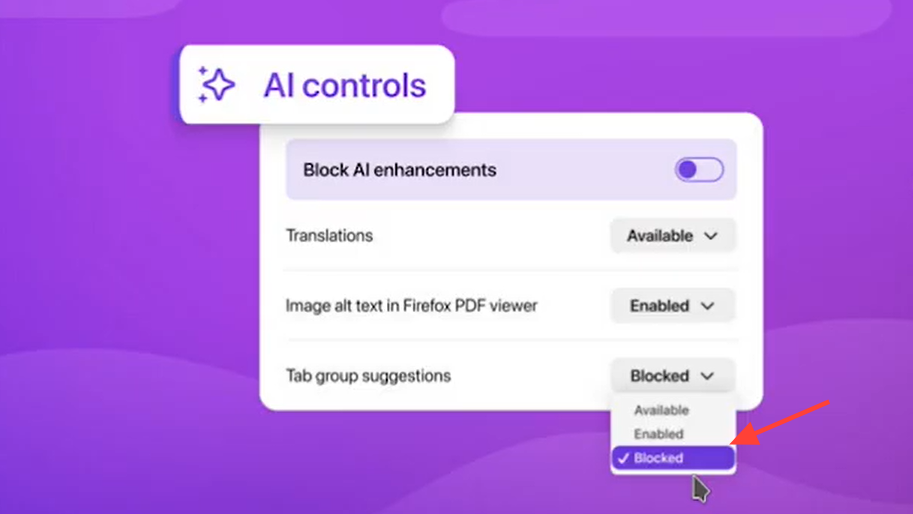
Firefox 148 introduced a dedicated AI Controls section in the desktop browser settings. It lives under Settings → AI Controls and provides a single Block AI enhancements toggle. Flipping this on suppresses all current and future generative AI features, including pop-ups and prompts encouraging you to try them.
Below the master toggle, individual controls let you selectively block or allow translations, PDF alt text, AI-enhanced tab grouping, link preview key points, and the sidebar chatbot. Your choices survive browser updates — you won't need to re-disable anything after a new version lands.
This is the simplest path and the one Mozilla officially recommends. But the AI Controls panel doesn't expose every AI-adjacent preference buried in Firefox's internals. If you want to be thorough, the manual method below covers significantly more ground.
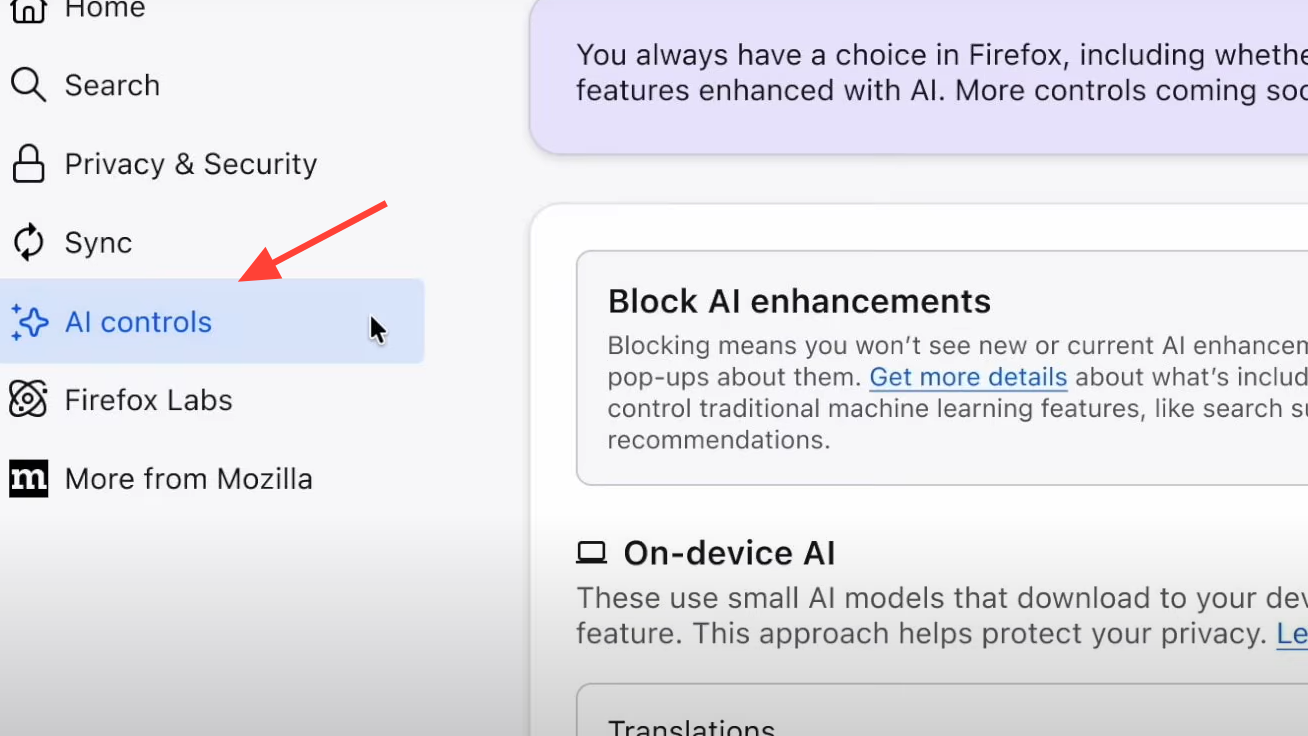
Option 2: Disable AI preferences manually via about:config
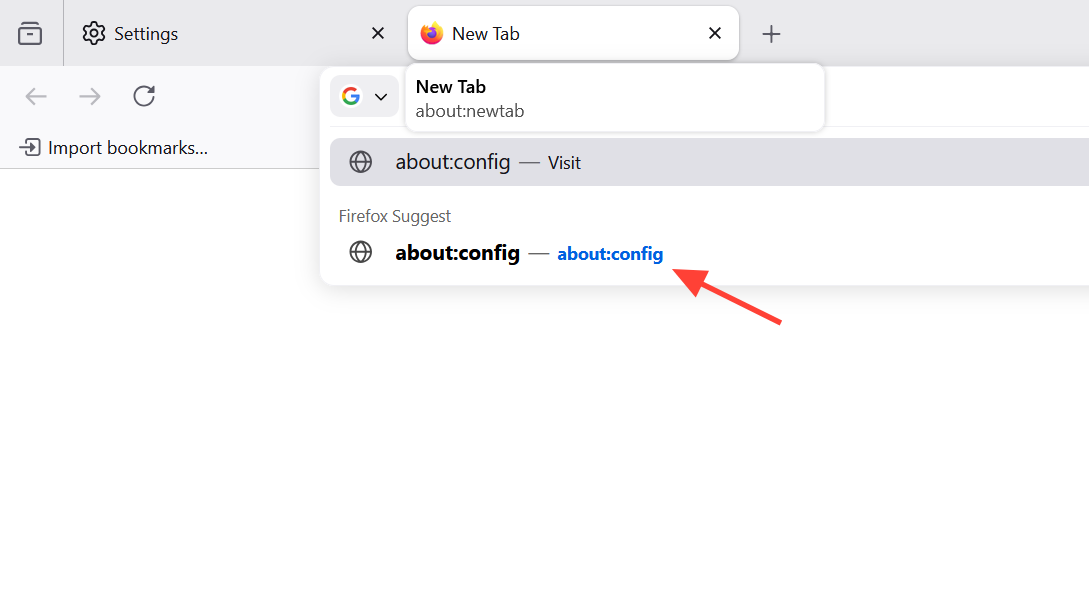
Step 1: Type about:config in the Firefox address bar and press Enter. Click "Accept the Risk and Continue" when the warning appears.
Step 2: Use the search box at the top to find each preference listed below. Double-click a boolean preference to toggle it, or click the Toggle icon at the right side of the row. For string preferences, click the pencil icon, change the value, and press Enter or click the checkmark.
Set all of the following to false:
browser.ml.enable
browser.ml.chat.enabled
browser.ml.chat.sidebar
browser.ml.chat.menu
browser.ml.chat.page
browser.ml.chat.shortcuts
browser.ml.chat.page.footerBadge
browser.ml.chat.page.menuBadge
browser.ml.linkPreview.enabled
browser.ml.pageAssist.enabled
browser.ml.smartAssist.enabled
extensions.ml.enabled
browser.tabs.groups.smart.enabled
browser.tabs.groups.smart.userEnabled
browser.search.visualSearch.featureGate
browser.urlbar.quicksuggest.mlEnabled
pdfjs.enableAltText
pdfjs.enableAltTextModelDownload
pdfjs.enableGuessAltText
places.semanticHistory.featureGate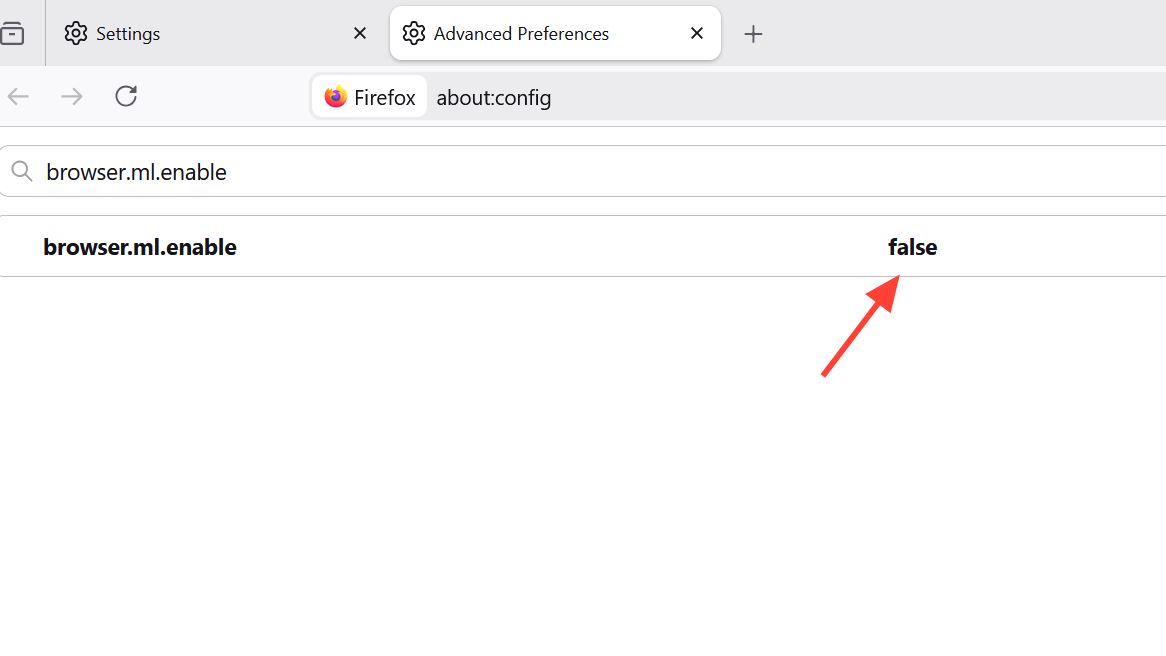
Set all of the following to "blocked" (these are string preferences, not booleans):
browser.ai.control.default
browser.ai.control.sidebarChatbot
browser.ai.control.linkPreviewKeyPoints
browser.ai.control.smartTabGroups
browser.ai.control.translations
browser.ai.control.pdfjsAltText
Step 3: Restart Firefox. All AI-powered features should now be fully suppressed.
.ml. in the about:config search box will surface most machine-learning-related preferences at once, making it easier to spot any new ones Mozilla adds in future updates.Option 3: Apply all preferences at once with a user.js file
Manually toggling two dozen preferences is tedious and doesn't protect you if Firefox resets a value during an update. A user.js file solves both problems — it automatically enforces your preferences every time Firefox starts.
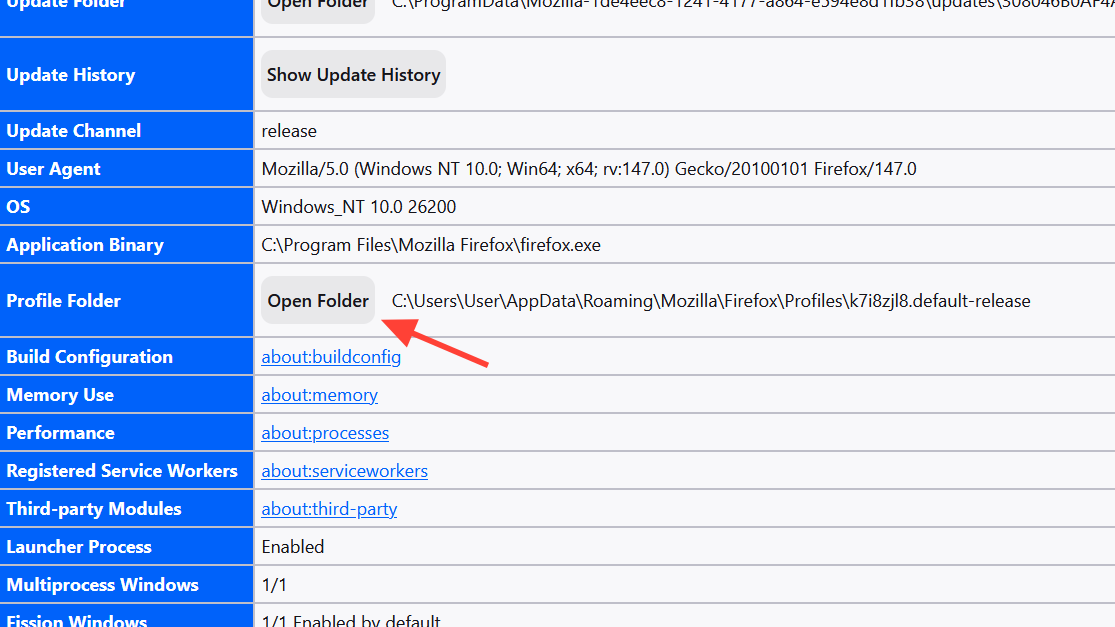
Step 1: Open your Firefox profile folder. Type about:support in the address bar, find the "Profile Folder" row, and click "Open Folder." On Windows, the path is typically C:\Users\[USERNAME]\AppData\Roaming\Mozilla\Firefox\Profiles\[PROFILENAME].
Step 2: Inside that folder, create a new plain-text file named user.js (make sure your OS isn't hiding a .txt extension). If you already have a user.js, open it and append the lines below at the end.
Step 3: Paste the following into the file:
user_pref("browser.ml.enable", false);
user_pref("browser.ai.control.default", "blocked");
user_pref("browser.ai.control.sidebarChatbot", "blocked");
user_pref("browser.ml.chat.enabled", false);
user_pref("browser.ml.chat.sidebar", false);
user_pref("browser.ml.chat.menu", false);
user_pref("browser.ml.chat.page", false);
user_pref("browser.ml.chat.shortcuts", false);
user_pref("browser.ml.chat.page.footerBadge", false);
user_pref("browser.ml.chat.page.menuBadge", false);
user_pref("extensions.ml.enabled", false);
user_pref("browser.ai.control.linkPreviewKeyPoints", "blocked");
user_pref("browser.ml.linkPreview.enabled", false);
user_pref("browser.ml.pageAssist.enabled", false);
user_pref("browser.ml.smartAssist.enabled", false);
user_pref("browser.ai.control.smartTabGroups", "blocked");
user_pref("browser.tabs.groups.smart.enabled", false);
user_pref("browser.tabs.groups.smart.userEnabled", false);
user_pref("browser.ai.control.translations", "blocked");
user_pref("browser.ai.control.pdfjsAltText", "blocked");
user_pref("pdfjs.enableAltTextModelDownload", false);
user_pref("pdfjs.enableGuessAltText", false);
user_pref("pdfjs.enableAltText", false);
user_pref("browser.search.visualSearch.featureGate", false);
user_pref("browser.urlbar.quicksuggest.mlEnabled", false);
user_pref("places.semanticHistory.featureGate", false);
Step 4: Save the file and restart Firefox. The preferences will be applied automatically on launch. Any time you manually change one of these values in about:config, the user.js file will override it on the next restart — so if you want to re-enable something later, remove or comment out the relevant line first.
Optional: Disable the redesigned sidebar entirely
The new Firefox sidebar hosts the AI chatbot, but it also contains vertical tabs and other non-AI features. If you want to remove the sidebar completely, set sidebar.revamp to false in about:config or add user_pref("sidebar.revamp", false); to your user.js. Be aware that this also disables vertical tabs. If you use vertical tabs but not the chatbot, leave sidebar.revamp enabled and just disable the chatbot preferences individually.
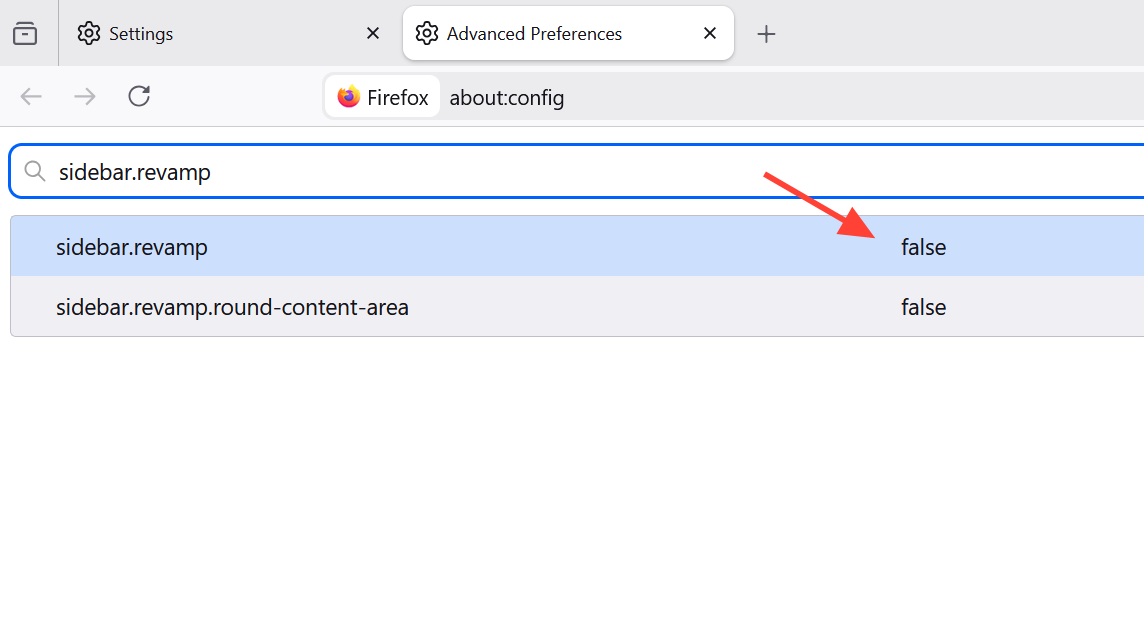
sidebar.revamp = false workaround may stop working in a future release.How to confirm the changes worked
After restarting Firefox, verify the following:
- Right-click on any webpage — the "Ask a chatbot" option should be gone.
- Shift-click or long-press a link — no AI-generated key points should appear in the link preview.
- Open the sidebar — the AI chatbot icon should be absent.
- Open a PDF — no automatic alt-text generation prompt should appear for images.
- Check Settings → AI Controls (if on Firefox 148+) — the Block AI enhancements toggle should reflect your choices, and individual features should show as blocked.
If any AI element persists, search about:config for .ml. and .ai. to check for newly added preferences that may have arrived with a recent update.
Alternatives if you want zero AI code in the browser
Disabling preferences doesn't remove the underlying code from Firefox — it just prevents it from running. If that distinction matters to you, Firefox forks like LibreWolf and Waterfox ship without AI features baked in and still support Firefox Sync for bookmarks, history, and extensions. Firefox ESR (Extended Support Release) also currently lacks AI features, though there is no guarantee future ESR versions will remain AI-free.
For most people, the combination of the AI Controls panel and a well-maintained user.js file is the most practical approach. Mozilla keeps adding new AI preferences with each release cycle, so periodically searching about:config for .ml. is worth building into your routine.