Windows provides built-in tools that let you cast your Android phone’s screen directly onto your PC. This allows you to view smartphone content on a larger display, interact with apps using your mouse and keyboard, and easily manage tasks without switching devices. Below are detailed instructions for the most effective methods to share your mobile screen on a Windows PC.
Method 1: Using the Phone Link App (Recommended)
The Phone Link app (formerly Your Phone) provides a seamless way to mirror your Android screen on your Windows PC wirelessly. Recent devices from the Samsung Galaxy series, Surface Duo, HONOR Magic series, and OnePlus support this feature. However, this method won’t work on other devices, so you will have to try out the other methods mentioned below.
Before starting, ensure your Android device and PC are connected to the same Wi-Fi network, your PC runs Windows 10 (October 2018 Update or later), and your Android device runs Android 9.0 or newer with the latest version of Link to Windows pre-installed. You can check the full list of supported devices on Microsoft’s official documentation.
Step 3 (Optional): To protect your privacy or save battery, the Phone Link app can show a black screen on your Android device while connected. If you prefer to disable this feature, open Settings in the Phone Link app, navigate to “Phone screen,” and turn off the toggle labeled “Hide my Android device’s screen while it’s connected to my PC.”
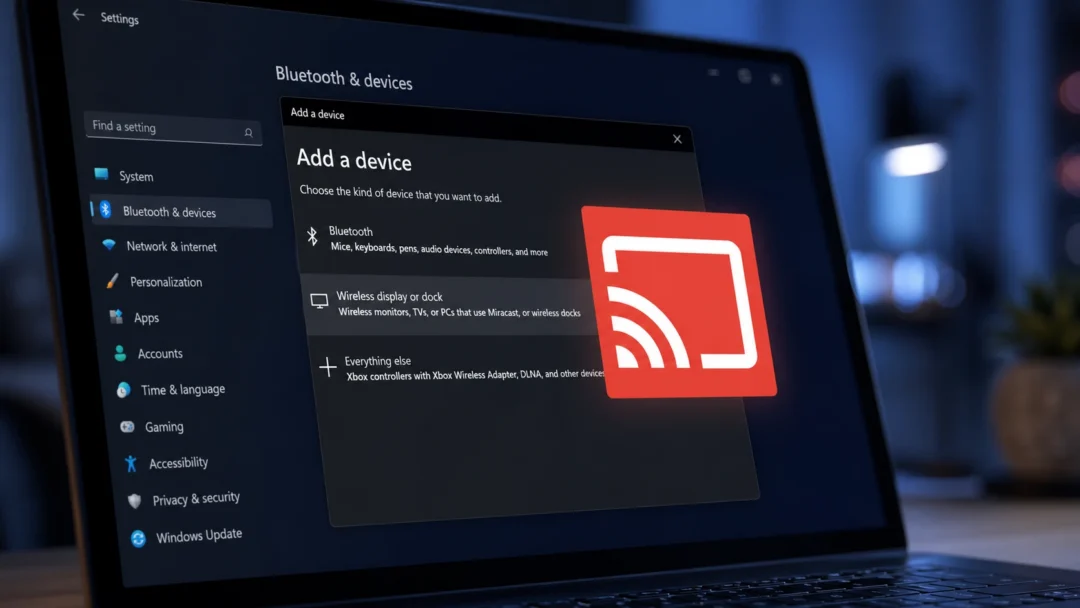
Method 2: Mirroring Android Screen Using Windows Wireless Display Feature (Miracast)
If your Android device doesn’t support Phone Link or you prefer another built-in Windows solution, Miracast is a reliable alternative. Miracast technology allows wireless screen mirroring between compatible devices on the same Wi-Fi network. First, ensure your Windows PC supports Miracast by opening Command Prompt and running:
netsh wlan show driver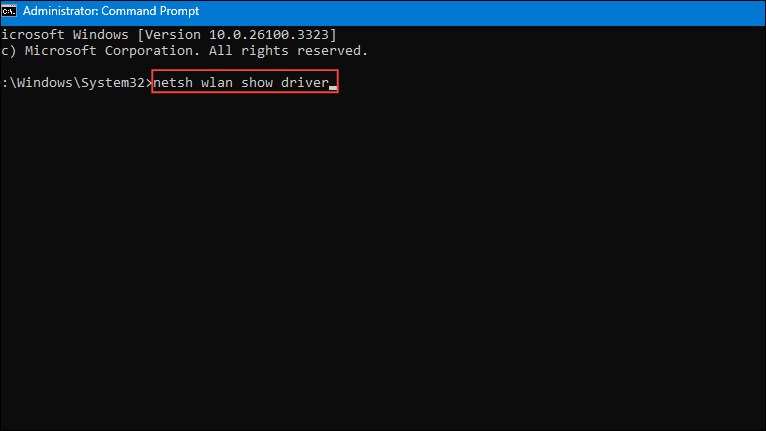
Look for the line “Wireless Display Supported: Yes.” If supported, follow these steps:
Win + I) > System> Optional features.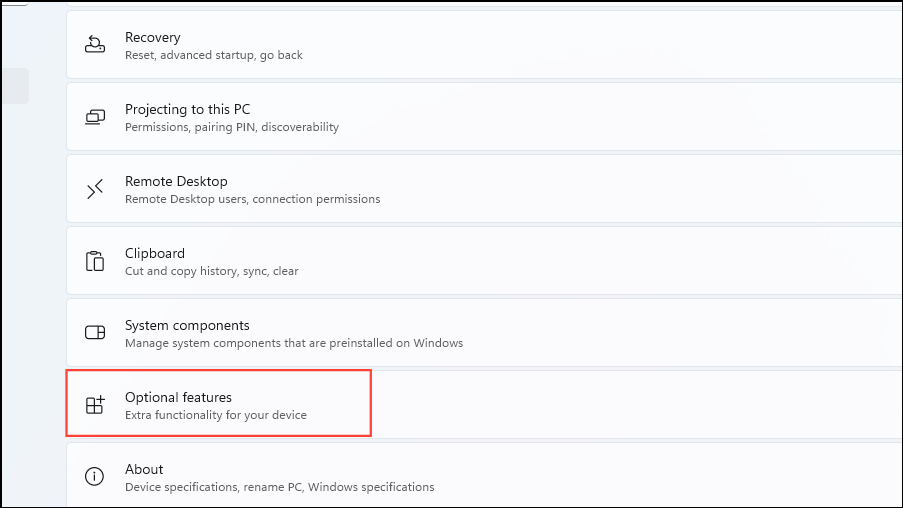
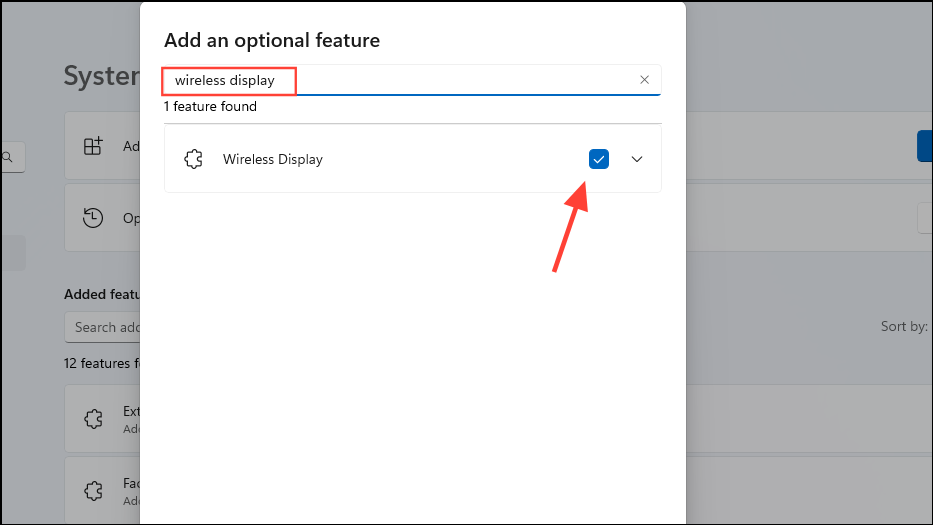
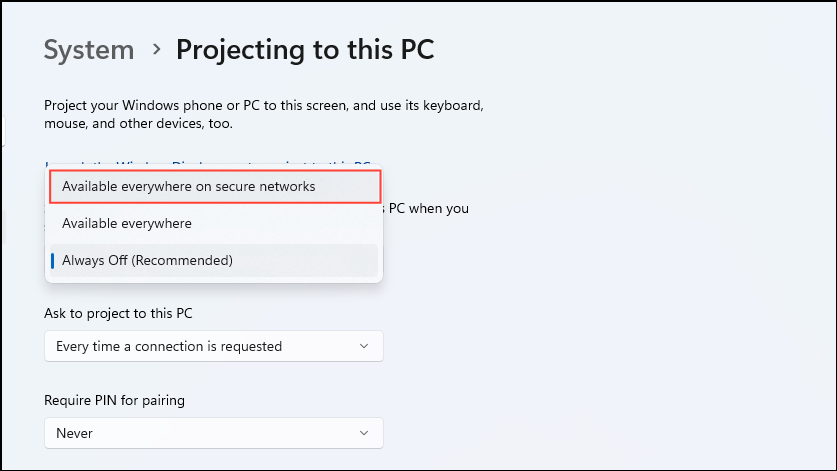
Your Android screen will now appear on your Windows PC, allowing you to view videos, photos, or presentations wirelessly.
Method 3: Wired Connection via USB Cable (Alternative Method)
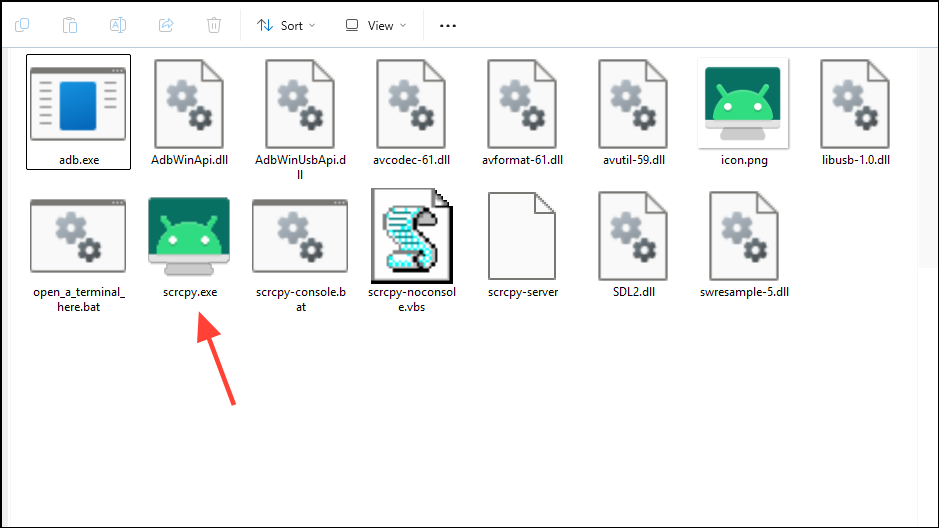
If wireless methods aren’t suitable or you encounter connectivity issues, you can share your Android screen using a USB cable and third-party software like Scrcpy, Vysor, or ApowerMirror. Here’s a quick example using Scrcpy, a free and open-source tool:
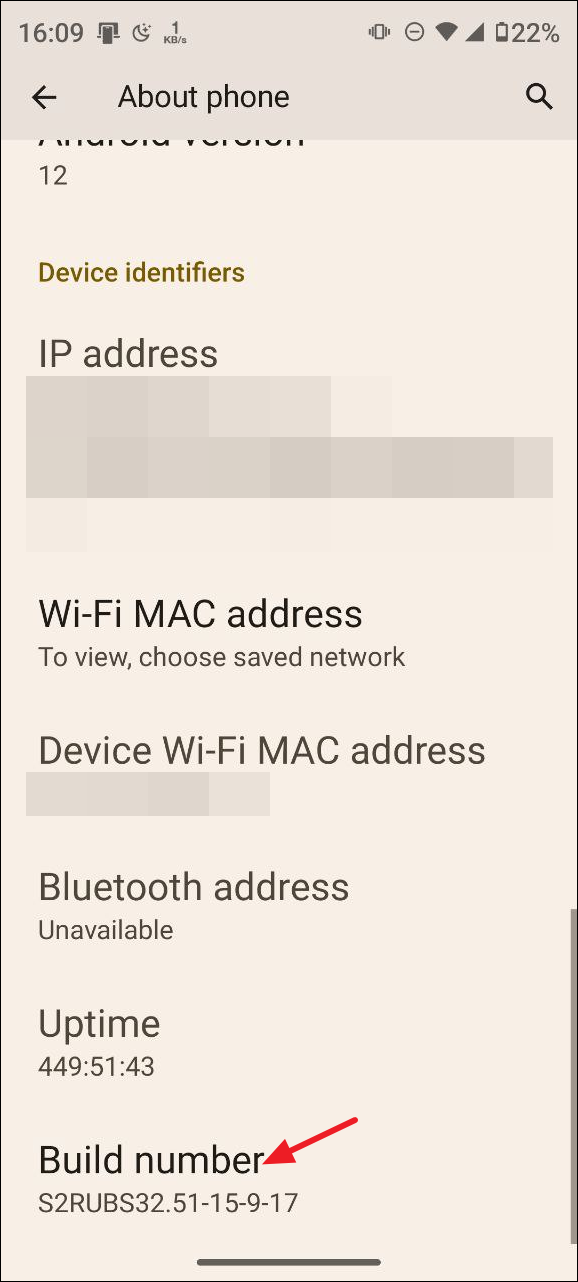
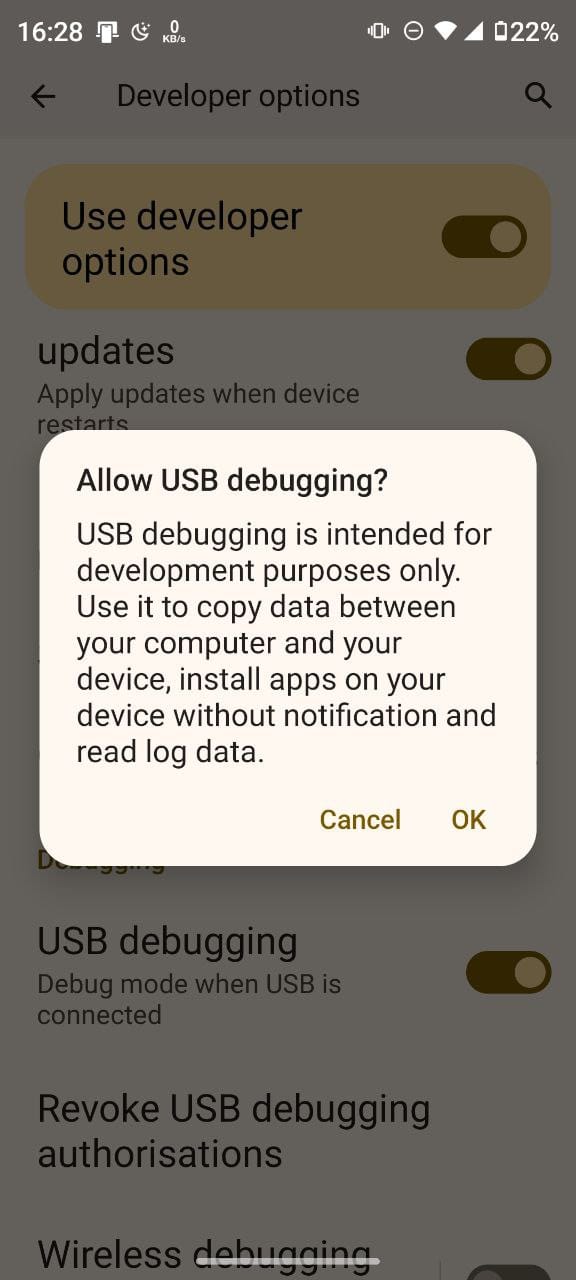
Sharing your mobile screen on your PC simplifies multitasking, presentations, and content management. Try these methods to determine which works best for your setup and preferences.