
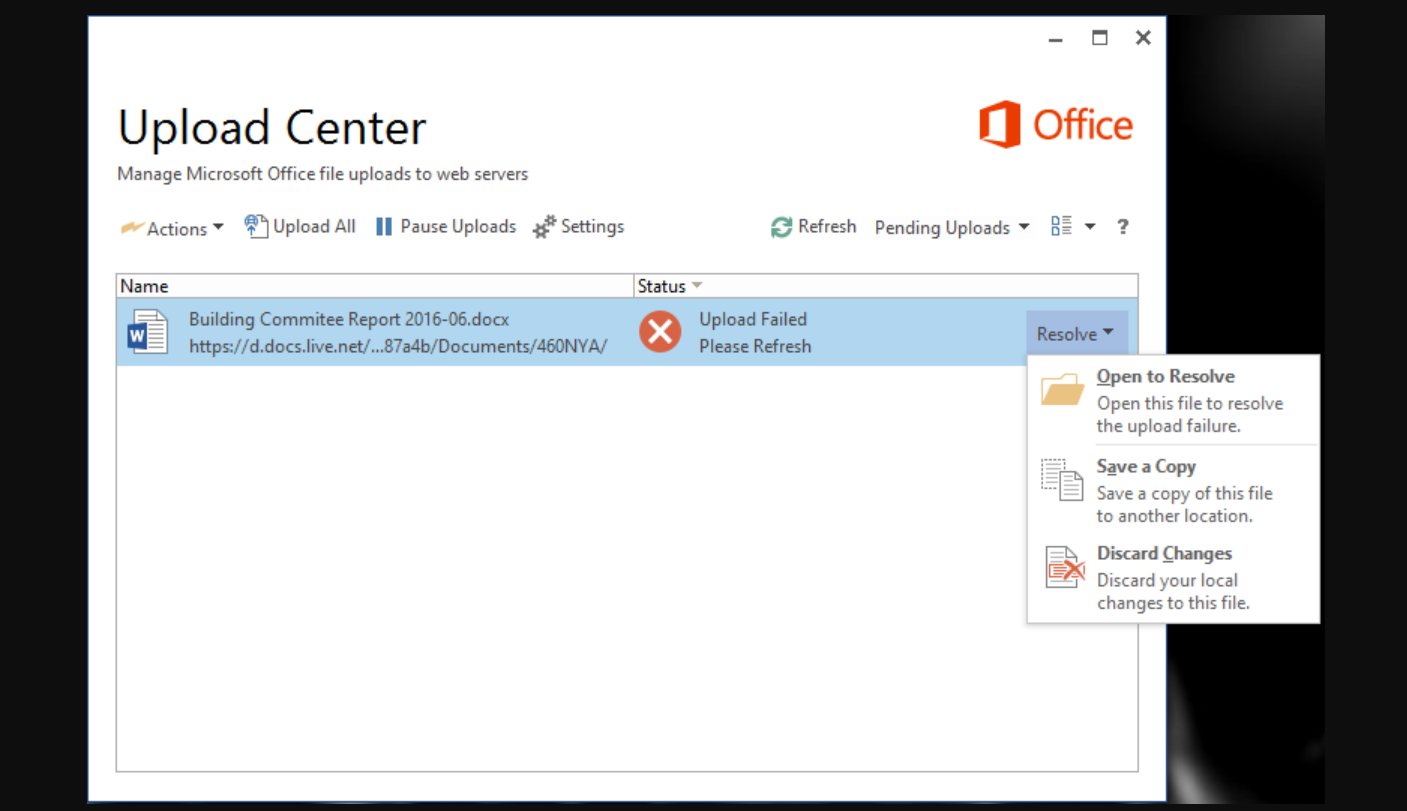
Microsoft Office Upload Center (processes such as MSOUC.EXE and MSOSYNC.EXE) manages uploads of Office files to services like OneDrive and SharePoint. On Office 2010–2016 it often starts with Windows and adds a tray icon even if you never use these features. There are several ways to disable it or hide it, depending on how much you want to remove.
Quick comparison of methods
The options below apply to Office 2010, 2013, and 2016 on supported Windows versions.
| Method | What it does | Office versions | Windows versions | Skill level |
|---|---|---|---|---|
| Turn off OneDrive Office sync | Stops Upload Center starting with Windows and disables Office/OneDrive co‑authoring. | 2013, 2016 | Primarily Windows 10 | Easy |
| Disable scheduled sync task | Prevents the Microsoft Office sync task from launching MSOSYNC.EXE. |
2013 (and some 2016) | Windows 7, 8, 8.1, 10 | Intermediate |
| Remove startup entry in Registry | Stops Upload Center from auto‑starting for the current user. | 2010, some 2013/2016 setups | Windows 7, 8, 10 | Advanced |
| Hide tray icon only | Removes the notification area icon but keeps the feature available. | 2010, 2013, 2016 | Windows 7, 8, 10 | Easy |
| Rename or uninstall components | Prevents executables from running or removes the feature (MSI installs only). | Mainly 2010–2016 MSI installs | Windows 7, 8, 10 | Advanced |
Method 1 – Disable Office file syncing in OneDrive (Office 2013/2016)
Disabling Office integration in OneDrive is the cleanest way on systems where OneDrive is tied to Office, such as Office 2016 on Windows 10.
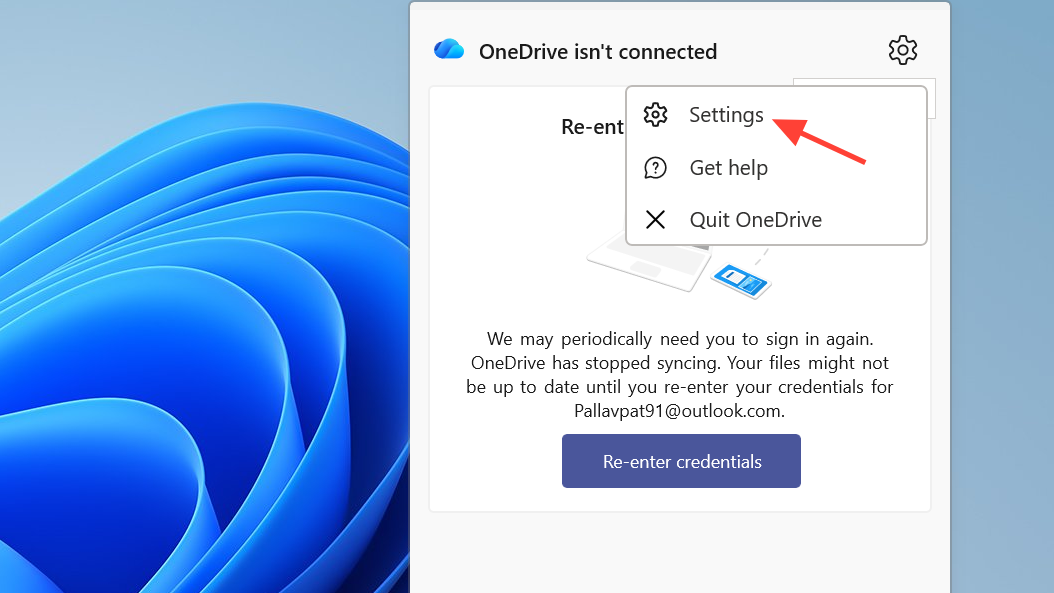
Use Office to sync Office files that I openor
Use Office to work on files with other people at the same time.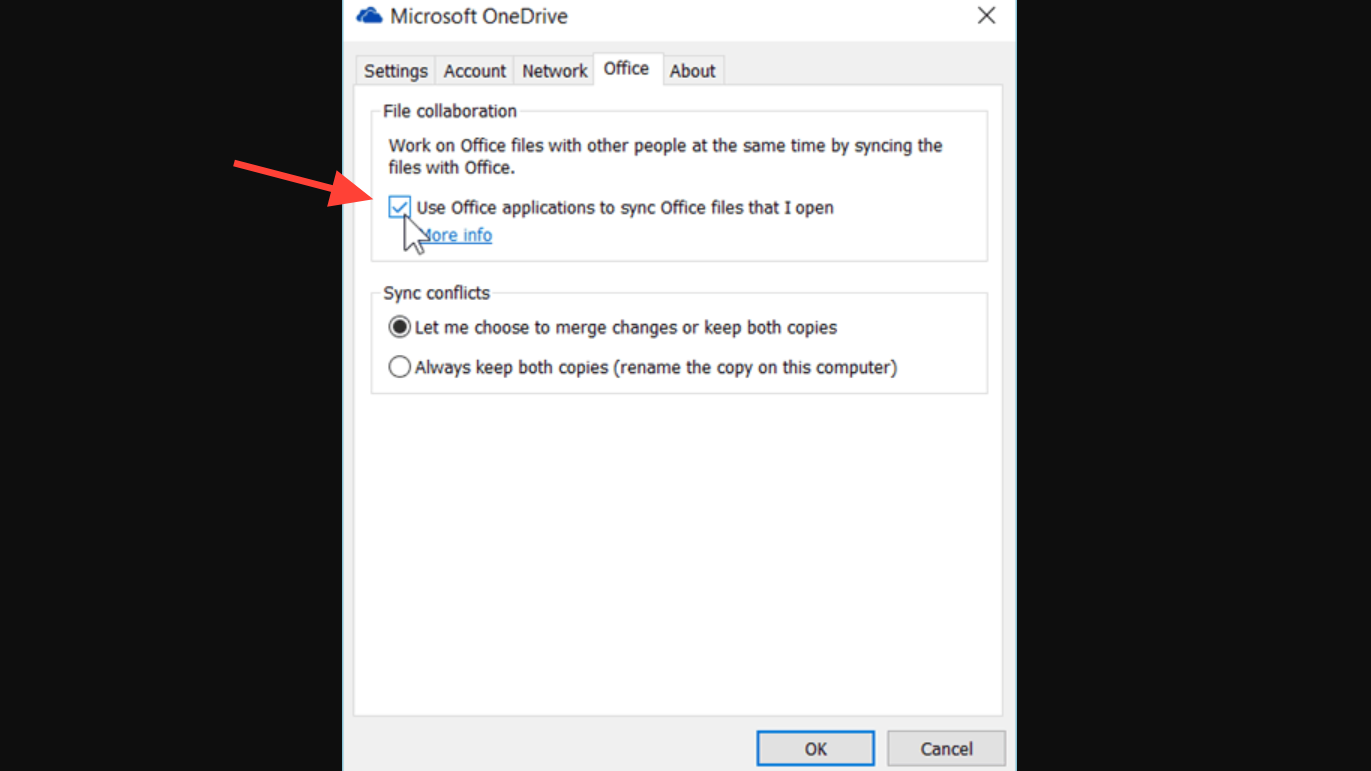
This method also disables real‑time co‑authoring of Office documents stored in OneDrive, so keep that in mind if you rely on that feature.
Method 2 – Disable the Microsoft Office sync task in Task Scheduler
On many Office 2013 installations, Windows Task Scheduler launches the Upload Center through a scheduled task named “Microsoft Office 15 Sync Maintenance”. Disabling this task stops automatic startup.
Windows + R, type taskschd.msc, and press Enter. This opens the Task Scheduler management console.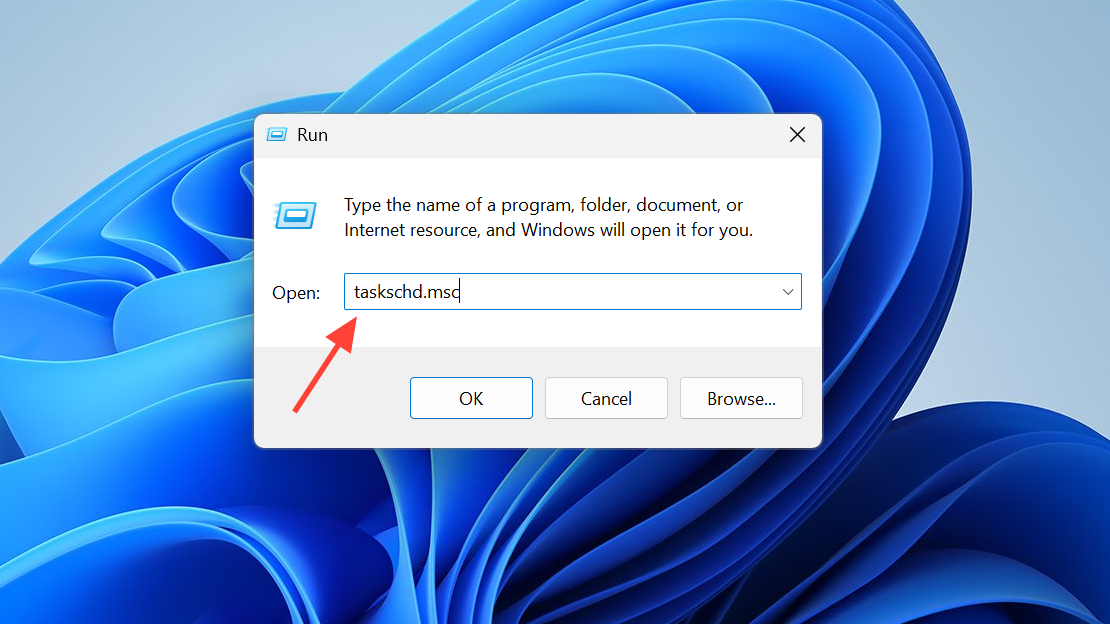
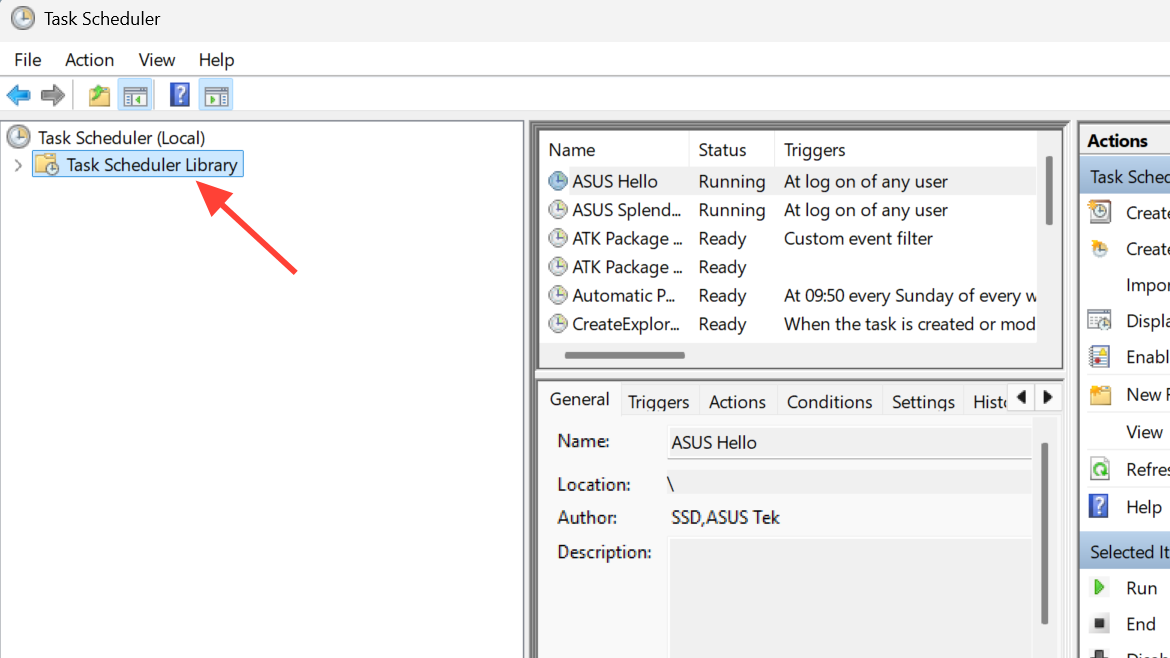
Microsoft Office 15 Sync Maintenance for <USERNAME>.The exact wording may vary slightly, but it typically includes “Office 15 Sync Maintenance” and your user name.
C:\Program Files\Microsoft Office 15\Root\Office15\MSOSYNC.EXEor a similar
MsoSync.exe path.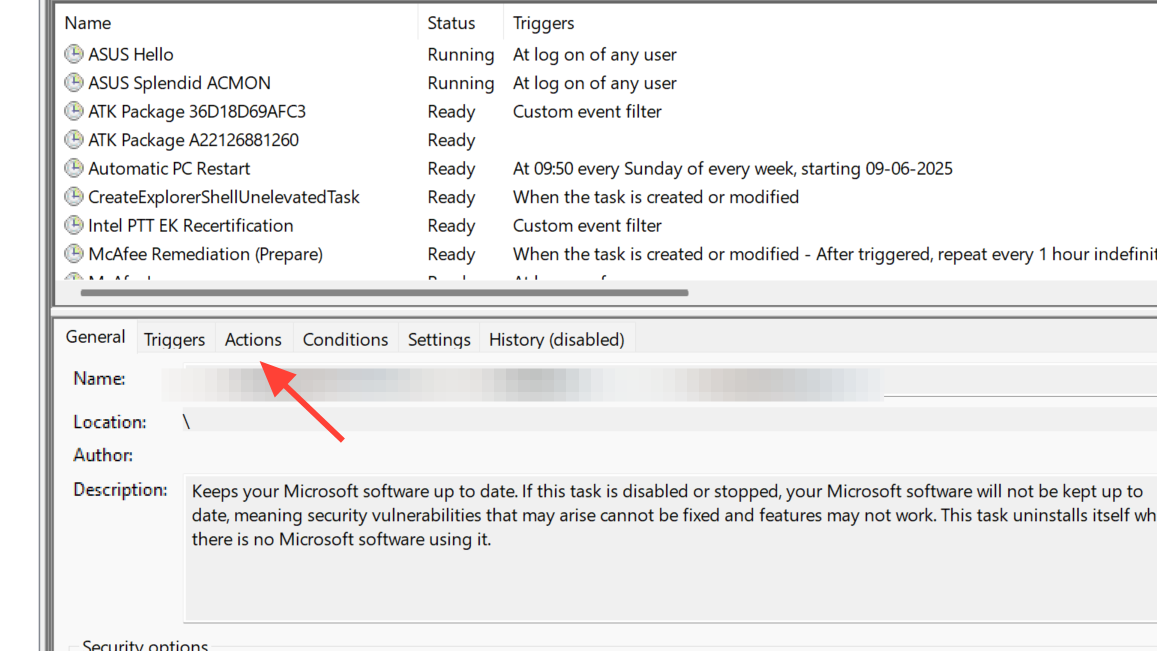
MSOSYNC.EXE.Method 3 – Remove the Upload Center startup entry from the Registry (Office 2010 and some 2013/2016)
Office 2010 commonly registers the Upload Center to start via a Run key in the Windows Registry. Removing that entry stops it from launching at user logon.
Windows + R, type regedit, and press Enter. If prompted by User Account Control, approve the elevation.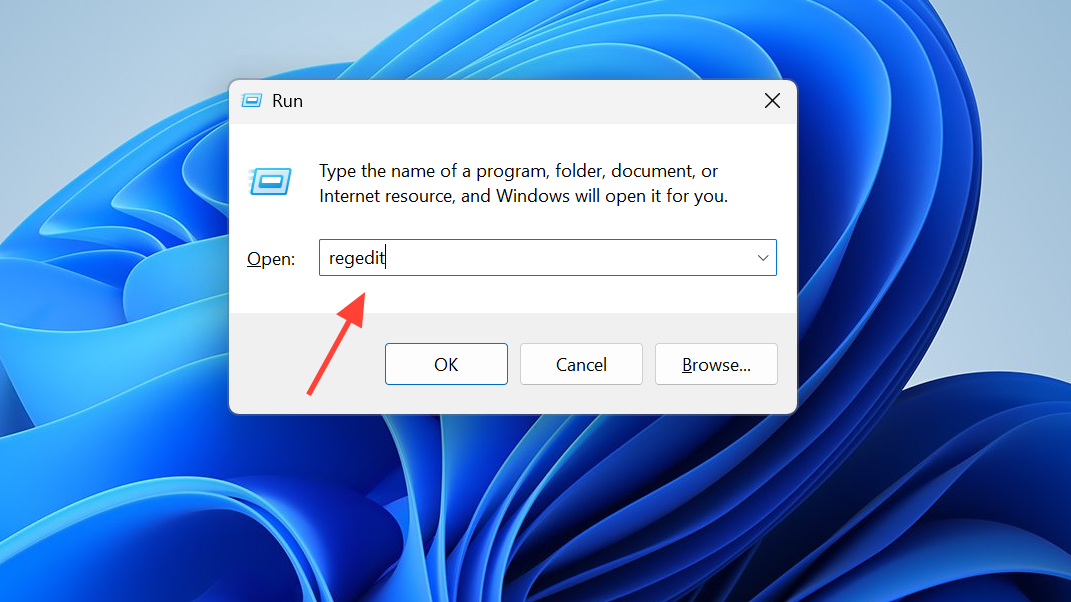
HKEY_CURRENT_USER\Software\Microsoft\Windows\CurrentVersion\Run.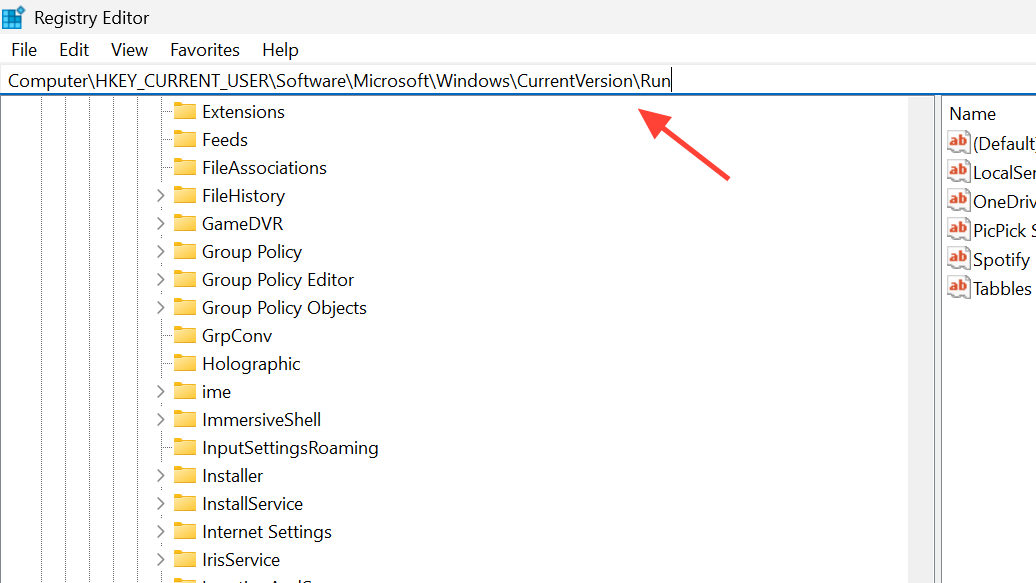
MSOSYNC.EXE or has a name similar to OfficeSyncProcess. The value data typically includes the full path to the Office sync executable..reg file. This lets you restore the original values if needed.OfficeSyncProcess) and choose Delete. Confirm the deletion when asked.MSOSYNC.EXE and the Upload Center icon are no longer started automatically. If you experience any unexpected behavior, you can double‑click the backup .reg file to restore the original Run entries.Method 4 – Hide the Upload Center icon in the notification area
On Office 2010, 2013, and 2016, the Upload Center can be left installed but hidden from the notification area. This does not stop the process from running, but removes the visual distraction.
Display icon in notification area so that it no longer has a check mark.This approach is useful when you still want Office to manage online document caching but do not want a persistent icon in the taskbar.
Method 5 – Block or remove Upload Center executables (advanced)
For stricter setups where the Upload Center must never run, administrators sometimes block or remove the executables that power it. This is more intrusive and should be used with care, as Office updates may restore files and Office may log errors if it expects them.
5.1 Rename the executables
MSOSYNC.EXE, MSOUC.EXE, or related processes like CSISYNCCLIENT.EXE.C:\Program Files\Microsoft Office\Office14\ (Office 2010)C:\Program Files\Microsoft Office\Office15\ (Office 2013)or
C:\Program Files\Microsoft Office 15\root\Office15\ (Click‑to‑Run layouts).MSOSYNC.EXE_
MSOUC.EXE_.You may be prompted for administrator permission; confirm to proceed. Renaming prevents Windows from launching these files under their original names.
C:\Program Files\Common Files\Microsoft Shared\OFFICExx, where xx matches the Office version like 14, 15, or 16) for related executables such as CSISYNCCLIENT.EXE and treat them the same way if needed.5.2 Uninstall the Upload Center feature (MSI installs of Office 2016)
On some Office 2016 installations deployed via MSI (not Click‑to‑Run), the Upload Center is installed as a distinct feature that can be removed by running the Office installer with a specific command.
Windows + X and choose Command Prompt (Admin) or Windows PowerShell (Admin), depending on your menu.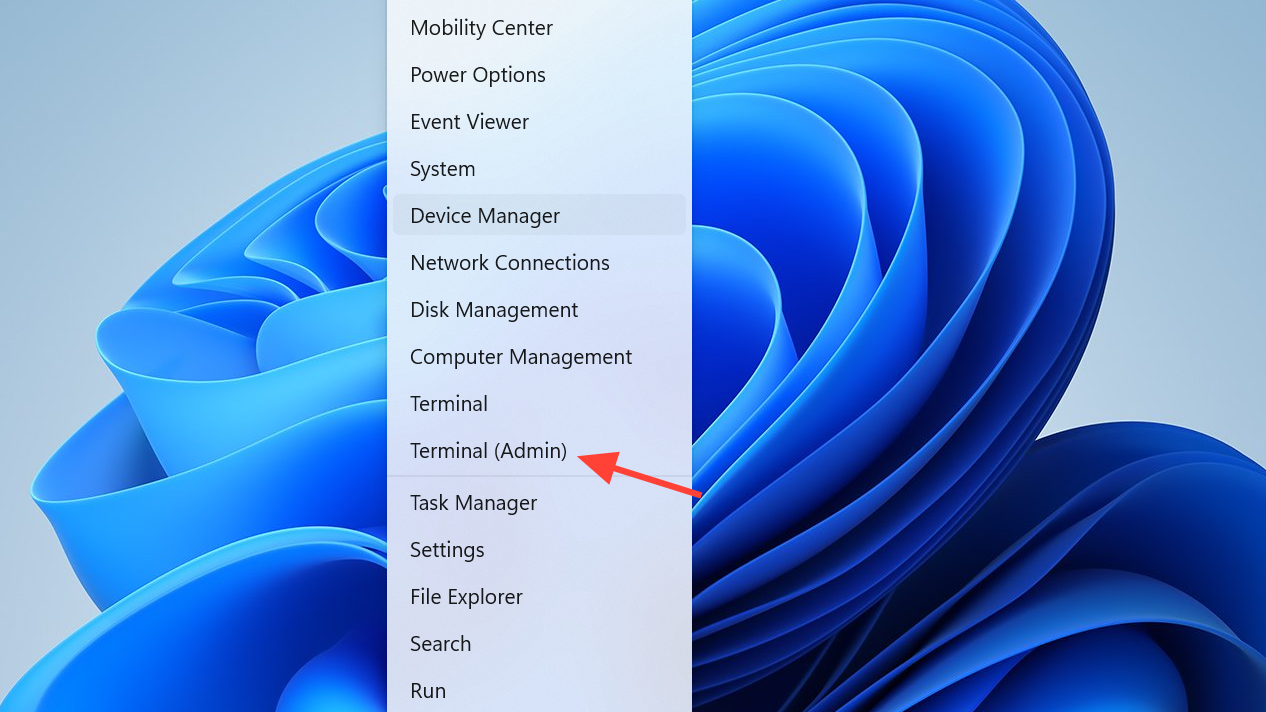
C:\Windows\System32\msiexec.exe /i {90160000-0011-0000-0000-0000000FF1CE} REMOVE=WxpFiles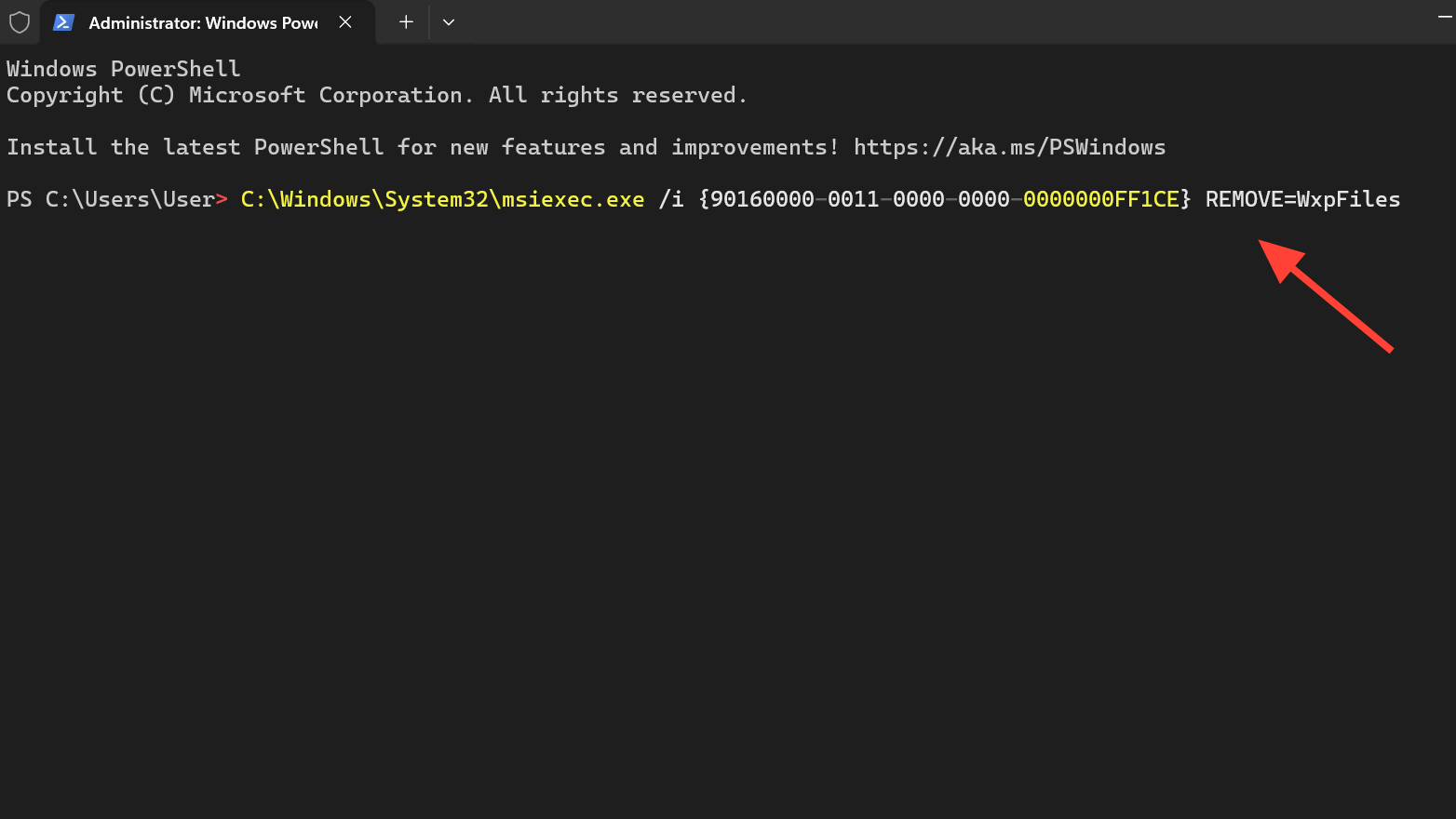
This command invokes the Office 2016 Upload Center package identified by product code {90160000-0011-0000-0000-0000000FF1CE} and removes the feature named WxpFiles. On supported MSI installations, this removes the Upload Center without uninstalling the rest of Office.
This approach is specific to MSI‑based Office packages. Click‑to‑Run installations do not use this mechanism and generally cannot remove the Upload Center as a separate feature using msiexec.
Method 6 – Use Windows startup app controls as a workaround (Windows 10)
On some systems, Upload Center appears in the Windows startup apps list, allowing you to disable it like any other startup item.
Windows + I, then go to Apps, and select the Startup section in the left pane (on Windows 10) or equivalent startup panel.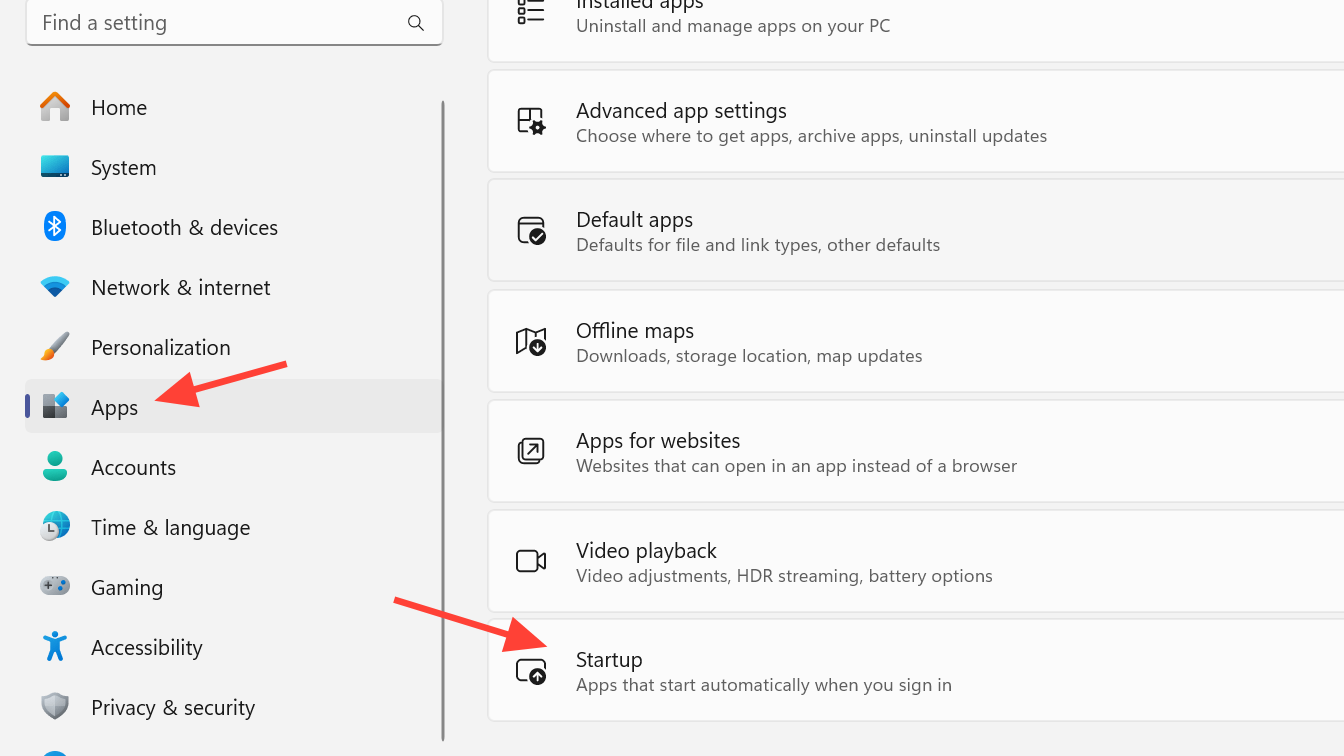
Once you pick the method that matches your Office version and comfort level—hiding the icon, disabling scheduled tasks, removing the Registry entry, or fully blocking the executables—you can stop Upload Center from constantly appearing and using background resources while still keeping the parts of Office you actually rely on.





