

Hytale leans hard into classic PC controls: keyboard and mouse, first-person by default, and a long list of shortcuts for building, combat, and creative tools. Learning those bindings early makes exploring Orbis, managing your inventory, and swapping tools much smoother.
Hytale input basics and accessibility
On PC, Hytale currently supports keyboard and mouse only. There is no in-game controller support yet, and the developers list controller support as a planned feature for a later update on the official Hytale accessibility page.
Every control can be remapped in the settings. You can also tune horizontal and vertical mouse sensitivity and switch the camera between first-person and third-person. For motion comfort, screen shake and head bobbing can be turned off, and ultrawide resolutions are supported.
For movement-related actions, Hytale lets you choose whether crouch, sprint, and walk behave as “hold” (active only while the key is pressed) or “toggle” (press once to stay in that state). By default, all three are set to HOLD.
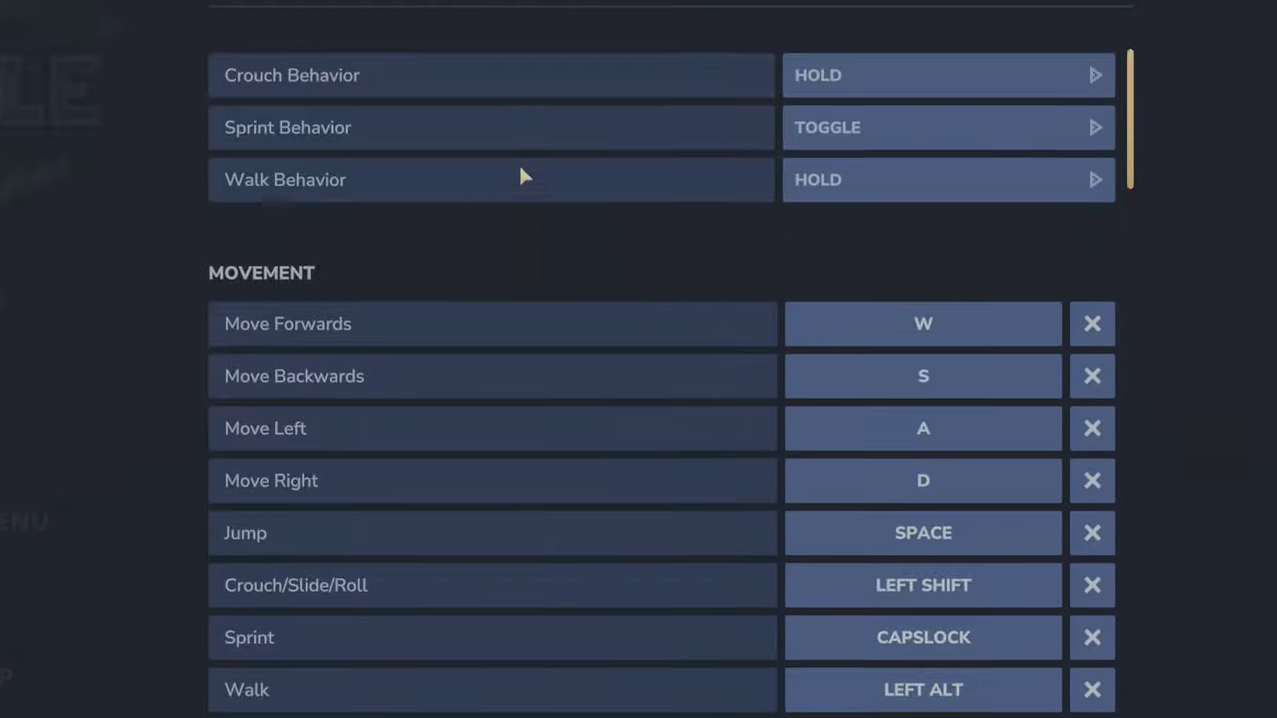
Default movement controls
Movement uses the standard WASD layout plus modifiers for sprinting, walking, crouching, and flying:
| Action | Default key |
|---|---|
| Move Forwards | W |
| Move Backwards | S |
| Move Left | A |
| Move Right | D |
| Jump | Spacebar |
| Crouch / Slide / Roll | Left Ctrl |
| Sprint | Left Shift |
| Walk | Left Alt |
| Fly Up (where available) | Spacebar |
| Fly Down (where available) | Left Ctrl |
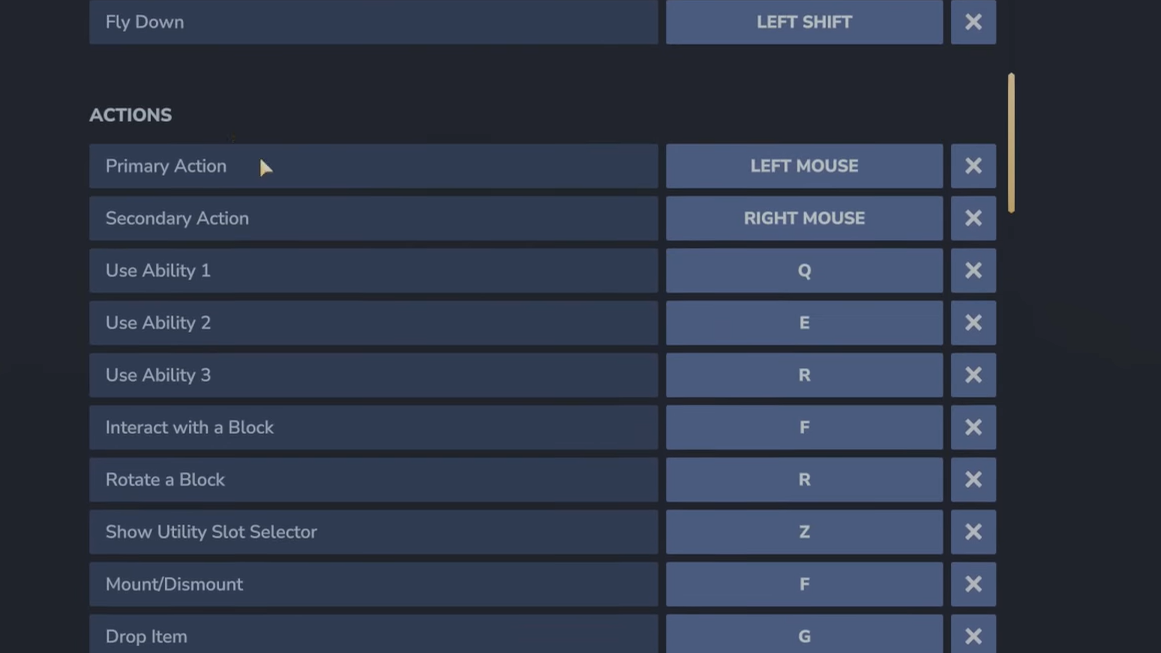
Default action and combat controls
Most interactions sit near WASD so you can reach them without moving your hand far. Primary and secondary actions are on the mouse, while abilities and interaction sit on Q, E, R, and F.
| Action | Default key |
|---|---|
| Primary Action (attack / use item) | Left Mouse |
| Secondary Action | Right Mouse |
| Use Ability 1 | Q |
| Use Ability 2 | E |
| Use Ability 3 | R |
| Interact with a Block (pick up / use) | F |
| Rotate a Block | R |
| Show Utility Slot Selector | Z |
| Mount / Dismount | F |
| Drop Item | G |
| Hotbar Slot 1 | 1 |
| Hotbar Slot 2 | 2 |
| Hotbar Slot 3 | 3 |
| Hotbar Slot 4 | 4 |
| Hotbar Slot 5 | 5 |
| Hotbar Slot 6 | 6 |
| Hotbar Slot 7 | 7 |
| Hotbar Slot 8 | 8 |
| Hotbar Slot 9 | 9 |
| Switch Camera Mode (1st / 3rd person) | V |
| Activate Camera Rotation | C |
| Toggle Chat | Enter / Return |
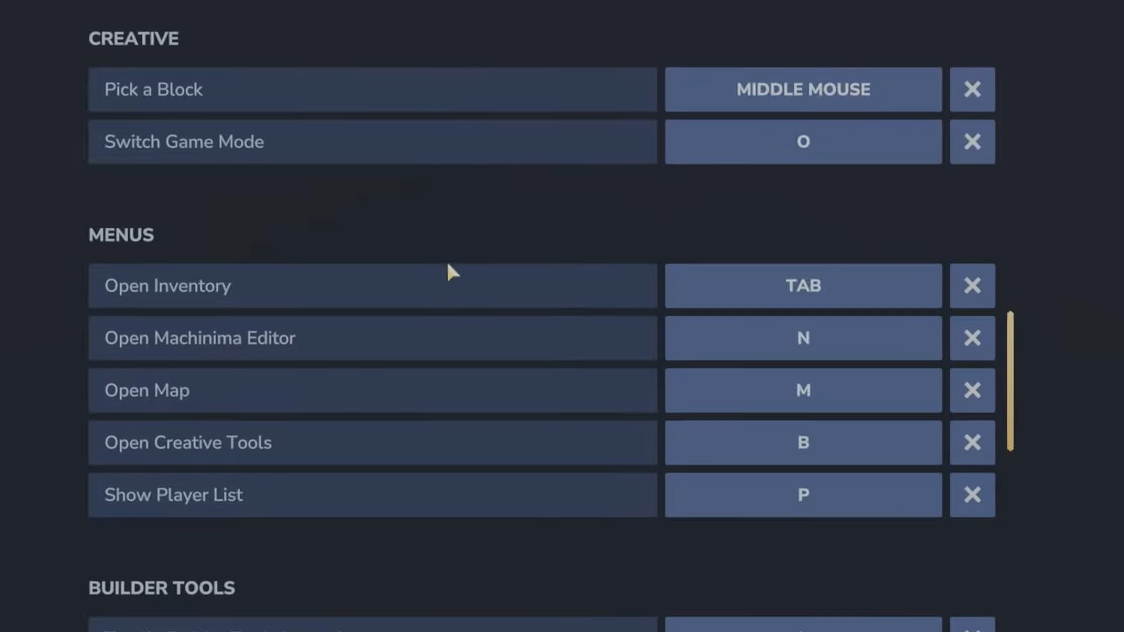
Creative mode shortcuts
Creative tools focus on rapid building and testing. Two shortcuts matter most:
| Action | Default key |
|---|---|
| Pick a Block (from world to hotbar) | Middle Mouse |
| Switch Game Mode | O |
Middle-clicking a block quickly copies it into your hotbar, which is useful when copying existing structures or working from reference builds.
Menu and interface keybinds
Most menus are grouped on the left side of the keyboard for quick access while your right hand stays on the mouse.
| Menu | Default key |
|---|---|
| Open Inventory | Tab |
| Open Machinima Editor | N |
| Open Map | M |
| Open Creative Tools | B |
| Show Player List | P |
The map gives a top-down, pixelated view of your surroundings, highlights nearby points of interest, and shows both your own location and the position of allies.
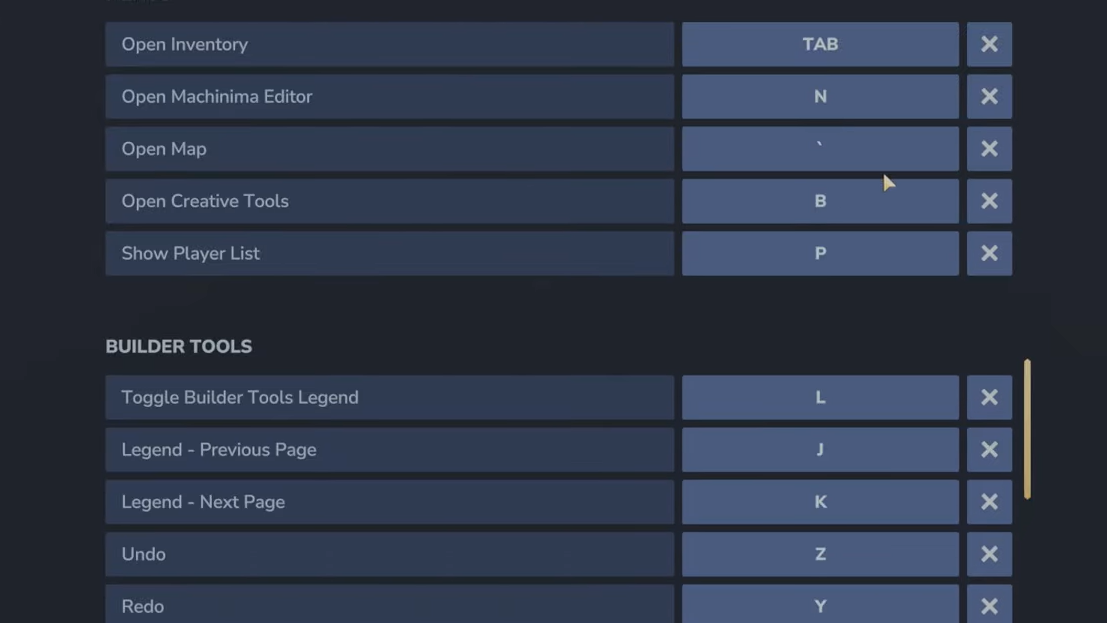
Builder Tools keybinds
Builder Tools are Hytale’s higher-level editing tools for sculpting terrain, painting blocks, and copying or pasting structures. Many of these are on the numeric keypad, so a full keyboard layout is ideal if you use these heavily.
| Builder action | Default key |
|---|---|
| Toggle Builder Tools Legend | L |
| Legend – Previous Page | J |
| Legend – Next Page | K |
| Undo | Z |
| Redo | Y |
| Add / Remove Favorite Material | Unbound by default |
| Paint Brush Tool | Keypad 1 |
| Sculpt Brush Tool | Keypad 2 |
| Selection Tool | Keypad 3 |
| Paste Tool | Keypad 4 |
| Line Tool | Keypad 5 |
| Change Sculpt Brush Modifier | Left Shift |
| Use Paint Mode for Brush | U |
| Select Block from Set | Q |
| Paste Preview | T |
Undo and Redo behave like standard editing shortcuts, which makes experimentation safer when you’re sculpting large areas or testing new designs.
Miscellaneous and debug keybinds
A set of function keys manage screenshots, the HUD, and debug tools that are mostly useful when testing or capturing footage.
| Category | Action | Default key |
|---|---|---|
| Misc | Switch HUD Visibility | F8 |
| Misc | Toggle Fullscreen | F11 |
| Misc | Take Screenshot | F12 |
| Misc | Command (open chat command prefix) | / |
| Debug | Decrease Speed Multiplier | F1 |
| Debug | Increase Speed Multiplier | F2 |
| Debug | Toggle Creative Collision | F3 |
| Debug | Toggle Fly Camera | F4 |
| Debug | Toggle Fly Camera Control Target | F5 |
| Debug | Toggle Debug Screens | F7 |
For everyday play, the miscellaneous keys matter most. F8 is helpful if you want a clean view for screenshots or machinima, and F11/F12 align with common PC conventions for fullscreen and screenshots.
How to change keybinds in Hytale
Hytale’s controls menu lets you rebind almost everything, including the camera toggle. The process is simple and applies both in survival and on servers.
Step 1: Launch Hytale and enter any world or server so you’re in active gameplay.
Step 2: Press Esc to open the pause screen, then select the Settings option.
Step 3: In Settings, go to the Controls tab. This screen lists movement, combat, camera, and builder keybinds.
Step 4: Click the keybinding you want to change. The entry will wait for new input. Press the new key or mouse button you want to assign.
Step 5: Repeat for any other actions you want to remap. When you’re done, back out of the menu; changes are saved automatically.
How to switch between first-person and third-person
Hytale starts in first-person, but the camera system is built to move between views quickly. Third-person is useful when you want a better sense of your character’s position, need a wider view during combat, or simply want to see your armor and cosmetics.
Step 1: While playing, press V once to toggle the camera. This pulls the camera back into third-person, behind your character.
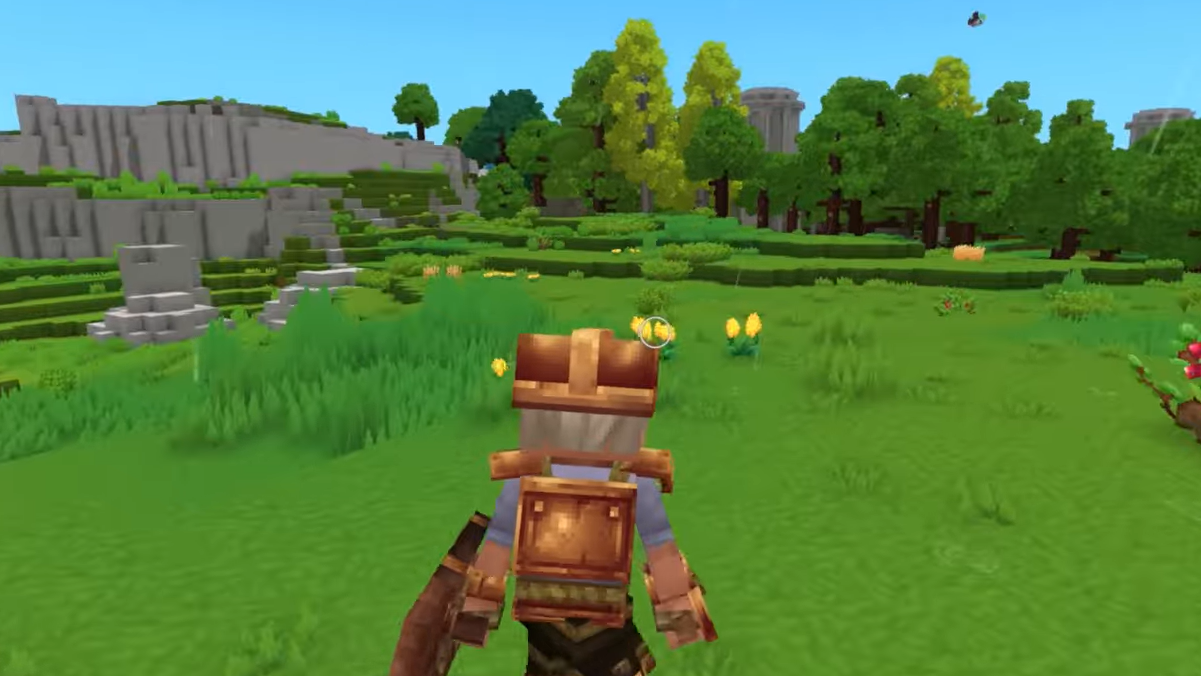
v key to switch between first-person and third-person camera views | Image credit: Hypixel Studios (via YouTube/@Quick Tips)Step 2: Press V again to switch back to first-person. The swap is instant, so you can move between views as you build or fight.
Step 3: Hold or tap C to activate camera rotation, which lets you orbit the camera around your character while staying in third-person.
If V is awkward for your hand position, remap it through the Controls tab under the entry named Switch Camera Mode. The process is the same as any other keybind change.
Using behaviors and camera settings for comfort
Beyond raw keybinds, a few settings make Hytale more comfortable to play for longer sessions or on different setups:
- Toggle vs hold for movement states. If holding Left Shift to sprint or Left Ctrl to crouch is tiring, switch those behaviors from HOLD to TOGGLE so a single tap turns them on until you tap again.
- Head bob and screen shake. In the video or motion settings, disabling head bob and screen shake can reduce motion sickness and make the image easier to track.
- Mouse sensitivity per axis. Horizontal and vertical sensitivity sliders let you slow vertical movement if looking up and down feels too twitchy compared to aiming side to side.
These options, together with full keybinding remap support, give you enough flexibility to get Hytale’s controls aligned with how you already play other PC games, or to build a layout that works around specific mobility or comfort needs.
Once the core movement, action, and camera keys feel natural under your hands, Hytale’s deeper systems—Builder Tools, objectives, map navigation, and machinima tools—start to click much faster. Taking a few minutes to tune controls and behaviors early on pays off quickly, especially if you plan to spend a lot of time building, fighting, or filming inside Orbis.