

iPhone Mirroring on the Mac has always shown your phone at its own tall, narrow shape. That changes in macOS 27 Golden Gate, which lets you resize the mirrored window using additional aspect ratios instead of locking it to the iPhone’s fixed proportions. The result is a window that can take on wider, more iPad-like dimensions while you work.
Quick answer: In macOS 27 Golden Gate, drag the iPhone Mirroring window to a new shape and it snaps to the nearest supported aspect ratio. Apps built for iOS 27 then redraw using their iPhone or iPad layout to match.
What changed in macOS 27 Golden Gate
Apple announced macOS Golden Gate on June 8th at WWDC 2026, naming it after the bridge and framing it as a performance and refinement release in the spirit of Snow Leopard. Alongside the headline items like the rebuilt Siri and fixed rounded window corners, the update carries a set of smaller tweaks that did not get stage time. One of them lands squarely on iPhone Mirroring.
Until now, the feature kept the window locked to your iPhone’s real shape. You could pick a size, but the proportions never moved. macOS 27 adds the ability to change the window’s aspect ratio as well as its size, so the mirrored view can stretch into wider formats that suit a desktop workflow.
How the new aspect ratio resizing works
The resizing is not fully freeform. The system offers several fixed aspect ratios and snaps the window to the nearest supported shape rather than letting you settle on any arbitrary dimensions. As you reshape the window, the mirrored content responds in one of two ways.
Depending on the shape you choose, an app shows either an adjusted version of its iPhone layout or its iPad layout when one exists. That is why a wider window can suddenly look closer to an iPad screen than a phone. Settings is one example that switches over, and developers who recompile their apps for iOS 27 can pick up the behavior without other changes.
There is an important limit. The aspect ratio adjustments only work with apps that are ready for iOS 27, which for now means native iOS apps. Anything that has not been updated stays tied to the older, phone-shaped view.
| Behavior | What you get |
|---|---|
| Window resizing | Snaps to several fixed aspect ratios, not arbitrary shapes |
| Layout shown | Adjusted iPhone layout, or iPad layout when the app has one |
| App requirement | Only iOS 27-ready apps; currently native iOS apps |
| Control Center | Now mirrorable from the Mac |
Control Center comes to iPhone Mirroring
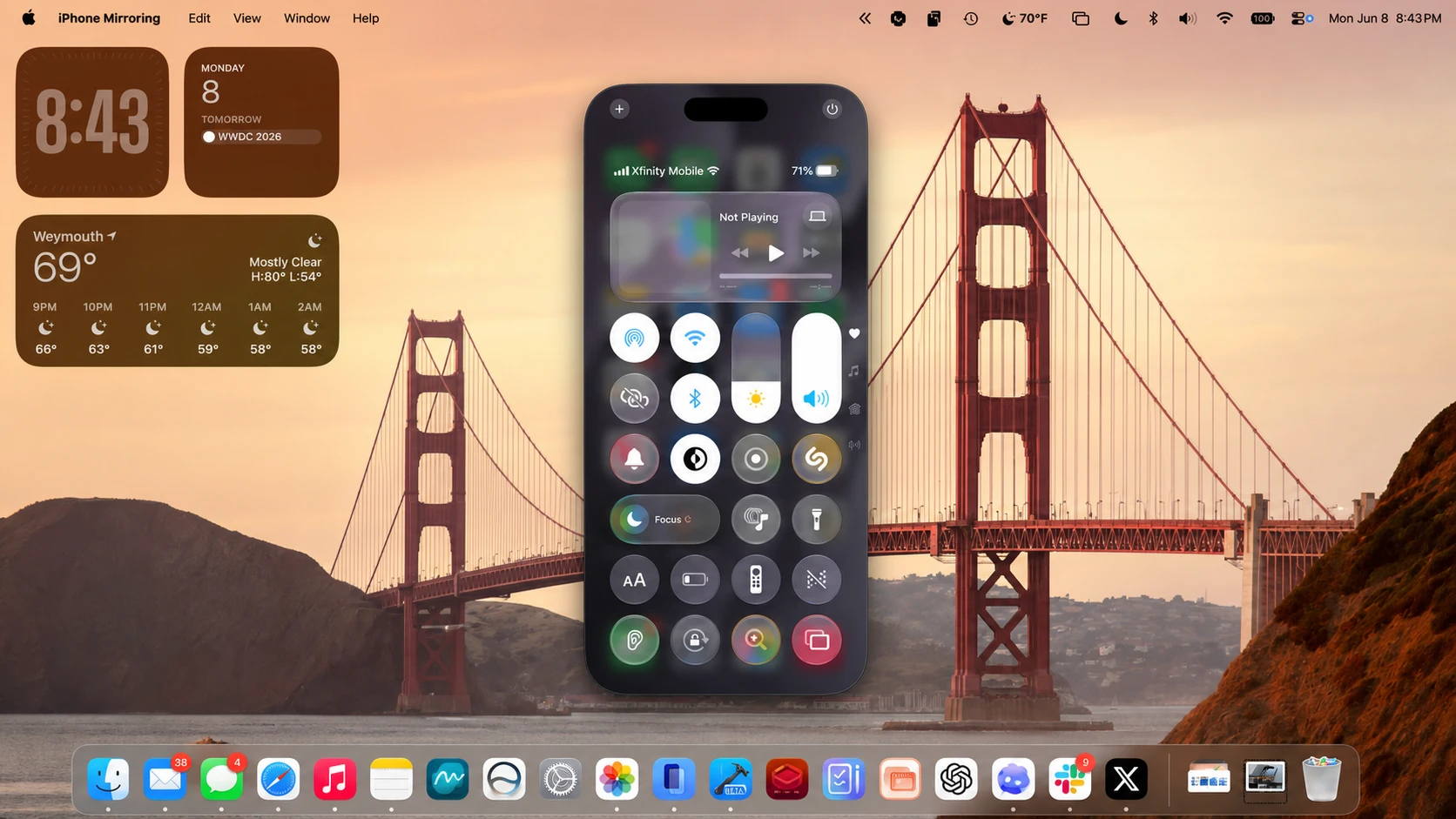
The same update opens up Control Center inside iPhone Mirroring. It joins the Home Screen, App Switcher, and Spotlight as iPhone areas you can reach from the Mac, closing one of the longest-standing gaps in the feature. That means quick toggles you previously had to grab on the phone itself are now available within the mirrored window.
The existing size controls still apply
The older size options remain in place underneath the new aspect ratio behavior. You can still set the window to actual size, smaller, or larger from the View menu while a session is running.
Note: iPhone Mirroring needs a Mac with Apple silicon or a T2 chip running the latest macOS, an iPhone signed into the same Apple ID with two-factor authentication on, and both devices near each other with Bluetooth and Wi-Fi enabled. The phone stays locked during a session.
For people who lean on iPhone Mirroring through the day, the practical payoff is a window that can finally widen to fit the task in front of you, with Control Center one click away inside the same view.