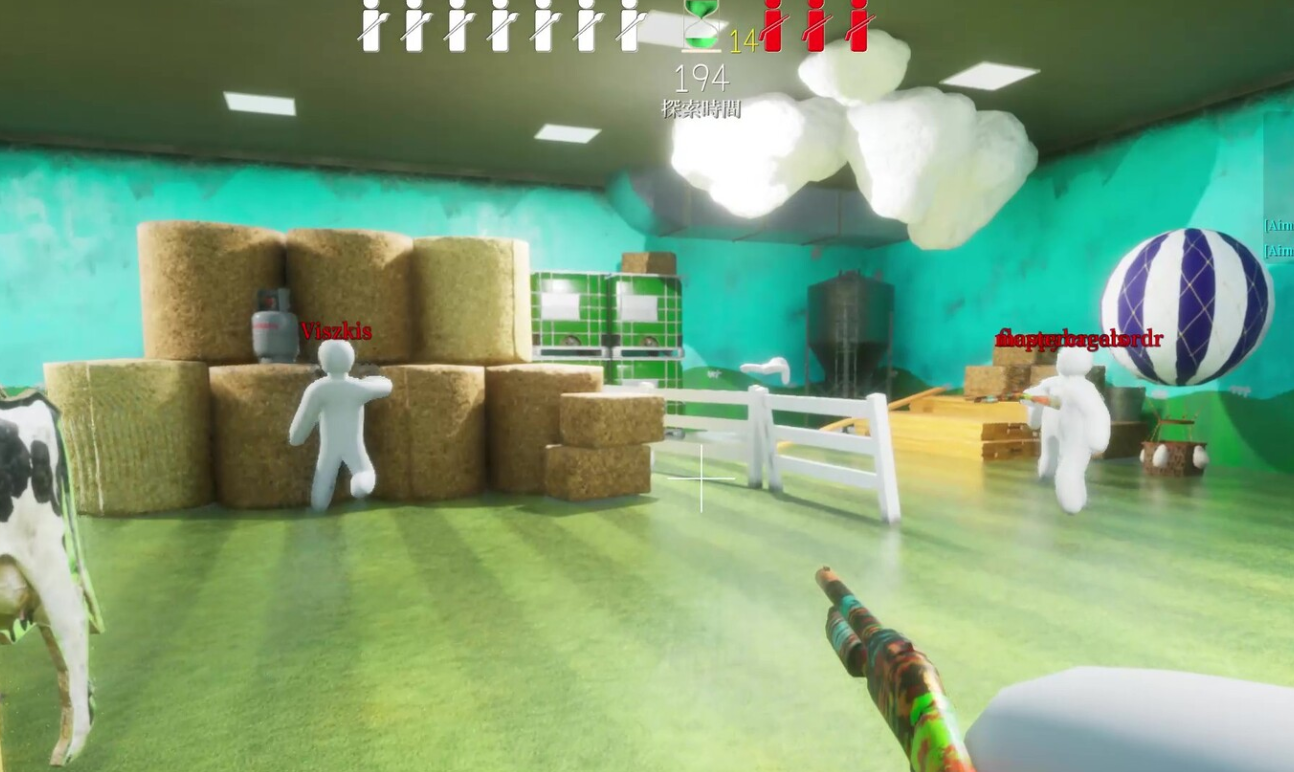
MECCHA CHAMELEON is the chaotic multiplayer hide-and-seek game that blew up on Steam, where Hiders paint their white bodies, strike creative poses, and try to melt into the stage before Seekers spot them. It sold a million copies soon after launch and set a new all-time player-count record, which is exactly why so many people are now searching for it on their phones. The catch is simple. It is a PC game, and there is no genuine iPhone or iPad version of it.
Quick answer: There is no official MECCHA CHAMELEON app on the App Store. To play the real game on an iPhone or iPad, install it on a PC through Steam and stream it to your device with StarDesk; any App Store listing named “Mecha Chameleon” is a separate game, not the Steam title.
Is MECCHA CHAMELEON on iOS or Android?
No. MECCHA CHAMELEON launched on Steam in June 2026 as a PC title from developer lemorion_1224, and it has no native Android or iOS build. You cannot buy or download the full game from the App Store or Google Play, and you should treat any APK or IPA file claiming to offer the complete PC version as unsafe.
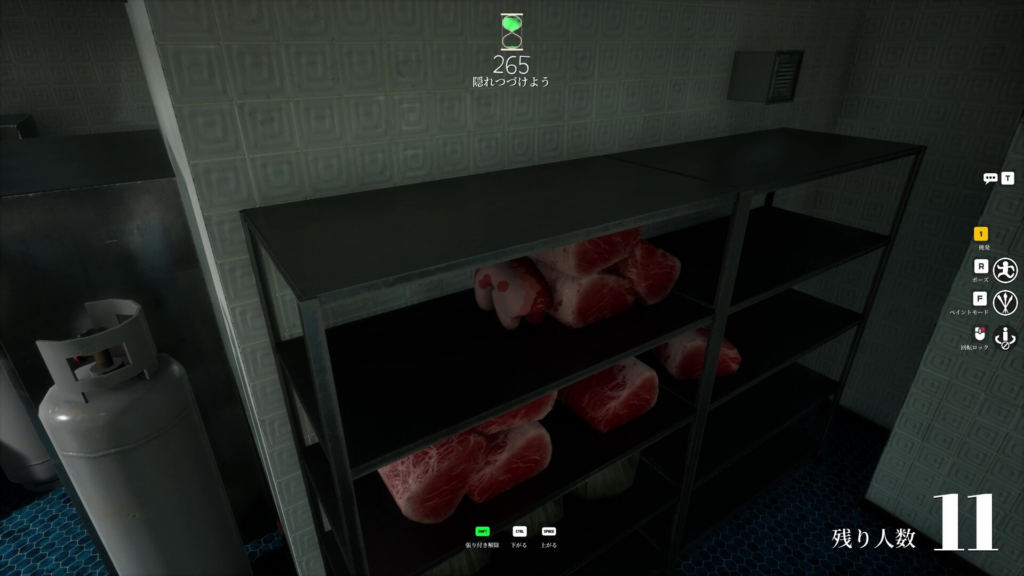
The game splits players into Hider and Seeker teams. Hiders paint their bodies to match the scenery, pick a clever pose, and hope their color match holds up, while Seekers scan the room and inspect suspicious shapes before the timer runs out. Because so much depends on visual detail, the only faithful way to play it on a phone or tablet is to mirror the real PC version rather than rely on a copycat app.
The “Mecha Chameleon” App Store listing is not the Steam game
An app called Mecha Chameleon does exist on the App Store, published by Youssef Drioua. It is free, about 41.8 MB, requires iOS 15.1 or later, and is rated 4+. Its description borrows the same paint-and-blend hide-and-seek pitch, but it is a different product from the Steam release and is not affiliated with it.
User reviews tell the story. The app holds a 2.6 rating across dozens of ratings, with repeated complaints about constant advertisements before matches even begin, glitches such as walking through walls, and gameplay that does not match the marketing. Several reviewers flag it directly as a fake. If you are looking for the viral Steam experience, this listing will not deliver it.
How to play MECCHA CHAMELEON on iPhone or iPad
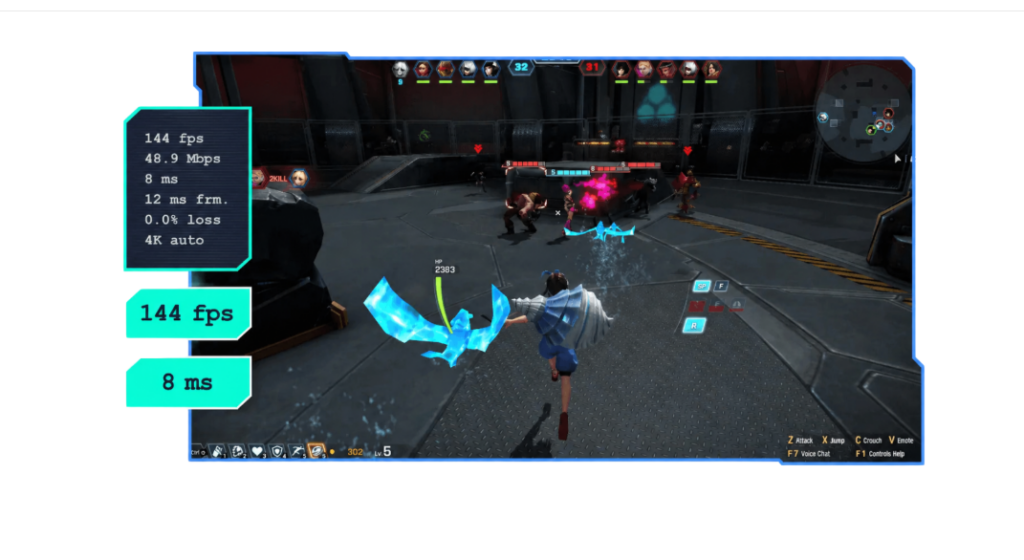
The workable approach is remote streaming. Your PC runs the full Steam version, and your iPhone or iPad displays the screen and sends your controls back, so your settings, online features, and progress all stay on the computer. StarDesk handles the connection with low-latency control and high-quality streaming, which matters for a game where reading colors, shadows, and player outlines decides the round.
You will know the setup worked when the live PC desktop or game appears on the iOS screen and your inputs move the camera and character in real time. An iPad is the better choice here, since the larger display makes it easier to read stage colors, spot odd shapes, and catch hidden players.
Recommended streaming settings for iPhone and iPad
Stability matters more than maximum resolution for an online hide-and-seek match. If the stream stutters, lower the bitrate or resolution before anything else.
| Setting | iPhone | iPad |
|---|---|---|
| Resolution / frame rate | 1080p / 60 FPS | 1080p–1440p / 60 FPS |
| Orientation | Landscape | Landscape |
| Network | Stable Wi-Fi or strong mobile data | Stable Wi-Fi |
| Stream priority | Low-latency | Low-latency |
| Stream quality | Medium if network is unstable | Medium to high |
| Controls | Minimal touch buttons; Bluetooth controller recommended | Key mapping or controller; optional keyboard and mouse |
Keep the center of the screen clear of virtual buttons. You need an unobstructed view of the stage when matching colors as a Hider or scanning the room as a Seeker. Higher brightness also helps reveal players who have blended in.
Controller and key mapping options
A Bluetooth controller is the smoothest way to handle movement, camera control, chasing, and positioning. Pair it through your device’s Bluetooth settings before connecting. If the controller does not respond in-game, open the StarDesk Panel, tap External Device, choose GamePad, and confirm it is recognized and enabled before returning to the match.
If you prefer touch, StarDesk key mapping turns on-screen buttons into keyboard and mouse inputs. After connecting, open the Panel, enable Key Mapping, then open KeysEdit to lay out your controls. A common setup mirrors the PC keys.
| Action | Typical key |
|---|---|
| Movement | W / A / S / D |
| Camera control | Mouse movement |
| Select, confirm, paint, interact | Left mouse button |
| Sprint | Shift |
| Crouch or pose | Ctrl / C |
| Interact | E / F |
| Scoreboard or player list | Tab |
| Pause, back, settings | Esc |
Place movement on the left, key actions on the right, and lower the button opacity so you can still see colors and outlines through them. You can also check Switch Control Scheme for an official preset before building a layout from scratch, then save it for reuse.
Until a real native port exists, that remote-streaming setup is the only way to get the genuine MECCHA CHAMELEON on an iPhone or iPad. The App Store copycat may share the name, but the painting, posing, and seeking that made the Steam game popular live entirely on the PC version you stream.