

Notepad on Windows 11 has quietly grown up from a bare-bones editor into a lightweight rich-text app. With version 11.2510.6.0, it adds one of its most useful upgrades yet: real tables. You can now lay out lists, simple trackers, or grids of text directly in Notepad without jumping to Word or Excel.
Check you have the Notepad version with tables
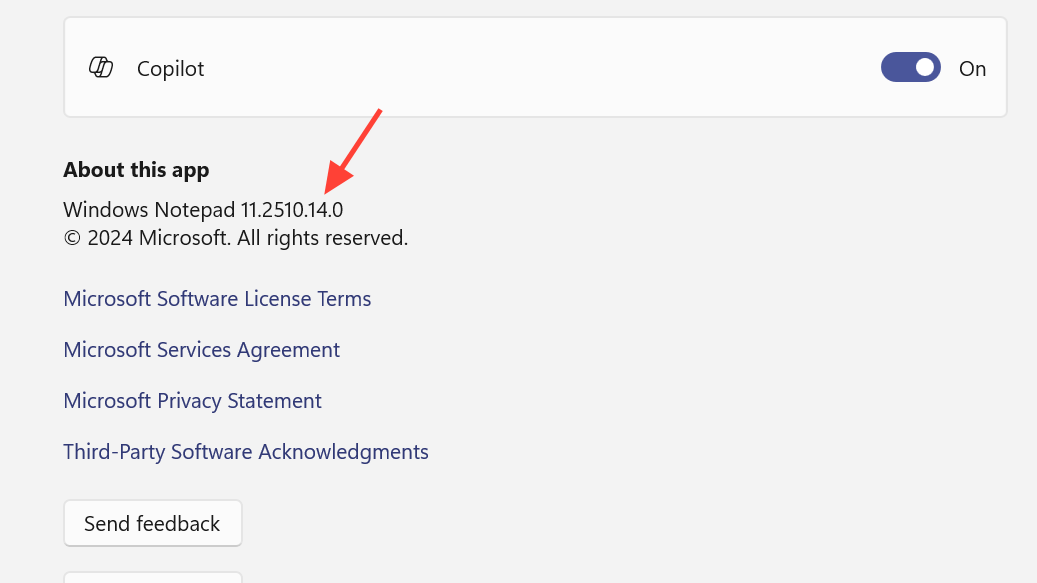
Table support is available starting in Notepad version 11.2510.6.0 on Windows 11. It first appears for Windows Insiders in the Canary and Dev Channels and then rolls out more broadly.
To verify the version you’re running:
- Open Notepad.
- Open the app menu (the three dots in the title bar).
- Choose the option that shows app details or about information, and confirm the version number.
If your version is older, update Notepad from the Microsoft Store by searching for “Windows Notepad” in the store app and installing updates from the product page at apps.microsoft.com/store/detail/windows-notepad/9MSMLRH6LZF3.
Core ways to insert a table in Notepad
There are three main entry points for creating tables:
| Method | Where you click | What it’s good for |
|---|---|---|
| Toolbar grid selector | Table button on the formatting toolbar | Fast insertion of small tables (for example, 3×4, 5×2) |
| Manual “Insert table” dialog | Table button → “Insert table” | Precise control over number of rows and columns |
| Right‑click context menu | Right‑click in the document → “Insert table” | When your cursor is already where the table should go |
Create a table from the toolbar grid
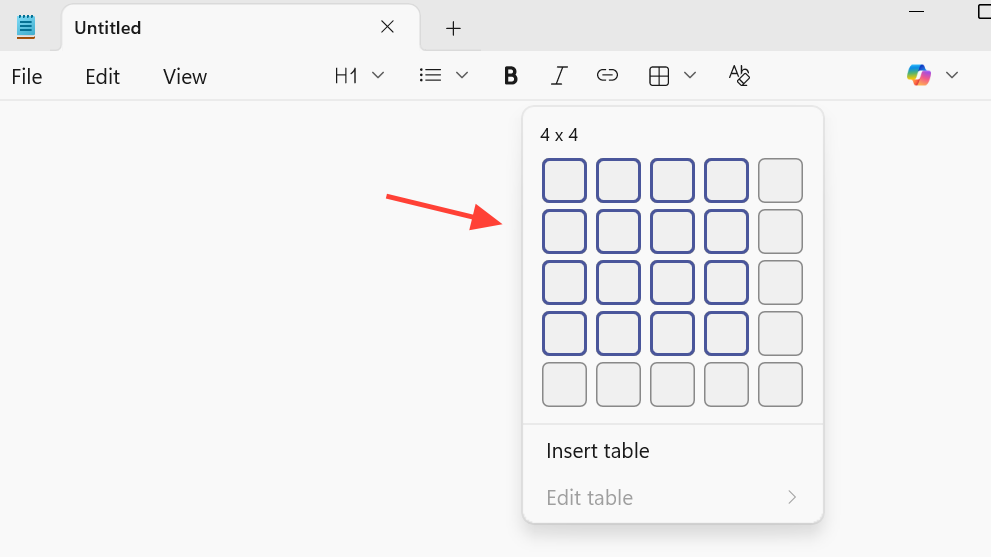
For quick layouts, the toolbar grid is the fastest route.
- Open Notepad and place the text cursor where the table should appear.
- On the formatting toolbar, select the Table button.
- A small grid picker opens. Move the mouse over the grid to choose the number of columns (horizontal) and rows (vertical).
- Click the highlighted grid area to insert the table.
Notepad drops a formatted grid into your document, and you can start typing in each cell immediately.
Create a table with the “Insert table” dialog
When you need a specific size or a larger table than the grid picker shows, switch to the dialog.
- Open Notepad and position the cursor where the table should go.
- On the formatting toolbar, select Table.
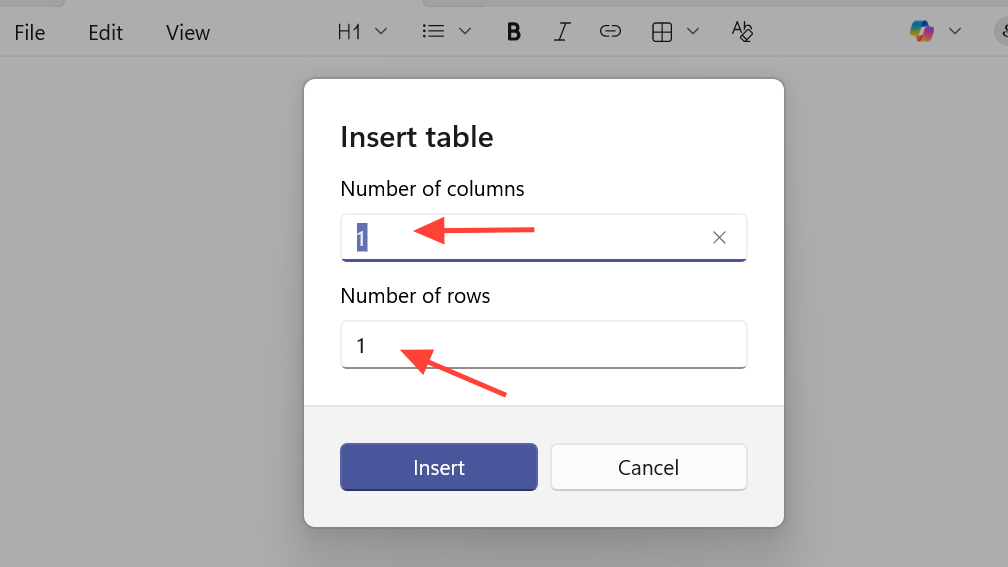
- Choose Insert table.
- In the dialog, enter the exact number of columns and number of rows.
- Select Insert.
This creates a table with the dimensions you specified, ready for data.
Insert a table from the right‑click menu
If your hand already lives on the mouse, the context menu can be more natural.
- Open Notepad.
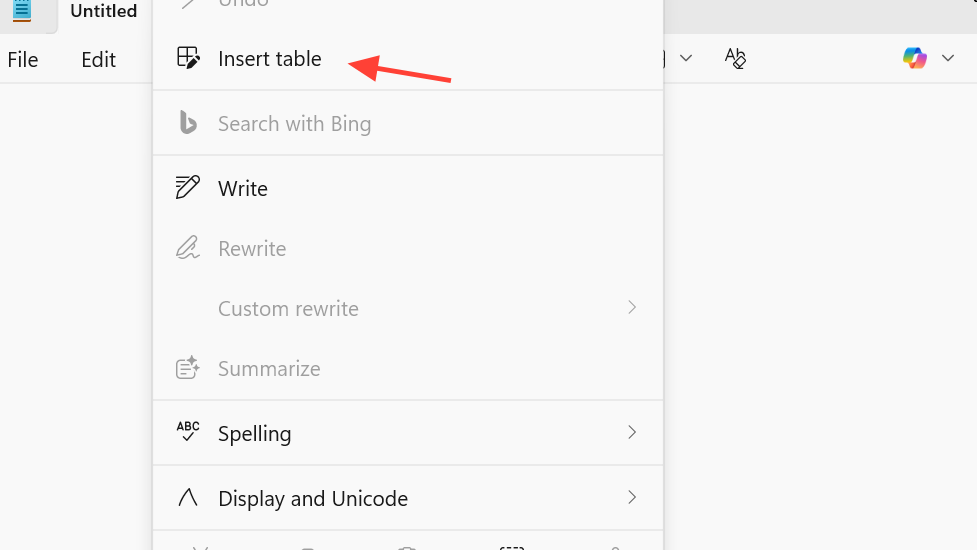
- Right‑click at the location where the table should start.
- Choose Insert table.
- Enter the desired columns and rows in the dialog.
- Select Insert.
The table appears inline at the cursor position.
Use Markdown to create tables in Notepad
Notepad’s formatting engine understands Markdown‑style tables as well. That means you can build tables using plain text syntax if you prefer working without the mouse or want portable text that looks good in other Markdown editors.
A simple example:
| Name  | Age |
| ----- | --- |
| Alex  | 30  |
| Jamie | 27  |
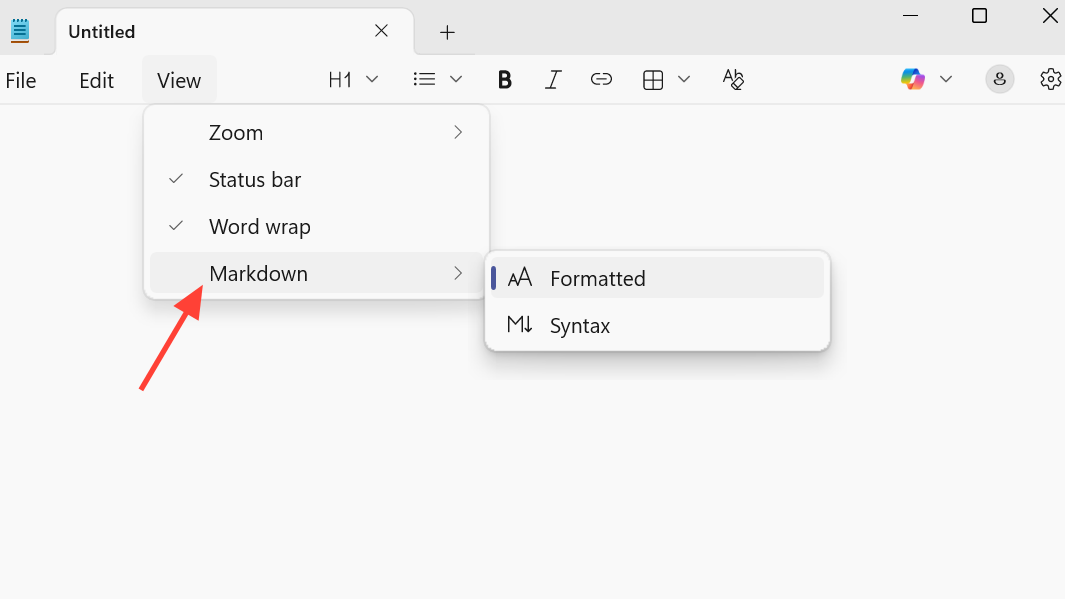
When formatting is enabled, Notepad renders this structure as a grid with borders and cells, while keeping the underlying Markdown intact. You can also generate a table visually first and then switch to the Markdown view to see the equivalent syntax.
Edit an existing table from the toolbar
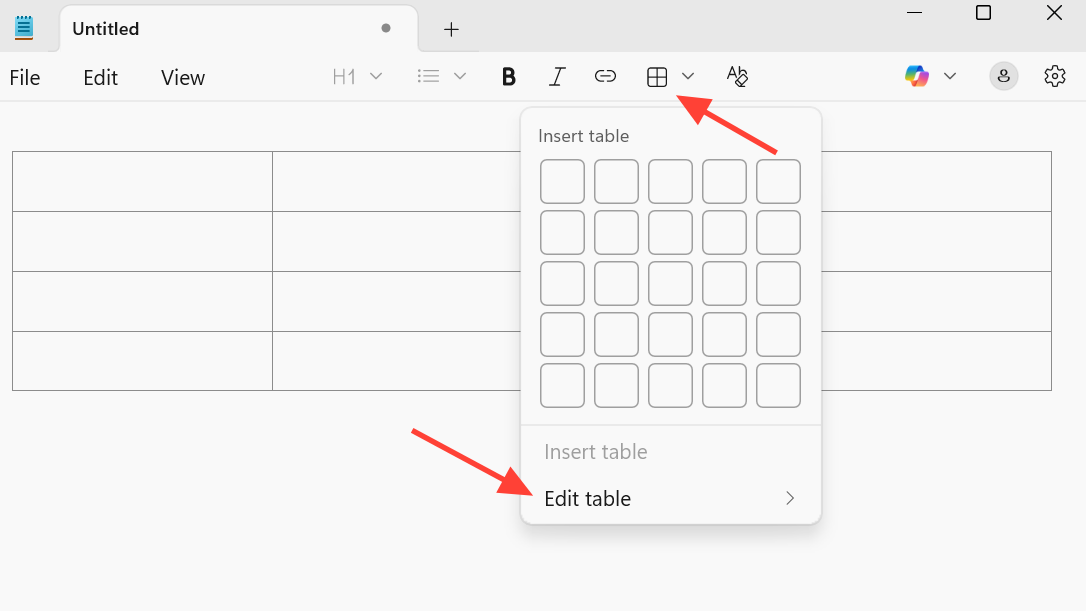
Once a table is in place, Notepad exposes extra controls under the same Table button.
- Click anywhere inside the table to focus it.
- Select the Table button on the toolbar.
- Choose Edit table.
The edit menu provides a set of actions that operate on the currently focused table.
| Toolbar edit option | Effect on the table |
|---|---|
| Insert (row/column) | Adds new rows or columns relative to the cursor position |
| Select (row/column/table) | Highlights a row, a column, or the full table for further actions |
| Delete (row/column/table) | Removes rows, columns, or the entire table |
| Fit columns to window width | Resizes all columns so the table stretches neatly across the Notepad window |
Text formatting tools — bold, italic, underline, bullet points, and hyperlinks — work inside cells just like they do in the rest of the document, so you can still style content without leaving Notepad.
Edit or delete a table with the context menu
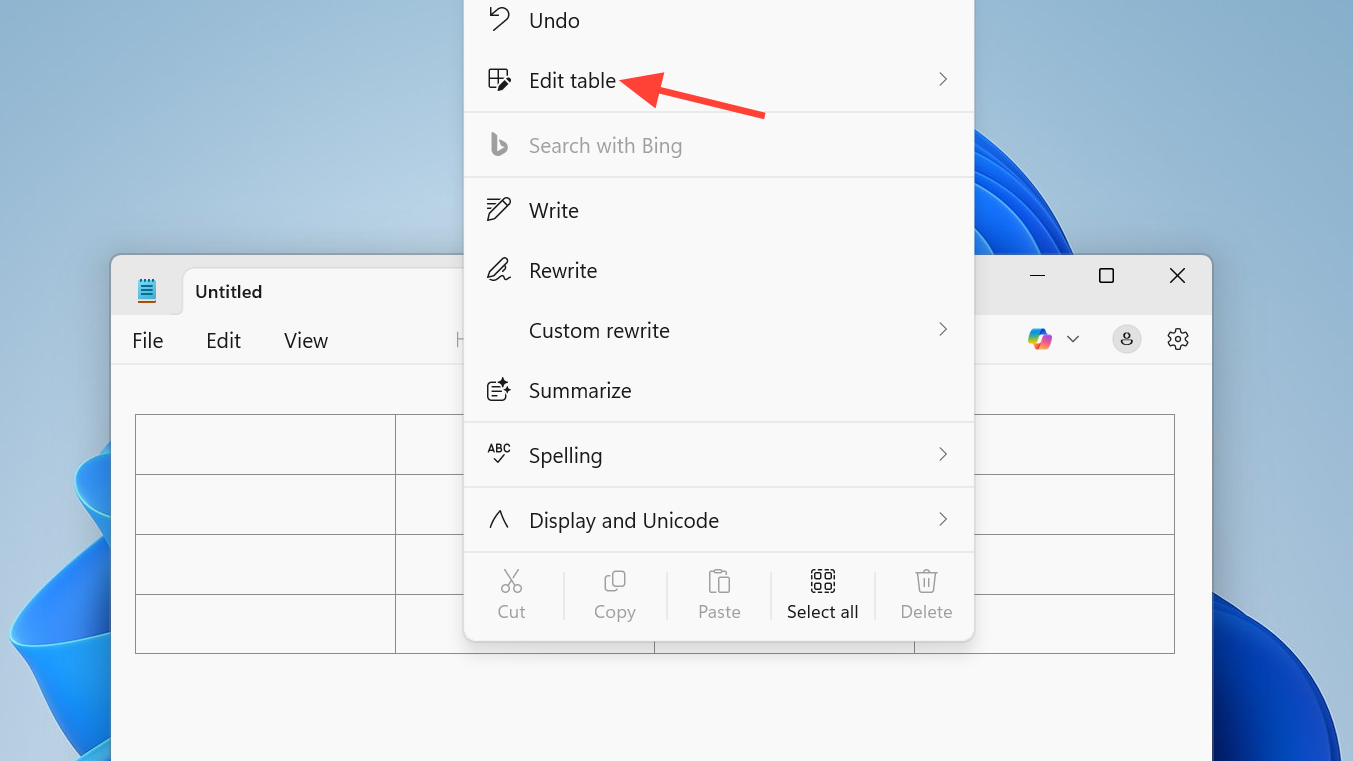
Most of the same functionality is mirrored on right‑click:
- Right‑click inside any cell of the table.
- Choose Edit table.
- Pick from the available actions to insert, select, delete, or adjust column widths.
Using the context menu is convenient for quick structural changes while you’re typing.
What tables in Notepad can and cannot do
The implementation is designed for lightweight note‑taking, not to replace a spreadsheet app. That trade‑off shapes what you can expect:
| Capability | Supported in Notepad tables |
|---|---|
| Insert/delete rows and columns | Yes |
| Select row, column, or full table | Yes |
| Fit columns to window width | Yes |
| Rich text inside cells (bold, italic, links) | Yes |
| Markdown‑compatible table syntax | Yes |
| Cell merging (for example, spanning multiple columns) | No |
| Formulas or automatic calculations | No |
| Spreadsheet‑style sorting and filtering | No |
The feature is best used for simple grids of text: task lists, reading logs, inventory notes, or basic comparison tables where you want structure but not full spreadsheet logic.
Turn off formatting and hide table features
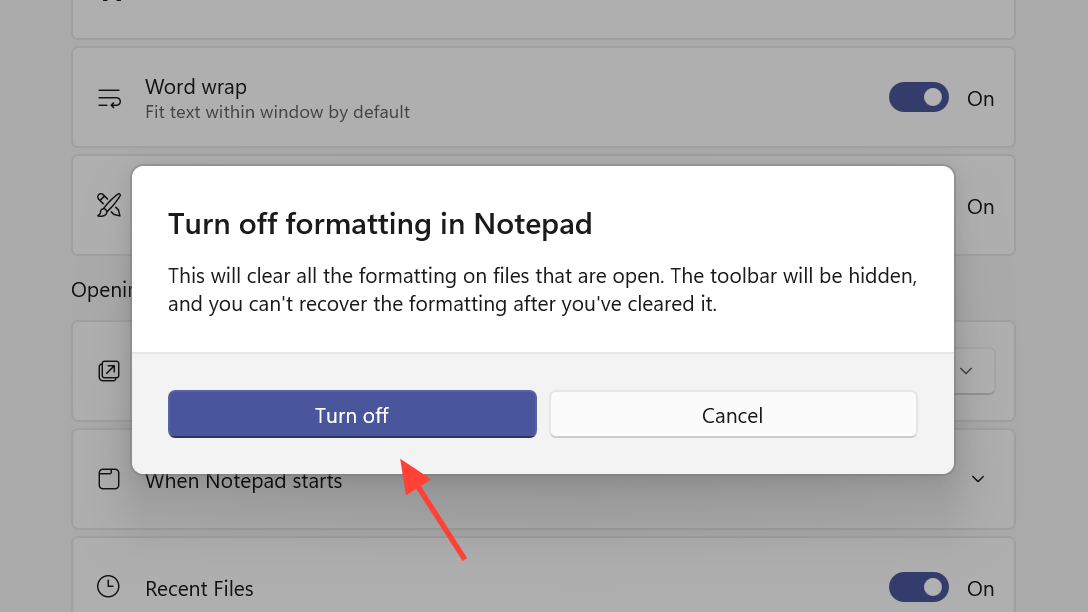
If the growing toolbar makes Notepad feel too busy, you can scale it back. Formatting — including tables — can be disabled in the app’s settings, which removes these options from the toolbar and returns the experience closer to a classic plain‑text editor.
To adjust this behavior, open Notepad’s settings from the app menu and look for the control that manages formatting features. Turning formatting off hides table controls, along with other rich text options like bold and bullet lists.
Tables change how Notepad fits into a Windows 11 workflow. It is no longer just for scratch text; it can now capture structured information in a fast, low‑friction way. If you often open Excel only to drop text into a grid with no formulas, letting Notepad handle that job will likely feel faster and lighter.