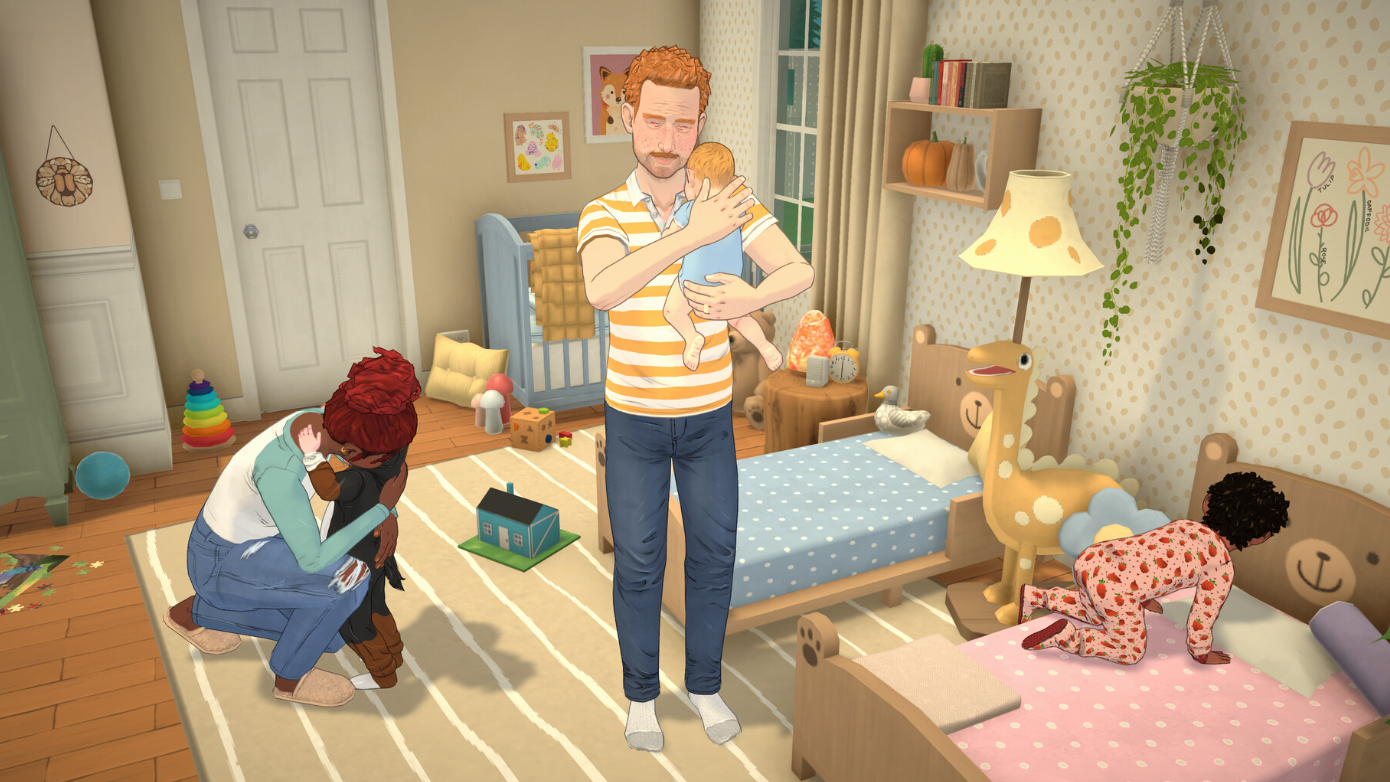
Paralives launched into Early Access on May 25, 2026, and the first question handheld players asked was whether it would run on Valve’s portable. The short version: it does boot and play on Steam Deck through Proton, but the experience is rough around the edges because the game ships without native controller support and isn’t Steam Deck Verified.
Compatibility status
Paralives is officially supported on Windows PC and Mac. The Steam Deck Verified program has not given the game a green checkmark, and the store page does not list controller support at launch. That means Valve hasn’t tested or certified the title for handheld play, and the developers haven’t built in gamepad prompts or layouts.
What works in practice is Proton. Players running the Deck in Gaming Mode have launched the game directly from the library without a launcher loop or boot crash. Linux users outside the Deck ecosystem report similar success. The game treats the Deck like any other PC running through a compatibility layer, which is fine for the engine but leaves controls entirely up to Steam Input.
Performance on the Deck
Frame rates land in the 20 to 40 FPS range, depending on lot size, camera zoom, and graphics settings. Empty lots and pulled-back town views tend to sit higher, while busy interiors and zoomed-out perspectives can dip. The fan gets audible under load but doesn’t scream, and crashes are rare once the game is running. Stutter shows up here and there, which tracks with the Early Access label more than any Deck-specific issue.
One Deck OLED player reported smooth play on the lowest preset after disabling foliage wind animations and dropping camera movement sliders to 50 percent. Others have found medium settings stable enough at 800p. Battery drain is noticeable, as expected for a Unity-style life sim running through Proton.
| Setting | Recommended value |
|---|---|
| Resolution | 1280×800 (native) |
| Frame cap | 30 FPS |
| Graphics preset | Low or medium |
| Foliage wind animations | Off |
| Camera movement intensity | 50% |
| Proton version | Default first, then Experimental if launch fails |
The control problem
This is where the Deck experience gets thorny. Paralives is built around mouse-and-keyboard input. There are no gamepad prompts, no native button mappings, and the default Steam Input layout treats the Deck like a keyboard-and-mouse emulator. That works for clicking around menus, but camera tilt, object rotation, and build mode shortcuts need manual remapping before the game feels playable.
The most-cited frustration at launch is vertical camera tilt. The in-game options expose rotation bindings but not tilt as a separate function, because on a desktop the right mouse button handles tilt during a drag. On Deck, that means you need to bind a Steam Input button to right-click and hold it while moving the cursor to tilt the camera. One workaround that surfaced quickly: set the right joystick to mouse, map its click to right mouse button, then click and hold to tilt. Some players also need to invert the horizontal axis to make the motion feel natural.
The other common fix is binding Q and E (the default tilt keys mentioned in player remaps) to physical buttons through Steam Input.
A working Steam Input layout
One community layout that has been circulating on the Deck forums covers most of what the game needs. It uses both trackpads, both sticks, and the back buttons to mirror keyboard and mouse functions without requiring docked peripherals.
| Input | Mapped to |
|---|---|
| Right trackpad | Mouse |
| Right joystick | Mouse (secondary) |
| Left joystick | WASD camera movement |
| Left trackpad | Radial menu: space, 1, 2, 3 (time controls) |
| L1 / R1 | Scroll wheel down / up (with hold-to-repeat on) |
| L2 / R2 | Right click / left click |
| L5 | X (rotate object) |
| R4 | Ctrl+H (hide HUD) |
| R5 | Show on-screen keyboard |
| Select | Tab |
| Start | Esc |
Turning on hold-to-repeat (turbo) for the zoom bumpers around 25ms saves your fingers from mashing L1 and R1 to navigate the camera. The radial menu on the left trackpad is optional, but it makes time controls reachable without taking your hand off the sticks.

Docked play with keyboard and mouse
If you have a dock, the cleanest setup is just plugging in a keyboard and mouse. The game was designed for that input, and Paramaker sliders, curved walls, and object placement all behave the way they would on a desktop. Bluetooth mini keyboards work too, with one caveat: external monitor resolutions above 1080p can tank performance hard, since the Deck’s APU isn’t built for 1440p or 4K rendering. Stick to 720p, 800p, or 1080p when docked.
Known issues at launch
Most problems players are hitting fall into three buckets: control friction, Early Access performance hiccups, and resolution mismatches when docked.
| Issue | Fix |
|---|---|
| Can’t tilt camera vertically | Bind right mouse click to a button or joystick click, then hold while moving cursor |
| Stutter during play | Cap at 30 FPS, drop to low settings, disable foliage wind |
| Bad performance while docked | Lower external monitor resolution to 1080p or below |
| Zoom requires repeated button presses | Enable hold-to-repeat for L1/R1 in Steam Input |
| Can’t type Para names | Open on-screen keyboard with Steam + X |
| Game won’t launch | Try Proton Experimental instead of default Proton |
Should you play it on Deck right now
If you already own a Steam Deck and want to try Paralives portably, it’s worth a shot, especially since the Early Access launch week has a 10% discount. Just don’t expect a Verified-tier experience. The slower pace of a life sim forgives 30 FPS targets and trackpad navigation in a way that an action game wouldn’t, and most players who have remapped their controls are reporting hours of stable play.
If you’re buying the Deck specifically for Paralives, hold off until either the developers add gamepad support or a community Steam Input layout becomes the de facto standard. Building a house with a trackpad is doable, but it isn’t fast, and Paramaker’s sliders feel slower than they should without a real mouse. The cleanest path is still PC or Mac for serious building, with the Deck as a handheld companion for live mode check-ins.
Save files use Steam Cloud, so households created on one device should follow you to the other once cloud sync is enabled.